

Auto Filter Messages Into Subscriptions in Azure Service Bus Topic
This article discusses the advantages and real-time use cases of the Subscription Rules for the multiple Cloud Messaging options of Service Bus.
 ·
·
Join the DZone community and get the full member experience.
Join For FreeAzure Service Bus is the cloud messaging service offered by Microsoft Azure. Azure Service Bus is mainly used in multi-tenant architectures which need messages to be transferred securely between different services.
Azure Service Bus gives a FIFO message model and a publish/subscribe to messaging model, queues for one-to-one asynchronous message processing, as well as topic and subscriptions for multiple subscribers.
This article explains how to filter the messages between different Subscribers in a Service Bus Topic.
Azure Service Bus Topic supports multiple Subscribers for a single Publisher; still, the messages follow as FIFO.
Messages sent to a Service Bus Topic can be received from its Subscription created under the Topic. Multiple Subscriptions can be created under a single Topic.
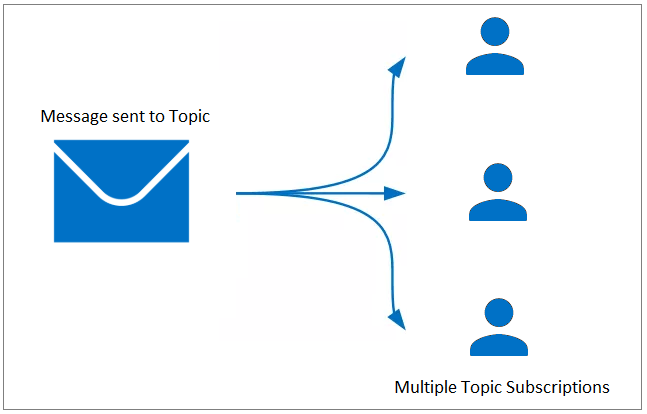
For real-time, multi-tenant applications, the messaging scenarios with multiple subscribers would require filtering. Topic Subscriptions support Rules to filter the messages. Based on the rule created in the Subscription, messages will fall into the appropriate Subscription.
Every message sent to the Topic gets evaluated in every Subscription against the rule defined and gets into the Subscription if the condition is satisfied.

Though Service Bus Topics support multiple subscribers, the main reason for the users to switch to Topics instead of Queues would be these filters.
Setting up rules for the Subscriptions reduces considerable manual effort in handling the messages in real-time.
In terms of expense, using Topic Subscriptions with appropriate filters will reduce the cost when compared to Subscriptions without any rules and filtering handled in run time.
Consider an Order Processing scenario where the messages need to be sent to different subscribers. Topic Subscriptions are implemented for achieving this. Each Subscription represents a department such as Invoice generation, Dispatching unit, Delivery management, etc. If the rules are not configured for each subscription, it accepts all the messages (messages related to other departments of order processing will be received in some other department). The downstream application should receive the messages and check if it belongs to the current department. This will result in performance issues as well as an increase in the expense, as the pricing is based on the message flow. Another important problem in manual filtering is if the message contains sensitive information, it results in security issues.

Having appropriate filters for each Subscription will result in a better performing, more secure, and cost-effective solution.

Topic Subscriptions without filters are like multiple Queues which would attract manual intervention to handle the messages.
Azure Topic Subscription Rules contain two parts: Filter and Action. Filter evaluates the system and user properties of the message. Action annotates user properties of the message.
Types of Topic Subscription Filters
Three different types of conditions can be provided in the Filter:
- Boolean Filter
- SQL Filter
- Correlation Filter
Boolean Filter
The True Filter selects all the arriving messages to the subscription where the False Filter selects none of the arriving messages.
SQL Filter
A SQL Filter has a SQL: like a conditional expression that is evaluated in the broker on the arriving messages’ system and user-defined properties. It tests for the existence of certain properties using EXISTS, null-values by IS NULL and plain text matching with LIKE.
Correlation Filter
The correlation filter is usually matched against the Correlation Id property of the arriving messages. It has a set of conditions that can be matched with more than one arriving message with user or system properties. A match is said to exist when the value of the arriving messages’ property is equal to the value specified in the correlation filter.
It is advised to use correlation filters over SQL filters to avoid performance-related issues with the Topic.
Options To Create Topic Subscription Rules
Creation of Service Bus Topic and Subscription can be done in the Azure Portal. Adding rules to the Subscription can be done in the following ways:
- ARM Template
- SDK
- Third-party application
ARM Template
There is no user interface available in the Azure Portal to create the Rules. However, the rules can be created by defining ARM templates. Following is the JSON to deploy a Rule.
{

  "name": "string",

  "type": "Microsoft.ServiceBus/namespaces/topics/subscriptions/rules",

  "apiVersion": "2017-04-01",

  "properties": {

    "action": {

      "sqlExpression": "string",

      "compatibilityLevel": "integer",

      "requiresPreprocessing": "boolean"

    },

    "filterType": "string",

    "sqlFilter": {

      "sqlExpression": "string",

      "requiresPreprocessing": "boolean"

    },

    "correlationFilter": {

      "properties": {},

      "correlationId": "string",

      "messageId": "string",

      "to": "string",

      "replyTo": "string",

      "label": "string",

      "sessionId": "string",

      "replyToSessionId": "string",

      "contentType": "string",

      "requiresPreprocessing": "boolean"

    }

  }

}
SDK
There are some SDKs from which the rules can be created.
WindowsAzure.ServiceBus is the .net Framework library for Service Bus management. Using this library, a client for Topic Subscription can be created with a valid Shared Access Signature of the Service Bus Topic.
SubscriptionClient _topicSubscriptionClient = CreateFromConnectionString(connectionString, topicName, subscriptionName);

            RuleDescription ruleDescription = new RuleDescription(ruleName);

            ruleDescription.Filter = new SqlFilter(filterText);

            ruleDescription.Action = new SqlRuleAction(actionText);

            await _topicSubscriptionClient.AddRuleAsync(ruleDescription);
Appropriate rule conditions to filter the messages and the action to manipulate the user properties should be given as filterText and actionText.
RuleDescription object represents the rule at the time of creation. A rule with SQL filter and actions will be defined as below:
new RuleDescription

                {

                    Name   = "ruleName",

                    Filter = new SqlFilter("sys.SequenceNumber % 2 = 0"),

                    Action = new SqlRuleAction("SET ThisMessageIs='Even'; SET FullName = FirstName + ' ' + LastName;")

                });
There are some other packages through which rules can be managed.
Microsoft.Azure.ServiceBus is the standard client library for Service Bus. Rules can be managed using this library. Shared Access Signature of the Topic is required to authorize this client.
There is another Resource Management library available to manage the rules for Subscriptions Microsoft.Azure.Management.ServiceBus. This requires the Service Principal to authorize the requests from this client.
Third-Party Applications
Topic Subscription Rules can be managed through different third-party tools like Service Bus Explorer and Serverless360. Here is the blog that covers the Rules Management using Serverless360.
Summary
Though Service Bus offers multiple Cloud Messaging options, using them wisely would save lots of manual efforts and expense spent towards using these services. There are people still using the Topics without Rules, which may work for them, but using the Rules will make it efficient. I hope this article helps in understanding the advantages and the real-time use cases of the Subscription Rules.
Published at DZone with permission of Arun prabhu. See the original article here.
Opinions expressed by DZone contributors are their own.
Comments