

DZone
Thanks for visiting DZone today,
Edit Profile
  • Manage Email Subscriptions
  • How to Post to DZone
  • Article Submission Guidelines
Sign Out View Profile
  • Post an Article
  • Manage My Drafts
Over 2 million developers have joined DZone.
Log In / Join
Refcards Trend Reports
Events Video Library
Refcards
Trend Reports

Events

View Events Video Library

Related

  • Rapid AWS Prototyping With LocalStack: A Developer’s Guide to Building AWS PoCs Locally
  • Building a Serverless Application on AWS With AWS SAM
  • Terraform Best Practices: The 24 Practices You Should Adopt
  • Keep Your Application Secrets Secret

Trending

  • S3 Vectors: How to Build a RAG Without a Vector Database
  • Solving the Mystery: Why Java RSS Grows in Docker on M1 Macs
  • Bringing Intelligence Closer to the Source: Why Real-Time Processing is the Heart of Edge AI
  • Why Your DLP Policies Fall Short the Moment AI Agents Enter the Picture
  1. DZone
  2. Testing, Deployment, and Maintenance
  3. Deployment
  4. Chef Inspec Configuration Steps

Chef Inspec Configuration Steps

Chef InSpec is an open-source testing framework used to test or validate configurations. Here's how to configure Chef Inspec in your local system.

By 
Aki Ramanjaneyulu user avatar
Aki Ramanjaneyulu
·
Jan. 03, 22 · Tutorial
Likes (2)
Comment
Save
Tweet
Share
8.2K Views

Join the DZone community and get the full member experience.

Join For Free

Chef InSpec is an open-source testing framework and used to test or validate the configurations, security components as per the client's requirements or organization's requirements. It is mainly used to test infrastructure configurations. Using Chef Inspec, we can even test cloud services such as AWS, Google (GCP), Azure.

In this article, we are going to see how to configure Chef Inspec in our local system to execute Chef Inspec tests.

Step 1 

Download visual studio code IDE from https://visualstudio.microsoft.com/downloads/ or the official website.

Screenshot of Visual Studio Code


Step 2 

Download Chef workstation software from their official website and install it.

About Chef Workstation: Chef Workstation helps you get started with Chef Infra or Chef InSpec. All components, like remote scanning and reusable copybook tools, are available in one package.

URL to download the software: https://downloads.chef.io/tools/workstation#windows

Step 3 (Optional Step) 

Cross-check CW PowerShell shortcut icon is created or not upon installing Chef Workstation.

CW PowerShell shortcut icon looks like this:Screenshot of CW PowerShell


Step 4 

Download and Install AWS CLI software.

About AWS CLI: The AWS Command Line Interface (CLI) helps manage your AWS services. With just one unified tool, you can control and automate multiple AWS services. 

It is a mandatory step to test AWS services from Chef Inspec scripts.

URL to download the software: https://aws.amazon.com/cli/

Screenshot of AWS CLI Software


Step 5

Double click on CW PowerShell shortcut icon. 

Step 6

Type "AWS configure" to configure AWS credentials ( AWS Access Key ID, AWS Secret Access Key, Default region name, and Default output format).
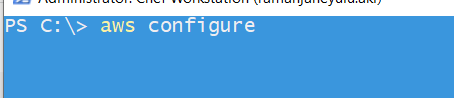
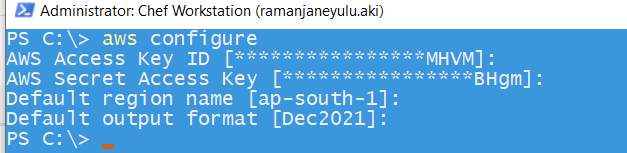
Screenshot of AWS Configure


Screenshot of AWS Post-Configuration

Summary

In short, Chef Inspec makes business said IT infrastructure configurations or access verification and validation much simpler. The minimum skills required to write the test scripts and test AWS services include basic knowledge of AWS, Ruby, and Chef Inspec framework.

Chef (software) AWS Command-line interface

Opinions expressed by DZone contributors are their own.

Related

  • Rapid AWS Prototyping With LocalStack: A Developer’s Guide to Building AWS PoCs Locally
  • Building a Serverless Application on AWS With AWS SAM
  • Terraform Best Practices: The 24 Practices You Should Adopt
  • Keep Your Application Secrets Secret

Partner Resources

×

Comments

The likes didn't load as expected. Please refresh the page and try again.

  • RSS
  • X
  • Facebook

ABOUT US

  • About DZone
  • Support and feedback
  • Community research

ADVERTISE

  • Advertise with DZone

CONTRIBUTE ON DZONE

  • Article Submission Guidelines
  • Become a Contributor
  • Core Program
  • Visit the Writers' Zone

LEGAL

  • Terms of Service
  • Privacy Policy

CONTACT US

  • 3343 Perimeter Hill Drive
  • Suite 215
  • Nashville, TN 37211
  • [email protected]

Let's be friends:

  • RSS
  • X
  • Facebook