

Configure Single Sign-On for CockroachDB Dedicated With Google OAuth
In this tutorial, we are going to cover how to set up Single Sign-on for CockroachDB Dedicated cluster with Google OAuth.
 CORE
·
CORE
·
Join the DZone community and get the full member experience.
Join For FreeMotivation
CockroachDB Dedicated is a fully-managed, reserved CockroachDB cluster ideal for a cloud database. We frequently get asked how to set up SSO for the individual CockroachDB Dedicated clusters and we have a detailed tutorial to walk you through that with a local, self-hosted cluster. What was unclear was that you can use the same steps to set up SSO with Dedicated. Based on this detailed document, CockroachDB Dedicated supports OIDC authentication. Today, we're going to provide details on how to leverage OIDC specifically with the Dedicated offering.
High-Level Steps
- Provision Dedicated cluster
- Configure OAuth Client ID
- Configure CockroachDB with the OAuth details
- Verify
Step by Step Instructions
Provision Dedicated Cluster
Follow this tutorial to set up a Dedicated cluster.
Create a SQL user with the first part of your email account up to the @ sign you're going to use for OIDC, in my case artem.
You can do so in the CockroachDB CLI or in the CockroachDB Cloud Console, following this tutorial.

Configure your network authorization based on this tutorial.
Document the DB Console URL, you will need it for the next step. In my case, it is the following https://admin-artem-single-region-gbn.cockroachlabs.cloud:8080.
At this point we're all set with CockroachDB, let's switch to GCP Console to set up OIDC.
Configure OAuth Client ID
Follow this tutorial to set up an OAuth client.
In your GCP Console, navigate to APIs overview:
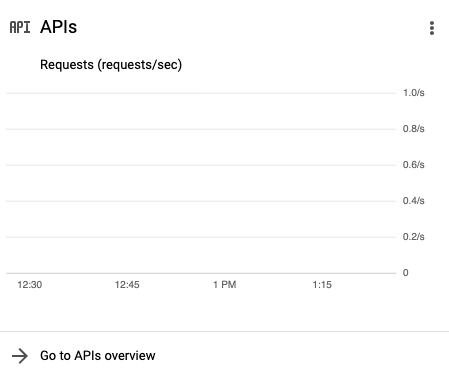
- Click Credentials.
- Click Create Credentials/OAuth client ID.
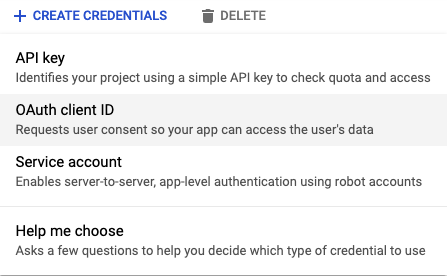
Fill out the info.

- Click Create.
- Copy the OAuth client ID and secret.

With all of the prerequisites in place, we can populate the following SQL statements to configure OIDC.
SET CLUSTER SETTING server.oidc_authentication.client_id = '<YOUR CLIENT ID>';

SET CLUSTER SETTING server.oidc_authentication.client_secret = '<YOUR CLIENT SECRET>';

SET CLUSTER SETTING server.oidc_authentication.provider_url = 'https://accounts.google.com';

SET CLUSTER SETTING server.oidc_authentication.redirect_url = '<YOUR COCKROACHDB DEDICATED URL INCLUDING PORT>/oidc/v1/callback';

SET CLUSTER SETTING server.oidc_authentication.scopes = 'openid email';

SET CLUSTER SETTING server.oidc_authentication.claim_json_key = 'email';

SET CLUSTER SETTING server.oidc_authentication.principal_regex = '^([^@]+)@<YOUR EMAIL DOMAIN>$';

SET CLUSTER SETTING server.oidc_authentication.enabled = true;
After I've filled the properties out, my entries excluding the client ID and secret look like so:
SET CLUSTER SETTING server.oidc_authentication.provider_url = 'https://accounts.google.com';

SET CLUSTER SETTING server.oidc_authentication.redirect_url = 'https://admin-artem-single-region-gbn.cockroachlabs.cloud:8080/oidc/v1/callback';

SET CLUSTER SETTING server.oidc_authentication.scopes = 'openid email';

SET CLUSTER SETTING server.oidc_authentication.claim_json_key = 'email';

SET CLUSTER SETTING server.oidc_authentication.principal_regex = '^([^@]+)@cockroachlabs.com$';

SET CLUSTER SETTING server.oidc_authentication.enabled = true;
Run the queries in the CockroachDB CLI and make sure they complete successfully.
Verify
Back in the CockroachDB Dedicated console, refresh the DB Console webpage.
You will now see a new option below the login:
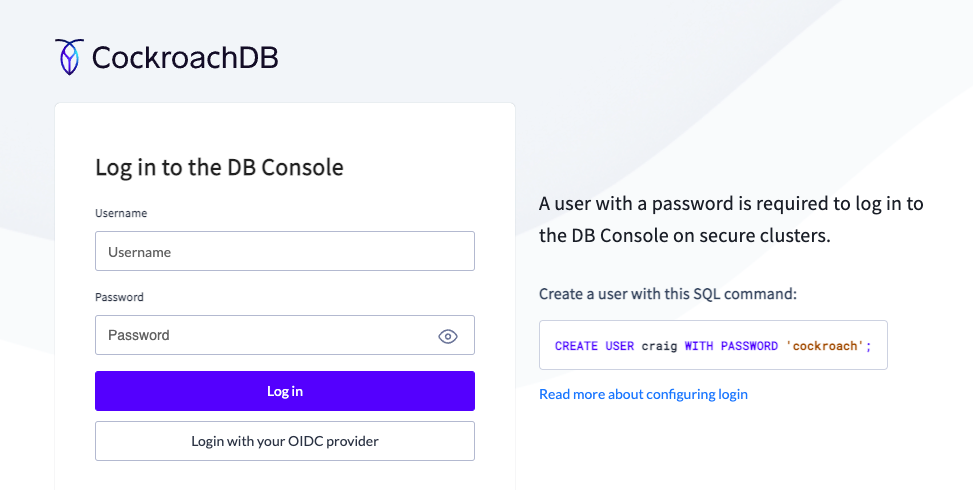
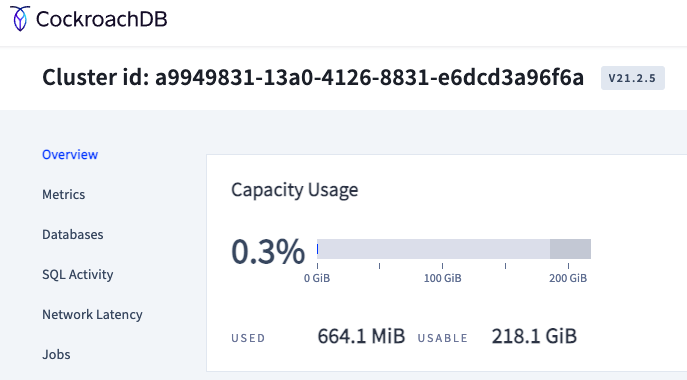
Click it and you should be able to login into the DB Console.
Hope you found this tutorial useful. Leave your feedback in the comments.
Published at DZone with permission of Artem Ervits. See the original article here.
Opinions expressed by DZone contributors are their own.
Comments