

Importing a Maven Project in IntelliJ IDEA
Click here to learn more about importing a Maven project in IntelliJ IDEA.
 CORE
·
CORE
·
Join the DZone community and get the full member experience.
Join For Free
This tutorial explains how to import an existing Maven project into IntelliJ IDEA and how to create a running configuration for a Maven goal. This is useful, for example, when using the Jetty Maven plugin that allows you to quickly deploy and run a Java web application using this popular server.
Maven is a project management tool that goes beyond dependency management. See Learning Maven Concepts to learn more.
Download an Existing Maven Project
This tutorial uses a Maven archetype that generates a web application with a preconfigured Jetty Maven Plugin in it:
mvn -B archetype:generate -DarchetypeGroupId=com.vaadin -DarchetypeArtifactId=vaadin-archetype-application -DarchetypeVersion=LATEST -DgroupId=org.test -DartifactId=webapp -Dversion=1.0-SNAPSHOTNOTE: If you prefer, you can generate a ZIP file with the project at https://vaadin.com/start/latest or https://start.vaadin.com. Make sure you select the Plain Java Servlet option before downloading the project.
The project should include a directory with a Maven project in it:
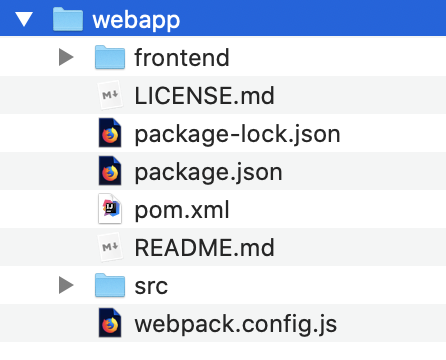
NOTE: You need Node.js installed on your computer to compile the example application.
Import the Project
There are several ways to import a Maven project in IntelliJ IDEA. The most common approach is to open the pom.xml file directly. You can do it in the welcome screen by clicking Open:
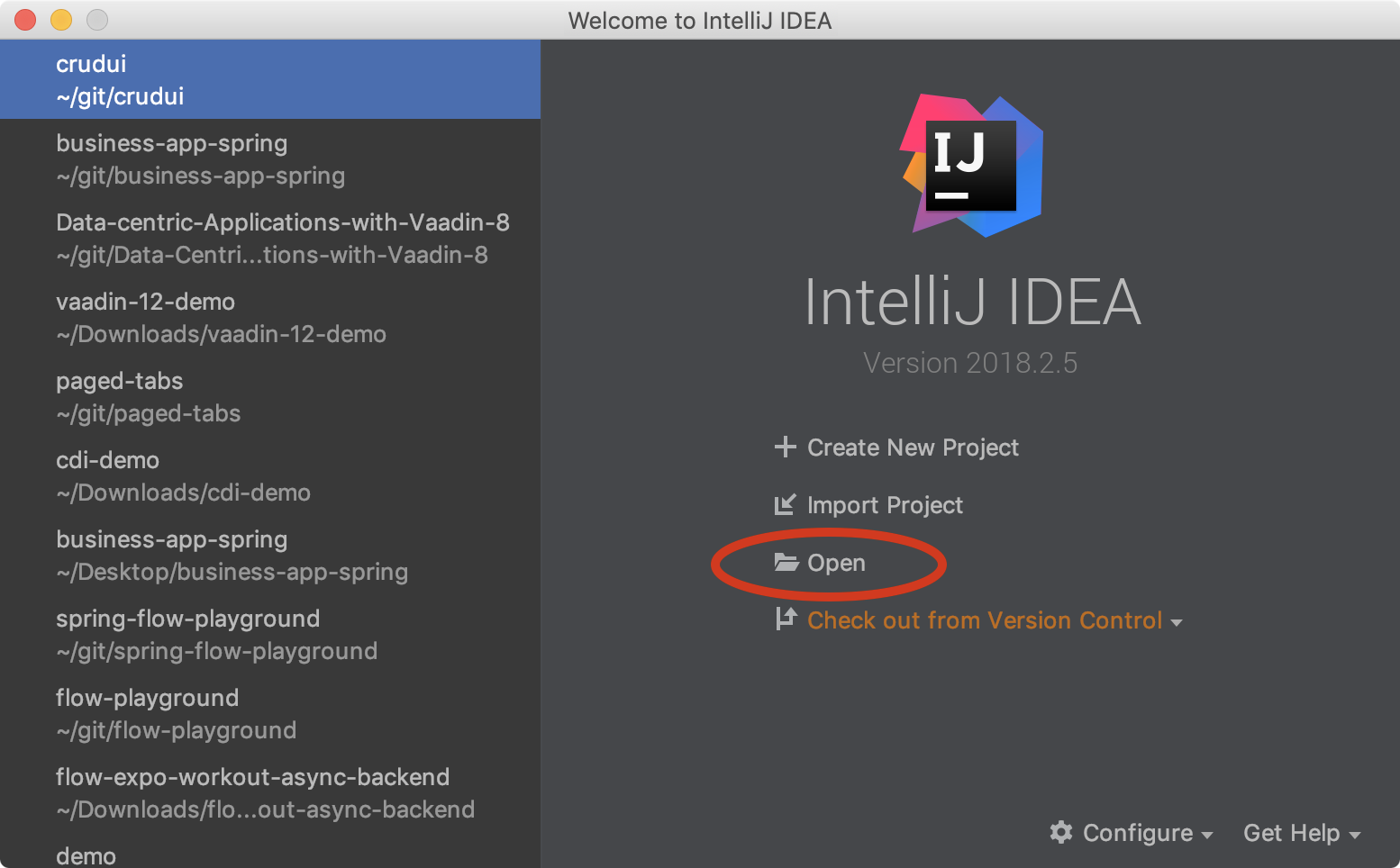
NOTE: Import Project gives you more options to tweak the import process. However, this is out of the scope of this tutorial.
Select the pom.xml file of the Maven project you want to import and click Open as Project.
NOTE: The welcome window is only shown when you close all projects in IntelliJ IDEA. If you don’t want to close your currently opened projects, you can select File > Open on the menu instead.
Running Maven Goals
IntelliJ IDEA has excellent integration with Maven. You can run common commands such as mvn install or mvn jetty:runwithout having to leave the IDE.
Open the Maven view by clicking the corresponding option on the left side of the IntelliJ IDEA window:

This view shows all the available Maven projects and their build phases and build goals. Let’s say you want to run mvn install. To do that, expand the project tree in the Maven view to show the corresponding lifecycle phase and then double-click install:
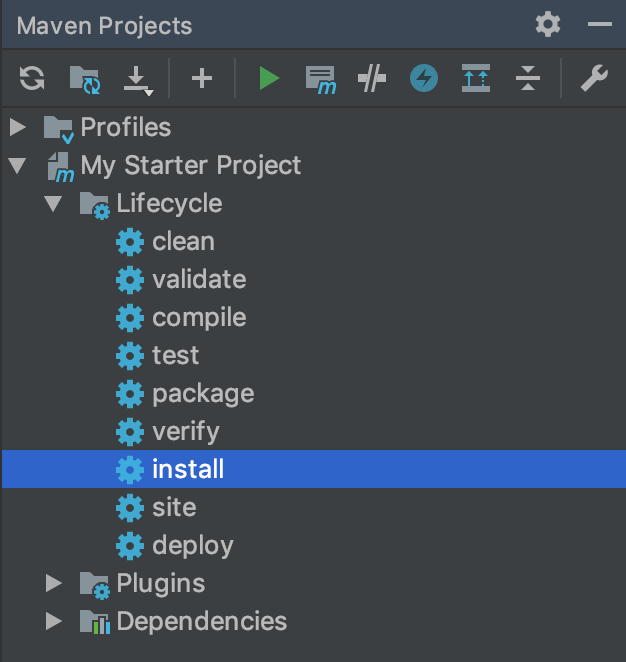
You’ll see how IntelliJ IDEA executes the install build phase (and all the previous phases in the Maven’s default lifecycle) that downloads dependencies and copies the generated artifacts into your local Maven repository, among other things.
You can use a similar approach to run any Maven goal. For example, you can double-click the jetty:run goal in the Plugins sub-tree to deploy and run the web application implemented in the project you imported. Similarly, if you are using Spring, you can double-click spring-boot:run to run the application.
Creating a Running Configuration
Since using the jetty:run goal could be a frequent task during the development of a Java web application, you may prefer to create a running configuration for it.
A running configuration is a shortcut to run a specific task from within the IDE. Let’s create a running configuration for the jetty:run Maven goal to make it simpler to run the web application.
Right-click the jetty:run option in the Maven view and select Create 'webapp [jetty:run]':
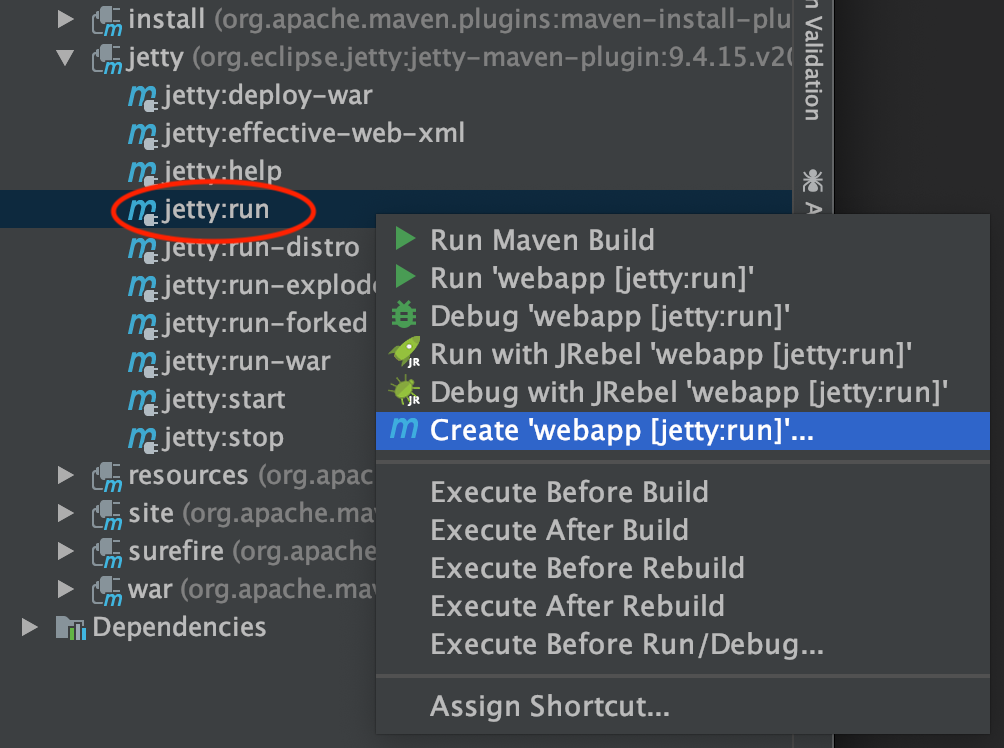
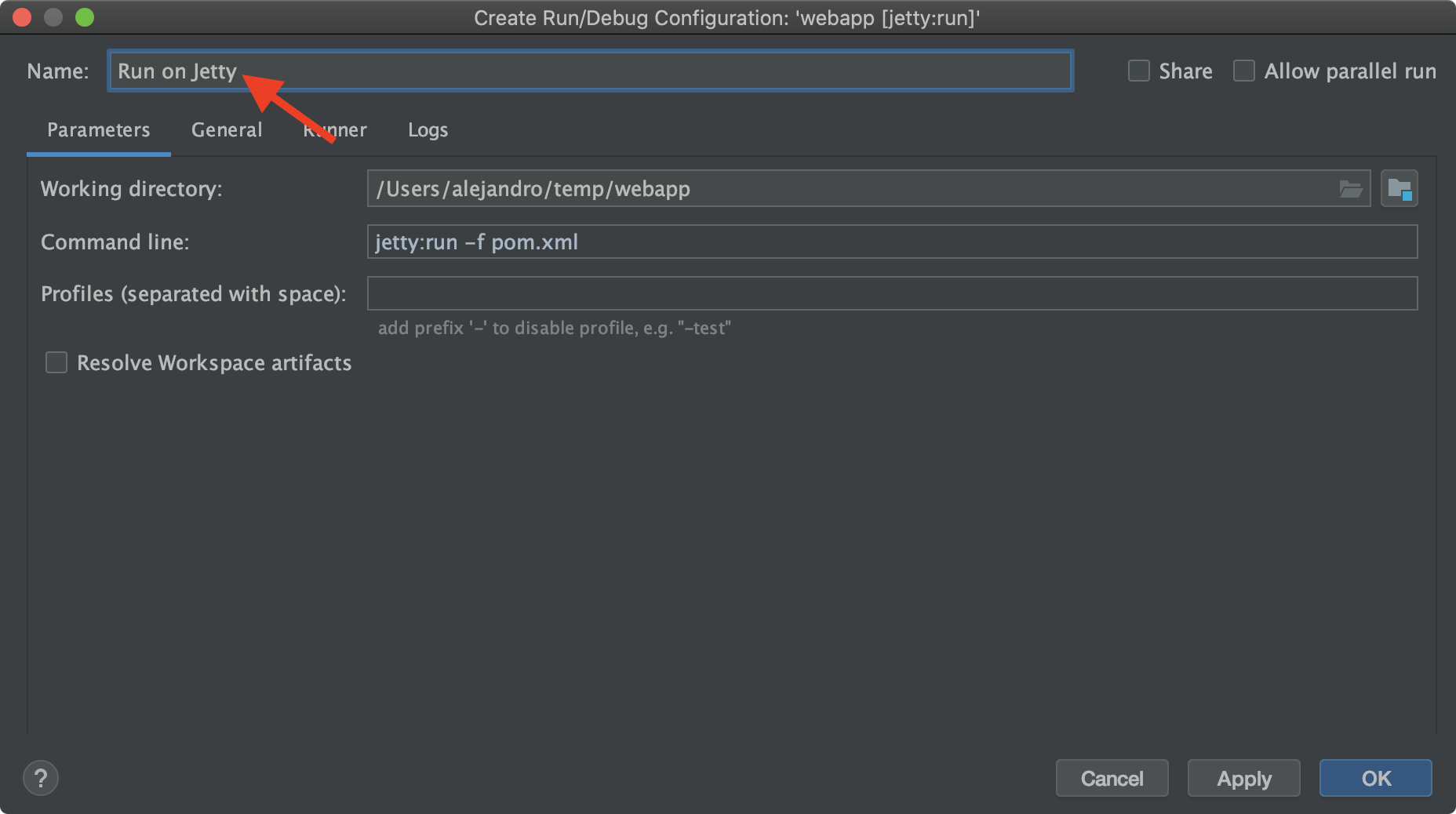
For simplicity, change the name of the configuration to Run on Jetty and click OK:
NOTE: If you are using a multi-module Maven project, make sure you select the correct module when creating the running configuration.
You should see the new option on the top right corner of IntelliJ IDEA:
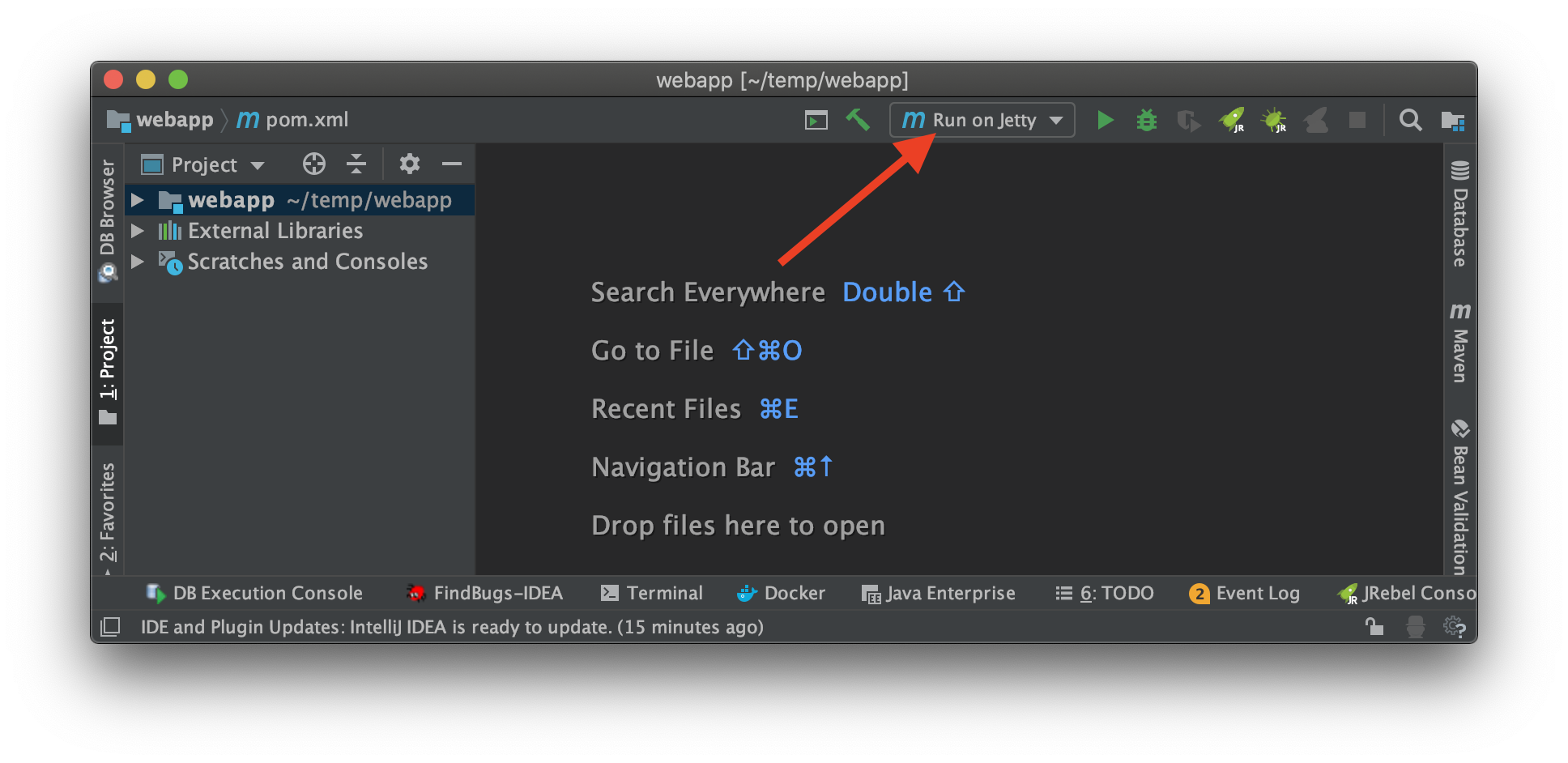
Now you can deploy and run the web application by clicking the run (or the debug) icon in the toolbar:

NOTE: If you use the Vaadin project used in the tutorial, you can invoke the web application at http://localhost:8080.
That’s it. Now you can use IntelliJ IDEA to develop your Maven application!
Further Reading
Published at DZone with permission of Alejandro Duarte. See the original article here.
Opinions expressed by DZone contributors are their own.
Comments