

Working With Spreadsheets in Java: A Practical Overview
Working with Excel in Java isn’t just about reading and writing cells. Here’s how to choose the right tool for your use case.
 CORE
·
CORE
·
Join the DZone community and get the full member experience.
Join For FreeJava Meets the Spreadsheet
Apache POI has been the standard Java library for reading and writing Excel files for over twenty years. It handles the majority of everyday spreadsheet tasks well. But a growing category of real-world Excel files now contains formulas that POI's evaluator cannot execute at all.
This is one of several situations Java developers hit when working with spreadsheets that are not obvious until you are already in production. Business users produce, share, and reason about data in spreadsheets. Finance teams model in Excel. Operations teams track inventory in Excel. Analysts hand deliverables to engineering as .xlsx files. Java applications end up interacting with all of it: back-office services accept Excel uploads, pricing engines run calculations that were originally authored in a workbook, reporting tools export data in a format the recipient can open in Excel without formatting problems.
Despite how common these situations are, "Java + spreadsheets" is not a topic most developers think about until they hit it for the first time. This article provides a practical overview of the category: common scenarios, moving parts, available approaches, and things that tend to catch teams by surprise.
Three Common Scenarios
Most Java developers who work with spreadsheets fall into one of three cases. It is worth locating yourself in one of them before evaluating tools.
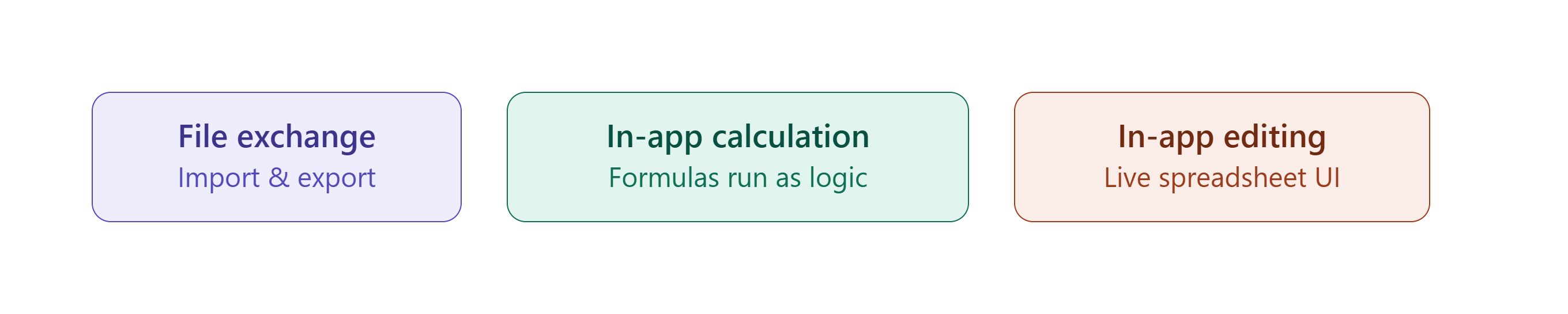
File Exchange (Headless Import and Export)
The application reads uploaded Excel files and extracts data, or generates Excel files from database contents. There is no spreadsheet UI in the application itself. This is the most common case. Examples include batch data ingestion, report generation, and integration with third-party systems that expect .xlsx.
In-App Calculation (Headless Formula Evaluation)
The application uses spreadsheet-style formulas as calculation logic. Business users author pricing rules, tax formulas, or allocation logic in Excel; the Java application executes those formulas at runtime, sometimes against data the users never see. This scenario is less common but appears in fintech, insurance, and enterprise resource planning.
In-App Editing (Embedded Spreadsheet UI)
The application renders an interactive spreadsheet in the browser, similar to Excel Online. Users view, edit, and collaborate on workbooks inside the application. This is common in reporting tools, financial modeling platforms, and any application where end users need the flexibility of a spreadsheet without leaving the application.
The three scenarios have very different technical requirements. A library that fits one may be a poor fit for another.
What Working With Spreadsheets Actually Involves
Developers often assume spreadsheet integration is primarily about reading cell values. In practice, most production issues arise from features beyond raw data: formula evaluation, formatting fidelity, workbook structure, and modern Excel behavior.
File formats: The dominant format is .xlsx (Office Open XML). Older files use .xls (binary). Simpler tabular data is often exchanged as .csv, but CSV loses formulas, multiple sheets, formatting, and cell types. Any real spreadsheet integration has to handle .xlsx.
Formulas and formula evaluation: Excel files often contain formulas that reference other cells. Reading the file gives you the formula text and the last cached value. Recalculating the formula requires an evaluator that understands Excel's formula language. Libraries vary widely in which functions they implement.
Modern Excel behavior: Excel 365 and Excel 2021 introduced dynamic array formulas, spill behavior, and new functions such as UNIQUE, SORT, FILTER, LET, XLOOKUP, and LAMBDA. In a dynamic array formula, a single cell can produce a whole array of values that "spill" into neighboring cells. For example, =UNIQUE(A1:A100) entered in one cell produces the full list of distinct values from that range and fills as many cells as needed. Files created in modern Excel routinely contain these constructs. Older evaluation engines usually cannot execute them.
Cell formatting and styling: Number formats, date formats, colors, borders, conditional formatting, merged cells. This matters both for accurate reading (a value formatted as a percentage means something different from a raw decimal) and for export fidelity. Custom number formats such as accounting-style parentheses for negative numbers, and Excel table styles, are among the formats most likely to be lost or changed on round-trip.
Charts, images, and other embedded content: Some libraries preserve these on round-trip; others silently drop them.
Data validation, filters, tables, and pivot tables: Structural features that users depend on. Coverage varies significantly across libraries.
Not every application needs all of this. A batch job that only reads numeric data from a fixed template needs very little. An application that lets users upload arbitrary workbooks and edit them needs almost all of it.
Approaches Available in Java
There is no single "Java Excel library." The landscape has several categories, each with its own tradeoffs.
Apache POI
The de facto standard in the Java ecosystem for headless file processing. Open source, mature, widely used. Supports .xlsx and .xls read and write, and includes a formula evaluator. POI's formula evaluator implements around 250 built-in functions; functions outside that list raise NotImplementedException at evaluation time. Dynamic array formulas and spill behavior are not supported.
A minimal POI read example:
try (Workbook wb = WorkbookFactory.create(new File("data.xlsx"))) {

    Sheet sheet = wb.getSheetAt(0);

    Cell cell = sheet.getRow(0).getCell(0);

    System.out.println(cell.getStringCellValue());

}
The boundary is the dynamic array family: SEQUENCE, FILTER, SORT, UNIQUE and TEXTSPLIT raise NotImplementedFunctionException at evaluation time, and spilled ranges have no representation in POI's cell model at all.
LET is worse still: POI's formula grammar has no notion of variable binding, so a LET formula cannot even be parsed:
// Cell A1 contains: =LET(total, SUM(B1:B100), total * 1.1)

FormulaEvaluator eval = wb.getCreationHelper().createFormulaEvaluator();

Cell cell = sheet.getRow(0).getCell(0);

eval.evaluate(cell);

// threw: org.apache.poi.ss.formula.FormulaParseException:
//        Specified named range 'total' does not exist in the current workbook.
The file itself opens without error, and reading the cached value works. It is only when the application needs to recalculate that the problem surfaces.
(Verified the code above with POI 5.5.1).
Commercial Headless Libraries
Products such as Aspose.Cells offer broader formula coverage, better format fidelity, and more complete support for advanced features (charts, pivot tables, formatting). They are usually licensed per developer or per deployment. Teams typically choose these when POI's limitations become blockers and rewriting is not an option.
Embedded Spreadsheet Components
Products such as Keikai (Java) and SpreadJS (JavaScript) render an interactive spreadsheet UI in the browser and coordinate with the backend. They combine file I/O, formula evaluation, and rendering in a single component. Suitable for applications where end users need to view and edit workbooks directly.
Cloud Spreadsheet Services
Google Sheets API and Microsoft Graph let the application outsource the spreadsheet entirely and integrate over REST. The spreadsheet lives in the cloud service; the Java application reads and writes through the API. This works well when the workbook itself is the artifact users care about, and less well when the spreadsheet needs to be embedded inside a larger application experience.
These categories can also be combined. It is common to use POI for backend generation and a separate embedded component for user-facing editing.
Choosing an Approach
Match the approach to the scenario.
For file exchange, start with Apache POI. It is free, well-documented, and adequate for a large percentage of import/export use cases. Move to a commercial headless library if you hit specific limits: modern formula evaluation, complex formatting fidelity, or performance on large workbooks.
For in-app calculation, evaluate the formula coverage of your candidate libraries carefully. If the formulas that need to run come from real Excel files authored by real users, they will include functions that not every engine supports. This is where dynamic arrays and modern functions matter most: a formula containing LET or UNIQUE will not evaluate correctly on a library that does not implement them.
For in-app editing, POI alone is not enough because it has no UI. You need either an embedded spreadsheet component that runs in the browser, or a cloud spreadsheet service that you integrate with. The choice depends on how tightly the spreadsheet needs to fit into your application experience, and whether user data can leave your infrastructure.
The three scenarios can also stack. A single application might use POI for backend batch ingestion, a headless engine for scheduled recalculation of business rules, and an embedded component for the end-user editing screen.
Things That Catch Teams By Surprise
A few practical issues that tend to appear later in a project than they should.
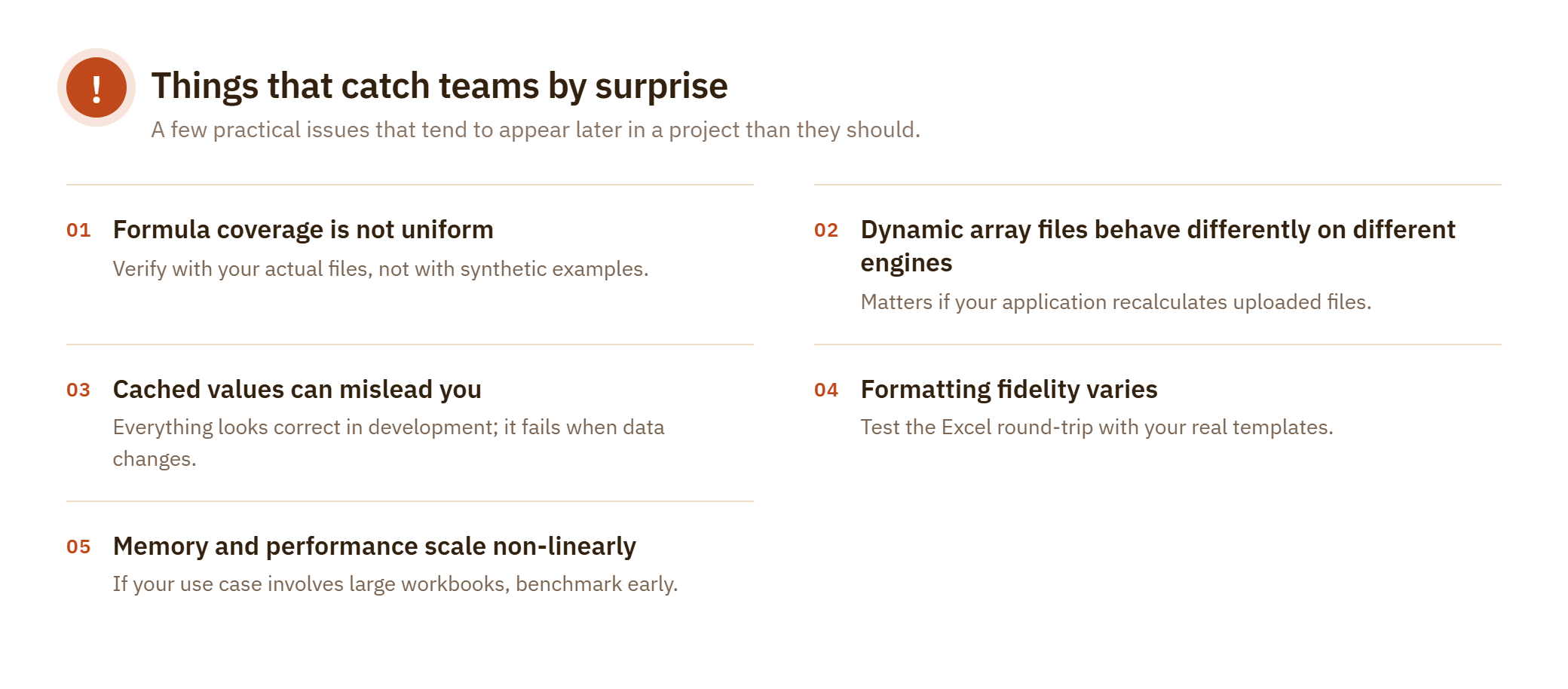
Formula coverage is not uniform. Two libraries may both advertise "Excel formula support," and both fail on different subsets of real workbooks. Modern functions (UNIQUE, SORT, FILTER, LET, XLOOKUP, LAMBDA) are the most common gap. Verify with your actual files, not with synthetic examples.
Dynamic array files behave differently on different engines. A file authored in Excel 365 with =UNIQUE(A1:A100) in one cell may open correctly (showing cached values), fail to recalculate, or throw an exception, depending on the library. If your application needs to recalculate uploaded files, this matters.
Cached values can mislead you. When a library cannot evaluate a formula, it often falls back to the cached value stored in the file. This masks the problem during development, because everything looks correct. It only fails when the underlying data changes and the formula needs to be re-evaluated, which is often in production, not in testing.
Formatting fidelity varies. Custom number formats, conditional formatting rules, and merged cell behavior are not preserved equally across libraries. If your workbook is going back to Excel users, test the round-trip explicitly with the exact templates your business owners use.
Memory and performance scale non-linearly. Loading a 100,000-row workbook is a different problem from loading a 1,000-row workbook. Some libraries hold the entire workbook in memory as a rich object model, and applications typically start hitting issues in the range of tens of thousands of rows. Others offer streaming APIs (POI's SXSSF for write, XSSF event model for read) that trade the object model for scalability. If your use case involves large workbooks, benchmark early.
Conclusion
Spreadsheets remain one of the most widely used data tools in business, and Java applications increasingly need to interact with them. There is no single correct approach — the right one depends on whether you are exchanging files, running calculations, or embedding a spreadsheet UI.
The available options have grown in the last few years, especially for teams that need to handle modern Excel behavior such as dynamic arrays and the newer function set. Understanding the scenarios and the moving parts before picking a library, and testing with the workbooks your real users produce, will save meaningful effort later.
Opinions expressed by DZone contributors are their own.
Comments