

Mule 4 Dropbox Connector To Upload File on Dropbox
This tutorial will teach you the steps to upload files on Dropbox and also to get a list of files/folders using Mule 4 Dropbox Connector.
Join the DZone community and get the full member experience.
Join For FreeStep 1
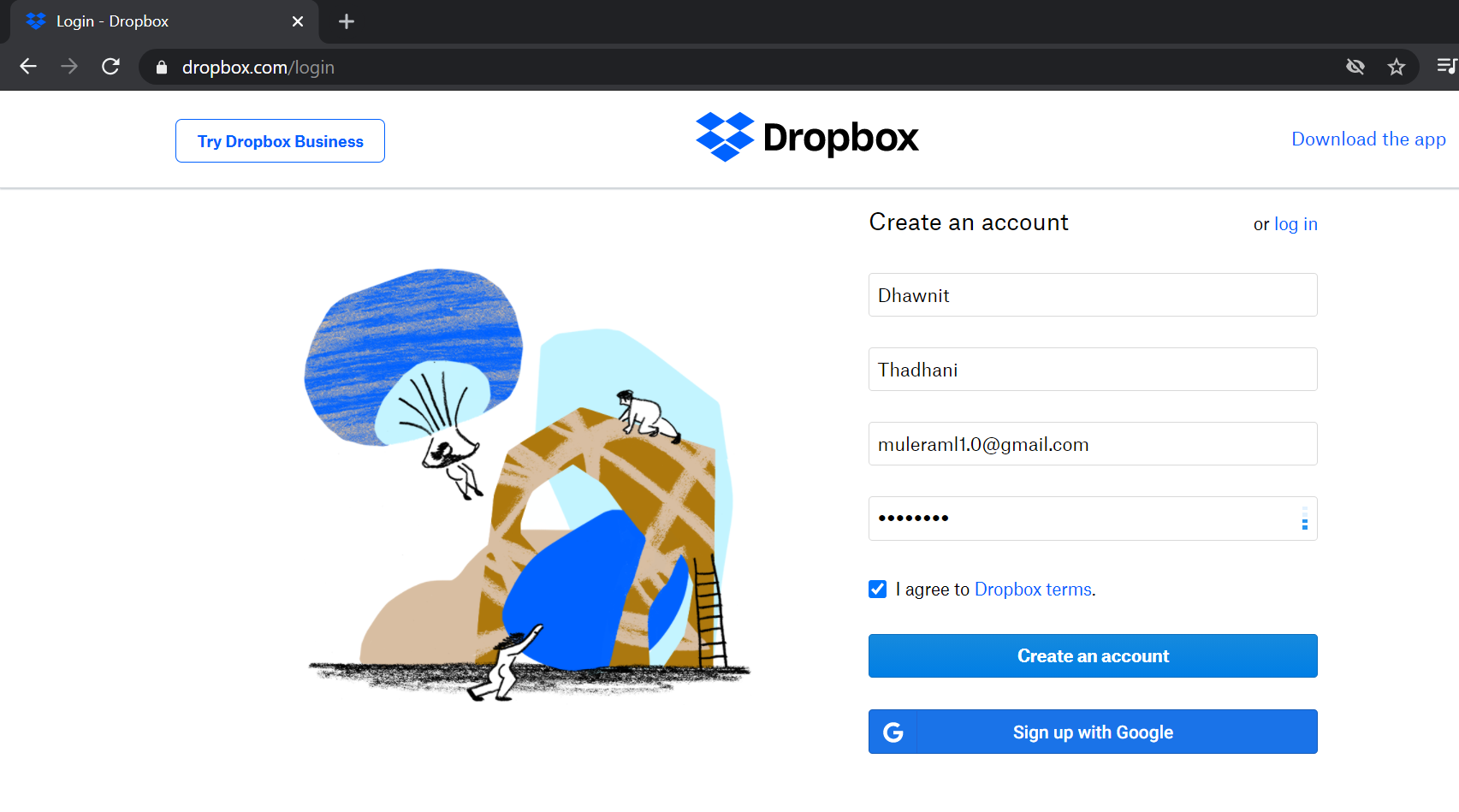
Create a Dropbox account or sign in using an existing account.
Step 2
Once you have created your account on Dropbox, create an app on Dropbox. Click on this URL to create an app.
Step 3
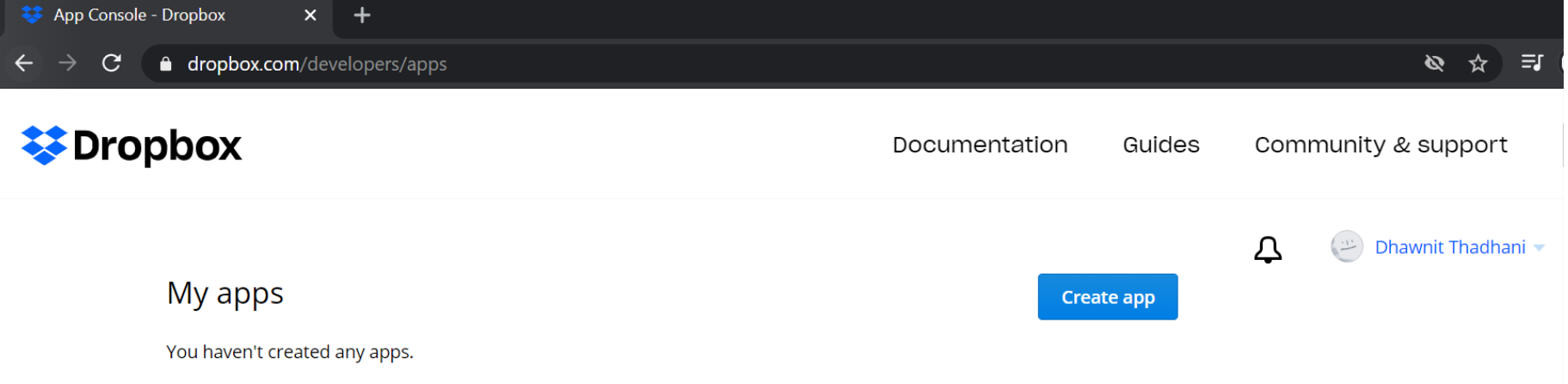
Click on Create app.
Step 4
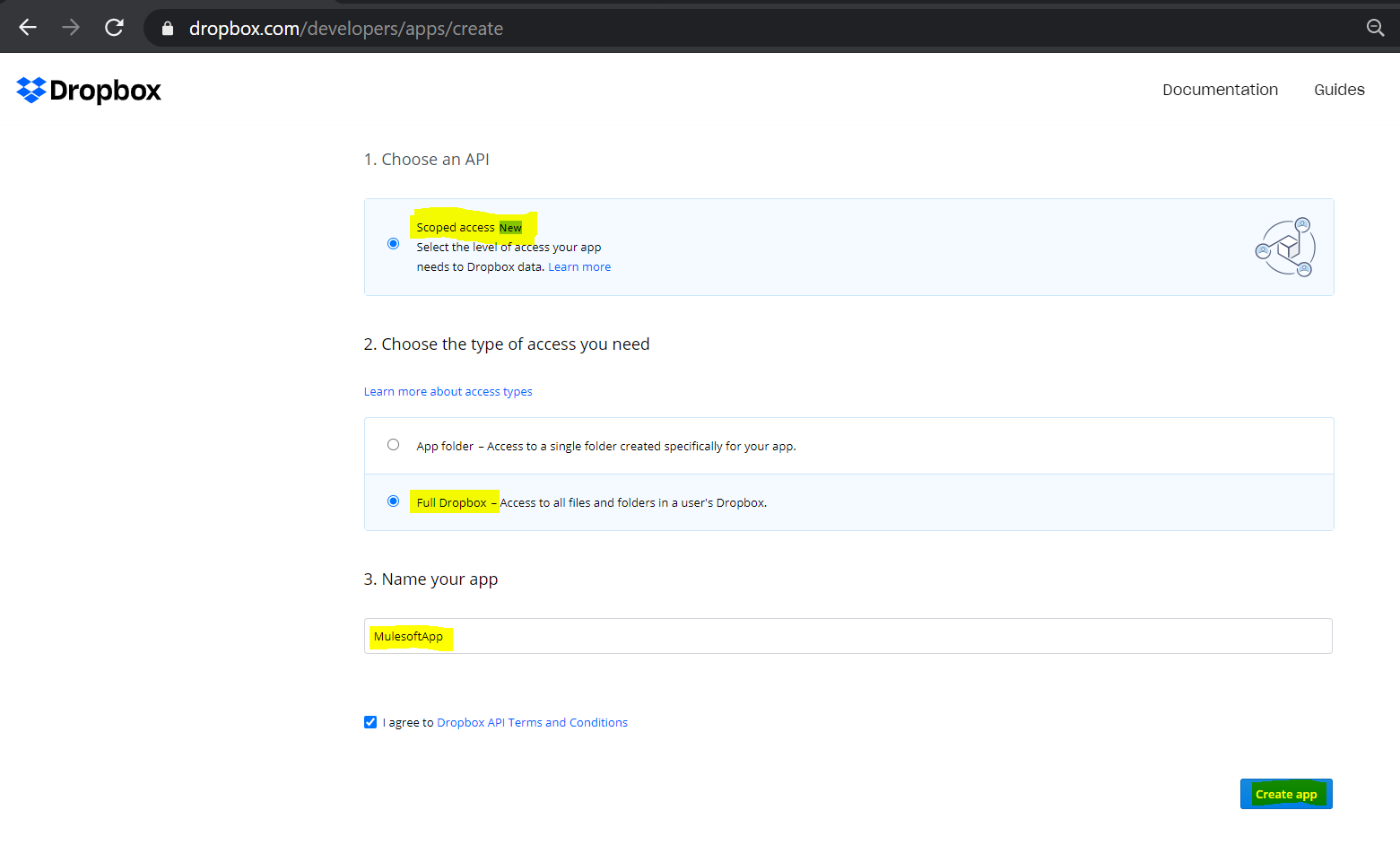
Provide the below details to create your app:
- Choose an API: Scoped Access.
- Select Full Dropbox Access to all files and folders in a user’s Dropbox under the type of access.
- Name your app, e.g., MulesoftAPI.
- Click on Create app. Your app will be created successfully.
Step 5
Now click on the permissions tab to give the required permissions to our App.
As we are going to upload files on Dropbox and also to get a list of files/folders, we need certain permissions to access. so kindly give below required permissions:
- files.content.write
- files.content.read
- file_requests.write
- file_requests.read
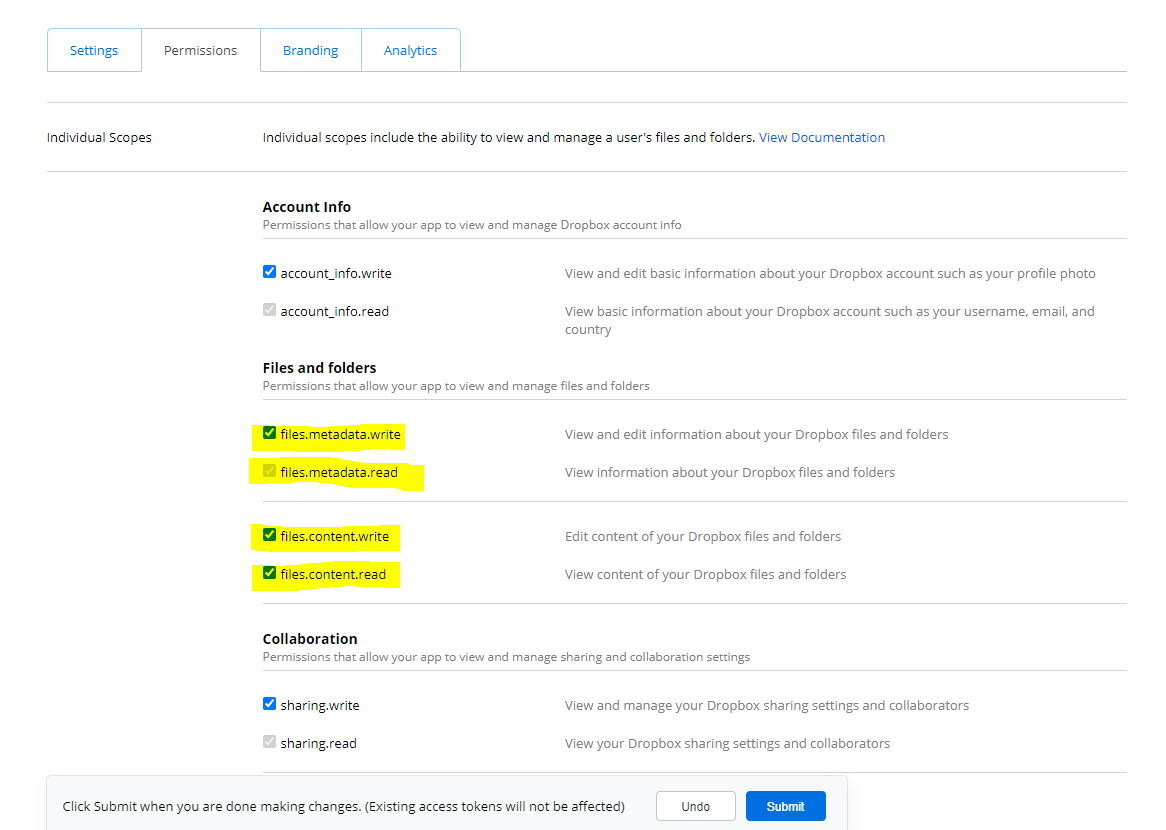
Click on submit after giving permissions.
 Set Permissions.
Note: For other operations of Dropbox connector like download files, Create, Search, etc. we have to provide required permissions to our app.
Step 6
The next step is to generate an access token for our app that will be used in the Mule application for configuring Dropbox connector.
Under the Settings tab, click on generate access token [oauth2].

Copy the access token to use further in the Mule Application. Based on your requirements you can select Access Token Expirations as Short-Lived or No Expiration. By default access token expiration is Short-Lived.
Step 7
Now Dropbox Setup is completed, Time to create a Mulesoft Dropbox application for Uploading File.
- Create Project in Anypoint Studio.
- Go to Mule palette and add Dropbox Connector by searching Dropbox connector in Exchange.
- Dependency will be added.

Step 8
Configure the Listener/Scheduler/New or Update File Connector to trigger the request. I am using an HTTP listener to trigger the request and then adding a Read File connector to read files from a specific path.

Input File Path: /src/main/resources/input.json

Step 9
Add transform the message to transform the JSON payload to CSV.

Step 10
Drag and drop the "Files: Upload File" dropbox connector operation from the Mule palette and configure the connection by providing the access token generated above and the app name which we created in Dropbox.
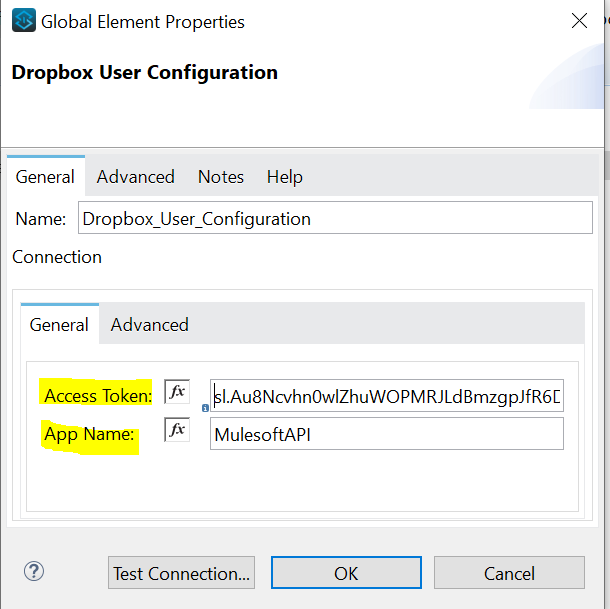
Step 11
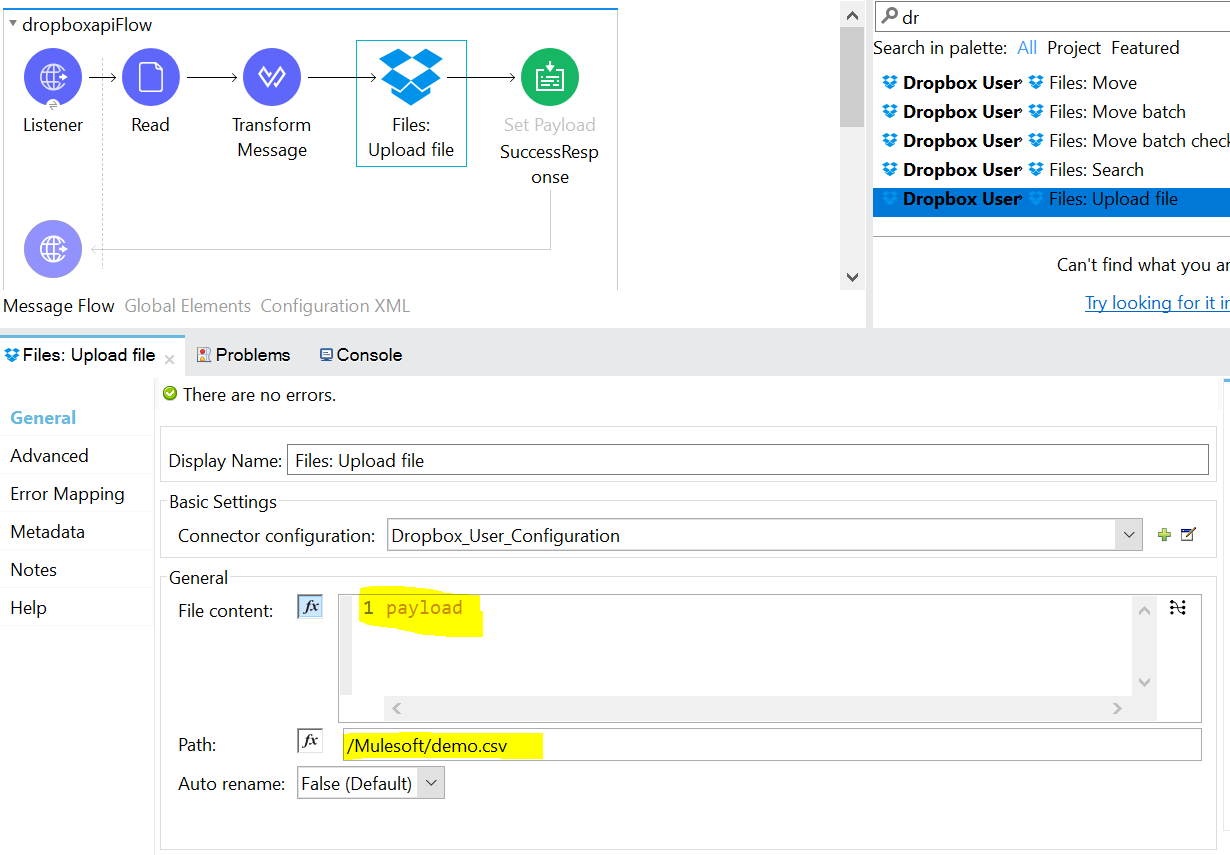
After configuring the dropbox connector, configure the path and file content of the Upload File operation.
Provide the File Content as payload and path as /Mulesoft/demo.csv.
Note: It will create a Mulesoft folder in Dropbox and the file will be uploaded under the Mulesoft folder
Step 12
Drag and Drop Set Payload after Files: Upload File operation to give response as 'Congrats, File Uploaded Successfully in Dropbox.'

Step 13
Deploy Mule Dropbox project and trigger request via Postman.


Congratulations, you just uploaded the file on Dropbox!
Step 14
To check whether the file is uploaded on Dropbox, just log in to your Dropbox account and we can see the Mulesoft folder is created.
Under the Mulesoft folder, we can see that the demo.csv file is uploaded.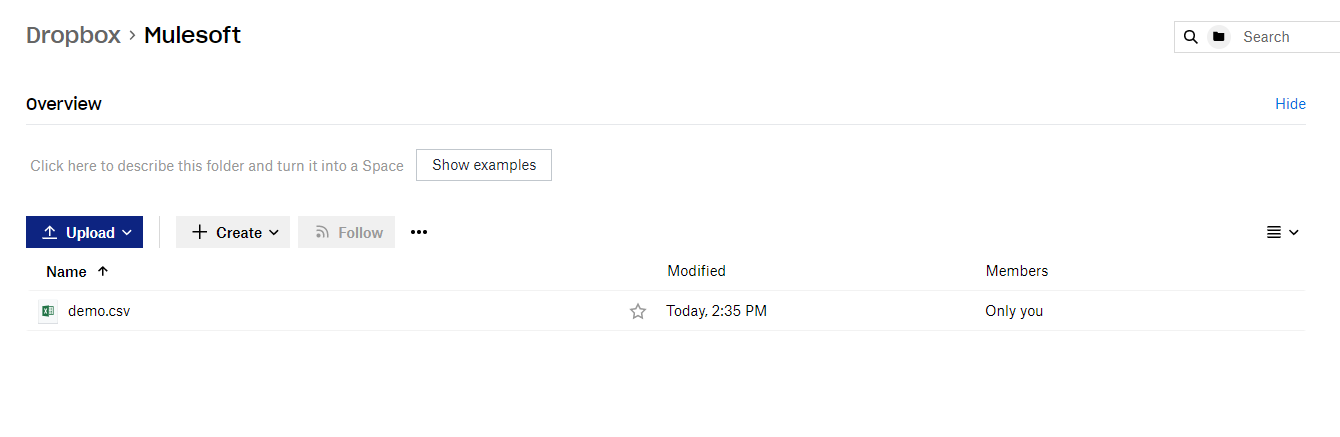
demo.csv file output:

Step 15
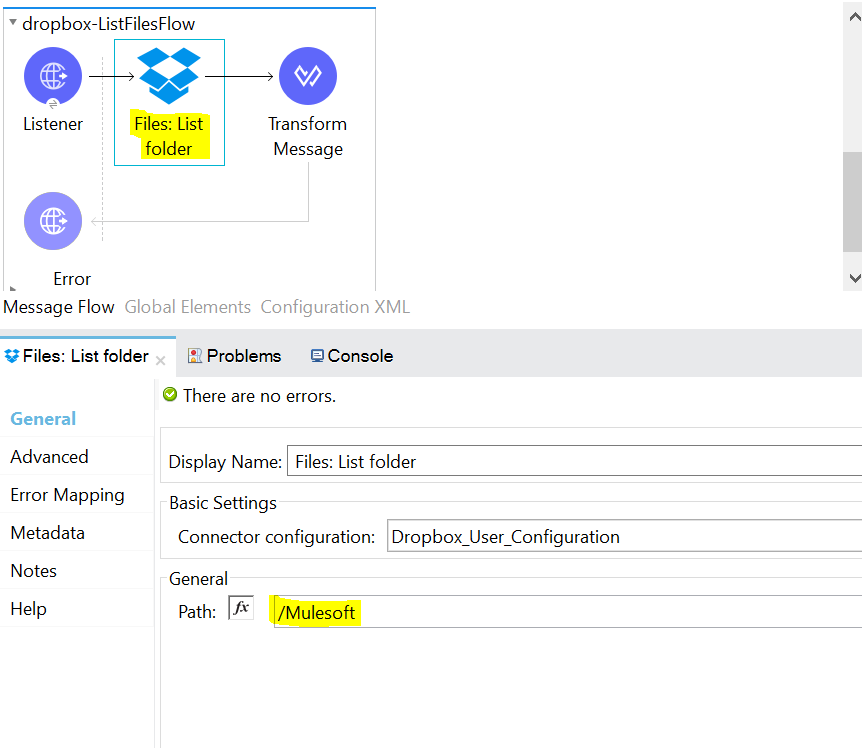
Similarly, If you want to get a list of files or folders present in the Dropbox folder, You can use the File: List folder operation of the Dropbox connector.
- Create another flow then configure listener to trigger request, once the listener is configured then drag and drop File: list folder operation of Dropbox Connector.
- Give the path as /Mulesoft under File: List Folder operation and it will retrieve all files/folders present in that folder.
- After configuring connector, We need to retrieve files or folder name from the response so we have placed the Transform message component at the end of the flow in the message processor to transform the payload into a JSON message.

Step 16
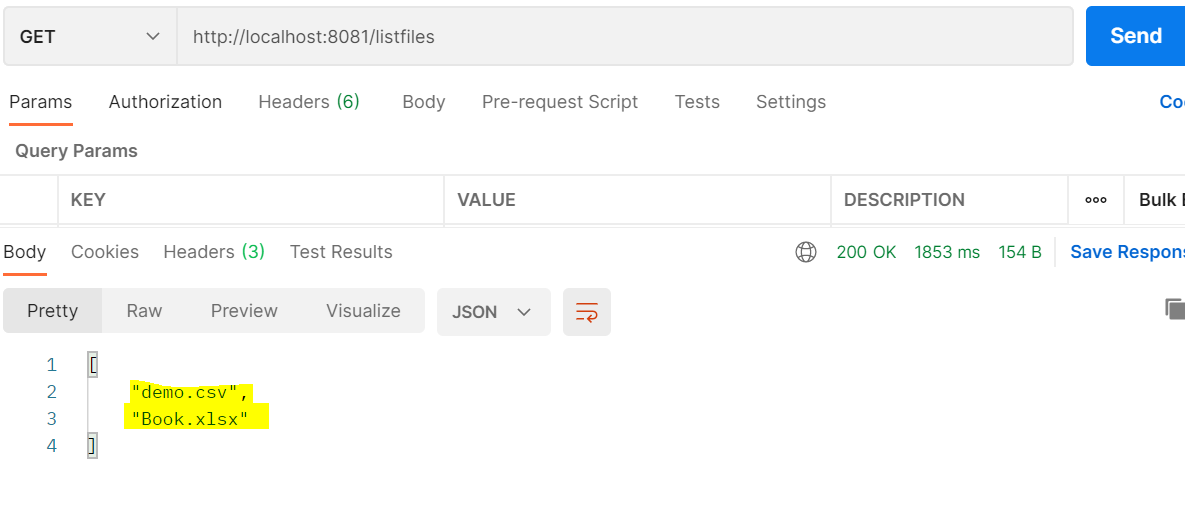
I have added one Book.xlsx file in Dropbox Mulesoft Folder so that we can get the list of files from that folder.
 Now deploy the project and trigger the request via Postman. Below, Postman's response also shows two files present in Mulesoft Folder.
Conclusion
This is how you can use Mulesoft Dropbox Connector to upload files, get list of files/folder. Similarly there are other operations of Mule 4 Dropbox connector like Create Folder, Delete, Move, Download, Search, Get Metadata etc. You just need to set/have proper permissions for same like we set for Upload file and File: List Folder.
Happy Learning!!!
Opinions expressed by DZone contributors are their own.
Comments