

How to Push Docker Images to AWS Elastic Container Repository Using GitHub Actions
Learn how to automate CI/CD with GitHub Actions to build, tag, and push Docker images to AWS ECR, simplifying deployments directly from your repo.
GitHub Actions enables the CI/CD, short for continuous integration or continuous deployment, process to build, test, and deploy the code through the workflows within the same GitHub repository. GitHub Actions builds images and pushes them to cloud providers such as AWS and Docker Hub. We can choose the different OS platforms, Windows or Linux, to run the workflows.
In this article, we will demonstrate how we can streamline the build and deploy process to push Docker Images to AWS ECR, short for Elastic Container Repository, by using GitHub Actions.
Prerequisites
- Create a GitHub account
- AWS IAM account credentials
- AWS ECR repository
- Dockerfile to build the Docker Image
GitHub provides different official actions and also has the actions provided by the community, which allows for integration with the workflow quickly and easily than writing code from scratch. In this demo, we used the GitHub-verified official actions. You can also add or adjust any action provided by the community from the GitHub Marketplace as well.
Steps to Build and Push the Docker Images to AWS ECR
1. Go to Your GitHub Repository to Create an Actions Workflow
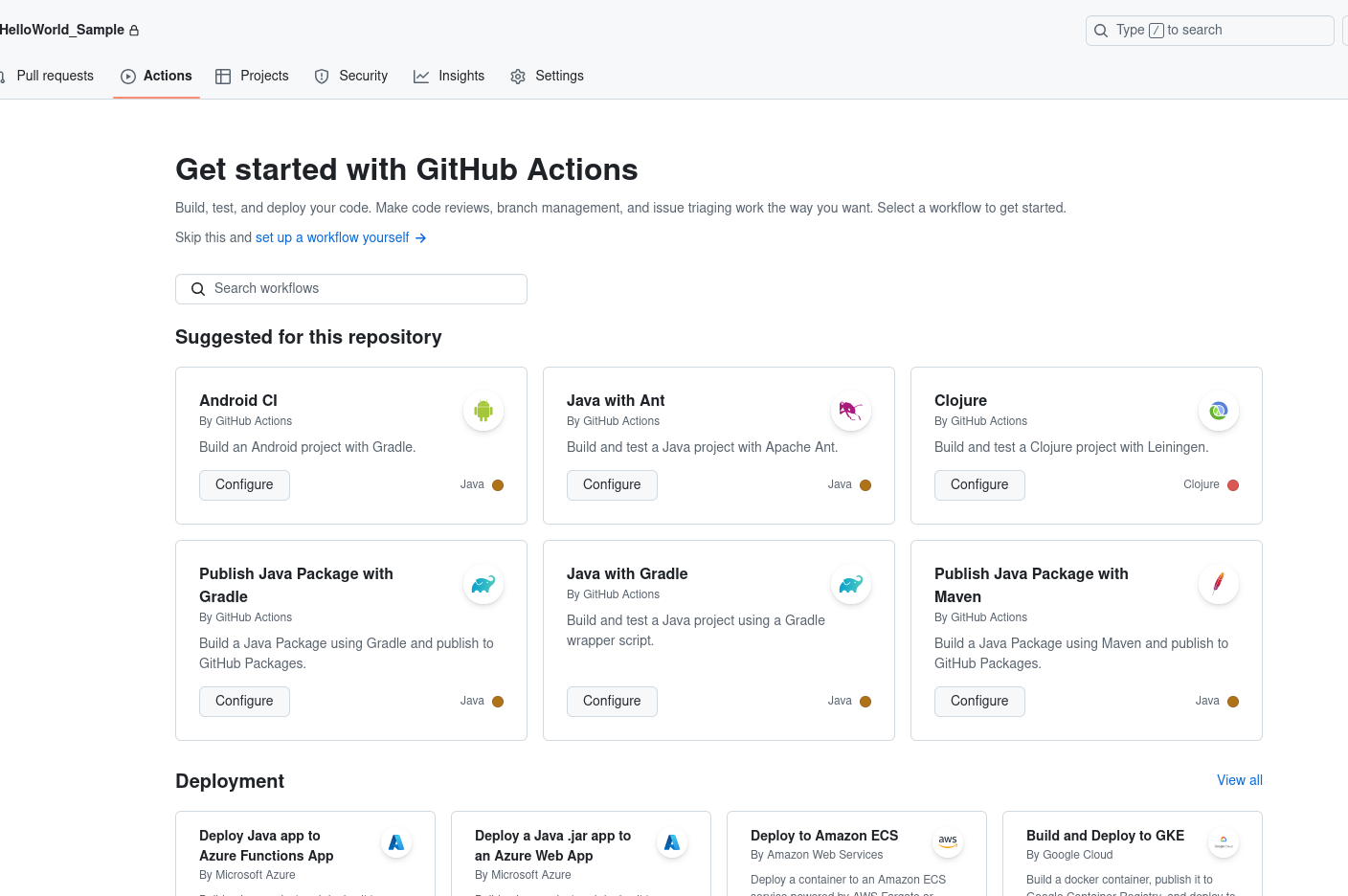
Click the Actions and create a workflow YAML file. The workflow can be selected based on the requirement. GitHub has provided some recommendations: we can select from the below and click configure, and the set of built-in actions code will be written for us, which we can further tweak or adjust as per need, or simply click the "set up a workflow yourself" link to create it from scratch. Here we wrote the workflow from scratch.
2. Create the Workflow YAML File
The workflow file location should be saved under ".github/workflows/."
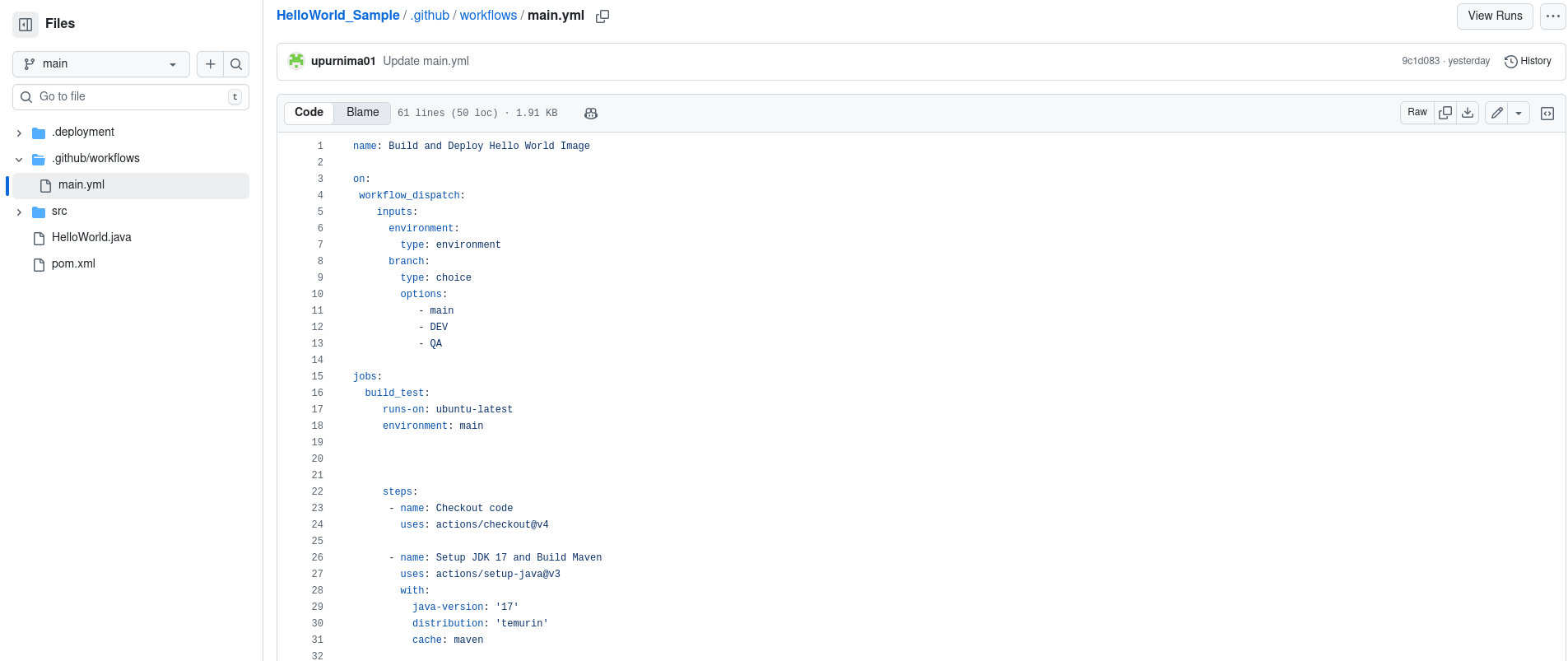
Below is the sample workflow file for the HelloWorld App. The tasks are added to let GitHub Actions know what it needs to build and how to push the image to the AWS ECR. The steps can be changed or adjusted based on the requirement.
Explanation of what's going on in the code below in the workflow file.
A GitHub Actions workflow file can be triggered in different ways. We can trigger via "on push," when we give the push option in the workflow, then whenever we commit anything to the repository, the workflow file will get triggered and run the workflow. This option is not a controlled option, which means whenever we commit anything, the workflow file will get triggered, whether we intend to run the workflow or not.
Instead of this, there is another option, "on workflow_dispatch," which is where we can trigger the workflow in a much more controlled way. In the image below, we have provided a demo with the "on workflow_dispatch" option. Here, we have the option to trigger the different environments manually. For example, in this GitHub repository, we have the environment names DEV, QA, and main. Based on the input we provide, the workflow file will get triggered. In the sample below, we have provided three main branches: DEV and QA.
- Checkout code: The step actions/checkout@v4 pull the code from the repository
- Set up JDK 17 and build Maven: The step actions/setup-java@v3 with Maven will build and set up the Maven environment to run the Java application
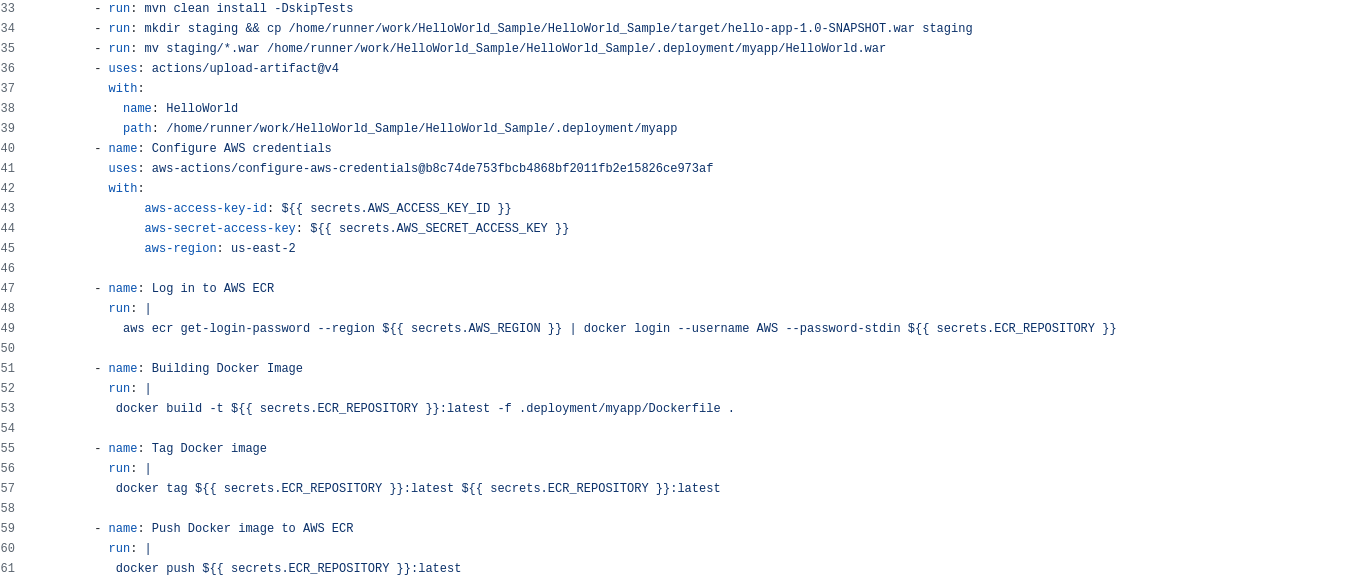
- Upload the artifacts: The step actions/upload-artifact@v4 with the specified path will help upload the artifacts when provided with the location to save the WAR file, which can then be downloaded for review and deployment.
- Configure AWS credentials: The step aws-actions/configure-aws-credentials@b8c74de753fbc will help set up the AWS CLI environment and configure the credentials by accessing the AWS_ACCESS_KEY_ID.
- Build, tag, and push Docker images: The step will build the Docker images, tag them, and push them to AWS ECR ( Elastic Container Repository). This step can be written in parallel or sequentially. There are recommended actions provided for building, tagging, and pushing by GitHub, e.g., "docker/build-push-action@v5," which we can use in the workflow instead of building it in a traditional way. Here we can put this one-line action instead of "Build, Tag, and Push" steps, which is much quicker and cleaner.
3. Set Up the Environment Secrets in Git Repo
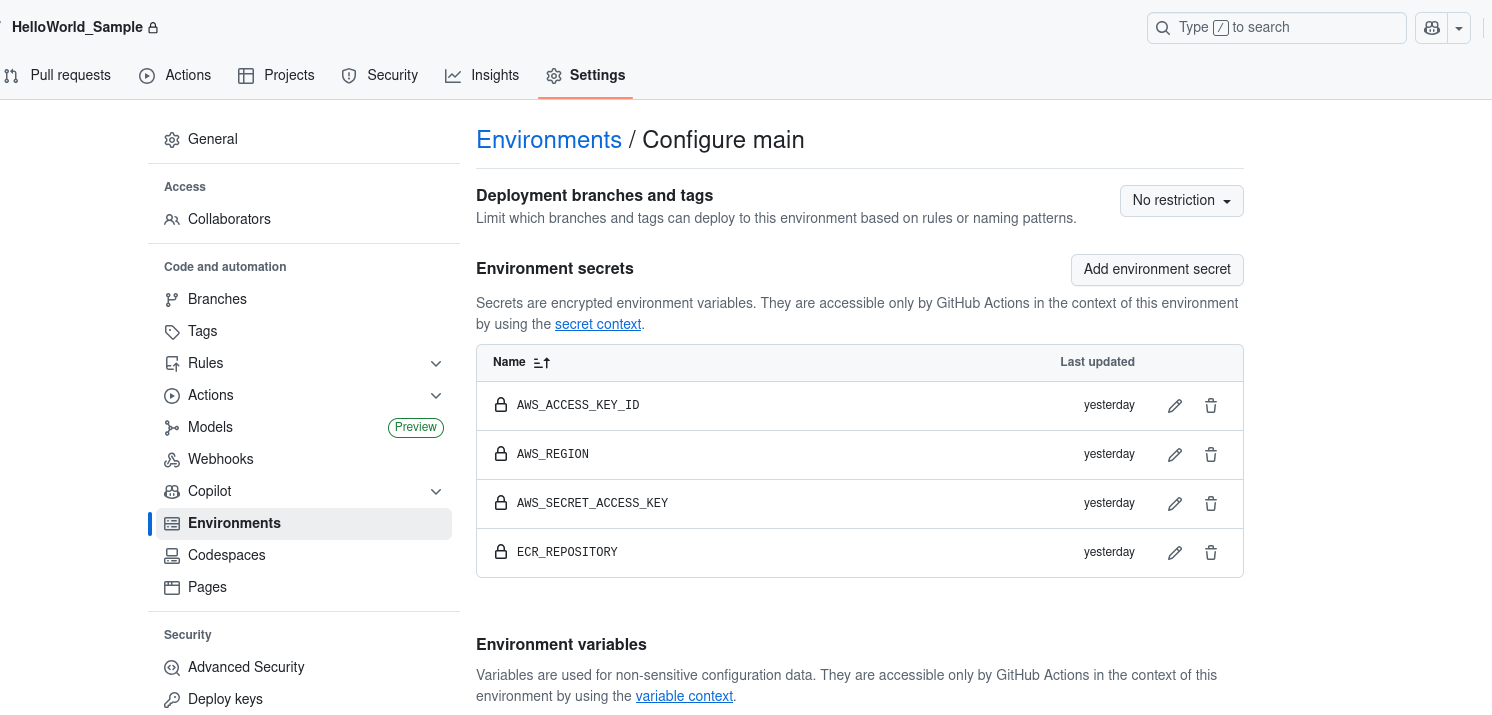
Go to the Settings -> Environment in the Git repo and create the secrets to access the AWS environment from GitHub. Below are the secrets that are needed to create:
- AWS_ACCESS_KEY_ID: Enter your AWS access key ID.
- AWS_SECRET_ACCESS_KEY: Input your AWS secret access key.
- AWS_REGION: The region where your ECR repository is located, such as
us-east-1 or west-2. - ECR_REPOSITORY: Provide the name of your ECR repository, for example, HelloWorld.
4. Commit and Push the Changes to the GitHub Repo
Then, the workflow file will trigger the actions, and it will carry out each step listed in the workflow YAML file.
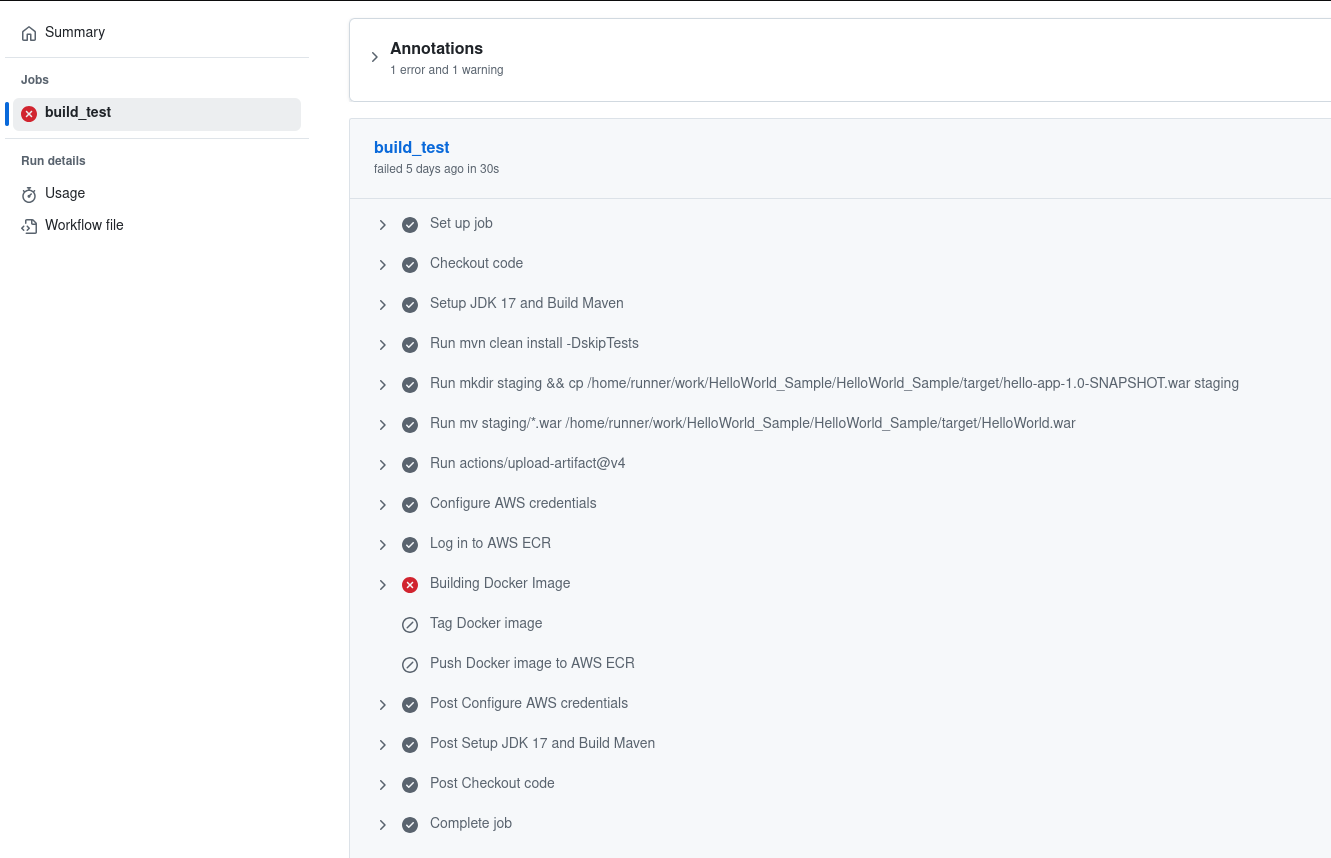
5. Verify the Docker Image Push to the AWS ECR
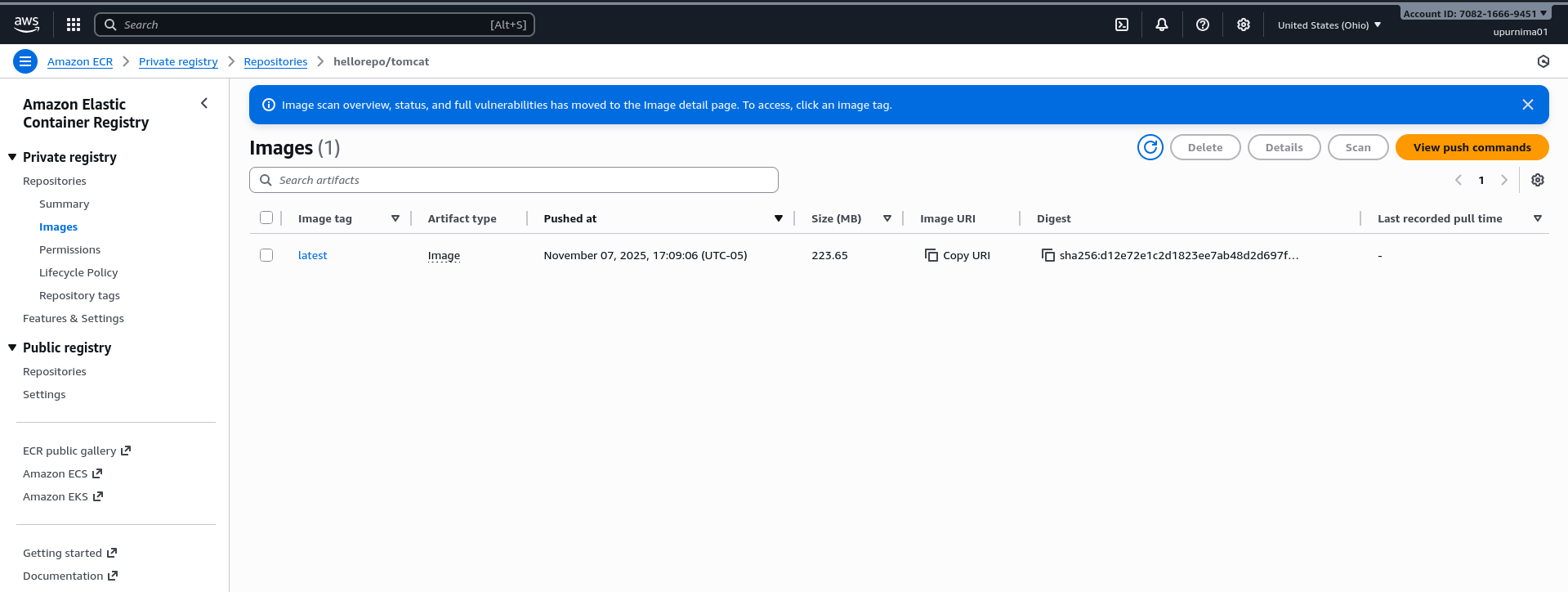
Conclusion
From the above steps, we can see how GitHub Actions streamlined the automation process by setting up the workflow file with the required jobs, and inside the jobs, there are steps for the build and deploy within the same repository where the application code exists, without needing to look for a separate integration and deployment tool. Hope this article will help you use GitHub Actions in your repositories, also for the CI/CD automation process.
Opinions expressed by DZone contributors are their own.