

9 Useful Interactive CLI Tools for Linux
Looking to gain confidence with Linux? Here, learn about 9 text-based user interface interactive tools that can help you get comfortable with the Linux CLI.
 CORE
·
If you are a software developer, sooner or later you’ll have to connect to a Linux machine to perform administrative tasks, access remote database servers, or deploy applications, among other things. Getting comfortable using the command-line interface (CLI) is a must if you want to be proficient with Linux. If you are looking into gaining confidence with Linux, here are 9 text-based user interface interactive tools that I found useful and that will help you get comfortable with the Linux CLI.
You can explore these tools using your own Linux machine if you have one, or you can use Docker or a virtual machine to install Linux and play around with it. Even better, you can repurpose an old laptop and use it, for example, as a database server, Git, or CI environment running on Linux if you want.
I haven’t included instructions on how to install each tool since different distributions require different steps. Most likely, your package manager will be able to install these tools if they are not provided by default with your Linux distribution. A quick online search should lead you to the right command to install each tool.
htop

htop is a process viewer similar to top but it allows you to scroll both vertically and horizontally, and even interact with a mouse pointer. You can use the F-keys to perform tasks such as search, filter, or kill a process.
nmon

nmon is a system monitor, tuner, and benchmark tool. You can customize the displayed information using keyboard shortcuts to add sections for CPU, memory, network, disks, file systems, processes, and resources.
nmtui

nmtui is a text-based interface for configuring networking (on top of NetworkManager). If you don’t want to fiddle with config files, this tool is a great alternative (assuming your operating system uses NetworkManager).
Tip: If you get funny colors when running the tool try defining the following environment variable:
NEWT_COLORS='root=white,blue' nmtuiiftop

iftop is a tool for displaying network traffic and bandwidth usage. Most likely, you’ll have to run it with sudo and specify a network interface. For example:
sudo iftop -i wlp3s0iptraf

iptraf is similar to iftop (see the previous section) but offers a more interactive interface. It monitors IP LAN network traffic and displays TCP information, UDP counts, ICMP and OSPF information, Ethernet load information, node stats, IP checksum errors, and others. You need to run this tool as root (sudo).
mc

mc or GNU Midnight Commander (to which I personally refer sometimes as the mighty commander just for fun) is a popular visual shell for Linux. More specifically, it allows you to navigate and browse the files in your system. I found it useful when I’m configuring a system and need to go back and forth between different config files. It has mouse support and many keyboard shortcuts (run man mc for more information).
mcedit

mcedit is the internal text editor of mc (see the previous section). However, you can also use this tool outside mc and take advantage of its many features, especially the mouse support in a fully-featured windowed editor, keyboard shortcuts, code navigation, syntax highlighting, and macro recording capabilities.
nano
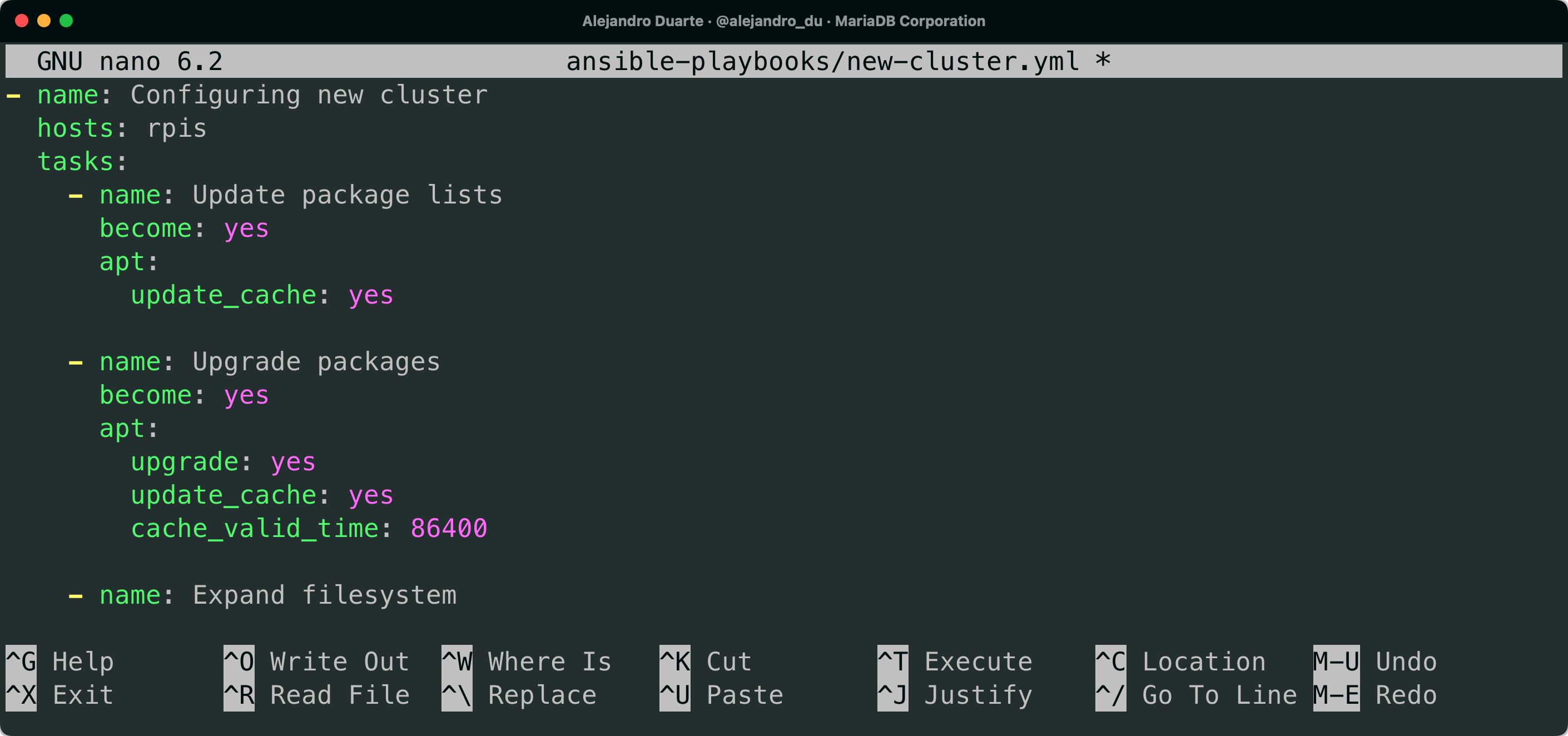
nano is another popular small text editor suitable for quickly editing files. It has cool features such as opening multiple files, scrolling per line, undo/redo actions, syntax coloring, line numbering, and soft-wrapping lines. If you are looking for a more advanced and configurable text editor, you definitely have to check vim.
mprocs

mprocs allows you to run multiple processes in a single text-based interface. I usually run it like this:
mcprocs sh sh sh shwith as many sh as I think I might need. It is a great tool when you are configuring stuff and need to tweak config files and run commands at the same time.
Summary
I certainly love these tools and they have served me well when performing DevOps tasks such as web server and database provisioning and configuration. For instance, they truly helped me when I was configuring the dedicated MariaDB database server as linked in the article earlier and this 32-Core Raspberry Pi Cluster. I hope that at least one of these text-based CLI tools was new to you and that you’ll find it useful. Please, let me know in the comments if I missed a text-based CLI tool that you find useful when developing software or managing Linux systems. I’ll be happy to try it out!
Opinions expressed by DZone contributors are their own.