

How to Test Web Accessibility Using Playwright and Axe-Core
Learn how to set up automated accessibility testing using Playwright and Axe-Core. We'll build a reusable fixture, run targeted WCAG scans.
What Is Accessibility Testing?
Imagine trying to use a website...
- With your eyes closed.
- Using only your keyboard, no mouse.
- With your hands busy, so you have to use voice commands.
- If you couldn't distinguish the color green from red.
Accessibility testing (often called "a11y" testing) is the process of ensuring that your website or app can be used by everyone, including people with disabilities.
It's not about political correctness; it's about building a web that works for all humans. It's also the law in many countries.
The Main Testing Points to Consider
Here are the most common and critical areas to test, framed as simple questions.
1. Keyboard Navigation (Operable)
- Can I use the website with just the Tab key? This is the #1 test. Try tabbing through all interactive elements.
- Is there a visible focus indicator? As you tab, can you always see where you are on the page? (A faint dotted line is not enough!)
- Can I trigger all actions with the Enter or Space key? Buttons, menus, etc.
2. Screen Reader Compatibility (Perceivable and Robust)
- Does every image have descriptive alt text? A screen reader can't describe a picture.
alt="Company Logo"is good.alt=""is ok for decorative images.alt="image123.jpg"is terrible. - Is the page structure logical? Use proper HTML tags (
<h1>,<h2>,<nav>,<button>) so a screen reader user can understand the page layout. - Do form fields have clear labels? A screen reader user needs to know what to type into each box. Use the
<label>tag.
3. Color and Contrast (Perceivable)
- Is there enough contrast between text and its background? Light gray text on a white background is impossible for many to read. Use online tools to check contrast ratios.
- Is color alone used to convey information? For example, "The required fields are in red." This fails for colorblind users. There must be another indicator, like an asterisk (*).
4. Text Clarity (Understandable)
- Can the text be resized without breaking the layout? Try zooming the browser to 200%. Does the page become a mess, or does it reflow properly?
- Is the language simple and clear? Avoid complex jargon.
5. Multimedia (Perceivable)
- Do videos have captions? For users who are deaf or hard of hearing.
- Do audio clips have transcripts? For the same reason.
6. Predictable Navigation (Understandable)
- Is navigation consistent across the site? Menus shouldn't move around randomly.
- Do links clearly describe where they go? "Click here" is bad. "Download the syllabus (PDF)" is good.
Those six areas are what you're checking for, whether you're doing it by hand or automating it. The rest of this tutorial is about the second part: how much of that you can actually catch with code, and how to wire it into a Playwright suite.
In this article, we'll cover:
- What automated accessibility testing actually checks, and what it doesn't
- How to wire up Playwright with Axe-Core, using a demo page with deliberately planted bugs so the results are consistent every time you run it
What Automated Accessibility Testing Actually Checks
Automated accessibility testing runs a rule engine against your rendered DOM and flags violations of standards like WCAG 2.1/2.2. Axe-Core, built by Deque Systems, is the engine most Playwright and Cypress teams reach for, and for good reason — it has close to zero false positives, which is unusually rare for this kind of tooling.
The honest caveat, worth repeating every time this topic comes up: automated scans catch roughly 20-30% of accessibility issues. Missing alt text, poor contrast, missing form labels, invalid ARIA attributes — that's exactly what a rule engine is good at. Whether your focus order makes sense to someone tabbing through with a keyboard, or whether a screen reader user can actually get through your custom dropdown — that still needs a human. Axe is a very thorough linter, not a replacement for real usability testing. Specifically, axe won't catch:
- Keyboard traps, like a modal or custom select you can tab into but not out of
- Whether focus is correctly moved when a modal opens or closes
- Whether alt text is meaningful (
alt="image"passes the rule and is still useless) - Whether video captions actually match the audio
That's the gap manual testing and keyboard-only walkthroughs are there to cover — axe is one layer, not the whole strategy.
Instead of scanning a live third-party site (whose markup can change under you, making your screenshots and results go stale), we'll use a small self-contained HTML page built specifically for this: it has a known, fixed set of accessibility problems baked in, on purpose, so every run — yours or mine — turns up the same violations.
Setting Up the Demo Page
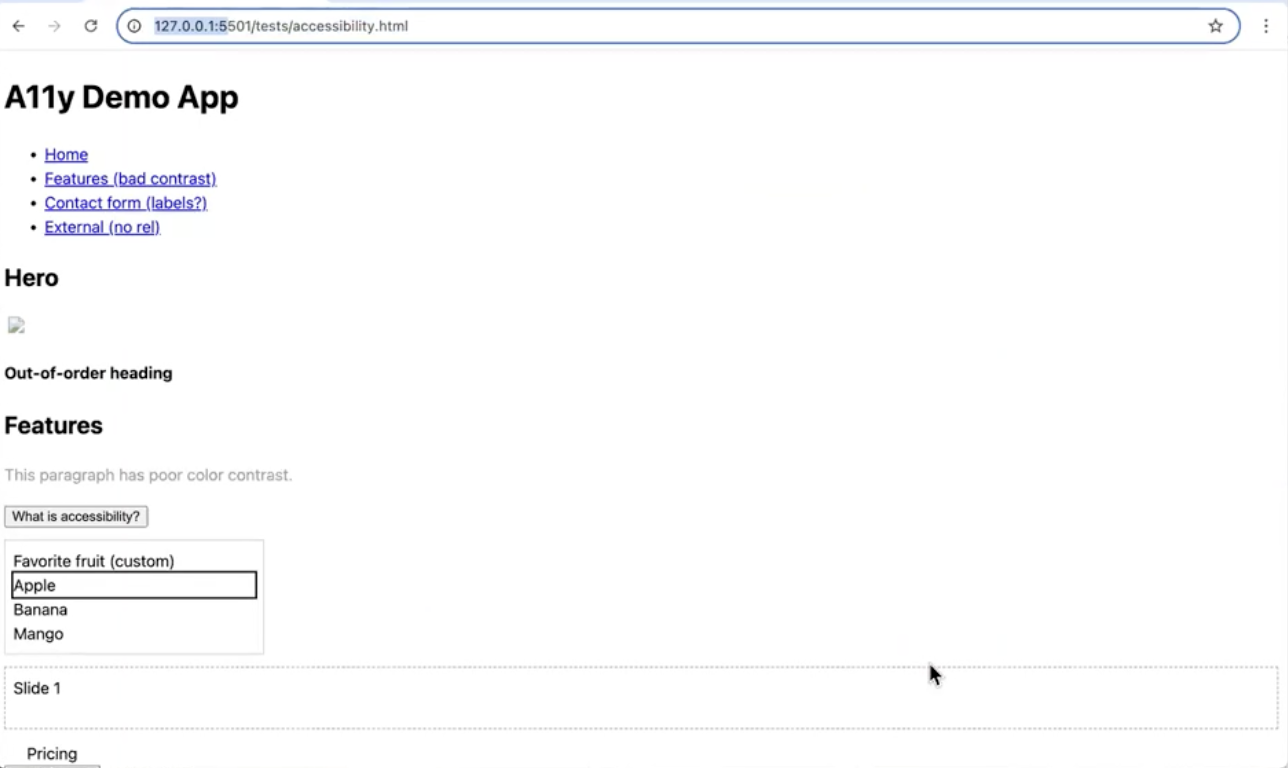
Save the following as accessibility-demo.html. It's a small page with a header, a features section, a contact form, and a modal — with a handful of accessibility bugs planted throughout: a button with no accessible name, a low-contrast paragraph, an image missing alt, an out-of-order heading, an iframe with no title, and a form field with no associated label.
<!DOCTYPE html>
<html lang="en">
<head>
  <meta charset="UTF-8" />
  <title>A11y Demo – Playwright</title>
  <meta name="viewport" content="width=device-width, initial-scale=1" />
  <style>
    body { font-family: system-ui, sans-serif; line-height: 1.5; }
    .skip-link {
      position: absolute; left: -999px; top: -999px;
    }
    .skip-link:focus {
      left: 8px; top: 8px; padding: 8px; background: #eee;
    }
    /* BAD: low contrast */
    .low-contrast { color: #9a9a9a; background: #fff; }
    .custom-select { border: 1px solid #ccc; padding: 8px; width: 240px; margin: 12px 0; }
    .custom-select [role="option"][aria-selected="true"] { outline: 2px solid; }
    #carousel { margin: 12px 0; height: 60px; overflow: hidden; border: 1px dashed #999; }
    .slide { display: none; padding: 8px; }
    .slide[aria-hidden="false"] { display: block; }
    #modal[hidden] { display: none; }
    .modal-content { background: white; padding: 16px; border: 2px solid; max-width: 360px; }
    .sr-only {
      position: absolute !important;
      height: 1px; width: 1px;
      overflow: hidden;
      clip: rect(1px,1px,1px,1px);
      white-space: nowrap;
    }
  </style>
</head>
<body>
  <!-- Skip link (good) -->
  <a class="skip-link" href="#main">Skip to main content</a>


  <!-- Page landmarks -->
  <header role="banner">
    <h1 id="site-title">A11y Demo App</h1>
    <nav aria-label="Main navigation">
      <ul>
        <li><a href="#main">Home</a></li>
        <li><a href="#features">Features (bad contrast)</a></li>
        <li><a href="#contact">Contact form (labels?)</a></li>
        <!-- Link opens new tab without rel (bad) -->
        <li><a href="https://example.com" target="_blank">External (no rel)</a></li>
      </ul>
    </nav>
  </header>


  <!-- Decorative + non-decorative images -->
  <section aria-labelledby="hero-heading">
    <h2 id="hero-heading">Hero</h2>
    <!-- good decorative -->
    <img src="https://via.placeholder.com/600x100" alt="" aria-hidden="true" />
    <!-- missing alt (bad) -->
    <img src="https://via.placeholder.com/120x60" />
  </section>


  <!-- Headings out of order (bad) -->
  <h4>Out-of-order heading</h4>


  <main id="main" role="main" tabindex="-1">
    <section id="features" aria-labelledby="features-h2">
      <h2 id="features-h2">Features</h2>


      <!-- Low contrast text -->
      <p class="low-contrast">This paragraph has poor color contrast.</p>


      <!-- Accordion (good) -->
      <div class="accordion">
        <button aria-expanded="false" aria-controls="acc-panel-1" id="acc-btn-1">
          What is accessibility?
        </button>
        <div id="acc-panel-1" role="region" aria-labelledby="acc-btn-1" hidden>
          Accessibility means inclusive experiences for all users.
        </div>
      </div>


      <!-- Custom select -->
      <div class="custom-select" role="listbox" aria-labelledby="fruit-label" tabindex="0">
        <span id="fruit-label">Favorite fruit (custom)</span>
        <div role="option" aria-selected="true">Apple</div>
        <div role="option">Banana</div>
        <div role="option">Mango</div>
      </div>


      <!-- Carousel -->
      <div id="carousel" aria-roledescription="carousel" aria-label="Rotating promos">
        <div class="slide" aria-hidden="false">Slide 1</div>
        <div class="slide" aria-hidden="true">Slide 2</div>
        <div class="slide" aria-hidden="true">Slide 3</div>
      </div>


      <!-- Table missing scope -->
      <table id="price-table" border="1">
        <caption>Pricing</caption>
        <tr><th>Plan</th><th>Price</th></tr>
        <tr><td>Basic</td><td>$10</td></tr>
        <tr><td>Pro</td><td>$20</td></tr>
      </table>


      <!-- Iframe without title (bad) -->
      <iframe src="https://example.com" width="300" height="100"></iframe>


      <!-- Video without captions (bad) -->
      <video id="promo-video" controls width="320">
        <source src="" type="video/mp4" />
        Sorry, your browser doesn’t support embedded videos.
      </video>


      <!-- Button without accessible name (bad) -->
      <button id="icon-only"><span class="icon-star" aria-hidden="true">★</span></button>


      <!-- Duplicate IDs -->
      <div id="dup">First duplicate id</div>
      <div id="dup">Second duplicate id</div>


      <!-- Live region -->
      <div aria-live="polite" id="live-region" class="sr-only"></div>


      <!-- Modal -->
      <button id="open-modal">Open Modal</button>
      <div id="modal" role="dialog" aria-modal="true" aria-labelledby="modal-title" hidden>
        <div class="modal-content" tabindex="-1">
          <h2 id="modal-title">Subscribe</h2>
          <label for="email">Email</label>
          <input id="email" type="email" />
          <button id="subscribe">Subscribe</button>
          <button id="close-modal">Close</button>
        </div>
      </div>


      <!-- Contact form -->
      <section id="contact" aria-labelledby="contact-h2">
        <h2 id="contact-h2">Contact</h2>
        <form>
          <div>
            <label for="name">Name</label>
            <input id="name" type="text" />
          </div>
          <div>
            <!-- missing label -->
            <input id="phone" type="tel" placeholder="Phone (no label)" />
          </div>
          <div>
            <label for="msg">Message</label>
            <textarea id="msg"></textarea>
          </div>
          <button type="submit">Send</button>
        </form>
      </section>
    </section>
  </main>


  <footer role="contentinfo">
    <p>© Demo</p>
  </footer>
</body>
</html>
Also available on GitHub.
Here's what the app should look like:
Serve it locally with any static server — VS Code's Live Server extension, or:
npx http-server . -p 5501Setting Up Playwright With Axe-Core
Step 1: Install Playwright and the Axe integration.
npm init playwright@latest
npm install -D @axe-core/playwright
Step 2: Build a reusable Axe fixture.
Rather than repeating the same AxeBuilder configuration in every spec file, it's worth wrapping it once as a Playwright fixture. Save this as axe-test-fixture.ts:
import { test as base } from '@playwright/test';
import AxeBuilder from '@axe-core/playwright';

type AxeFixture = {
  makeAxeBuilder: () => AxeBuilder;
};

export const test = base.extend<AxeFixture>({
  makeAxeBuilder: async ({ page }, use) => {
    const makeAxeBuilder = () =>
      new AxeBuilder({ page })
        .withTags(['wcag2a', 'wcag2aa', 'wcag21a', 'wcag21aa']);

    await use(makeAxeBuilder);
  },
});

export { expect } from '@playwright/test';
Every test that imports from this file instead of @playwright/test directly gets a makeAxeBuilder() fixture that's already scoped to WCAG 2.0/2.1 A and AA rules. If you ever need to add an exclusion for a known, already-ticketed issue, you change it once, here, instead of hunting through every spec file that runs a scan.
Step 3: Write the test.
import { test, expect } from './axe-test-fixture';

test('demo page should have no critical or serious accessibility violations', async ({
  page,
  makeAxeBuilder,
}) => {
  await page.goto('http://127.0.0.1:5501/accessibility-demo.html');

  const results = await makeAxeBuilder().analyze();

  const blockers = results.violations.filter(
    (v) => v.impact === 'critical' || v.impact === 'serious'
  );

  if (blockers.length > 0) {
    blockers.forEach((violation) => {
      console.log(`\n[${violation.impact?.toUpperCase()}] ${violation.id}`);
      console.log(`Help: ${violation.helpUrl}`);
      violation.nodes.forEach((node) => {
        console.log(`  Element: ${node.html}`);
        console.log(`  Fix: ${node.failureSummary}`);
      });
    });
  }

  expect(blockers).toEqual([]);
});
Run it with:
npx playwright test accessibility.spec.ts --reporter=list
A quick walkthrough of what's happening, since a chain of methods can look denser on the page than it is in practice: page.goto() loads the demo page in a real browser context. makeAxeBuilder().analyze() runs the scan and returns an object with violations, passes, incomplete, and inapplicable arrays. The filter() call is where the real decision gets made — it separates "bad enough to fail the build" from minor/moderate issues that most teams track separately rather than gate CI on.
Because this page has deliberate bugs, the test is expected to fail. That's the point — it proves the scan actually works, before you point it at a real page where you don't already know the answer.
What You'll See When It Fails
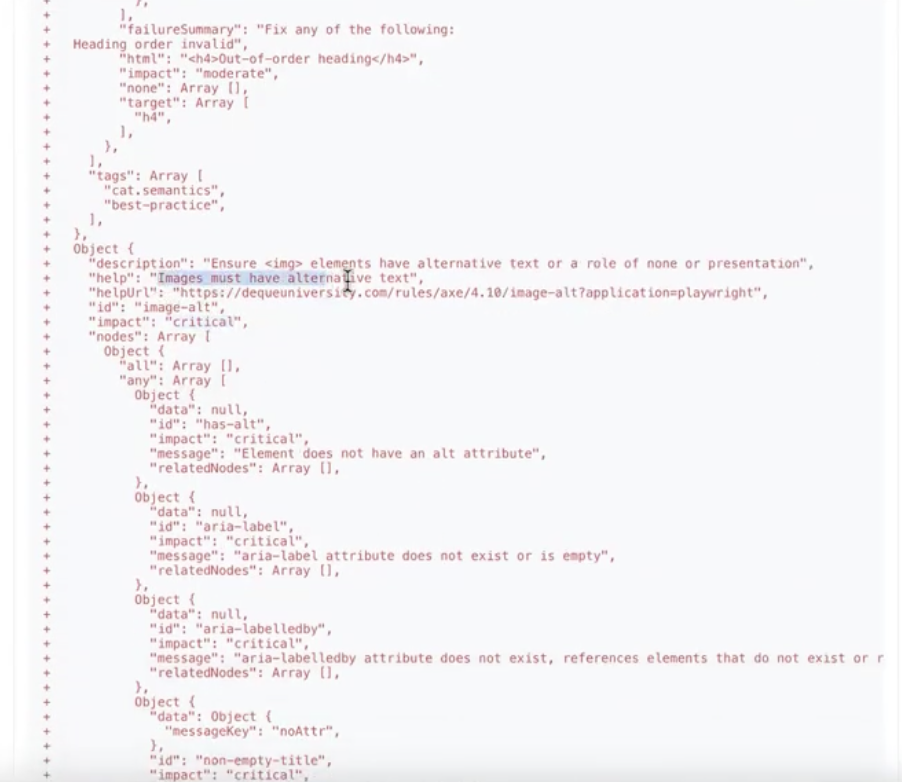
Running this against the demo page surfaces violations like these, since they're planted on purpose:
- Button without an accessible name –
<button id="icon-only"><span aria-hidden="true">★</span></button>needs either visible text or anaria-label. - Insufficient color contrast – the low-contrast paragraph fails the 4.5:1 ratio required for normal text.
- Iframe missing a title –
<iframe src="https://example.com">has notitleattribute, so a screen reader user has no idea what it contains. - Heading order jump – the page goes from
<h1>straight to<h4>, which breaks the document outline screen readers rely on. - Image missing alt text – the placeholder image has no
altattribute at all. - Form field with no label – the phone input relies on a
placeholderinstead of a real<label>, which disappears the moment the user starts typing.
Since the test asserts expect(blockers).toEqual([]) and the page has several planted serious/critical issues, the test fails — and the console logging added in Step 3 prints each rule ID, a link to Deque's fix guidance, and the exact HTML node that triggered it, so a developer can go straight to the fix instead of parsing a JSON dump.
The screenshot below shows a sample of the accessibility issues flagged during an actual test run:
If you want to go deeper on any specific rule, Deque's rule descriptions explain the reasoning behind each one and how to resolve it.
Scoping a Scan to One Section
Scanning an entire page isn't always what you want — especially with a third-party embed or a section someone else owns. AxeBuilder supports .include() and .exclude() for exactly this:
test('contact section only', async ({ page, makeAxeBuilder }) => {
  await page.goto('http://127.0.0.1:5501/accessibility-demo.html');

  const results = await makeAxeBuilder().include('#contact').analyze();

  expect(results.violations).toEqual([]);
});
This scopes the scan to just the contact form and ignores everything else on the page — useful when you want a fast, targeted check on the one section you're actively fixing.
Wiring It Into CI
None of this is worth much if it only runs on your laptop. Since it's a normal Playwright test, it drops into whatever CI you're already using without a separate accessibility dashboard to maintain:
name: Run accessibility tests
  run: npx playwright test accessibility.spec.ts --reporter=list
Summary
Automated accessibility testing with Playwright and Axe-Core won't catch everything a real user with a screen reader or a keyboard-only workflow would notice — that's still on manual testing. What it will do is catch the well-defined, common issues (contrast, labels, alt text, ARIA attributes, heading order) reliably, on every build, without anyone remembering to run a manual check first.
A reusable fixture keeps your Axe configuration in one place instead of scattered across spec files. Filtering by impact level keeps your CI gate focused on what actually matters. And testing against a page with known, planted issues — before pointing the same setup at a real page — is a good way to prove the scan works at all.
Treat this as a baseline, not a finish line. Pair it with periodic manual testing, and it holds up.
Happy testing!
Opinions expressed by DZone contributors are their own.