

How to Keep AI Agents From Going Rogue Using Docker Sandbox
AI agents are powerful because they can autonomously plan and use tools. Sandboxes provide guardrails by isolating agents and restricting what they can access or execute.
 CORE
·
CORE
·
Join the DZone community and get the full member experience.
Join For FreeAn AI agent is an "autonomous software program that uses artificial intelligence to make a plan, execute tools, and complete an action." Autonomy (through AI) plus tools is what makes an agent powerful, and these tools can range from a simple calculator to querying a sophisticated database.
While autonomy makes things easier for humans, it only opens a big security hole. Because an agent can do almost anything, without proper guardrails, it can cause production outages. For example, in June 2025, a Replit agent deleted an entire database belonging to a SaaStr founder even though it was explicitly told to request permissions.
This is why it is important to put proper guardrails around your agent. Guardrails can take the form of rules that prevent destructive tool calls or allow calls only to a specific list of domains. Another name for such a thing is "sandbox."
A sandbox is a "security mechanism for separating running programs, usually in an effort to mitigate system failures and/or software vulnerabilities from spreading."
There are multiple agent sandbox offerings. For example:
- Docker Sandbox
- Langsmith Sandbox
- Open Sandbox
Docker Sandbox
Today, we will discuss Docker Sandbox. It has gained a lot of traction recently and plays an important role in Docker's AI strategy.
Simply put, Docker Sandbox helps you run agents in an isolated environment. These sandboxes can run on your laptop or be hosted in the cloud. To understand how these sandboxes restrict agents, let's look at the architecture.
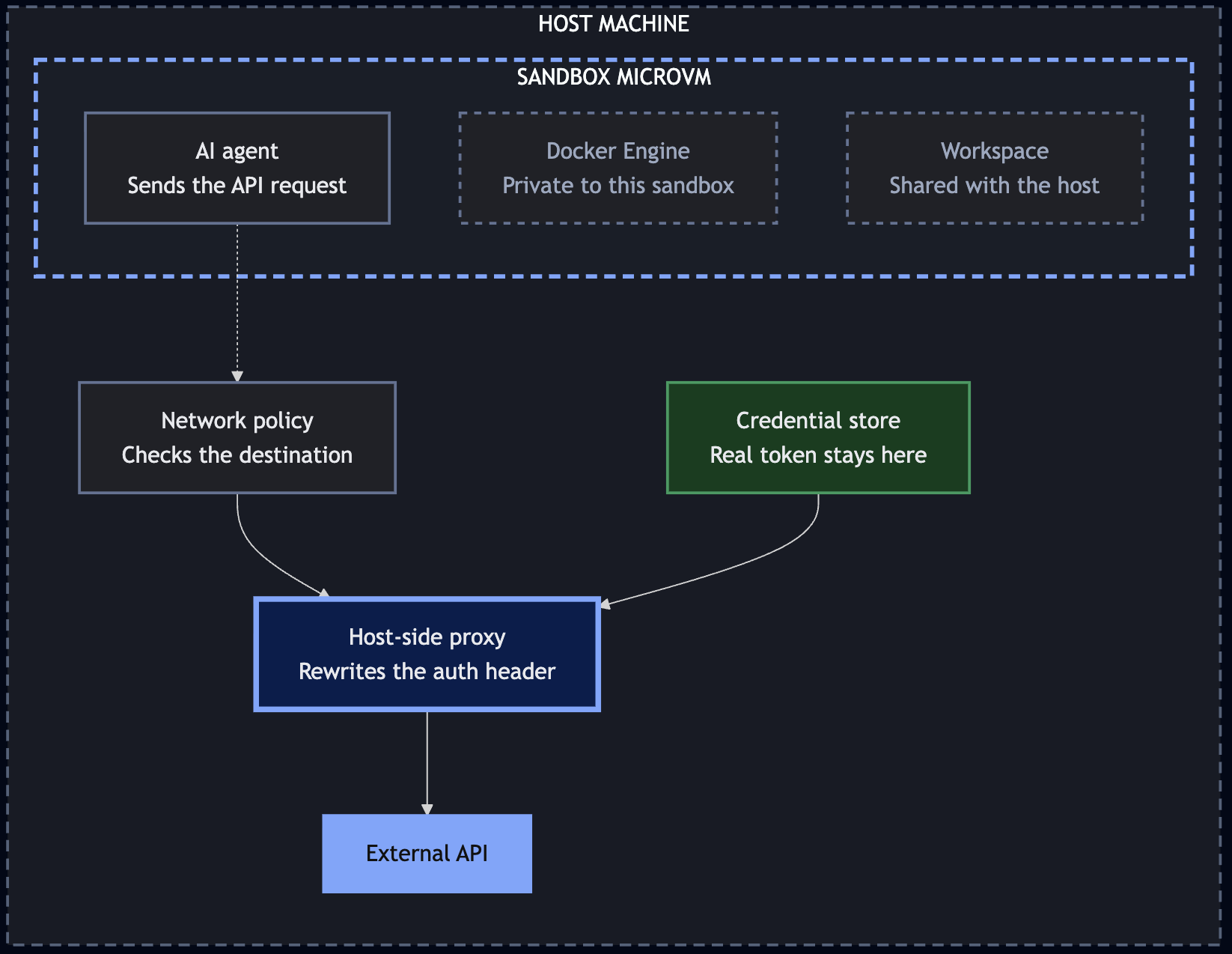
First, there is a host machine. As we discussed earlier, this can be either your host or cloud infrastructure. When you launch a Docker Sandbox, it is primarily made up of two components.
- An AI agent
- Docker engine private to its own Sandbox. Each sandbox has its own Docker engine.
There are multiple ways to implement a Sandbox architecture, but the industry is pivoting towards microVMs. This is primarily because of:
- Low resource overhead
- Faster bootup times
- Strong isolations
- Reduced attack surface
- Hyper-scaling
A popular microVM tech stack involves Firecracker, Cloud hypervisors, and Kata containers.
Now, coming to the communications, let's take a simple example. Imagine there is a hotel booking agent that searches and reserves hotels for customers. When a request comes in:
Step 1: The agent makes a tool call to search for hotels.
Step 2: The tool call leaves the micro VM to be verified against the Network policy.
sbx policy allow network api.search.foo.com
sbx policy allow network api.search.bar.com
Step 3: Above is an example of how you can define network policies for a Sandbox. In this case, we are allowing the agent to search under the foo domain and restrict its access to bar.
Step 4: If the request comes for the foo domain, the network policy allows it to be forwarded to the particular website that serves the request.
Let's look at how to create these Sandboxes on your laptop.
Step 1: Installation
brew trust docker/tap
brew install docker/tap/sbx
Step 2: Sign in to your Docker account.
sbx loginIf you don't have one, you can create a free Docker account.
Step 3: Run the sbx command.
sbx
The first time you run it, you will see the following text:
Waiting for authentication...
Signed in as sirivarma.
Daemon started (PID: 58801, socket: /Users/svegiraju/Library/Application Support/com.docker.sandboxes/sandboxes/sandboxd/sandboxd.sock)
Logs: /Users/svegiraju/Library/Application Support/com.docker.sandboxes/sandboxes/sandboxd/daemon.log

Select a default network policy for your sandboxes:

     1. Open         — All network traffic allowed, no restrictions.
  ❯  2. Balanced     — Default deny, with common dev sites allowed.
     3. Locked Down  — All network traffic blocked unless you allow it.

  Use ↑/↓ or 1–3 to navigate, Enter to confirm, Esc to cancel.

Network policy set to "Balanced". Default deny, with common dev sites allowed.
I picked balanced so things like GitHub are on the allow list and everything else is denied by default.
When you run sbx from a project folder, the sandbox has read/write permissions to everything in that folder.
Step 4: Running sbx ls in a different shell will give the following output.
sbx lsSANDBOX AGENT STATUS PORTS WORKSPACE
docker-agent-svegiraju docker-agent running /Users/svegirajuStep 5: Running sbx policy ls will show the current list of allow and deny rules with the "Balanced" path we have chosen.
sbx policy lsNAME TYPE DECISION RESOURCES
default-ai-services network allow **.chatgpt.com:443
**.oaistatic.com:443
**.oaiusercontent.com:443
**.openai.com:443
api.anthropic.com:443
api.perplexity.ai:443
cdn.openaimerge.com:443
chatgpt.com:443
gemini.google.com:443
generativelanguage.googleapis.com:443
models.dev:443
nanoclaw.dev:443
platform.claude.com:443
play.googleapis.com:443
statsig.anthropic.com:443
default-package-managers network allow **.bun.sh:443
**.gradle.org:443
**.packagist.org:443
**.yarnpkg.com:443
apache.org:443Step 6: In order to stop and remove the sandbox, issue the following commands
sbx stop my-sandbox
sbx rm my-sandbox
Step 7: Of course, you may want to diagnose issues within the sandbox or while running it. This is when we will use the "diagnose" command.
sbx diagnoseConclusion
What we discussed so far shows why sandboxes matter and how to create one with Docker Sandbox. It is a free, open-source offering from Docker for individual use. In the upcoming blogs, we will discuss Cloud Sandboxes (running sandboxes in the cloud infrastructure instead of locally) and more complex configurations like Credentials, GPU passthrough, and environment files.
All in all, Sandbox is an interesting project from Docker. Go try it out.
Opinions expressed by DZone contributors are their own.
Comments