

Advanced Insight Generation: Revolutionizing Data Ingestion for AI-Powered Search
Use Azure Document Intelligence and OpenAI to index complex documents, preserve structure, and power smarter search in AI-driven RAG applications.
Join the DZone community and get the full member experience.
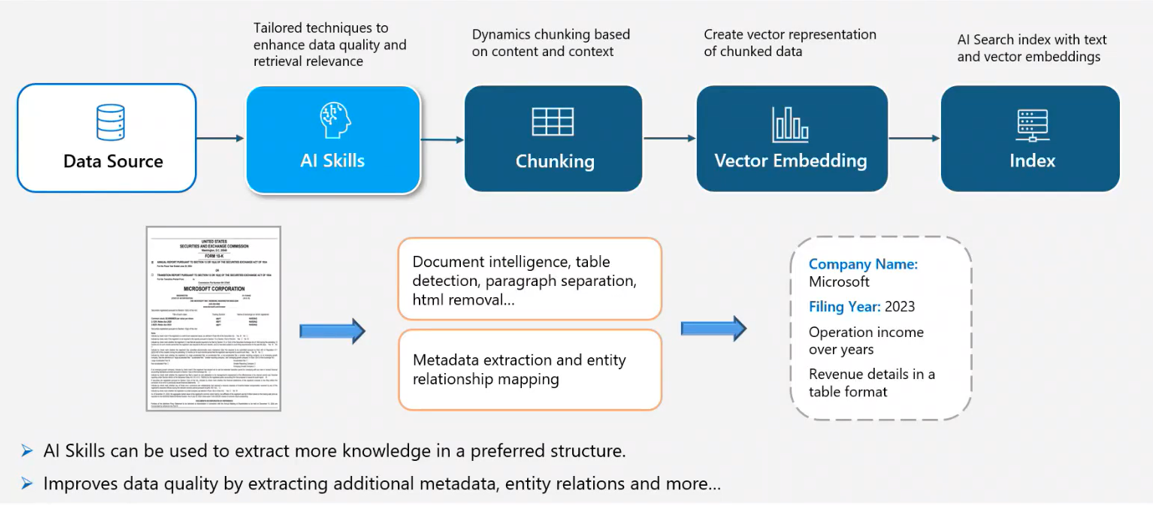
Join For FreeEffectively using unstructured information is crucial for businesses aiming to stay competitive. Traditional data ingestion methods often struggle to maintain data quality and relevance, particularly when preparing massive datasets for AI-driven chat applications. Standard text parsers treat documents as simple text, ignoring complex structures like tables, figures, and hierarchical sections. This leads to significant context loss and misinterpretations, ultimately hindering the performance of Retrieval-Augmented Generation (RAG) systems. Our advanced insight generation approach offers a powerful solution by improving data ingestion and indexing through state-of-the-art AI, dynamic chunking, vector embedding, and intelligent indexing.
Preserving Structure and Context: Intelligent OCR and Document Intelligence
A key innovation in this pipeline is the integration of intelligent Optical Character Recognition (OCR) with Azure Document Intelligence. Unlike traditional OCR, our intelligent OCR recognizes complex document layouts, including tables, charts, and multi-column formats. These AI-powered capabilities preserve the original structure and hierarchy of the content, ensuring that crucial contextual information is retained. Document Intelligence further enhances this process by:
- Detecting and tagging entities
- Mapping relationships between entities
- Extracting metadata with high precision
Following this enriched processing, the content undergoes dynamic chunking. Instead of arbitrary breaks, the data is segmented based on logical sections and context. This enables more accurate vector embedding, capturing semantic nuances and preserving the integrity of structured data like financial tables or technical specifications. Finally, both text and vector embeddings are indexed, enabling advanced, context-aware, and format-sensitive search functionalities.
Structure-Aware Indexing: Empowering RAG Applications
This advanced insight generation pipeline not only improves knowledge extraction but also significantly enhances data quality and search relevance. By using intelligent Document Intelligence (OCR and derivative models) to preserve document formats, businesses achieve superior indexing that respects the original layout and context of information. This "format-aware" indexing dramatically improves the performance of RAG-based applications by maintaining the relational integrity of data. The result? More accurate and contextually relevant responses.
As AI continues to advance, intelligent systems like this will redefine data retrieval, unlocking deeper insights while preserving the authenticity of complex documents.
Implementing Advanced Insight Generation With Azure
Preserving the complex formatting of documents during indexing is essential for generating accurate insights and building effective Retrieval-Augmented Generation (RAG) systems. Traditional text parsers often struggle to maintain tables and hierarchical structures, resulting in fragmented and incomplete data. This guide demonstrates how to leverage Azure's intelligent OCR, Document Intelligence, and AI-powered indexing to maintain document fidelity and improve search performance.
First, we will send the document to the Azure Document Intelligence service to detect and parse the formats within the document while preserving their original structure. Before doing this, we need to provision the Azure Document Intelligence service in Azure and then obtain the secret details (endpoint, api-key). You can follow this link to provision the service.
Azure Document Intelligence offers a variety of models. In this example, we will use the pre-built Layout model.
Step 1: Extract Information From Document Using Azure Document Intelligence
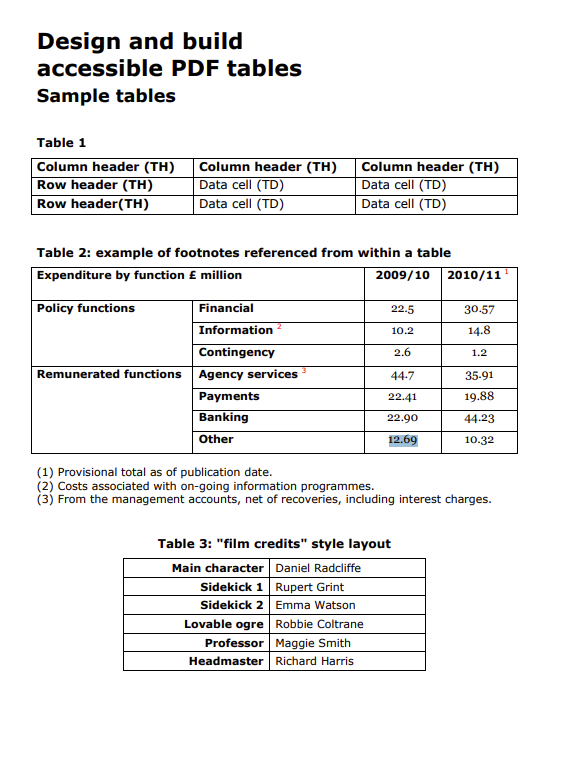
Sample PDF Link: Document Link
import os
import json
import time
from azure.ai.formrecognizer import DocumentAnalysisClient
from azure.core.credentials import AzureKeyCredential
from azure.ai.documentintelligence import DocumentIntelligenceClient
from azure.ai.documentintelligence.models import AnalyzeDocumentRequest, DocumentContentFormat, AnalyzeResult

# Azure Document Intelligence secrets
endpoint = "your_endpoint"
key = "your_api_key"

# Client
document_analysis_client = DocumentAnalysisClient(endpoint, AzureKeyCredential(key))

# your pdf file
pdf_path = "C:\data\sample-tables.pdf"

# doc read and call document intelligence
with open(pdf_path, "rb") as f:
    poller = document_analysis_client.begin_analyze_document("prebuilt-layout", document=f, pages="1")
    result = poller.result()

# Store document intelligence result as json
output_data = []
for page in result.pages:
    page_data = {
        "page_number": page.page_number,
        "content": " ".join(line.content for line in page.lines),
        "tables": []
    }

    # process tables in the document
    for table in result.tables:
        table_data = {
            "row_count": table.row_count,
            "column_count": table.column_count,
            "cells": [{"row_index": cell.row_index, "column_index": cell.column_index, "text": cell.content} for cell in table.cells]
        }
        page_data["tables"].append(table_data)

    output_data.append(page_data)

# Save json file that includes all details about the document
with open("processed_output.json", "w", encoding="utf-8") as json_file:
    json.dump(output_data, json_file, ensure_ascii=False, indent=4)

print("Document processing completed!")
We scanned the sample document using Azure Document Intelligence and obtained the output while preserving the document's format. We then saved this output to a JSON file.
Step 2: Create Index in Azure AI Search
We need a service to store the scanned data in an index and query it at run-time. At this point, we use Azure AI Search, which is widely utilized in RAG-based applications on Azure. To provision the Azure AI Search service and obtain the secret details, you can follow this link.
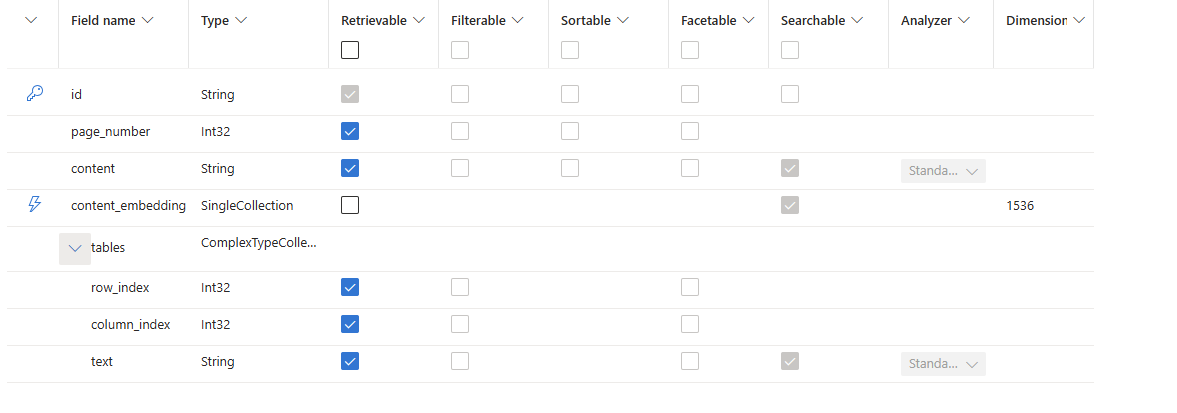
Index schema we use:
from azure.core.credentials import AzureKeyCredential
from azure.search.documents.indexes import SearchIndexClient
from azure.search.documents.indexes.models import (
    ComplexField,
    SearchFieldDataType,
    SearchableField,
    SimpleField,
    SearchIndex,
    VectorSearch,
    VectorSearchProfile,
    HnswParameters,
    HnswAlgorithmConfiguration,
    VectorSearchAlgorithmKind,
    VectorSearchAlgorithmMetric,
    SearchField
)

# Azure AI Search bilgileri
search_service_name = "your-search-service-name"
search_api_key = "your-search-api-key"
index_name = "document-index-with-embeddings"

# Search Index Client oluştur
search_index_client = SearchIndexClient(
    endpoint=f"https://{search_service_name}.search.windows.net/",
    credential=AzureKeyCredential(search_api_key)
)

# Indeks schema
fields = [
    SimpleField(name="id", type=SearchFieldDataType.String, key=True),
    SimpleField(name="page_number", type=SearchFieldDataType.Int32, retrievable=True),
    SearchableField(name="content", type=SearchFieldDataType.String),
    SearchField(
        name="content_embedding",
        type=SearchFieldDataType.Collection(SearchFieldDataType.Single),
        searchable=True,
        filterable=False,
        sortable=False,
        facetable=False,
        vector_search_dimensions=1536,
        vector_search_profile_name="myHnswProfileSQ"
    ),
    ComplexField(name="tables", collection=True, fields=[
        SimpleField(name="row_index", type=SearchFieldDataType.Int32),
        SimpleField(name="column_index", type=SearchFieldDataType.Int32),
        SearchableField(name="text", type=SearchFieldDataType.String)
    ])
]

# Vektör Search Config
vector_search_config = VectorSearch(
    algorithms=[
        HnswAlgorithmConfiguration(
            name="myHnsw",
            parameters=HnswParameters(
                m=4,
                ef_construction=400,
                ef_search=500,
                metric=VectorSearchAlgorithmMetric.COSINE,
            ),
        ),
    ],
    profiles=[
        VectorSearchProfile(
            name="myHnswProfileSQ",
            algorithm_configuration_name="myHnsw"
        ),
    ],
)

# Indeksi oluştur
index = SearchIndex(
    name=index_name,
    fields=fields,
    vector_search=vector_search_config
)

search_index_client.create_or_update_index(index)

print("Azure AI Search index with embeddings created successfully!")
Step 3: Generate Embeddings for Vector Search
At this point, we use the text-embedding-ada-002 model from Azure OpenAI to generate embeddings.
from openai import AzureOpenAI
import json

# Azure OpenAI Connections
AZURE_OPENAI_ENDPOINT = "your-endpoint"
AZURE_OPENAI_API_KEY = "your-key"
AZURE_OPENAI_DEPLOYMENT_NAME = "text-embedding-ada-002"

# Azure OpenAI Client
client = AzureOpenAI(
    azure_endpoint = AZURE_OPENAI_ENDPOINT,
    api_key=AZURE_OPENAI_API_KEY,
    api_version="2024-05-01-preview"
)

def get_embedding(text):
    """Azure OpenAI text-embedding-ada-002 modelini kullanarak embedding üretir."""
    response = client.embeddings.create(
        model=AZURE_OPENAI_DEPLOYMENT_NAME,
        input=text
    )
    return response.data[0].embedding

# Load json that processed with doc intelligence
with open("processed_output.json", "r", encoding="utf-8") as json_file:
    documents = json.load(json_file)

# generate embeddings
for doc in documents:
    doc["content_embedding"] = get_embedding(doc["content"])
    #for table in doc["tables"]:
    #    table["text_embedding"] = get_embedding(table["text"]) if "text" in table else None

# Save embeddings in a new file
with open("processed_with_embeddings.json", "w", encoding="utf-8") as json_file:
    json.dump(documents, json_file, ensure_ascii=False, indent=4)

print("Embeddings successfully created using Azure OpenAI SDK!")
Step 4: Upload Document to Azure AI Search Index
Next, we upload the processed data (extracted using Document Intelligence and embedded with Azure OpenAI) to Azure AI Search so it can be queried.
from azure.search.documents import SearchClient

# Azure AI Search client
search_client = SearchClient(
    endpoint=f"https://{search_service_name}.search.windows.net/",
    index_name=index_name,
    credential=AzureKeyCredential(search_api_key)
)

# Read json file for indexing
with open("processed_with_embeddings.json", "r", encoding="utf-8") as json_file:
    documents = json.load(json_file)

documents_to_upload = []
for idx, doc in enumerate(documents):
    documents_to_upload.append({
        "id": str(idx + 1),
        "page_number": doc["page_number"],
        "content": doc["content"],
        "content_embedding": doc["content_embedding"],
        "tables": [
            {
                "row_index": cell["row_index"],
                "column_index": cell["column_index"],
                "text": cell["text"]
                #"text_embedding": get_embedding(cell["text"]) if "text" in cell else None
            }
            for table in doc["tables"]
            for cell in table["cells"]
        ]
    })

# Upload to Azure AI Search Index
search_client.upload_documents(documents=documents_to_upload)
print("Documents with embeddings uploaded to Azure AI Search successfully!")
Step 5: Implement RAG and Test the System
Let's put our indexed data to the test by building a simple Retrieval-Augmented Generation (RAG) application. We will use GPT-4o-mini to implement RAG application.
from openai import AzureOpenAI
from requests.exceptions import ConnectionError
import time

def query_search_and_generate(prompt):
    # Azure AI Search'te sorgu yap
    results = search_client.search(
        search_text= prompt,
        search_fields=["tables/text"],
        include_total_count=True,
        vector_queries=[
            {
                "kind": "text",
                "text": prompt,
                "fields": "content_embedding"
            }
        ],
        select=["id", "page_number", "content", "tables"]
    )

    retrieved_content = " ".join([
        f"Page {doc.get('page_number', '')}: {doc['content']} {doc.get('tables', '')}"
        for doc in results
    ])

    #retrieved_content = " ".join([doc["content"] for doc in results])

    #retrieved_content = retrieved_content.join([doc.get("tables") for doc in results])

    print(f"Retrieved content: {retrieved_content}")

    client = AzureOpenAI(
        azure_endpoint="YOUR_ENDPOINT",
        api_key="YOUR_API_KEY",
        api_version="2024-05-01-preview"
    )
    deployment_name = "gpt-4o-mini"

    # Retry logic for transient network issues
    max_retries = 3
    for attempt in range(max_retries):
        try:
            response = client.chat.completions.create(
                model=deployment_name,
                messages=[
                    {"role": "system", "content": "You are a helpful assistant. If the data where I found the answer comes from a table, also tell me which page the table is on, and which row and column that information is in. You should return row and column values after increment one. Because indexes start from 0 in the document."},
                    {'role': 'user', 'content': f"Question: {prompt}\n\nContext: {retrieved_content}"}
                ]
            )
            return response.choices[0].message.content
        except ConnectionError as e:
            if attempt < max_retries - 1:
                time.sleep(2 ** attempt)  # Exponential backoff
            else:
                raise e

# Test Query
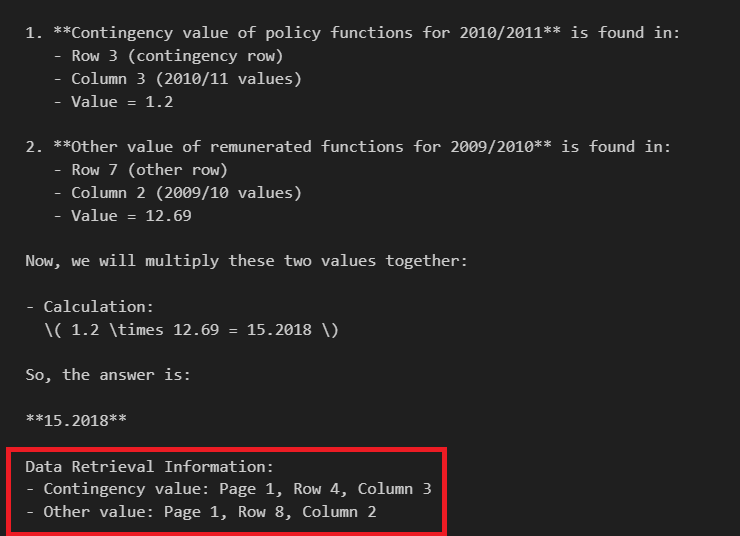
question = "Multiply with the values that contingency value of policy functions for 2010/2011 and Other value of remunerated functions for 2009/2010"

answer = query_search_and_generate(question)

print(answer)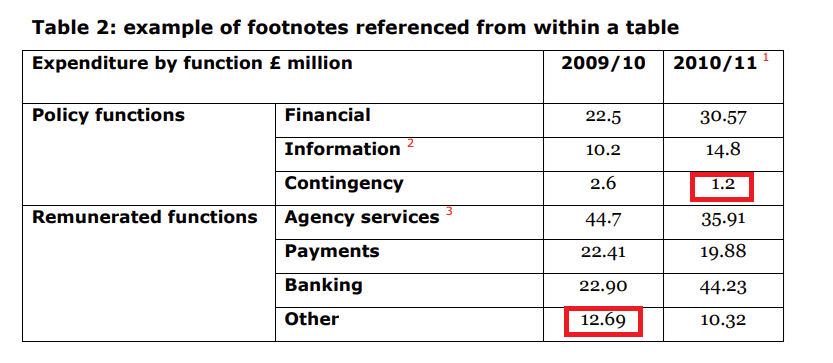
Conclusion
Most businesses sit on a ton of valuable information locked away in PDFs, reports, and other documents. The challenge is understanding the structure, context, and relationships within that content.
This guide walked through how to turn those static files into something smarter using Azure’s tools. With intelligent document parsing, high-quality embeddings, and format-aware indexing, you can build systems that actually understand your documents, not just scan them.
Once your data is set up this way, building better search tools or AI chat experiences becomes much easier. You’re not just storing information; you’re making it usable.
If you're working with structured documents like financials, contracts, or technical manuals, this approach can help you get much more out of your existing data.
Published at DZone with permission of Emrah Mete. See the original article here.
Opinions expressed by DZone contributors are their own.
Comments