

Automate and Persist MuleSoft CloudHub Application Logs
Learn how to write a shell script that will take two hours of work with application logs and turn it into a two minute process.
Join the DZone community and get the full member experience.
Join For FreeHey guys. This article will help us to understand working with Anypoint CLI 3.x commands, which interacts with MuleSoft's Anypoint Platform.
Motivation
As CloudHub has a specific log retention policy, it stores up to 100MB of logs per app and per worker or for up to 30 days, whichever limit it hits first. Once this limit has been reached, the oldest log information is deleted in chunks and is irretrievably lost.
To overcome this problem, MuleSoft application logs from CloudHub are manually downloaded every day and stored in a storage location (Box, Amazon S3, etc.). This activity is taken care of by developers and operation team members.
The most common negative impact of this manual log downloading process is the amount of effort and time it takes. It usually takes around two hours of time to download 30+ MuleSoft application logs. Developers don't like spending too much time on this type of work and, as a result, it can have a costly impact on your entire team.
The script we'll write in this article will automate two plus hours of work into a process that takes just two minutes.
Overview
What Is Anypoint CLI?
According to the MuleSoft docs, "Anypoint Platform provides a scripting and command line tool for both Anypoint Platform and Anypoint Platform Private Cloud Edition (Anypoint Platform PCE). The command line interface (CLI) supports both the interactive shell and standard CLI modes."
What Is CloudHub?
Per MuleSoft, "CloudHub is the platform as a service (PaaS) component of Anypoint Platform."
What Is Box and Box CLI?
Box is a cloud computing business which provides file sharing, collaborating, and other tools for working with files that are uploaded to its servers. Users can determine how their content can be shared with other users. Users may invite others to view and/or edit an account's shared files, upload documents and photos to a shared files folder (and thus share those documents outside Box), and give other users rights to view shared files. The Box Command Line Interface (CLI) is a tool for making requests to Box APIs from your terminal window or command prompt.
What Are We Trying to Achieve?
We are going to create a shell script which will interact with Anypoint Platform's Runtime Manager, using Anypoint CLI commands and, later, connect to Box, using Box's CLI commands.
This script will Download MuleSoft application logs from CloudHub, for all provided applications, and later upload it to Box.
Prerequisites
- Anypoint Platform Developer Account --> https://anypoint.mulesoft.com
- Box Developer Account --> https://account.box.com
- Anypoint CLI Setup --> https://docs.mulesoft.com/runtime-manager/anypoint-platform-cli
- Box CLI Setup --> https://developer.box.com/guides/tooling/sdks/cli/
Steps
- First of all, you will need to login to your Anypoint Platform account. Make sure you have some applications deployed in your respective Business group.
- Install Anypoint CLI on your machine. You will get all the installation steps here.
- Now sign up for Box here. Once this is done, follow the below steps:
- You will get access to following:
- Box access: https://app.box.com/folder
- Developer Access: https://app.box.com/developers/console
- Admin Access: https://app.box.com/master
- Create a 'Client App' in the Developer Portal.
- You will get access to following:
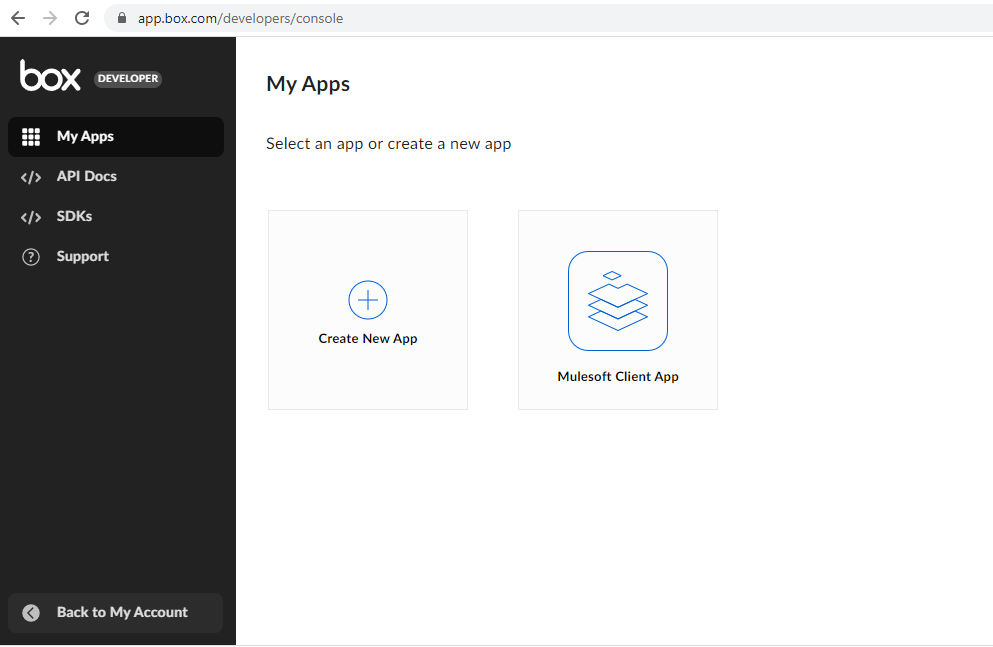
3. Once this is created, it has to be authorized by Admin. After it's been authorized, you will be able to see this app in the Admin portal.
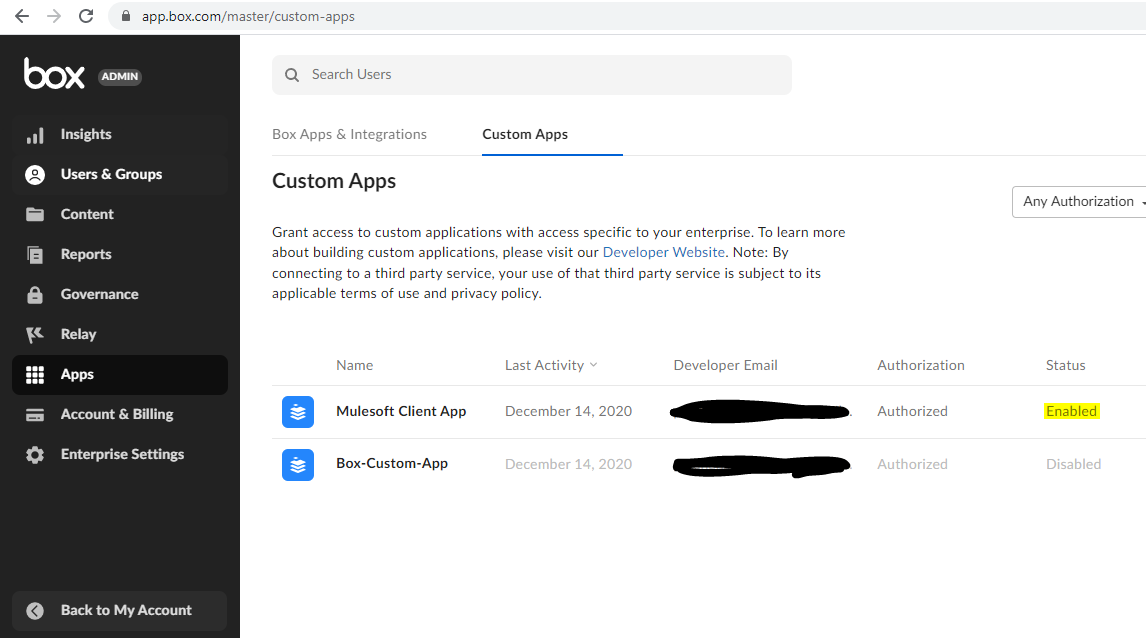
Check the detailed of steps for box configuration here.
Commands
1. Anypoint CLI
Below are some basic Anypoint CLI commands; you can checkout the full list of commands here.
1. runtime-mgr cloudhub-application list [options] This command lists all applications available in your Anypoint Platform CLI. 2. runtime-mgr cloudhub-application start [options] <name> This command starts the running application you specify in<name>.3. runtime-mgr cloudhub-application download-logs [options] <name> <directory>This command downloads logs the for application specified in<name>to the specified directory
2. Box CLI
Below are some basic Box CLI commands; you can checkout the full list of commands here.
1. box folders:get 111111
This command fetch the information about a folder with an id 111111.

2. box files:upload fileName --parent-id 100
This command upload's a file to a specified folder ID.

3. box files:download 11111 --destination /path/to/destinationFolder
This command download a file from box folder & save it to destination folder.
Actual Implementation
Let's first check the deployed application in CloudHub. I have deployed five sample applications.
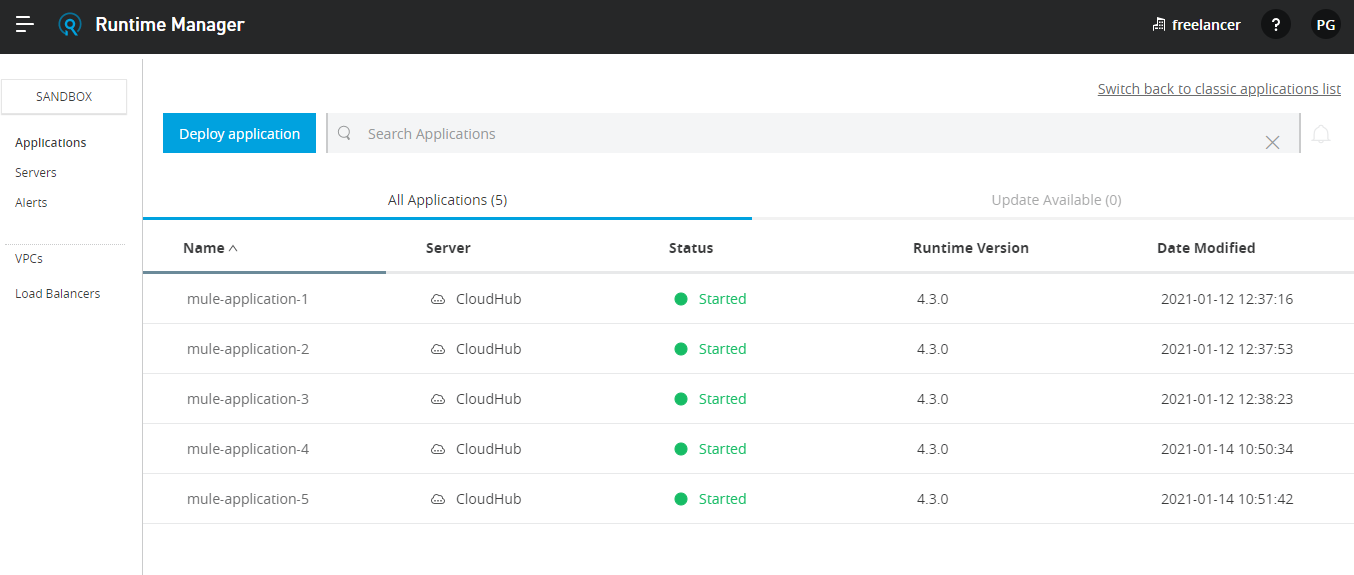
Now, let's go through the script and understand it. I have added commands inside the script to make it self-explanatory.
Please note:
- I have added lot of indentation and commands inside the script to dress up the output in the console, because of which the script might look a little bigger.
- Below is an initial version of the script. We can enhance this script by considering parameters like exception handling, logging, best practices, etc.
xxxxxxxxxx
#usage : ./cloudhub2BoxScript.sh <ANYPOINT_USERNAME> <ANYPOINT_PASSWORD> <ANYPOINT_BG_NAME> <ENVIRONMENT> <LOCAL_FOLDER_PATH> <BOX_PARENT_ID>
#
# <LOCAL_FOLDER_PATH> : This will be the Parent Folder path where, Separate Date Wise Folder is created &
# 1. Mulesoft Appplication Logs will be downloaded inside this folder.
# 2. Same Folder will be used to Upload file to Box.
# <BOX_PARENT_ID> : All Cloudhub Application Logs will be Uploaded to this folder (Segregated by Datewise Folder)
#author : Prashant G.
#purpose : This script helps to automate the process of downloading the mulesoft applications logs from cloudhub & uploading it to Box Location.
#version : 1.0
echo " ----------------------------------------------------------------------------------------------------------------------------------"
echo " ====================================================== SCRIPT BEGIN ============================================================="
echo " ----------------------------------------------------------------------------------------------------------------------------------\n\n"
now=$(date)
echo " Script Start Time is "$now
sleep 1s
if [ $# -ge 6 ]; then
echo -e "\n\nYou have Provided $# arguments over command line."
echo -e "Good to Go !!!"
else
echo "\n\nUsage: $0 UserName Password AnypointBusinessGroup AnypointEnvironment DestinationFileDirectory"
exit 0
fi
echo -e "\n------------------------------------------------------ Anypoint CLI ----------------------------------------------------------"
echo -e " \n\n Welcome to Unlease the Power of Anypoint CLI !!!"
echo -e " ------------------------------------------------------"
sleep 1s
echo " #### This Shell Script is build on Top of Anypoint CLI ####"
sleep 2s
echo -e "\n It Perform Following Activities - "
sleep 1s
echo " #1. Searches for Application Details in Anypoint Runtime Manager"
sleep 1s
echo " #2. Download Application Logs Under Specific Business Group & Environment, From Anypoint Runtime Manager"
sleep 1s
echo -e "\n\nNOTE : This Script Only Allows To Download Cloudhub Application Logs. (Hosted & Managed By Mulesoft). It doesn't Download Platform Audit Logs."
echo "==============================================================================================================================================================="
sleep 2s
echo -e " \n ################################################ Processing Started #####################################################\n"
sleep 2s
ANYPOINT_USERNAME=$1
ANYPOINT_PASSWORD=$2
ANYPOINT_BG=$3
ANYPOINT_ENVIRONMENT=$4
DESTINATION_DIRECTORY=$5
BOX_PARENT_FOLDER_ID=$6
# Create current Date folder in Local system
currentDate=$(date +"%Y_%m_%d")
DESTINATION_DIRECTORY+="\\"$currentDate
echo -e "\n [ ------- LOCAL DIRECTORY ------- ] "
echo -e "Creating Local Date Folder !"
mkdir $DESTINATION_DIRECTORY
if [ $? -eq 0 ]; then
echo "Local Folder Creation Commmand Successfully Executed !!!"
else
echo "Local Folder Creation Commmand Failed, Exiting the Loop..."
exit 0
fi
echo -e ">> Folder Created Successfully : " $DESTINATION_DIRECTORY
echo "\n=========================================== [ Initialising Connection with Anypoint Platform & Box ] ================================ \n"
sleep 1s
echo -e "\n 1) Connecting to the Anypoint Platform..."
sleep 1s
echo -e " \nUsing following details,"
sleep 1s
echo -e "\n Username : "$ANYPOINT_USERNAME
echo -e " Password : ***************"
echo -e " Business Group : "$ANYPOINT_BG
echo -e " Environment : "$ANYPOINT_ENVIRONMENT
echo -e " Destination Download File Location : "$DESTINATION_DIRECTORY
sleep 2s
echo -e "\n >> Connected to Anypoint Platform via Anypoint CLI !!!\n"
echo -e "\n 2) Connecting to the Box..."
sleep 3s
echo -e "\n >> Connected to the Box via Box CLI !!!\n"
echo -e " ========================================= [ Connection Established Successfully ] ================================================== \n"
echo -e "\n\n===================================================== [ STEPS : BEGIN ] ============================================================ \n"
echo -e " [ ------- BOX ------- ] \n"
echo -e "Creating Folder in Box : " $currentDate
#box folders:upload $currentDate --parent-id $BOX_PARENT_FOLDER_ID
#Create Current Date Folder in Box under specifc Parent ID & Fetch the ID of Created Folder and store it in Local Variable. (This ID will be required while upload command)
BOX_SUB_PARENT_FOLDER_ID=$(box folders:create $BOX_PARENT_FOLDER_ID $currentDate | awk 'FNR == 2 {print $2}' | sed -e 's|["'\'']||g')
if [ $? -eq 0 ]; then
echo "Folder Creation Command in BOX Successfully Executed !!!"
else
echo "Folder Creation Command in BOX Failed, Exiting the Loop..."
exit 0
fi
echo -e " >> Folder Successfully Created. ( ID : "$BOX_SUB_PARENT_FOLDER_ID ")"
echo "#---------------------------------------------------------------------------------------#"
echo -e "\nPart A : Downloading Application Logs. [ Anypoint Platform to Local Drive ]"
echo "#---------------------------------------------------------------------------------------#"
#Keep on adding new application name below with space separated, to allow automatic download of these application logs.
# eg.
# 1. "mule-application-1 mule-application-2"
# 2. "mule-application-1 mule-application-2 mule-application-3"
CH_app_names="mule-application-1 mule-application-2"
sleep 1s
echo -e " \nFollowing are the Cloudhub Application List - \n" $CH_app_names
sleep 2s
for appName in $CH_app_names
do
echo -e "\n * Downloading Application Logs for : " $appName
sleep 1s
echo -e "\n--> Logs will be stored under (Destination Folder) : "$DESTINATION_DIRECTORY
sleep 2s
anypoint-cli --username=$ANYPOINT_USERNAME --password=$ANYPOINT_PASSWORD --organization=$ANYPOINT_BG --environment=$ANYPOINT_ENVIRONMENT runtime-mgr cloudhub-application download-logs $appName $DESTINATION_DIRECTORY
#anypoint-cli --organization=$ANYPOINT_BG --environment=$ANYPOINT_ENVIRONMENT runtime-mgr cloudhub-application list [options]
#anypoint-cli --organization=$ANYPOINT_BG --environment=$ANYPOINT_ENVIRONMENT runtime-mgr cloudhub-application download-logs $appName $DESTINATION_DIRECTORY
if [ $? -eq 0 ]; then
echo "Mulesoft Application Downloading Command Executed Successfully !!!"$?
else
echo "Mulesoft Application Downloading Command Failed, Exiting the Loop..."
exit 0
fi
sleep 2s
echo -e " \nSuccessfully Downloaded !!!\n"
done
sleep 2s
echo " ================================================================================================================================"
echo -e "\nAll Cloudhub Application logs are Successfully downloaded using Anypoint CLI !!!\n"
echo -e " Location of Downloaded Logs --> :"$DESTINATION_DIRECTORY
echo " ================================================================================================================================"
sleep 4s
echo "#---------------------------------------------------------------------------------------#"
echo -e "\nPart B : Uploading the files [ Local Drive to BOX ]"
echo "#---------------------------------------------------------------------------------------#"
sleep 2s
#Check for files under local directory
echo -e "\n\nLooking for Files Under local Directory : "$DESTINATION_DIRECTORY
sleep 1s
#While creating Box folder, if success, you will get ID in response. This ID has to be pass in commands during file uploading process.
echo -e "\n Box Destination Folder Parent ID : "$BOX_SUB_PARENT_FOLDER_ID
sleep 2s
echo -e "\nConnected to Box Platform !\n"
#ls the current local directory and fetch all files available under local directory.
downloadedFilesInLocal=`ls $DESTINATION_DIRECTORY`
#Now, for each file under directory, upload it one by one to box.
for eachfile in $downloadedFilesInLocal
do
echo "File is available & ready to process : "$eachfile
eachFilePath=$DESTINATION_DIRECTORY"\\"$eachfile
echo -e "\nUploading Logs from Location - "$eachFilePath" to Box Folder [ ID : "$BOX_SUB_PARENT_FOLDER_ID "]"
### Box Upload file command
box files:upload $eachFilePath --parent-id $BOX_SUB_PARENT_FOLDER_ID
if [ $? -eq 0 ]; then
echo "Uploading Log File [ Local Drive to Box ] Process Successfully Executed !!!"$?
else
echo "Uploading Log File [ Local Drive to Box ] Process Failed, Exiting the Loop..."
exit 0
fi
echo -e "\nFile is successfully Uploaded !"
done
echo -e "\n\nFile Uploading Process to Box Location Executed Successfully !!!\n\n\n"
echo " ===================================================== [ STEPS : END ] ============================================================ \n"
echo -e " \n ################################################ Processing Completed #####################################################\n"
echo " -----------------------------------------------------------------------------------------------------------------------------------"
echo " ====================================================== SCRIPT END ================================================================"
echo " -----------------------------------------------------------------------------------------------------------------------------------"
Once the above script is executed on any bash shell, you will get a similar kind of response in the console.
x
----------------------------------------------------------------------------------------------------------------------------------
================================ SCRIPT BEGIN =================================
----------------------------------------------------------------------------------------------------------------------------------\n\n
Script Start Time is Thu, Jan 14, 2021 11:36:39 AM
You have Provided 6 arguments over command line.
Good to Go !!!
------------------------------------ Anypoint CLI -----------------------------------
Welcome to Unlease the Power of Anypoint CLI !!!
------------------------------------------------------
#### This Shell Script is build on Top of Anypoint CLI ####
It Perform Following Activities -
#1. Searches for Application Details in Anypoint Runtime Manager
#2. Download Application Logs Under Specific Business Group & Environment, From Anypoint Runtime Manager
NOTE : This Script Only Allows To Download Cloudhub Application Logs. (Hosted & Managed By Mulesoft). It doesn't Download Platform Audit Logs.
===============================================================================================================================================================
############################### Processing Started ################################
[ ------- LOCAL DIRECTORY ------- ]
Creating Local Date Folder !
Local Folder Creation Commmand Successfully Executed !!!
>> Folder Created Successfully : D:\Mulesoft\CloudhubLogs\2021_01_14
\n=========================================== [ Initialising Connection with Anypoint Platform & Box ] ================================ \n
1) Connecting to the Anypoint Platform...
Using following details,
Username : PrashantX2F
Password : ***************
Business Group : freelancer
Environment : Sandbox
Destination Download File Location : D:\Mulesoft\CloudhubLogs\2021_01_14
>> Connected to Anypoint Platform via Anypoint CLI !!!
2) Connecting to the Box...
>> Connected to the Box via Box CLI !!!
============================= [ Connection Established Successfully ] ================================
===================================== [ STEPS : BEGIN ] =======================================
[ ------- BOX ------- ]
Creating Folder in Box : 2021_01_14
Folder Creation Command in BOX Successfully Executed !!!
>> Folder Successfully Created. ( ID : 129652278820 )
#---------------------------------------------------------------------------------------#
Part A : Downloading Application Logs. [ Anypoint Platform to Local Drive ]
#---------------------------------------------------------------------------------------#
Following are the Cloudhub Application List -
mule-application-1 mule-application-2 mule-application-3 mule-application-4 mule-application-5
* Downloading Application Logs for : mule-application-1
--> Logs will be stored under (Destination Folder) : D:\Mulesoft\CloudhubLogs\2021_01_14
Downloading log for instance 5ffd4a4019db5659eea5b61d-0
Saving to D:/Mulesoft/CloudhubLogs/2021_01_14/mule-application-1-2021_01_12.zip
Mulesoft Application Downloading Command Executed Successfully !!!0
Successfully Downloaded !!!
* Downloading Application Logs for : mule-application-2
--> Logs will be stored under (Destination Folder) : D:\Mulesoft\CloudhubLogs\2021_01_14
Downloading log for instance 5ffd4a666ed7271ee9e955ad-0
Saving to D:/Mulesoft/CloudhubLogs/2021_01_14/mule-application-2-2021_01_12.zip
Mulesoft Application Downloading Command Executed Successfully !!!0
Successfully Downloaded !!!
* Downloading Application Logs for : mule-application-3
--> Logs will be stored under (Destination Folder) : D:\Mulesoft\CloudhubLogs\2021_01_14
Downloading log for instance 5ffd4a98f12b0311f45fddb8-0
Saving to D:/Mulesoft/CloudhubLogs/2021_01_14/mule-application-3-2021_01_12.zip
Mulesoft Application Downloading Command Executed Successfully !!!0
Successfully Downloaded !!!
* Downloading Application Logs for : mule-application-4
--> Logs will be stored under (Destination Folder) : D:\Mulesoft\CloudhubLogs\2021_01_14
Downloading log for instance 5fffd44401ed032a73140432-0
Saving to D:/Mulesoft/CloudhubLogs/2021_01_14/mule-application-4-2021_01_14.zip
Mulesoft Application Downloading Command Executed Successfully !!!0
Successfully Downloaded !!!
* Downloading Application Logs for : mule-application-5
--> Logs will be stored under (Destination Folder) : D:\Mulesoft\CloudhubLogs\2021_01_14
Downloading log for instance 5fffd46ea5b2a179d02a1757-0
Saving to D:/Mulesoft/CloudhubLogs/2021_01_14/mule-application-5-2021_01_14.zip
Mulesoft Application Downloading Command Executed Successfully !!!0
Successfully Downloaded !!!
================================================================================================================================
All Cloudhub Application logs are Successfully downloaded using Anypoint CLI !!!
Location of Downloaded Logs --> :D:\Mulesoft\CloudhubLogs\2021_01_14
================================================================================================================================
#---------------------------------------------------------------------------------------#
Part B : Uploading the files [ Local Drive to BOX ]
#---------------------------------------------------------------------------------------#
Looking for Files Under local Directory : D:\Mulesoft\CloudhubLogs\2021_01_14
Box Destination Folder Parent ID : 129652278820
Connected to Box Platform !
File is available & ready to process : mule-application-1-2021_01_12.zip
Uploading Logs from Location - D:\Mulesoft\CloudhubLogs\2021_01_14\mule-application-1-2021_01_12.zip to Box Folder [ ID : 129652278820 ]
Item Status: active
Uploading Log File [ Local Drive to Box ] Process Successfully Executed !!!0
File is successfully Uploaded !
File is available & ready to process : mule-application-2-2021_01_12.zip
Uploading Logs from Location - D:\Mulesoft\CloudhubLogs\2021_01_14\mule-application-2-2021_01_12.zip to Box Folder [ ID : 129652278820 ]
Item Status: active
Uploading Log File [ Local Drive to Box ] Process Successfully Executed !!!0
File is successfully Uploaded !
File is available & ready to process : mule-application-3-2021_01_12.zip
Uploading Logs from Location - D:\Mulesoft\CloudhubLogs\2021_01_14\mule-application-3-2021_01_12.zip to Box Folder [ ID : 129652278820 ]
Item Status: active
Uploading Log File [ Local Drive to Box ] Process Successfully Executed !!!0
File is successfully Uploaded !
File is available & ready to process : mule-application-4-2021_01_14.zip
Uploading Logs from Location - D:\Mulesoft\CloudhubLogs\2021_01_14\mule-application-4-2021_01_14.zip to Box Folder [ ID : 129652278820 ]
Item Status: active
Uploading Log File [ Local Drive to Box ] Process Successfully Executed !!!0
File is successfully Uploaded !
File is available & ready to process : mule-application-5-2021_01_14.zip
Uploading Logs from Location - D:\Mulesoft\CloudhubLogs\2021_01_14\mule-application-5-2021_01_14.zip to Box Folder [ ID : 129652278820 ]
Item Status: active
Uploading Log File [ Local Drive to Box ] Process Successfully Executed !!!0
File is successfully Uploaded !
File Uploading Process to Box Location Executed Successfully !!!
================================ [ STEPS : END ] ================================
################################ Processing Completed ##########################
----------------------------------------------------------------------------------
================================== SCRIPT END ===================================
----------------------------------------------------------------------------------
At last, you will see application logs are getting uploaded successfully to Box.
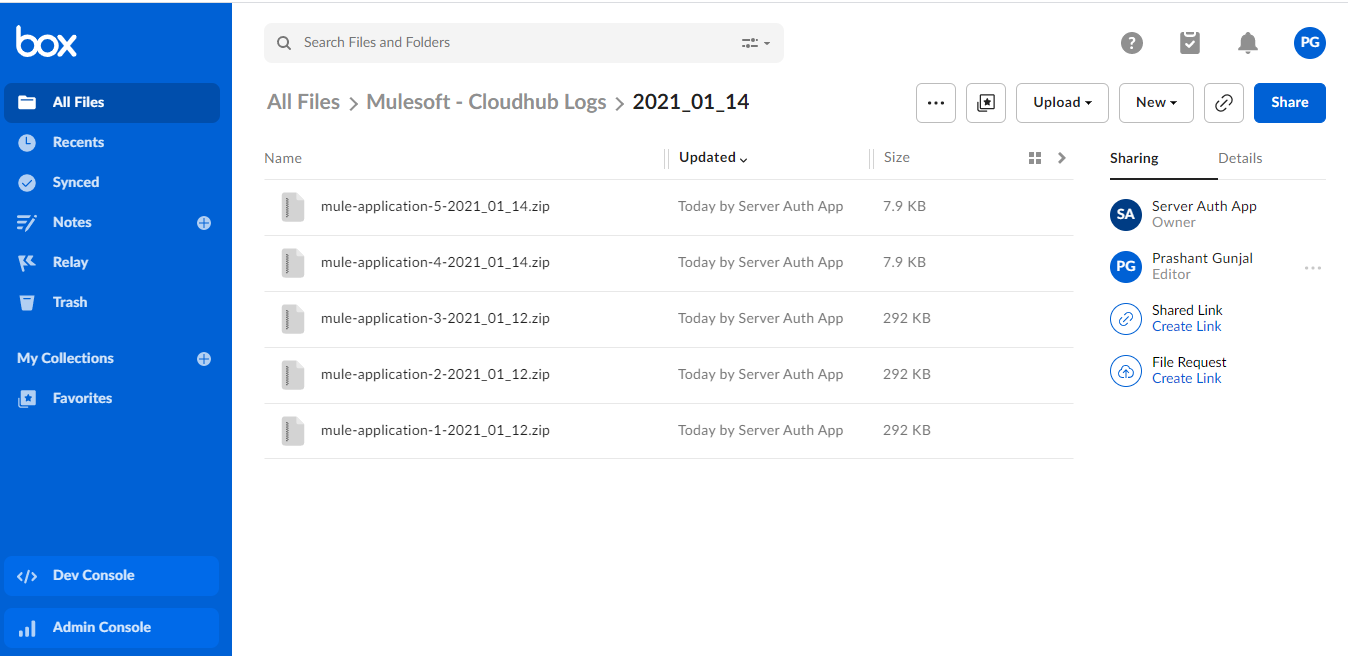
This is just one of the use cases for Anypoint CLI. This script can be automated using cron to let it run at a specific date/time.
Anypoint CLI is a very powerful interface that can be used to automate and accomplish tasks using the command line tool.
Happy learning!
Opinions expressed by DZone contributors are their own.
Comments