

Zero-Touch Patch Management With PowerShell and Intune: How We Automated Compliance at Scale
This article describes how we automated Windows patch management using Microsoft Intune and PowerShell to reach 95%+ compliance across a hybrid environment.
Join the DZone community and get the full member experience.
Join For FreeKeeping hundreds of endpoints patched and compliant sounds easy on paper until you’re juggling different departments, conflicting maintenance windows, and manual tracking spreadsheets. We knew our approach had to change when a missed update led to a critical zero-day vulnerability exposure in one of our branch office servers.
This article walks through how we transitioned from inconsistent, manual patching to a fully automated, audit-friendly system using Microsoft Intune, PowerShell, and scheduled compliance logic. No third-party tools. No more guesswork.
Patch management is often the unsung hero of IT operations. When it works, nobody notices. When it doesn't, you’re suddenly at the center of a major incident. By automating our patching process, we not only improved uptime but also gave our IT team more time to focus on strategic initiatives instead of chasing tickets.
Why Manual Patching Wasn’t Scalable
Our environment included:
- 400+ devices across hybrid-joined domains
- Remote and on-prem endpoints
- A mix of frontline laptops, user desktops, and kiosks
Manual patching meant we:
- Missed enforcement when devices were offline
- Relied on monthly emails for progress tracking
- Had no real-time compliance insights until audits hit
That approach worked for a while until it didn’t. Intune gave us visibility, but we needed automation to truly scale.
We also discovered that patch delays often came down to a few missed edge cases like kiosk devices with locked screens or field users who never logged into the VPN. Automating detection and retry mechanisms gave us the coverage we needed.
Design Goals for a Zero-Touch System
We wanted to:
- Apply Windows updates on a fixed cadence
- Automatically detect devices that failed to patch
- Re-attempt patching or escalate after retries
- Log everything (success, failure, reboot status)
- Avoid disrupting users with unexpected reboots
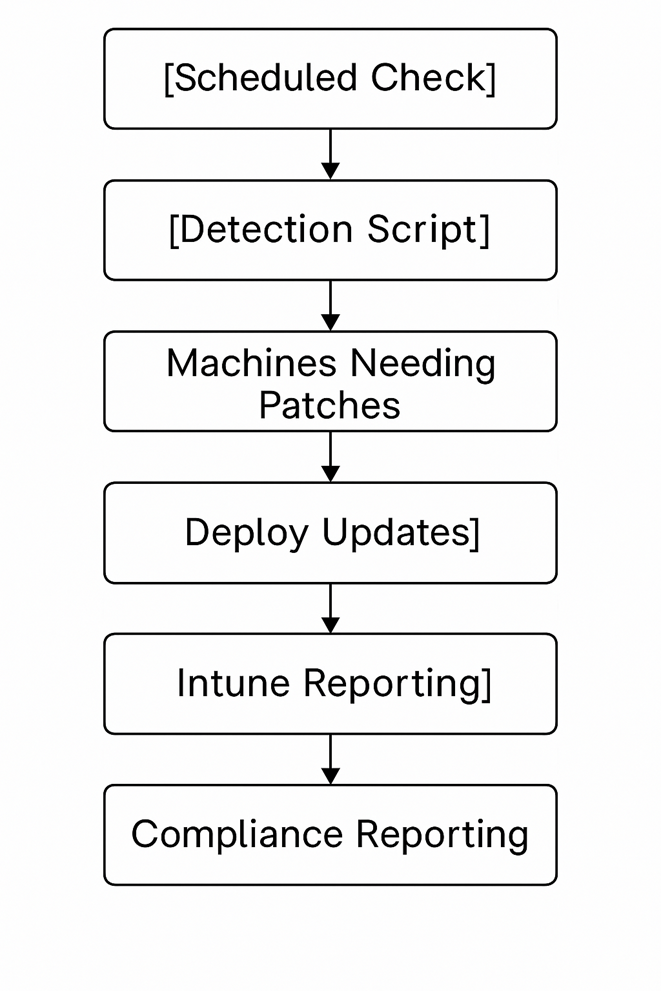
Our stack:
- Microsoft Intune + Update rings
- PowerShell scripts deployed via Win32 apps
- Azure Log Analytics for reporting
We focused on building something simple and maintainable. Our end goal was a system that just runs one that doesn’t need babysitting.
Now steps,
Step 1: Standardize Update Rings in Intune
We created 3 update rings:
- Pilot Ring (IT Dept, daily patching)
- Broad Ring (80% of devices, 7-day delay)
- Critical Ring (Finance, kiosk endpoints or Bursar or Admissions with 14-day delay)
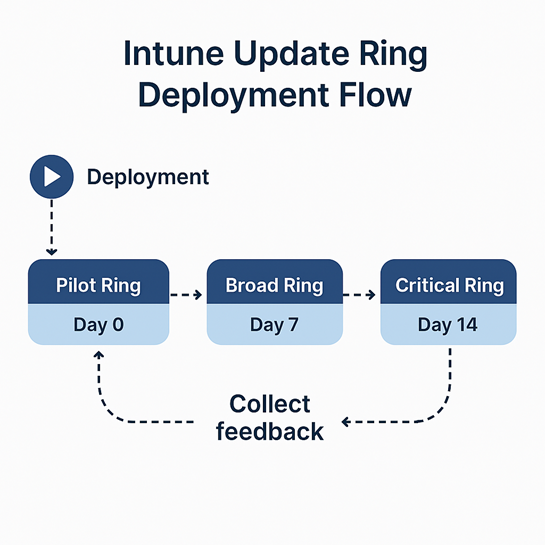
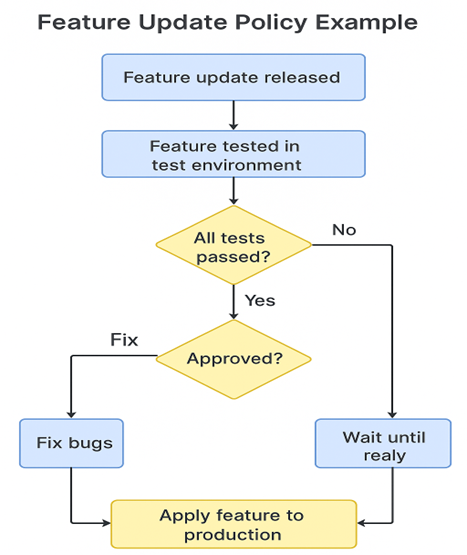
Each had:
- User experience settings for active hours
- Grace periods for restarts
- Deadline enforcement for reboot
This alone reduced patch delay complaints by 40%.
We also clearly documented the schedule for each ring and informed each business unit ahead of deployment. That helped avoid surprises when restarts occurred.
Step 2: Deploy PowerShell Scripts for Extra Validation
We used PowerShell to:
- Detect pending reboot flags
- Force retry of failed updates
- Dump status to IntuneManagementExtension.log
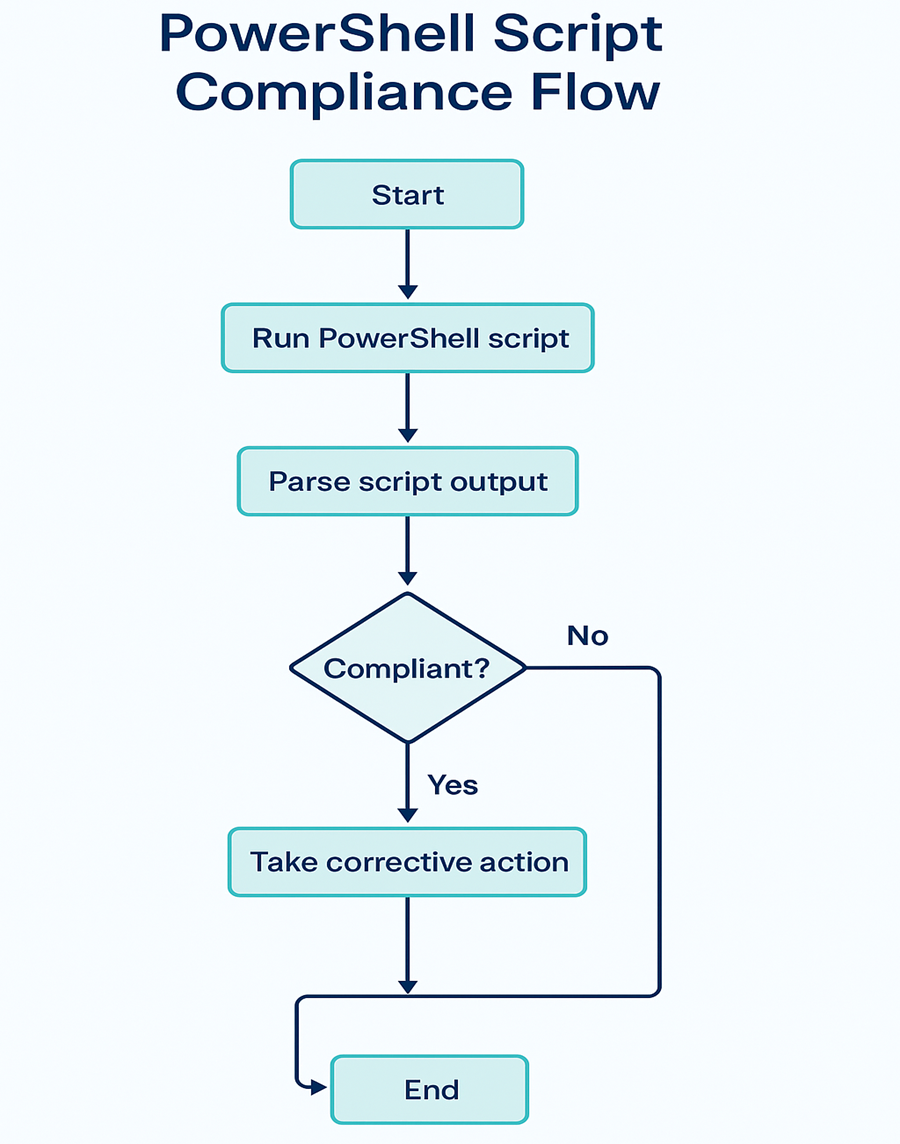
Sample script snippet:
$updates = New-Object -ComObject Microsoft.Update.Searcher

$results = $updates.Search("IsInstalled=0")

if ($results.Updates.Count -gt 0) {
  Write-Output "Pending updates found"
  # Trigger install logic
}
We packaged the script using the Intune Win32 Content Prep Tool and deployed as a recurring task. This gave us a lightweight way to extend Intune's built-in functionality.
Step 3: Create Custom Compliance Policy
We defined a custom compliance rule using the Detection.xml method. It looked for a registry key we set via script post-patch.
- If the key existed → compliant
- If not → non-compliant
This allowed integration with Conditional Access policies blocking VPN and apps until the device was up-to-date.
We also added fallback logic to flag machines that failed three update cycles in a row.
Step 4: Reporting and Alerting with Log Analytics
We sent patch and compliance logs to Log Analytics using the built-in Intune connector. This let us:
- Build dashboards showing monthly compliance by ring
- Trigger alerts when more than 5% of devices failed in a ring
- Track which departments had the most missed updates
Example Kusto query:
DeviceUpdateStatus
| where UpdateState == "Failed"
| summarize count() by DeviceName, OSVersion
These reports helped us respond faster when patching stalled on a group of machines. We also shared them with leadership to demonstrate compliance trends.
Flow Diagram
Below is a simplified version of the process we implemented:
Zero-Touch Patch Flow Overview:
[Define Update Rings in Intune]
↓
[Deploy PowerShell Validation Scripts]
↓
[Track Reboots + Set Compliance Registry Key]
↓
[Custom Compliance Policy Checks Key]
↓
[Report to Log Analytics + Trigger Alerts]
This logical flow reduced our need for manual tickets or ad-hoc patching sessions.
Challenges We Hit
- Device Sleep Mode: Some laptops missed patches while asleep; we added wake timers using scheduled tasks.
- Time Zone Conflicts: Active hours in Intune are local — we missed this and had overlapping reboot windows.
- Low Storage Devices: Updates failed silently on 64GB tablets — resolved with a script that checks free space.
- Disconnected Users: Road warriors often missed patch windows — we solved it with retry-on-connection logic in PowerShell.
Final Results
- 95%+ compliance across devices within SLA
- Zero manual intervention post-deployment
- Audit time reduced by 60% thanks to automated logs
- Improved trust from business units who no longer feared unexpected reboots
Final Thoughts
Automating patch management wasn’t just about saving time — it helped us sleep better knowing every device was protected, especially during zero-day events. Intune gave us the visibility, but PowerShell gave us control. Together, we built a patching engine that keeps running quietly in the background — until we need it most.
If you're still manually chasing update tickets, consider building a process like this. Start with pilot rings, use what Intune gives you, and plug the gaps with script logic.
Don’t wait until a CVE alert to prioritize automation — plan now, test in waves, and iterate as your environment evolves.
Opinions expressed by DZone contributors are their own.
Comments