

Building a Secure and Unified Data Platform
Learn to build a secure GCP stack using a custom VPC, VM with private access, managed Cloud SQL PostgreSQL, and BigQuery for real-time federated queries.
 ·
·
Join the DZone community and get the full member experience.
Join For FreeIntroduction
I want to walk you through a detailed setup that combines a Compute Engine Virtual Machine (VM) with a custom Virtual Private Cloud (VPC), a managed PostgreSQL database using Cloud SQL, and the analytical prowess of BigQuery. We will complete setting up a secure, efficient, and interconnected environment for your data needs.
Getting Started
Create a new Google Cloud Project.

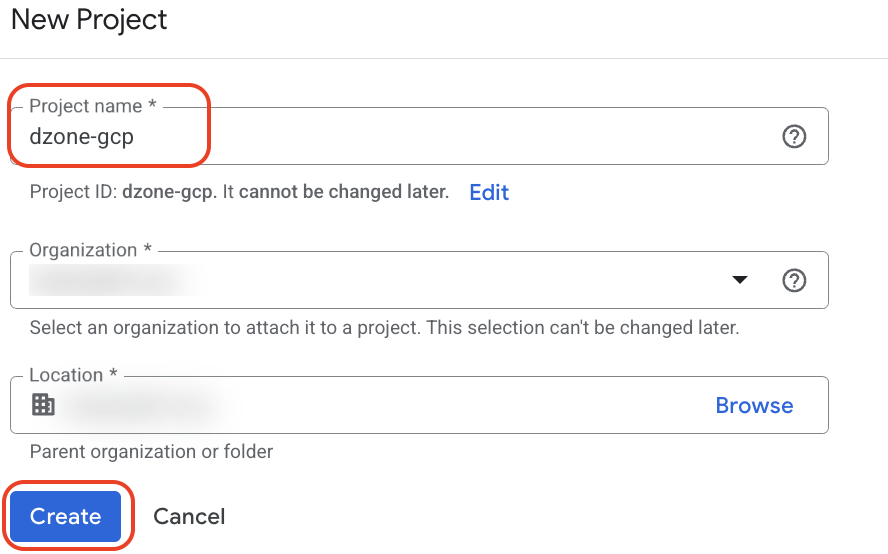
Specify Project name, for example, dzone-gcp. Click on "Create".
Navigate to APIs & Services.

Click on Enable APIs and services.

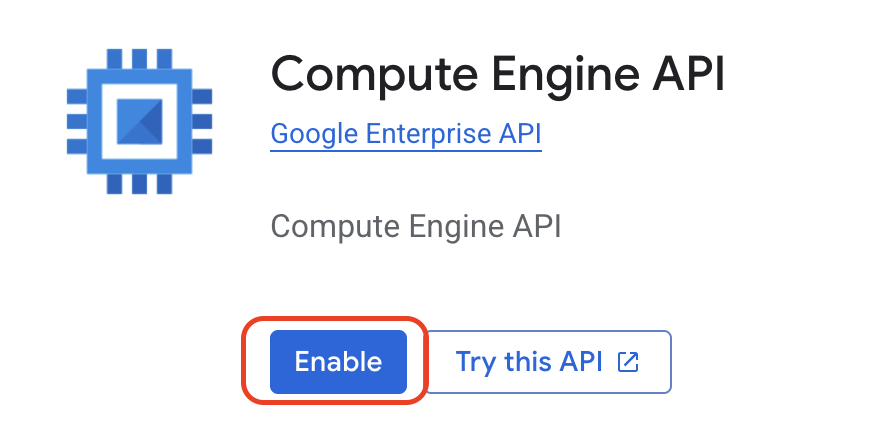
Enable the Compute Engine API.
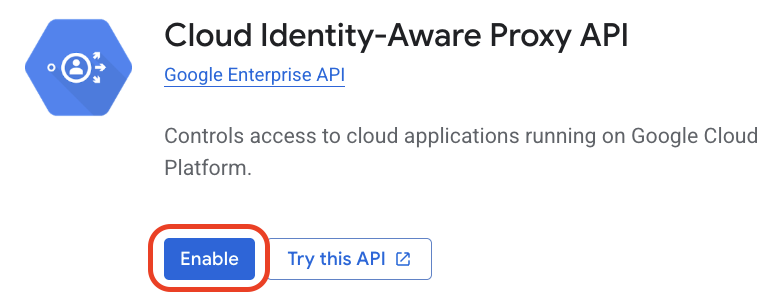
Enable the Cloud Identity-Aware Proxy API.
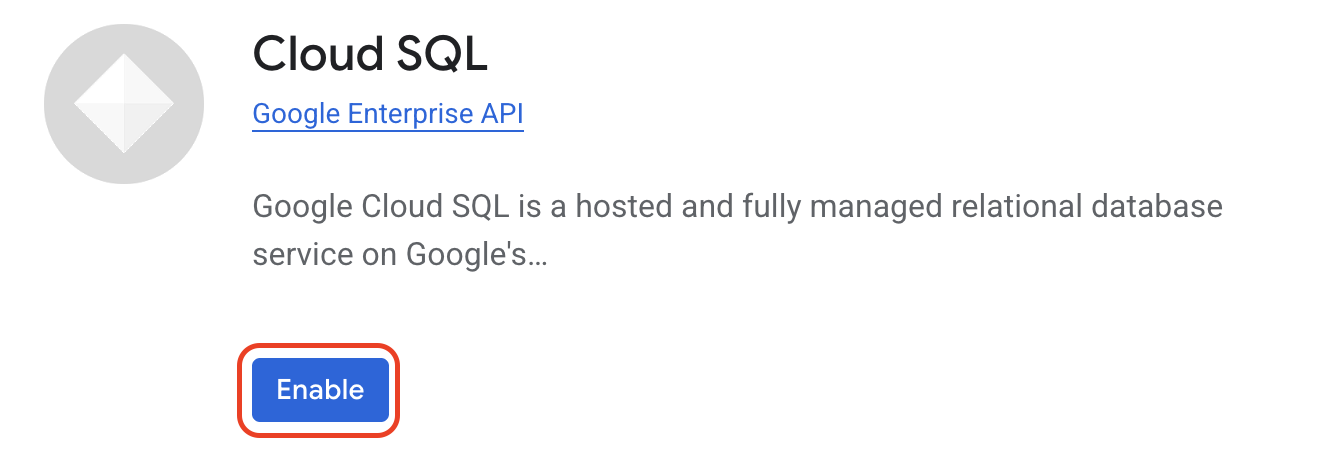
Enable the Cloud SQL API.
Creating Your Custom VPCs
Click on "Create VPC network".

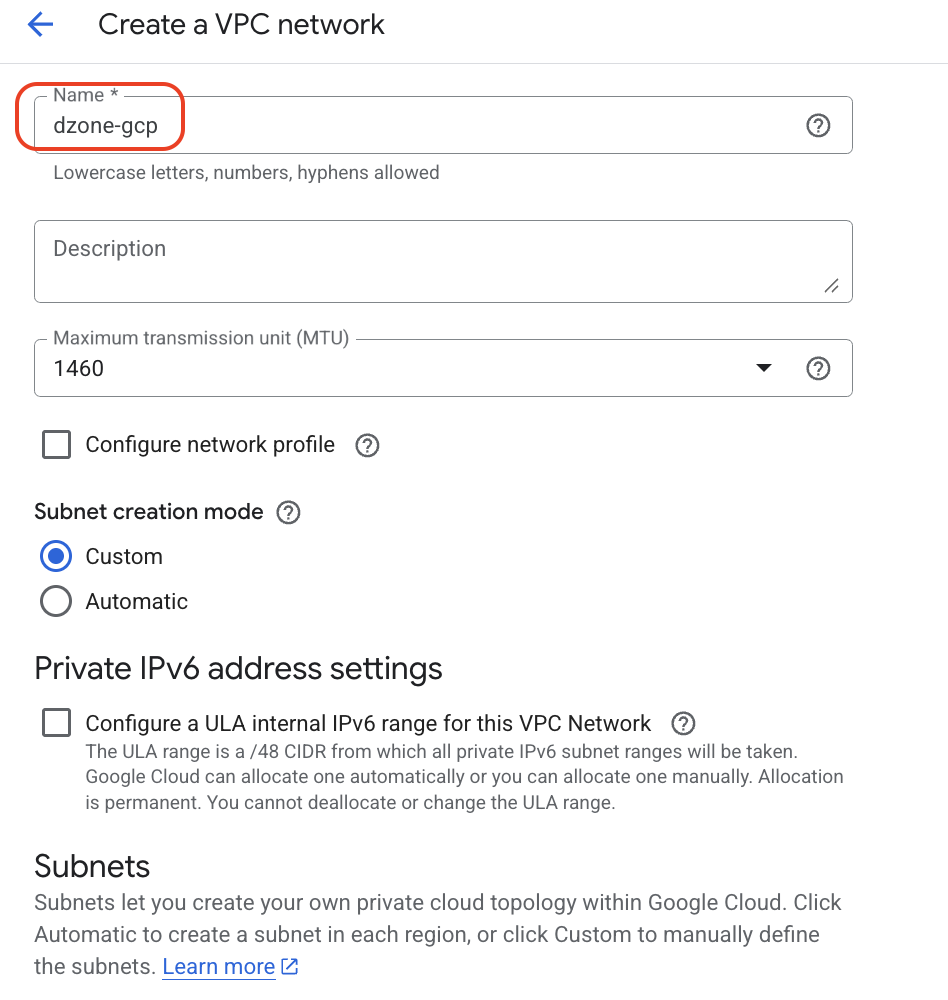
Specify the VPC name as dzone-gcp, select the subnet creation mode as Custom to ensure that the subnets are created only in the regions we want.
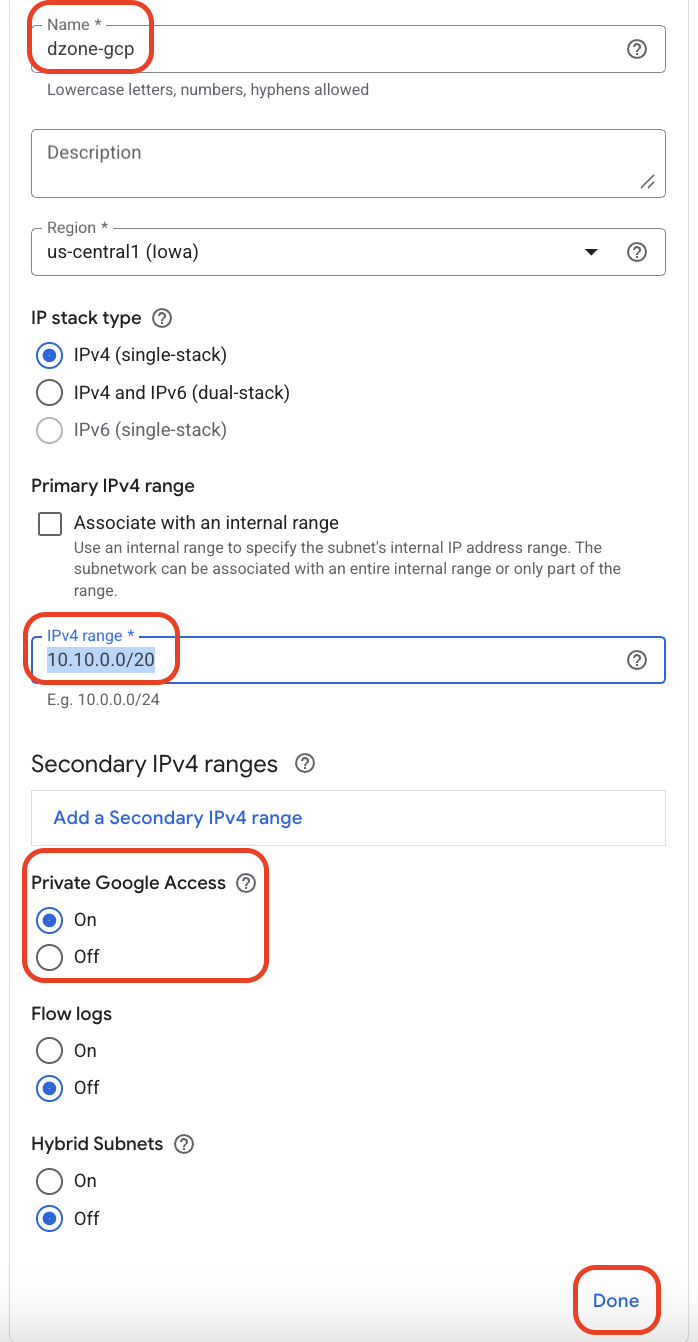
Specify the subnet name as dzone-gcp and IPv4 range as 10.10.0.0/20 and Select the Private Google Access as on and Click on "Done".
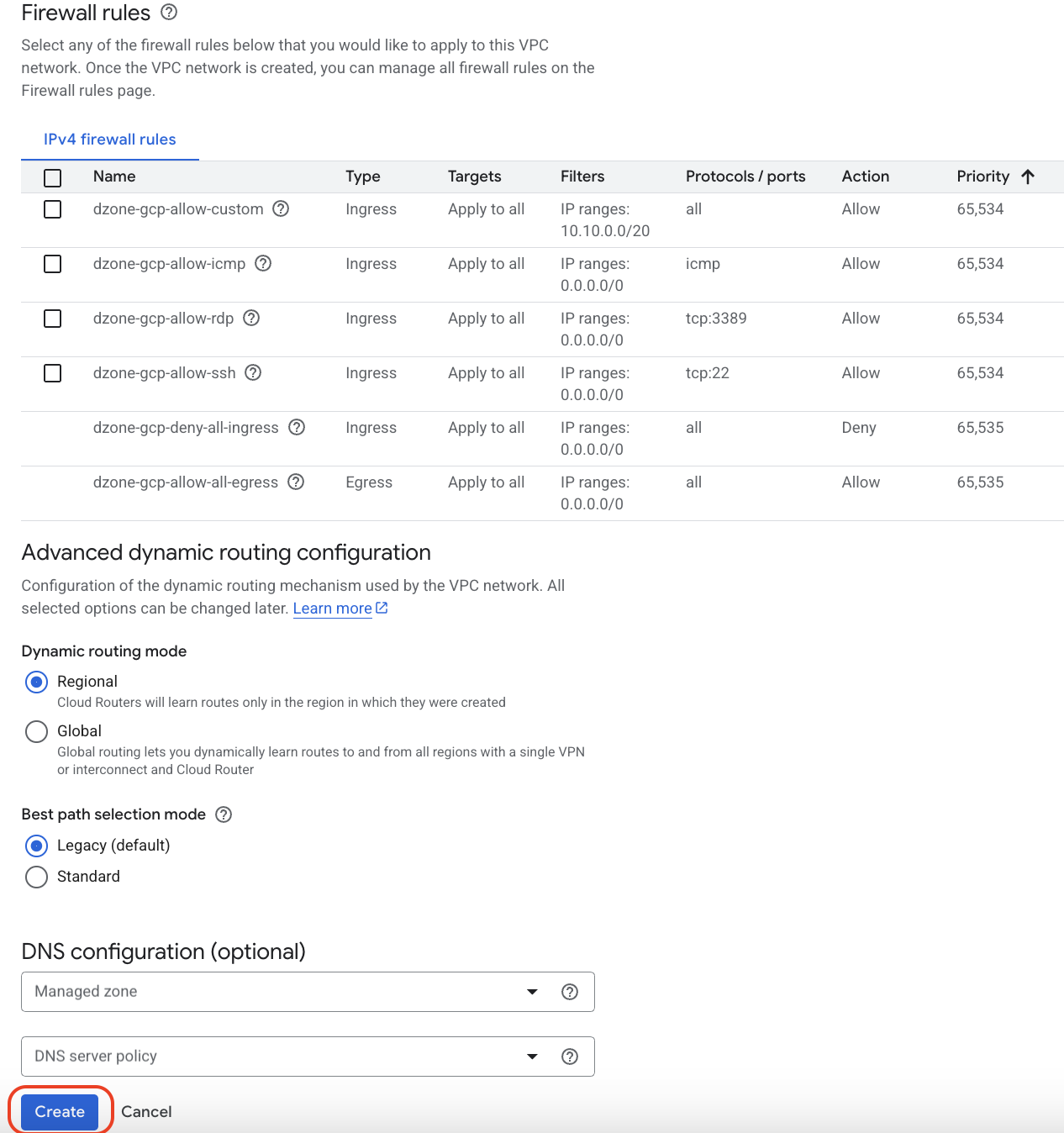
Click on "Create".
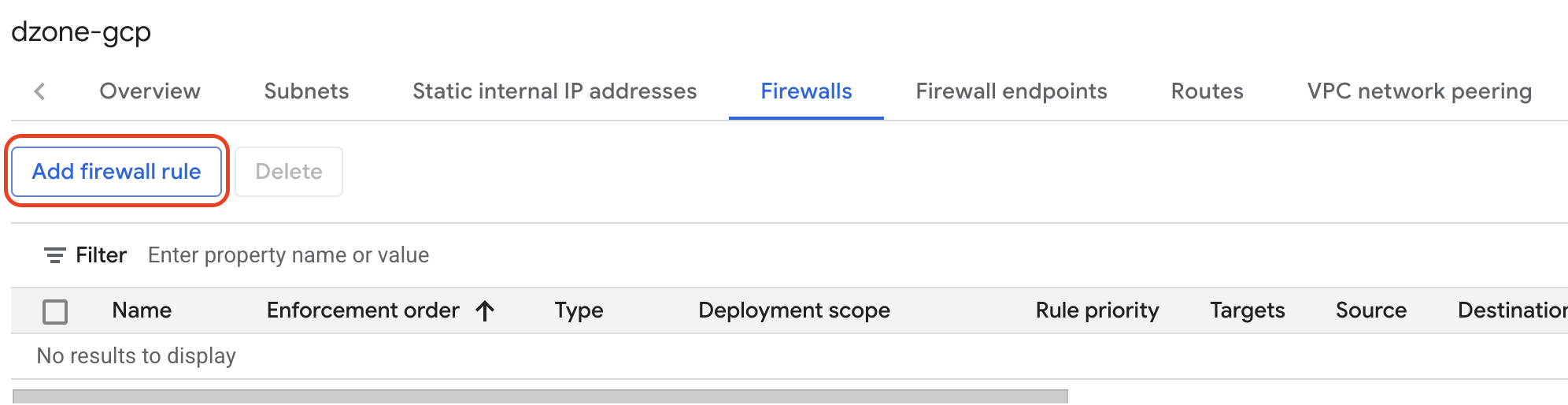
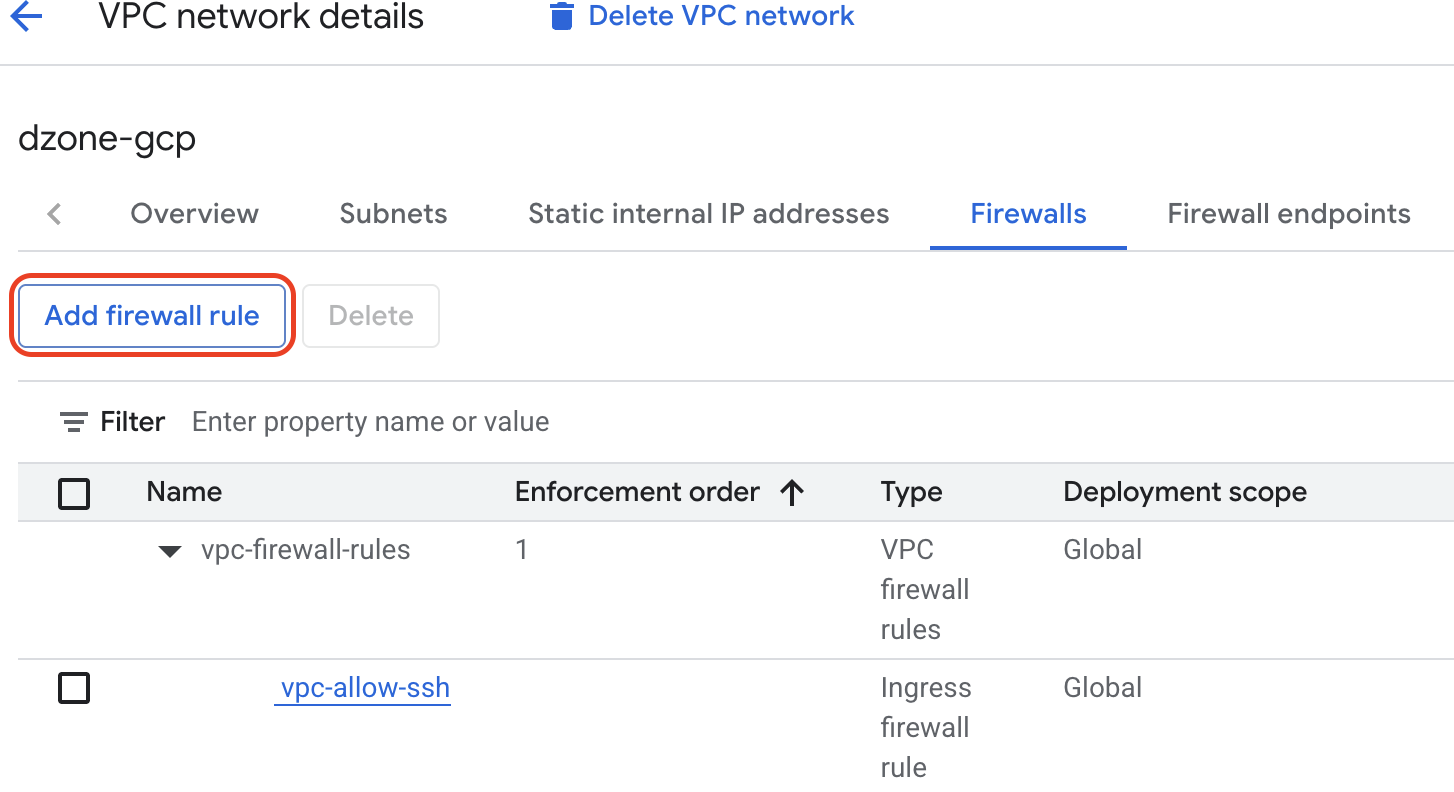
Click on "dzone-gcp" VPC, Navigate to firewalls, Click on "Add firewall rule".
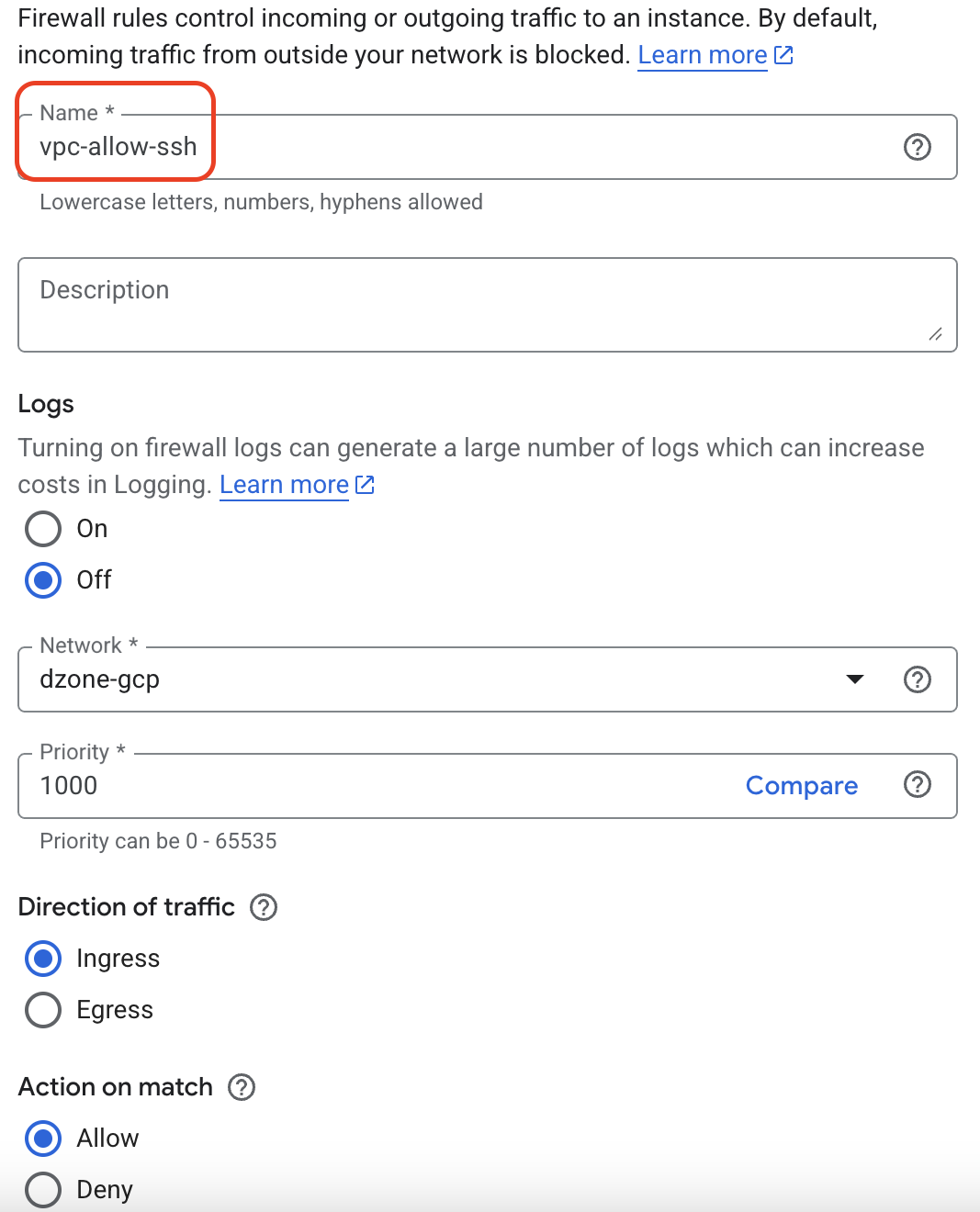
Specify the Firewall rule name as vpc-allow-ssh. Set Direction of traffic as Ingress. Set Action on match to Allow. Targets: All instances in the network.
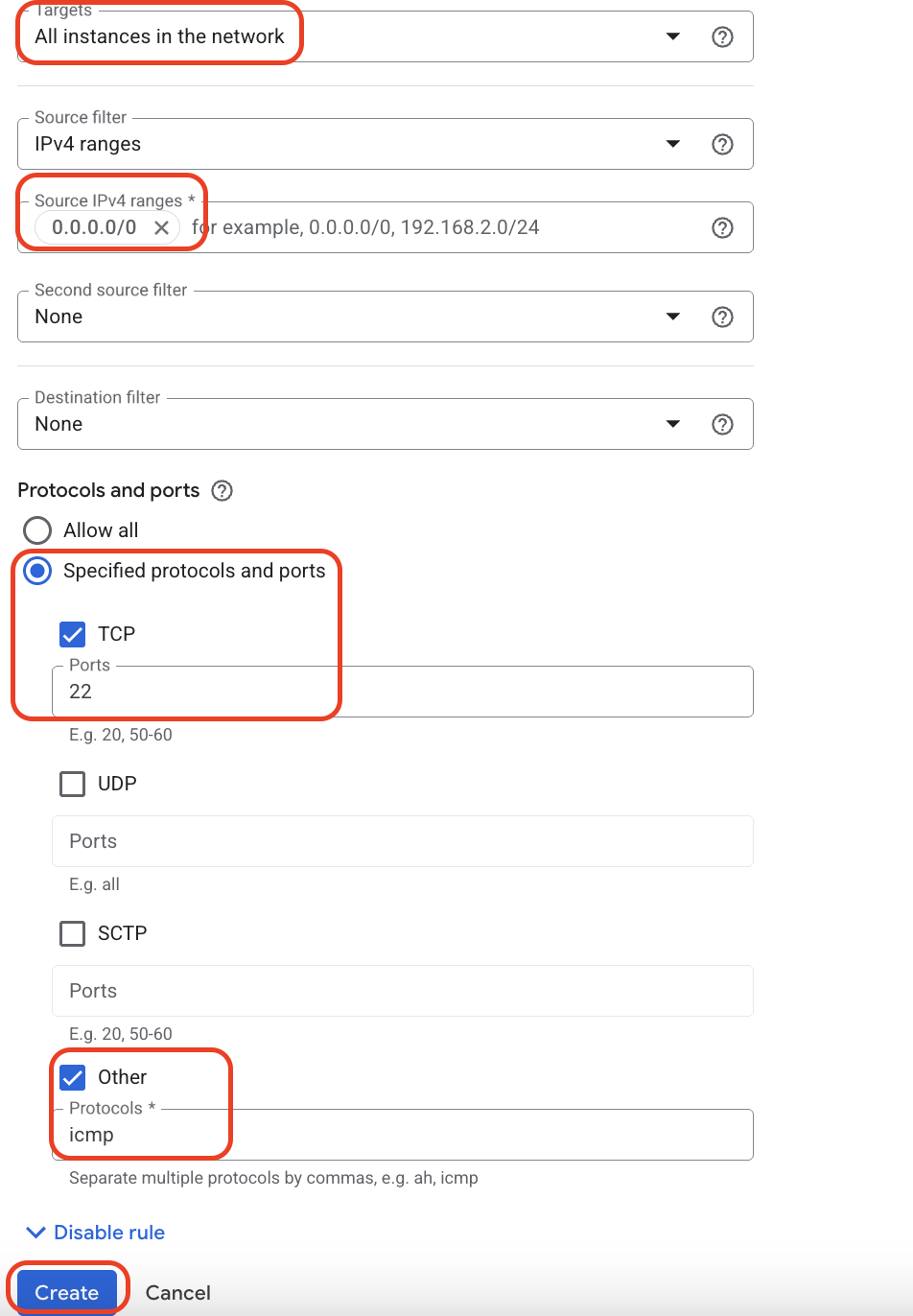
Source IPv4 ranges: 0.0.0.0/0 (allowing access from anywhere, but restrict this in production). Specify TCP 22, and other icmp. Click on "Create".
We will create another firewall rule for Identity Aware Proxy. Notice that vpc-allow-ssh has already been created then click on "Add firewall rule".
Specify name as ssh-iap, Firewall rule for IAP as the Description, Select the Direction of traffic as Ingress and select Action on match as Allow.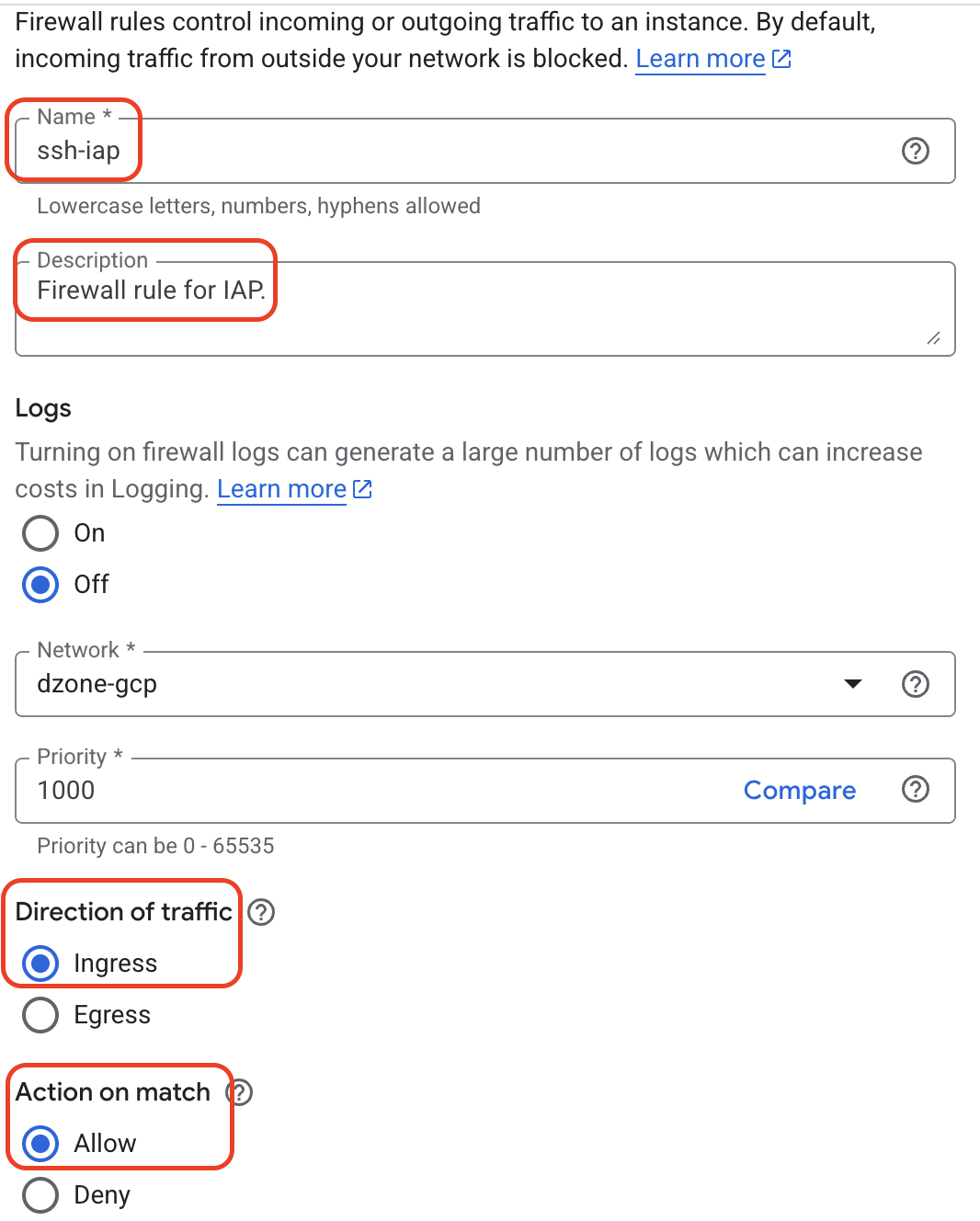
Specify Targets as All instances in the network, Source IPv4 ranges as 35.235.240.0/20 and Select TCP and provide Ports as 22, select Other and provide Protocols as icmp and Click on "Create".
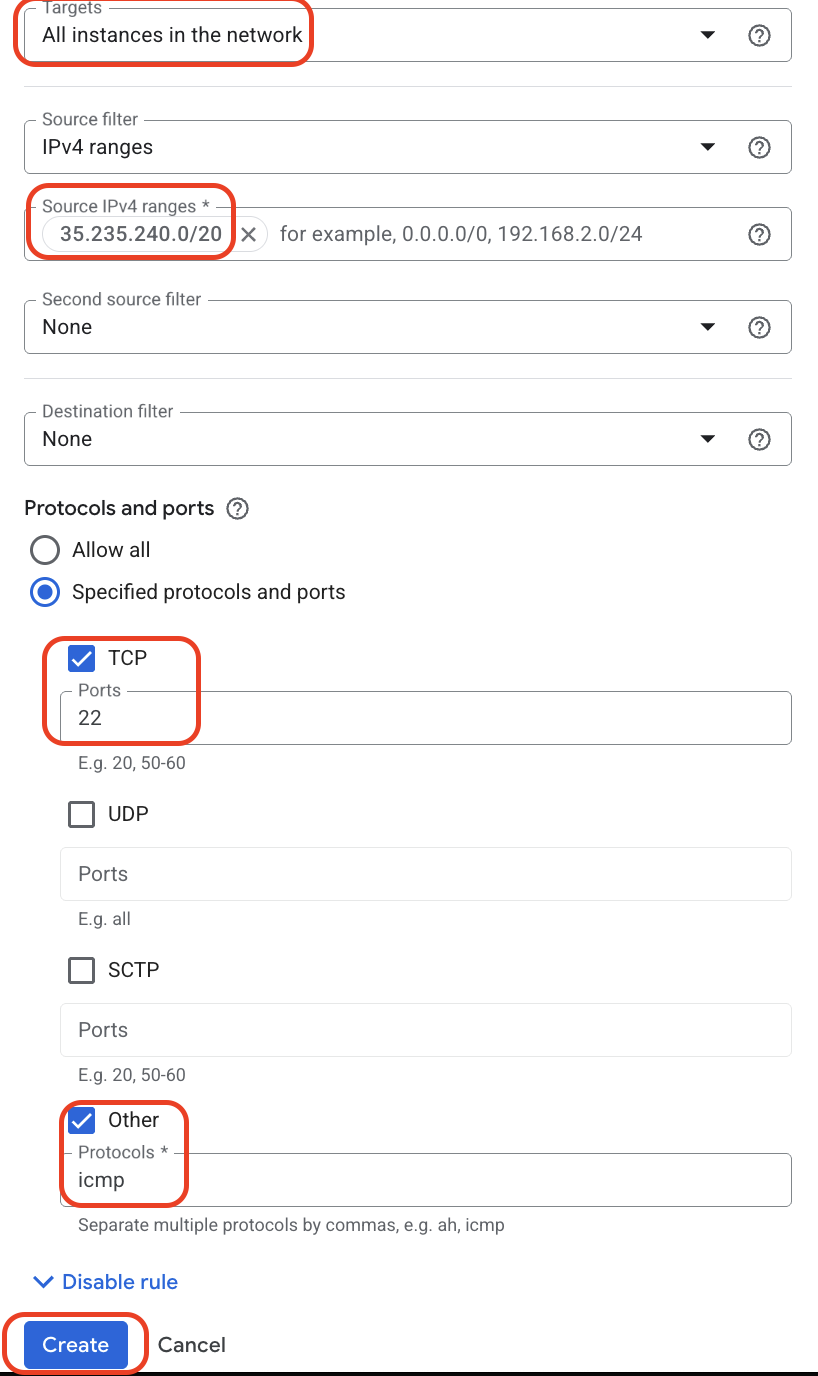
Navigate to the Cloud Router.
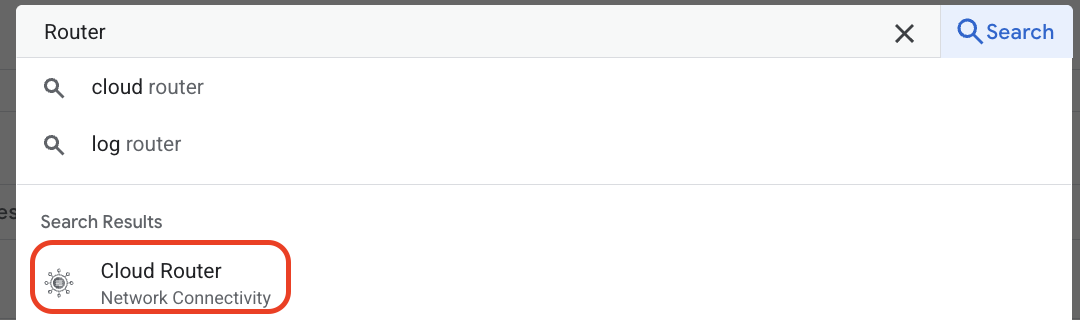
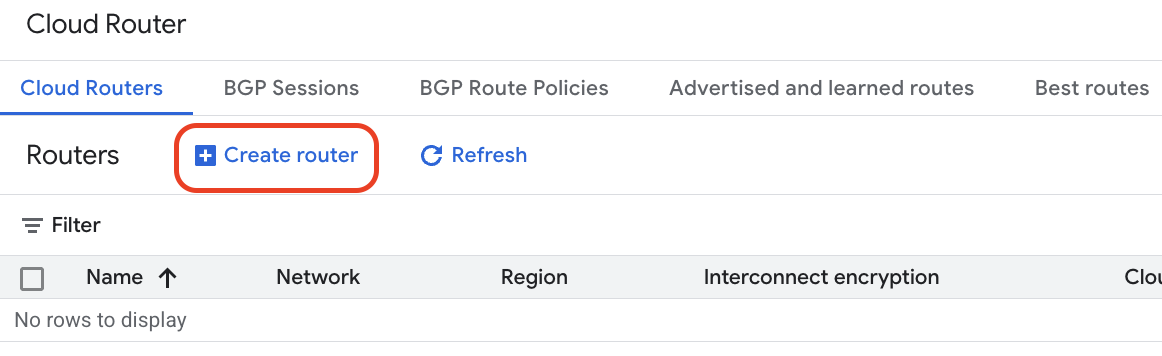
Click on "Create router".
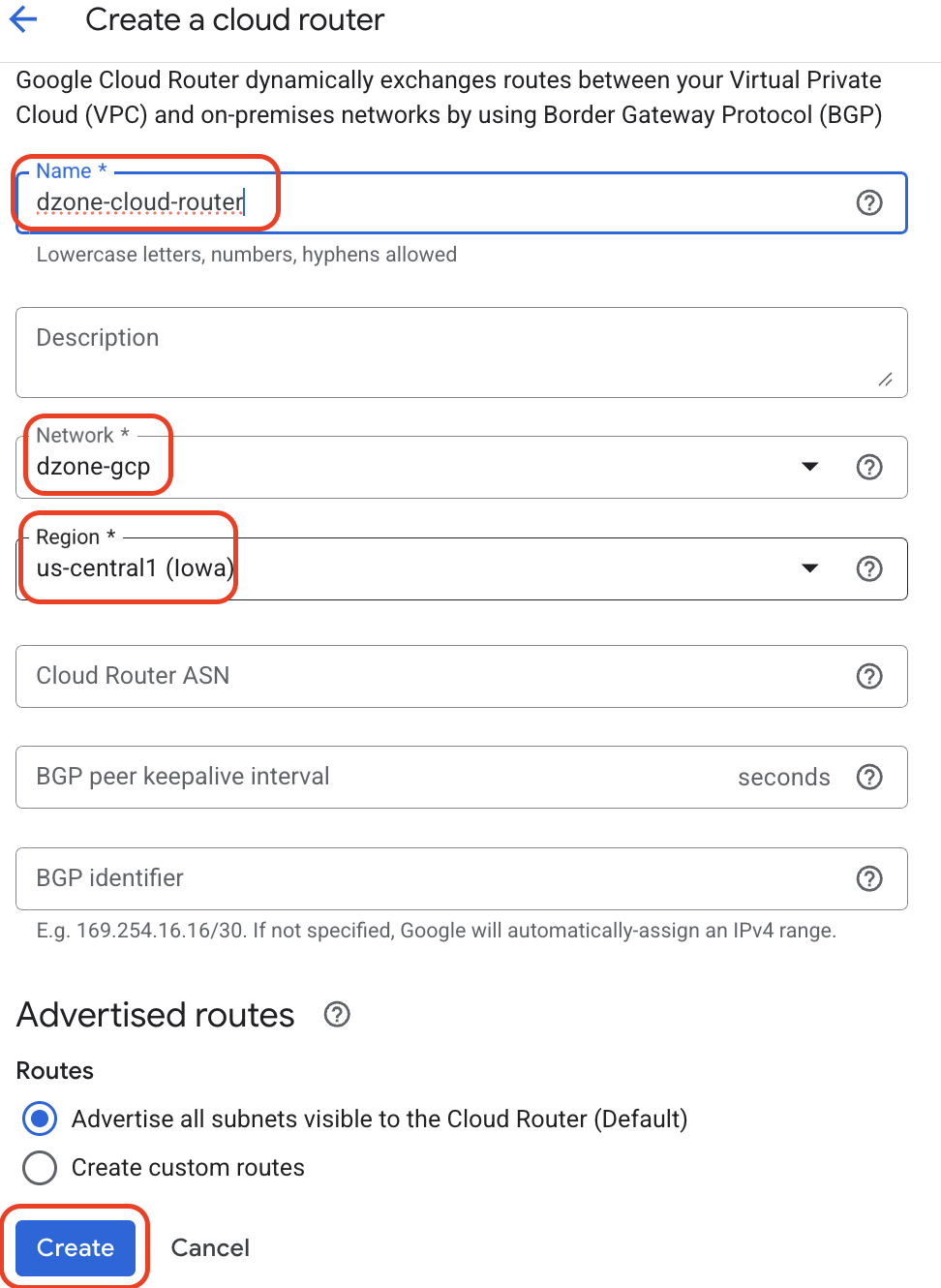
Specify the cloud router name as dzone-cloud-router, Select dzone-gcp in Network and specify Region as us-central1 (Iowa). Click on "Create".
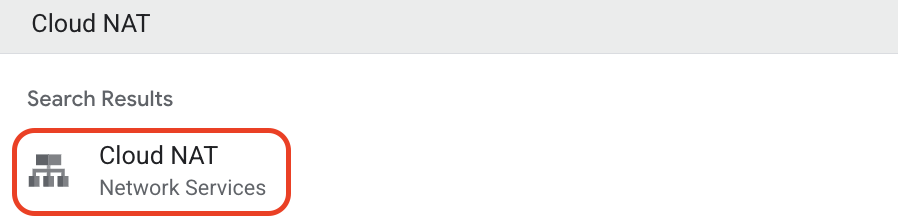
Select Cloud NAT.
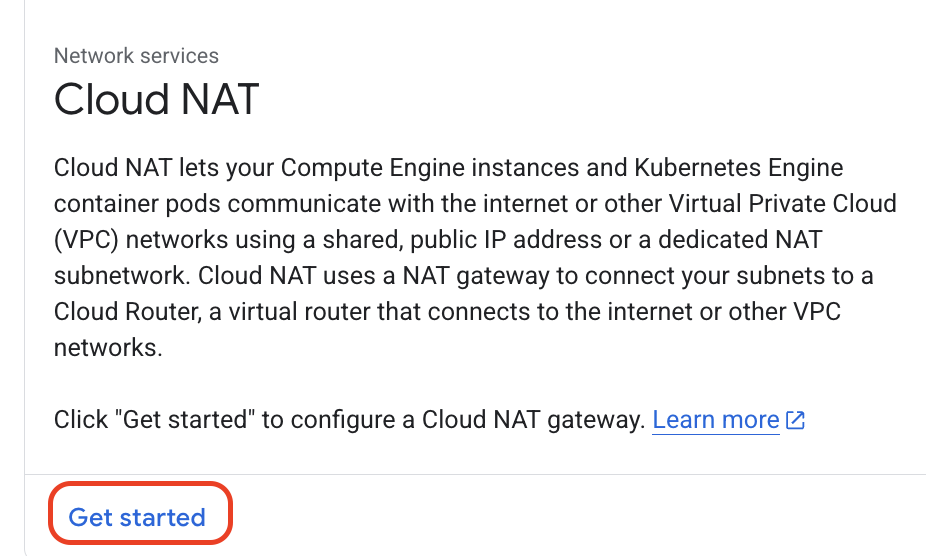
Click on "Get started".
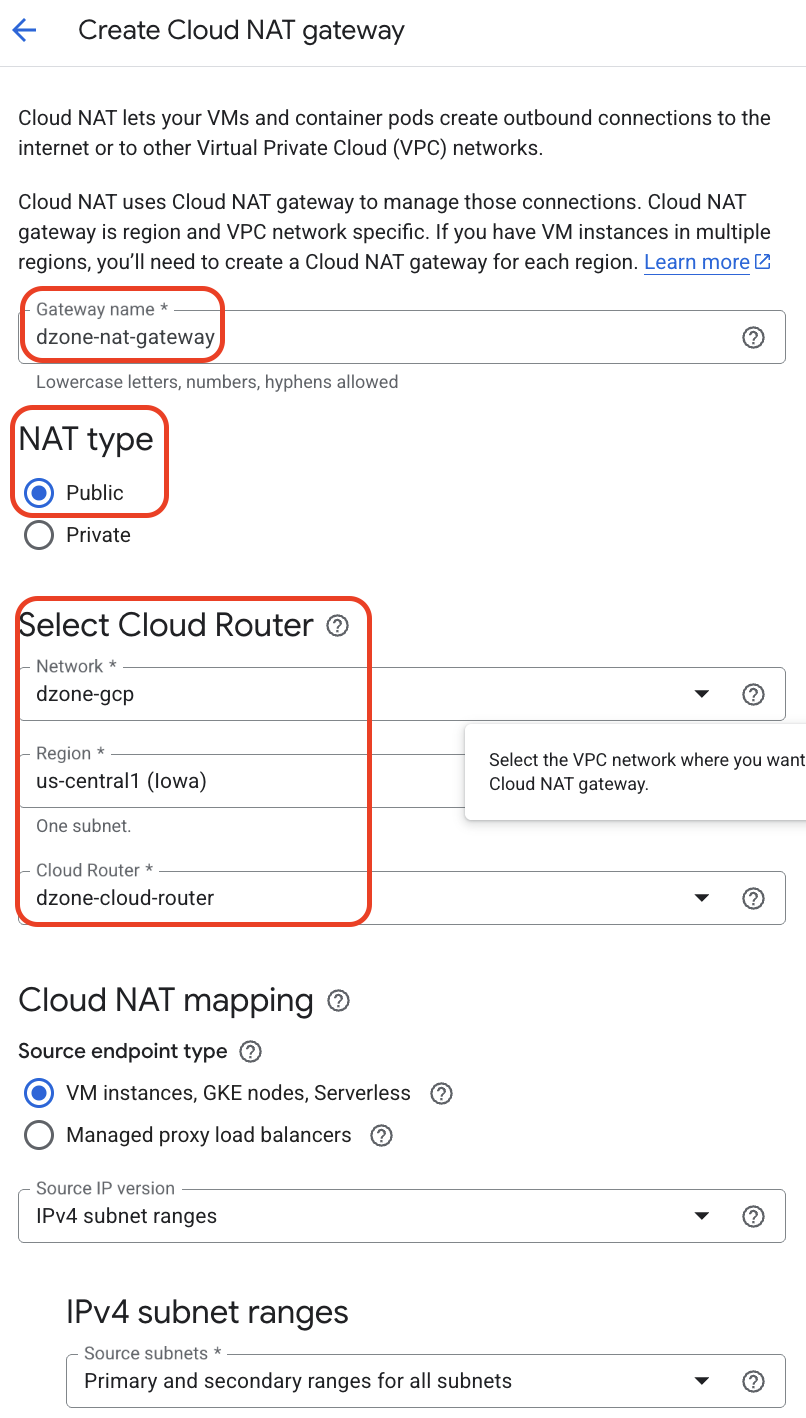
Specify name as dzone-nat-gateway, NAT type as Public. In Select Cloud Router specify Network as dzone-gcp, Region as us-central1, Cloud Router as dzone-cloud-router.
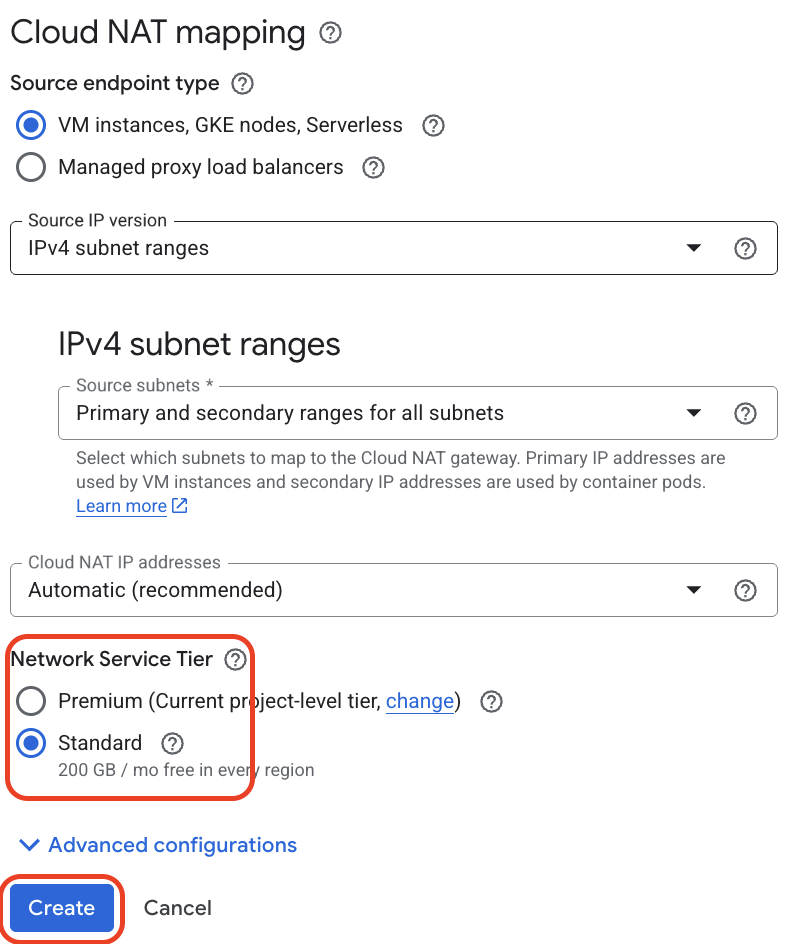
Select Standard and Click on "Create".
Notice that the NAT gateway status is Running.

Creating Your Compute Engine VM
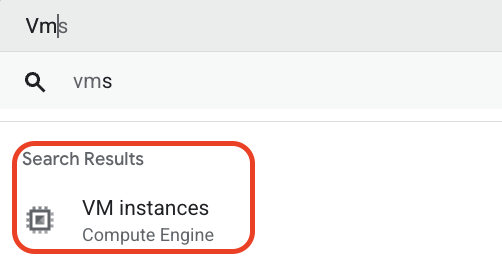
Navigate to VM instances.
Click on "Create instance".
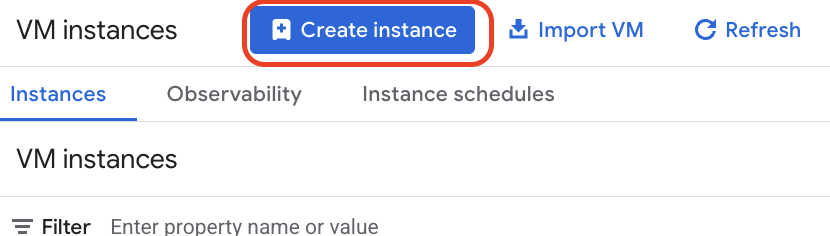
Specify the VM name as dzone-vm and Region as us-central1, Preset as e2-standard-2.
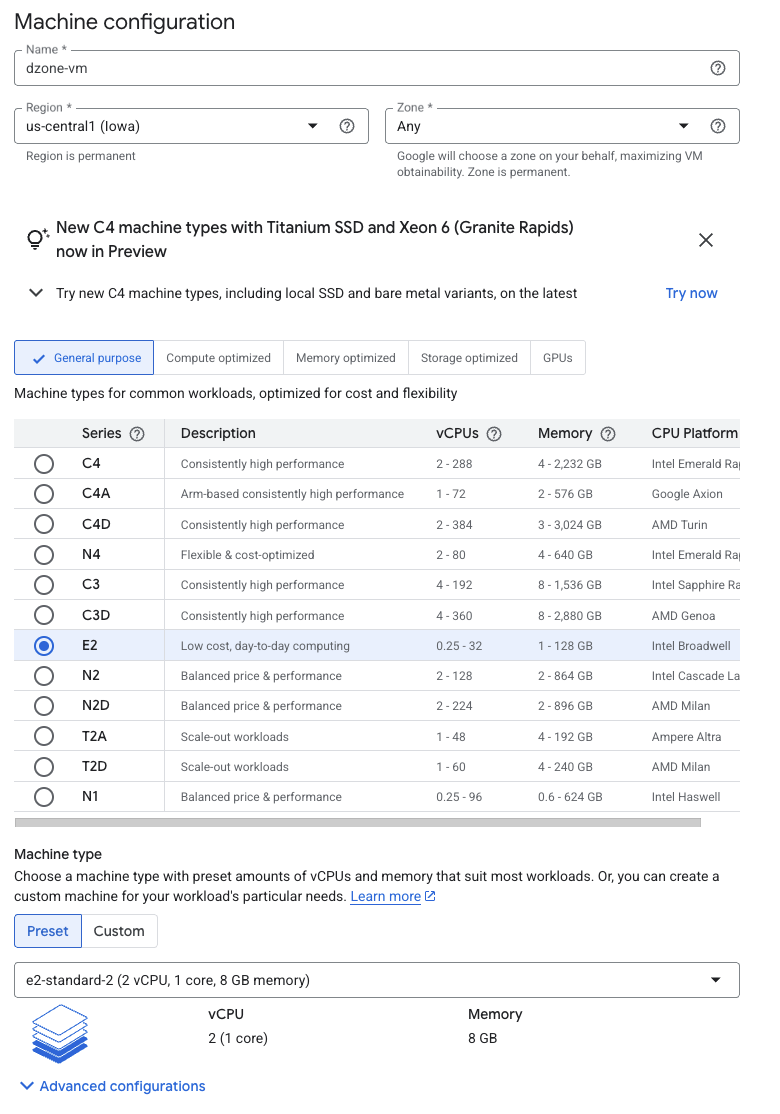
Click on "OS and Storage" and click on "Change" to change the OS from Debian to RHEL9.
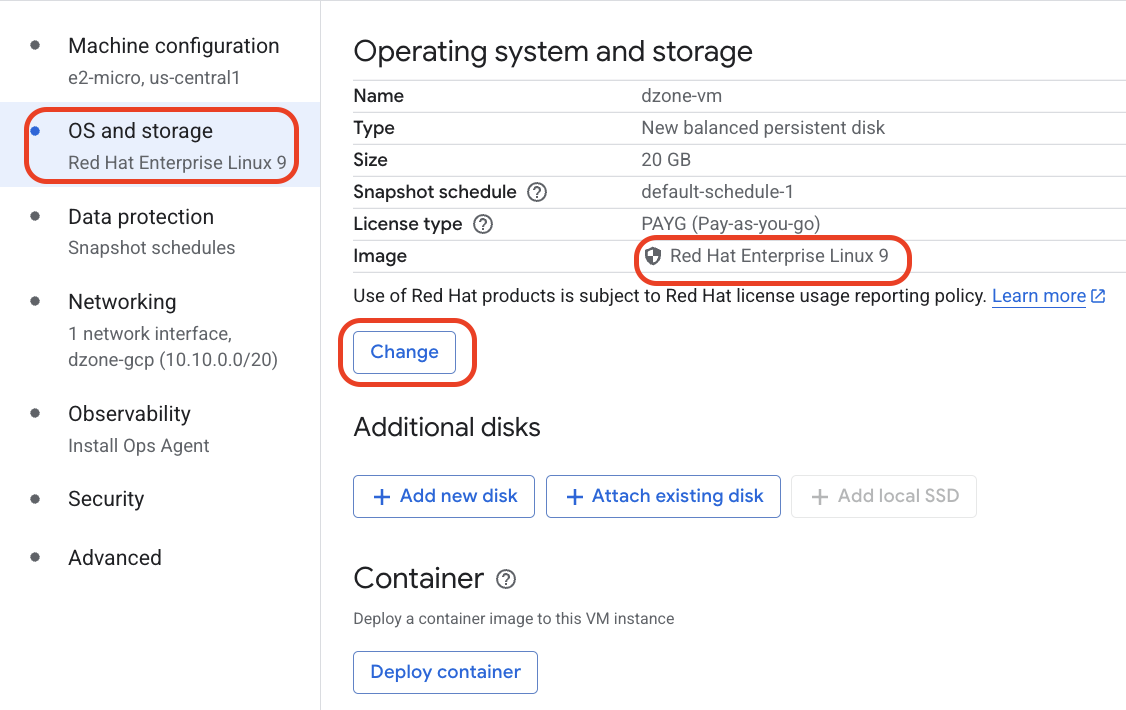
Click on "Data protection" and select No backups. In production environment, we can select Cross-zone or Cross-region replication.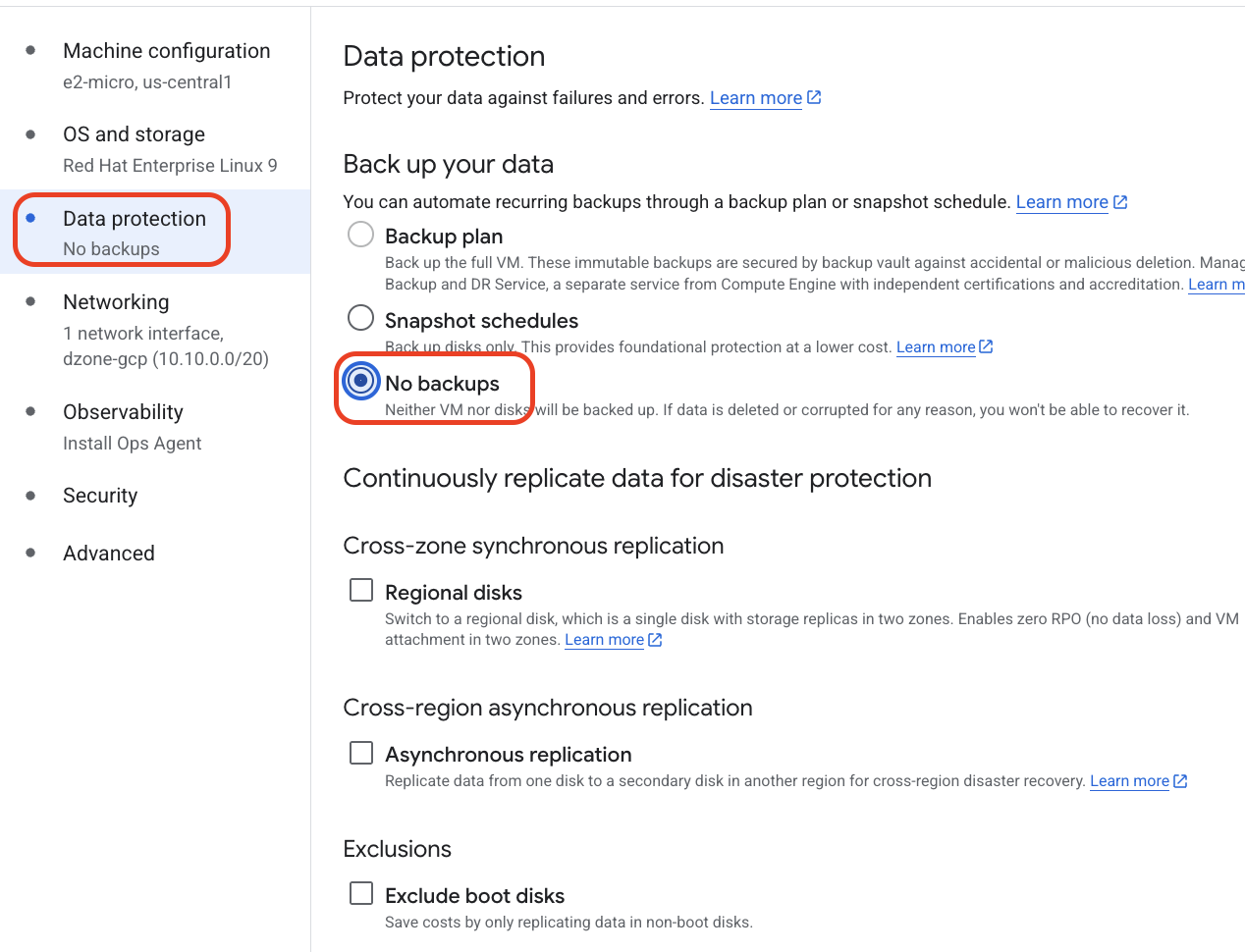
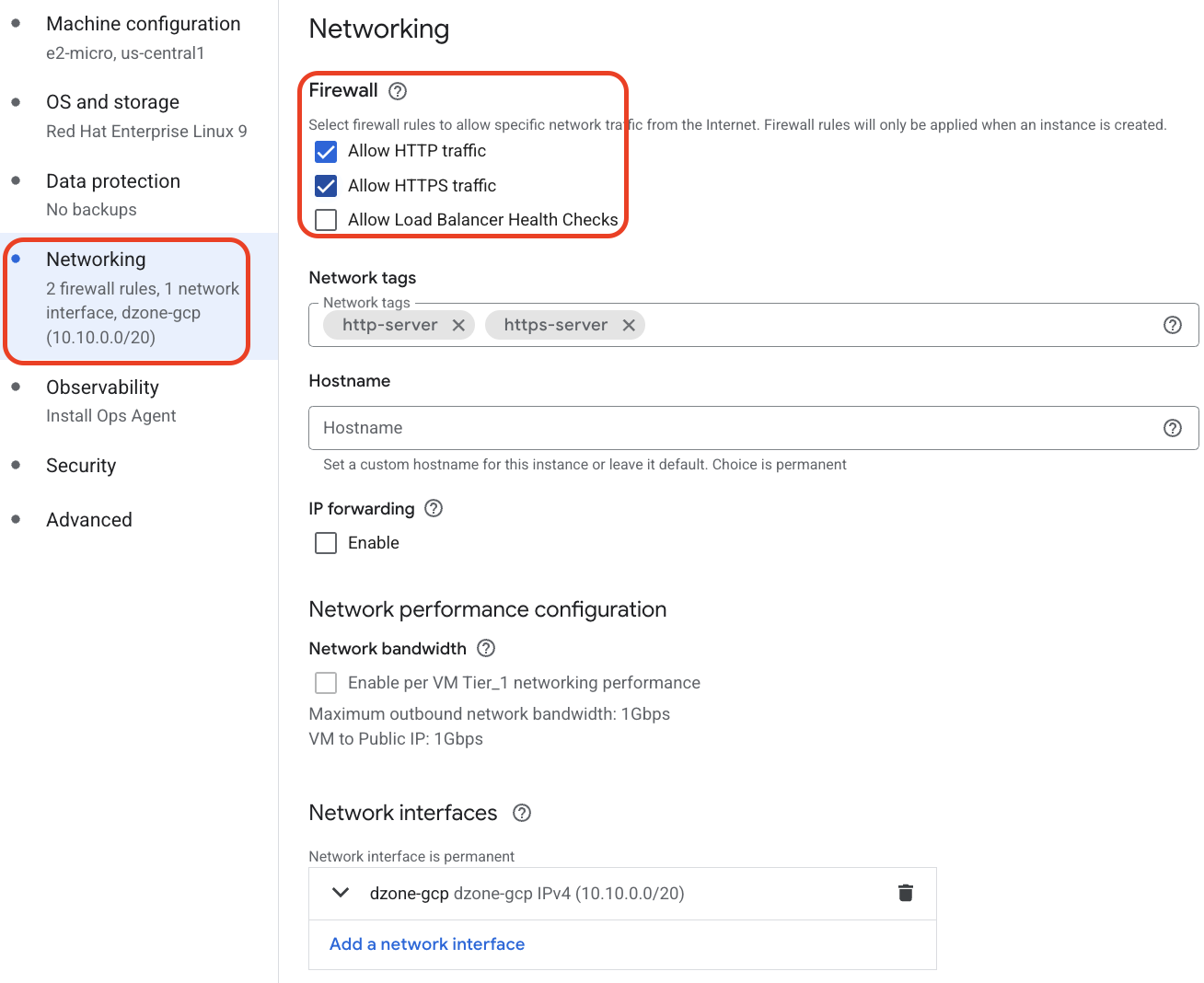
Select Allow HTTP traffic, Allow HTTPS traffic.
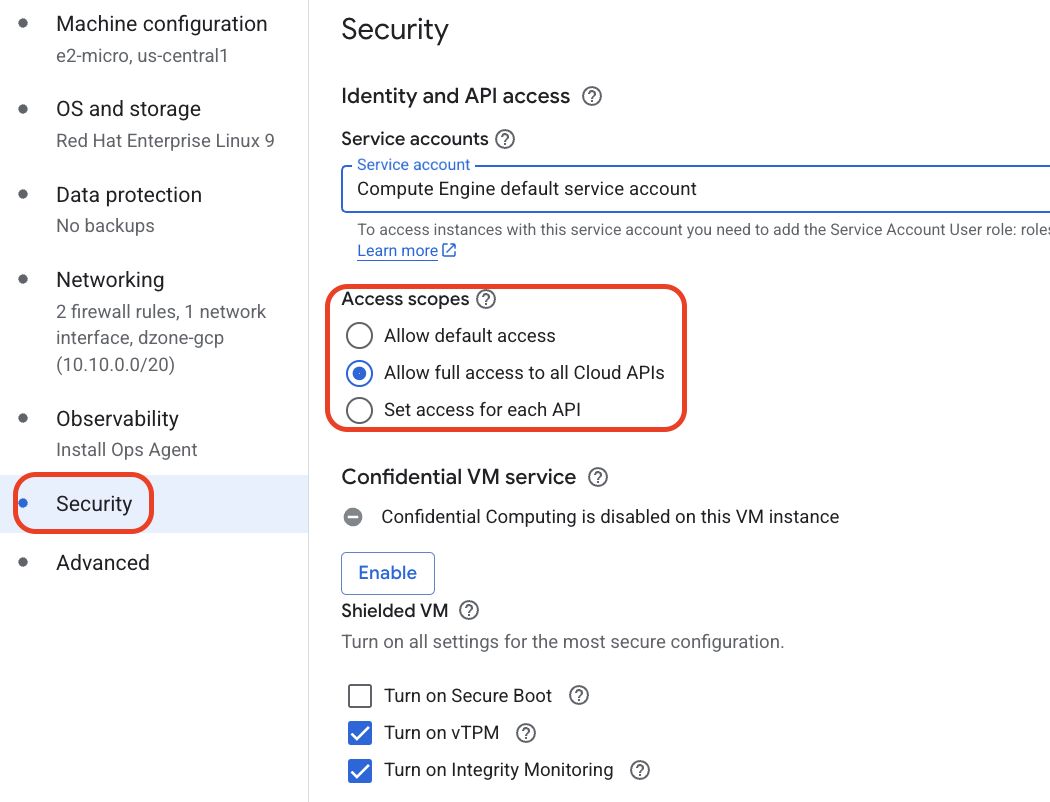
Click on "Security" and Select the radio button Allow full access to all Cloud API's.
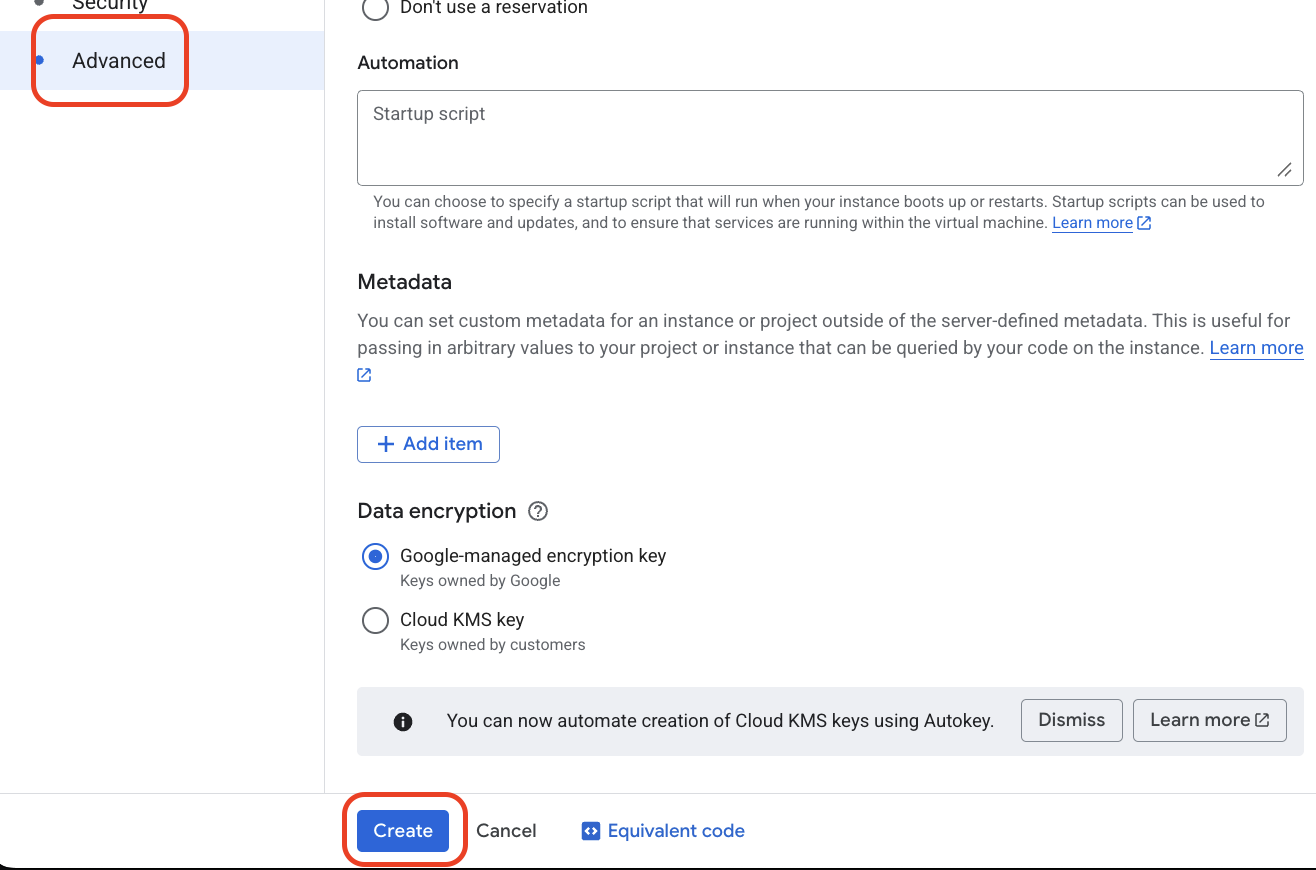
Click on "Advanced" and click on "Create".
Notice that the VM dzone-vm is running successfully, then click on "SSH".

We are now successfully able to connect to a VM with no external IP.

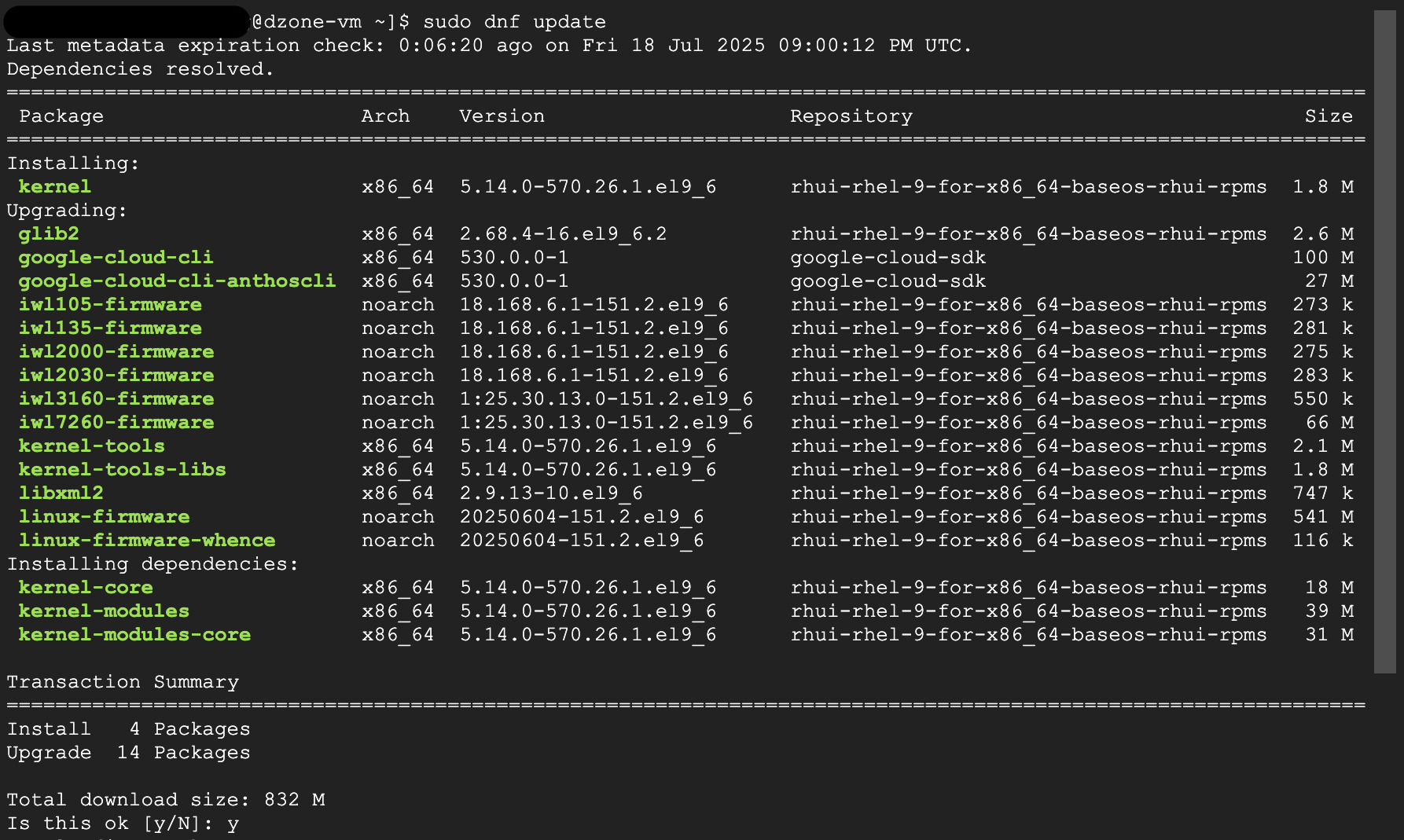
Run sudo dnf update.
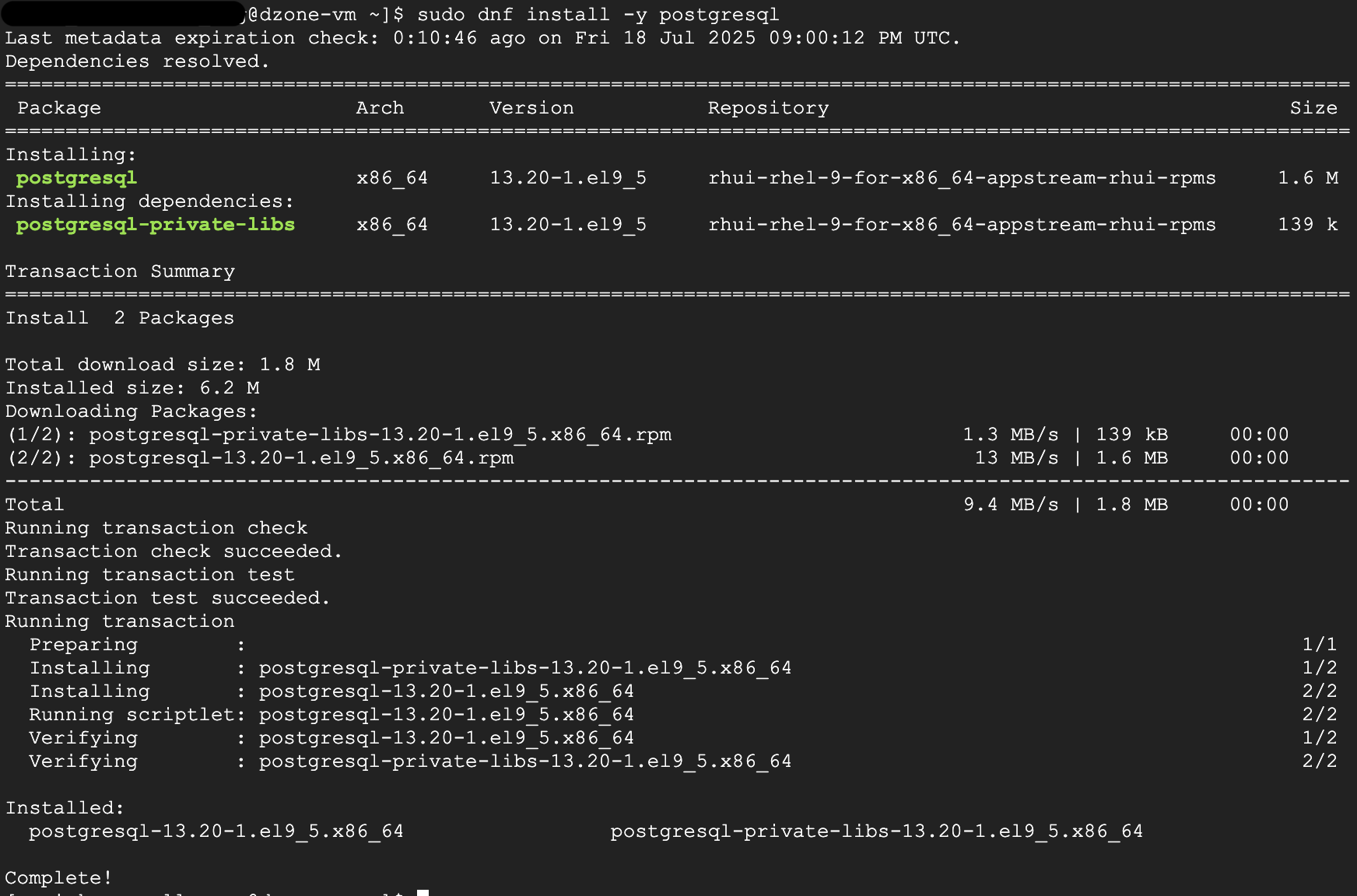
Run sudo dnf install -y postgresql
Creating Your Cloud SQL for PostgreSQL
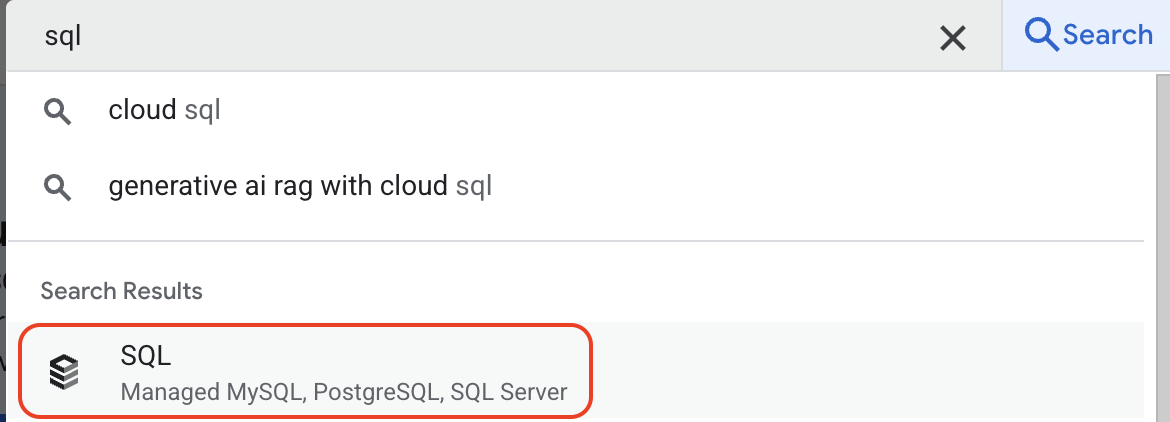
Navigate to CloudSQL.
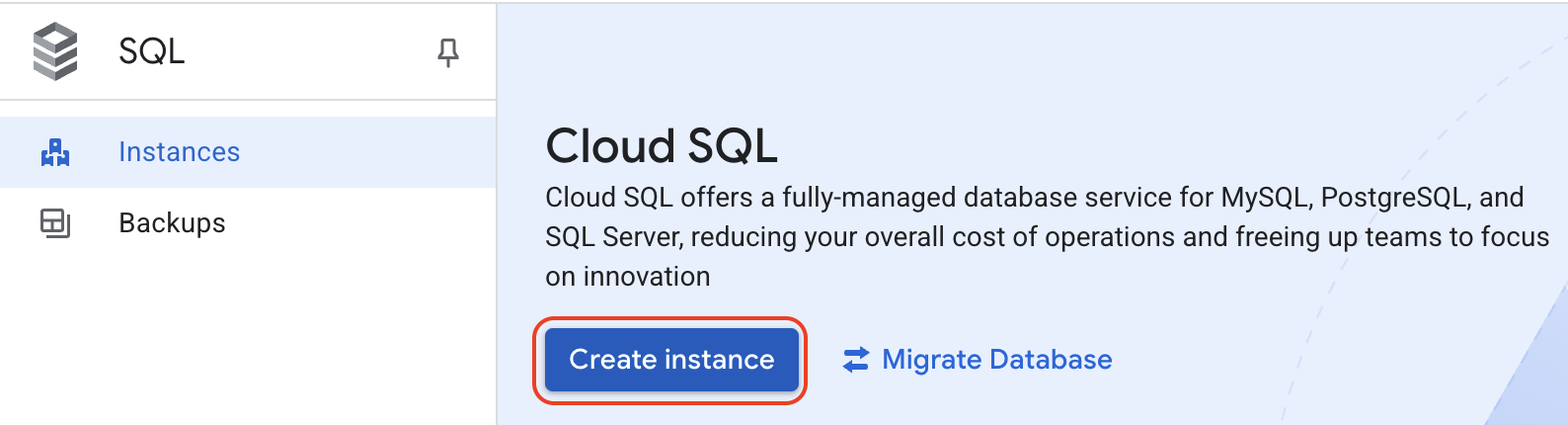
Click on "Create Instance".
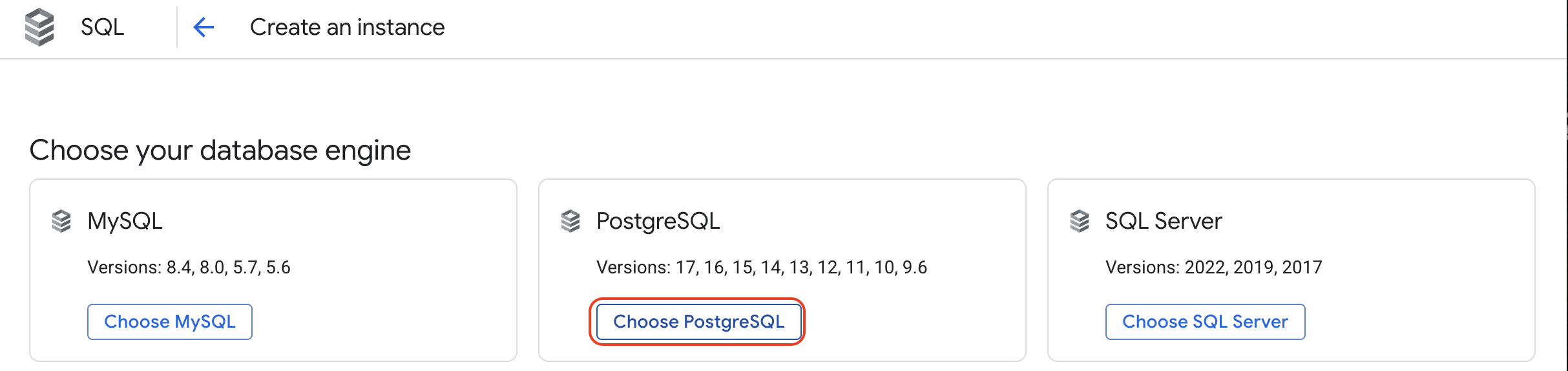
Click on "Choose PostgreSQL".
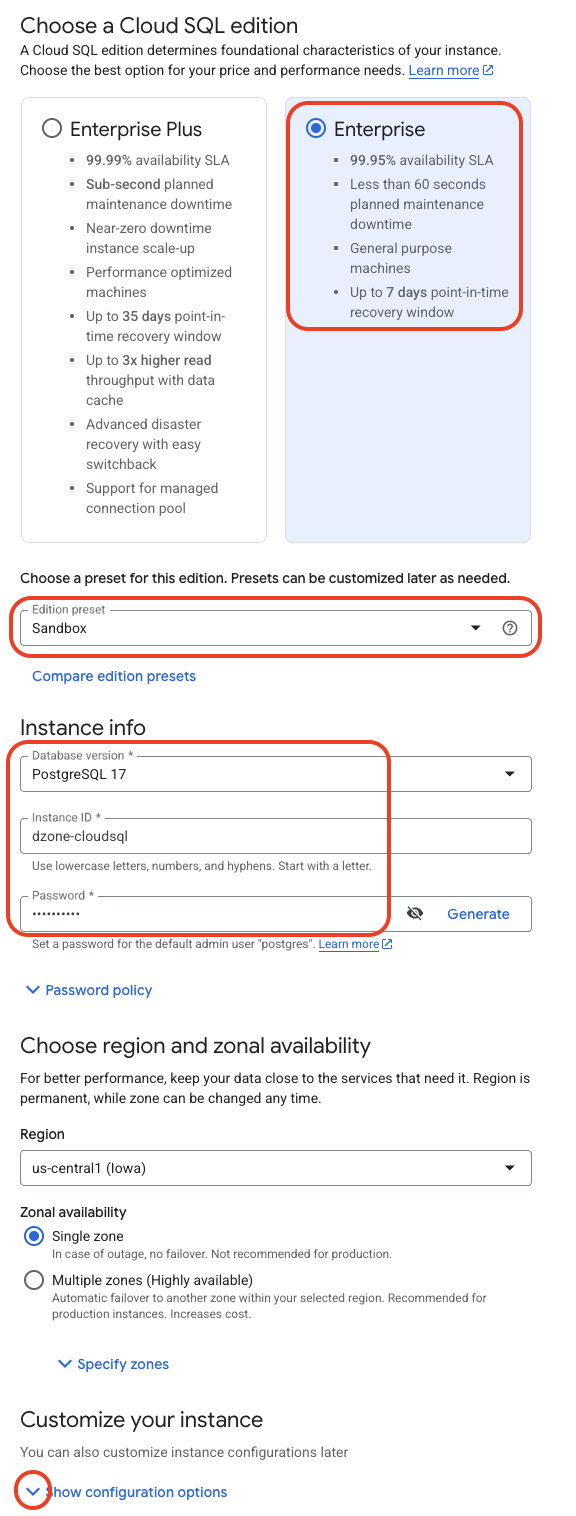
Choose Enterprise Cloud SQL edition, Edition preset as Sandbox, Instance info as PostgreSQL17, Instance ID as dzone-cloudsql, Password as any password that you want to use that aligns with the password policy, Click on the button next to show configuration options.
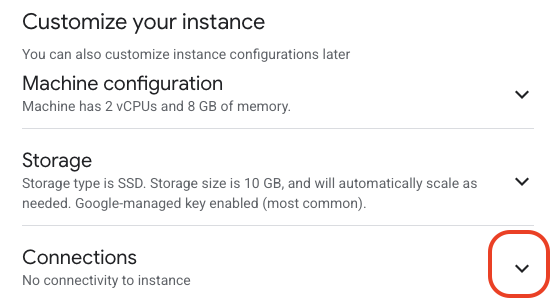
Expand Connections.
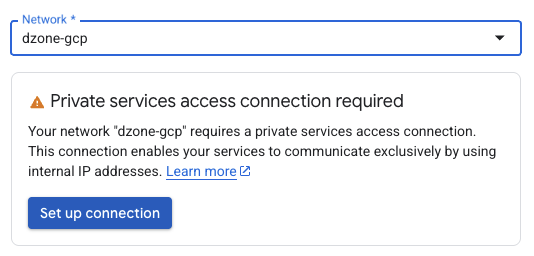
Select dzone-gcp network and click on "Set up connection".
Click on "Enable API".
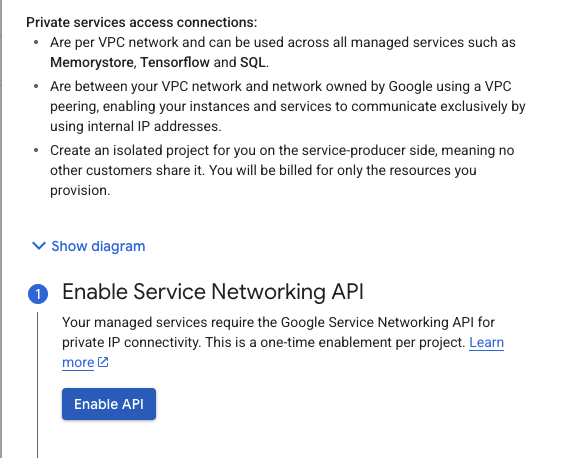
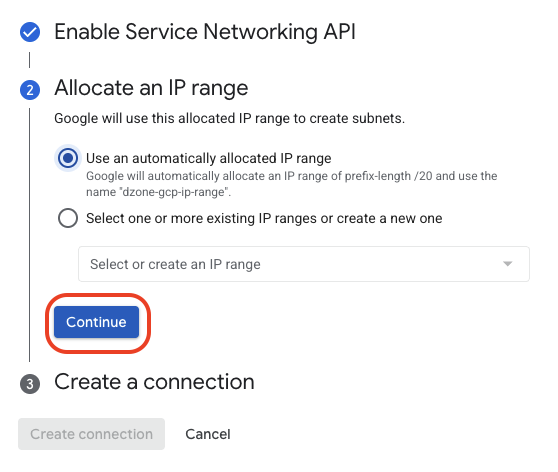
Click on "Continue".
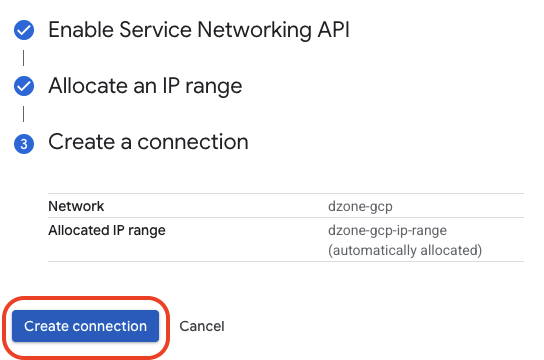
Click on "Create connection".
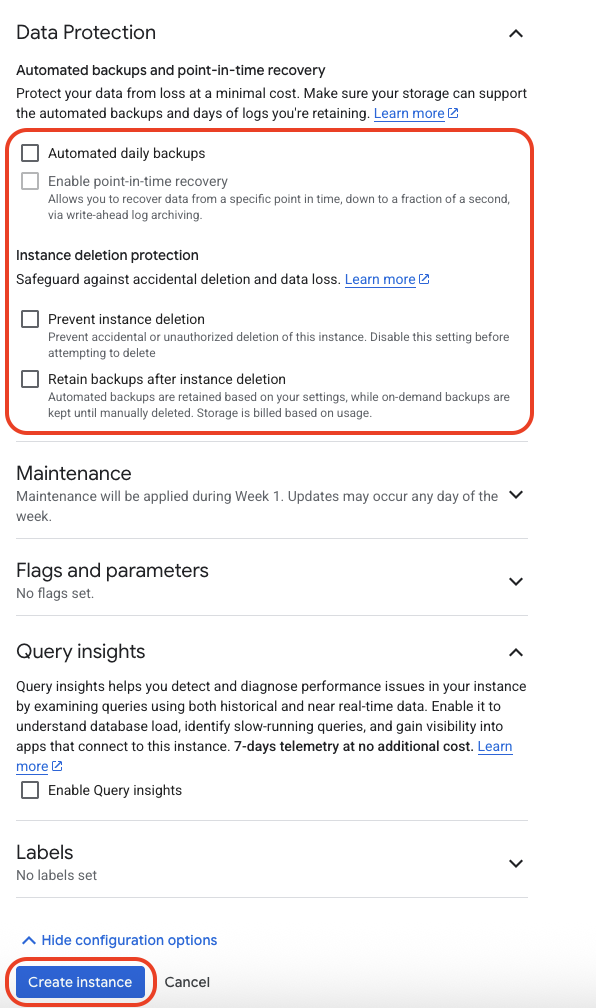
Notice that the PSA connection has been created successfully, expand data protection.
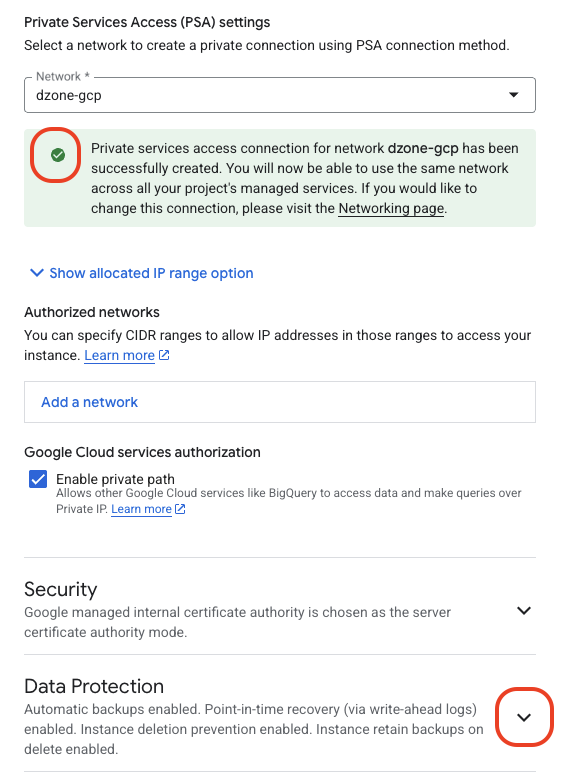
Uncheck all the Data Protection options like Automated backups, Prevent instance deletion and Retain backups after instance deletion and click on "Create Instance".
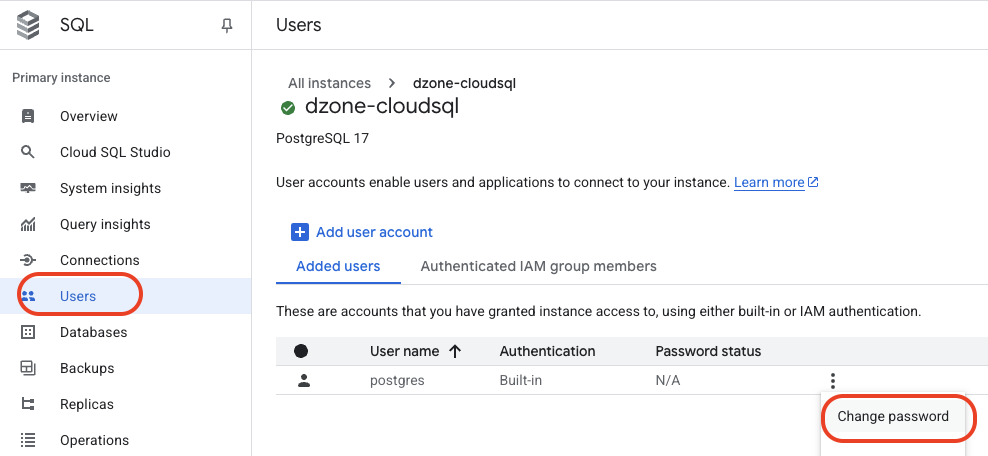
Once the instance has been created, navigate to Users and click on "Change password".
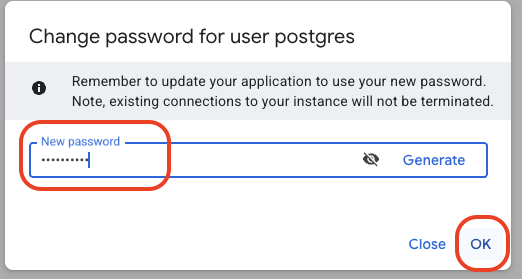
Provide the password and click on "OK".
Run the command psql -h 10.159.112.3 -U postgres -d postgres -W, enter the PostgreSQL database password you created during the password reset. Notice that we are able to successfully connect to the postgres database from the Compute Engine VM on a private connection.

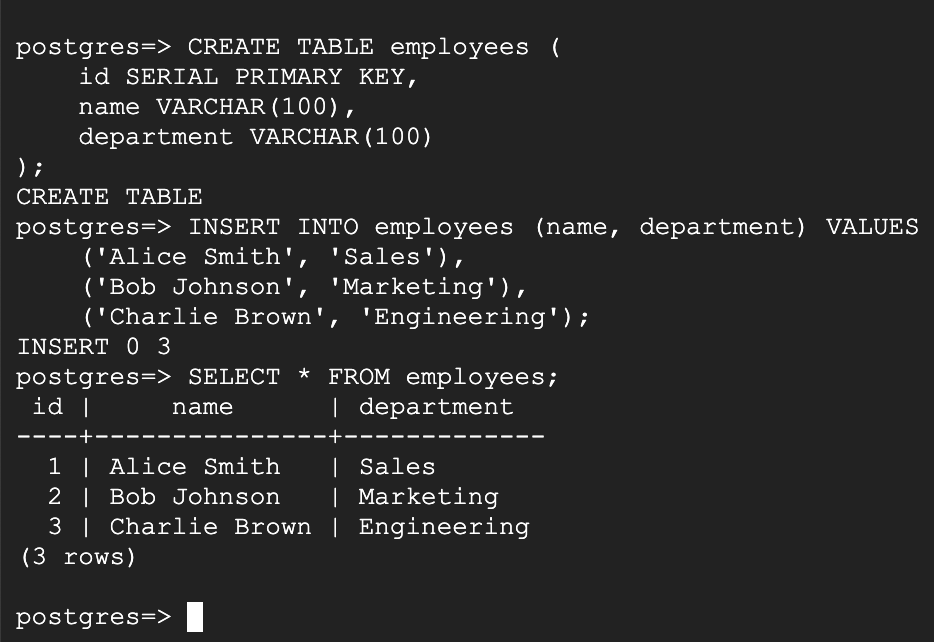
Lets run the SQL query,
CREATE TABLE employees (
    id SERIAL PRIMARY KEY,
    name VARCHAR(100),
    department VARCHAR(100)
);

INSERT INTO employees (name, department) VALUES
    ('Alice Smith', 'Sales'),
    ('Bob Johnson', 'Marketing'),
    ('Charlie Brown', 'Engineering');

SELECT * FROM employees;
Notice that we are able to successfully run the queries from the Compute Engine VM.
Querying Cloud SQL Data from BigQuery
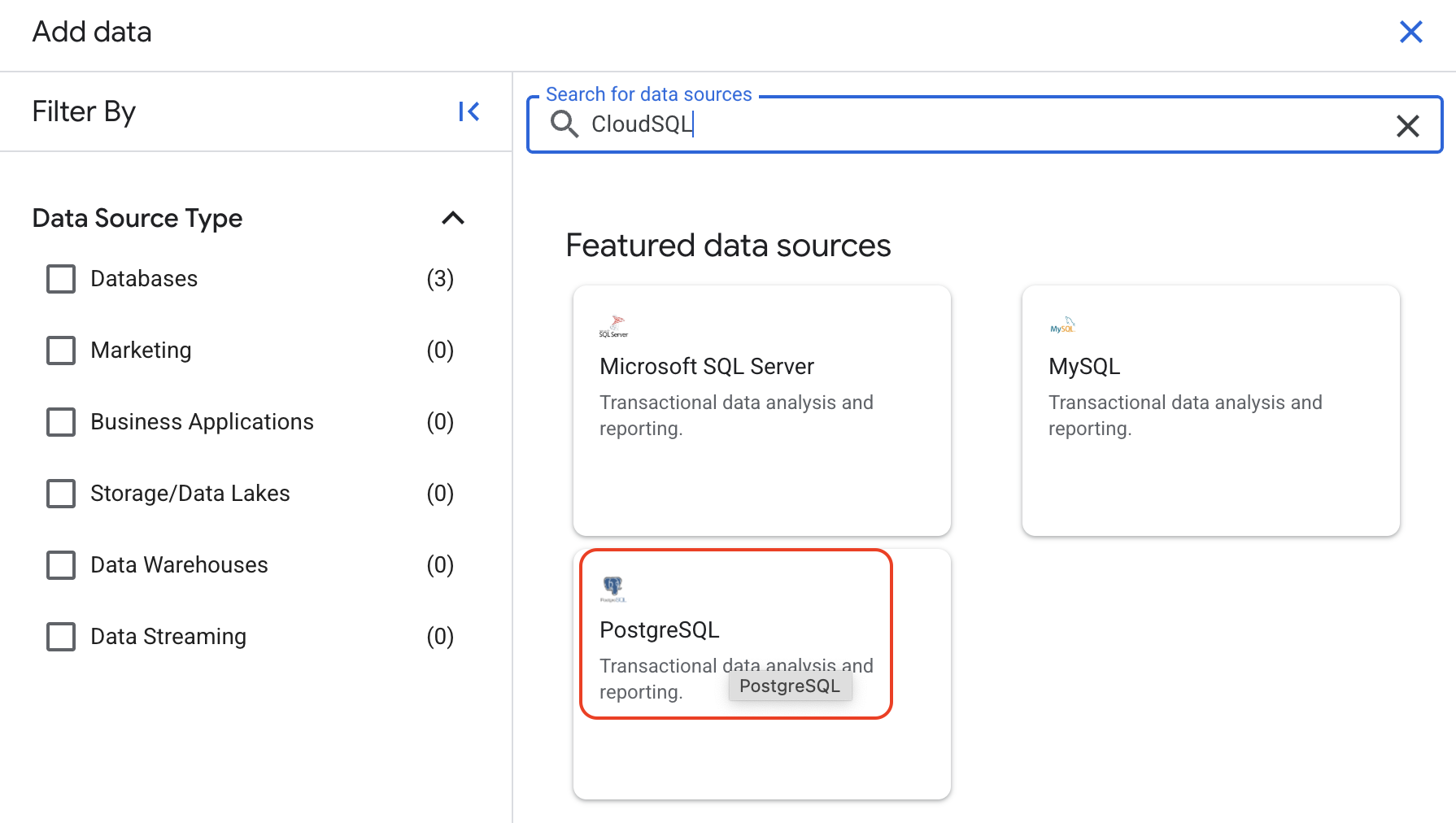
Click on "Add data".

Click on "PostgreSQL".
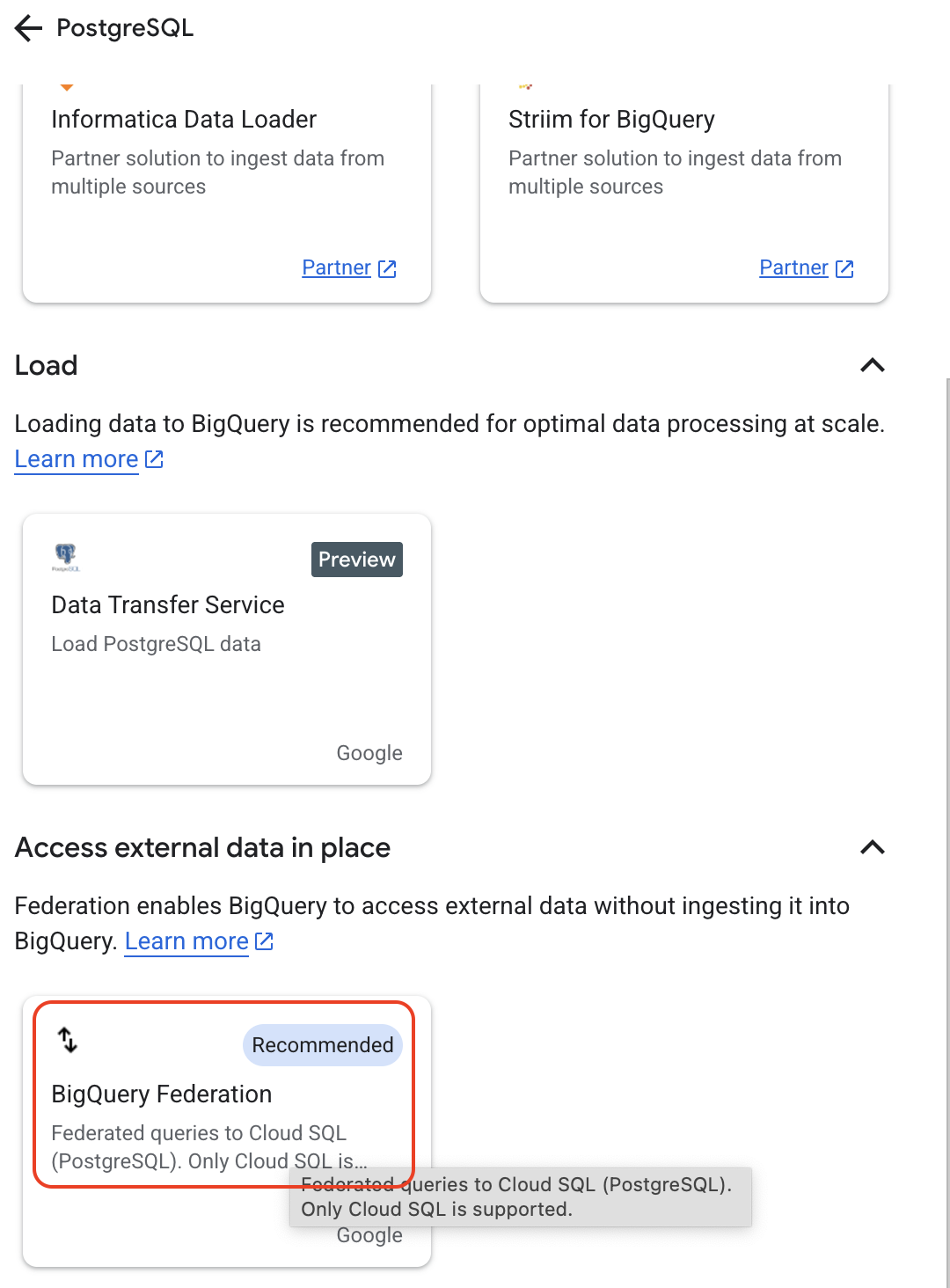
Click on "BigQuery Federation".
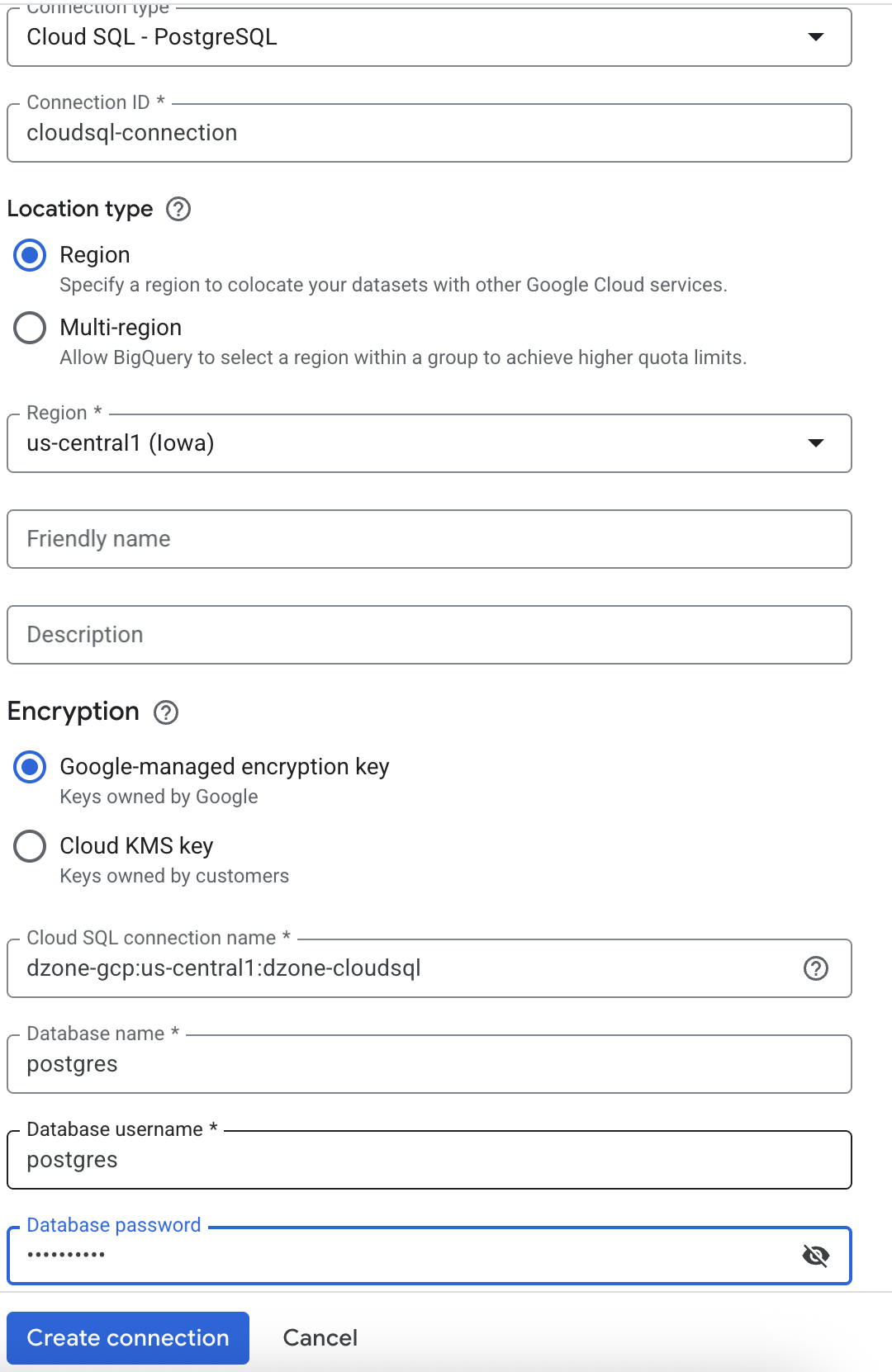
Select the connection type as Cloud SQL - PosygreSQL, Connection ID as cloudsql-connection, Region as us-central1, Cloud SQL connection name as dzone-gcp:us-central1:dzone-cloudsql, Database name as postgres, Database username as postgres, Database password as any password that aligns with the password policy. Click on "Create connection".
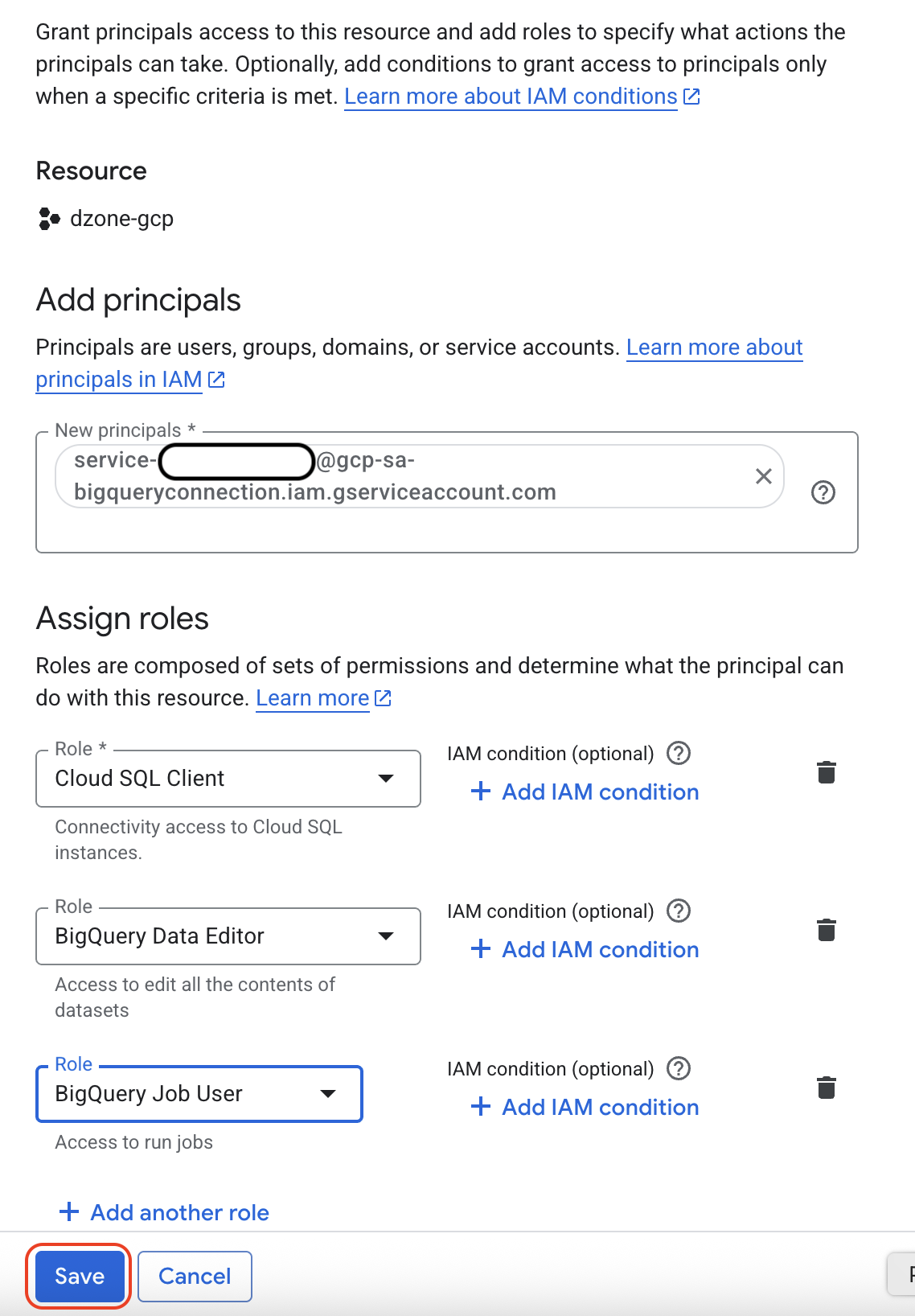
Notice that the external connection has been created successfully, copy the service account id information.
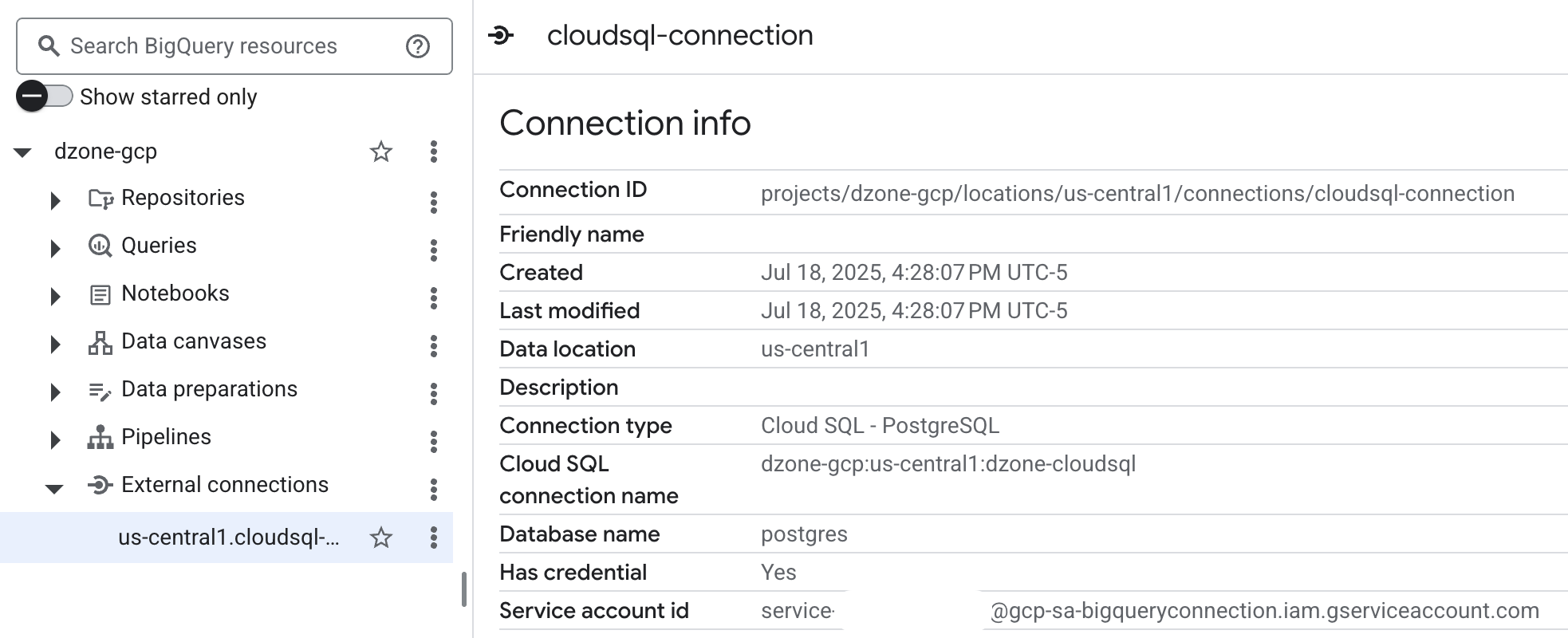
Navigate to IAM -> Grant Access to grant the roles, Cloud SQL Client, BigQuery Data Editor, BigQuery Job User to the service account id we copied earlier. Click on "Save".
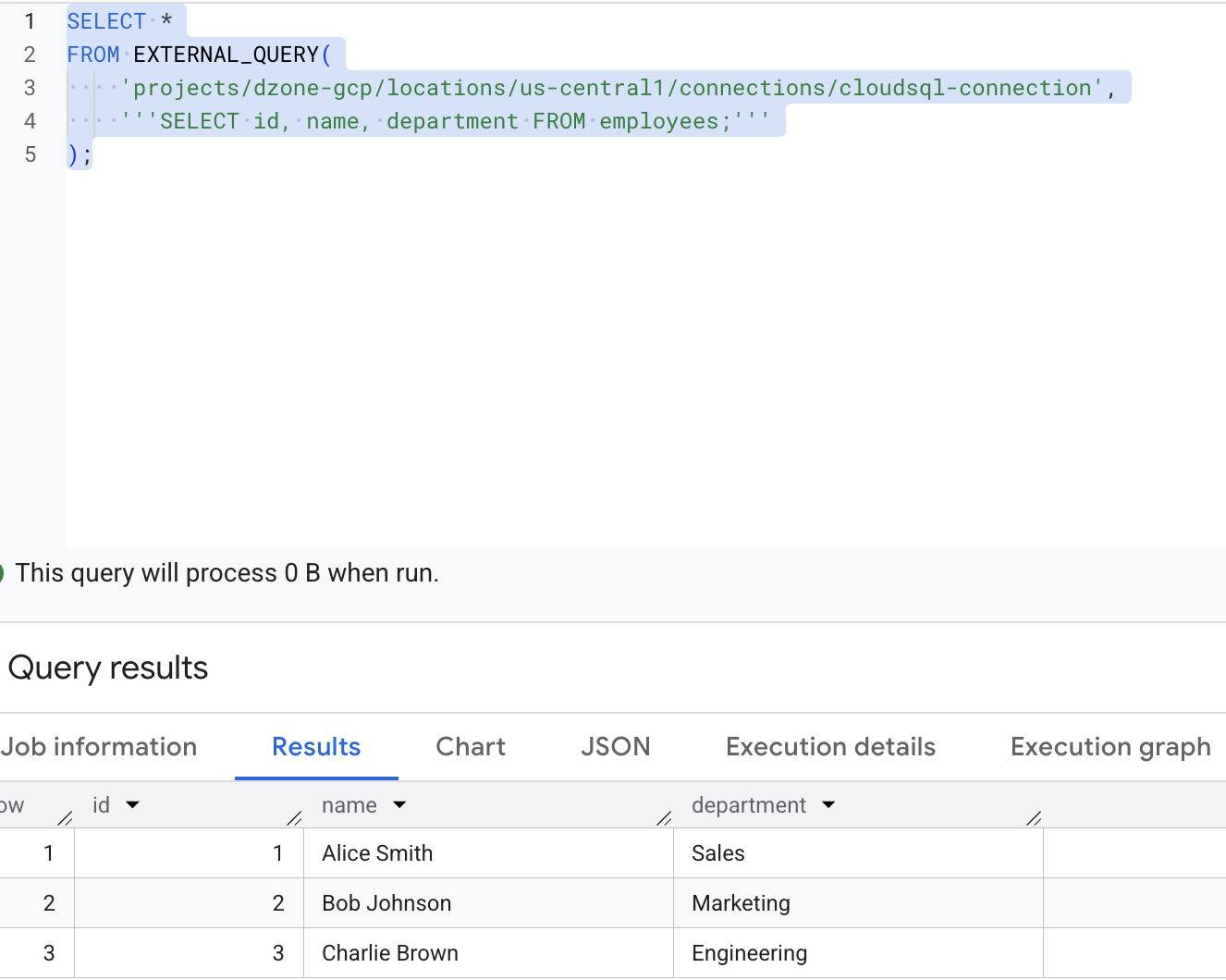
Navigate back to the BigQuery console and run the query, notice that we are now able to access the CloudSQL postgres data from BigQuery.
SELECT *
FROM EXTERNAL_QUERY(
    'projects/dzone-gcp/locations/us-central1/connections/cloudsql-connection',
    '''SELECT id, name, department FROM employees;'''
);
Summary
We've just walked through the entire process of setting up a robust GCP environment. From creating a custom VPC and securing it with firewall rules, deploying a Compute Engine VM with RHEL 9 and a NAT Gateway for outbound access, to provisioning a Cloud SQL PostgreSQL instance with private IP, and finally, connecting it all to BigQuery for powerful federated queries.
This architecture provides a solid foundation for many applications, allowing your VMs to securely interact with your managed databases, and enabling your data analysts to query operational data directly from BigQuery.
Opinions expressed by DZone contributors are their own.
Comments