

Hosting .NET Core Web API Image With Docker Compose Over HTTPS
This article explains the SSL Certificate configuration for secure communication over the HTTPS using .NET Core Web API and Docker.
Join the DZone community and get the full member experience.
Join For FreeWe are going to talk about the SSL Certificate configuration for secure communication over the HTTPS using .NET Core Web API and Docker after running our application inside the docker container using docker-compose.
Prerequisites
- Visual Studio 2022
- Docker Desktop
- .NET Core 6 SDK
Introduction
- HTTPS is a standard internet protocol that makes the data to be encrypted and a more advanced and secure version of the HTTP protocol.
- SSL stands for Secure Sockets Layer and standard technology, which keeps secure our application over the internet.
- SSL is the part of HTTPS protocol, and it takes care of the encryption of data.
- It enables a secure connection and prevents hacker attacks because of its encryption algorithm and many security layers.
Implementation of .NET Core Web API Application
Step 1
Create a new .NET Core Web API application.

Step 2
Configure your application.

Step 3
Provide additional information.

Step 4
Next, we create a certificate for the local machine using the following command.
dotnet dev-certs https -ep %USERPROFILE%\.aspnet\https\dockerdemo.pfx -p Pass@*****
dotnet dev-certs https --trust
Here, as you can see, we pass the certificate name and password in the above command, and it will create the certificate at %USERPROFILE%\.aspnet\https this location.

Step 5
Create a Docker file for our Weather Forecast application.
FROM mcr.microsoft.com/dotnet/sdk:6.0 AS build
WORKDIR /app
EXPOSE 443
EXPOSE 80
# copy project csproj file and restore it in docker directory
COPY ./*.csproj ./
RUN dotnet restore
# Copy everything into the docker directory and build
COPY . .
RUN dotnet publish -c Release -o out
# Build runtime final image
FROM mcr.microsoft.com/dotnet/aspnet:6.0
WORKDIR /app
COPY --from=build /app/out .
ENTRYPOINT ["dotnet", "HTTPSCertDemo.dll"]
Step 6
Here, using this command, you can create a docker image inside the docker desktop (Note: Make sure the docker desktop is working fine on your machine).
docker build . -t ssldemo:v1
Next, we run our application after setting port and certificate details using docker volume.
docker run -p 8081:80 -p 8082:443 -e ASPNETCORE_URLS="https://+;http://+" -e ASPNETCORE_HTTPS_PORT=7001 -e ASPNETCORE_Kestrel__Certificates__Default__Password="Pass@*****" -e ASPNETCORE_Kestrel__Certificates__Default__Path=/https/dockerdemo.pfx -v %USERPROFILE%\.aspnet\https:/https/ ssldemo:v1
Here you can see we provide two ports one is for HTTPS, and another one is for HTTPS, also some environmental variables like port, certificate path, and credentials along with docker volume (Note: docker volume is basically the shared directory which persists the data with docker container which is created by the user like in this case we create a certificate and it located at our local system)
Step 7
Also, if we want to manage multiple docker images and their configuration efficiently, in that case, we can use the docker-compose file for managing all our application dynamic settings which we required when the application image is running inside the docker container for that; we are going to create a docker-compose YAML file for the application.
version: '3.5'
services:
  Weatherforecase.Service:
   image: ${DOCKER_REGISTRY-}ssldemo:v1
   build:
    context: ./HTTPSCertDemo
    dockerfile: Dockerfile
   environment:
    - ASPNETCORE_ENVIRONMENT=Development
    - ASPNETCORE_URLS=https://+:443;http://+:80
    - ASPNETCORE_Kestrel__Certificates__Default__Password=Pass@*****
    - ASPNETCORE_Kestrel__Certificates__Default__Path=/https/dockerdemo.pfx
   ports:
    - "8081:80"
    - "8082:443"
   volumes:
    - ~/.aspnet/https:/https:ro
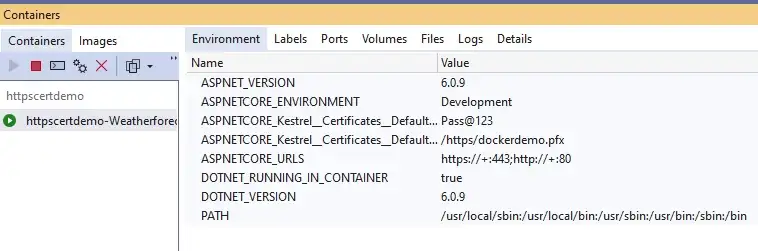
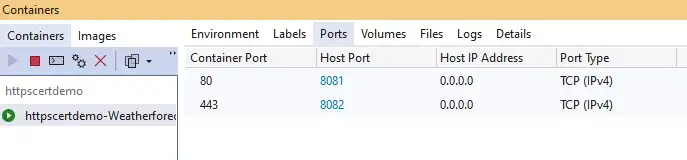
Here, you can see we provide different parameters with the help of environmental variables like docker image name, container name, certificate details, docker volume, and application port numbers.
To run your application using the docker-compose YAML file for that use the following commands.
docker-compose build
docker-compose up
Here one command is going to build and create a docker image inside the docker desktop, and another one runs your application image inside the docker container and configure all dynamic settings which you passed inside the YAML file.
Step 8
Next, on the docker desktop, you can see the application is running inside the docker container.
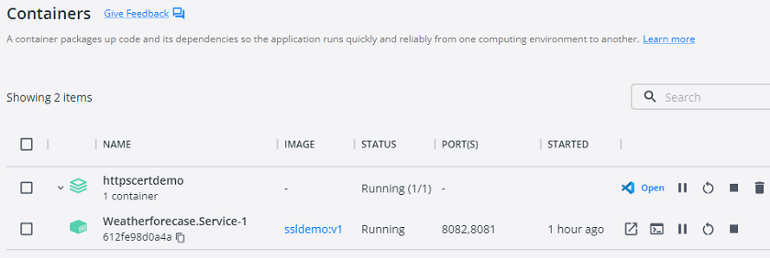
Also, inside the visual studio, we can see the details of containers, as shown in the below images.

Step 9
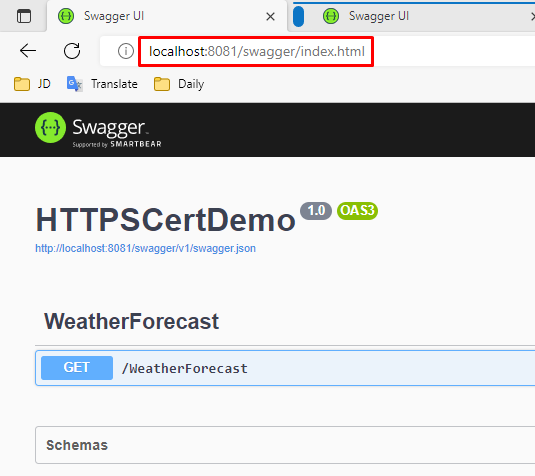
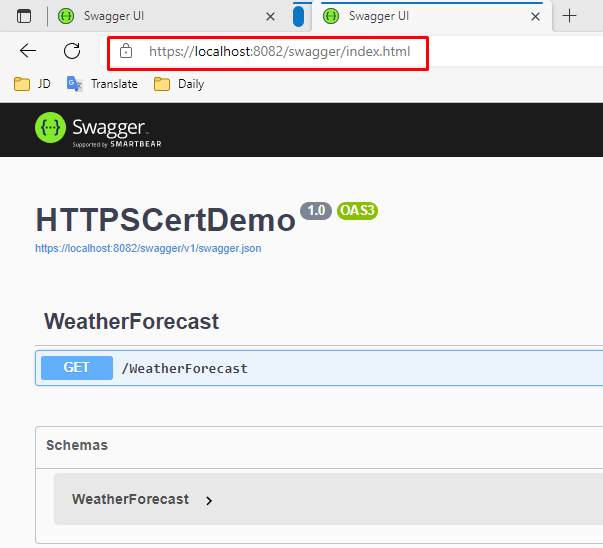
Finally, open both application URLs and use the application.
Conclusion
In the article, we discussed HTTPS and how to enable that when we run applications inside the docker container using both ways, firstly using the docker command and secondly using the docker-compose file with the help of the .NET Core Weather forecast application.
Happy Learning!
Published at DZone with permission of Jaydeep Patil. See the original article here.
Opinions expressed by DZone contributors are their own.
Comments