

The Ultimate Guide to Amazon RDS Database Notifications
This article is about an interesting feature of AWS RDS, which is Event Notifications.
Join the DZone community and get the full member experience.
Join For FreeDatabases are used everywhere around the world for many different reasons. Some use them to store a large amount of their data. Some use databases as an integrity factor. It ensures that the data contained inside this database is always correct. Some use a database for security. Rather than storing data in a spreadsheet or a text file, a database can be made very secure by allowing access only to specified users. There are many types of databases. The two main categories of database systems are SQL-based and NoSQL-based. There are many popular database management systems in the market. AWS Relational Database Service (RDS) is one of the popular cloud-based database management systems.

What Is AWS RDS?
According to official AWS documentation, “Amazon Relational Database Service (Amazon RDS) is a web service that makes it easier to set up, operate, and scale a relational database in the AWS Cloud. It provides cost-efficient, resizable capacity for an industry-standard relational database and manages common database administration tasks” [1]. RDS stands for a relational database management system, as the name implies. Tables, columns, and rows are used to store data and information in the relational database paradigm. The RDS service is unique in that it is administered by Amazon Web Services. It indicates that the database does not have to be installed, configured, or maintained by the users. AWS takes care of managing and administrating the databases on behalf of the users. At the outset, users get to choose from a few database settings, such as:
- Choosing the database type
- Specifying the CPU, RAM, and capacity requirements
- Assigning a database master username and password
- Choosing the VPC and subnet configurations
- Choosing a maintenance window for DB backups
AWS provides a lot of benefits with managed DBMS [2].
- Automatic software patching – Users do not have to concern about DB patches. The relational database systems on AWS are automatically patched with its latest updates.
- Multi-AZ deployments – AWS is known for its high availability. By providing database replicas in multiple availability zones, AWS RDS allows for multi-AZ deployments and failover support.
- Security – RDS encrypts data during transmission using SSL. It also has the capacity to encrypt data while it is in transit.
- High scalability – You will be able to scale up your databases as your demands change with just a click of a button.
- Automated backups – You do not have to bother about manual DB backups with AWS RDS. It takes automated backups to provide point-in-time recovery for up to 35 days after you provide the maintenance window at the initial stage.
This article is about another interesting feature of AWS RDS which is Event Notifications. Hoping you have a slight idea of how to turn up a simple RDS instance, this article will explain the following.
- AWS RDS Event categories and messages,
- How to subscribe to an RDS event notification (Email and SMS),
- How to list and modify event notification subscriptions,
- How to delete an event subscription.
AWS RDS Event Categories and Messages

Amazon RDS generates several different events. AWS Console, AWS CLI, and APIs can all be used to access these events. The table below covers a list of key event categories as well as event descriptions. All this information is taken from the official AWS RDS documentation [3].
Category |
Event ID |
Description |
Creation |
RDS-EVENT-0005 |
DB instance created |
Deletion |
RDS-EVENT-0003 |
DB instance delete |
Availability |
RDS-EVENT-0006 |
DB instance restart |
Availability |
RDS-EVENT-0004 |
DB instance shutdown |
Backup |
RDS-EVENT-0001 |
Taking a DB instance backup |
Backup |
RDS-EVENT-0002 |
Finished taking the backup |
Configuration change |
RDS-EVENT-0012 |
Modify DB instance class |
Configuration change |
RDS-EVENT-0028 |
The automatic backup feature is disabled |
Configuration change |
RDS-EVENT-0017 |
Storage settings have changed |
Configuration change |
RDS-EVENT-0067 |
Attempt to reset the master password for the DB instance has failed |
Maintenance |
RDS-EVENT-0047 |
Database patching completed |
Notification |
RDS-EVENT-0087 |
DB instance stopped |
Notification |
RDS-EVENT-0088 |
DB instance started |
Recovery |
RDS-EVENT-0021 |
Recovery of DB instance completed |
Creation |
RDS-EVENT-0040 |
Manual DB snapshot started |
Creation |
RDS-EVENT-0042 |
Manual DB snapshot completed |
Creation |
RDS-EVENT-0090 |
Automated DB snapshot started |
Creation |
RDS-EVENT-0091 |
Automated DB snapshot completed |
Now that you have an idea about event categories, let us get into the fun part.
How to Subscribe to An RDS Event Notification
These event categories and lists were made for a reason. These were made to notify the users in case of a change in the database instance. These subscriptions can be done through the AWS console, AWS CLI and APIs. In this article, I am using the AWS console for demonstration. I will demonstrate how to subscribe to email notifications and also SMS notifications by creating an SNS topic.
To subscribe to an event, click the “Event subscriptions” button on the navigation pane.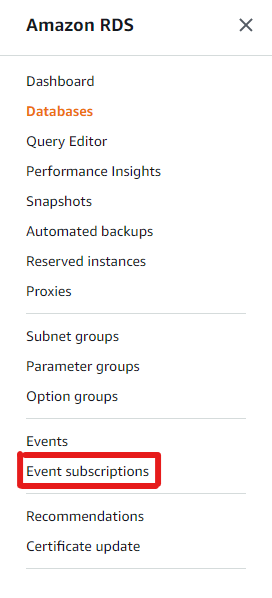
You will be navigated to the “Event subscriptions” page. If you have created any subscriptions earlier, they will be shown on this page.
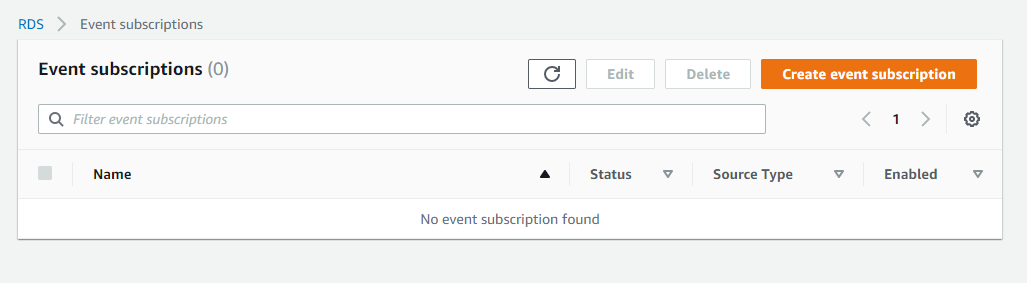
To create a new subscription, click on the “Create event subscription” button. You will see a page like below.

Provide a suitable name for the subscription in the Name section. As you can see here, you can provide an ARN of a previously created SNS topic or create an email topic here.
1. Email Subscription
Choose the “New email topic” button and provide a name for the topic.
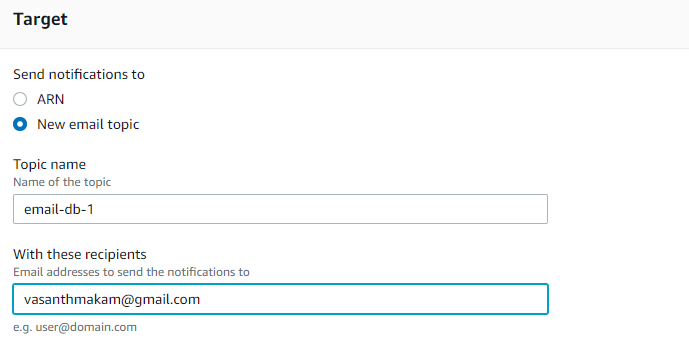
For the “Source type”, Choose a type from the list provided. You can not add multiple source types for a single event subscription. I chose “Snapshots” as the source type. This means that every event related to snapshots such as RDS-EVENT-0040, RDS-EVENT-0091, etc. (refer to the above table) will trigger an email to the recipients listed in the email list. Please note that you can select specific snapshots and specific event categories for this as well.

Click on “Create” to create the subscription. The recipients in the email list will receive a confirmation email stating to confirm this event subscription, like below.
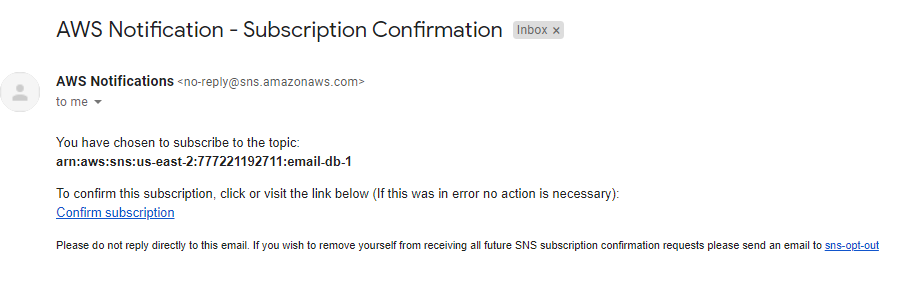
When you click “Confirm subscription”, you will be redirected to a page like this.
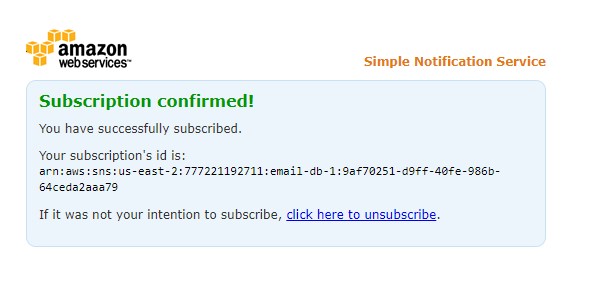
Now that you have successfully created the email subscription, let us perform a snapshot-related event and see whether it triggers an email. Navigate to a database instance of your liking and take a snapshot.
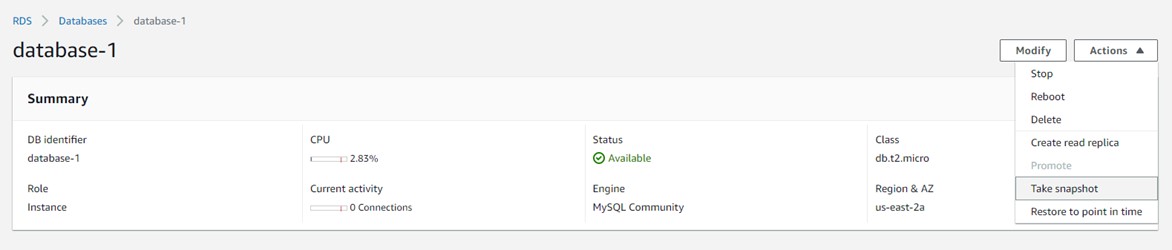
Provide a name and create a snapshot of the database.

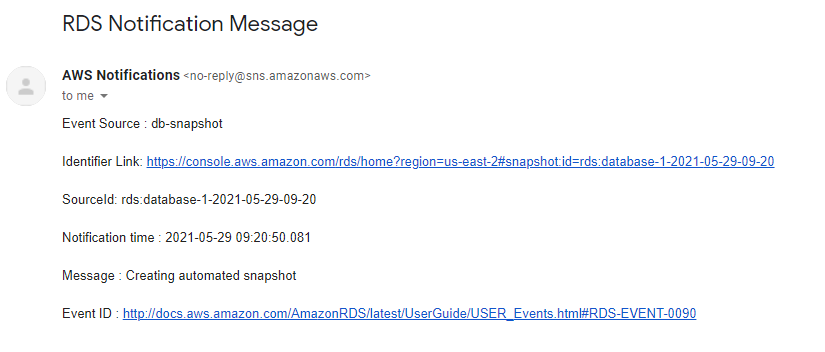
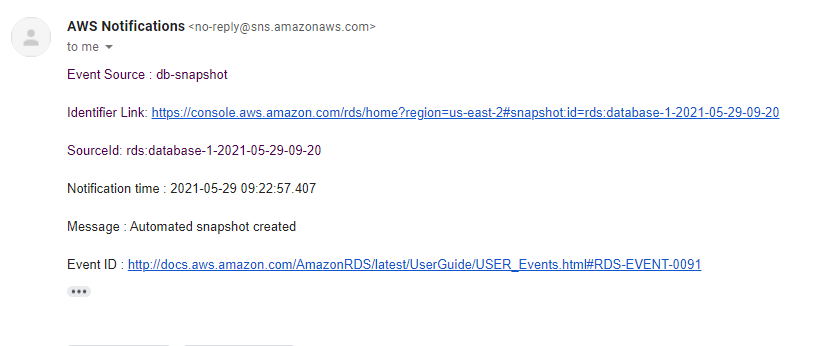
If you followed all the steps correctly, you would receive email notifications like below.
2. SMS Subscription
To subscribe to receive SMS notifications, you need to have an SNS topic created first. Let us see how we can create an SNS topic for receiving SMS notifications. And then we can integrate with RDS to get event notifications via SMS.
Navigate to the SNS console page. As of now, you will be able to see the topic we created earlier for the email notifications. If you have created any SNS topics earlier, they would appear on this dashboard topics page.
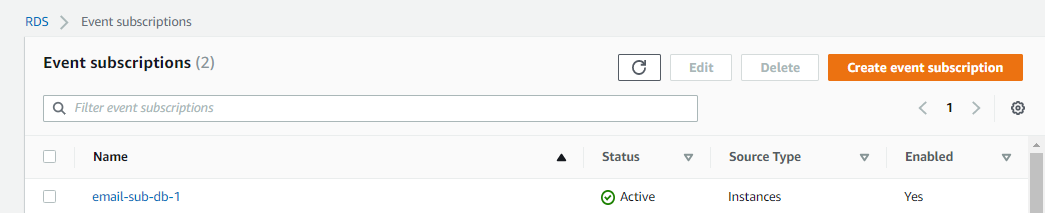
In order to receive SMS notifications, you need to create a topic first. Click on the “Create topic” button. You will be navigated to a page like below.

Select the Type as “Standard” and provide a suitable name for the topic. As we are creating a topic for SMS subscription, provide a “Display name” as well. This name will be displayed in the SMS notification you receive.

Leave the rest of the configuration as in its default values and create the topic. You will be able to see the topic you just created on the Topics dashboard page.
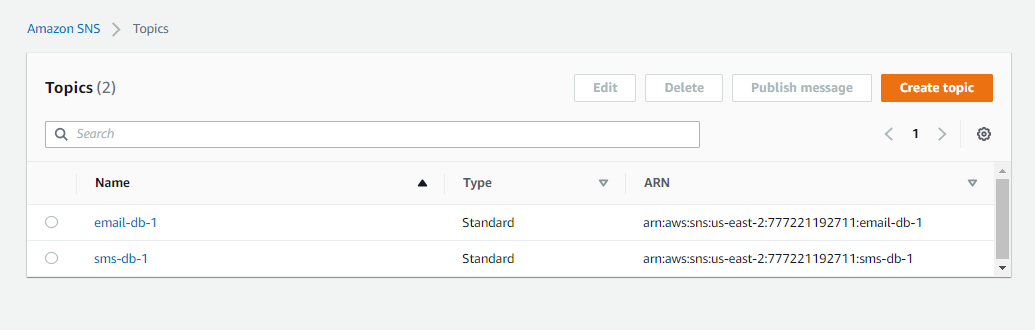
Now you have successfully created a topic for SMS. You must be thinking how do I receive any messages just by creating this topic? This is where you must provide your mobile number to the SMS subscription. To accomplish this, click on the “Text messaging (SMS)” option on the left navigation page. Choose this to proceed to the SMS dashboard page. Thereafter, click on the “Subscribe number to topic” button.
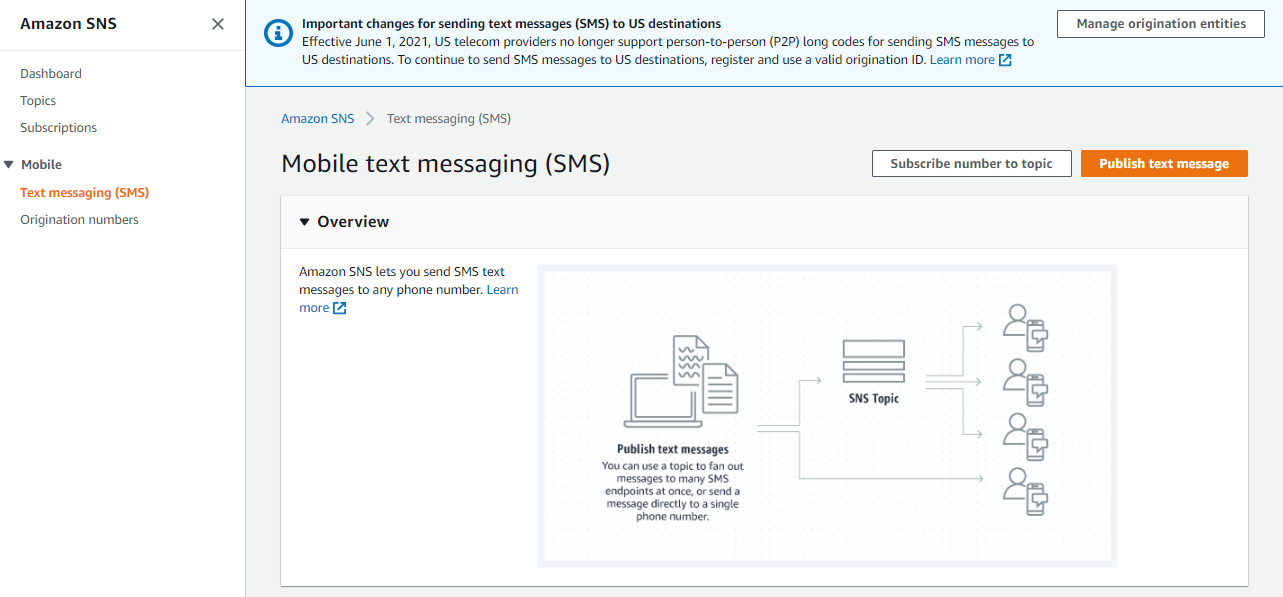
You will be redirected to a page called “Create subscription” which is just like the email subscription page.
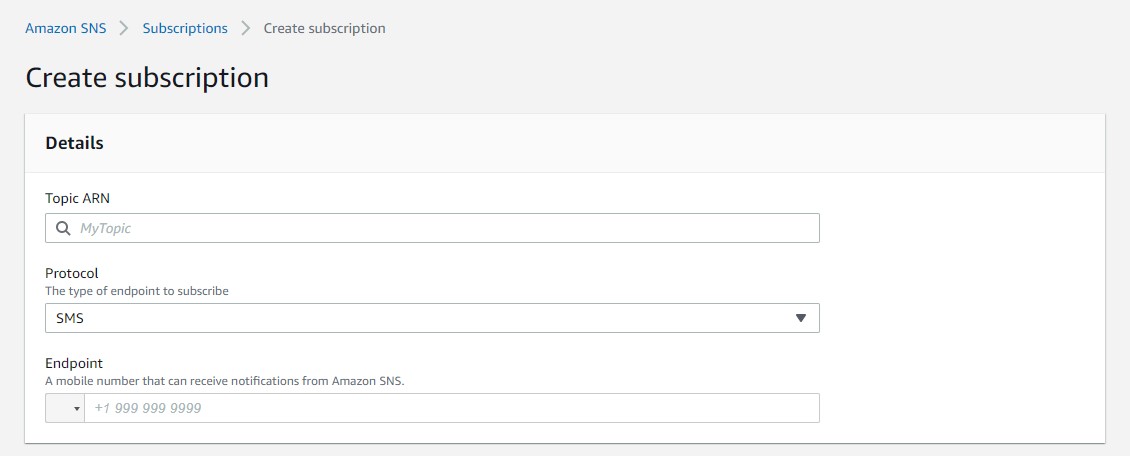
You need to provide the topic you created earlier in the “Topic ARN” section. When you click on that field, you will see a list of topics that you have in your region. Choose the SMS topic and enter your mobile number in the “Endpoint” section. Make sure to choose the country code from the drop-down button as well.
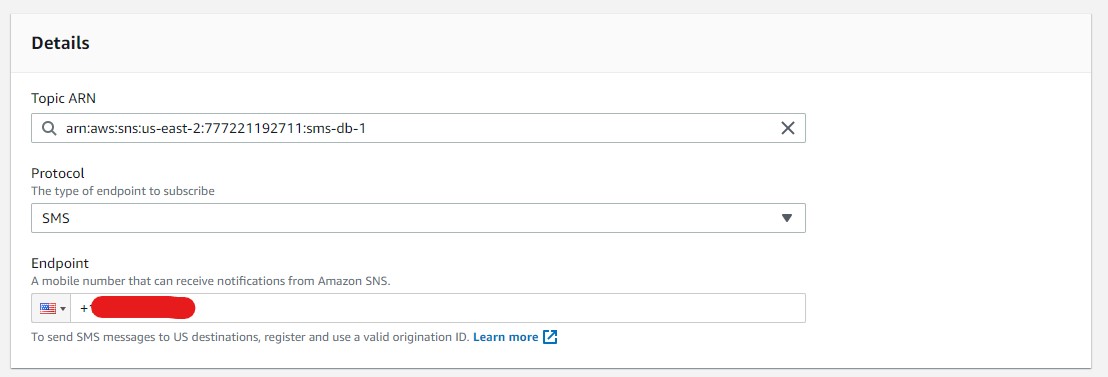
Click on the “Create subscription” button to create the SMS topic subscription. If you go to the “Topics” page and choose the SMS topic, you will now see a subscription added in the “Subscriptions” tab.
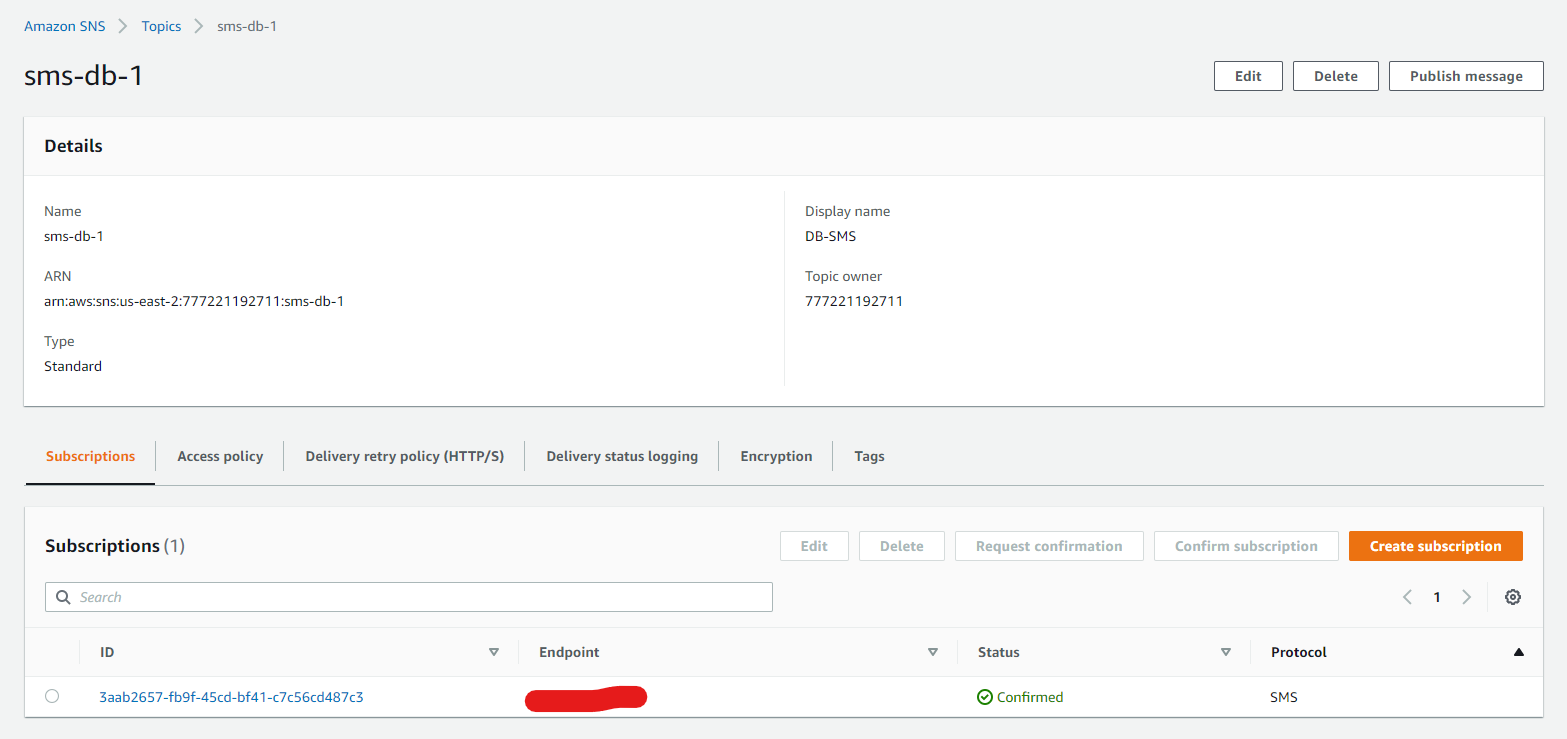
Now that you have successfully created the topics and subscriptions, let us move on to the RDS console page to configure and complete the event subscription process. Head on to the “Event subscription” page in the RDS console and choose “Create subscription” to create a new subscription.

Provide a suitable name for the subscription name. As the target, choose “ARN” and select the SMS topic you created earlier. As of this case, I provided “Instances” as the source for the demonstration. You can choose any source type of your liking. Click on “Create” to create the subscription. If you follow all the steps in the correct order, you will now receive a text message to your mobile phone from AWS like below.
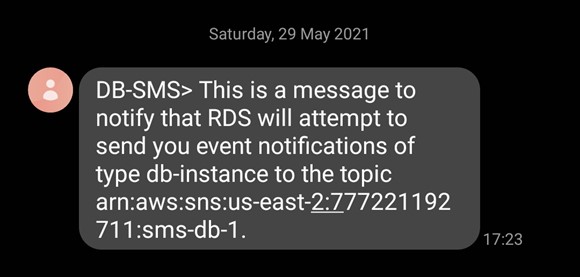
As I selected “Instances” as the source type, I am going to do some changes to the instance and check whether I receive any notifications to my mobile.

I chose to stop the DB instance and wait for the notification alert. As the DB instance stopped without any error, I received an alert on my mobile phone like below.

How to List and Modify Event Notification Subscriptions
If you need to list the event subscriptions you have for RDS events, select “Event subscriptions” from the navigation pane. All your event notification subscriptions are displayed in the Event subscriptions pane.
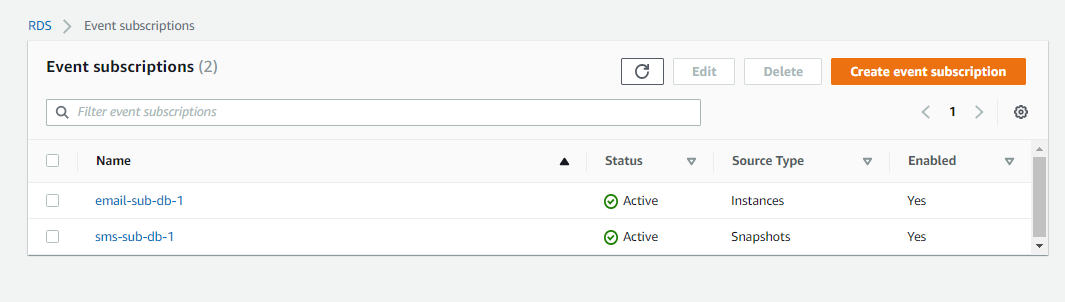
You can edit the subscription name, source identifier, categories, and subject ARN after you have created an event subscription. Select the subscription you want to change in the “Event subscriptions” pane and click “Edit”. Make your subscription modifications in either the Target or Source sections. Click on the “Save” button to modify the subscription.

How To Delete an Event Subscription
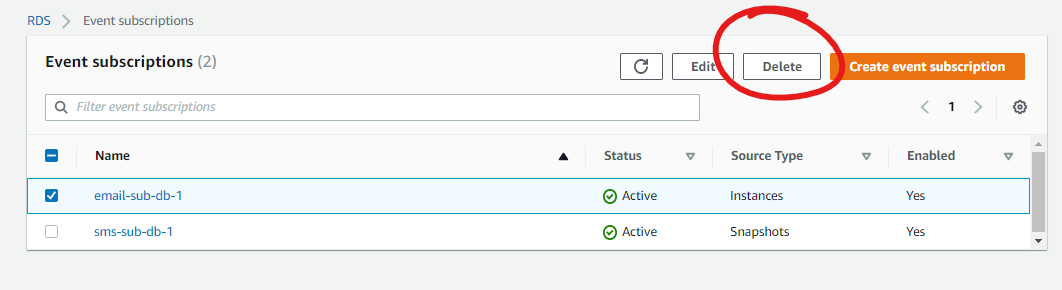
You can easily delete an event subscription by selecting the subscription and clicking on the “Delete” button.
Conclusion
The purpose of this article is to explain how to create event subscriptions on Amazon RDS. Event subscriptions are used to receive notifications about important events that happen inside an RDS instance. If you follow the instructions in the correct order, you must now have a good understating of event subscriptions and how to configure them in your own AWS console. I hope you learned something valuable from this article. Happy learning!
References:
Opinions expressed by DZone contributors are their own.
Comments