

How to Get Localized Number Format Based on Country Using Angular 8
Join the DZone community and get the full member experience.
Join For Free
I have seen many users get confused about how different countries use different formats to display number format according to their country code. Most of the countries use "dot notation" as their separator, and many of the them use a "comma" as their separator. In this article, you will learn how to use a localized number format based on the country code and symbol to display using JavaScript's tolocalestring() method, which returns a string.
To explain the concept of localization and number format based on their locale, I am using my previous article as a reference to display the price based on different countries and their currencies.
So, please check my previous article, How to Create Nested Grid using Angular 8. As a reference, I am fetching the price and displaying it with the currency symbol based on their country and currency code. Additionally, in the nested grid, I am displaying all prices with a currency symbol.
In this article, I am just trying to explain the concept of tolocalestring(), which I am going to apply to the prices we're looking at. In my previous article, I just displayed price in "en" format, which is just a decimal number, but what if we want to see the price according to the respective country?
Backend
To fetch all countries, you just have to add the following code in SQL Server:
USE [Product]
GO
SET ANSI_NULLS ON
GO
SET QUOTED_IDENTIFIER ON
GO
CREATE TABLE [dbo].[Country](
[CountryId] [int] NOT NULL,
[CountryName] [nvarchar](50) NULL,
[CountryCode] [nvarchar](50) NULL,
[CurrencySymbol] [nvarchar](50) NULL,
CONSTRAINT [PK_Country] PRIMARY KEY CLUSTERED
(
[CountryId] ASC
)WITH (PAD_INDEX = OFF, STATISTICS_NORECOMPUTE = OFF, IGNORE_DUP_KEY = OFF, ALLOW_ROW_LOCKS = ON, ALLOW_PAGE_LOCKS = ON) ON [PRIMARY]
) ON [PRIMARY]
GO
After creating the table, it's time to insert records in the country table. For that, I have inserted the code, so just copy and paste in SQL Server.
xxxxxxxxxx
INSERT [dbo].[Country] ([CountryId], [CountryName], [CountryCode], [CurrencySymbol]) VALUES (1, N'India', N'en-IN', N'INR')
GO
INSERT [dbo].[Country] ([CountryId], [CountryName], [CountryCode], [CurrencySymbol]) VALUES (2, N'Sweden', N'sv-SE', N'SEK')
GO
INSERT [dbo].[Country] ([CountryId], [CountryName], [CountryCode], [CurrencySymbol]) VALUES (3, N'England', N'en-GB', N'GBP')
GO
INSERT [dbo].[Country] ([CountryId], [CountryName], [CountryCode], [CurrencySymbol]) VALUES (4, N'Ireland', N'en-IE', N'EUR')
GO
INSERT [dbo].[Country] ([CountryId], [CountryName], [CountryCode], [CurrencySymbol]) VALUES (5, N'China', N'zh-CN', N'CNY')
GO
INSERT [dbo].[Country] ([CountryId], [CountryName], [CountryCode], [CurrencySymbol]) VALUES (6, N'Japan', N'ja-JP', N'JPY')
GO
INSERT [dbo].[Country] ([CountryId], [CountryName], [CountryCode], [CurrencySymbol]) VALUES (7, N'USA', N'en-US', N'USD')
GO
INSERT [dbo].[Country] ([CountryId], [CountryName], [CountryCode], [CurrencySymbol]) VALUES (8, N'Kuwait', N'ar-KW', N'KWD')
GO
In my previous article, I unfortunately forgot to give database records for product table so I am sharing that with you.
xxxxxxxxxx
INSERT [dbo].[Product] ([ProductId], [ProductCountryInformationId], [ArtNo], [Provider], [ProviderArtNo], [Brand]) VALUES (1, 1, N'100', N'OppoProvider', N'1Yu', N'Oppo')
GO
INSERT [dbo].[Product] ([ProductId], [ProductCountryInformationId], [ArtNo], [Provider], [ProviderArtNo], [Brand]) VALUES (2, 2, N'101', N'VivoProvider', N'2Yu', N'Vivo')
GO
INSERT [dbo].[Product] ([ProductId], [ProductCountryInformationId], [ArtNo], [Provider], [ProviderArtNo], [Brand]) VALUES (3, 3, N'102', N'SamsungProvider', N'3Yu', N'Samsung')
GO
INSERT [dbo].[Product] ([ProductId], [ProductCountryInformationId], [ArtNo], [Provider], [ProviderArtNo], [Brand]) VALUES (4, 4, N'103', N'NokiaProvider', N'4Yu', N'Nokia')
GO
INSERT [dbo].[Product] ([ProductId], [ProductCountryInformationId], [ArtNo], [Provider], [ProviderArtNo], [Brand]) VALUES (5, 5, N'104', N'SonyProvider', N'5Yu', N'Sony')
GO
INSERT [dbo].[Product] ([ProductId], [ProductCountryInformationId], [ArtNo], [Provider], [ProviderArtNo], [Brand]) VALUES (6, 6, N'105', N'HuaweiProvider', N'6Yu', N'Huawei')
GO
INSERT [dbo].[Product] ([ProductId], [ProductCountryInformationId], [ArtNo], [Provider], [ProviderArtNo], [Brand]) VALUES (7, 7, N'106', N'MotorolaProvider', N'7Yu', N'Motorola')
GO
INSERT [dbo].[Product] ([ProductId], [ProductCountryInformationId], [ArtNo], [Provider], [ProviderArtNo], [Brand]) VALUES (8, 8, N'107', N'HTCProvider', N'8Yu', N'HTC')
GO
For Product Country Information, which is our nested grid, below is the insert query that I, unfortunately, forgot to share it in my last article.
xxxxxxxxxx
INSERT [dbo].[ProductCountryInformation] ([ProductCountryInformationId], [Price], [BuyAccount], [SalesAccount], [CountryName], [ProductId]) VALUES (1, CAST(4010.23 AS Decimal(18, 2)), N'123', N'321', N'India', 1)
GO
INSERT [dbo].[ProductCountryInformation] ([ProductCountryInformationId], [Price], [BuyAccount], [SalesAccount], [CountryName], [ProductId]) VALUES (2, CAST(5623.32 AS Decimal(18, 2)), N'352', N'652', N'Sweden', 1)
GO
INSERT [dbo].[ProductCountryInformation] ([ProductCountryInformationId], [Price], [BuyAccount], [SalesAccount], [CountryName], [ProductId]) VALUES (3, CAST(6231.56 AS Decimal(18, 2)), N'557', N'889', N'England', 1)
GO
INSERT [dbo].[ProductCountryInformation] ([ProductCountryInformationId], [Price], [BuyAccount], [SalesAccount], [CountryName], [ProductId]) VALUES (4, CAST(9685.23 AS Decimal(18, 2)), N'665', N'652', N'Ireland', 1)
GO
INSERT [dbo].[ProductCountryInformation] ([ProductCountryInformationId], [Price], [BuyAccount], [SalesAccount], [CountryName], [ProductId]) VALUES (5, CAST(1253.01 AS Decimal(18, 2)), N'32', N'62', N'China', 1)
GO
INSERT [dbo].[ProductCountryInformation] ([ProductCountryInformationId], [Price], [BuyAccount], [SalesAccount], [CountryName], [ProductId]) VALUES (6, CAST(6325.89 AS Decimal(18, 2)), N'21', N'23', N'Japan', 1)
GO
INSERT [dbo].[ProductCountryInformation] ([ProductCountryInformationId], [Price], [BuyAccount], [SalesAccount], [CountryName], [ProductId]) VALUES (7, CAST(5212.56 AS Decimal(18, 2)), N'233', N'214', N'USA', 1)
GO
INSERT [dbo].[ProductCountryInformation] ([ProductCountryInformationId], [Price], [BuyAccount], [SalesAccount], [CountryName], [ProductId]) VALUES (8, CAST(4151.66 AS Decimal(18, 2)), N'452', N'452', N'Kuwait', 1)
GO
INSERT [dbo].[ProductCountryInformation] ([ProductCountryInformationId], [Price], [BuyAccount], [SalesAccount], [CountryName], [ProductId]) VALUES (9, CAST(1000.00 AS Decimal(18, 2)), N'5', N'6', N'India', 2)
GO
INSERT [dbo].[ProductCountryInformation] ([ProductCountryInformationId], [Price], [BuyAccount], [SalesAccount], [CountryName], [ProductId]) VALUES (10, CAST(2000.00 AS Decimal(18, 2)), N'4', N'5', N'Sweden', 2)
GO
INSERT [dbo].[ProductCountryInformation] ([ProductCountryInformationId], [Price], [BuyAccount], [SalesAccount], [CountryName], [ProductId]) VALUES (11, CAST(3000.00 AS Decimal(18, 2)), N'5', N'5', N'England', 2)
GO
INSERT [dbo].[ProductCountryInformation] ([ProductCountryInformationId], [Price], [BuyAccount], [SalesAccount], [CountryName], [ProductId]) VALUES (12, CAST(4000.00 AS Decimal(18, 2)), N'7', N'8', N'Ireland', 2)
GO
INSERT [dbo].[ProductCountryInformation] ([ProductCountryInformationId], [Price], [BuyAccount], [SalesAccount], [CountryName], [ProductId]) VALUES (13, CAST(5000.00 AS Decimal(18, 2)), N'8', N'8', N'China', 2)
GO
INSERT [dbo].[ProductCountryInformation] ([ProductCountryInformationId], [Price], [BuyAccount], [SalesAccount], [CountryName], [ProductId]) VALUES (14, CAST(6000.00 AS Decimal(18, 2)), N'8', N'9', N'Japan', 2)
GO
INSERT [dbo].[ProductCountryInformation] ([ProductCountryInformationId], [Price], [BuyAccount], [SalesAccount], [CountryName], [ProductId]) VALUES (15, CAST(7000.00 AS Decimal(18, 2)), N'8', N'7', N'USA', 2)
GO
INSERT [dbo].[ProductCountryInformation] ([ProductCountryInformationId], [Price], [BuyAccount], [SalesAccount], [CountryName], [ProductId]) VALUES (16, CAST(8000.00 AS Decimal(18, 2)), N'5', N'4', N'Kuwait', 2)
GO
Web API
Copy and paste the following code into your controller. This code will fetch all the countries that are in your database's Countries table.
xxxxxxxxxx
[HttpGet]
[Route("getAllCountry")]
public object getAllCountry()
{
return DB.Countries.ToList();
}
If you don't have the complete code, I am sharing it with you below.
Complete Code for country controller:
xxxxxxxxxx
using System.Linq;
using System.Web.Http;
using CompanyDetails.Models;
namespace CompanyDetails.Controllers
{
[RoutePrefix("api/Company")]
public class CompanyController : ApiController
{
CompanyEntities2 DB = new CompanyEntities2();
[HttpGet]
[Route("getAllCountry")]
public object getAllCountry()
{
return DB.Countries.ToList();
}
[HttpGet]
[Route("getAllProducts")]
public object getAllProducts(string countrycode)
{
var productDetails = DB.USP_GetAllProducts().ToList();
return productDetails;
}
[HttpGet]
[Route("getProductCountryInformation")]
public object getProductCountryInformation(int ProductId)
{
var prod = DB.USP_getCountryInfo(ProductId).ToList();
return prod;
}
}
}
Frontend
This following code will fetch all the countries and bind it to our drop-down.
xxxxxxxxxx
public getCountry(){
this._productService.getAllCountry().subscribe((data: any) => {
this.country =data;
console.log(data);
});
}
This HTML code adds one drop-down which will bind all the countries which we are getting from database table country. Here, one method I have declared is onCountryChange, which fires when we change the drop-down selection.
Copy the following code and paste it in the product.component.html file inside the div that has the class, col-12 col-md-12.
xxxxxxxxxx
<select style="width: 160px;margin: 10px;" [(ngModel)]="countryId" (ngModelChange)="onCountryChange($event)"
class="form-control" id="ddlCountry" name="ddlCountry" placeholder="Select a Country">
<option [ngValue]="0" selected>--Choose Country--
</option>
<option [ngValue]="countryList.CountryId" *ngFor="let countryList of country">{{countryList.CountryName}}
</option>
</select>
Copy the following code and paste it or replace it with ngOnInIt(), which will get all the countries and bind them to our drop-down.
xxxxxxxxxx
this.getCountry();
this.countryId=0;
this.getProducts(this.countryId);
Copy the following code and paste it inside our service to fetch all the countries.
xxxxxxxxxx
getAllCountry(){
this.url = 'http://localhost:49661/api/Company/getAllCountry';
return this.http.get<any[]>(this.url);
}
Next, copy this code and paste it inside the getProducts method, which will convert the price based on their country and display it in our browser.
xxxxxxxxxx
for(var a =0;a<res.length;a++){
res[a].Price =res[a].Price.toLocaleString(this.country[a].CountryCode, { style: 'currency', currency: this.country[a].CurrencySymbol });
}
Then, paste the following code inside the showProductCountryInfo method.
xxxxxxxxxx
for (let i = 0; i < data.length; i++) {
//Price Format based on country
this.priceToDisplay[i] = data[i].Price;
}
This method is used to check if any country is selected or not; if no country is selected, then price will display normally without any currency symbol and currency format. On the other hand, if a country is selected, then the price will display according to their country code and currency symbol.
toLocaleString(this.countryCode, { style: 'currency', currency: this.currencySymbol });
tolacalestring() is the JavaScript inbuilt method to convert a number to a string, which has some overloaded features, including country code and currency code (inside style curly braces), which we are fetching from the Countries table.
This particular code is the method for changing the country. If $event is 0, no country is selected, and price will display normally. But, if the country code is present, then it will display the number according to their country currency code list.
xxxxxxxxxx
onCountryChange($event) {
debugger;
this.countryId = $event;
if($event==0){
for(var a =0;a<this.products.length;a++){
this.priceToDisplay[a] =this.products[a].Price;
}
}else{
this.countryCode =this.country[$event-1].CountryCode;
this.currencySymbol =this.country[$event-1].CurrencySymbol;
for(var a =0;a<this.products.length;a++){
this.priceToDisplay[a] =this.products[a].Price.toLocaleString(this.countryCode, { style: 'currency', currency: this.currencySymbol });
}
}
}
To avoid any confusion, I am sharing the full code, so just replace that with the old code if you already have it from my previous article.
products.components.ts
xxxxxxxxxx
import { Component, OnInit } from '@angular/core';
import { ProductsService } from './products.service';
@Component({
selector: 'app-products',
templateUrl: './products.component.html',
styleUrls: ['./products.component.css']
})
export class ProductsComponent implements OnInit {
products = [];
countryCode: any;
currencySymbol:any;
productCountryInformation: any = [];
hideme = [];
Index: any;
countryId: any;
country: any;
priceToDisplay=[];
constructor(private _productService: ProductsService) {
}
ngOnInit() {
this.getCountry();
this.countryId=0;
this.getProducts(this.countryId);
}
public getCountry(){
this._productService.getAllCountry().subscribe((data: any) => {
this.country =data;
console.log(data);
});
}
public getProducts(countryId) {
let data = [];
this._productService.getAllProducts(countryId).subscribe((data: any) => {
for (let i = 0; i < data.length; i++) {
//Price Format based on country
this.priceToDisplay[i] = data[i].Price;
}
this.products =data;
})
}
public showProductCountryInfo(index,productId) {
this._productService.countryInfo(productId).subscribe((res:any)=>{
for(var a =0;a<res.length;a++){
res[a].Price =res[a].Price.toLocaleString(this.country[a].CountryCode, { style: 'currency', currency: this.country[a].CurrencySymbol });
}
this.productCountryInformation[index] = res;
})
this.hideme[index] = !this.hideme[index];
this.Index = index;
}
onCountryChange($event) {
debugger;
this.countryId = $event;
if($event==0){
for(var a =0;a<this.products.length;a++){
this.priceToDisplay[a] =this.products[a].Price;
}
}else{
this.countryCode =this.country[$event-1].CountryCode;
this.currencySymbol =this.country[$event-1].CurrencySymbol;
for(var a =0;a<this.products.length;a++){
this.priceToDisplay[a] =this.products[a].Price.toLocaleString(this.countryCode, { style: 'currency', currency: this.currencySymbol });
}
}
}
}
Also, I am sharing the complete source code so that it will be very easy to find the concerned output. Once you download the source code, then you just have to open it in VS Code and type npm install --save in the terminal. This will create a node_module file, and your project will run without any error.
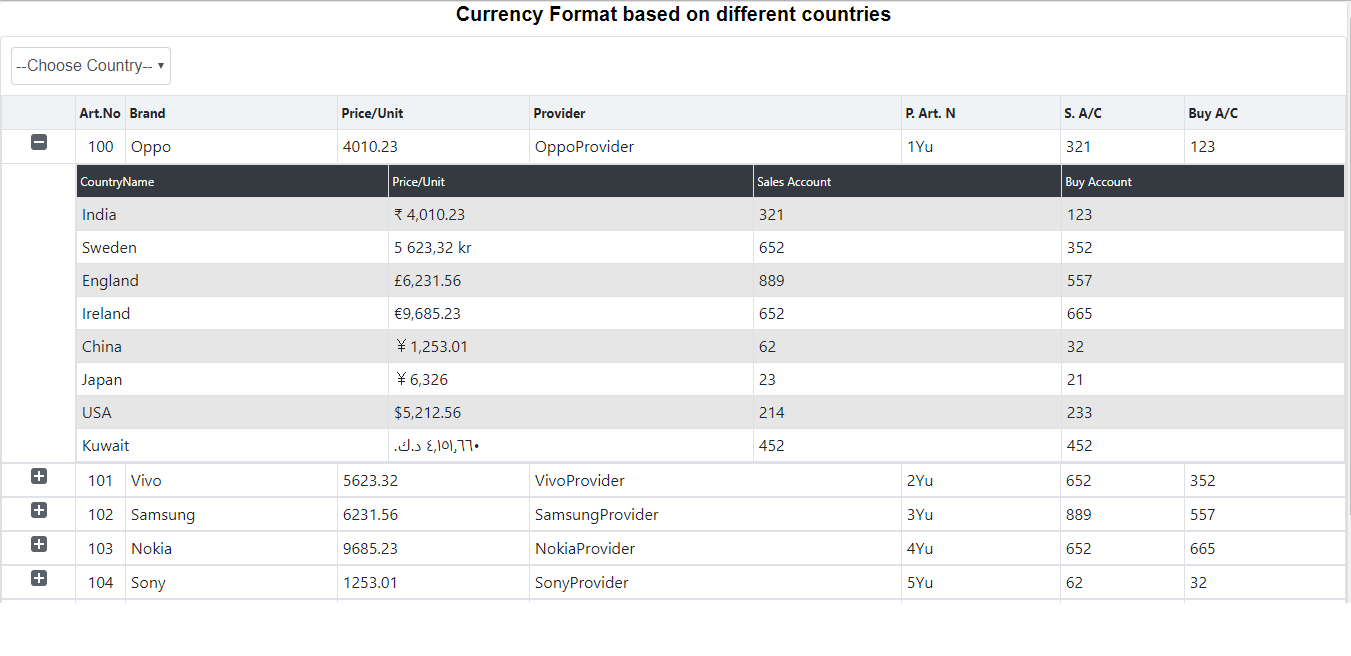
The following image is shown when you click on the plus icon to see the nested grid, which displays the price with all formats with their country name and currency symbol.
For example, India uses dot notation for their decimal symbol with the rupee currency symbol.
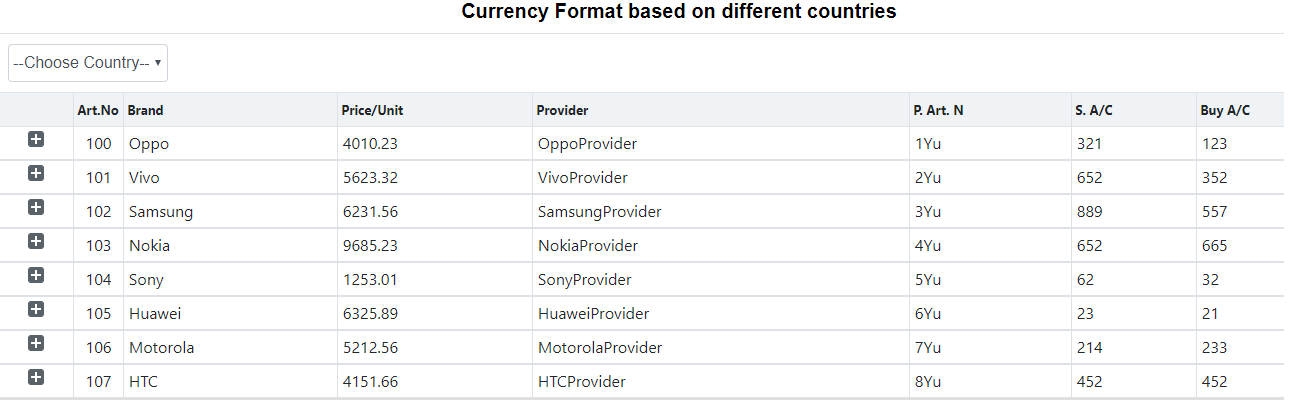
The following image is displayed when there is no country selected in the drop-down.
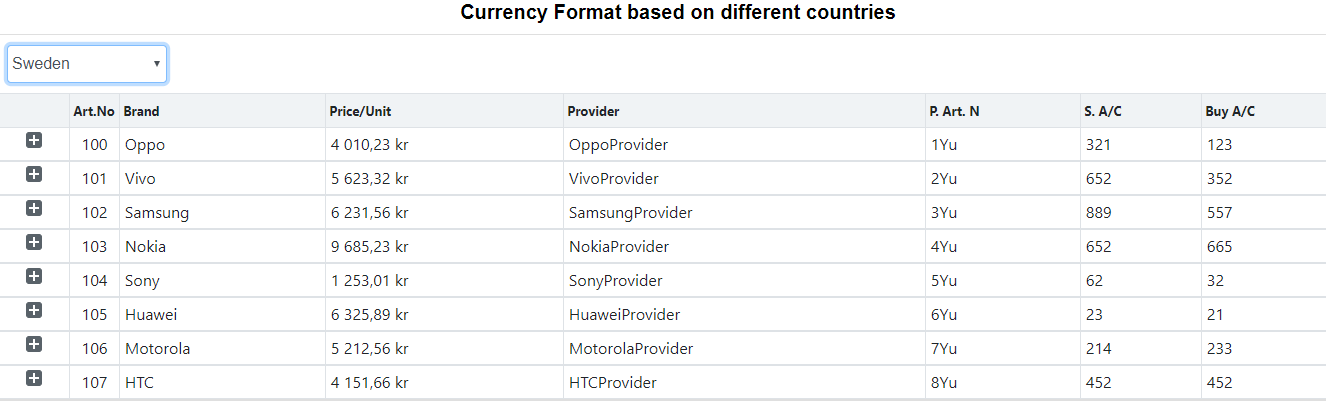
The following image is displayed when Sweden is selected in the drop-down.
The following image is displayed when Kuwait is selected in the drop-down.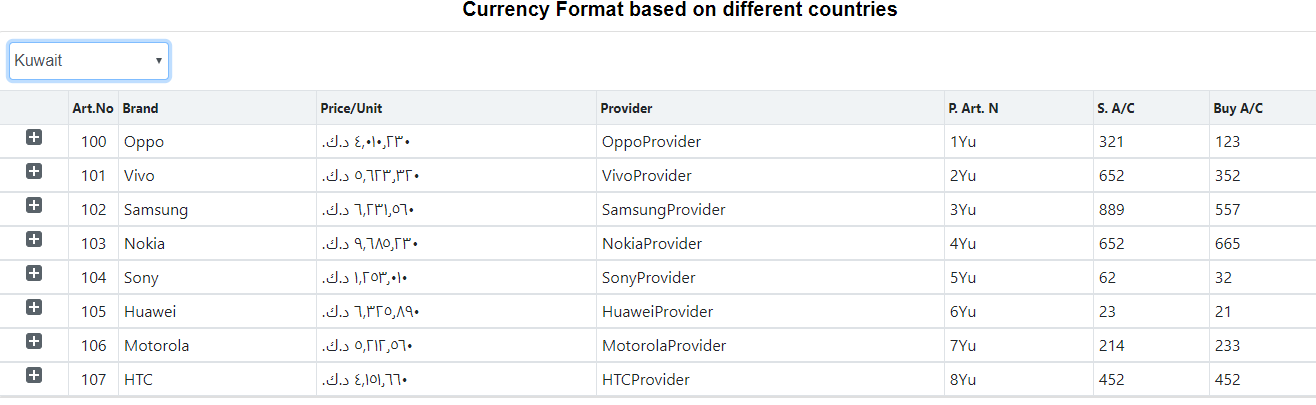
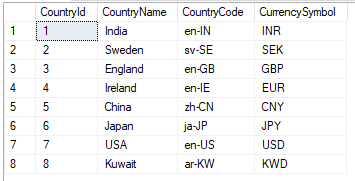
The below image is the Countries table.
Further Reading
Opinions expressed by DZone contributors are their own.
Comments