

How to Use Swagger UI for API Testing
In this article, we'll look at how to use Swagger UI for API testing. We'll start by discussing what Swagger UI is, why it's worth using, and then move on to a tutorial.

Join the DZone community and get the full member experience.
Join For FreeIn this article, I will show you how to use Swagger UI for API testing. We will start by discussing what Swagger UI is, why it's worth using, and then move on to the tutorial.
What Is Swagger?
Swagger (now known as the OpenAPI Initiative, under the structure of the Linux Foundation) is a framework for describing your API by using a common language that is easy to read and understand for developers and testers, even if they have weak source code knowledge. You can think of it as a blueprint for a house. You can use whatever building materials you like, but you can't step outside the parameters of the blueprint.
Swagger has certain benefits compared with other frameworks, such as:
- It's comprehensible for developers and non-developers. Product managers, partners, and even potential clients can have input into the design of your API because they can see it clearly mapped out in the friendly UI.
- It's human-readable and machine-readable. This means that not only can this be shared with your team internally, but the same documentation can be used to automate API-dependent processes.
- It's easily adjustable. This makes it great for testing and debugging API problems.
What Is Swagger UI?
Swagger UI, a part of Swagger, is an open source tool that generates a web page that documents the APIs generated by the Swagger specification. This UI presentation of the APIs is user-friendly and easy to understand, with all the logical complexity kept behind the screen. This enables developers to execute and monitor the API requests they sent and the results they received, making it a great tool for developers, testers, and end consumers to understand the endpoints they are testing. Swagger UI represents APIs within the browser, so I find it more intuitive than other tools such as Postman, SoapUI, and others.
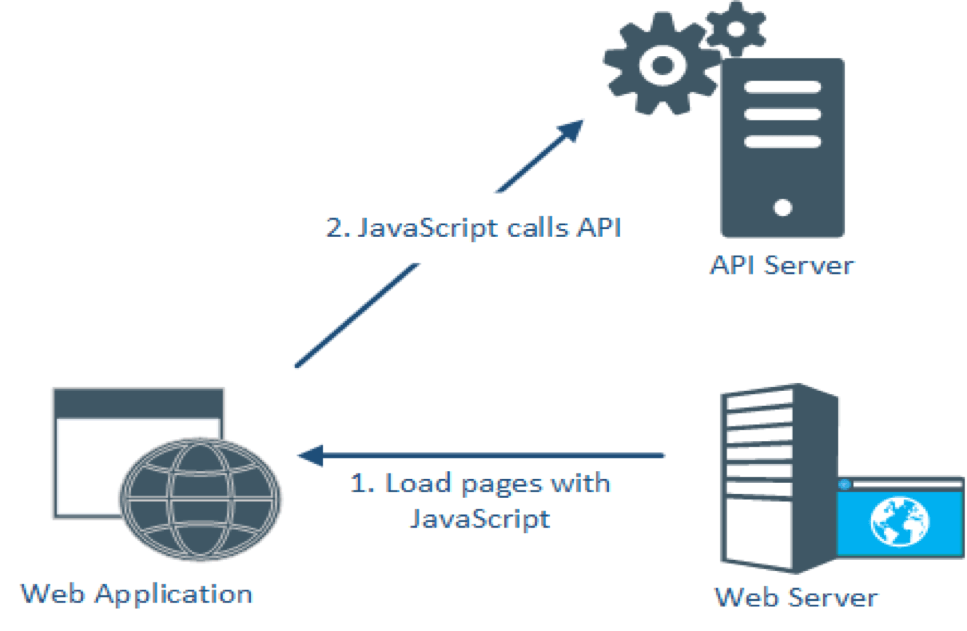
When you open the webpage, the browser will load the webpage from the web server, and trigger requests to the API server to get data from the database. SwaggerUI is automatically generated from any API defined in the OpenAPI Specification and can be viewed within a browser.
Adding Swagger UI to Your API Testing Project
To add Swagger UI into our project, you need to add one more dependency (if not already added) to the pom.xml file.
Then, go to the URL with SwaggerUI: http://<host>:<port>/swagger-ui.html
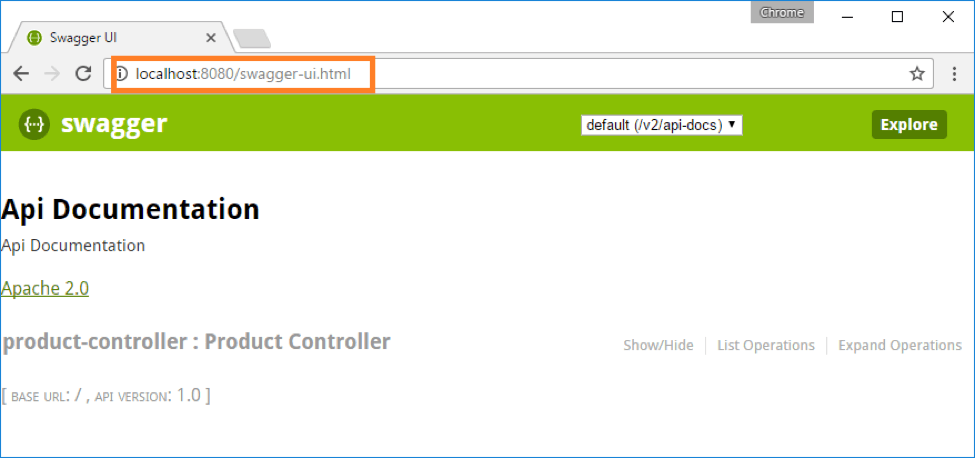
Testing Your APIs With Swagger UI
We can also use Swagger UI for testing APIs online. Let's look at an example. We will be using the sample http://petstore.swagger.io/
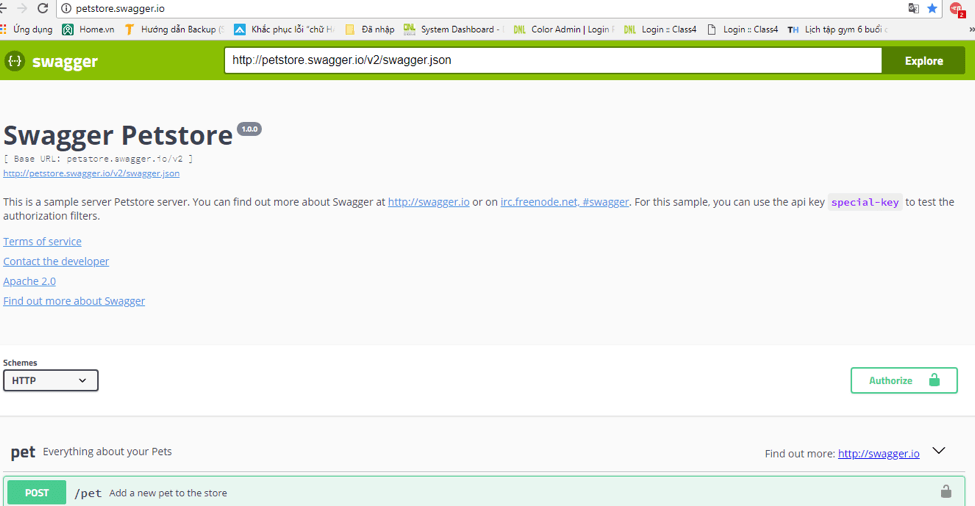
Importing a Swagger Definition
The first thing we need to do is import our API platform into Swagger UI.
A Swagger API platform could be either in YAML or JSON format. In this case, we will use JSON.
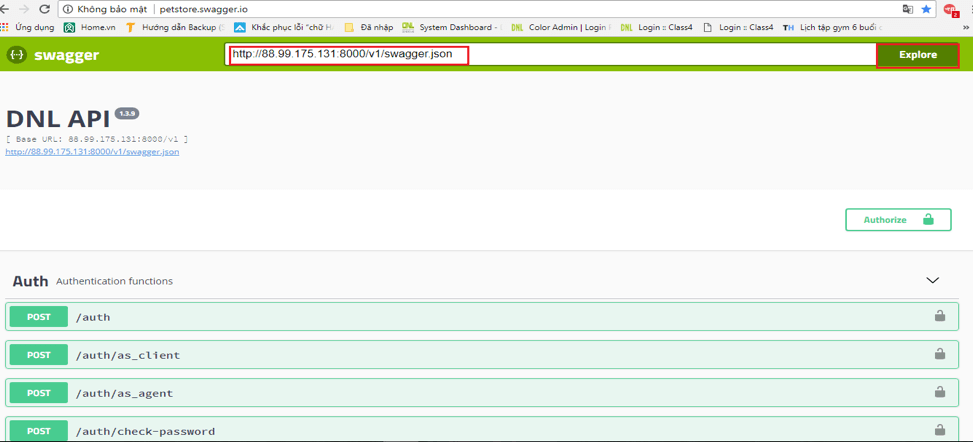
Put the Swagger API URL into a blank field and click the Explore button. This will list out all the endpoints below.
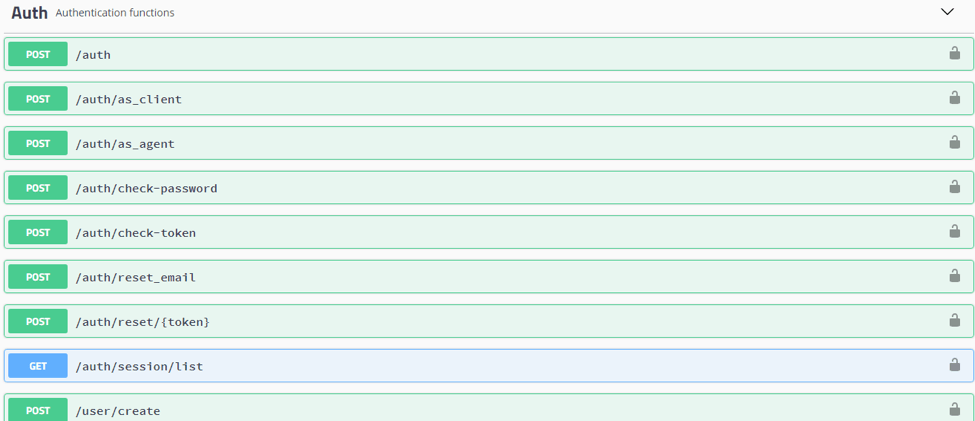
Authentication
When you first run your tests, they may fail due to HTTP request requirements like auth, headers, or query parameters. Expand /auth, click the Try it out button and enter your account information.
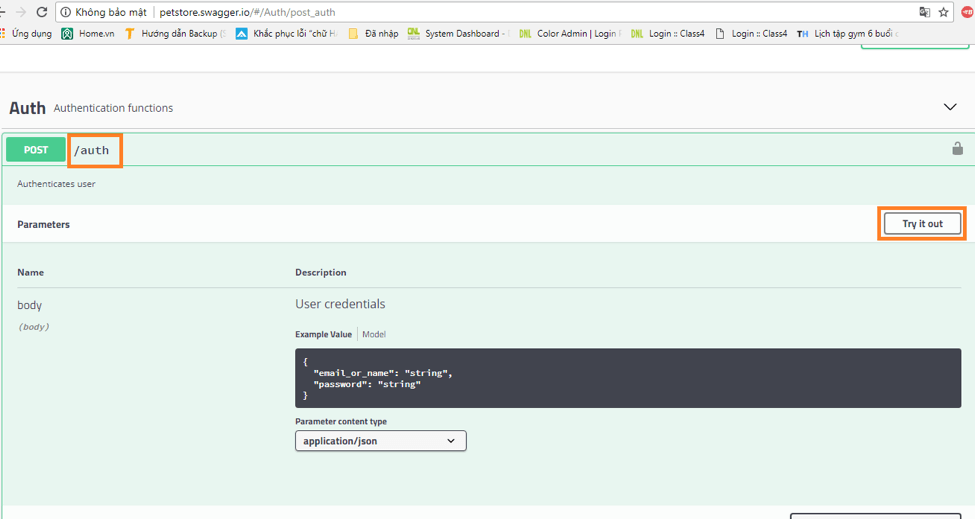
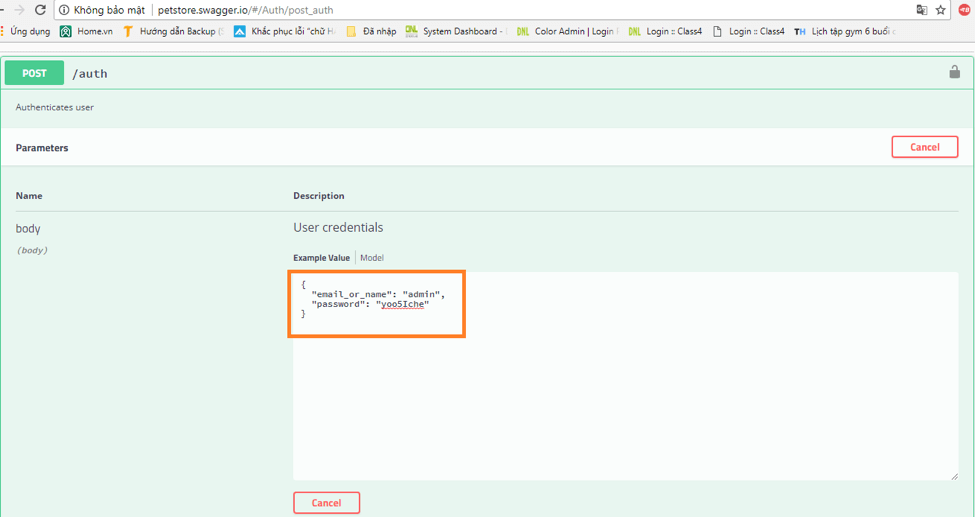
Next, press the execute button, it will respond with a failed or passed result. In this case, we get the passed result response, with response code 200.
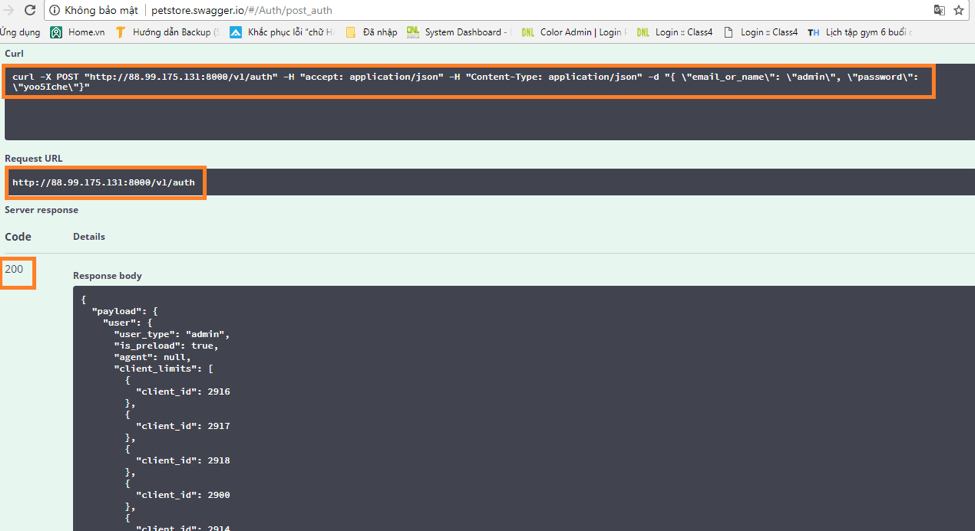
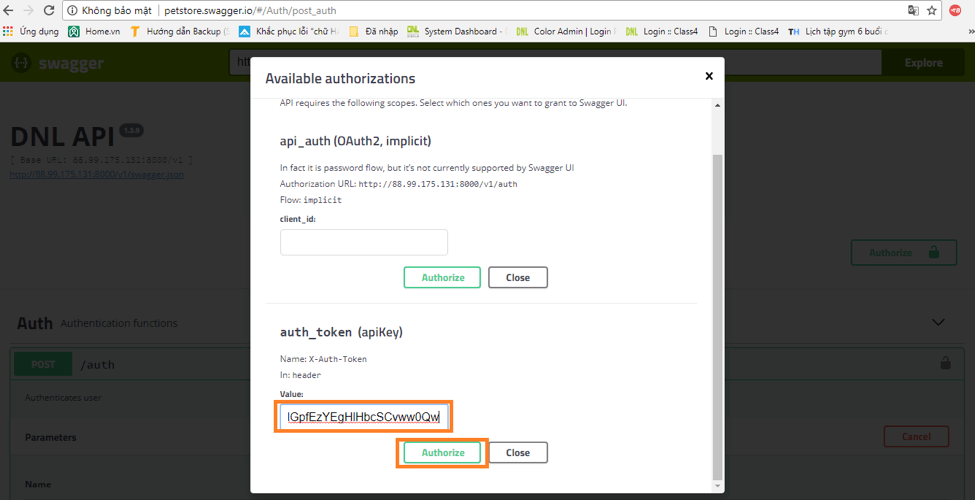
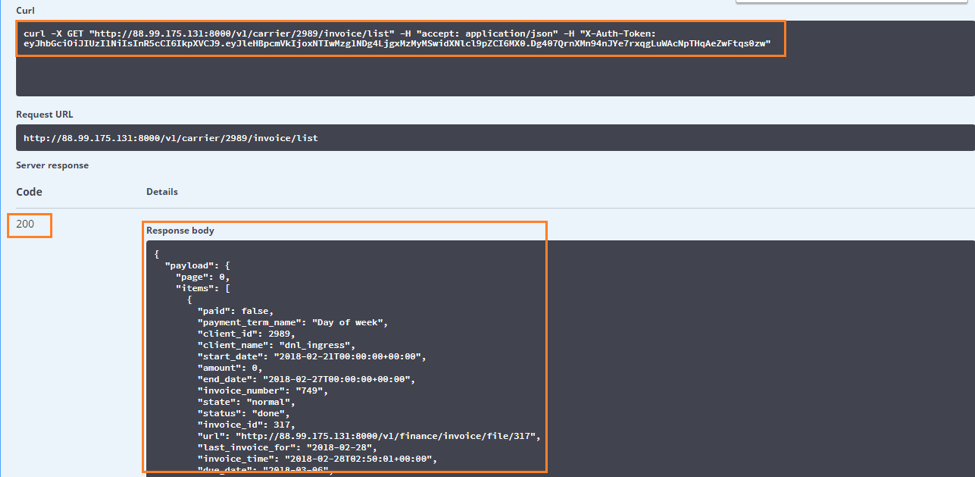
Besides that, you can get more detailed information with the request url and curl command commands. Take the token string and put it in Authorize.

Currently, there are 2 ways to authorize:
- api_auth (OAuth2, implicit)
- auth_token (apiKey)
But, for now, Swagger UI only supports auth_token (apiKey)
Testing the APIs Manually
After the authorization step, we are now ready to test the API. Let's do an example.
First, make a GET request.
1. Expand GET carrier/{client_id}/invoice/list
2. Click Try it out

3. Enter the information parameter likes, client_id=2989.
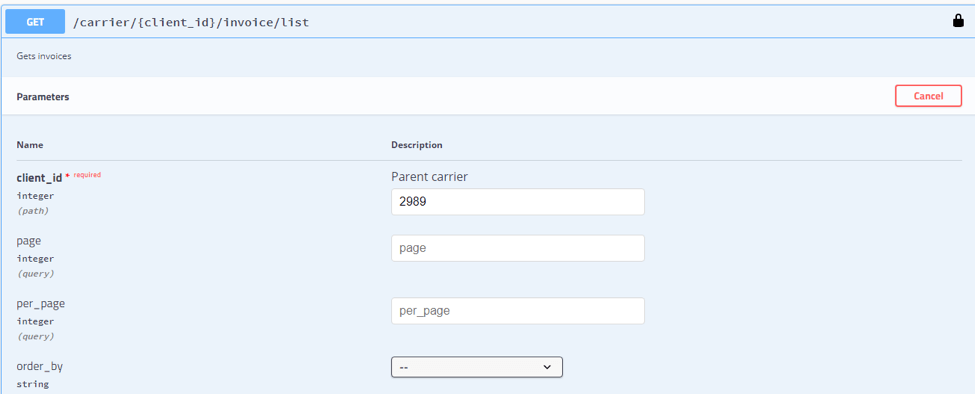
4. Click the Execute button to show your results.
Conclusion
Hopefully, this article gave you clear steps to test APIs with Swagger UI. Alternatively, you can try out Blazemeter's new API Functional Testing (with 1000 free API calls for API functional testing).
Published at DZone with permission of Phi Nguyen. See the original article here.
Opinions expressed by DZone contributors are their own.
Comments