

PWA on iOS, Part 4: What Add to Home Screen Really Does
Adding a PWA to the iPhone Home Screen creates a Web Clip with its own isolated storage. Learn what iOS saves, why logins disappear, and how to avoid costly bugs.
A user signs in to a site in Safari, decides to add it to the Home Screen, taps the new icon, and is greeted by the login form again. Authentication isn't the culprit: the icon has its own storage, and the boundary between it and Safari is drawn at the moment the site is installed as a PWA. That is what this fourth article is about: what iOS does between the tap on the Share button and the appearance of the icon, and why this is where the most expensive bugs are born. In the previous part, we established that every browser on the iPhone runs on the same WebKit engine. Now let's see how that engine handles installation.
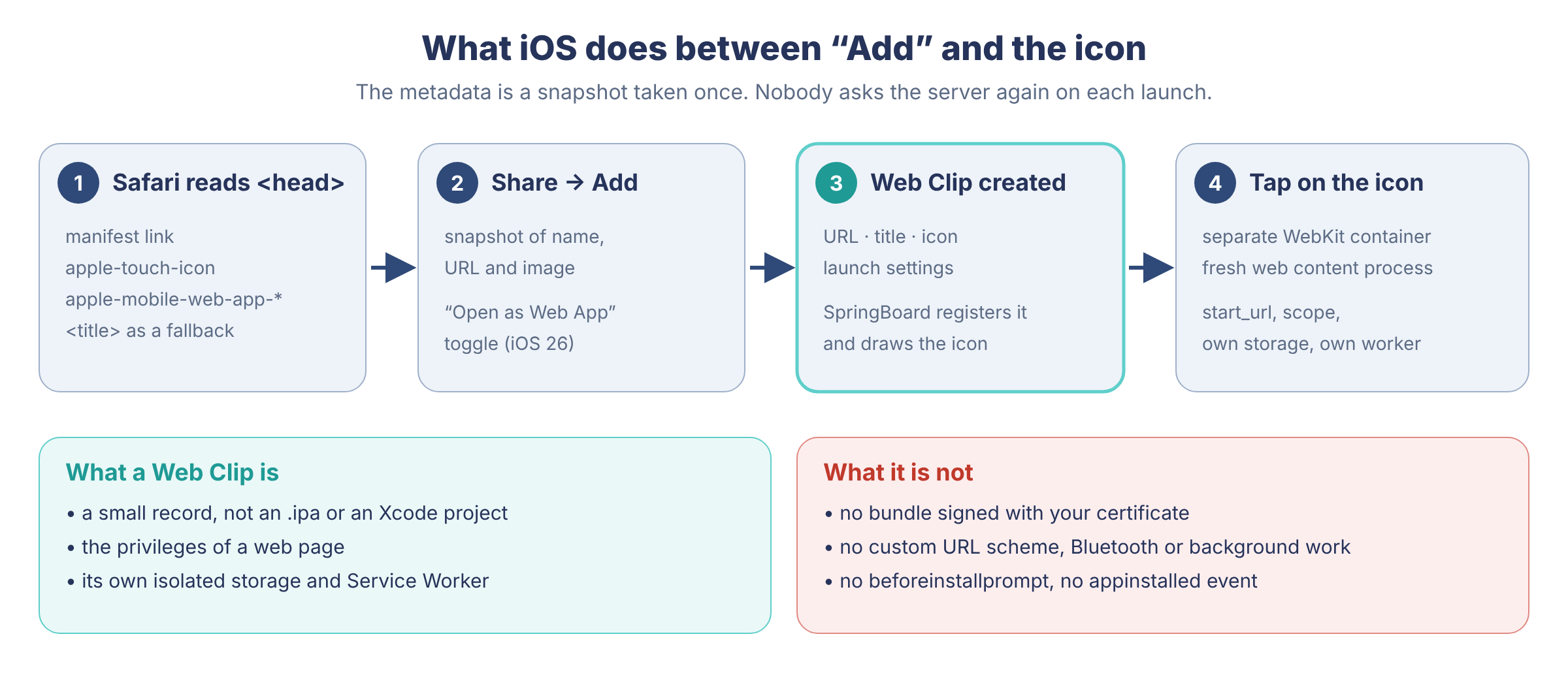
Installing a PWA on an iPhone doesn't download an .ipa, doesn't create a native project in Xcode, and doesn't turn a website into an "almost App Store app." The user opens a page in Safari, brings up the Share sheet, and picks Add to Home Screen. iOS then creates a Web Clip: a small record holding an address, a name, and an image, which SpringBoard (the system shell that draws the Home Screens) displays as an icon and opens in a separate WebKit container.
That sounds more modest than "installing an app," and this step is very easy to get wrong. The wrong icon, a white flash on launch, a repeated sign-in, links suddenly opening in Safari, two independent instances of the same product, a vanished cache: almost all of these are born right here, in the few seconds before the icon appears on the screen, and you notice them a week later, when support starts writing.
Manifest and Apple Meta Tags Safari Reads Before You Tap Add
By the time the user opens the Share sheet, Safari has already loaded the page over HTTPS and parsed the <head>. It looks for two things there at once: a link to the manifest, and a set of Apple meta tags left over from the days of the first iPhone. The two mechanisms overlap but don't coincide. The manifest describes the app uniformly for every browser, while the Apple meta tags remain a compatibility lever, and on iOS you can still get unexpected results without them.
For a real product, the minimum looks roughly like this:
<!doctype html>
<html lang="en">
  <head>
    <meta charset="utf-8" />
    <meta name="viewport"
      content="width=device-width, initial-scale=1, viewport-fit=cover" />
    <link rel="manifest" href="/manifest.webmanifest" />
    <meta name="theme-color" content="#101827" />
    <meta name="apple-mobile-web-app-capable" content="yes" />
    <meta name="apple-mobile-web-app-status-bar-style" content="black-translucent" />
    <meta name="apple-mobile-web-app-title" content="Warehouse" />
    <link rel="apple-touch-icon" href="/icons/apple-touch-icon-180.png" />
  </head>
And next to it, the manifest:
{
  "id": "/",
  "name": "Warehouse: Receiving",
  "short_name": "Warehouse",
  "start_url": "/?source=homescreen",
  "scope": "/",
  "display": "standalone",
  "background_color": "#101827",
  "theme_color": "#101827",
  "icons": [
    { "src": "/icons/icon-192.png", "sizes": "192x192", "type": "image/png" },
    { "src": "/icons/icon-512.png", "sizes": "512x512", "type": "image/png",
      "purpose": "any maskable" }
  ]
}
These two files don't guarantee identical results across iOS versions. Apple documents its manifest support only piecemeal and has changed priorities between releases more than once; for the icon, the system more often picks apple-touch-icon than the icons set from the manifest. In production I ship both: an opaque 180×180 PNG for Apple and a regular set for everyone else. The maskable flag does nothing on the iPhone. It's an Android mechanism, where the launcher itself crops the image to the safe zone.
display: "standalone" in the manifest and the old apple-mobile-web-app-capable ask for the same thing: open the site without the address bar and browser buttons. The duplication is ugly, but on older iOS versions and in unusual install paths, the absence of one of them produced odd results, so I keep both. Of course, none of this turns the site into a native app.
Of the remaining manifest fields, only a few deliver real value on iOS. name and short_name become the label, and the short name deserves a check on a real screen, because very few characters fit under an icon. start_url sets the first address, scope outlines which navigations stay inside the app, and background_color and theme_color take part in styling the launch, with varying strength on different versions. The id field helps browsers recognize the app if start_url changes over time, though I wouldn't rely on it on iOS. description, screenshots, shortcuts, and categories are nice to have for other platforms, but you most likely won't see them in the install UI on the iPhone, and they shouldn't become a product dependency. Apple doesn't publish a specification detailed enough to promise a pixel-perfect result, so the question is settled by testing on a device, not by a confident tone in the team chat.
Why iOS Has No Install Button and No beforeinstallprompt
On Android, a site can intercept the beforeinstallprompt event, decide for itself when to show a button, and call the system dialog when it's tapped. iOS has no such event, and a line like installButton.onclick = () => deferredPrompt.prompt() will do nothing on an iPhone, because there is nowhere for deferredPrompt to come from. Installation remains a gesture the user performs, and the site can't perform it for them.
Any install banner on iOS works as a hint, and it only makes sense to show it where the gesture is actually possible:
function shouldShowInstallHint() {
  const ua = navigator.userAgent;
  const ios = /iPad|iPhone|iPod/.test(ua) ||
    (navigator.platform === "MacIntel" && navigator.maxTouchPoints > 1);
  const standalone =
    window.matchMedia("(display-mode: standalone)").matches ||
    navigator.standalone === true;
  const inAppBrowser = /(FBAN|FBAV|Instagram)/i.test(ua);
  return ios && !standalone && !inAppBrowser;
}

if (shouldShowInstallHint() && !localStorage.getItem("installHintClosed")) {
  showInstallHint();
}
The user agent check here is deliberately narrow and makes no claim to eternal truth. In the previous part, I criticized checks like this before enabling push, and there the criticism is justified; for hint text, a mistake is cheap: in the worst case someone sees an extra banner that they can dismiss. The close button is mandatory, and you shouldn't show the hint on every visit either, or people will start hating it within two days.
Social network in-app browsers are a separate story. The person sees your site, but in their WKWebView the Add to Home Screen item may not exist at all, and a good interface in such a window suggests opening the page in Safari instead of drawing three steps that aren't in the current menu.
Since iOS 16.4, third-party browsers can also offer to add a site to the Home Screen, but only if the browser's developers implemented that item themselves. Not all of them have, and there is only one way to find out: open the browser's menu and see whether Add to Home Screen is there. If it is, the icon still launches the site on WebKit, not in Chrome or Edge themselves. This matters for support: a user swears they installed from Chrome, you reproduce the bug in Safari, and that is legitimate, because the container is of the same type, even though the icon's session is its own and isn't shared with the tabs of either browser.
For the user, the entry point to the PWA installation procedure itself moves around from time to time. In iOS 26, Safari gained a compact layout, which became the default: the Share, bookmarks, and tabs buttons are hidden behind a three-dot button next to the address bar. The earlier layouts haven't gone away and can be turned on in Settings (Apps, Safari, the Tabs section), but your hint now has to account for the fact that for one person the Share button sits in plain view, while for another it's behind an extra tap. An illustration with an arrow pointing at the bottom toolbar, drawn a couple of years ago, now points the wrong way for a noticeable part of your audience.
These days I write the hint text without reference to where the button is, roughly like this: tap Share (in Safari's compact layout it's tucked behind the three dots), scroll the sheet down, and choose Add to Home Screen. It comes out longer than I'd like, but that wording survives a layout change.
The second change in iOS 26 concerns what you get after installation. Previously, a site without a manifest and without apple-mobile-web-app-capable opened from the icon as an ordinary Safari tab. Now any site added to the Home Screen opens as a web app by default, and the add sheet has an "Open as Web App" toggle that the person can switch off. Two things follow for developers. Pages you never prepared for it will also get their own window, with all the consequences for sign-in and storage. And the number of standalone launches stops being a reliable counter of deliberate installs; more on that in the last part of the series.
The site can't learn about the installation itself, either. The appinstalled event that Chromium fires after installation never arrives in Safari, so the only honest signal appears later, when the person first opens the site from the icon and the page sees itself in standalone mode:
const launchedFromIcon =
  matchMedia("(display-mode: standalone)").matches ||
  navigator.standalone === true;

if (launchedFromIcon && !localStorage.getItem("firstStandaloneLaunch")) {
  localStorage.setItem("firstStandaloneLaunch", String(Date.now()));
  analytics.track("standalone_first_launch");
}
The localStorage flag lives in the icon's container, so a second installation of the same site will honestly send a second event, which is more of a plus: you'll see the duplicates we'll get to below. Since iOS 26, this event means "the person added the site to the Home Screen," and comparing it with last year's numbers, when a separate window required a manifest, should be done with caution.
What a Web Clip Is and What iOS Saves When You Add a PWA
The Share sheet takes a snapshot: name, address, image. After confirmation, the system creates a Web Clip, a configuration record with a URL, a title, an icon, and launch settings; SpringBoard registers it, puts the icon on the screen, and opens it on tap. From then on, that snapshot lives its own life, and nobody goes back to the server for the metadata on each launch. Web Clips existed long before the word PWA: administrators pushed links onto corporate phones, and users saved their favorite sites. Today a Web Clip works alongside the manifest, the Service Worker, and standalone mode, but by its nature it is still the same record. It has no bundle signed with your certificate, no native frameworks, and no App Store entitlements, and counting on a custom URL scheme, Bluetooth access, or background work is pointless, however convincing the icon looks. The launch mode changes the appearance and the container, while the privileges remain those of a web page.
In research on jailbroken devices, you can see where such an app's data lives:
/var/mobile/Containers/Data/Application/<UUID>/
└── Library/WebKit/...
As a model, this is useful: a web app has an isolated directory, and WebKit storage lies inside it. But this is device-research-level knowledge. There is no public API here; the UUID, the nesting, and the contents change, and you can't build backups, diagnostics, or migration on it.
The system takes the label under the icon from apple-mobile-web-app-title, short_name, or name, and if the manifest hasn't managed to load by the time "Add" is tapped, from the page's <title>. The system won't wait for the network indefinitely. If the manifest is heavy, cut off by a redirect, or served with the type text/html (the classic SPA behavior of answering every unknown path with its own index.html), the person will see the tab title on their screen. A typical story: an icon appears on the phone labeled "Sign in," because the site was installed straight from the login screen and the manifest hadn't loaded at that moment. So set the name and the start address as if the system takes a snapshot of exactly this page and will ask nothing further.
There's a separate trap tied to a relative start_url. It is resolved against the manifest's address, not the tab's address. The manifest lives at https://app.example/manifest.webmanifest, the person is on https://app.example/orders/12 and taps "Add," and start_url: "/" sends them to the root; the order they installed the icon from is lost. Sometimes that's by design, because the icon should lead home and not to a random deep address. Sometimes it's a bug, and start_url should point at /orders/. Decide this deliberately; "it worked that way in Chrome" is not a decision.
UTM parameters in start_url survive installation and then live forever. With naive analytics, every cold open looks like a new visit from the homescreen campaign, and a report saying that organic traffic dropped and the Home Screen grew is actually telling you about your manifest. I keep a single parameter, record it on the server in the log of the first document, and count sessions in product analytics by display-mode. Don't build business logic on this parameter: the person may open the site some other way, the system may normalize the address, and the Service Worker may decide that /?source=homescreen and / are different resources and keep two copies of the shell in the cache. For navigation, it's better to drop the parameter from the cache key:
function navigationCacheKey(request) {
  const url = new URL(request.url);
  url.searchParams.delete("source");
  return new Request(url, { method: request.method });
}
This function isn't universal. For APIs where the query changes the response, you can't drop parameters, or the analytics fix will one day hand a user someone else's search results, so keep the navigation and static caches separate from the API cache.
Safari vs. Home Screen App: Separate Storage and Lost Logins on iOS
The most unpleasant truth about installation is that Safari and an installed web app are not obliged to share cookies, localStorage, IndexedDB, and Cache Storage, and in practice they don't. A person signs in to the site in Safari, installs the icon, opens it, and sees the login form. The authentication team usually has nothing to do with it; this is simply how separate containers work, and in the previous part we went through all four contexts in which the web opens on an iPhone.
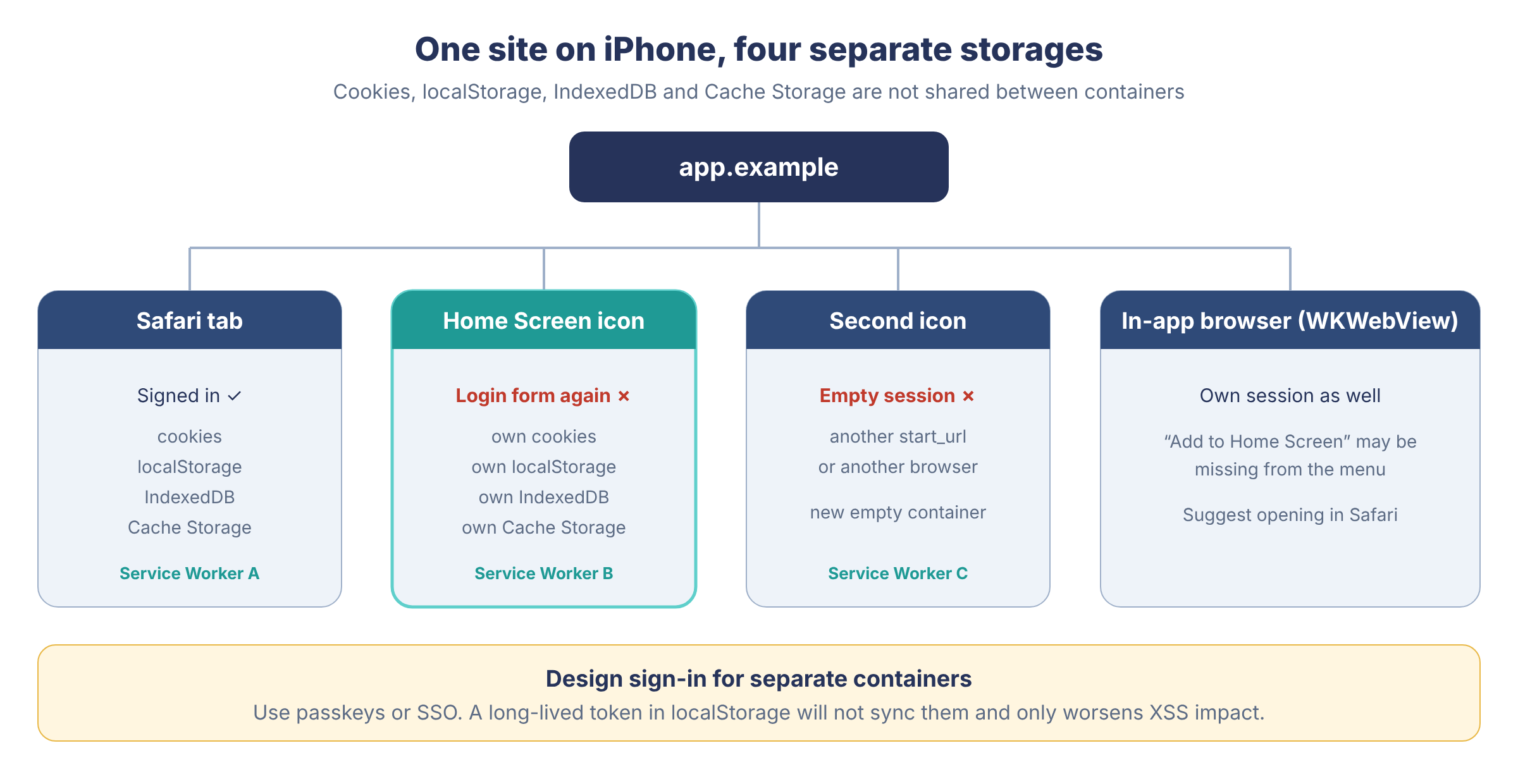
Even more unpleasant, iOS doesn't treat an installation as unique per device. The same site can be installed a second time, with a different start address or from a different browser, producing a second icon with a second container and a second empty session. On Android, reinstalling usually replaces the previous one, and a team that grew up on Android never even thinks about this. In support, it looks like the complaint "I have two identical apps, I'm signed in on one but not the other," and the answer has to be honest: the extra icon should be deleted, the data isn't shared between them, and you can't merge the containers with a script.
This is a case where an honest paragraph in the help center works better than any code.
Before a release, I walk through several scenarios by hand. I sign in in Safari and then install the icon, then the other way around: sign in in the icon and open the same address in Safari. I install a second icon if the interface allows it, sign out in one and see what happened to the rest, and finally check a domain change, sign-out, and icon deletion. All of it takes about twenty minutes and saves a week of correspondence with support.
If the session rests on an HttpOnly cookie, it can't be transferred between containers through JavaScript, and it shouldn't be. Build a sign-in designed for separate containers: passkeys or single sign-on, a short flow, the right return address, and a clear error. The bad option that regularly gets proposed as a quick fix is to put a long-lived token in localStorage and hide the problem. It still won't sync the containers. It will, however, make the consequences of an XSS noticeably worse, which we'll discuss in detail in part seven.
Permissions follow the same rules. Camera, geolocation, and notifications granted in a tab don't automatically move into the icon; they need to be checked in the context where they'll be used. Web Push on iOS illustrates this well: it works only in an installed web app, starting with iOS 16.4, and the permission request has to come from an explicit user action. Asking on the first frame after installation is useless and harmful; it's far better to hang the request on a button whose meaning is clear to the person:
enableAlerts.addEventListener("click", async () => {
  if (Notification.permission === "default") {
    const result = await Notification.requestPermission();
    if (result !== "granted") return showAlertsDisabledHelp();
  }
  const registration = await navigator.serviceWorker.ready;
  await subscribeToPush(registration);
});
Test the negative scenario as carefully as the positive one. The person declined the request, then changed their mind and enabled notifications in Settings; deleted the icon and installed it again; opened the same page in Safari. The "notifications enabled" screen must rely on a real check of the subscription and the permission, and a didClickEnable flag in localStorage will lie as early as the second of these scenarios. How the subscription itself works inside the worker, we'll cover in the next part.
iOS PWA Splash Screen: Launch Screen and apple-touch-startup-image
When launching from the icon, iOS shows a start screen until the page has painted its first frame. If you haven't supplied dedicated images, the system assembles one from what it has, namely the icon and a background color, and on modern versions you should count on the manifest's background_color. The iOS version, cached metadata, contrast, and the screen's safe areas still change what a person sees in that first second, so a Figma mockup guarantees nothing here.
The old apple-touch-startup-image mechanism lets you set static splash screens for specific screen sizes, orientations, and media queries. Maintaining such a matrix is hard: every new iPhone and iPad model adds a row, and the set of images goes stale faster than anyone can update it. I've seen projects where the splash screen folder weighed more than the app itself, and nobody remembered which of those PNGs were ever shown. I'd reserve this path for an older device fleet where you have a measured reason to keep it.
For those who don't want to write meta tags by hand, there is PWACompat from Google Chrome Labs. The library reads the manifest and appends Apple-specific tags and icons where they're missing:
<link rel="manifest" href="/manifest.webmanifest" />
<script async src="https://unpkg.com/pwacompat" crossorigin="anonymous"></script>
I wouldn't include someone else's script from a CDN without a CSP policy and without SRI just because "that's what people do for PWAs." In a serious product, pin the version and put the dependency into your own build pipeline, or generate the needed tags once and forget about the library. PWACompat helps with compatibility, but it won't fix a wrong icon and won't teach you to control the system splash screen on every iOS.
The most durable solution here is boring: an icon with no small text, a background_color in the manifest that matches the background of the shell's first screen, and a fast render of the interface skeleton. The white flash very often doesn't start in iOS at all, but in an app that waits for three API responses before drawing anything.
Status Bar, Notch, Theme Color and Safe Areas in an iOS PWA
The apple-mobile-web-app-status-bar-style meta tag still affects launch from the icon. Three values show up in code: default, black, and black-translucent. The first two leave the system status bar with the clock and battery its own zone, while black-translucent pulls your content underneath it. On an iPhone with a notch or Dynamic Island, this looks like a full-screen design, right up until the page heading slides under the clock.
This value has a mandatory companion: viewport-fit=cover in the viewport meta tag, plus padding via env(safe-area-inset-top). Without cover, env() values are often zero, which creates the impression that safe areas on iOS are broken, when they simply weren't enabled. We'll go through layout for cutouts in detail in part six; what matters here is something else: the status bar style is fixed at installation time, together with the Web Clip. If you change the meta tag on the server, old icons may keep opening the old way for a long time, so verify the change on a fresh installation, not on the developer's phone, where the site was added half a year ago.
theme-color paints the browser UI in Chrome, but on an installed web app in iOS, its influence is weaker and depends on the version. I wouldn't build header contrast on the hope that the system will repaint the bar in your brand color. The bar is set by the meta tag and by the background of the page itself, and if they disagree, in the first second the person sees a flash of a different color, the same effect as with the splash screen, only subtler.
Orientation has a similar uncertainty. The orientation field in the manifest is ignored or applied differently from Android on some iOS versions. If a warehouse scanner can't live in portrait mode, check the specific iOS versions in your fleet (a demo on a Pixel proves nothing here) and keep a fallback in the interface: a gentle prompt to rotate the phone, instead of believing the system will lock rotation by itself.
apple-touch-icon Caching and Icons That Won’t Update on iOS
apple-touch-icon is more finicky than it seems. Transparency in the PNG still causes problems even at the right 180×180 size: older iOS versions filled the alpha channel with black, newer ones may substitute their own background, and in both cases a logo on a transparent backing looks different from what the designer intended. SpringBoard rounds the corners itself, and if you draw the rounding into the file in advance, you get rounding on top of rounding, with a thin light fringe along the edge. Small text inside an icon turns to mush after masking and scaling, while a large mark with good contrast and generous padding survives any system version.
For the iPad, separate sizes of 152 and 167 pixels have historically been requested. A single 180×180 file usually scales decently on modern systems, but if the art director sends a separate mark for the tablet, specify it with its own sizes attribute in a separate link, and don't swap it in for the phone file: otherwise the iPhone will get an overly detailed image.
The most unpleasant property of the icon is that it is cached along with the Web Clip. Replacing /icons/apple-touch-icon-180.png on the server doesn't mean icons already on screens will be redrawn, and Apple gives developers no reliable "update the icon for everyone" API. I plan a rebrand so that the new files sit at new addresses, for example /icons/app-2026-07.png, the manifest and apple-touch-icon point to them, and a fresh installation is checked on every supported iOS version. There's no need to make an existing user delete and reinstall the app for cosmetic reasons, unless the old icon misleads them.
It's easier to get an icon right once than to spend years explaining to people why they still have last year's logo on their screen.
PWA Scope on iOS and Links That Open in Safari
scope is one of the few manifest fields you should treat as part of the architecture. If the app lives in /app/, while payment or the sign-in callback sits in /auth/, the navigation falls outside the app's scope, and iOS will show Safari's interface on top of it. External domains also open outside your window. The person sees the context change, and along with the context, the session may change too.
At payment, this is especially unpleasant, because that is the very second when the person decides whether to trust you with their money.
We discussed in the second article of the series that scope is compared as a string prefix, so /app also captures /app-v2; what matters more here is the consequence for routes. Don't treat sudden jumps to Safari by intercepting every click. Describe which addresses should stay inside the app, align them with scope, and before an intentional external navigation, especially to payment or corporate single sign-on, show a short explanation so the window change doesn't look like a breakage.
{
  "start_url": "/app/",
  "scope": "/app/",
  "display": "standalone"
}
If the callback must live outside /app/, it is usually simpler to move it inside the app's scope, or to return the person to an address within it right after the callback. Check this on an installed icon; the problem is simply invisible in a Safari tab. For the corporate profiles discussed below, there is a separate key for this, while a regular installation has none.
Cold Start of an iOS PWA After Tapping the Icon
SpringBoard opens the Web Clip at its start address, and WebKit creates or revives the corresponding web content process. The JavaScript from the previous launch is most likely already dead: the person may have swiped the app away, iOS may have freed memory, and the Service Worker may have activated a new version between sessions. Any screen that needs in-memory state will sooner or later show emptiness.
There is also a detail that regularly breaks offline demos. A worker registered while the person was viewing the site in a Safari tab doesn't move into the icon's container, and neither does Cache Storage, so the first launch from the Home Screen has to happen with a live network, or the shell simply has nowhere to come from. A person who installed the icon in a café but opened it for the first time on a plane will see an error, and in instructions for field staff I state it outright: after installing, open the app once while you have a connection, and only then head out to the site.
That's why I design the start of an installed app as a fresh request to the server. Take the address, open what's on disk, restore the session, draw the shell, and only then load from the network:
async function bootstrap() {
  renderShell({ route: location.pathname, loading: true });

  const [session, draft] = await Promise.all([
    auth.restore(),               // refresh the session or require an explicit sign-in
    drafts.get(location.pathname),
  ]);

  renderShell({ route: location.pathname, session, draft, loading: false });
  void refreshInBackground();
}

bootstrap().catch(showRecoverableStartError);
This approach has a cost. You'll have to decide what is stored locally and plan IndexedDB schema migrations between versions. That cost is still smaller than a random production crash after iOS unloaded the process while the phone sat in a pocket, and hoping that the React store from the last visit is still alive sooner or later ends in a white screen.
Measure a cold start from the icon separately from opening in a tab, because these are two different user experiences. I send the time to the first meaningful frame to analytics along with display-mode and the iOS version, and it almost always turns out that the app starts slower from the icon than the team expected: the process comes up from scratch, the worker wakes up with it, and the earlier testing was done in a warm tab that hadn't been closed for a week.
Deleting a PWA Icon on iOS and What Happens to Data
When a person deletes the icon from the screen, they expect the app to be gone, and along with the icon, the system does erase the local data of its container. How and when exactly that happens, Apple doesn't promise, and you can't build security on it: the server-side session must expire and be revoked on its own, and sensitive offline data should be stored only as long as needed. Signing out inside the app, conversely, doesn't delete the icon.
These are different actions, and in the interface it's better not to call them both "sign out." The "Sign out" button clears the session on the server and the local data, while removal from the Home Screen is done by the user in the system, and you'll learn of it only because the person installs the site again and sees the login form once more.
Reinstalling also shouldn't be treated as a version transfer. If critical drafts live only in IndexedDB, the person must know about that risk, and the product must offer synchronization with the account. For B2B, this is not abstract at all. A scanner in a warehouse can work all day without a network, and in the evening an employee, on support's advice, deletes the "glitchy" icon and installs it again together with everything that hadn't managed to reach the server.
Get answers to three questions before release, while such an evening hasn't happened yet: which data can be lost without harm, which must reach the server before the end of the shift, and how the operator sees that something unsent remains in the queue. This is already offline product design; the Service Worker will provide building blocks for it, but it won't make the decisions for you.
Deploying a PWA via MDM With a Web Clip mobileconfig Payload
Manual installation isn't the only channel. In companies, Web Clips are delivered through MDM, a mobile device management system, as a .mobileconfig configuration profile. For terminals, field staff, and kiosks, this is convenient: the administrator creates an icon with the desired address and parameters, and there is no longer any need to explain to every employee where the Share button is on an iPhone.
Technically, it's an XML file in plist format with a payload of type com.apple.webClip.managed. A simplified but realistic profile looks like this:
<?xml version="1.0" encoding="UTF-8"?>
<!DOCTYPE plist PUBLIC "-//Apple//DTD PLIST 1.0//EN"
  "http://www.apple.com/DTDs/PropertyList-1.0.dtd">
<plist version="1.0">
<dict>
  <key>PayloadType</key><string>Configuration</string>
  <key>PayloadVersion</key><integer>1</integer>
  <key>PayloadIdentifier</key><string>com.example.acme.profile</string>
  <key>PayloadUUID</key><string>8143F13A-3E24-4B76-8D00-5CA6D3C0D8D7</string>
  <key>PayloadDisplayName</key><string>Acme Warehouse</string>
  <key>PayloadContent</key>
  <array>
    <dict>
      <key>PayloadType</key><string>com.apple.webClip.managed</string>
      <key>PayloadVersion</key><integer>1</integer>
      <key>PayloadIdentifier</key><string>com.example.acme.warehouse</string>
      <key>PayloadUUID</key><string>04E384D0-7E77-4B1B-9343-A4B40E8E1360</string>
      <key>Label</key><string>Warehouse</string>
      <key>URL</key><string>https://warehouse.example/app/</string>
      <key>FullScreen</key><true/>
      <key>IsRemovable</key><false/>
    </dict>
  </array>
</dict>
</plist>
Such a payload has only two required keys, Label and URL; the rest change behavior. FullScreen opens the address as a web app without an address bar, and without it you get an ordinary bookmark on the Home Screen. IsRemovable set to false prevents the icon from being deleted, so it can only be removed together with the profile; enable this restriction as part of an agreed device policy, never to lock an employee into a site. Icon sets the image, and without it, according to Apple's documentation, the system shows a white square; the documentation itself still mentions 114- and 144-pixel icons, which nicely shows the age of this part of iOS. Precomposed forbids the system from adding a gloss effect to the image, a greeting from the era before iOS 7. Since iOS 14, two more keys have appeared: IgnoreManifestScope allows a full-screen Web Clip to navigate to external sites without Safari's interface and works only together with FullScreen, and TargetApplicationBundleIdentifier specifies the app that will open the address, for example a corporate browser, and only takes effect when the profile is installed via MDM.
The example above shows the structure and is not production-ready as is. The UUIDs must be unique in every profile, signing and delivery are in the hands of your MDM, and the list of supported keys and their behavior should be checked against Apple's device management documentation for the iOS versions actually present in your fleet. By the way, the same payload is supported on Shared iPad and for macOS users.
One more detail from the documentation will be useful to those who distribute icons by department. Several Web Clip payloads can be delivered to one device, and they don't conflict with each other, so receiving, the checkout, and an internal reference can arrive as separate profiles and be updated independently. Different device enrollment methods are supported too, including User Enrollment for employees' personal phones, although there the administrator sees and controls noticeably less.
This channel has a human limitation as well. The profile asks for trust in Settings and shows a device management warning. A corporate user went through this when they were issued the phone, but a person from an ad to whom you've sent a .mobileconfig in a messenger will see that warning and, quite rightly, be frightened. For a public product, this path is worse than the Share sheet. For a warehouse with two hundred managed iPhones it's fine, because the devices are already in MDM, and Safari is locked down by policy for some employees. The URL in the profile is fixed. Change the domain, and the old icons keep pointing at the old host until a new profile arrives, so it feels closer to a native release than to the usual "we deployed the frontend." Choose a boring, permanent domain for such icons, and a redirect from it to a new host may be opened by Safari instead, if the target falls outside what iOS considers the app. Test both the MDM icon and the user-installed one if you support both channels, and especially sign-in: a corporate proxy, single sign-on, and managed-device restrictions produce problems that never happen on a personal iPhone.
Web Share, iPad and Mac Differences from iPhone PWAs
navigator.share on the iPhone works both in an installed web app and in Safari: the system shows its own sheet, and the person hands a link or file to another app. It can only be called from a user gesture; otherwise the promise rejects, so check 'share' in navigator and keep an ordinary "Copy" button next to it for platforms where the API doesn't exist.
The reverse direction, where a document from Files or mail is opened directly in your icon, is weak on iOS. Don't build Web Share Target, through which Android hands files to an installed PWA, into a scenario like "the driver received a waybill in a messenger and immediately opened it in our app." Let the file reach the server via a link or through an explicit choice in <input type="file" capture>. On the iPhone, the capture attribute opens the system camera and returns a photo, which is enough for a photo of a delivery report but not for a stream of frames. If the design promises "share into our app, like a native one," stop it before the prototype on a real device: your icon won't show up in the Share sheet just because you have a manifest.
On the iPad, the same web app gets a different viewport, a keyboard that often doesn't cover the whole screen, and a user accustomed to keeping two windows side by side. Split View and Slide Over for Home Screen web apps depend on the iPadOS version and aren't equal to the multitasking of native apps, so promising "two documents side by side" before checking on a real tablet is premature. A cursor and trackpad bring :hover styles to life that are barely visible on a phone, and menus that open on hover start to stick. For touch, keep opening on click, and let hover remain decoration.
On the Mac, this story has a relative. In macOS Sonoma, Safari 17 learned to add sites to the Dock as separate web apps, and, by Apple's description, when creating such an app Safari copies the site's cookies into it so that the person stays signed in, after which the storages live separately. The iPhone has no such gift, and an icon on the Home Screen starts from a clean slate. If your product lives on both platforms, be ready for complaints that on the Mac there was no need to sign in again, unlike on the phone.
How to Debug an iOS PWA With Safari Web Inspector
On the Mac, enable the Develop menu in Safari (in recent versions it's a checkbox about web developer features in the advanced settings), and on the iPhone turn on Web Inspector in Safari's settings, in the Advanced section. Connect the phone with a cable or keep it on the same network, and it will appear in the Develop menu. An installed web app shows up there as a separate line next to Safari's tabs, and if you attach to a tab, you're looking at someone else's storage and someone else's set of workers.
After that, it's an ordinary inspection. In the network panel, look for HTML where you expected a manifest; in the console, check registration.scope; and look for caches and databases in the Storage section, because Safari has no Application tab like Chrome's. A screenshot saying "everything's green in my Chrome DevTools" has nothing to do with this debugging session.
When the icon opens and immediately shows a white screen, first look at whether the start_url document arrived and with what status. There are three white screens here, and they look identical. The start address may respond with a 302 redirect to a login page that lies outside the app's scope or fails itself. The server may honestly return a 200 with a shell that waits for data and draws nothing. And the sneakiest case arises after a JavaScript error during startup: the system splash screen worked honestly for the first second, and what turned white is the app itself, so the meta tags have nothing to do with it.
Which of the three you have is most often decided by the Service Worker: what it served from the cache, which shell version it holds, and when it decided to update. So with a white screen, first find the start_url request in the network panel and look at what it was answered with: status, content type, and source (network or worker, if the source column is enabled). A redirect to the login page, an empty shell, and a script error are distinguished precisely by this response. And if the worker answered, you'll have to sort things out with it next, with the shell version and the moment of its update. The worker itself, with its updates and skipWaiting(), deserves a separate conversation in the next article.
Other Parts in This Series
- PWA on iOS, Part 1: PWAs on the iPhone Are Older Than They Look
- PWA on iOS, Part 2: HTTPS, Manifest and Service Worker
- PWA on iOS, Part 3: Chrome on iPhone Is WebKit Too. How One Engine Sets the Rules for PWAs on iOS
- PWA on iOS, Part 5: Service Worker Updates, Cache, and Push
- PWA on iOS, Part 6: Performance, Rendering, and Keyboard
Opinions expressed by DZone contributors are their own.