

PWA on iOS, Part 2: HTTPS, Manifest and Service Worker
Why your PWA works on a laptop but not on an iPhone: HTTPS, the manifest, Service Worker lifecycle and the two caches that keep serving old code.
Join the DZone community and get the full member experience.
Join For FreeThis is Part 2 of the PWA on iOS series, and it’s the most practical one. There will be almost no history or corporate politics here, but there is groundwork you need for the rest of the series to make sense. You’ll learn why a PWA works on a laptop but not on an iPhone, and how HTTPS, the manifest, the Service Worker lifecycle, and two caches decide that.
The typical story starts at a desk. The frontend runs on a laptop, the phone is on the same Wi-Fi network, Safari on the iPhone has an address like http://192.168.1.20:5173 open, and everything looks fine: the interface loads, the buttons work, and our PWA's icon sits next to the others on the phone's Home Screen. Then someone turns on airplane mode, taps the icon, and instead of the app, sees a message saying the page can't be opened. Meanwhile, everything is green in Chrome on the laptop: the worker is registered, the cache is full, and the team spends the first half hour hunting for a bug in the manifest, even though the phone has never seen that worker.
No official tool will give you the answer, either. In iOS 26, Apple removed the last formal installation requirements, and any site added to the Home Screen now opens as a web app by default. The WebKit blog put it bluntly: "Put simply, Safari now has no requirements at all for installation." Google, for its part, stopped using Lighthouse as a PWA checker. Until Lighthouse 12, it had a separate PWA category: a set of automated checks that produced a score and showed whether an app met the criteria of an installable progressive web app. Lighthouse 12.0, released in April 2024, removed the PWA category, following Chrome's relaxation of its installability criteria. Even earlier, the Chrome blog acknowledged that the service worker check wasn't producing the intended result: sites were adding a worker with an empty fetch handler just to pass it.
The green "this is a PWA" checkmark is gone on both platforms, and there is now only one way to tell whether you have an app or just a website with an icon: pick up a phone and test.
Behind every web app icon on your phone's screen are three things: HTTPS, a service worker, and a manifest file.
People usually think of HTTPS as the padlock in the address bar, but here it's needed for something else: without it, the browser simply won't agree to run code that acts as the bridge between the page and the network. The manifest is the simplest of the three: a small JSON file linked from <head> that records the app's name, start page, display mode, scope and icon. And the most interesting layer, the Service Worker, is a separate script the browser runs alongside the page but without access to its interface. The app's network requests pass through it, and it decides whether to go to the network, serve a saved copy, or show a fallback page when there's no connection.
Why a Service Worker Needs HTTPS and a Secure Context
A service worker is dangerous precisely because it's long-lived: once installed, it keeps running on later visits to the site and can intercept page requests within its scope. That's why registration is allowed only over HTTPS. The worker effectively sits between the web app, the browser, and the network, and it can alter requests and responses. If sw.js could be registered over plain HTTP, an attacker on public Wi-Fi could swap that file just once. A malicious worker would then stay in the user's browser and could keep serving altered HTML and JavaScript on later visits, harvest API data, or redirect requests to another server. Moving the site to HTTPS afterward wouldn't be an instant fix either: requests are handled first by the installed service worker, which can return a forged response from its cache or change how the network is accessed. The risk of this kind of attack is one of the reasons browsers require HTTPS for service workers.
That's where the secure context requirement comes from. A page counts as secure if it was delivered over HTTPS or from an address the browser trusts on its own: localhost and its subdomains, the 127.0.0.0/8 range and ::1. Home or office network addresses like 192.168.x.x and 10.x.x.x aren't on that list. To the browser, that's plain HTTP, however much you trust your router.
The sneakiest part is the way the browser says no. In the specification, navigator.serviceWorker is marked as available only in secure contexts, and on an HTTP page it simply isn't there. The check 'serviceWorker' in navigator, which almost every registration example starts with, quietly returns false, the code skips registration, and not a single error shows up in the console.
That explains the story from the start of this article: on the phone, the worker didn't fail with an error. It never even tried to start.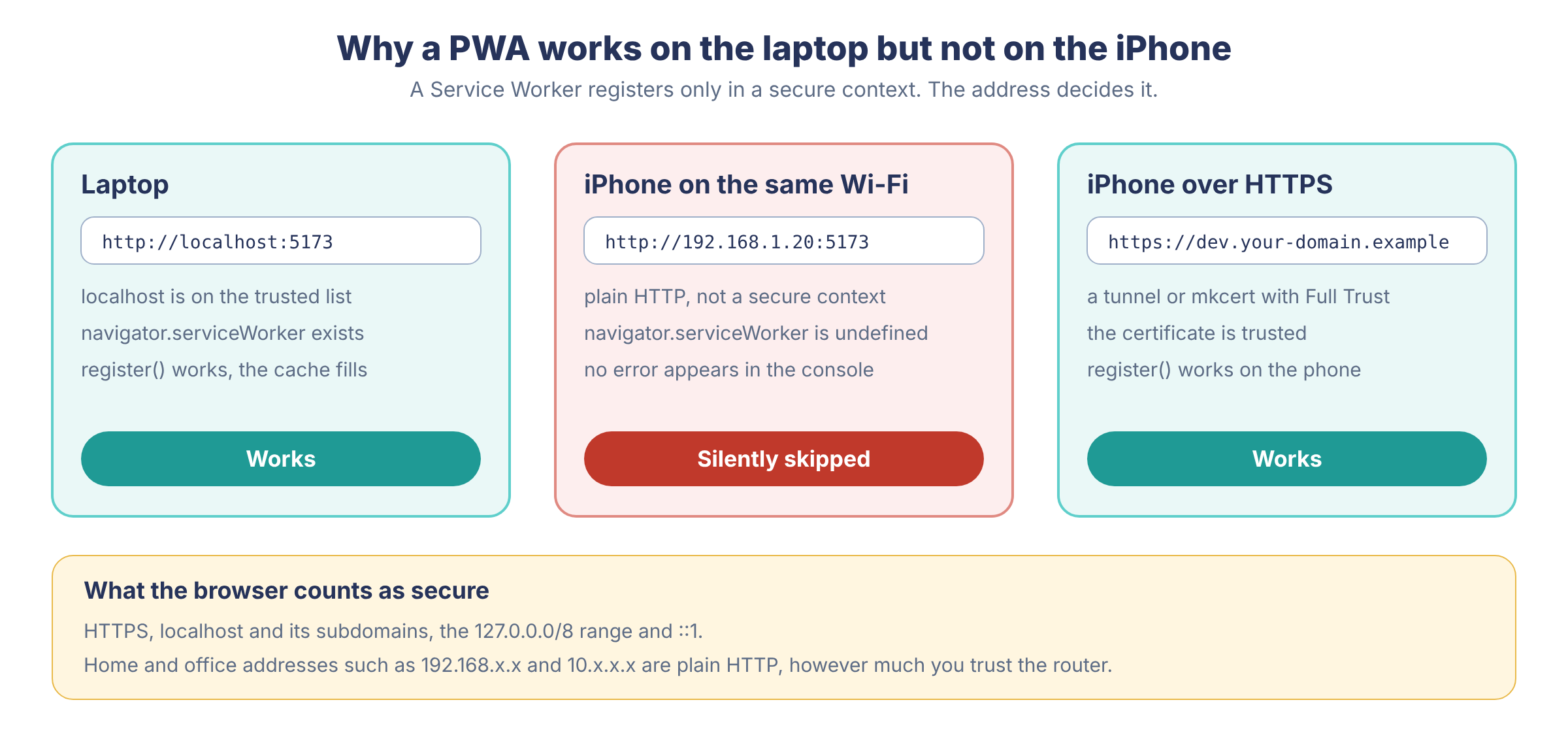
Let’s Encrypt and Free HTTPS Certificates for PWAs
About ten years ago, many teams heard "use HTTPS" as "spend money and deal with hassle." You bought a certificate from a certificate authority and renewed it by hand, and for an internal tool or side project, that meant an extra line in the budget and an extra date on the calendar that everyone forgot until the morning the site started scaring visitors with a red warning.
Let's Encrypt, a nonprofit certificate authority run by ISRG, changed that. On December 3, 2015, it entered public beta: invitations were no longer required, certificates were free, and the announcement stated the goal plainly: "We want HTTPS to be the default." Cost was only half of the problem. The server proves on its own that it controls the domain and obtains a certificate on its own via the ACME protocol, with no human involved and no correspondence with a certificate authority, and in March 2019 the IETF made that protocol official as RFC 8555. Let's Encrypt certificates are valid for 90 days by default, and such a short lifetime is practical only because there's no need to renew them by hand.
These days, getting HTTPS for a worker takes about one toggle in a hosting panel, or a Certbot container next to nginx. I think this quietly ended many of the PWA arguments on internal projects: the money argument is gone, and what's left is the laziness argument.
Testing a PWA on iPhone With HTTPS, Tunnels and mkcert
On the laptop itself everything works, because http://localhost is on the trusted list and browsers on macOS will happily register a worker with no certificate at all. Trouble starts when you pick up the phone. On an iPhone, localhost means the iPhone itself. The laptop can only be reached by its network address, and to Safari that address is ordinary insecure HTTP. There are two workable paths: route traffic through a tunnel with a real certificate, or teach the phone to trust your own.
The tunnel is easier.
The command cloudflared tunnel --url http://localhost:5173 brings up what Cloudflare calls a quick tunnel. You get a random subdomain on trycloudflare.com, requests to it travel through Cloudflare's network to your local server, and the address has a public certificate, so the iPhone trusts it with no setup. ngrok http 5173 does the same through its own service. Cloudflare states plainly that quick tunnels are intended only for development and testing, and points to a different tunnel type for production.
The tunnel has a catch that people only notice a week later. The random address changes on every launch, and a new subdomain means a new origin to the browser (the scheme, host, and port by which a browser tells one site from another). To an iPhone, every such address becomes a separate app: yesterday's icon points to a subdomain that no longer exists, today's starts with empty storage and no worker, and a row of identical icons for your PWA gradually grows on the test phone. If you plan to test an update on top of an old version, set up a permanent address: a named tunnel or your own domain.
The second path goes through a local certificate authority, and the easiest way to set one up is with mkcert. The command mkcert -install creates a root certificate on your Mac and adds it to the system trust store, and mkcert 192.168.1.20 localhost issues a certificate for the dev server. The Mac is now happy. The phone isn't yet.
You need to move the rootCA.pem file from the folder shown by mkcert -CAROOT to the iPhone via AirDrop, email, or a local web server, and install it as a profile. Then comes a step almost everyone skips: open Settings > General > About > Certificate Trust Settings and turn on your certificate under "Enable Full Trust for Root Certificates." Apple's instructions say explicitly that for profiles downloaded from a website or sent by email, trust for SSL/TLS has to be enabled manually, and without that switch the installed profile changes nothing.
This setup has a price, and the mkcert README names it plainly: the rootCA-key.pem file gives full power to intercept secure requests from your machine, and it must never be shared. A root certificate on the phone works in the same direction. As long as it's trusted, whoever holds the key can issue a certificate for any domain, and the iPhone will accept it. I keep such profiles only on test devices and remove them when the test setup is no longer needed.
Clicking through a certificate warning doesn't count as trust. A page with a self-signed certificate will open if you push through the warning screen, but registering a worker on it usually ends in an error, and until someone surfaces that error on screen, developers keep fixing the manifest.
How to Register a Service Worker and Read Registration Errors
Once you have HTTPS, registration itself looks modest, and almost everything interesting in it happens in the catch branch:
// app.js
if ('serviceWorker' in navigator) {
  window.addEventListener('load', async () => {
    try {
      const reg = await navigator.serviceWorker.register('/sw.js', {
        scope: '/',
        updateViaCache: 'none',
      });
      console.info('[sw] scope:', reg.scope);
    } catch (error) {
      console.error('[sw] registration failed:', error);
    }
  });
} else {
  console.warn('[sw] navigator.serviceWorker is missing: HTTP or an old browser');
}
The else branch handles that silent refusal on HTTP: better one warning line in the console than half an hour of guessing. I hook registration to load so that downloading and installing the worker doesn't compete with the first render for the network, which is noticeable on slow mobile connections. The scope parameter sets the scope, meaning the prefix of addresses whose requests the worker will intercept. By default it equals the directory where the script itself lives. A worker at /assets/sw.js can't take control of / unless the server sends a Service-Worker-Allowed: / header along with the script, so it's simpler to keep sw.js in the root. We'll come back to updateViaCache in the section on caches; it has a surprising wrinkle.
Don't leave the catch branch empty or skip it. Its errors usually tell a specific story that you won't see on a laptop. The specification forbids redirects when loading a worker script, so an sw.js that the server redirects to the www version of the domain, to a CDN or to a login page won't register at all. If the server serves the script with the wrong MIME type (the content type from the Content-Type header), registration fails with a SecurityError. This happens most often in SPAs, single-page apps where JavaScript handles all navigation and the server answers any unknown path with index.html: instead of a script, the browser gets HTML. One more small thing helps with debugging. The browser adds a Service-Worker: script header to the request for a worker script, so such requests are easy to find in logs or to single out with a separate rule on a CDN, the network of caching servers in front of your backend.
Installing is up to the user. iOS has no beforeinstallprompt event and no way to trigger the system install dialog from code. The person opens the Share menu and picks Add to Home Screen, and in iOS 26 sees a toggle there, "Open as Web App," which is on by default. What happens in the system at that moment, where the icon and splash screen come from and what MDM has to do with it, we'll cover in Part 4 of this series.
Web App Manifest Fields Safari Supports on iOS
The manifest is hooked up with one line in <head>: <link rel="manifest" href="/manifest.webmanifest">. The file can have any name, and manifest.json works too, because the browser follows the link and doesn't look for a file by name. The right response type is application/manifest+json. It's registered with IANA together with the .webmanifest extension, and the specification recommends serving the manifest with it. Plain application/json is accepted in practice as well, but I'd go with the first so the next person on the team doesn't have to guess what's behind that address.
Safari 15.4 brought a small but welcome change: the browser now downloads the manifest along with the page, whereas before it did so only at the moment the user added the site to the Home Screen. The manifest request is now visible in Web Inspector right away, and you don't have to install the app every time just to check. Here's the file for our imaginary app:
{
  "id": "/",
  "name": "Field Journal",
  "short_name": "Journal",
  "start_url": "/?source=home-screen",
  "scope": "/",
  "display": "standalone",
  "theme_color": "#0d1b2a",
  "background_color": "#f4f7f9",
  "icons": [
    { "src": "/icons/icon-192.png", "sizes": "192x192", "type": "image/png" },
    { "src": "/icons/icon-512.png", "sizes": "512x512", "type": "image/png" }
  ]
}
Going by MDN's compatibility tables, Safari on iOS reads noticeably less from this file than Chrome does. It has understood name, short_name, start_url, scope and display since iOS 11.3, the very beginning of manifest support. theme_color arrived in iOS 15, icons in 15.4, and id in 16.4. Icons come with a condition described in the Safari 15.4 release notes: Safari takes them from the manifest only if the HTML has no apple-touch-icon and the icon either has no purpose or has any. WebKit added the id field in the same release as Web Push, so that notifications and badges would work for several installs of the same app, for example a work copy and a personal copy with different accounts.
According to MDN, the iPhone ignores most of the rest. orientation, description and share_target aren't supported on iOS, and Safari understands shortcuts only on macOS, starting with version 17.4. Of the display values, standalone and browser work on iPhone, while fullscreen and minimal-ui aren't supported. The exception is background_color: Safari uses it, together with name, when creating the web app's launch screen. You don't need to remove the other fields from a shared manifest. They're useful on Android and Chrome, and they don't bother Safari. But don't count on them for anything critical on iPhone.
short_name is the label under the icon, and it's meant to survive the cramped Home Screen: "Field Journal" might not fit there, "Journal" will. start_url doesn't have to point to the site root. A parameter like ?source=home-screen is handy for analytics, so the server can see launches from the icon, but don't use it to check authorization, because anyone can type such an address. Relative paths inside the manifest are resolved against the manifest's own address, and a start_url from a different origin must, per the specification, be ignored, with the current page's address used instead.
id comes with a trap that's easy to miss. If the field is missing, the app's identity per the specification is start_url, and a harmless tweak of an analytics parameter can look to the browser like the appearance of a different app. I set id explicitly in the first release and never touch it afterward. "id": "/" is resolved against the origin and becomes the site root, a stable name that survives any experiments with the start page.
display: "standalone" asks for a separate window without an address bar, and theme_color sets the color of the system elements around the page. Both fields are requests to the browser and have nothing to do with your interface's CSS. The browser will carry them out in its own way.
Why Apple Meta Tags Still Matter in 2026
Apple taught the iPhone to open sites without browser chrome long before the W3C took up the manifest, and it did so with its own meta tags. They haven't gone anywhere, and I still keep both sets in <head>:
<link rel="manifest" href="/manifest.webmanifest">
<meta name="theme-color" content="#0d1b2a" media="(prefers-color-scheme: dark)">
<meta name="theme-color" content="#f4f7f9" media="(prefers-color-scheme: light)">
<meta name="apple-mobile-web-app-capable" content="yes">
<meta name="apple-mobile-web-app-status-bar-style" content="black-translucent">
<link rel="apple-touch-icon" href="/icons/apple-touch-icon-180.png">
apple-mobile-web-app-capable historically asked iOS to launch the site from the icon without Safari's interface. In iOS 26 that became the default behavior for any site, but duplicating it is still useful if some of your users are on older iOS versions or on corporate devices that are rarely updated.
apple-mobile-web-app-status-bar-style controls the status bar, the one with the clock and battery, and Apple's old reference describes three values for it. With default and black, the page starts below the status bar, while with black-translucent it takes the whole screen and the status bar partly overlaps it. It looks great right up until the first header slides under the clock, so check your insets with env(safe-area-inset-top) as soon as you use that value.
The most useful thing in this bunch, I think, is apple-touch-icon. Since Safari 15.4 it explicitly takes priority over manifest icons, and WebKit explains this as a wish to preserve the behavior of sites that have a separate icon drawn for iOS. Use an opaque 180×180 PNG: a transparent background was historically handled badly on iOS, and on older versions the alpha channel turned into a black backing. If the tag isn't there at all, iOS, according to Apple's documentation, looks for files with the apple-touch-icon prefix in the site root on its own. That's where the endless 404s for /apple-touch-icon.png in your server logs come from, the ones nobody can usually explain. Safari won't use an icon whose only purpose in the manifest is "maskable", since that value comes from Android's icon conventions.
theme-color arrived in Safari 15 and turned out to be more noticeable than expected. In Safari on iOS 15 it colors the status bar and the area visible when you scroll past the edge of the page, and with a media attribute you can set different colors for light and dark themes, as in the example above. After that the story gets murkier: MDN's tables note that as of Safari 26, the theme-color color is used only in installed web apps. I didn't find that wording in Apple's release notes, so check on whichever iOS version you have in hand, and don't promise your designer a colored header in a Safari tab.
Service Worker Lifecycle and skipWaiting on iPhone
The most persistent misconception about workers is that a worker runs in the background all the time, like a daemon on a server. The browser starts it for an event (a page request, a push notification, a message from a tab) and may stop it right after the event is handled. A worker has no DOM and no window, and global variables live only until the next stop, so a "sync in progress" flag stored in a variable will be empty after the worker wakes up.
Anything that has to survive the worker being stopped should be written to Cache Storage or IndexedDB.
A service worker's lifecycle is designed so that a new version doesn't break pages that are already open. After register(), the browser downloads the script and compares it byte for byte with the installed one, and if there's no difference, that's the end of it. A new script gets an install event, in which it usually puts the app shell into the cache, meaning the HTML, styles and scripts without which the interface can't be drawn. Then it waits in the waiting state while the old version serves open tabs, and only when none are left does it get activate, clean up old caches and start receiving fetch events from pages in its scope. On the first run there's one more confusing detail: the page that registered the worker isn't controlled by it until the next navigation, unless the worker calls clients.claim().
// sw.js
const VERSION = 'shell-v7';
const SHELL = ['/', '/assets/app.8d91.js', '/assets/app.3c2e.css'];

self.addEventListener('install', (event) => {
  event.waitUntil(caches.open(VERSION).then((cache) => cache.addAll(SHELL)));
});

self.addEventListener('activate', (event) => {
  event.waitUntil(
    caches.keys().then((keys) =>
      Promise.all(keys.filter((key) => key !== VERSION).map((key) => caches.delete(key)))
    )
  );
});

self.addEventListener('message', (event) => {
  if (event.data?.type === 'skip-waiting') self.skipWaiting();
});
event.waitUntil() looks like a housekeeping detail, but without it the browser doesn't know the event is still in progress and is free to stop the worker before the cache is written. On the iPhone, where background processes inevitably get put to sleep, that's a very practical risk. cache.addAll() has a quirk of its own: it's atomic, and if even one file in the list returns a 404, the whole installation fails. The new worker then simply doesn't start, users stay on the old version, and your logs are empty, because the error happened on the phone. I don't write the list of app shell files (everything the app can't launch without) by hand. The build tool generates it from the real files with hashes in their names, so it can't contain an address that doesn't exist on the server. Optional images I cache in a separate step, so that one unavailable file can't fail the installation.
The waiting state is often mistaken for a bug, though it's protection against shooting yourself in the foot. If a new worker takes over a tab where old JavaScript is already running, you get a mix of the old interface with the new cache or a new API contract. Calling self.skipWaiting() on every install, together with clients.claim() in activate, removes the waiting state entirely, and for a static site or strictly backward-compatible releases that's a fine choice. For an app with an IndexedDB migration or a changing offline data format, I don't do that, and in the code above the worker skips waiting only on a message from the page. The page, noticing registration.waiting, shows a "New version available" banner, sends reg.waiting.postMessage({ type: 'skip-waiting' }) on tap, and reloads in the controllerchange event handler.
In my experience, on iOS this scheme noticeably reduces the number of mysterious bug reports from people who come back to the app after a couple of days in the background.
Background work on the iPhone is more modest than tutorials promise. Background Sync, Periodic Background Sync and Background Fetch aren't available in Safari or other browsers on iOS. So a photo upload queue that will "send the files by itself ten minutes from now, while the phone sits in your pocket" won't work. A Service Worker wakes up only when the app is open or when an event arrives that iOS is willing to deliver, such as a push. Send what has accumulated when the app returns to the foreground, and show the user that an operation is waiting for a connection. We'll cover updates, push, and IndexedDB storage in detail in Part 5 of this series. For now, remember this: a worker wakes up briefly and remembers nothing between wake-ups.
Service Worker Cache Strategies and Opaque Responses
In the fetch handler, the worker decides the fate of every request, and the most common mistake here is answering everything from the cache because that's what the tutorial did. For a hashed /assets/app.8d91.js, the Cache First strategy is nearly perfect: a file with that name will never change, and it doesn't need the network. For GET /api/orders, the same strategy will show yesterday's order as today's, and the user won't even know.
In practice, there are three strategies, and each negotiates freshness with the user in its own way. The simplest, Cache First, returns the copy and goes to the network only on a miss. It belongs on versioned files, fonts, and icons. For HTML documents and data where freshness matters more than milliseconds, I use Network First: network first, and the saved response only when the network is down. The third strategy, Stale-While-Revalidate, is trickier. The user immediately gets the saved copy while the worker requests a fresh version in the meantime and puts it in the cache for next time. The response arrives quickly but may lag by one visit. For avatars, configs and feeds, that's usually fine. In the fetch handler, the strategy is chosen by what kind of data it is:
self.addEventListener('fetch', (event) => {
  const { request } = event;
  const url = new URL(request.url);
  if (request.method !== 'GET' || url.origin !== self.location.origin) return;

  if (request.mode === 'navigate') {
    event.respondWith(networkFirst(request, '/'));
  } else if (url.pathname.startsWith('/assets/')) {
    event.respondWith(cacheFirst(request));
  } else if (url.pathname.startsWith('/api/feed')) {
    event.respondWith(staleWhileRevalidate(event));
  }
});

async function cacheFirst(request) {
  return (await caches.match(request)) ?? fetch(request);
}

async function networkFirst(request, fallbackUrl) {
  const cache = await caches.open(VERSION);
  try {
    const response = await fetch(request);
    if (response.ok) cache.put(request, response.clone());
    return response;
  } catch {
    return (await cache.match(request)) ?? caches.match(fallbackUrl);
  }
}

async function staleWhileRevalidate(event) {
  const cache = await caches.open(VERSION);
  const cached = await cache.match(event.request);
  const fresh = fetch(event.request).then((response) => {
    if (response.ok) cache.put(event.request, response.clone());
    return response;
  });
  event.waitUntil(fresh.catch(() => {}));
  return cached ?? fresh;
}
Requests for which the worker didn't call respondWith() go to the network as usual, and I consider that the right default: anything you haven't explicitly classified should behave as if there were no worker. For the same reason, the first line filters out other hosts and everything except GET.
For a third-party CDN without CORS, the browser gives the worker what's called an opaque response. Its status is 0, the body and headers are unavailable to the script, and response.ok is false. Code that checks ok won't cache it, and images that "seemed to be cached" will vanish when you're offline. You can put such a response in with put(), but then you won't know whether you've just saved a 404 for a month. Caching third-party resources makes sense only if the CDN sends Access-Control-Allow-Origin and the request goes in cors mode. Otherwise it's easier to proxy the files through your own domain or accept that they load only online.
In staleWhileRevalidate, note event.waitUntil(). Without it, the cached response goes to the page, the browser decides the work is done, and it may stop the worker before the fresh version lands in the cache. Tutorials often skip that line, though on iPhone it's exactly what separates a real staleWhileRevalidate from an imitation.
I handle page navigations separately, by request.mode === 'navigate'. A SPA opens addresses like /orders/42 that aren't in the cache as files, and if the offline fallback covers only /index.html, opening such a link directly without a connection ends in an error. For a SPA it's reasonable to return the cached shell /, as in the code above, and let the app decide which data to show. A server-rendered site can't do this: if you answer every address with the same shell, the worker will break link previews, diagnostics and SEO, and the team will then blame Safari. There, the fallback should be a separate page like /offline.html.
credentials is a trap that can go unnoticed for a long time. fetch(event.request) inherits the settings of the original request, while a new Request assembled by hand sends cookies only to its own origin by default. As long as the API lives on the same domain, there's no difference. When the API moves to api.example.com while the app stays on app.example.com, requests rebuilt in the worker suddenly arrive without cookies, the user looks logged out only on the screens that passed through the worker, and reproducing it on desktop doesn't always work the first time.
Responses with personal data are better kept out of the Cache API unless you've thought through sign-out. The cache is tied to the origin and knows nothing about the session, so on sign-out, delete the entries holding the user's data, and don't put responses that depend on a cookie or token into a shared cache out of habit. POST can't be put there at all, since the Cache API accepts only GET, and offline writes have to be built as a queue of operations in IndexedDB with an idempotency key and an explicit sync status.
While the worker starts after a long idle period, navigation waits for it, and on iPhone that's sometimes visible as an extra empty frame. Since Safari 15.4 there's Navigation Preload: the browser starts the network request for the page in parallel with starting the worker, and in the handler you pick up the ready response from event.preloadResponse. It's enabled by calling self.registration.navigationPreload.enable() in activate, and it makes sense when documents already go through Network First.
HTTP Cache vs Cache API and How sw.js Updates
There are actually two caches in the browser, and they know nothing about each other.
The first, the HTTP cache, is always there. The browser itself stores server responses in it and decides on its own when they've gone stale, going by the Cache-Control, ETag and Vary headers. You control it only indirectly, through those headers. It can even answer a fetch() from a worker without waiting for the network, and it can evict an entry when it needs space. You can't rely on it offline.
The second, the Cache API, exists specifically for the worker. It's storage that you manage by hand: what to put in, under which key, when to delete it, and what to return instead of the network. That's why offline is built on it: the files needed for launch sit where you yourself put them. The Cache API doesn't read headers. Even if the server allowed a file to be cached for a year via max-age=31536000, it won't get into the Cache API on its own, because only your code puts things there. And conversely, an entry in the Cache API won't be updated via ETag until you write that check yourself.
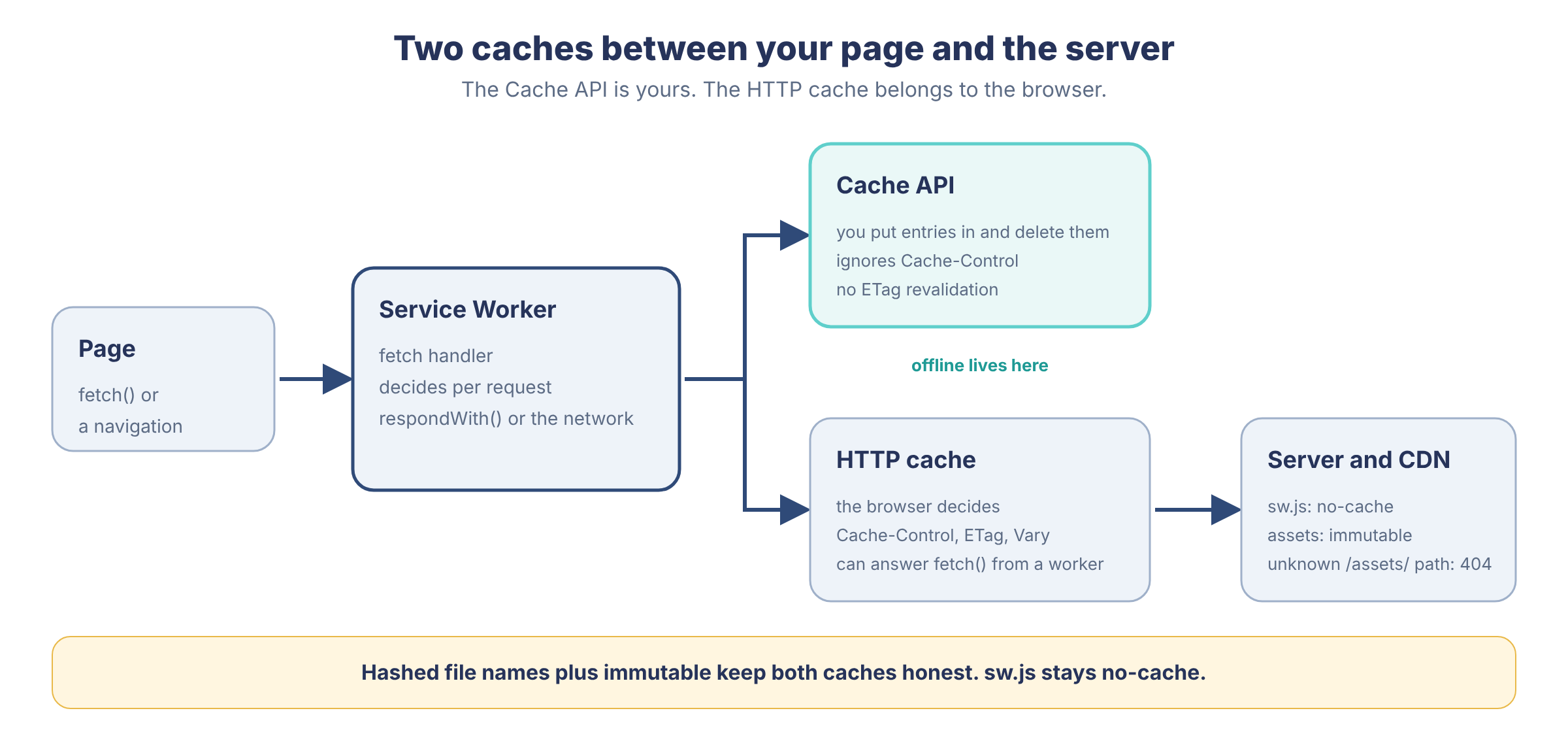
The classic cache problem looks like this. A bundle is named /app.js with no hash, the worker put it in the Cache API at install, you shipped a fix, and caches.match('/app.js') keeps returning the old version: the key is the same, after all. The fix is simple: give the file a hashed name, such as /assets/app.8f3a.js, plus the header Cache-Control: public, max-age=31536000, immutable. Then you won't have to ask users to "clear the cache." Nobody deletes the old URL; people just stop requesting it.
Hashed names have a flip side, and it hits SPAs especially hard. After a deploy, old files disappear from the server, while the user still has the previous version's shell open, and that shell asks for /assets/app.8d91.js. If the server answers any unknown path with index.html and a 200 status, the browser gets HTML instead of a script, fails while parsing it, and the user sees a white screen.
Worse, a strategy that caches responses with a 200 status will save that HTML under the name of a JavaScript file.
So I keep old assets on the server for at least one release and don't let the SPA fallback into /assets/: a missing file there must return 404, and nothing else. On nginx you can set it up like this:
location = /sw.js {
  add_header Cache-Control "no-cache";
}

location = /manifest.webmanifest {
  types { }
  default_type application/manifest+json;
  add_header Cache-Control "no-cache";
}

location /assets/ {
  add_header Cache-Control "public, max-age=31536000, immutable";
  try_files $uri =404;
}

location / {
  try_files $uri $uri/ /index.html;
}
sw.js itself isn't part of the hashing scheme. It needs no-cache so that every check reaches the server, including through CDNs and proxies. This is where the promised detail about updateViaCache comes in. Per the specification, the default is 'imports', and with it the worker's main script is requested bypassing the HTTP cache during an update check anyway, while only files pulled in with importScripts() go through the cache. The value 'none' extends the same rule to imports, and 'all' brings the HTTP cache back for everything. According to MDN, Safari has supported this setting since version 11.1. I set 'none' in projects where several teams touch the cache infrastructure: it does no harm, and it insures against a single forgotten importScripts with a long max-age.
The specification describes quite strictly when a browser checks for an update. A check is triggered on navigation to a page within the worker's scope, on functional events such as push if more than a day has passed since the last check, and on a manual call to registration.update(). If the last check was more than 86,400 seconds ago, the request for the script bypasses the HTTP cache in any case, even with updateViaCache: 'all'. For a SPA there's a trap hidden here: transitions through history.pushState don't count as navigation, and an app that's been open on an iPhone since morning may never ask the server about a new sw.js until evening. A "Check for updates" button in settings that calls update() and offers a restart when a waiting worker appears helps more than hoping for the daily timer.
The browser will dutifully go to the network, but between it and the server there may be a CDN that someone once told to cache everything with a .js extension for a week. Then half of the iPhones sit for a week on a worker that no longer exists on the server, so check the rule for sw.js on the CDN separately, preferably with a request from a phone.
Service Worker Scope Mistakes Including the Trailing Slash
The specification compares scope as a string prefix, with no understanding of directories. A worker or manifest with a scope of /app will also capture /app-v2 and /application, and a new storefront will suddenly live on the old dashboard's cache. Write /app/ with a trailing slash, and after registering, look at registration.scope in the console. If it isn't the prefix you expected, you can stop debugging cache strategies.
One origin can have several registrations with different scopes, and each page is controlled by the one whose scope matches its address and is longer than the others. That sounds convenient until the landing page has registered a worker on /, the dashboard has its own on /app/, and both start answering shared resources in their own ways. I've seen a test environment where, after such a story, the dashboard behaved differently depending on which page the person first landed on, and sorting it out took longer than writing both workers. It's calmer when an origin has one owner: one worker with routing inside fetch, or separate subdomains if the teams really can't share a file. A subdomain means a different origin, different cookies and a different cache, so it's a real boundary, not a free optimization.
There's an API mix-up related to this. navigator.serviceWorker.getRegistration() takes a page address (scope has nothing to do with it) and returns the registration that controls that address, and without an argument it uses the current page's address. If you're looking for the dashboard's registration from the home page, pass an address inside the dashboard. Otherwise you'll get the landing page's registration and wonder for a long time why it has no waiting.
Then there's the habit of registering sw.js?v=3 to "reset the cache." Jake Archibald, in an article on the worker lifecycle, explains where that ends up: the HTML of the page, which carries the new address, is itself sitting in the old worker's cache, and the user simply won't see the new address. His wording is worth quoting: "You've put yourself in a position where you need to update the service worker in order to update the service worker." Keep one permanent address, /sw.js, and leave freshness to the headers and to the byte-by-byte comparison that the browser does without you.
The manifest's scope has its own mix-up, and it's often explained wrongly. Per the specification, if scope isn't specified, it's computed from start_url: the start address is taken without the file name, query and fragment, and the directory where the manifest lies plays no role here. The manifest can sit in the site root, but with "start_url": "/warehouse/index.html" and no scope, it gets a scope of /warehouse/, and a link to /account takes the person beyond the app's boundary. There the page, per the specification, stops being considered part of the app and is shown with browser elements again. If start_url doesn't lie inside an explicitly specified scope, the browser silently discards that scope and falls back to the default, so a typo in one field changes the boundaries of the whole app with no warning. The way out is simple: an explicit "scope": "/" where the account should be part of the app, or a conscious decision that it lives separately. The second, in my observation, almost nobody chooses.
One last pitfall: manifest.webmanifest and sw.js must not hide behind authorization. If the server redirects an unauthenticated request to a login page, the worker won't register, because redirects are forbidden. The manifest case is funnier: Safari gets the login page's HTML in its place, and the icon on the Home Screen may well end up named "Sign In." Both files are public and contain no personal data, so serve them as static files, bypassing the app's router. In the Network tab this takes five seconds to check. If a text/html document arrived in place of the manifest, the installed app will take its name from the page's <title>.
First Launch From the Home Screen Icon on iPhone
The first visit happens entirely in a Safari tab. The page arrives over HTTPS, Safari downloads the manifest along with it, the script registers the worker, and the worker puts the shell in the cache and activates according to your policy. Then the person adds the site to the Home Screen, and here many expect the app to take along everything the worker managed to store.
It won't.
A web app on the Home Screen has its own storage, separate from Safari's, with its own cookies, localStorage, IndexedDB, and Cache Storage, so someone who has just signed in within a tab will see the login screen again in the app. On first launch from the icon, the worker registers again, now inside the app, and if there's no connection at that moment, there's nothing to show. That’s the second cause of the broken first launch from the story at the start of the article: even with correct HTTPS, the first launch of an installed app has to happen online.
On the second launch, the icon opens start_url, and the already-active worker intercepts requests within its scope. If the network is gone, a well-thought-out strategy returns the shell and clearly shows that the data is offline and how fresh it is. If someone put index.html in the cache a year ago under Cache First and forgot about it, the user gets an interface that looks like it works and is hopelessly out of date, and an honest "data is unavailable right now" page would have been better than that surprise.
Storage is also subject to a quota on the user's phone. The popular rule "iOS wipes everything for a PWA after seven days of non-use" wrongly stretches to installed apps a restriction that WebKit introduced in 2020 for site storage in Safari. In the same post, WebKit wrote that web apps on the Home Screen have their own days-of-use counter and that, under normal use, their data shouldn't be deleted. The system can still evict data when space runs short, so sync critical data to the server, show queue status, and test a cold start after a long idle period.
How to Test a PWA on a Real iPhone
Test on a real device, and test the installed app specifically: a Safari tab and the icon on the Home Screen use different storage, so success in one tells you nothing about the other. I run the same scenario every time: install on a clean phone, open from the icon with the network on, turn on airplane mode, fully close the app (swipe it up in the app switcher), and open it again. Then do the same thing on top of an old version to see how the new worker comes up, and separately, sign out, after which no one else's data should remain in the cache.
One successful page reload on a laptop proves absolutely nothing.
For debugging on an iPhone, there's Web Inspector. On the phone, it's turned on in Safari's settings, under the advanced options, after which the device connects to the Mac with a cable and its pages appear in Safari's Develop menu on the Mac. The console, network, and storage are all there, but debugging workers is, in places, less pleasant than in Chrome DevTools. I don't rely on the inspector alone, and I log what I'll need later to analyze a bug report: the worker version, the result of cleaning up old caches, and the cases when the offline fallback kicked in. A line like console.info('[sw]', VERSION, 'activate') and the shell version number somewhere on a settings screen save hours of back-and-forth with a user who has no idea which version they have.
There's one scenario where none of the above helps. A link to your app sent in a messenger will open not in the installed web app, and not necessarily in Safari, but in the messenger's built-in browser. It has its own storage and its own restrictions, so the cache you've built is unavailable there. Why the same address behaves differently on iPhone in Safari, in a built-in browser, and on the Home Screen, and what WebKit has to do with it, we'll cover in Part 3 of this series.
Opinions expressed by DZone contributors are their own.
Comments