

PWA on iOS, Part 5: Service Worker Updates, Cache, and Push
Service Workers on iOS wake in bursts and update on their own schedule. Learn safe updates, cache strategies, an offline queue and Web Push without surprises.
A user opens your PWA on their iPhone. Late the night before, the team shipped a release: the cart format changed, a couple of API fields were renamed, and a local database migration was added. The phone spent the whole night on the charger, and nobody closed the app. Which version the user sees in the morning depends on a script they don't even know exists.
A Service Worker (from here on, just "worker") is a separate piece of JavaScript that the browser places between the page and the network: the page asks for a file or some JSON, and the worker decides whether to serve it from local storage, fetch it from the internet, or do both at once. It has no window of its own, it can't reach the DOM or localStorage, and it lives in bursts, because WebKit wakes it up for a specific event and may stop it as soon as the event has been handled. Whatever can't be lost, a worker keeps in IndexedDB or on the server, and in memory it holds only what you can afford to lose.
Most likely, that morning went like this. The old worker was already running and, within a fraction of a second, served yesterday's app shell from the cache without even asking the network. In parallel, the browser went to the server for sw.js, noticed the file had changed, and began installing a new version next to the old one. While the person scrolls through the list of orders, the fresh version sits downloaded, waiting its turn, and when that turn comes and what breaks along the way is decided by a few dozen lines in your sw.js.
We covered registration, HTTPS, and scope in part two, and I won't repeat them: everything here begins at the point where register() has already done its job.
Service Worker Lifecycle on iOS From Install to Fetch
The browser compares the downloaded sw.js with the copy it already has, and if even one byte differs, it fires the install event on the new copy. This is the only moment when a worker can prepare in peace: download the app shell (HTML, the main CSS and JS, an offline page, a couple of icons) and put it into the Cache API. The event.waitUntil() call tells the browser that preparation is still going on, and if the promise passed to it rejects, the installation is considered failed: the new version is thrown away, and the old one keeps working as if nothing had happened.
Here is the first trap. The cache.addAll() method is atomic: either all the files on the list end up in the cache, or none do, and a single 404 is enough to fail the entire installation. That is why the precache (the name for the cache that is filled at install time) holds only what the app can't launch without. Product photos, secondary fonts, and API responses are fetched later, separately, with error handling.
After installation, the new worker usually enters the waiting state and waits. The reason is that the open page has already loaded the old JavaScript, and if the request handler suddenly changes underneath it, the old code will start receiving responses meant for the new one. The wait ends when all pages controlled by the previous version are closed. On the iPhone, that moment is hard to predict: an installed app can hang in the switcher for weeks, or it can be quietly unloaded by the system in the background, in which case the next tap on the icon will be a cold start already on the new version. When its turn comes, the new worker receives activate. By then the previous version is gone, which makes this a convenient place to delete its caches. Then the main work begins: every page request inside the scope (the part of the site the worker controls) becomes a fetch event, and if the handler called event.respondWith(), the response comes from it, while if it didn't, the request goes to the network the ordinary way.
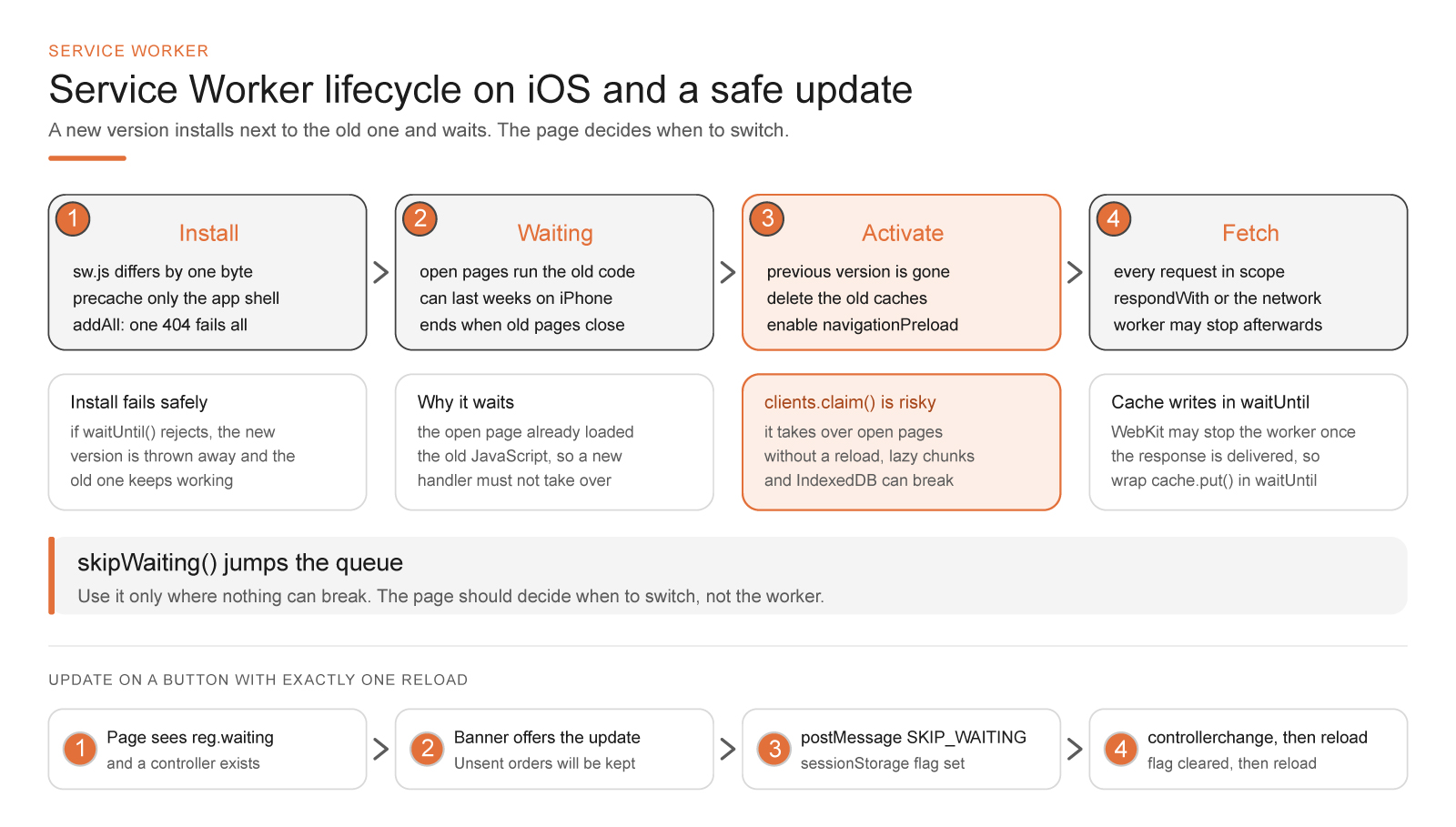
Here's a skeleton with installation and cleanup:
// sw.js; the build fills in the file list
const PREFIX = 'warehouse-';
const SHELL = `${PREFIX}shell-v42`;
const RUNTIME = `${PREFIX}runtime-v42`;
const SHELL_FILES = ['/', '/offline.html', '/assets/app.3f9a1c.js', '/assets/app.77b2e0.css'];

self.addEventListener('install', (event) => {
  event.waitUntil(caches.open(SHELL).then((cache) => cache.addAll(SHELL_FILES)));
});

self.addEventListener('activate', (event) => {
  event.waitUntil((async () => {
    await self.registration.navigationPreload?.enable();
    const names = await caches.keys();
    await Promise.all(
      names
        .filter((name) => name.startsWith(PREFIX) && name !== SHELL && name !== RUNTIME)
        .map((name) => caches.delete(name))
    );
  })());
});
It's better not to maintain the SHELL_FILES list by hand. If the bundler changes the hash in a file name while the array stays the same, addAll gets a 404, the installation quietly fails, and users sit on the previous version until somebody notices that yesterday's fix never reached the iPhones. The prefix in the filter isn't there for show, either. A single origin (a combination of protocol, domain, and port) often hosts both a marketing site and an account area, each with its own caches, and cleanup on the principle of "delete everything that doesn't match my current name" will one day wipe out somebody else's precache.
The navigationPreload line will come in handy a little later, when we get to cold starts.
Why skipWaiting Breaks Apps With Data and Migrations
Waiting is annoying, and many tutorials turn it off in two lines. self.skipWaiting() in install makes the new worker activate immediately, clients.claim() in activate takes over already open pages without a reload, and in a demo it looks great: you ship, refresh the tab, and everything is up to date.
Back to the morning scene. The page on the warehouse worker's phone loaded yesterday's bundle, and that bundle lazily pulls in the order screen from /assets/order.8c1d.js. The new worker activated in the middle of the session, dutifully deleted the old cache in activate, and its own precache already holds order.51fa.js. The person taps an order, the old code asks for the old file, which is no longer in the cache, and if the phone happens to be offline at that moment, or the previous builds have already been removed from the CDN, a white screen appears instead of the order. The database has a similar story: the new worker opens IndexedDB with schema version 3, the open page holds a connection to version 2, and the migration runs into that connection.
Both breakages arise because the new version interfered with a page that doesn't know about it yet. That's why, in apps with data, I leave the worker its right to wait, and below I'll show how to offer the update without getting a reload loop.
I enable skipWaiting() together with clients.claim() only where there's nothing to break: documentation, a blog, a landing page, releases with strict backward compatibility. An app with data, migrations, and lazy chunks can wait until the person agrees to a reload on their own.
How to Update a Service Worker Without a Reload Loop
The scheme is simple. The page notices a worker in waiting, shows an unobtrusive banner, and when it's tapped, asks the worker to skip the wait; when control passes to the new version (the controllerchange event), the page reloads once. The word "once" is essential here: a careless implementation sends the app into an endless reload loop.
Most often the loop is built like this: location.reload() hangs on controllerchange, and the worker calls skipWaiting() on its own, without being asked. If sw.js differs on every request (the server assembles it on the fly with a timestamp, or a proxy mixes something into the body), every reload brings one more "new" version, it activates immediately, the event arrives again, and the app reloads in circles. On an iPhone this looks like a flickering white screen where nothing can be tapped, and reproducing it on your own device is far from easy. A flag in sessionStorage breaks the loop: only a button press can set it, it's cleared before the reload, and the freshly opened page no longer reacts to the controller change. An in-memory variable is useless here, since the very reload it was meant to control wipes it out, while sessionStorage survives a reload and disappears only when the app is closed.
// app.js
const reg = await navigator.serviceWorker.register('/sw.js');

function offerUpdate(worker) {
  showBanner('A new version is available. Unsent orders will be kept.', () => {
    sessionStorage.setItem('sw-reload', '1');
    worker.postMessage({ type: 'SKIP_WAITING' });
  });
}

if (reg.waiting && navigator.serviceWorker.controller) offerUpdate(reg.waiting);

reg.addEventListener('updatefound', () => {
  const next = reg.installing;
  next.addEventListener('statechange', () => {
    if (next.state === 'installed' && navigator.serviceWorker.controller) offerUpdate(next);
  });
});

navigator.serviceWorker.addEventListener('controllerchange', () => {
  if (sessionStorage.getItem('sw-reload') !== '1') return;
  sessionStorage.removeItem('sw-reload');
  location.reload();
});

// sw.js
self.addEventListener('message', (event) => {
  if (event.data?.type === 'SKIP_WAITING') self.skipWaiting();
  if (event.data?.type === 'LOGOUT') {
    event.waitUntil(caches.keys().then((names) => Promise.all(
      names.filter((n) => n.startsWith(`${PREFIX}user-`)).map((n) => caches.delete(n))
    )));
  }
});
showBanner here is your own function, and the scheme usually stumbles on the first installation. When a worker is installed for the first time, controller is still empty, and without that check a new user will be offered an update in the very first minute of getting to know the app.
The text on the banner is as much a part of the decision as the code. The person doesn't need a lecture about workers; they need to know what will happen to what they were doing, hence the wording "A new version is available. Unsent orders will be kept." That sentence is true only if the queue lives in IndexedDB, because in-memory page state won't make it to the new version.
For apps that stay open for hours, there is registration.update(). The browser checks sw.js on navigations anyway, but a single-page app that hasn't been reloaded once since morning may not learn about a release for a long time. I call update() when the app returns to the foreground, but no more than about once an hour. I serve sw.js itself with Cache-Control: no-cache, so the check doesn't run into the HTTP cache.
Cache First, Network First and Stale-While-Revalidate on iOS
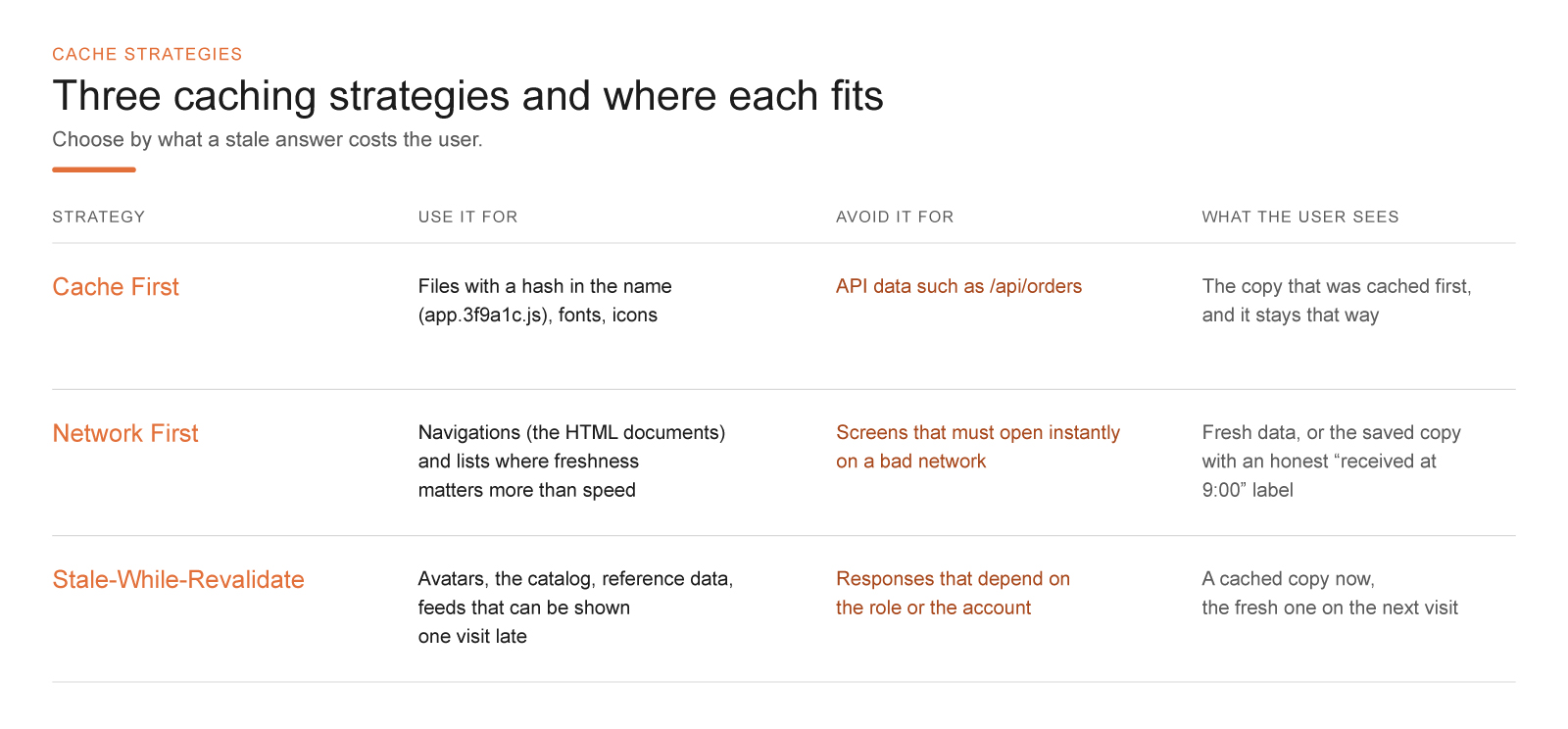
The three classic strategies are easiest to remember by what each one promises the user. Choosing by file extension ("everything .js from the cache") sooner or later produces a screen that either lags or confidently shows yesterday's data.
Cache First serves the local copy and goes to the network only when there is no copy. For files with a hash in the name, it's the best choice: app.3f9a1c.js will never change, a new build gets a new name, and keeping the old one for a year is safe. Fonts and icons go here as well. But /api/orders under Cache First will show an order in the state in which it was first cached, and will keep showing it.
Network First goes to the network first and falls back to the stored copy if the network didn't answer. This is what I use for navigation, meaning the HTML documents themselves, and for lists where freshness matters more than speed, with one condition: the interface must be able to say honestly that the data shown was received at nine in the morning. Stale-While-Revalidate (literally "serve the stale one and recheck") answers from the cache instantly and at the same time requests a fresh version for next time. It suits avatars, the catalog, reference data, and feeds that can be shown one visit late. The first display may be stale, and that is part of the contract with the user, best settled with the product manager in advance.
self.addEventListener('fetch', (event) => {
  const { request } = event;
  const url = new URL(request.url);
  if (request.method !== 'GET' || url.origin !== self.location.origin) return;
  if (request.headers.has('range') || url.pathname.startsWith('/api/pay')) return;

  if (request.mode === 'navigate') event.respondWith(networkFirst(event));
  else if (url.pathname.startsWith('/assets/')) event.respondWith(cacheFirst(event));
  else if (url.pathname.startsWith('/api/catalog')) event.respondWith(staleWhileRevalidate(event));
});

function remember(request, response) {
  if (!response.ok) return Promise.resolve();
  const copy = response.clone();
  return caches.open(RUNTIME).then((cache) => cache.put(request, copy)).catch(() => {});
}

async function cacheFirst(event) {
  const cached = await caches.match(event.request);
  if (cached) return cached;
  const response = await fetch(event.request);
  event.waitUntil(remember(event.request, response));
  return response;
}

async function networkFirst(event) {
  try {
    const response = (await event.preloadResponse) ?? (await fetch(event.request));
    event.waitUntil(remember(event.request, response));
    return response;
  } catch {
    return (await caches.match(event.request)) ?? caches.match('/offline.html');
  }
}

async function staleWhileRevalidate(event) {
  const cached = await caches.match(event.request);
  const fresh = fetch(event.request).then((response) => {
    event.waitUntil(remember(event.request, response));
    return response;
  });
  event.waitUntil(fresh.catch(() => {}));
  return cached ?? fresh;
}
A Response body is a stream, and it can be read exactly once: either the browser hands it to the page, or the Cache API writes it to disk. Hence response.clone(), and hence a subtle bug I've run into more than once in other people's code. The clone is made inside .then() after caches.open(), when the browser has already started reading the original, and you get a TypeError about a used body, and an intermittent one at that, because it all depends on who got there first. In remember, the clone is taken synchronously, before any waiting. The write itself is wrapped in event.waitUntil(): as soon as the response has been delivered, WebKit is entitled to stop the worker, and without that wrapper the background refresh in Stale-While-Revalidate sometimes simply doesn't happen.
The response.ok check filters out everything that isn't 2xx. Without it, offline mode will one day open yesterday's "not found" page, and the person will decide the order was deleted. It's even worse if the server answers an error with an HTML page and a 200 status: the worker can't tell it apart from a normal response, and that gets fixed on the server.
For navigations, the fallback here is: the same page from the cache, and if it isn't there, offline.html. For a single-page app that's not enough, because a direct entry via a link like /orders/42 without a network won't find such a document in the cache, and it's more correct to serve the cached shell at / and let the app itself decide what to show. A server-rendered site, on the contrary, must not be handed the shell for every address, or without a network every page turns into the home page.
Navigation Preload and Cold Start in iOS PWAs
The cold start on the iPhone is unpleasant: the system unloaded the app long ago, the person taps the icon, and before the HTML request can go out to the network, WebKit has to bring up the worker and execute its script, while the network sits idle all that time. Navigation preload, which appeared in Safari and iOS 15.4 in the spring of 2022, lets the browser start the navigation request in parallel with the worker's startup and hands the ready response over in event.preloadResponse. It's enabled by the line in activate from the first snippet, and networkFirst takes the preload response first.
Such a request arrives at the server with the header Service-Worker-Navigation-Preload: true; the value can be changed via navigationPreload.setHeaderValue(), and if it wants to, the server can answer with a lightweight version of the page. There's a payoff where navigations go to the network anyway. If the shell is served by Cache First, preload becomes an extra request on every launch, one whose response nobody reads.
Cache API Pitfalls With Opaque Responses and Personal Data
An image from someone else's CDN without CORS headers reaches the worker as an opaque response: status 0, ok equals false, and the body and headers are invisible to the script. You can't tell a normal image from an error page in it. cache.add() and cache.addAll() refuse to save such responses, but cache.put() will accept them, and later, on a plane, the gallery will show whatever was stored, even if what was stored was an error. Our remember skips them because it checks ok. If third-party files are needed offline, the CDN must send Access-Control-Allow-Origin and the tag must get a crossorigin attribute; the other way is to proxy the files through your own origin.
Let everything else load over a live network, with no attempt to fake an offline gallery.
There is a myth about cache keys that turns up even in good articles: that any different request header turns a request into a different key. By the specification, caches.match() compares the URL and the method, and it takes request headers into account only if the stored response has a Vary header, and then only those listed in it. A response with Vary: * will be rejected by cache.put() outright. The query string matters far more: ?lang=en changes the meaning of the response and can't be ignored, while ?v=3f9a is a cache buster, for which there is the ignoreSearch: true option, although it's still better to keep the version in the file name.
The most unpleasant property of the Cache API is that it is bound to an origin and knows nothing about your accounts. If the app caches /api/me or a particular employee's orders, then after signing out that JSON doesn't go anywhere, and the next person on a shared warehouse iPad will see someone else's data until the network responds. Personal responses I either don't put into the Cache API at all, or keep in a separate cache with a clear prefix such as warehouse-user- and delete it on sign-out.
It's best to delete from both sides. The page sends the worker the message { type: 'LOGOUT' }, and the message handler from the updates section wipes the user caches. In parallel, the page itself walks through caches.keys() and deletes the same things, because the Cache API is available from the window too, and there may be no active worker at that moment, for example in the middle of installing a new version.
An extra deletion costs nothing; a missed one costs you a leak of someone else's data.
The backend can also break offline mode without touching a line of sw.js. Yesterday /api/feed was the same for everyone and lived happily in Stale-While-Revalidate; today the response depends on the role, and the cache starts handing the administrator's feed to the warehouse staff. For every route that lands in the runtime cache, I write down next to the API description who sees it, how stale it may get, and what to show without a network; "we cache all GETs" does not count as a policy.
Workbox won't choose the policy for you either. It takes the routine out of precache revisions and standard strategies, but runtimeCaching: [{ urlPattern: /.*/, handler: 'CacheFirst' }] is still a bad idea, just written more briefly.
iOS Storage Quota and Eviction in Safari 17 and Later
Two numbers still circulate about iOS storage: "no more than 50 MB" and "everything gets wiped after seven days." Both are outdated or refer to a different situation. The seven-day rule came with ITP (Intelligent Tracking Prevention, Safari's protection against tracking) in March 2020 and concerned data that site scripts write inside Safari, whereas for apps on the Home Screen, WebKit introduced its own counter of days of use at the same time, and their data should not be deleted during normal use.
The current policy is described in WebKit's "Updates to Storage Policy" post from August 2023 and has been in effect since Safari 17 and iOS 17. A single origin in a browser app (one that can be set as the default browser) is allowed up to 60% of the disk, in other apps with embedded web content up to 15%, and the overall cap across all sites is 80% and 20% respectively. An app launched from the Home Screen gets the same quotas as in the browser. Before Safari 17, an origin started with 1 GB, after which Safari asked the user for permission. Cookies and the HTTP cache don't count toward these quotas.
Sixty percent of the disk sounds generous, but that is a ceiling. How much is actually available is shown by navigator.storage.estimate() (it's in Safari since version 17), and WebKit warns that it may change the quota depending on free space and how often the person visits the site, to make the number harder to use for device fingerprinting. WebKit evicts data per origin as a whole, starting with the ones used least recently. There are three triggers: the overall cap is exceeded, the device is running out of space, or the site hasn't been opened for a long time. Protected from this are origins with an open page and those that have been granted persistent storage mode.
You can ask for that mode via navigator.storage.persist(), which exists since Safari 15.2. There won't be a dialog; WebKit decides on its own by heuristics, and the same post says one of them takes into account whether the site is open as a Home Screen app. I call persist() once after the first launch from the icon and don't attach much importance to the answer, because true means "we'll try not to touch it" and nothing beyond that.
When quota runs out, a write fails with QuotaExceededError, and that applies to both cache.put() and IndexedDB transactions. The most insulting version of this error lives in the fetch handler. If await cache.put() sat inside the same try as the fetch in networkFirst, a full quota would send the person to yesterday's copy or the offline page with a fully working network. In remember, the write is moved into waitUntil and swallows the error with an empty catch, since the response matters more than the copy, and it's enough to log the error once per session.
I wouldn't promise offline maps at all: there are endlessly many tiles, and the quota is finite.
And don't drag heavy things into the precache, because a 40 MB catalog in addAll on an unstable network will fail the entire installation, and with it the app's update. Such data is loaded after startup, put into IndexedDB page by page, and the previous page is shown if the new one hasn't arrived.
Video and Range Requests in a Service Worker on iOS
Cache First works wonderfully with CSS and images, but falls apart with video and audio, and the cause lies in the requests themselves. In its Safari documentation, Apple requires a server hosting media files for iOS to support byte-range requests, because the player reads the file in chunks: it asks for a specific slice with the Range header and expects 206 Partial Content in reply. If the worker answers such a request with a fully cached file and a 200 status, the video on the iPhone may stall at the zeroth second or break on seeking.
You can't cache a clip on the fly, either. During playback, partial 206 responses arrive from the network, and the Service Worker specification forbids putting them in the cache, so cache.put() with such a response rejects with a TypeError. If you really need offline video, it is downloaded in full ahead of time via cache.add(), and for requests with Range you cut out the needed slice yourself. Workbox has a workbox-range-requests module for this, and its documentation separately notes that <video> and <audio> tags need the crossorigin attribute even for files from your own origin.
In the handler above, requests with Range bypass the worker and go straight to the network. For most apps that's the right choice: let the CDN serve long video.
Offline Queue on iOS Without Background Sync
A cache solves reading without a network; it doesn't solve writing: you can't send a POST /api/orders through caches.match(). Offline writing is built as a queue of domain operations ("create an order," "attach a photo," "cancel a request"), each with its own identifier, body, status, and creation time, and that queue lives in IndexedDB. You record the operation at the moment the person pressed the button, before any attempt to go to the network, and the interface tells the truth: "We'll send it when the network is back," with no green checkmark that later turns out to be a lie.
The operation identifier works as an idempotency key: the server uses it to recognize a repeat and doesn't create a second order. The request might have reached the server while the response got lost in a subway tunnel, and on a resend with the same key the server must return the result of the first attempt instead of creating a second order. Without this, an offline queue will sooner or later start breeding duplicates, and support will be the one cleaning them up.
On Chromium, such a queue is often entrusted to Background Sync, and the browser itself wakes the worker when the network returns, even if the app is closed. iOS has neither that nor Periodic Background Sync nor Background Fetch, so a phone in a pocket won't finish sending anything for you. The queue goes out when the app is back on screen: at launch, on returning from the background, and on the online event.
Workbox adds no miracles here. In browsers without Background Sync, the workbox-background-sync module replays the queue on every worker startup, and its documentation says outright that this requires a page controlled by the worker to be running. On the iPhone, that's the same send-on-open, just hidden inside a library.
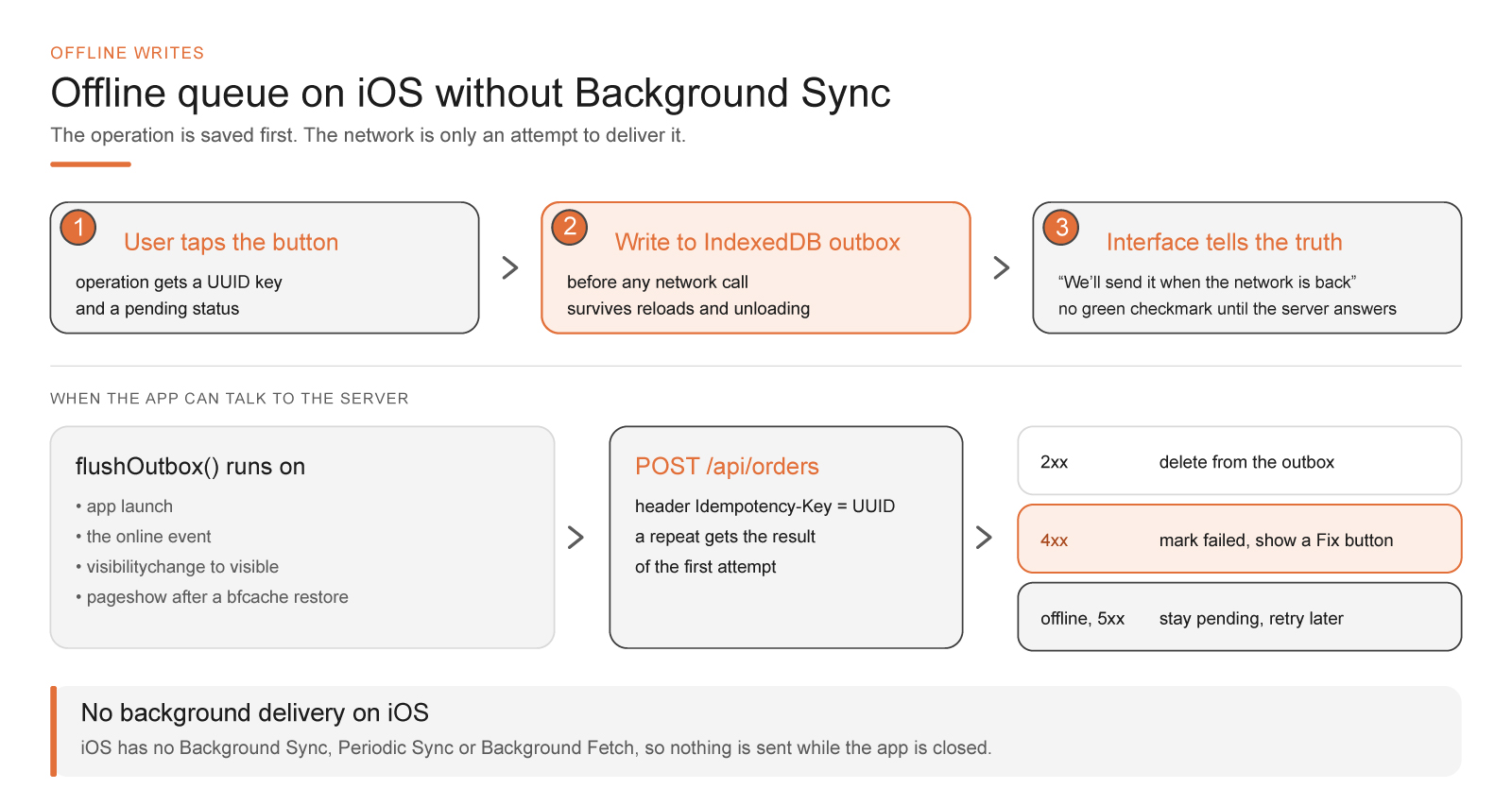
// app.js; db is a wrapper over IndexedDB (for example, idb)
async function createOrder(payload) {
  const op = { key: crypto.randomUUID(), kind: 'create-order', payload, status: 'pending' };
  await db.put('outbox', op);
  renderPending(op);
  flushOutbox();
}

async function flushOutbox() {
  for (const op of await db.getAll('outbox')) {
    if (op.status !== 'pending') continue;
    const res = await fetch('/api/orders', {
      method: 'POST',
      headers: { 'Content-Type': 'application/json', 'Idempotency-Key': op.key },
      body: JSON.stringify(op.payload),
    }).catch(() => null);
    if (!res) return;
    if (res.ok) await db.delete('outbox', op.key);
    else if (res.status < 500) await db.put('outbox', { ...op, status: 'failed' });
  }
}

addEventListener('online', flushOutbox);
addEventListener('pageshow', (e) => e.persisted && flushOutbox());
document.addEventListener('visibilitychange', () => {
  if (document.visibilityState === 'visible') flushOutbox();
});
Such a queue usually breaks on 4xx responses. If the server rejected an order because of an outdated price, retries won't help, and the operation is marked as problematic so the person sees it with a "Fix" button. flushOutbox can also start simultaneously from online and visibilitychange; the key prevents duplicates, but a simple "already sending" flag will save the server some work.
Page lifecycle events on the iPhone come with their own confusion. freeze and resume from the Page Lifecycle API exist only in Chromium, and Safari doesn't support them, so you have to rely on the long-standing visibilitychange (fully working in Safari since 14.1) and pagehide. Starting an IndexedDB write from scratch inside them is pointless, since the page may not have enough time, and that is exactly why the operation must reach the disk earlier, at the moment of the action. But pageshow with event.persisted equal to true is useful: the document was restored from the back-forward cache (bfcache), scripts didn't run again, the data on screen may be stale, and it's the right time to refresh it and send the queue. There's no need to register the worker again at that moment; it's already in place.
IndexedDB Blocked by a Connection From Your Own Worker
When a new version of the app raises the schema version (indexedDB.open('warehouse', 3)), all open connections to the old version receive a versionchange event. If even one doesn't close, the open request gets blocked, and upgradeneeded won't start while the connection is alive. On desktop the culprit is usually a second tab. An installed app on the iPhone shares a database with Safari no more than with the neighboring app, there is no second tab, and so it's all the more surprising to discover that the connection is held by your own worker: it opened the database to read the queue or the settings and never closed it.
The cure is discipline on every connection, in the window and in the worker alike: db.onversionchange = () => db.close(), and in the worker, short-lived connections rather than one eternal one. In onblocked, it's better to show "Close the app and open it again" than to spin a spinner that will never stop.
Web Push on iPhone Through APNs and the Home Screen Icon
Web Push arrived on the iPhone and iPad in iOS and iPadOS 16.4 in March 2023, and only for web apps on the Home Screen. You can't subscribe in a Safari tab: the person first installs the app and opens it from the icon, and only then can you offer notifications. The offer should come in response to an explicit action such as tapping an "Enable notifications" button, and Apple's documentation advises calling the subscription directly from that tap's handler. After consent, a web app's notifications are configured in the system settings like any other app's, respect Focus modes, and reach Apple Watch.
The subscription works the same way as in other browsers, only stricter. pushManager.subscribe() requires userVisibleOnly: true, and Safari enforces that promise: silent push without a notification isn't supported. WebKit writes that breaking the promise leads to the subscription being revoked, and Apple's documentation words it even more harshly: the notification permission is revoked. In the WWDC22 talk about the macOS Ventura beta, a threshold of three such pushes was mentioned; what it is now hasn't been stated publicly, and I wouldn't find out in production.
The server identifies itself to the push service with VAPID keys. This is a key pair on the P-256 elliptic curve: the public one is passed to applicationServerKey at subscription time, and the server uses the private one to sign a short-lived JWT for the Authorization header. By RFC 8292, the aud field in the token contains the push service's origin, and exp may not be more than 24 hours after the moment of the request. Apple adds its own conditions: sub must be a URL or a mailto: address, and there's no need to refresh the token more than once an hour. The authors of the popular web-push library warn separately in the README that a sub with localhost gets bounced by Apple with a 403 BadJwtToken error, and over such a trifle it's easy to end up in a situation where notifications arrive on Android but not on the iPhone.
The endpoint field in a Safari subscription points to a subdomain of push.apple.com (in real subscriptions that's usually web.push.apple.com), and delivery is handled by the same Apple Push Notification service (APNs) that native apps use. Membership in the Apple Developer Program isn't required. If your server's outbound traffic is restricted by an allowlist, open all of *.push.apple.com, as both WebKit and Apple advise, because nobody has officially promised a specific host. The payload in APNs is limited to 4 KB, which is exactly the minimum that RFC 8030 requires any push service to accept. APNs stores an undelivered message for as long as the TTL says, 30 days at most, and for a 410 response there is only one right reaction: delete the expired subscription from your database.
// app.js: subscribe only from a click handler
const reg = await navigator.serviceWorker.ready;

pushButton.addEventListener('click', async () => {
  const sub = await reg.pushManager.subscribe({
    userVisibleOnly: true,
    applicationServerKey: VAPID_PUBLIC_KEY,
  });
  await fetch('/api/push/subscriptions', {
    method: 'POST',
    headers: { 'Content-Type': 'application/json' },
    body: JSON.stringify(sub),
  });
});

// sw.js
self.addEventListener('push', (event) => {
  const msg = event.data?.json() ?? {};
  const n = msg.notification ?? { title: 'Update available', navigate: '/' };
  event.waitUntil(
    self.registration.showNotification(n.title, { body: n.body, tag: n.tag, data: { url: n.navigate } })
  );
});

self.addEventListener('notificationclick', (event) => {
  event.notification.close();
  const url = new URL(event.notification.data?.url ?? '/', self.location.origin).href;
  event.waitUntil((async () => {
    const windows = await self.clients.matchAll({ type: 'window', includeUncontrolled: true });
    const existing = windows.find((w) => w.url === url);
    return existing ? existing.focus() : self.clients.openWindow(url);
  })());
});
In the push handler, the notification is shown first thing. The temptation to go to the server for details first is understandable, but on a slow network it easily turns into a push without a notification, with all the consequences discussed above. The fields in the message are called notification.title and notification.navigate for a reason: that is the Declarative Web Push format from the next section. And clients.openWindow() works only in response to a user action: per the specification, without user activation the promise rejects with InvalidAccessError, and a worker has essentially one such action, a click on a notification. You can't open a window from fetch or push. Before opening a new one, it makes sense to look for one that's already open via clients.matchAll() and focus it, so a click on the fifth notification doesn't spawn a fifth copy of the warehouse. I keep the address inside the app's scope, because the documentation doesn't describe iOS's behavior with a foreign address from openWindow.
Declarative Web Push Without JavaScript
In iOS and iPadOS 18.4 (March 2025), Declarative Web Push arrived for web apps on the Home Screen, and the WebKit post that introduced it is quite frank about why. Classic push rests entirely on JavaScript in a worker, and a bug in the script, a poor network, or a lack of time on the device easily ends in a push without a notification and a penalty for which the script's author isn't always to blame. On top of that, ITP deletes the data of long-unopened sites together with the worker registration, and the subscription is then left hanging in the air.
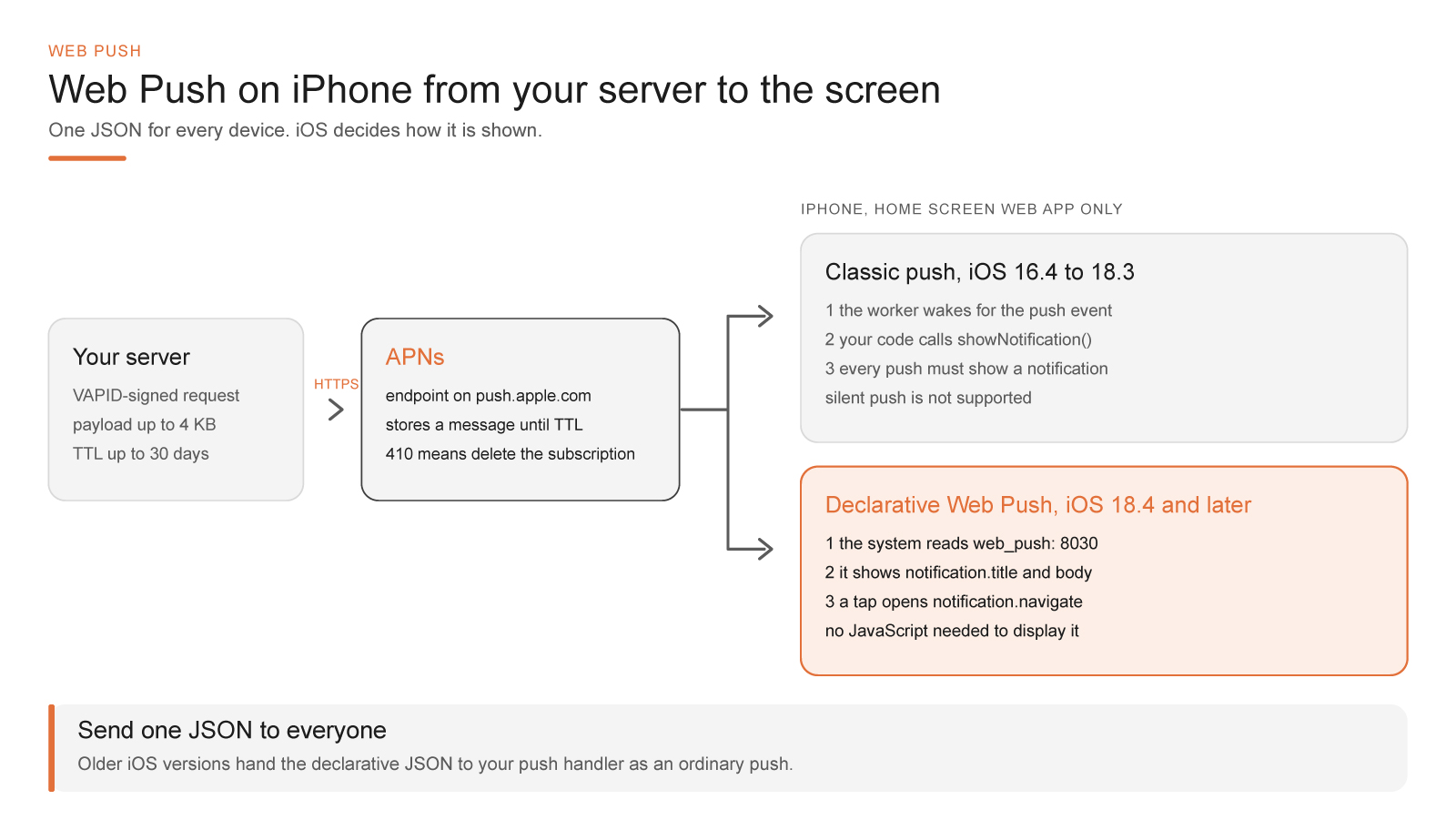
In the declarative variant, the server describes the notification and the system displays it, without a single line of your code. You can subscribe straight from the window via window.pushManager, with no worker needed; if one is registered at the root scope, the subscription is shared between the window and the worker, and deleting the worker's registration doesn't cancel it. The message itself is JSON in the push body:
{
  "web_push": 8030,
  "notification": {
    "title": "Order 1842 is packed",
    "body": "The courier will pick it up by 2 PM",
    "navigate": "https://shop.example/orders/1842",
    "lang": "en-US",
    "dir": "ltr",
    "tag": "order-1842"
  }
}
The number 8030 refers to RFC 8030, which defines the push delivery protocol, and that's how the browser knows the message is declarative. Inside notification, title and navigate (the address that opens on tap) are required, and the remaining fields repeat the familiar notification options: body, lang, dir, tag, icon, silent, data, and actions buttons with their own navigate. In the example from the WebKit post, app_badge for the counter on the icon is there too, but the Push API specification draft has no such field yet, and I treat it as a WebKit-specific feature.
The worker doesn't leave the game, though. If one is installed, it can receive a push event in which event.notification holds the proposed notification, and show its own instead, for example by decrypting the text with a key stored on the device itself. The spec draft sends this event only when the message has "mutable": true at the top level, while the WebKit post describes the behavior more loosely, so I'd verify the specific iOS version on a real phone. If the worker didn't make it in time or crashed, the system will show the original notification, and there's no penalty for a silent push here, because it can't be silent.
This format coexists with older iOS versions without problems. On versions 16.4 through 18.3, and in browsers without support, the same message arrives as an ordinary push, and the handler from the previous section, which reads notification.title and notification.navigate, displays it itself. The server sends everyone one format: new devices manage without JavaScript, old ones cope as before. I would move the server to this JSON right now, even if most of your users are still on older versions.
Debugging a Service Worker With Safari Web Inspector
Debugging a worker from users' screenshots is useless; you need Web Inspector connected to a real phone. On the iPhone, it's turned on in Settings: the Safari section (in newer iOS versions it lives inside Apps), then Advanced and the Web Inspector toggle. On the Mac, in Safari's settings on the Advanced tab, you need to enable the features for web developers. The phone connects by cable, and once it agrees to trust that Mac, you can enable connecting over the network in the Develop menu and go on without the wire.
The phone has its own submenu in the Develop menu, and in its lower part there are two sections that matter to us. Home Screen Web Apps shows the installed app while it's in the foreground, and it has nothing to do with a Safari tab at the same address: the tab has its own storage and its own set of workers. Service Workers shows the workers themselves, and Apple warns in its documentation that only a running one can be inspected. If the worker has fallen asleep, the section simply isn't there; open the app, do something that triggers a fetch, and go straight to the menu. The worker's inspector has its own console and breakpoints on the push, fetch, and notificationclick handlers.
Safari has no Cache Storage viewer. The Storage tab has Cookies, Local Storage, Session Storage, and Indexed Databases, and that's it: the task of showing the Cache API contents there has been open in the WebKit tracker since May 2020 (bug 211335). You have to inspect caches from the console, where await caches.keys() shows the names, and (await (await caches.open(name)).keys()).map((r) => r.url) shows what's inside. You can unregister from the same place with (await navigator.serviceWorker.getRegistrations()).forEach((r) => r.unregister()), bearing in mind that unregister() takes effect after pages are closed and doesn't delete caches, which are cleaned separately.
You can also start from a clean slate the blunt way: delete the icon and install the app again.
When people complain that "offline doesn't work," I first answer four questions for myself and only then dig into strategies: does a worker control the page (navigator.serviceWorker.controller), does the address fall within its scope, is the needed request sitting in the right cache, and which worker controlled the page before the reload. A small thing helps with the last one. The worker broadcasts its version to clients in activate, the app displays it on a hidden About screen next to the build number, and a screenshot from support immediately answers half the questions.
The Offline toggle in the inspector is good for checking fetch logic, but it doesn't reproduce process unloading, a cold start, or a full disk. Before a release, I walk through the scenarios by hand on a phone: a fresh install, an update over yesterday's version, airplane mode with the app swiped away from the switcher, signing out and signing in as someone else. I separately look at a screen for which nothing has ever been in the cache, because a good app tells "I'm showing the last saved version" apart from "this document isn't on the phone."
And one more check that almost everybody skips: open the app after a day of idleness, when iOS unloaded it from memory long ago, and the worker comes up from scratch. That is exactly how an ordinary user will open it the morning after a release. If they see either the new version or a banner offering to update, and the unsent orders are in place, the worker is configured correctly. And if the shell from the cache arrives instantly but the interface still feels sluggish, the cause is no longer the worker or the network, but rendering and WebKit's main thread. That is exactly the question we'll take up in detail in the next article.
Other Parts in This Series
- PWA on iOS, Part 1: PWAs on the iPhone Are Older Than They Look
- PWA on iOS, Part 2: HTTPS, Manifest and Service Worker
- PWA on iOS, Part 3: Chrome on iPhone Is WebKit Too. How One Engine Sets the Rules for PWAs on iOS
- PWA on iOS, Part 4: What Add to Home Screen Really Does
- PWA on iOS, Part 6: Performance, Rendering, and Keyboard
Opinions expressed by DZone contributors are their own.