

LeanFT Cucumber Project With Jenkins Integration
Learn how to create a LeanFT Cumber project and integrate it with your CI/CD pipeline using Jenkins.
Join the DZone community and get the full member experience.
Join For FreeThis article shows you how to create a LeanFT Cucumber project and configure the LeanFT Cucumber test with Jenkins and generate reports.
Let us first create LeanFT Cucumber project using Eclipse.
Creating the Project
Step 1: Create LeanFT Cucumber Project
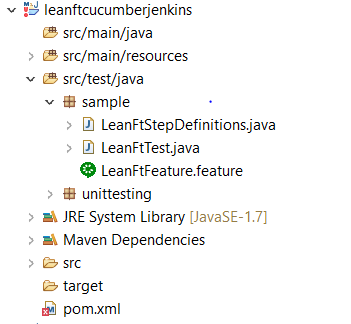
Go to File -> New -> Other -> LeanFT Folder -> LeanFT Cucumber Project -> Next -> Enter Group Id and Artifact Id -> click Finish. Find the below snapshot of LeanFT Cucumber project structure as shown.
Step 2: Update pom.xml with the Required LeanFT Dependencies
   <dependency>
            <groupId>junit</groupId>
            <artifactId>junit</artifactId>
            <version>4.12</version>
        </dependency>

        <dependency>
            <groupId>com.hp.lft</groupId>
            <artifactId>com.hp.lft.sdk</artifactId>
            <version>12.53.0</version>
        </dependency>

        <dependency>
            <groupId>com.hp.lft</groupId>
            <artifactId>com.hp.lft.report</artifactId>
            <version>12.53.0</version>
        </dependency>

        <dependency>
            <groupId>com.hp.lft</groupId>
            <artifactId>com.hp.lft.unittesting</artifactId>
            <version>12.53.0</version>
        </dependency>

        <dependency>
            <groupId>com.hp.lft</groupId>
            <artifactId>com.hp.lft.verifications</artifactId>
            <version>12.53.0</version>
        </dependency>
Step 3: Create a Feature/Cucumber File for Newtours Mercury Login Application
Feature: Newtours Mercury Login Test
Scenario: Test Login with valid credentials
Given user opens the Mercury Tours application
When user enters the valid username as "mercury" and password as "mercury"
And user clicks on the sign in button
Then verify login success
Note: Cucumber Eclipse plugin should be installed in Eclipse to create a feature/Cucumber file.
Step 4: Create a Step Definition Code for Newtours Mercury Login Test Feature File
package LeanFTCucumber;

import java.io.IOException;
import com.hp.lft.report.ReportException;
import com.hp.lft.sdk.GeneralLeanFtException;
import com.hp.lft.sdk.TestObjectDescriber;
import com.hp.lft.sdk.web.Browser;
import com.hp.lft.sdk.web.BrowserFactory;
import com.hp.lft.sdk.web.BrowserType;
import com.hp.lft.sdk.web.EditField;
import com.hp.lft.sdk.web.EditFieldDescription;
import com.hp.lft.sdk.web.Image;
import com.hp.lft.sdk.web.ImageDescription;
import com.hp.lft.verifications.Verify;

import cucumber.api.Scenario;
import cucumber.api.java.After;
import cucumber.api.java.Before;
import cucumber.api.java.en.Given;
import cucumber.api.java.en.Then;
import cucumber.api.java.en.When;

public class LeanFtStepDefinitions {

    public LeanFtStepDefinitions() {}

    //Implementation of feature’s steps
   Browser browser;
    @Given("^user opens Mercury Tours application$")
    public void user_opens_Mercury_Tours_application() throws Throwable {
    browser = BrowserFactory.launch(BrowserType.CHROME);
    browser.navigate("http://newtours.demoaut.com");
    }

    @When("^user enter valid username as \"([^\"]*)\" and password as \"([^\"]*)\"$")
    public void user_enter_valid_username_as_and_password_as(String un, String psd) throws Throwable {

EditField username = browser.describe(EditField.class, new EditFieldDescription.Builder()
    .type("text").name("userName").build());
username.setValue(un);

EditField password = browser.describe(EditField.class, new EditFieldDescription.Builder()
.type("password").name("password").build());
password.setValue(psd);

    }

    @When("^user clicks on Signin button$")
    public void user_clicks_on_Signin_button() throws Throwable {
    browser.describe(Image.class, new ImageDescription.Builder()
    .alt("Sign-In").type(com.hp.lft.sdk.web.ImageType.BUTTON).tagName("INPUT").build()).click();

    }

    @Then("^verify login success$")
    public void verify_login_success() throws Throwable {

       Verify.areEqual("Find a Flight: Mercury Tours: ", browser.getTitle() );
       browser.close();
    }
}
Step 5: Create Runner Class to Execute Newtours Mercury Login Test Feature File
package LeanFTCucumber;

import static org.junit.Assert.*;

import org.junit.After;
import org.junit.AfterClass;
import org.junit.Before;
import org.junit.BeforeClass;
import org.junit.Test;
import org.junit.runner.RunWith;
import cucumber.api.CucumberOptions;
import cucumber.api.junit.Cucumber;
import unittesting.UnitTestClassBase;

import com.hp.lft.sdk.*;
import com.hp.lft.verifications.*;

@RunWith(Cucumber.class)
@CucumberOptions(plugin = {"json:target/cucumber.json"},
                 features = "src/test/java/LeanFTCucumber")
public class LeanFtTest extends UnitTestClassBase {

    public LeanFtTest() {
        //Change this constructor to private if you supply your own public constructor
    }

    @BeforeClass
    public static void setUpBeforeClass() throws Exception {
        instance = new LeanFtTest();
        globalSetup(LeanFtTest.class);
    }

    @AfterClass
    public static void tearDownAfterClass() throws Exception {
        globalTearDown();
    }

}
Save LeanFT Cucumber project test (File -> Save).
CI/CD Testing Integration With Jenkins
Follow the below steps to integrate the LeanFT Cucumber test with the Jenkins tool for continuous integration and continuous testing.
Step 1: Download the Jenkins tool from the website link.
Step 2: Launch Jenkins from command line using below command:
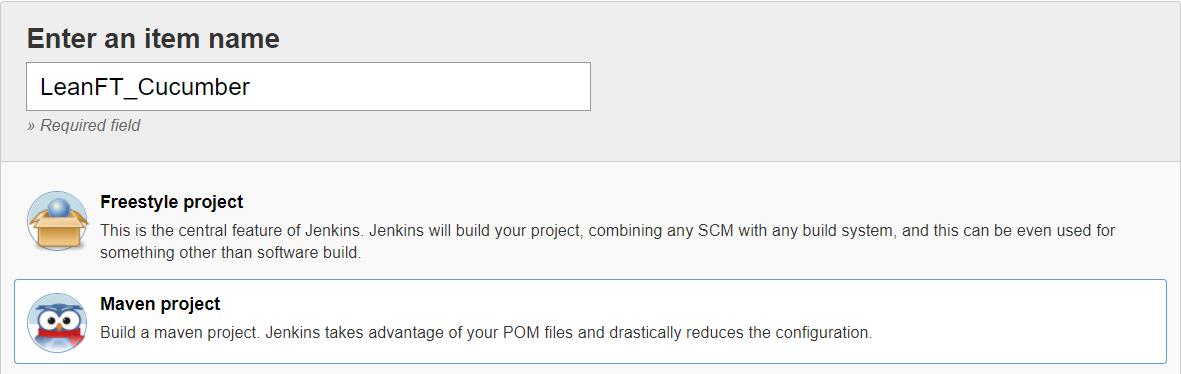
java -jar jenkins.warStep 3: Create a Maven project from the Jenkins tool as shown below:
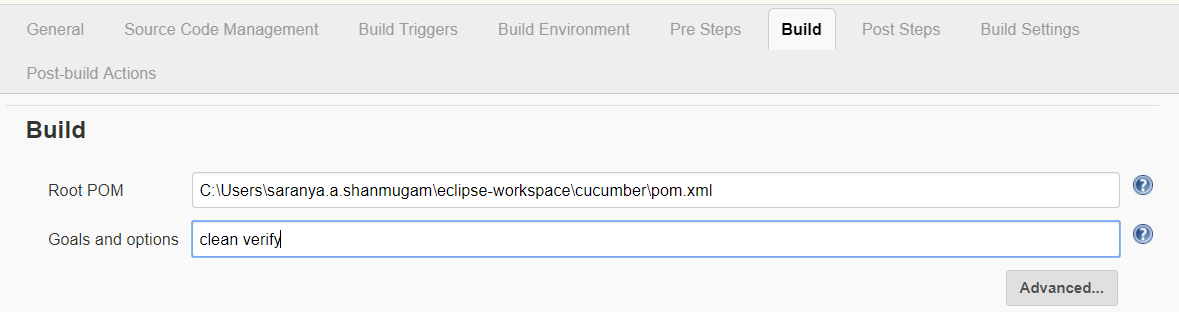
Step 4: Type pom.xml location path as part of Jenkins Build Section and enter Goals and Options as "clean verify" as shown below:
Step 5: Select "Cucumber reports" as part of Jenkins Post-Build Actions as shown below:
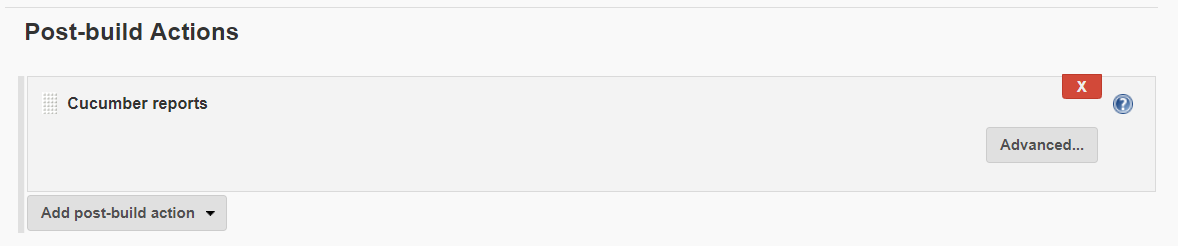
Note: Cucumber reports plugin should be installed in Jenkins using the Manage Plugin option.
Step 6: Click "Save and Apply."
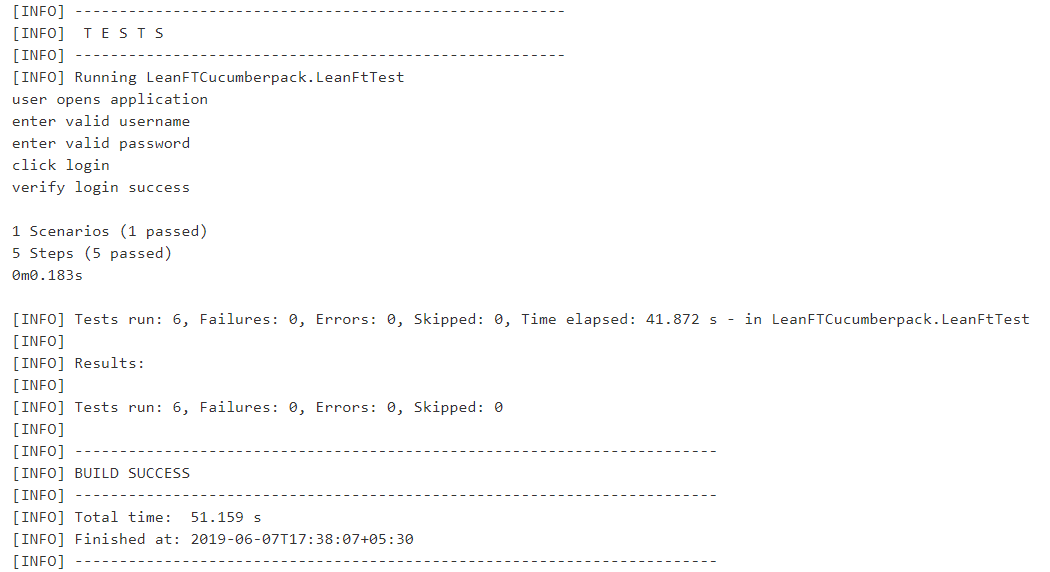
Step 7: Click "Build Now" and see the Jenkins result page as shown below:
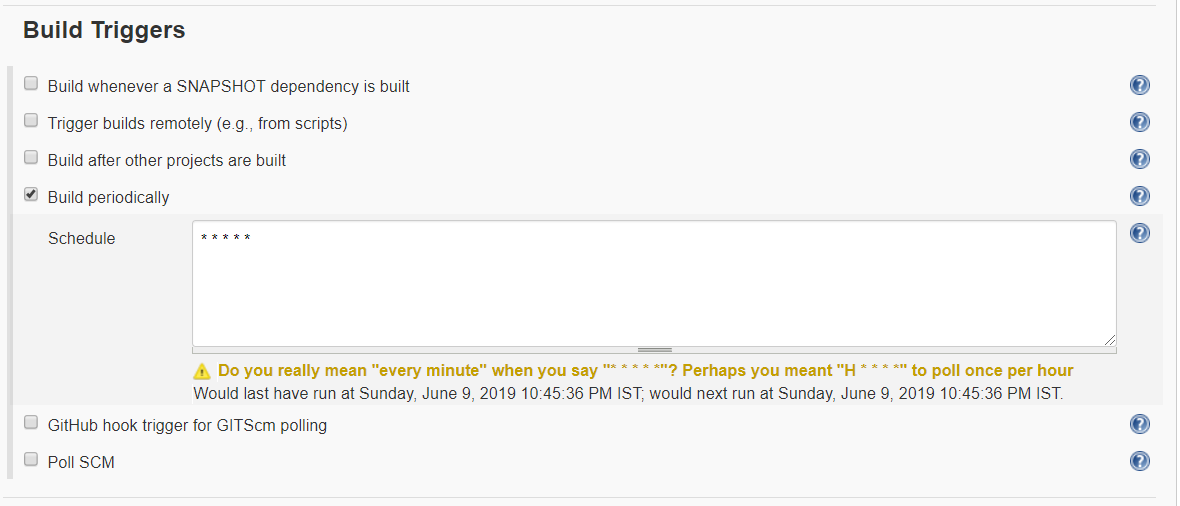
Configure Jenkins with the Build Triggers option to trigger the build every minute automatically so that Jenkins will check the latest change from the location where you have stored the LeanFT Cucumber test and trigger the build automatically.
Opinions expressed by DZone contributors are their own.
Comments