

Low Code AI Agent Using Kumologica and Anthropic AI for Customer Feedback Sentiment Analysis
The article covers the design and implementation of a low code AI agent developed using Kumologica and Anthropic AI for customer feedback sentiment analysis.

 CORE
·
CORE
·
Join the DZone community and get the full member experience.
Join For FreeCustomers are the backbone of any business. Understanding customer experience is key for every company, and conducting customer feedback analysis is always a vital tool for elevating your brand. In this article, we will explore how an artificial intelligence agent can be used to perform customer feedback extraction and analysis easily and efficiently. We will build the AI agent using Kumologica, a low-code development platform, and the Anthropic AI platform.
Use Case
ABC restaurant chain has decided to add a feedback feature to their menu and ordering mobile app. Along with the conventional star rating model, they introduced a simple free-text box allowing customers to provide feedback in their own words. This offers more flexibility for customers to share detailed comments. It enables management to better understand customer expectations.

Design
Based on the use case, the customer is given a simple form in the mobile app with only a free text field and a rating option. The architecture team decided to use an artificial intelligence platform to read the user comments, extract necessary information, and analyze the sentiment. The extracted details, such as the menu item, user feedback, and associated sentiment, will be stored for later retrieval and analysis. The team will develop an AI agent using Kumologica, connect with Anthropic AI for extraction and analysis, and store the data in AWS DynamoDB.
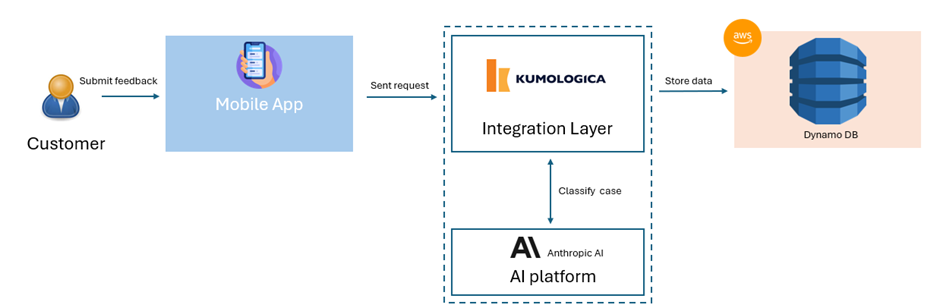
Based on the design we will be developing an API with the POST method and resource path as /customer/feedback. The request to the API will be a JSON payload having two attributes; i.e., comment and rating. The JSON payload is as follows.
{
"comment" : "",
"rating” : ""
}
The response from Anthropic AI will be as follows:
 {
"feedback": "",
"item" : "",
"sentiment" : ""
"rating" : ""
 }
These attributes will be stored in AWS DynamoDB.
Now let’s get started with the development of the API.
Implementation
Prerequisite
1. Download and install Kumologica Designer.
npm i @kumologica/sdk 2. Install the OpenAI node in the Kumologica project package.
npm i @kumologica/kumologica-contrib-anthropicai3. AnthropicAI account access and token for accessing the AnthropicAI platform
4. AWS account access with access key and secret having necessary permission to connect and insert data into DynamoDB.
Steps
Now we will start the implementation of the feedback service in Kumologica.
Step 1
Open the Kumologica Designer. On the menu click File > New Project. This will open the following popup to provide the project name and file location to save the project. 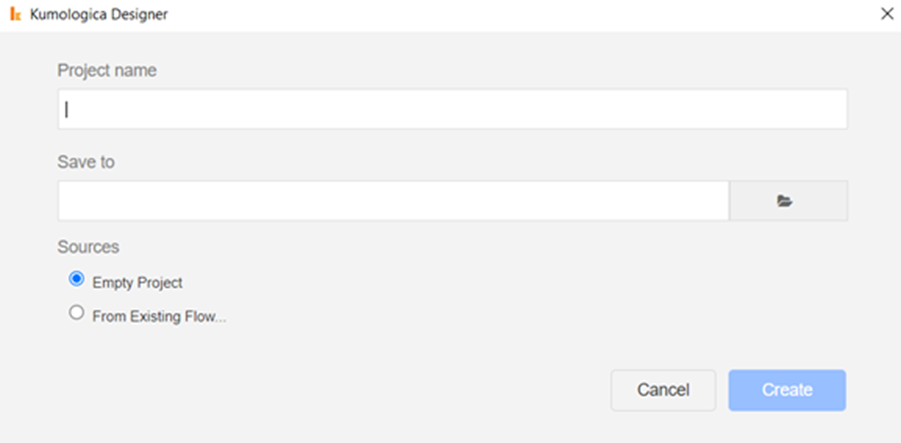
Step 2
Drag and drop the EventListener node from the pallet to the canvas. Provide the following config for the node.
Display Name : [POST] /customer/feedback
Provider : AWS
EventSource : Amazon API gateway
Verb : POST
 URL : /customer/feedback
The article takes the assumption that ABC restaurant's IT department has AWS cloud infrastructure.
Step 3
Drag and drop the Logger and wire it to the EventListener node added in step one. Provide the following config for Logger.
Display Name : Log Entry
Level : INFO
Message : 'Request recevied : ' & msg.payload
Log format : String
Step 4
Add two set property nodes to the canvas and provide the following config. The first one is to extract the request data and the second is to set the rules for extracting the comment to fields to store and analyze sentiment.
Set-Property 1
Display Name : Set Feedback Data

Operation : Set
Target : msg.comment
Source : msg.payload.comment

Operation : Set
Target : msg.rating
Source : msg.payload.rating

Set-Property 2
Display Name : Set Rule

Operation : Set
Target : msg.rule
 Source : 'Based on the feedback given by the user extract the items mentioned, the comment about the item and provide the sentiment.' &'The extracted details to be responded in the following JSON format only: { "item" : "" , "comment" :"" ,  "sentiment" : ""}'

5. Now add the AnthropicAI node from the pallet and provide the following config. Then wire the node to the set property node in step 4.Display Name : AnthropicAI
Operation : Single Q&A
Model : claude-3-sonnet-20240229
API Key : <<API key from AnthropicAI>>
System : msg.rule
User : msg.commentStep 6
Now we have the response from Anthropic AI which can be stored in DynamoDB using the DynamoDB node. The following is the configuration for the DynamoDB node.
Display Name : DynamoDB
Operation : PutItem
Table ARN : <<ARN of your table>>
Attributes:
Itemid = msg._msgid
Item = msg.payload.item
feedback = msg.payload.comment
sentiment = msg.payload.sentiment
rating = msg.rating
Step 7
Finally wire the DynamoDB node to the EventListener End node with a logger reporting the exit.
The completed flow will look as shown below.
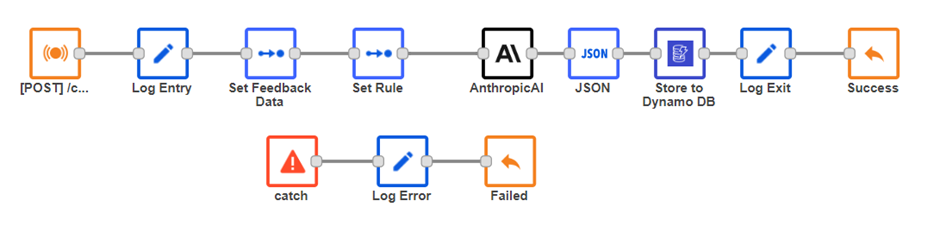
Try It
The above flow can be invoked with the following endpoint locally.
Endpoint : http://localhost:1880/customer/feedback
Method : POST
Content-Type : application/json
Body : {
"rating" : "2",
"comment" : "The chicken curry is too salty. Would have been better if less spicy as well"
 }
You will get the response below. The response shows that the Anthropic AI has extracted the item and feedback and identified the sentiment on the user feedback comment. These data can be seen in the DynamoDB table as well.
{
"item":"chicken curry",
"comment":"too salty and spicy",
"sentiment":"negative"
}Opinions expressed by DZone contributors are their own.
Comments