

Mastering GitHub Copilot in VS Code: Ask, Edit, Agent and the Build–Refine–Verify Workflow
GitHub Copilot in VS Code isn’t “just autocomplete.” It’s a set of interaction modes — Ask, Edit, and Agent in the Chat Panel.
 ·
·
Join the DZone community and get the full member experience.
Join For FreeMost developers meet GitHub Copilot as a “smart autocomplete” that occasionally guesses the next line of code. Used that way, it’s nice — but you’re leaving a lot of value on the table.
Inside VS Code, Copilot offers multiple modes of interaction designed for different stages of development:
- Chat Panel:
- Ask – use this for questions and explanations
- Edit – use this for deliberate code changes.
- Agent – use this for autonomy, multi-step work
- In-Editor Support:
- Ghost Text (Tab Completions) – fast, inline suggestions
- Inline Chat – targeted, context-rich refactoring
If you understand when to use each, you can build a practical workflow: Build, Refine, Verify. This article walks through these modes, how they differ, and how to combine them into a repeatable development pattern you can trust.
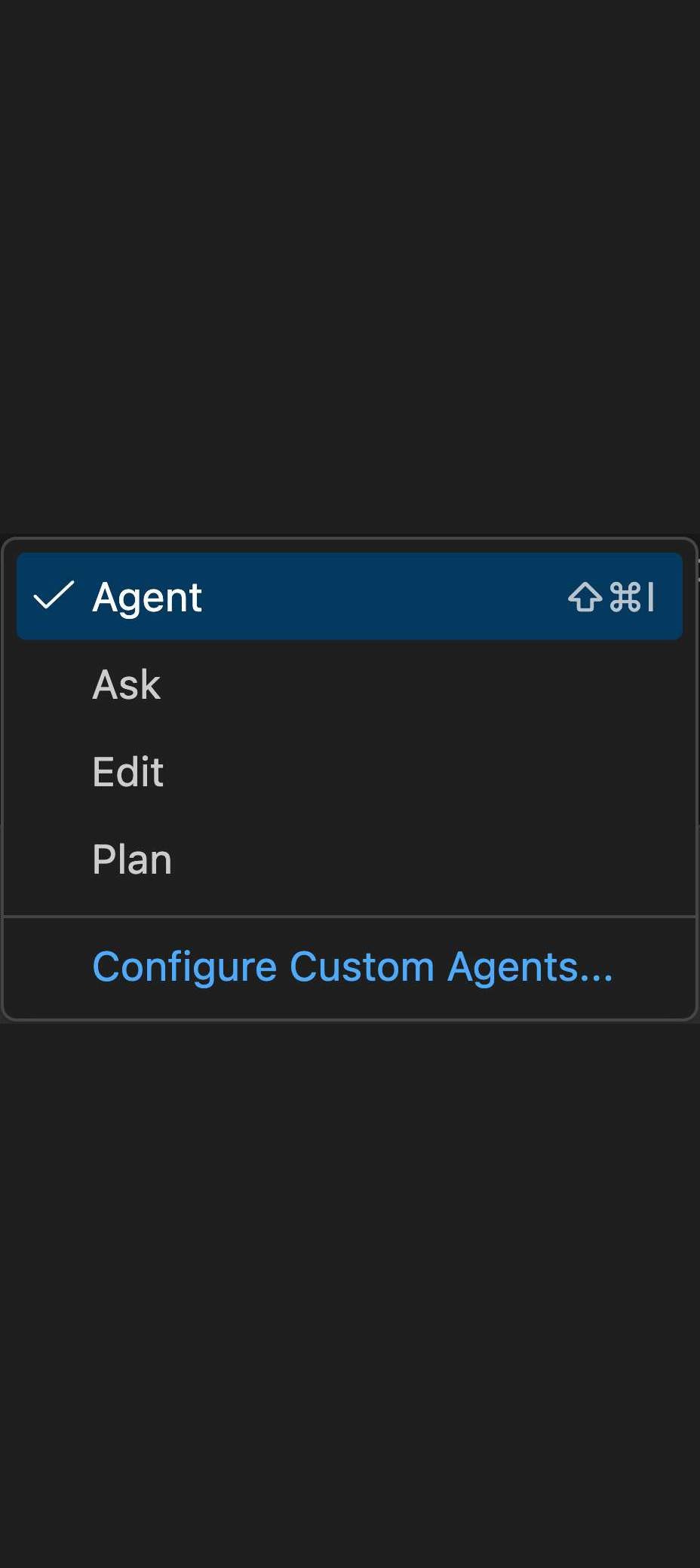
The Three Chat Panel Modes: Ask, Edit, Agent
The Chat Panel is your main hub for high-level conversations with Copilot. It has three distinct modes that serve different purposes.
1. Ask Mode: Questions and Explanations
Use Ask when you’re thinking, not editing.
Ask mode is for understanding, exploring, and clarifying. It’s a safe space: Copilot won’t touch your files; it only answers in text and code snippets.
Typical prompts:
- “How does this function work?”
- “What is the syntax for a flexbox?”
- “Explain this TypeScript error.”
- “What’s a good way to structure feature flags in React?”
Result:
You get answers, explanations, and code blocks you can copy manually. This is ideal when:
- You’re learning an unfamiliar API or library.
- You want a quick conceptual explanation (e.g.,
async/await, RxJS observables). - You’re exploring options before committing to any code changes.
Think of Ask mode as your embedded Stack Overflow + tutor. No risk, no edits, just information.
2. Edit Mode: Deliberate Code Changes
Use Edit when you know what to change and want Copilot to implement it.
In Edit mode, you’re giving Copilot a specific instruction about your codebase, and it will propose concrete file edits — still under your control.
Example prompts:
- “Rename this variable across these two files.”
- “Refactor this class into smaller functions.”
- “Convert this callback-based API to async/await.”
- “Add null checks for user input in this file.”
Result:
Copilot updates your code in place, but the intent is surgical: you already understand the change; you just want help executing it consistently and quickly.
Use Edit mode when:
- You have a clear, well-defined change.
- You need to apply that change across multiple files.
- You’re doing repetitive or mechanical refactors (renames, pattern changes, adding logs, etc.).
It’s the “do the thing I already decided on” mode.
3. Agent Mode: Autonomy and Multi-Step Tasks
Use Agent when you want Copilot to figure out the how and where.
Agent mode is where Copilot becomes more autonomous. You describe an outcome, and Copilot breaks it into steps: editing files, creating new ones, and even running terminal commands (when allowed).
Example prompts:
- “Create a task manager app.”
- “Add a user registration flow with email verification.”
- “Set up a basic Express server with JWT-based authentication.”
- “Generate a CI pipeline for this project using GitHub Actions.”
Result:
The Agent:
- Proposes a plan: “I will create A, modify B, run C…”
- Suggests file edits and new files.
- Can run commands in the terminal (e.g., install dependencies, run tests) if you confirm.
Use Agent mode for:
- Greenfield scaffolding (new apps, services, components).
- Large, multi-step features.
- Initial project setup and boilerplate-heavy tasks.
You’re still the tech lead: you approve steps and review diffs, but the Agent does the heavy lifting.
Huge, all-in-one prompts perform worse than small, focused tasks.
A far better approach is to talk to Agent like you would to a junior developer.
In-Editor Interactions: Speed and Context
Once you leave the Chat Panel and are deep in your code, the interaction style changes. Now it’s about momentum and precision inside your files.
Ghost Text (Tab Completions): Momentum While Typing
Ghost Text is the gray, inline suggestion that appears as you type. This is Copilot in its original, “autocomplete on steroids” form.
Use it for:
- Boilerplate (loop structures, handlers, simple CRUD endpoints).
- Repetitive patterns (similar test cases, validation rules).
- Documentation and comments (docstrings, JSDoc, README snippets).
If completions don’t seem to appear, ensure they’re enabled:
- Press
Cmd + Shift + P(macOS) orCtrl + Shift + P(Windows/Linux). - Type:
GitHub Copilot: Toggle Completions - Make sure completions are enabled.
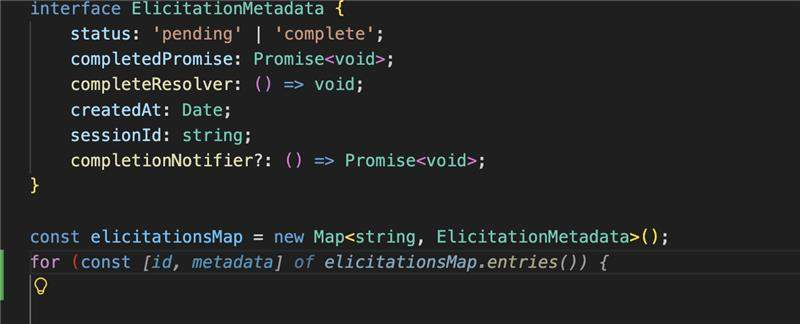
Tab
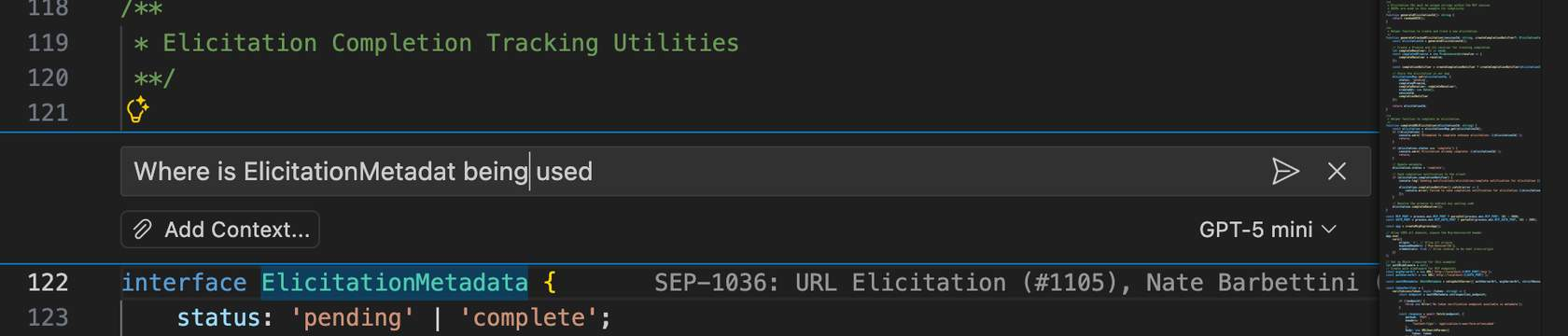
Inline Chat (Cmd+I/Ctrl+I): Targeted Refactoring
Inline Chat brings Copilot right to your cursor with local context.
How it works:
- Highlight the code you want to work on.
- Press
Cmd+I(macOS) orCtrl+I(Windows/Linux). - Describe your intent:
- “Add priority levels to this list.”
- “Optimize this loop for large input sizes.”
- “Convert this to use a switch statement.”
- “Add better error handling here.”
Inline Chat is ideal for:
- Local logic improvements.
- Iterating on algorithms.
- Enhancing error handling or logging.
- Adding small features in a specific function or block.
Compared with Edit mode, Inline Chat feels more “in the flow”: you’re looking at the exact code, selecting it, and asking Copilot to transform it.
The Build, Refine, Verify Workflow
To get the most out of all these modes, tie them together into a simple three-step workflow: Build, Refine, Verify.
1. Build: Start Broad With Agent
Begin with Agent mode when you’re facing a blank screen or a large new feature.
- “Create a task manager app.”
- “Add a ‘Projects’ feature to this dashboard, with CRUD endpoints and a basic UI.”
- “Set up database migrations for this service.”
Let the Agent:
- Scaffold the project or feature.
- Create new directories, initial models, basic routes, or components.
- Wire up minimal working paths (e.g., one end-to-end flow).
The goal is to defeat the blank page problem and get a working baseline quickly.
2. Refine: Get Specific With Inline Chat and Edit
Once the structure exists, it’s time to refine and improve.
Use:
-
Inline Chat for local improvements:
- “Add filtering by status and due date to this query.”
- “Add priority levels (low, medium, high) to this list and sort accordingly.”
- “Improve the error messages returned by this API.”
-
Edit mode for broader, planned changes:
- “Rename
TaskItemtoTodoItemacross the project.” - “Extract this monolithic function into smaller utilities in a
utilsfolder.” - “Switch this module from CommonJS to ES modules.”
- “Rename
In this stage, you’re iterating on correctness, readability, performance, and maintainability.
3. Speed Up: Use Ghost Text to Fill the Gaps
While refining, lean on Ghost Text to:
- Fill in obvious code patterns (e.g., additional test cases once it sees the first one).
- Write simple handlers, DTOs, or interfaces.
- Generate comments or docstrings from function names and parameters.
This keeps you in flow. You decide the structure; Copilot fast-follows your intent.
4. Always Verify: Diff View as Your Safety Net
Regardless of mode, there’s a non-negotiable final step: Verify.
Before accepting changes — especially from Agent or Inline Chat — inspect the Diff view:
- Red = lines removed.
- Green = lines added.
Check for:
- Unintended logic changes.
- Hidden side effects (e.g., changed function signatures, altered validations).
- Security or performance pitfalls (e.g., missing input validation, inefficient loops).
Treat Diff view as your review gate:
- If it’s not clear within a few seconds what changed and why, step back.
- Ask Copilot (in Ask mode) to explain the diff:
- “Explain this change in plain English.”
- “Does this modification affect existing consumers of this function?”
Copilot accelerates coding, but you remain the responsible engineer. Verification is where your judgement comes in.
Putting It All Together
Here’s how a realistic Copilot-powered session can look:
-
Ask:
- “What’s a simple architecture for a task manager app with Node.js and React?”
-
Agent:
- “Create a basic task manager app with backend in Express and frontend in React, including CRUD operations.”
-
Refine with Inline Chat/Edit:
- Inline: “Add priority levels and due dates to tasks in this component.”
- Edit: “Rename
TasktoTodoacross backend and frontend.”
-
Speed with Ghost Text:
- Let Copilot autocomplete repetitive tests and API wrappers.
-
Verify with Diff view:
- Review every proposed change.
- Run tests (manually or via Agent) and confirm behavior.
Used this way, Copilot doesn’t replace your skills — it amplifies them.
Opinions expressed by DZone contributors are their own.
Comments