

Migrating SQL Failover Clusters Without Downtime: A Practical Guide
We migrated a live SQL failover cluster to new hardware using a rolling node replacement strategy—zero downtime, full validation, and no broken apps.
Join the DZone community and get the full member experience.
Join For FreeWhen your SQL Server failover cluster is running on aging hardware or an older OS, migrating to something modern without breaking production can feel intimidating. I've been there. Our team had to move a live SQL cluster to new servers running Windows Server 2022, backed by an HPE SAN, all while keeping the apps that depended on it happy and uninterrupted. Here's exactly how we pulled it off and what we learned along the way.
SQL downtime isn't just a minor disruption in many businesses, it's a full-on blocker. Reporting pipelines fail. ERP systems lock up. Even simple user-facing portals might end up in black hole. We couldn’t afford that kind of ripple effect, which is why this migration had to be seamless.
We also had business pressure to minimize any risk of downtime during peak operational hours. That added an extra layer of planning, communication, and rollback validation. Our stakeholders especially finance and compliance needed guarantees that services would stay uninterrupted.
Why We Had to Migrate
We had several reasons:
- The original nodes were five years old and running out of warranty.
- Our compliance team flagged the OS version (Windows Server 2019) as nearing end-of-life.
- We wanted to clean up legacy configuration decisions that caused occasional failover delays.
If you’ve worked in infrastructure, you know upgrades like this are rarely straightforward especially with critical SQL workloads riding on them.
Our Setup (Before the Migration)
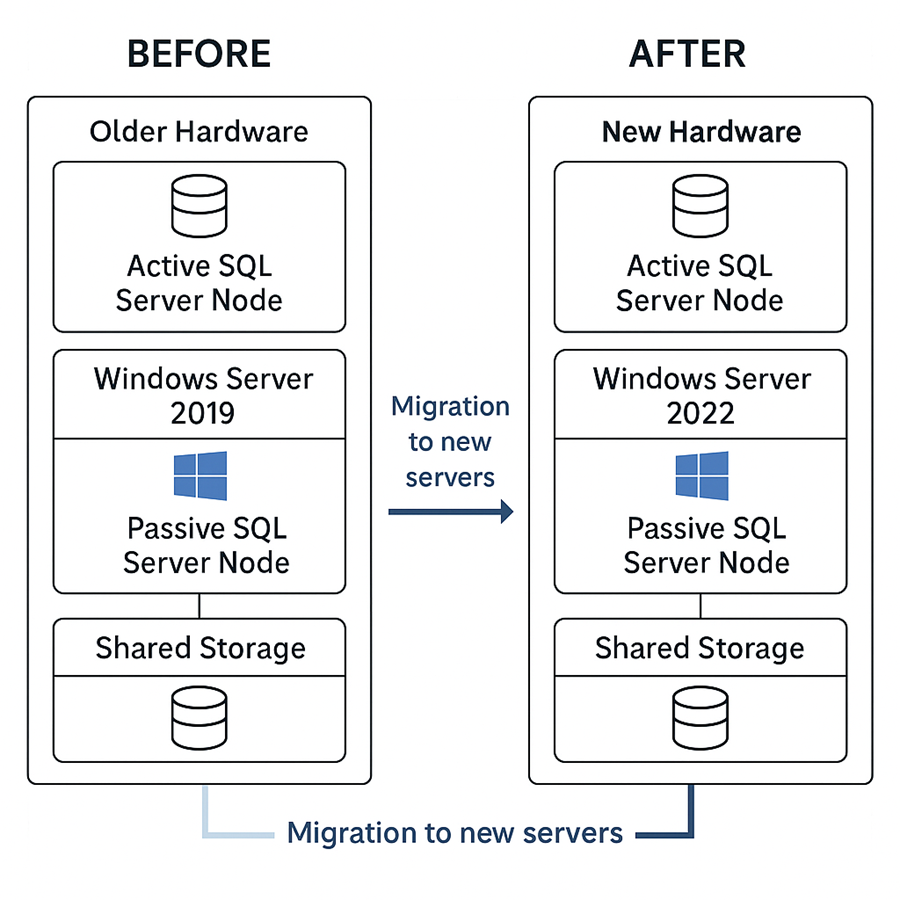
- 2-node active-passive SQL Server 2019 cluster
- Hosted on Windows Server 2019
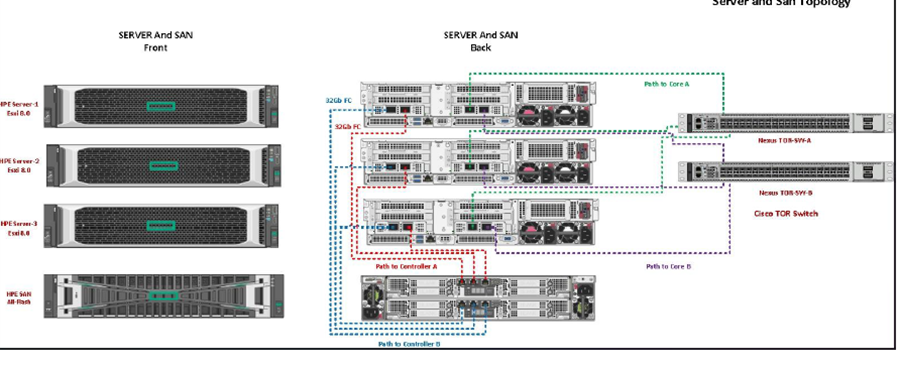
- Backend: HPE SAN with multipath I/O
- Cluster listener set up via DNS
- A mix of .NET and reporting tools hitting the cluster 24/7
The plan was to roll in two new nodes running Windows Server 2022, move everything over slowly, and decommission the old ones with no service interruptions.
We also worked closely with our networking and storage teams to validate iSCSI configurations and multipath stability before initiating anything.
Our Migration Game Plan
We didn’t want a lift-and-shift. Instead, we:
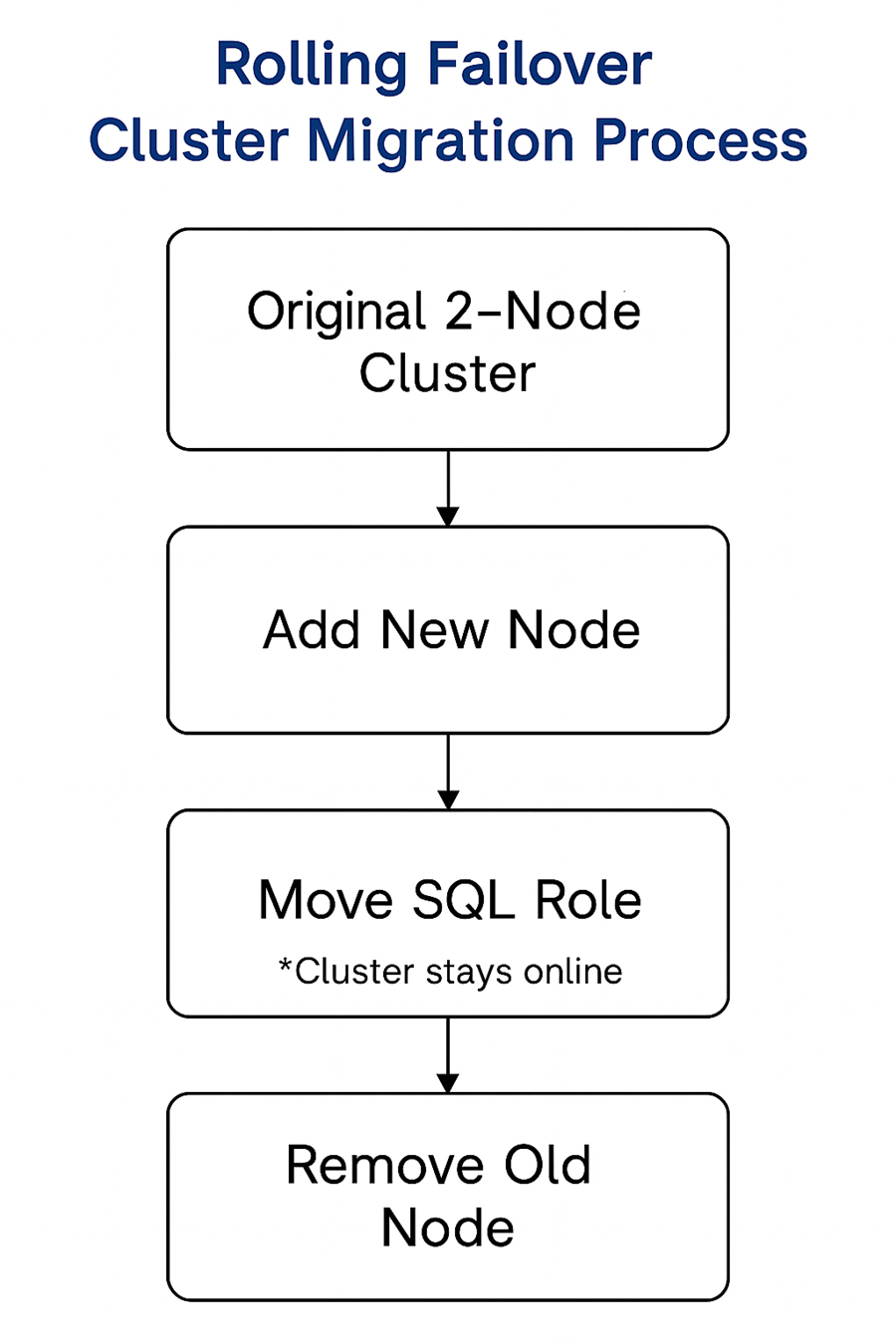
- Added the new servers to the existing cluster.
- Installed SQL Server on them in "add node" mode.
- Moved the cluster role to the new nodes.
- Evicted the old ones after full validation.
This let us keep the SQL instance, listener name, and disks intact while rolling over the infrastructure underneath.
Step-by-Step: What We Did
1. Prepping the New Servers
We joined the new servers to the domain, patched them fully, and double-checked multipath drivers for SAN access. One thing we nearly missed: the iSCSI initiator service wasn’t set to automatic on one node. Small config issues can cost hours later.
2. Joining the Cluster
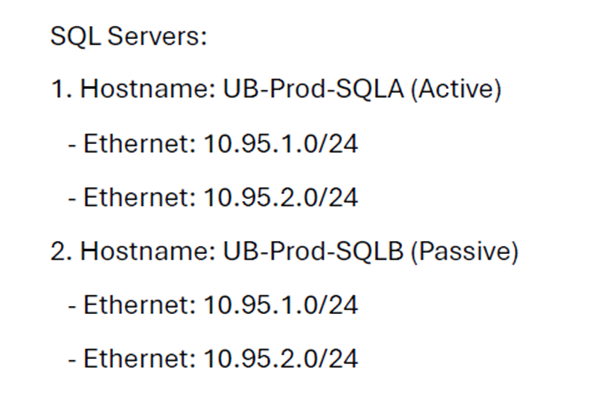
From Failover Cluster Manager, we added both new nodes. PowerShell works too:
Add-ClusterNode -Name "UB-Prod-SQLA" -Cluster "SQLCluster"

Add-ClusterNode -Name "UB-Prod-SQLB" -Cluster "SQLCluster"
Be sure to validate quorum and witness settings after each join.
3. Installing SQL Server
On each new node, we used the SQL setup UI to "Add node to an existing failover cluster." We matched the existing instance name and installation path to avoid issues later. If you’ve never done this before, be patient — setup can hang briefly while checking clustered roles.
4. Moving the SQL Role
We used PowerShell for a clean cutover:
Move-ClusterGroup -Name "SQL Server (MSSQLSERVER)" -Node "UB-PROD-SQLA"We monitored CPU/memory and application logs closely. The switch was fast — maybe 30 seconds of “hang” in the app layer, but no failed transactions.
5. Kicking Out the Old Nodes
After several days of watching performance and failovers, we evicted each legacy node:
Remove-ClusterNode -Name "SQLSERVER01" -ForceBefore removing the second node, we backed up cluster configs and documented disk ownership — just in case.
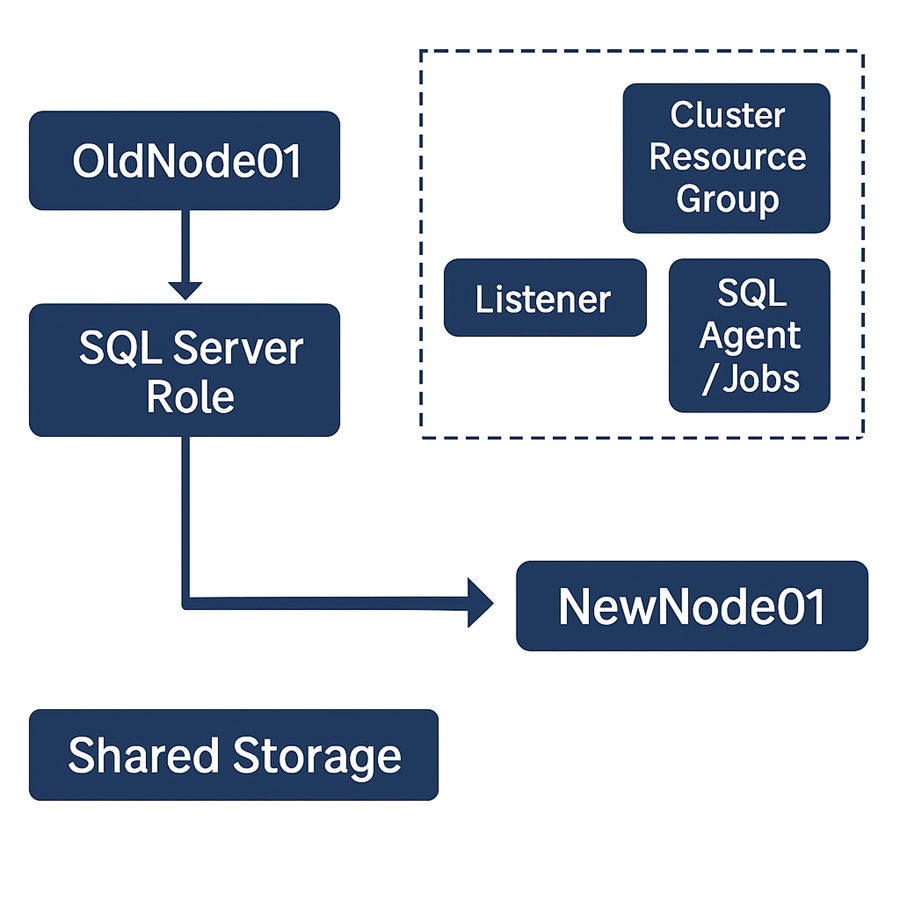
And, removed the second old node as well by,
Remove-ClusterNode -Name "SQLSERVER02" -ForceThis confirms the migration with two new nodes of SQL servers without any downtime and offering high availability during the migration.
6. Cleanup Tasks
We scrubbed stale DNS entries, re-registered monitoring agents, and verified all jobs still ran from the SQL Agent. We also triggered a full cluster validation report to make sure everything passed.
What Caught Us Off Guard
- Zoning Mismatch: One LUN wasn’t mapped correctly — resolved it by comparing WWNs manually.
- SQL Agent: After failover, one job failed silently due to hardcoded node names in a script.
- Firewall Rule Lag: Although ports were open, GPO took time to apply; we had to manually kick in gpupdate /force.
- Monitoring Confusion: Our monitoring tool misreported a healthy failover as a failover failure needed a manual reconfiguration.
Quick Tips for Your Migration
- Validate MPIO and SAN access before installing SQL.
- Use PowerShell for repeatable actions.
- Always test a manual failover before calling it done.
- Snapshot your cluster config if you’re virtualized.
- Document which node owns which disks before starting.
- Test SQL Agent jobs specifically — look out for hardcoded paths or node names.
- Use
cluster log /gto capture historical failover events for later troubleshooting. - Communicate each phase to app teams — even brief failovers can cause alert noise.
Final Thoughts
This kind of migration isn't simple — it’s nerve-wracking, detail-heavy, and often invisible when it works. But it matters. Doing it cleanly, without users even noticing, is what separates a good infra team from a great one.
We also found that writing a quick internal playbook afterward helped. Now, other teams in our org can repeat the process or avoid our early mistakes.
You only get one shot to do these things cleanly in prod. Have your rollback plan printed out. Know who’s on call. And never assume what worked in staging will behave the same way in production especially with SAN latency or clustered job behavior
If you're planning to do the same, learn from our process. Feel free to adapt the script snippets and steps to fit your environment. And always always — dry run it in test first.
Opinions expressed by DZone contributors are their own.
Comments