

Open Notebook: A Secure Alternative to Google NotebookLM
Open Notebook is a local, open-source alternative to Google NotebookLM that lets you chat with documents while keeping all data private.
 CORE
·
CORE
·
Join the DZone community and get the full member experience.
Join For FreeGoogle NotebookLM is a powerful AI tool for interacting with your documents. However, privacy concerns might prevent you from uploading sensitive data to NotebookLM. There is an open source alternative by means of Open Notebook. All data can be kept local, and you are not restricted to Google's Gemini models. Let's check this out!
Introduction
Google NotebookLM lets you upload your documents and get insights about the documents using Google's Gemini models. It is a very powerful and convenient tool.
However, you are probably reluctant to put some type of documents into NotebookLM because they contain sensitive data. Although Google states that they are not using the uploaded data in order to train models, it is still not a comfortable feeling that this kind of data is sent to the cloud. However, there is an open-source alternative today: Open Notebook. Open Notebook runs locally and can be used in combination with local models. All data stays within your environment. Let's see how this works.
Prerequisites
Prerequisites for reading this blog are:
- Basic understanding of Docker (Compose)
- Basic understanding of local AI models
- Basic understanding of AI
- You must have Ollama installed with a local model
Installation
Installation is quite easy if you are familiar with Docker. The installation instructions are, at the time of writing, not very consistent. Depending on which page you are looking at, different instructions are provided. The following instructions did the job for me.
Create an installation directory.
mkdir open-notebook && cd open-notebookCreate a compose.yaml file. For a production environment, it is better to split the application and the database, but for this post, it is no problem to use one container.
services:
  open_notebook:
    image: lfnovo/open_notebook:v1-latest-single
    ports:
      - "8502:8502"  # Web UI
      - "5055:5055"  # API (required!)
    env_file:
      - ./docker.env
    pull_policy: always
    volumes:
      - ./notebook_data:/app/data
      - ./surreal_single_data:/mydata
    restart: always
Create a .docker.env file. In the example below, Ollama will be used as a local inference engine.
# OLLAMA
OLLAMA_API_BASE="http://localhost:11434"

# Database connection (required for single-container)
SURREAL_URL="ws://localhost:8000/rpc"
SURREAL_USER="root"
SURREAL_PASSWORD="root"
SURREAL_NAMESPACE="open_notebook"
SURREAL_DATABASE="production"
Start the container.
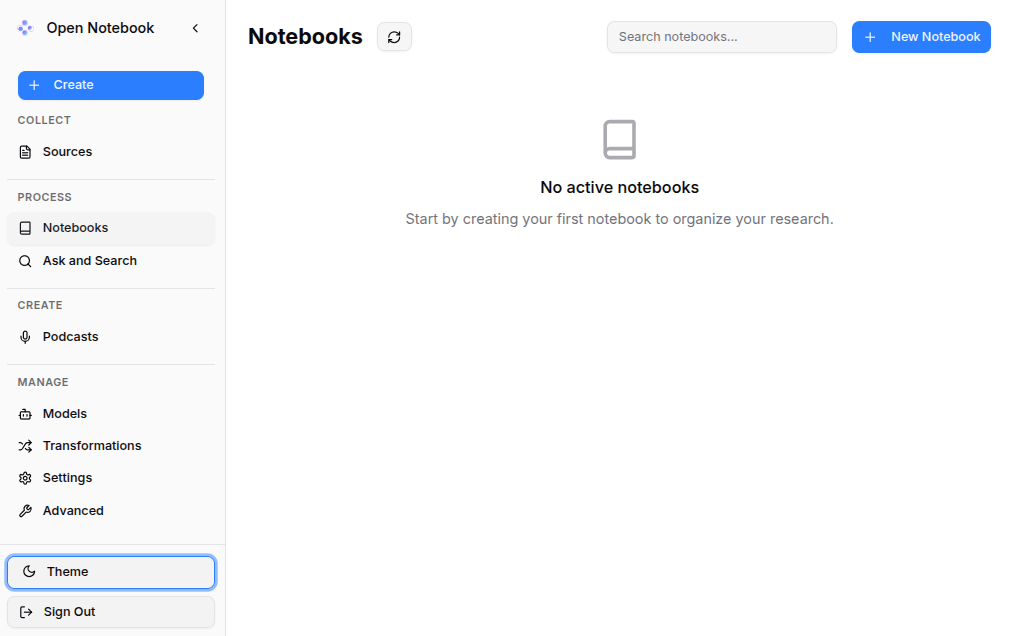
docker compose up -dNavigate to http://localhost:8502, and you will see the start screen.
Configure Open Notebook
Before you can start using Open Notebook, some configuration needs to be done.
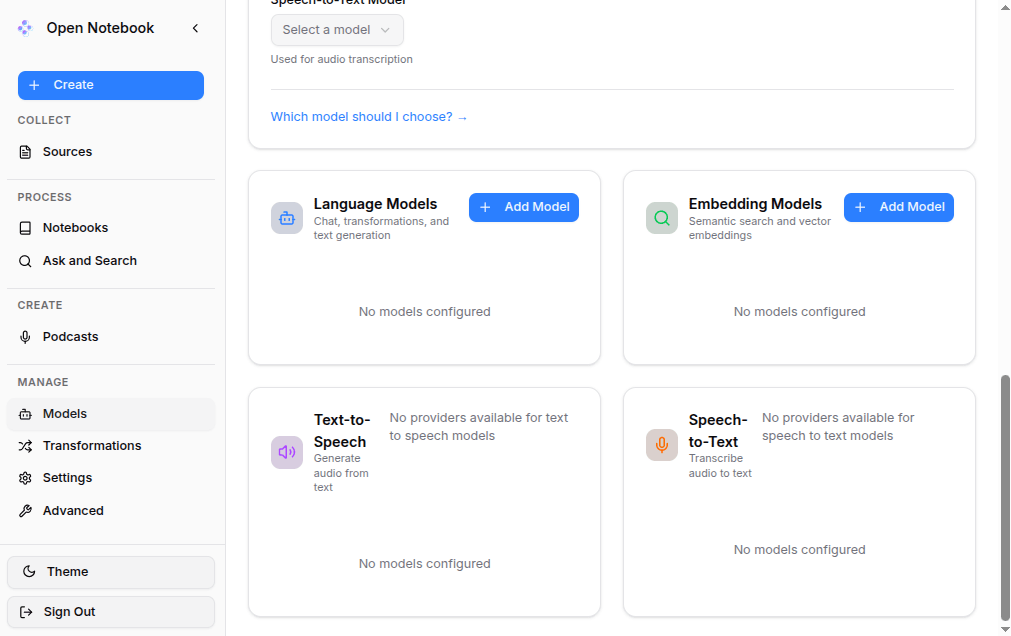
Navigate in the left menu to Models, scroll down, and click Language Models -> Add Model.
Add a model. First, choose the Provider, Ollama in this case, and then choose a model. Beware: you need to type this manually, and the input is case-sensitive! In the example below, Qwen3:32b is used; however, you should use one of the models available in your Ollama instance, of course.
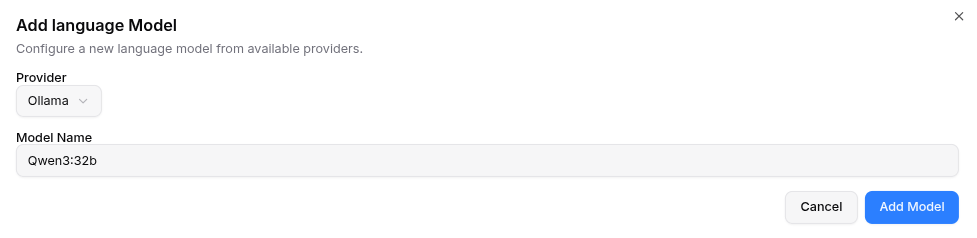
Click the Add Model button to finalize this. In a similar way, add an embedding model, for example, Paraphrase-multilingual:latest.
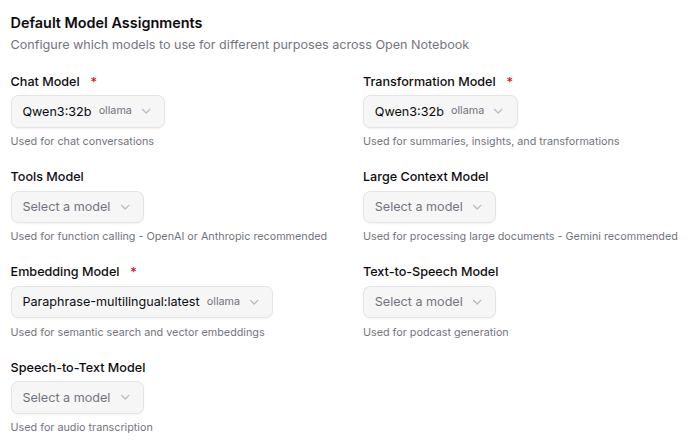
Scroll up again to the Default Model Assignments section and fill in the models.
- Chat model: Qwen3:32b
- Transformation model: Qwen3:32b
- Embedding model: Paraphrase-multilingual:latest
My First Notebook
Now that the initial configuration has been done, it is time to create the first notebook.
Click the Create -> Notebook button and fill in the required fields:
- Name – the name of the Notebook, data about Bruce Springsteen will be used;
- Description – the description will help in achieving the goal.
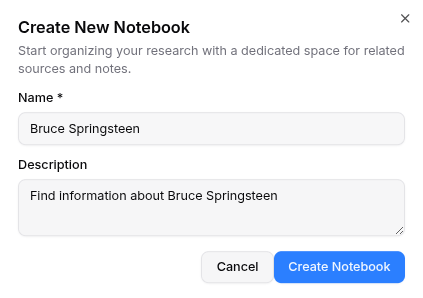
Click the Create Notebook button, and the Notebook is added.
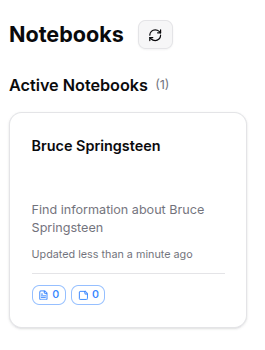
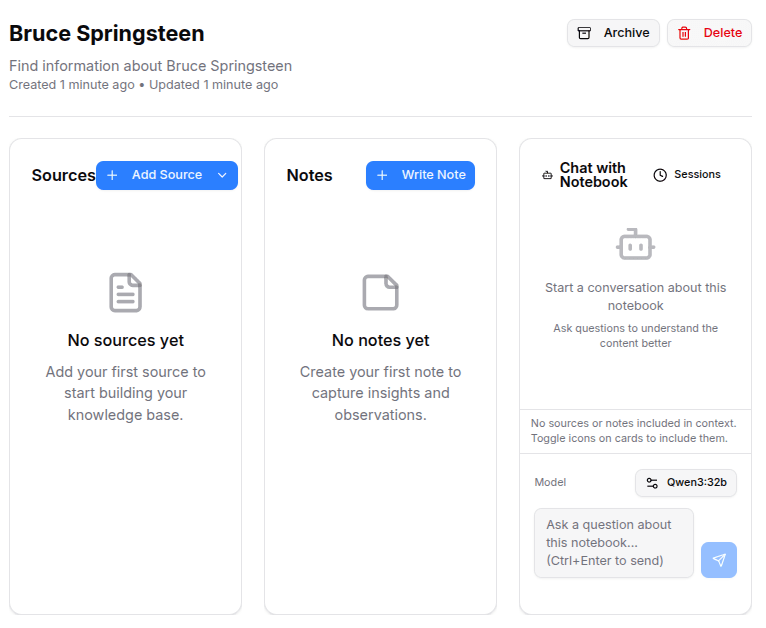
Click the Notebook and choose Add Source. Choose Add New Source, choose Upload. Add the sources from a previous blog. The Markdown files are available on GitHub.
Open Notebook will start processing the documents after being added.
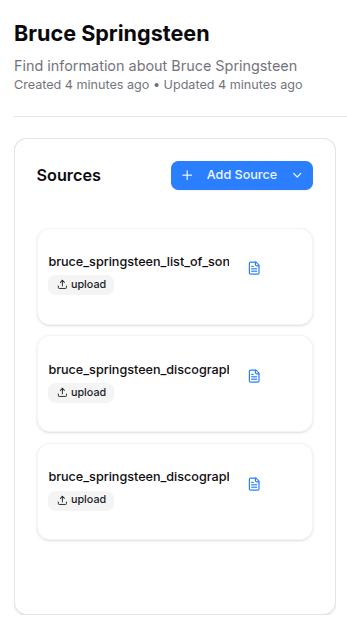
Now that the sources are added, you can ask questions about them using the chat window on the right.
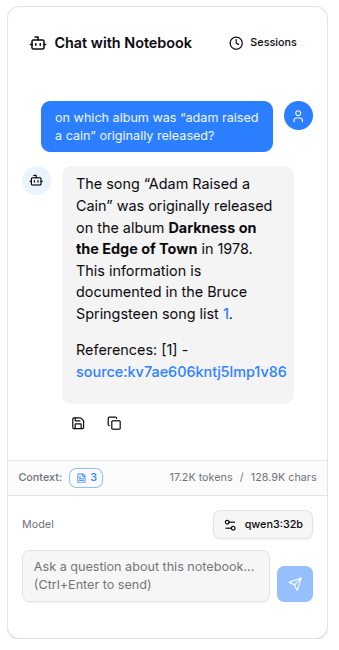
The answer to this first question is correct. If you have read some of the previous posts about retrieval-augmented generation (RAG), you know that it is not that easy to ensure that an LLM will provide the correct answers. Let's check out the other questions.
Question: What is the highest chart position of "Greetings from Asbury Park, N.J." in the US?
Open Notebook response: The album Greetings from Asbury Park, N.J. reached a highest chart position of #60 on the US charts. This data is documented in Bruce Springsteen's studio albums discography 1.
Question: What is the highest chart position of the album "Tracks" in Canada?
Open Notebook response: The album Tracks reached a highest chart position of #27 in the US, but in Canada, it is listed with a "-", indicating it did not chart or data is unavailable. This information is documented in Bruce Springsteen's compilation albums discography 1.
Question: In which year was "Highway Patrolman" released?
Open Notebook response: The song "Highway Patrolman" was originally released in 1982 as part of Bruce Springsteen's album Nebraska. This information is documented in the Bruce Springsteen song list 1.
Question: Who produced "All or Nothing at All "?"
Open Notebook response: The song "All or Nothin' at All" was produced by Jon Landau, Chuck Plotkin, Bruce Springsteen, and Roy Bittan. This information is documented in the Bruce Springsteen song list 1.
All LLM responses are correct.
Large Source Document
The sources used in the previous paragraph were rather small. What if a large document is added? Add a PDF version of the Wikipedia page of Bruce Springsteen as a source. Processing the document takes a couple of minutes on my machine.
Ask in the chat the following question: Who was Bruce Springsteen married to?
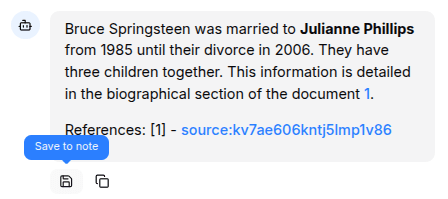
Open Notebook response: Bruce Springsteen was married to Julianne Phillips from 1985 until their divorce in 2006. They have three children together. This information is detailed in the biographical section of document 1.
This answer is not correct:
- Bruce Springsteen has been married to Julianne Philips, from 1985 up to 1988, not 2006;
- Bruce Springsteen has 3 children, but not with Julianne, but with his second wife, Patti Scialfi;
- The source references to
bruce_springsteen_list_of_songs_recorded.md, which is definitely not the correct source.
It is also possible to click a specific source and chat with a source directly. Do so for the PDF source and ask the question again.
Open Notebook response: Bruce Springsteen was married to Julianne Phillips (an actress) in 1985. He later married Patti Scialfa, a musician and singer, in 1991. The two marriages are documented in the source material 1.
This time, the response is entirely correct, and the referenced source is also. It seems there is a bug in the general chat window.
Other Features
Click a source, and in the middle section, you notice Insights. Several options are available; one insight is already created for you by means of the Dense Summary.
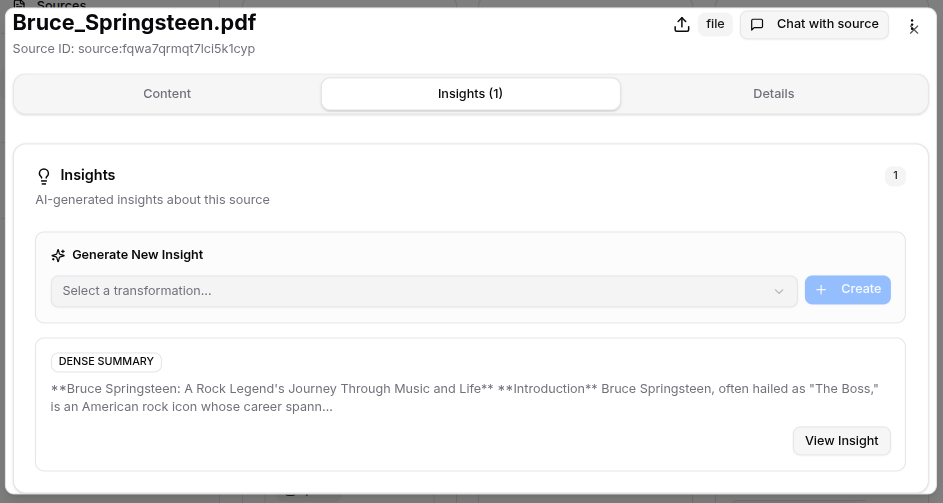
Click in the Dense Summary on the View Insight button.
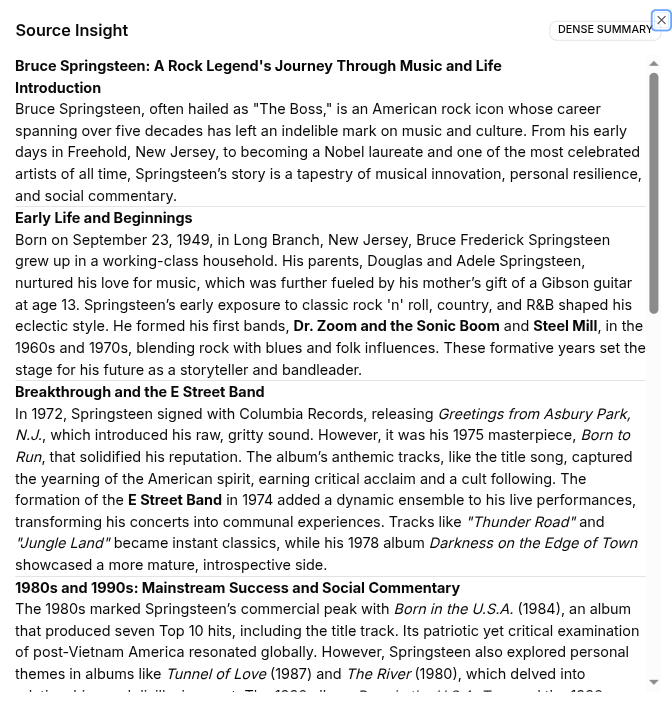
This shows you a summary of the uploaded source document.
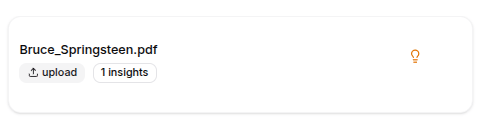
Navigate to the Notebook, and you will notice a light bulb next to the PDF source. By clicking this light bulb, you can choose whether you want to use the summary or the entire document.
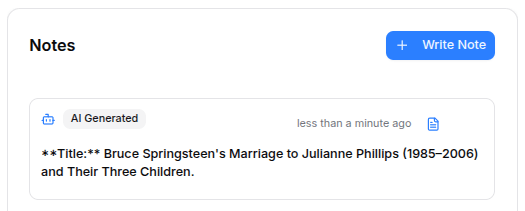
When you have created a chat, you can save the response as a note by clicking the Save to note button.
The notes are visible in the Notes section.
Conclusion
Open Notebook is a very promising open source alternative to Google NotebookLM. The first non-Alpha release was released in October 2025, but the features already available are impressive. Beware that this is a single-user application; multi-users are not yet supported. However, I am definitely going to experiment with Open Notebook in the near future.
Published at DZone with permission of Gunter Rotsaert. See the original article here.
Opinions expressed by DZone contributors are their own.
Comments