

How to Embed SAP Analytics Cloud (SAC) Stories Into Fiori Launchpad for Real-Time Insights
Learn how to embed SAP Analytics Cloud (SAC) stories into the SAP Fiori Launchpad using live CDS views, enabling real-time analytics within the SAP user interface.
Join the DZone community and get the full member experience.
Join For FreeAs enterprise decision-making becomes more data-driven, users increasingly expect real-time insights at their fingertips, without switching systems. SAP Analytics Cloud (SAC) is the go-to platform for reporting and dashboarding in modern SAP landscapes, while SAP Fiori Launchpad (FLP) remains the user interface hub for business operations. Embedding SAC stories directly into the Fiori Launchpad offers a seamless, role-based analytics experience that empowers users with actionable insights where they work.
Whether you are enabling call center agents to monitor customer KPIs or helping sales representatives review order analytics within their business applications, embedded SAC delivers the best of both worlds: real-time data from S/4HANA or IS-U via live CDS views, and rich visualizations presented natively in the Fiori experience.
In this guide, we’ll walk you through the technical steps and architectural considerations for embedding SAC stories as Fiori tiles. You’ll learn how to set up the trust, configure the tile, and optimize performance, all based on field-tested SAP best practices.
Prerequisites and System Architecture
Before embedding SAC into the Fiori Launchpad, it’s important to understand the technical foundation. The integration relies on a live connection to SAP S/4HANA or IS-U (Industry-Specific Solution for the Utilities Industry), SAC story URLs, and trust configuration between your SAC tenant and Fiori frontend server (typically SAP BTP or SAP Gateway).
Required System Components:
- SAP Analytics Cloud tenant (Enterprise Edition)
- SAP S/4HANA or ECC with activated CDS views
- Live connection established in SAC (e.g., via SAP Cloud Connector or direct connection)
- SAP Fiori Launchpad running on BTP or Gateway (Hub or Embedded)
- SAML 2.0 or JWT-based Single Sign-On (optional but recommended)
- Role-based access configured for both SAC and Fiori users
Architecture Diagram:
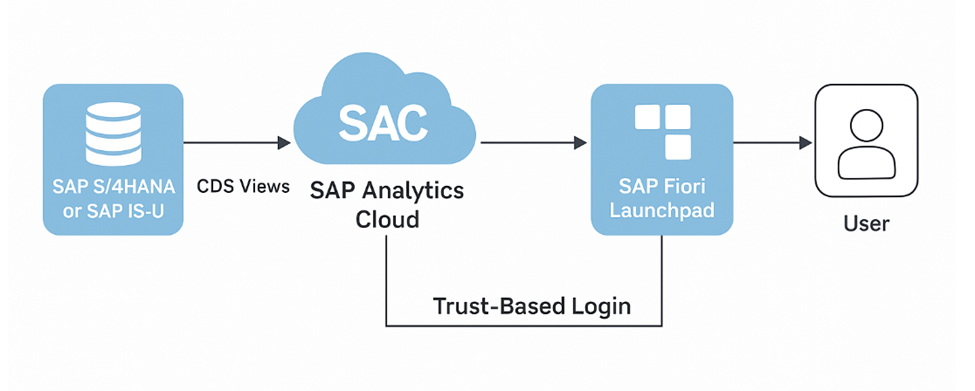
Figure 1: Architecture Diagram of SAC Story Embedded into FLP with Live connection to S/4HANA CDS views
Authentication Flow:
- User logs into Fiori
- Launchpad tile links to SAC story URL
- Browser redirects to SAC using trust-based login (SAML token)
- Story loads in embedded iframe with real-time data via CDS
Step-by-Step Integration Guide
Here is a breakdown of the typical steps required to embed your SAC stories into the Fiori Launchpad:
Step 1: Create the SAC Story Using Live CDS Views
- Log into SAC and create a new story based on a live model connected to your CDS views.
- Optimize the story for performance: avoid too many widgets or table joins.
- Save and test the story using a business role user to confirm proper access.
Step 2: Generate the SAC Story URL for Embedding
- Open the SAC story, click Share, then select Embed, and copy the Story URL.
- Copy the full HTTPS URL. Make sure the content can be embedded (no restrictions).
- If using SAML or JWT, confirm user mapping and trust are functioning.
Step 3: Configure the Fiori Launchpad Tile
- In the Fiori Designer or SAP Launchpad Manager, create a new target mapping and tile.
- Use the SAC URL as the navigation target.
- In SAP BTP Launchpad Service or SAP UI5 manifest.json, you can configure the tile with a semantic object and action.
- Optional: Embed as a dynamic tile with iframe container.
Step 4: Step 4: Add the tile to a catalog and assign it to a role
- Add the tile to the appropriate catalog and group, then assign it to the correct business role.
- Deploy the FLP, ensuring the tile is visible and that the SAC content renders properly during testing.
Step 5: (Optional) Enable Single Sign-On
- Configure trust between Fiori (Identity Provider) and SAC (Service Provider).
- Use SAML 2.0 for SSO via Azure AD or SAP Identity Authentication Service.
- Validate token exchange and SSO login via browser dev tools.
Use Case in Action: Real-Time Utility Insights Without Leaving Fiori
Let’s consider a practical utility industry use case, embedding a billing operations dashboard into the Fiori Launchpad used by customer service agents.
Scenario:
Your SAP IS-U system tracks billing status, meter readings, and service orders. Traditionally, this data is accessed via GUI reports or transaction codes. Now, using CDS views, you’ve created a live data model in SAC that shows:
- Total billed accounts today
- Past-due balance aging by zip code
- Number of accounts flagged for disconnection
- Field service orders with scheduled dates
This story is embedded into the “Customer Overview” tile on the Fiori Launchpad. When an agent logs in, they land on the dashboard showing real-time metrics for their service region. They can click through to launch transactions like ISU_DISCONNECTION or ISU_BILLING from within the same launchpad, without switching to a separate tool.
This fusion of analytics + operations is exactly what embedded SAC enables. It shortens decision time, increases data visibility, and improves user adoption because analytics are integrated directly into their workflow.
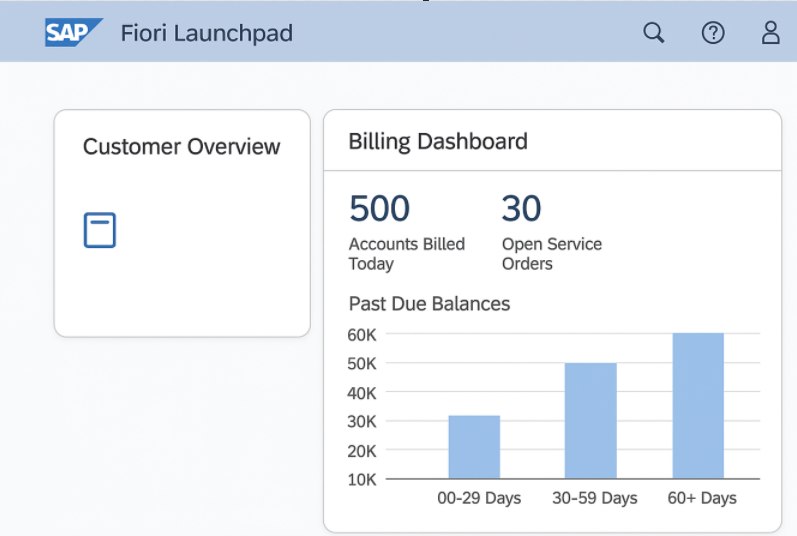
Figure 2: SAC tile embedded in Fiori with KPIs like “Accounts Billed Today,” “Open Service Orders,” and a bar chart for overdue balances.
Common Issues and Troubleshooting
Here are a few common challenges developers and architects encounter during SAC-Fiori embedding:
- White Screen When Launching SAC Story
- Check if the content is being blocked by X-Frame-Options or Content-Security-Policy headers.
- Ensure the SAC story is allowed for embedding. You can adjust this in the story’s sharing settings.
- “Access Denied” or Authorization Failures
- Validate that the SAC user has permission to the story and model.
- Confirm role-based restrictions in both SAC and Fiori are aligned.
- Run test user simulations in SAC to verify visibility.
- Performance Lags or Timeout
- Large CDS views or overly complex stories (with multiple widgets or filters) can slow down load time.
- Use the SAP Performance Analyzer tool to analyze CDS query times.
- Consider story optimization techniques like variable prompts or limiting default filters.
- SSO Not Working or Redirect Loop
- Confirm SAML trust configuration is active between Fiori and SAC.
- Use browser developer tools (Network tab) to inspect token handoff and redirection.
- Check that user identity attributes match between IdP and SAC.
- Tile Not Showing in Fiori Launchpad
- Recheck the catalog and group assignment.
- Verify that the tile is deployed to the correct launchpad role.
- Use /UI2/FLIA (Fiori Launchpad Intent Analysis) and /UI2/FLC (Fiori Launchpad Checks) tools to debug FLP rendering issues.
6. Sample Fiori Tile Configuration (JSON Snippet)
If you're embedding a SAC story into SAP Fiori Launchpad via BTP or on-premise Launchpad Designer, you can use the following sample JSON snippet to define the target mapping for your tile:
{
  "semanticObject": "Analytics",
  "action": "display",
  "title": "Billing Dashboard",
  "target": {
    "type": "URL",
    "url": "https://<your-sactenant>.sap.com/sap/fpa/ui/tenants/<tenant_id>/story/<story_id>"
  }
}
Make sure to replace the <your-sactenant> and <story_id> placeholders with your actual SAC tenant domain and Story ID. Also, confirm that the semantic object and action match any navigation intent configuration used in the launchpad designer.
Conclusion
Embedding SAC stories in SAP Fiori Launchpad is one of the most effective ways to unify operational workflows and business intelligence in the SAP ecosystem. It offers:
- Seamless, role-based access to live analytics
- Stronger user adoption (since insights are placed in context)
- Reduced friction between IT, analytics, and business teams
By aligning CDS views with SAC live models, and embedding those into Fiori, developers and architects create a truly modern user experience, one where analytics and actions live side-by-side.
If you are building dashboards for call center agents, finance controllers, or field operational teams, embedding is the key to making SAP analytics useful and usable.
Coming Up Next...
In the second article of this series, we’ll go deeper into use cases for embedded analytics in the utility sector using SAP IS-U, CDS views, and real-time service metrics.
Opinions expressed by DZone contributors are their own.
Comments