

DZone
Thanks for visiting DZone today,
Edit Profile
  • Manage Email Subscriptions
  • How to Post to DZone
  • Article Submission Guidelines
Sign Out View Profile
  • Post an Article
  • Manage My Drafts
Over 2 million developers have joined DZone.
Log In / Join
Refcards Trend Reports
Events Video Library
Refcards
Trend Reports

Events

View Events Video Library

Related

  • How to Use JMS ActiveMQ With Mule 4: Part 1
  • Why Open-Source OpenSearch 3.0 Is More Than Just an Upgrade: An Interview
  • Maintaining ML Model Accuracy With Automated Drift Detection
  • Tobiko Data: Revolutionizing Data Transformation With SQLMesh

Trending

  • Dear Micromanager: Your Distrust Has a Job; It’s Just Not the One You’re Doing
  • The Cost of Knowing: When Observability Becomes the Outage
  • Rethinking Java CRUDs With Event Sourcing and CQRS Patterns
  • How AI Is Rewriting Full-Stack Java Systems: Practical Patterns with Spring Boot, Kafka and WebSockets
  1. DZone
  2. Data Engineering
  3. Data
  4. Setup ActiveMQ Artemis on Windows

Setup ActiveMQ Artemis on Windows

Quickly learn how to set up ActiveMQ Artemis on your Windows OS machine. ActiveMQ Artemis is an open-source project for asynchronous messaging systems.

By 
Ahsan Shah user avatar
Ahsan Shah
·
Updated Jul. 16, 21 · Tutorial
Likes (6)
Comment
Save
Tweet
Share
31.4K Views

Join the DZone community and get the full member experience.

Join For Free

Overview

ActiveMQ Artemis is an open-source "next generation" broker from Apache with the performance and feature-set to implement high-performance messaging systems. Artemis is the code-name used for the HornetQ code that was donated to the Apache Foundation.

Pre-requisites:

  • Windows 7 or higher
  • Java 7 or higher

Let us start Artemis setup on Windows machine.

Step 1: Download and Extract the Archive

In this tutorial, Artemis version 2.17.0 is used for setup. You can download Zip file for the same using the below link:

https://www.apache.org/dyn/closer.cgi?filename=activemq/activemq-artemis/2.17.0/apache-artemis-2.17.0-bin.zip&action=download

Once downloaded, extract it to some convenient folder location, e.g.: D:\apache-artemis-2.17.0referred as ${ARTEMIS_HOME} in the tutorial.

Avoid having 'space' character in the folder name. 
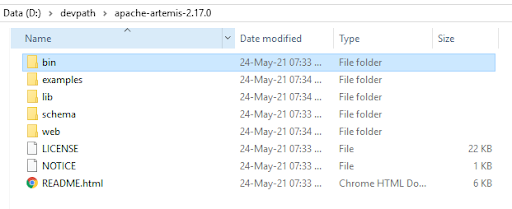
Download and Extract Archive

Step 2: Run the ActiveMQ Artemis

Open the command prompt and navigate to ${ARTEMIS_HOME}\bin
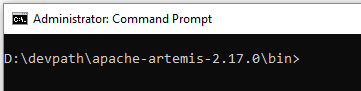
apache-artemis-2.17.0\bin

Create a Broker Instance using the command:

${ARTEMIS_HOME}\bin\artemis create mybroker

A broker instance is a directory containing all the configuration and runtime data, such as logs and data files.

Broker Instance Example

The above step will ask you to setup user credentials (username / password) as well. After creation, keep it safe as the same will be used for console login.

Now, start your newly created Broker Instance using the command:

${ARTEMIS_HOME}\bin\mybroker\bin\artemis run
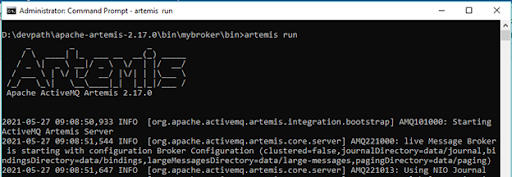
Starting Broker Instance

Verify your Broker Instance by opening the console in the browser: http://localhost:8161/console

You will see the below login page.

ActiveMQ Login Page

Put the user credentials created during broker instance setup and login. You should be able to see the below console:

Artemis UI

That's It.

Now that the broker is running, you can optionally run some of the included examples to verify the broker is running properly.

Open source Console (video game CLI) Command (computing) Data (computing) Extract Download Archive

Opinions expressed by DZone contributors are their own.

Related

  • How to Use JMS ActiveMQ With Mule 4: Part 1
  • Why Open-Source OpenSearch 3.0 Is More Than Just an Upgrade: An Interview
  • Maintaining ML Model Accuracy With Automated Drift Detection
  • Tobiko Data: Revolutionizing Data Transformation With SQLMesh

Partner Resources

×

Comments

The likes didn't load as expected. Please refresh the page and try again.

  • RSS
  • X
  • Facebook

ABOUT US

  • About DZone
  • Support and feedback
  • Community research

ADVERTISE

  • Advertise with DZone

CONTRIBUTE ON DZONE

  • Article Submission Guidelines
  • Become a Contributor
  • Core Program
  • Visit the Writers' Zone

LEGAL

  • Terms of Service
  • Privacy Policy

CONTACT US

  • 3343 Perimeter Hill Drive
  • Suite 215
  • Nashville, TN 37211
  • [email protected]

Let's be friends:

  • RSS
  • X
  • Facebook