

Supercharging AI Agents with Azure Context: A Hands-On Guide to Azure MCP
Here’s a step-by-step guide for cloud engineers on how to bridge local AI assistants with live Azure infrastructure using the Model Context Protocol.
Join the DZone community and get the full member experience.
Join For FreeAs Large Language Models (LLMs) continue their rapid trajectory of development, software engineers and cloud architects regularly run into two systemic challenges:
- The Fixed Knowledge Cutoff: Model intelligence is inherently restricted to its training data window, making it blind to real-time changes.
- The "Air-Gap" Limitation: Out of the box, LLMs cannot securely interact with external systems or private APIs on their own.
Historically, developers bypassed these hurdles by writing fragile, ad-hoc API wrappers or custom orchestrators. Enter the Model Context Protocol (MCP): an open standard designed to standardize how AI applications safely connect to external data sources and execution environments.
In this article, we will explore the core architecture of MCP, look at why the Azure MCP Server is a game-changer for cloud engineers, and walk through a step-by-step guide to configuring it inside Visual Studio Code.
The Core Architecture of MCP
At its heart, MCP establishes a uniform "language" that allows AI applications (Hosts) to talk to external resources (Servers). Rather than building custom integrations for every new LLM or tool, developers can rely on a single, clean architecture: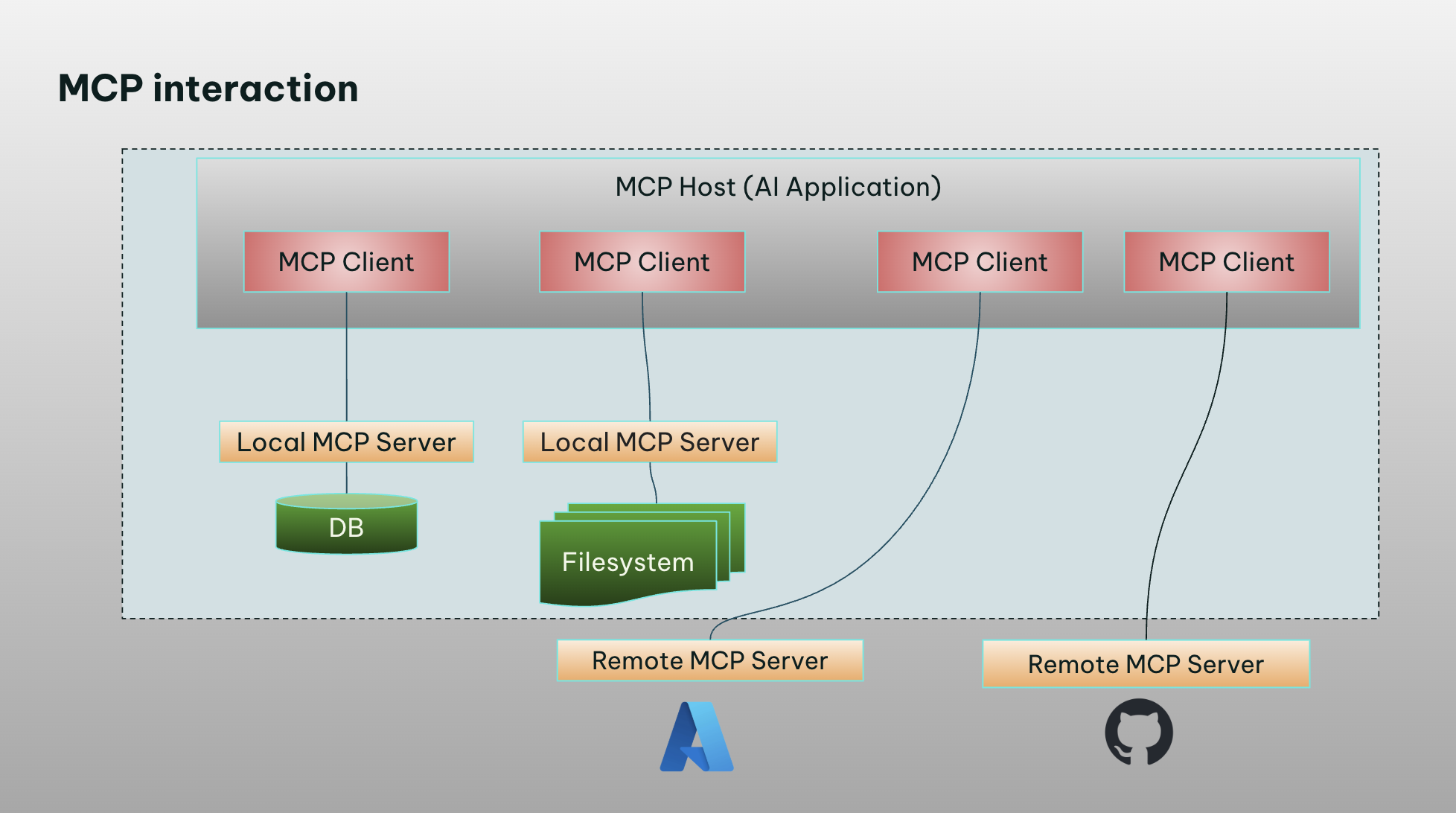
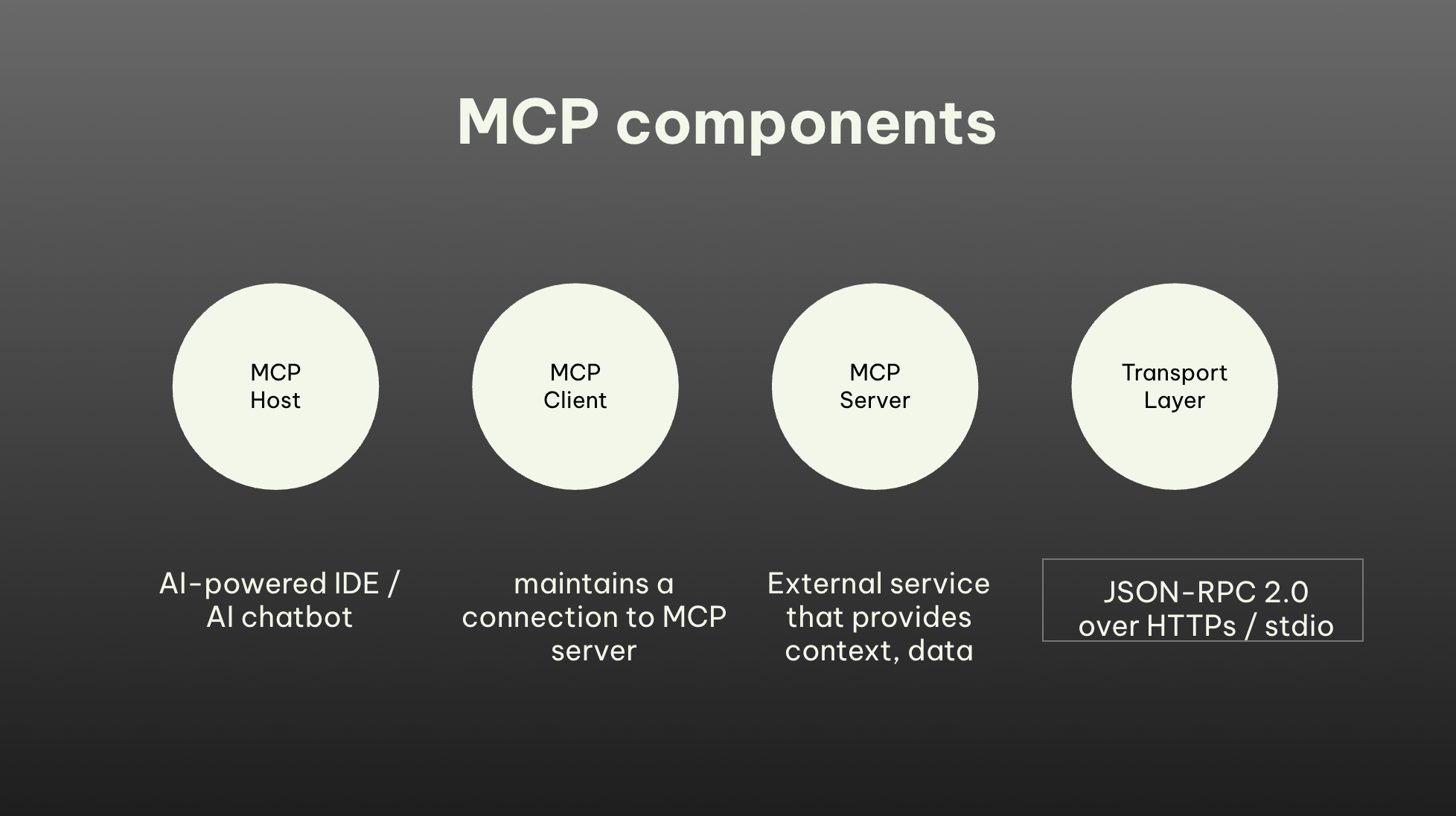
The standard is built around four fundamental building blocks:
- MCP Host: The runtime environment or user interface where the AI agent operates (e.g., VS Code, Claude Desktop, Cursor).
- MCP Client: The architectural component within the host that initiates and maintains the active connection.
- MCP Server: A lightweight, modular helper service that exposes specific resources, prompts, and tools.
- Transport Layer: The underlying protocol facilitating communication, typically utilizing JSON-RPC 2.0 over standard input/output (
stdio) or HTTPS.
How the MCP Handshake Works
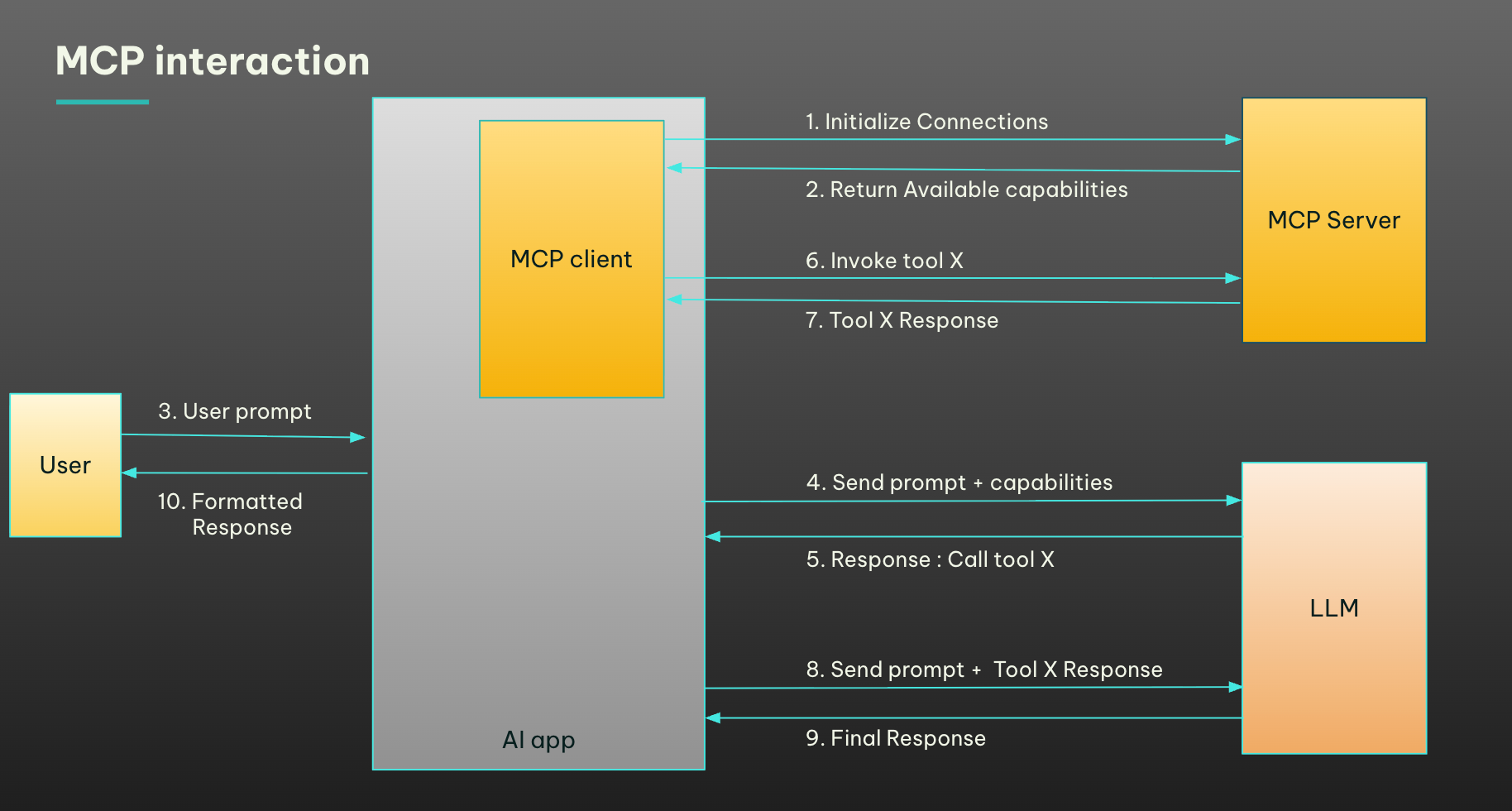
Instead of executing raw, unpredictable bash scripts, the interaction is highly structured:
- Initialization: The client connects to the server and queries its capabilities.
- Declaration: The server returns a structured schema listing the specific tools it supports.
- Execution Request: When an LLM determines it needs external data, the host requests a specific tool execution from the server.
- Context Injection: The server executes the local process, gathers the result, and returns a semantic JSON response to the host, which is then cleanly formatted for the user.
Why Use the Azure MCP Server?
If you are managing infrastructure on Microsoft Azure, the Azure MCP Server bridges the gap between your local AI assistant and your active cloud resources. Operating as a secure local process, it natively integrates with the Azure command-line context.
The server supports over 40 Azure services and more than 170 tools out of the box, spanning critical cloud primitives:
- Compute & Containers: Azure Container Apps and Azure Kubernetes Service (AKS).
- Storage & Resource Management: Azure Storage (blobs and containers) and Azure Resource Groups.
- Infrastructure as Code: Integrated Azure Terraform Best Practices.
Key Advantages Over Raw CLI Executions
While you could technically let an AI agent execute arbitrary commands in a terminal, using a dedicated MCP server provides several major structural benefits:
- Rich Semantics: Instead of parsing messy, unstructured terminal stdout text, the MCP server passes rich semantic data blocks directly back to the LLM.
- Strict Governance & Scope: You can explicitly configure the server to run in read-only mode or expose only a select subset of tools, preventing the AI from accidentally deleting production infrastructure.
- Interactive Guardrails: The protocol requires explicit user confirmation before executing tools that touch sensitive data or perform mutative actions.
Azure MCP Server Setup and Configuration Modes
You can run the Azure MCP server locally across multiple development setups using stdio transport. Below are the three most common configuration schemas.
NuGet Configuration
For .NET teams, the server can be dynamically fetched and started using the dnx toolchain:
{
 "mcpServers": {
   "Azure MCP Server": {
     "command": "dnx",
     "args": [
       "Azure.Mcp",
       "--source",
       "https://api.nuget.org/v3/index.json",
       "--yes",
       "--",
       "azmcp",
       "server",
       "start"
     ],
     "type": "stdio"
   }
 }
}
Node.js Configuration
If you are developing in a standard JavaScript/TypeScript ecosystem, you can spin up the server dynamically using the latest npm package via npx:
{
 "mcpServers": {
   "azure-mcp-server": {
     "command": "npx",
     "args": [
       "-y",
       "@azure/mcp@latest",
       "server",
       "start"
     ]
   }
 }
}
Docker Configuration
For isolated development environments, you can run the server in a container. Note that you must provide a local environment file (.env) containing your Azure Service Principal credentials:
{
 "mcpServers": {
   "Azure MCP Server": {
     "comman
{
d": "docker",
     "args": [
       "run",
       "-i",
       "--rm",
       "--env-file",
       "/full/path/to/.env",
       "mcr.microsoft.com/azure-sdk/azure-mcp:latest"
     ]
   }
 }
}
Step-by-Step Visual Studio Code Integration
A great feature for those who want to work within Visual Studio Code is that they can also manage the Azure MCP Server through an exclusive extension available directly in their editor. The following steps walk you through the setup.
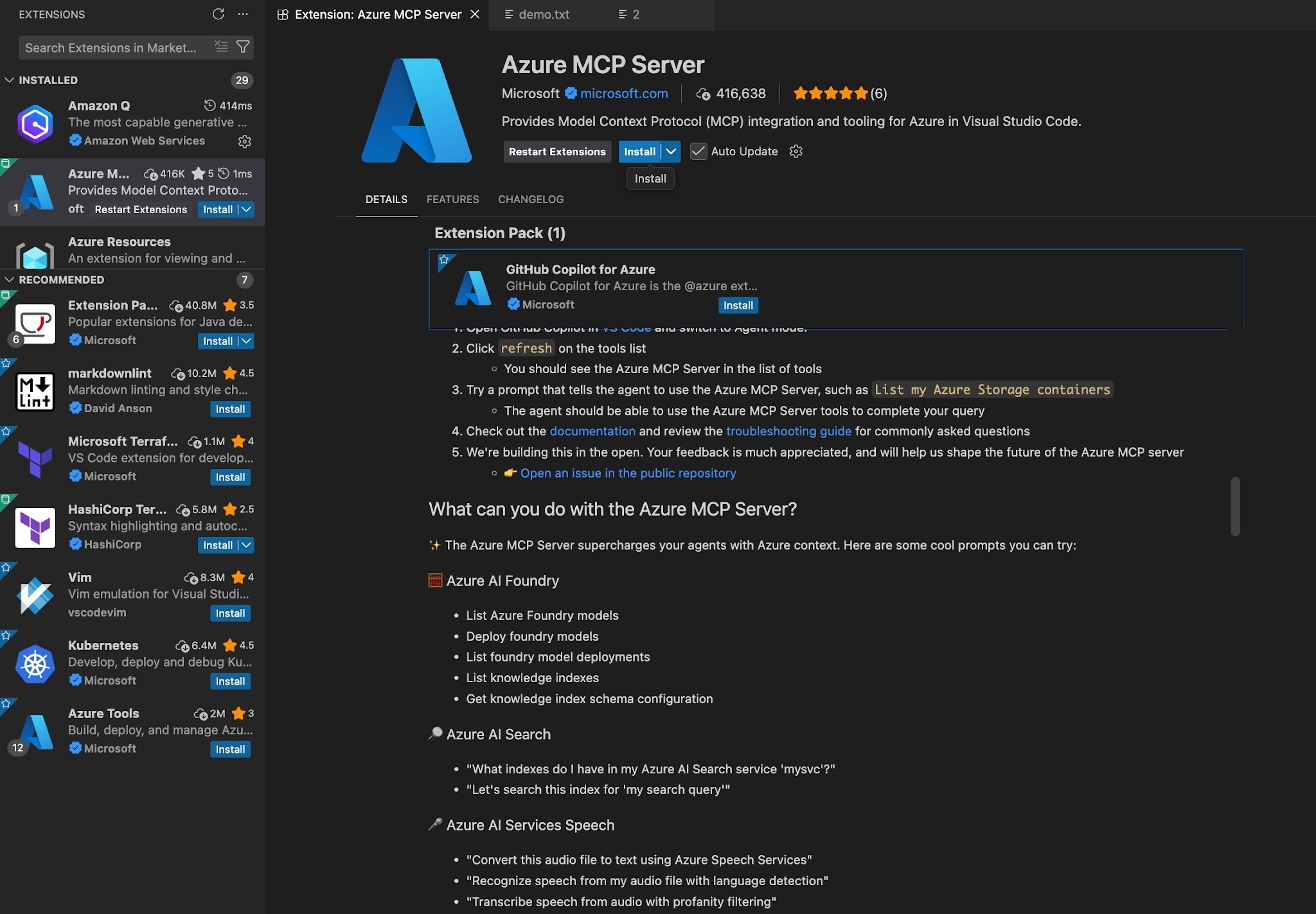
Step 1: Install the Extension
Search for and install the Azure MCP Server extension directly from the Visual Studio Code marketplace.
Step 2: Initialize and Verify
Open the Command Palette (Cmd + Shift + P on macOS or Ctrl + Shift + P on Windows) and search for the extension commands to verify the server is active and running.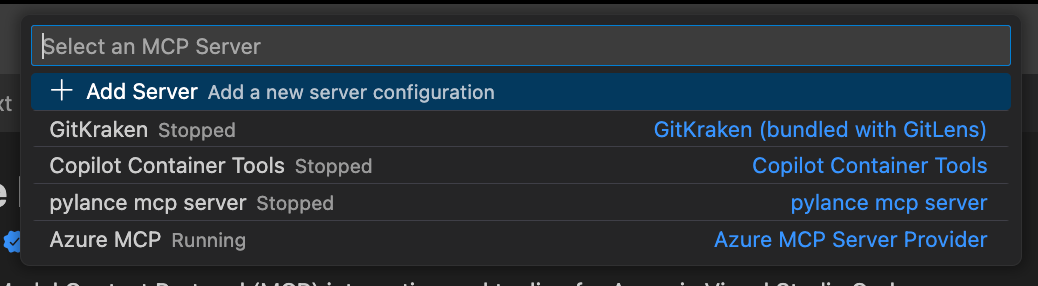
Step 3: Configure Your Tool Accessibility
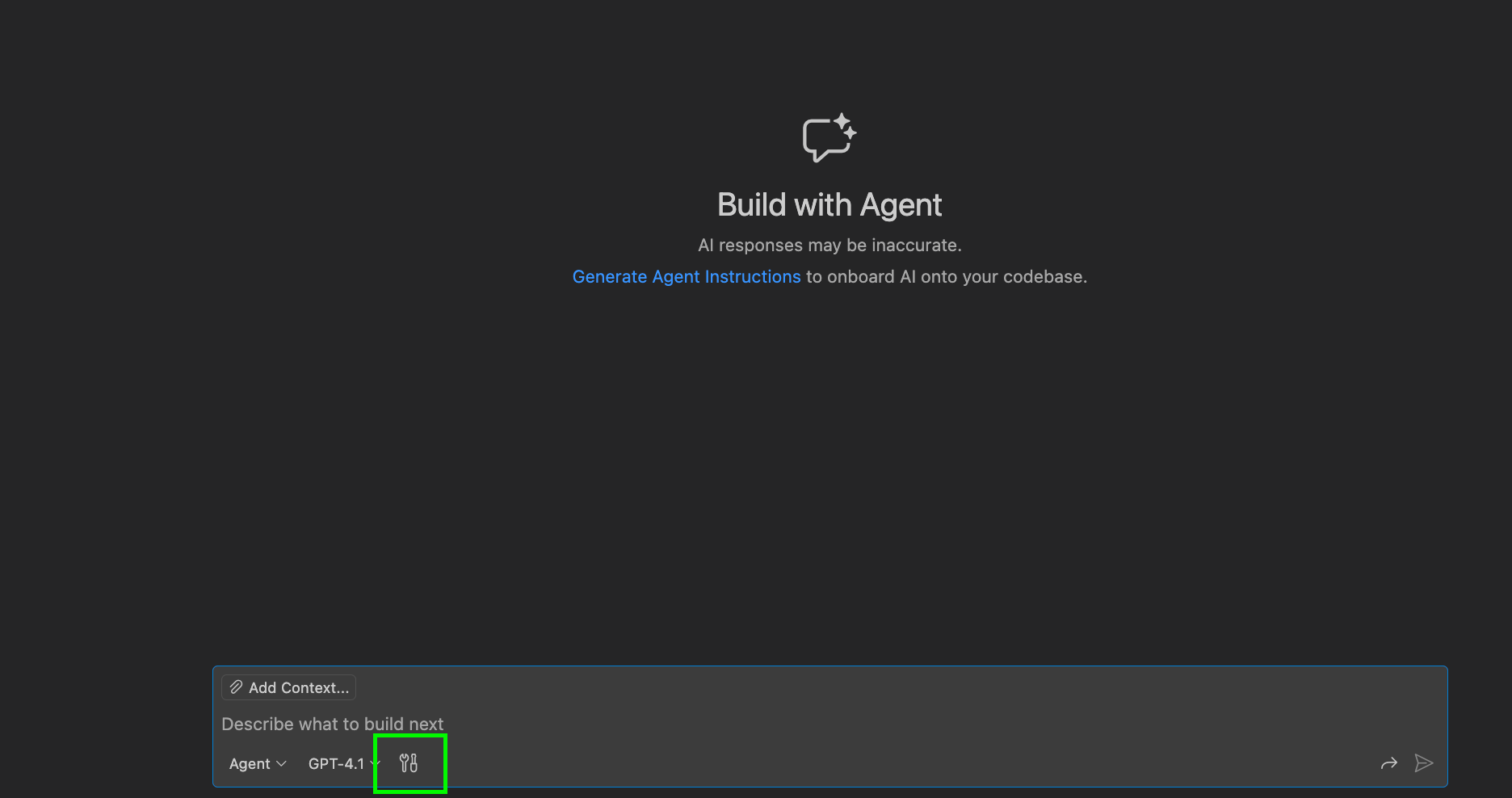
Open your integrated AI chat window and select the Tools icon. Here, you will see a list of all active tools provided by the Azure MCP Server. You can toggle specific permissions on or off—for instance, disabling write operations while keeping read operations active.
Step 4: Interact Natively
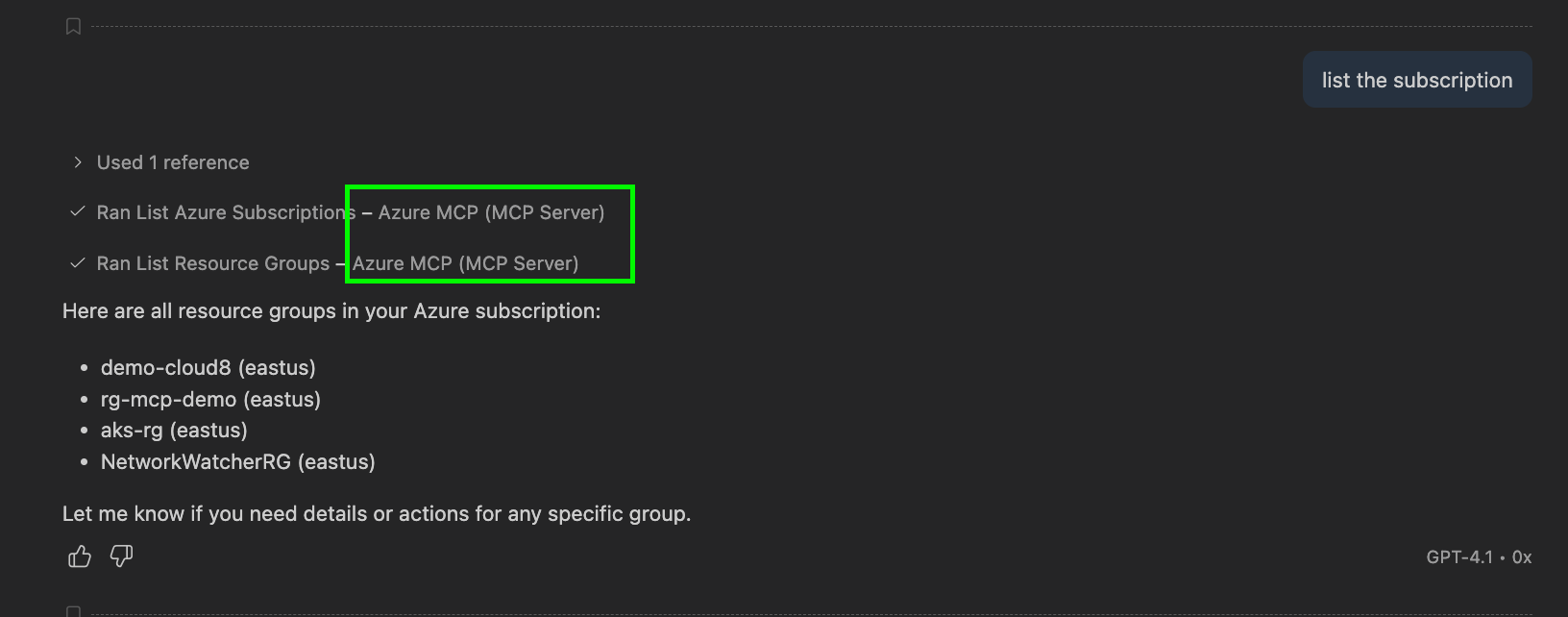
Now, your AI chat assistant can securely call Azure tools in the background. You can ask complex queries like:
- "Are there any inactive containers running in my resource group?"
- "Upload our local configuration file directly to our Azure storage container blob storage."
Any further interactions that reference an Azure account would use the MCP tools.
Real-World Engineering Use Cases
To see the power of this setup, let’s look at how this changes day-to-day operations:
Use Case A: Automated AKS Incident Troubleshooting
When an incident occurs in an Azure Kubernetes Service (AKS) cluster, engineers typically run dozens of diagnostic commands. With the Azure MCP server connected, you can simply ask the LLM: "Investigate why the pods in our production namespace are crash-looping." The agent will call the relevant AKS tools, inspect the logs, identify the misconfiguration, and suggest the fix - all in seconds.
Use Case B: Continuous Terraform and Compliance Audits
Before deploying infrastructure, you can point your local AI agent to your code directory. Because the server incorporates Azure Terraform Best Practices, the agent can audit your configuration files, cross-reference them against your live Azure Resource Groups, and warn you if you are violating security compliance rules or generating drift.
Conclusion
The Model Context Protocol represents a major step forward in AI-assisted development. By standardizing the communication layer, the Azure MCP Server enables software engineers to transform static, isolated LLMs into active, context-aware cloud operators. Whether you are monitoring active Kubernetes clusters, auditing Terraform configurations, or automating file uploads to blob storage, MCP gives your AI assistant safe and highly scoped access to the "live" Azure ecosystem.
Opinions expressed by DZone contributors are their own.
Comments