

Why IntelliJ IDEA Is the Best for Java Development
In this article, take a look at why the IntelliJ IDEA is good for Java development.

Join the DZone community and get the full member experience.
Join For FreeJava developers are used to cranking out work and getting shit done. IntelliJ IDEA is one of my favorite tools, and I thought it would be interesting to write about the specifics I like the most. Before that, let me share my development history.
My Java development experience began in the late 90s—I used HomeSite as my editor, which was an HTML editor developed by Nick Bradbury. HomeSite made it easy to view your code because it defaulted to a normal view, rather than being WYSIWYG like FrontPage and Dreamweaver. I often look back and laugh about how I used to work: I would google import statements, then copy/paste them in the editor.
In the 2000s I experimented with a couple of other IDEs, however, they always took up too much memory and never compared to the HomeSite feel I had become accustomed to. Then, I found Eclipse. I fell in love with it the first time I used it- it had a familiar look and feel, and was fast and efficient.
My love for Eclipse only ended when I began to migrate AppFuse to Maven in 2006. IntelliJ IDEA’s Maven support for modules worked better for me, so I switched over. Later in 2002, I moved more into web development and found that IDEA had great HTML, JavaScript, and CSS support, and haven’t looked back since.
Disclaimer: as a Java Champion, I get a free license to IntelliJ IDEA. If I didn’t, my company would gladly pay for it.

Run Your Java Apps From IntelliJ IDEA
I used to prefer running my apps from the command line with Ant or Maven. Then, along came Spring Boot. Spring Boot is a plain ol' Java application with a public static void main(). This makes it a lot easier for Java IDEs to run apps since this is a standard part of any Java app.
In fact, if you go to File > New > Project, you’ll see IDEA supports many popular Java frameworks like Spring Boot, Micronaut, Quarkus, and MicroProfile.
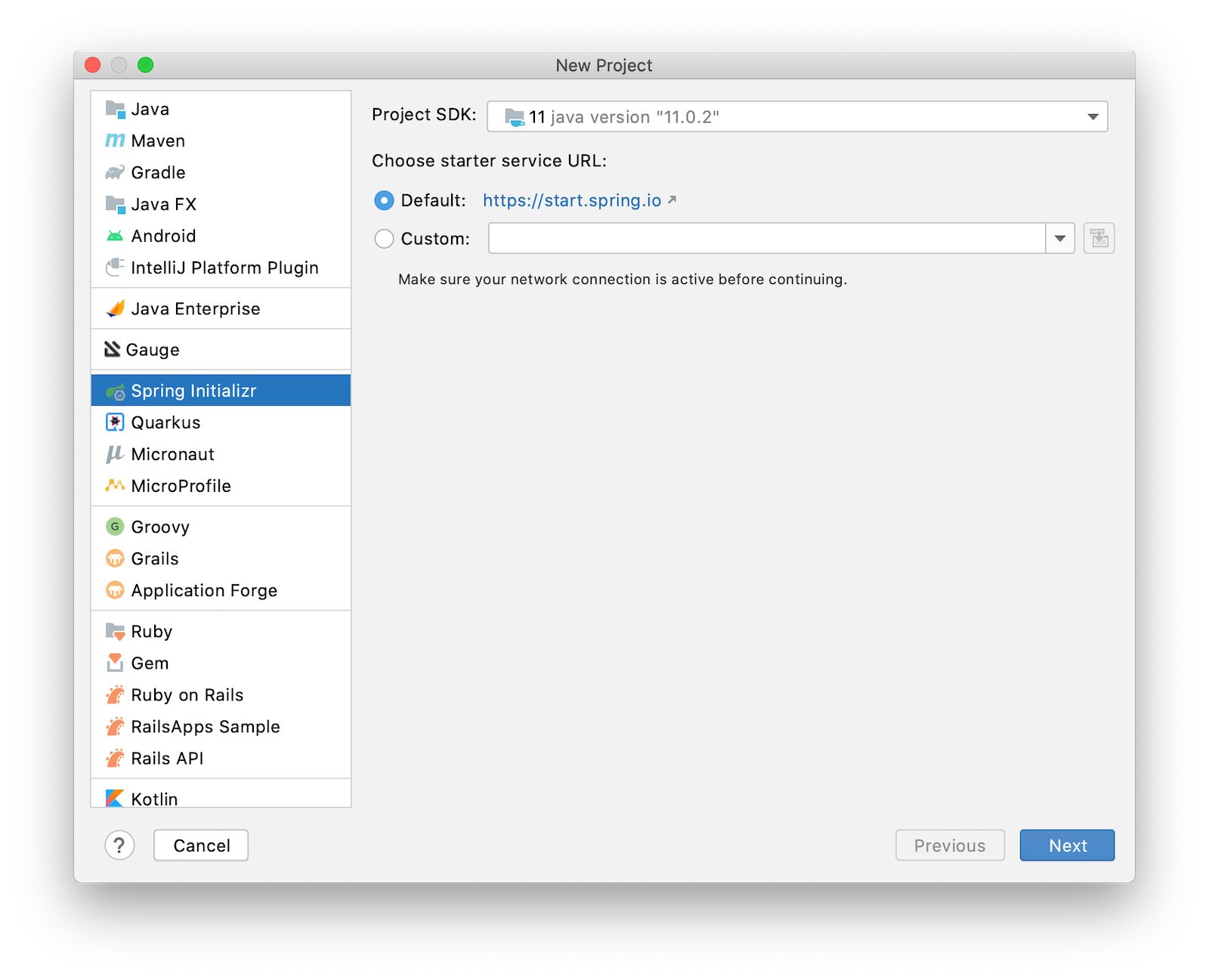
If you select any of these frameworks, a multi-step wizard will guide you through options.
Run Spring Boot Apps in IntelliJ IDEA
If you select Spring Boot, it’ll even create a run configuration for you with the name matching your main Application class. In the screenshot below, the buttons are as follows:

The hammer icon on the left will build your project
The play icon will run your project
The bug icon will run your project in debug mode
The far-right icon will run with code coverage
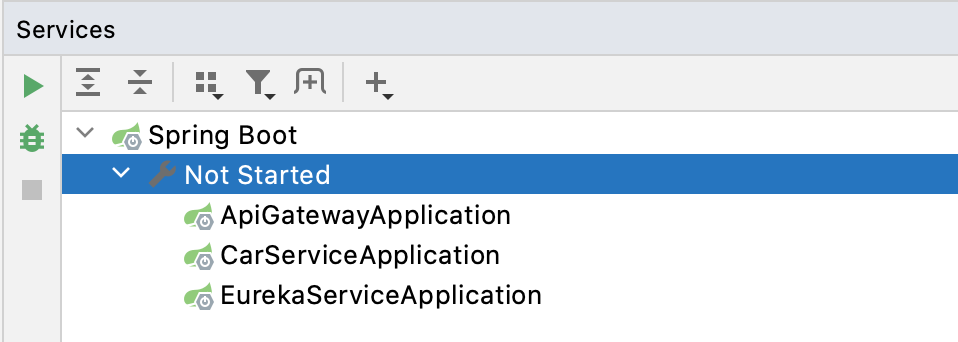
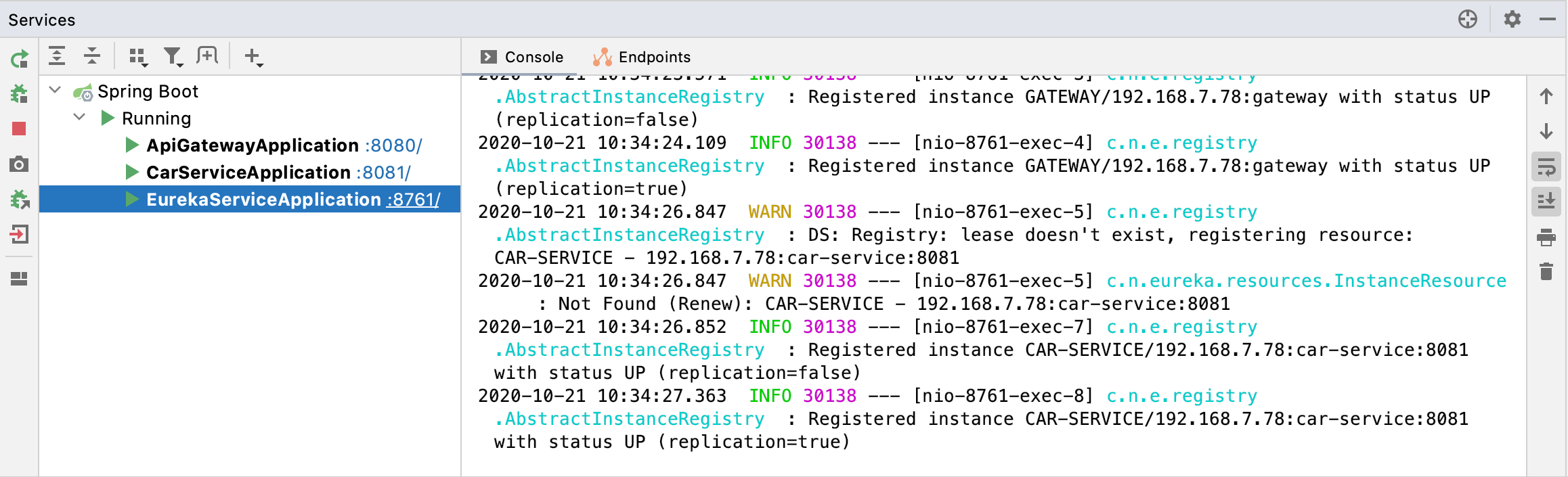
If you’re doing microservices with Spring Boot, there’s also a run dashboard you can use to start/stop/monitor all your services. To demonstrate what it looks like, you can clone the example code from Secure Reactive Microservices with Spring Cloud Gateway and open it in IDEA:
git clone https://github.com/oktadeveloper/java-microservices-examples.git
cd java-microservices-examples/spring-cloud-gateway
idea .
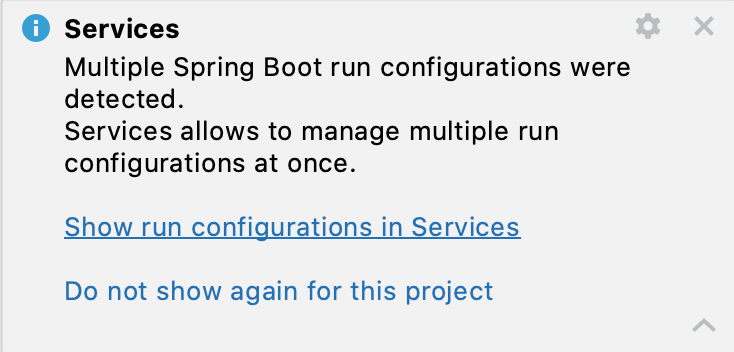
After downloading dependencies and initializing the project, you’ll see a Services popup in the bottom right corner.
Click on it and it’ll expand to give you a couple of options. Click on the first one to show run configurations.
This will show the run dashboard and you’ll see all your apps listed. You can click on the Not Started element and click the play icon to start them all.
Pretty cool, eh?!
Run Micronaut Apps in IntelliJ IDEA
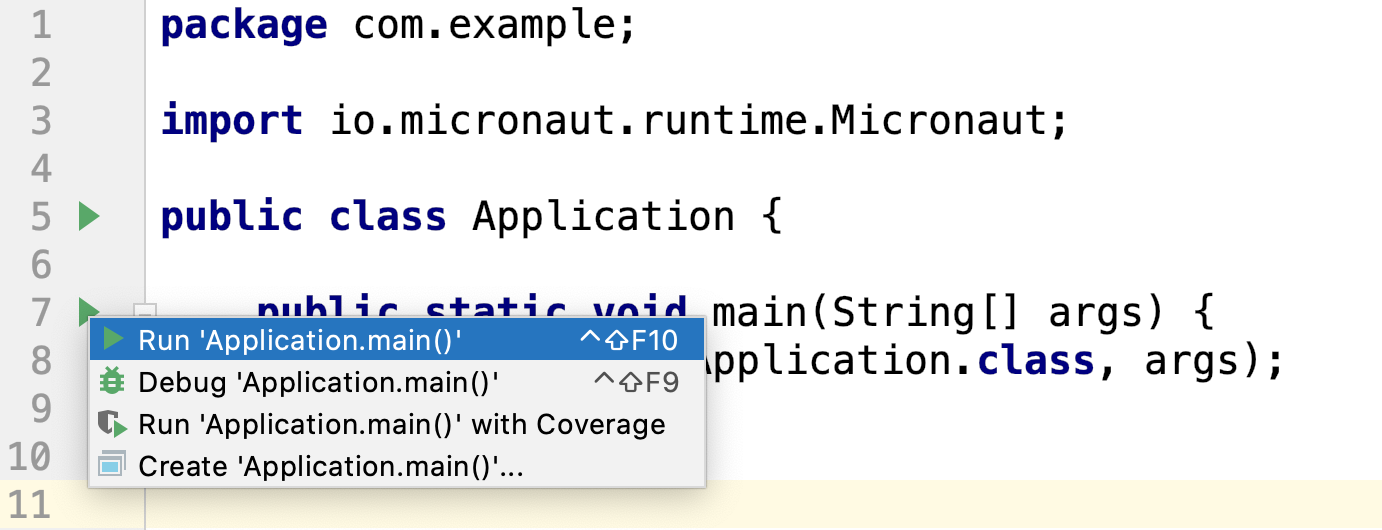
Micronaut is similar to Spring Boot in that it has a public static void main(). When I created a new app using IDEA’s Micronaut wizard, it did not generate any run configurations for me. However, when I clicked on the play icon next to the main() method, it allowed me to easily create one.
Run Quarkus Apps in IntelliJ IDEA
Quarkus is a bit different—it has no main() method. You have to run the quarkus:dev Maven goal to start the app. The good news is you can create a run (or debug) configuration from this by right-clicking on the goal in the Maven tool window and selecting the second option.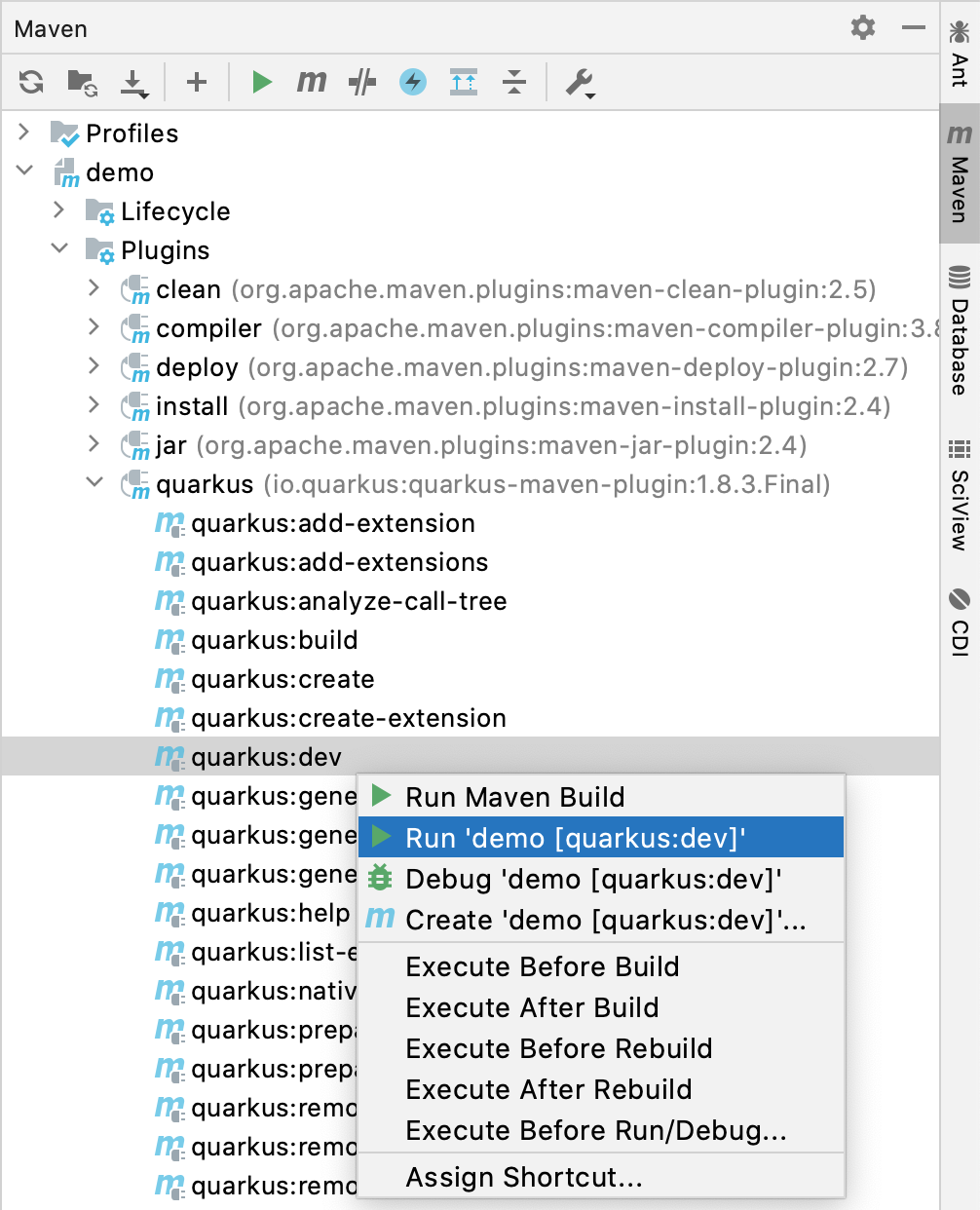
Configure Environment Variables
You might be wondering, "why do I need a run configuration?" First of all, it’s nice to click a button (or use a keyboard shortcut) to start and re-start your app. Secondly, it provides a way for you to configure JVM options and environment variables.
For example, if you’re using Spring Boot with Okta’s Spring Boot starter, you’ll want to use environment variables rather than putting a client secret in your source code.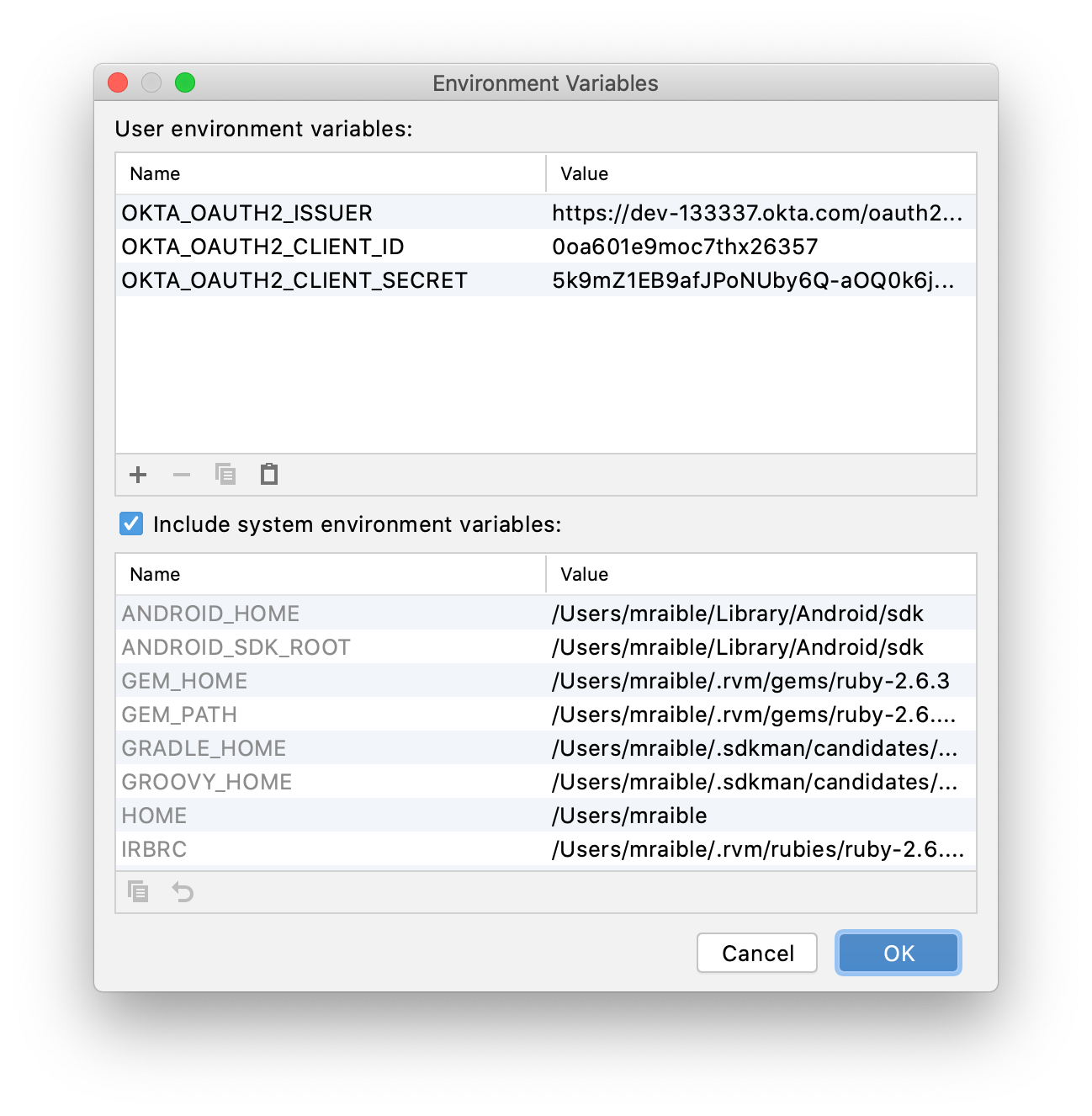
Debug Your Java Apps
Setting breakpoints in apps and debugging them is a valuable skill for software engineers, regardless of language.
In IntelliJ IDEA, you can click in the left gutter next to the line you want to debug. Then, run your app with a debug configuration, and it’ll stop at your breakpoint. Then you can step into, step over, etc.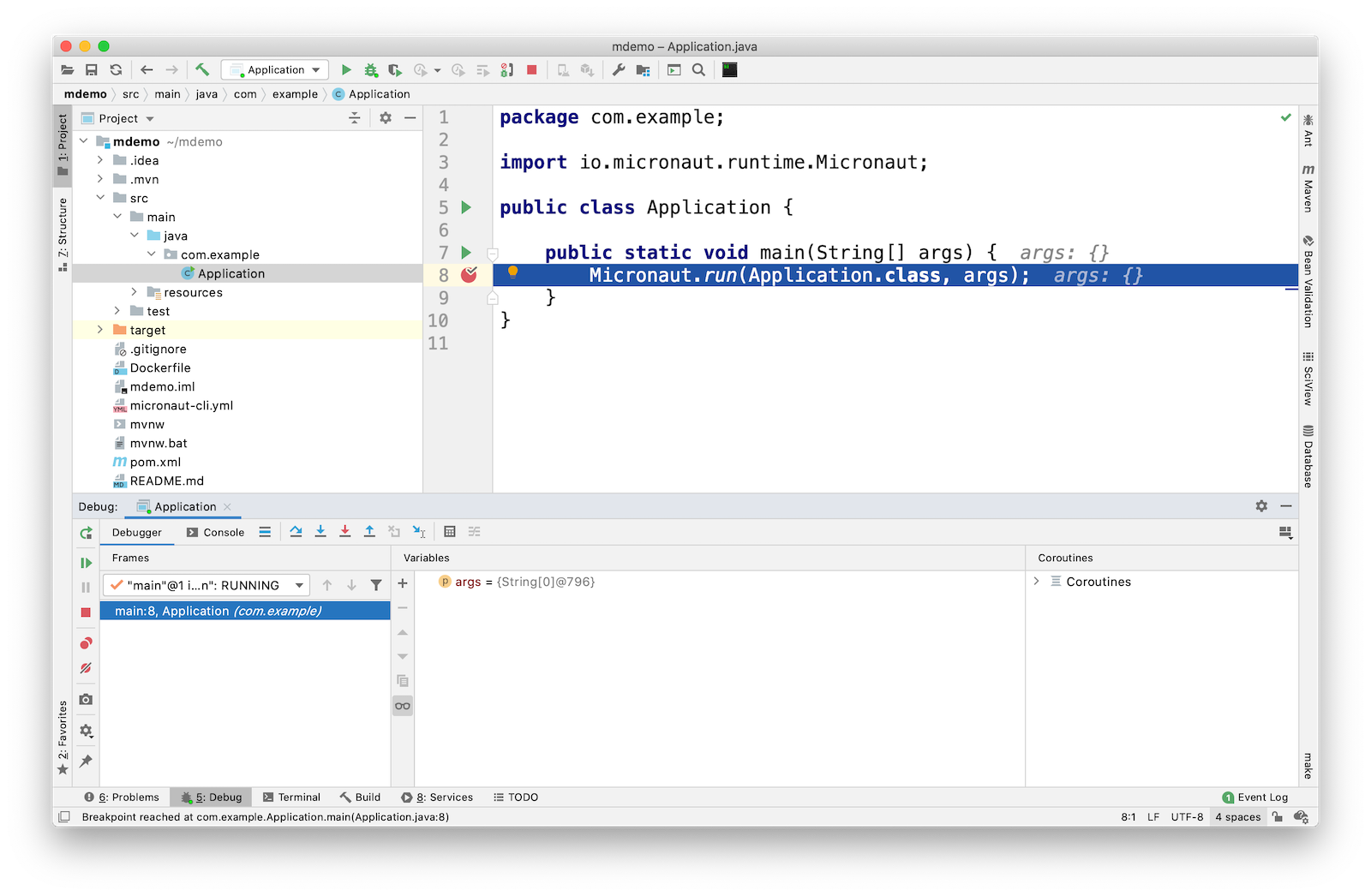
Debug via Maven in IntelliJ IDEA
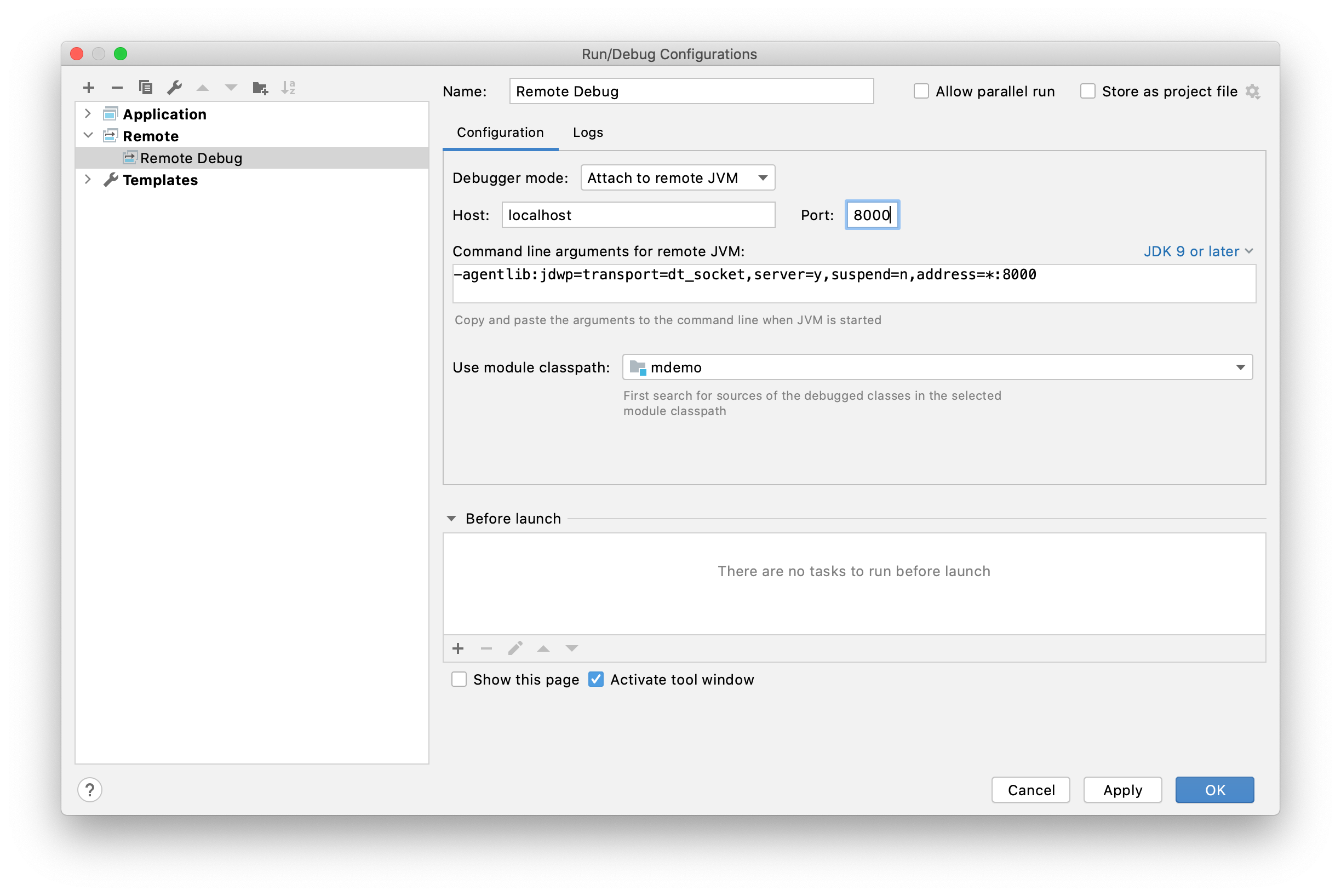
If you start your app with Maven, you can debug it too. Let’s use Micronaut in this example. If you run mvnDebug mn:run, it’ll wait for you to attach a remote debugger on port 8000. To create a remote debugging configuration in IntelliJ IDEA, go to Add Configuration > + > Remote and give it a name. Then change the port to 8000.
Debug via Gradle in IntelliJ IDEA
Gradle has a similar ability. For example, if you created a Spring Boot app with Gradle, you could start it with the following command to run in debug mode.
xxxxxxxxxx
gradle bootRun -Dorg.gradle.debug=true --no-daemon
In this case, Gradle will listen on port 5005 by default, so you’ll need to modify your remote configuration to listen on this port.
Confession: I was a Java developer for over five years before I learned you can remotely debug any Java application. All it takes is starting your Java app with some extra arguments, and it’ll wait until you attach to it. For example:
xxxxxxxxxx
java -agentlib:jdwp=transport=dt_socket,server=y,suspend=n,address=*:5005 -jar path/to/jar.jar

Run Your Java Tests From IntelliJ IDEA
When I run tests from the command line with a Java build tool, I often run all the tests.
xxxxxxxxxx
# Maven
mvn test
# Gradle
gradle test
When a test fails, I know I can run it as an individual test by adding extra parameters to the command, but I prefer to iterate on tests in IDEA.
IntelliJ has excellent testing support. When you open a Java test in the editor, there will be a play icon next to your test class and individual methods. Click it and you’ll get the option to run, debug, run with coverage, or edit the configuration.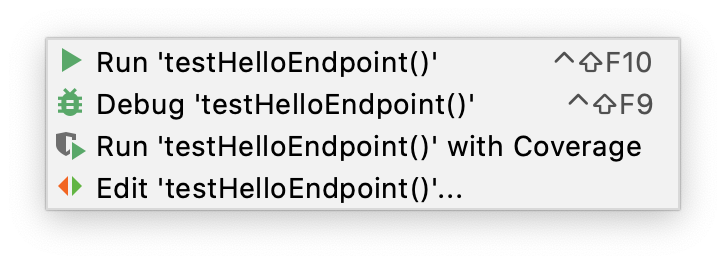
I use this support a lot to run and debug individual tests.
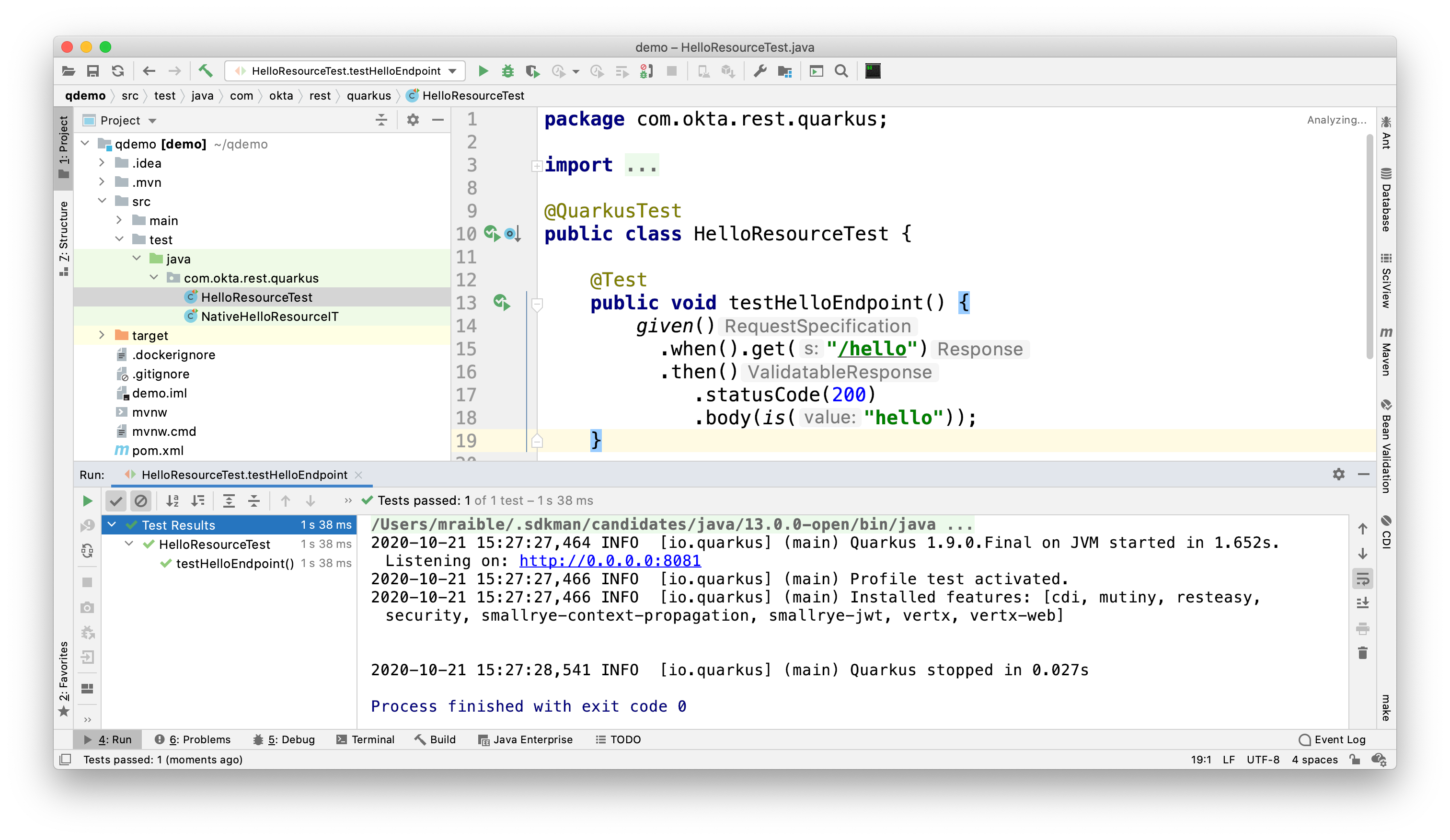
You can also run them at a package level by right-clicking on the page and selecting the Run Tests option.

My Favorite Keyboard Shortcuts in IntelliJ IDEA
I’m a big fan of keyboard shortcuts because leaving my hands on the keyboard makes me more efficient. Since I do a lot of presentations and use keyboard shortcuts, I use Presentation Assistant for showing commands during presentations (and learning Windows/Linux commands).
I also recommend using ShortcutFoo to learn and practice shortcuts for your favorite IDEs. I learned about this site from Venkat Subramaniam a few years ago.
Below are some of the IntelliJ IDEA keyboard shortcuts I use daily.
| macOS Shortcut | Windows/Linux | Purpose |
|---|---|---|
⌘+Shift+N |
Ctrl+Shift+N |
Find files |
⌘+E and ⌘+Shift+E |
Ctrl+E and Ctrl+Shift+E |
Recent files and Recent locations |
⌘+/ and ⌘+Shift+/ |
Ctrl+/ and Ctrl+Shift+/ |
Comment/uncomment a line and multiline comments |
⌘+Option+L |
Ctrl+Alt+L |
Reformat code |
⌘+Option+O |
Ctrl+Alt+O |
Optimize imports |
Press Ctrl twice |
Run Anything (e.g., |

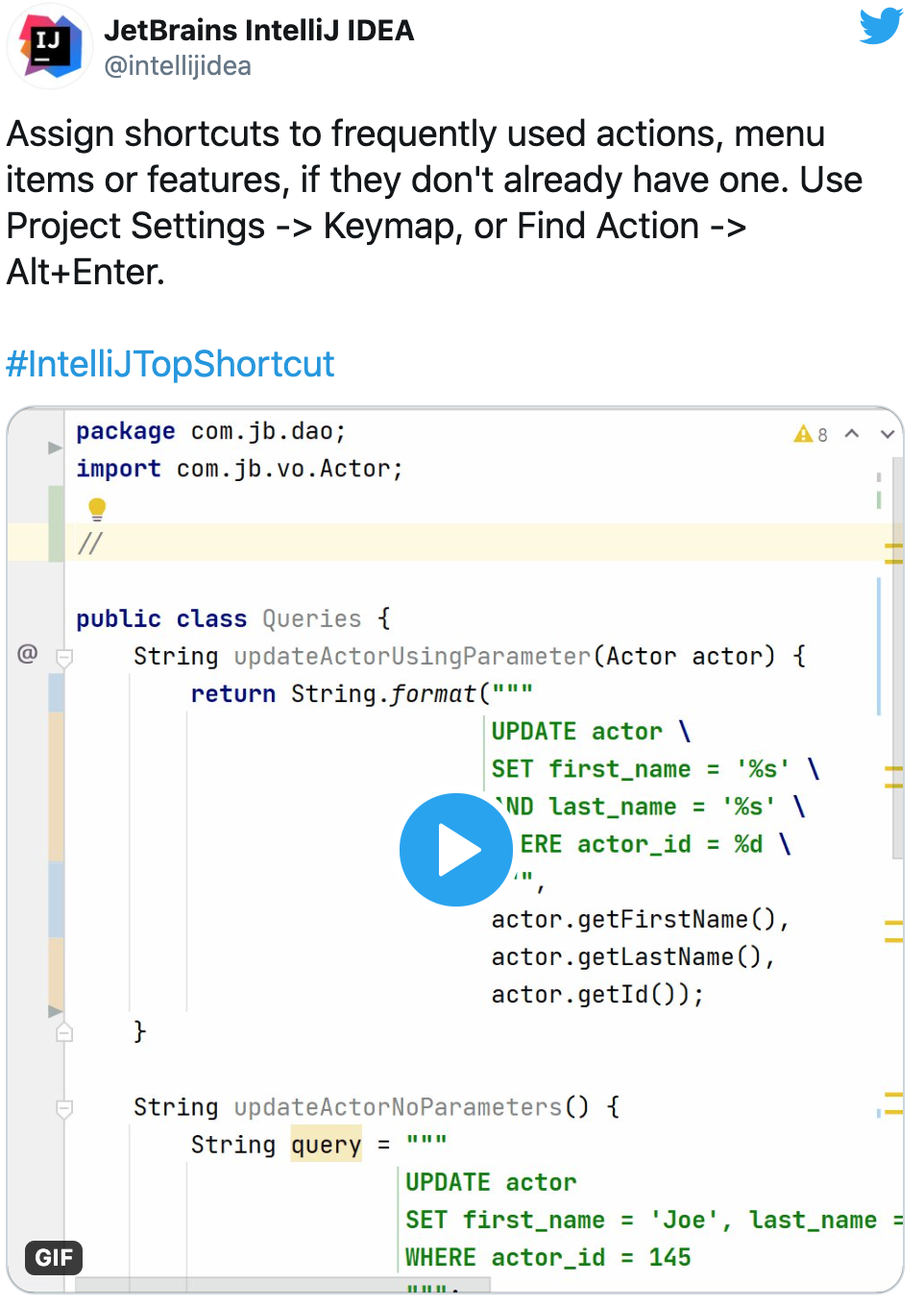
You can also use ⌘+Shift+A to pop an actions dialog and search for commands. Heck, you can even create your own shortcuts!
IDEA’s Command-Line Launcher
Did you know you can install a command-line launcher (Tools > Create Command-line launcher) and open projects from your terminal? For example:
xxxxxxxxxx
# Maven
idea pom.xml
# Gradle
idea gradle.build
# Figure it out for me
idea .
The IDEA CLI has other commands like diff and format too, but I’ve never used them.
Markdown and AsciiDoc Support
I write blog posts like this one as much as I write Java code. I was a big fan of writing HTML until I spent a year writing mostly Markdown. Now, I prefer Markdown over HTML, and AsciiDoc is even better!
I like AsciiDoc because it supports things like table of contents, code blocks with callouts, admonitions (tip, note, etc.), and I used it (along with Asciidoctor) to write the JHipster Mini-Book.
IntelliJ IDEA bundles Markdown support, and it works "good enough" when I have to write in Markdown.
I use the IntelliJ AsciiDoc Plugin for AsciiDoc authoring. This plugin has gotten so good over the past few years, I do almost all my authoring in IDEA and only render it via build tools as a QA process.
Local History Is Fantastic!
IntelliJ’s Local History support can be a lifesaver. I try to edit all text-based files in IDEA because of this feature. If things crash or I want to go back to what I’d written before, local history works excellent for that.
Simply right-click on a file or directory and go to Local History > Show History.
IntelliJ Live Templates
An awesome way to pre-record code snippets for demos and increase your productivity is to use Live Templates.
For Java, some built-in ones are sout and fori. You type those characters, hit tab, and it expands to the code you want.
I use live templates for almost all my screencasts and keep them updated at github.com/mraible/idea-live-templates.
For example, here’s my ss-resource-config shortcut that configures Spring Security to be an OAuth 2.0 resource server.
xxxxxxxxxx
import com.okta.spring.boot.oauth.Okta;
import org.springframework.security.config.annotation.web.builders.HttpSecurity;
import org.springframework.security.config.annotation.web.configuration.EnableWebSecurity;
import org.springframework.security.config.annotation.web.configuration.WebSecurityConfigurerAdapter;
public class SecurityConfiguration extends WebSecurityConfigurerAdapter {
protected void configure(HttpSecurity http) throws Exception {
// @formatter:off
http
.authorizeRequests().anyRequest().authenticated()
.and()
.oauth2ResourceServer().jwt();
// @formatter:on
Okta.configureResourceServer401ResponseBody(http);
}
}
To add new live templates, select the code you want to save, then go to Tools 
Web Framework Support
If you’re a hard-core Java developer, you might not care about web framework support. That is, unless your web framework requires Java code, like Wicket or GWT. Personally, I’m a fan of JavaScript and don’t trust Java developers to write my JavaScript for me. I’m a full-stack developer, and I love JHipster!
I first switched to IntelliJ IDEA in 2006 because of its Maven multi-module support. I stuck with it because I switched to mostly front-end development in 2009. I found that IDEA’s HTML, CSS, and JavaScript support is excellent. It picks up my ESLint settings automatically and just works.
Support for Angular is bundled, and there are lots of React plugins. I’ve never installed any because I haven’t had a need. As far as Vue is concerned, there’s a Vue.js plugin from JetBrains.
Learn More About Java and IntelliJ
I’ve heard from many developers that they prefer to use Eclipse or NetBeans because they’re free. If you were a carpenter, would you look around for free tools, or would you buy new fancy tools that make you a better carpenter?
I hope you’ve enjoyed reading about why I love IntelliJ! If you’re curious about IDEA’s support for specific Java frameworks, see the following links. Note that these are all features of the Ultimate edition.
If you have things you love about IntelliJ IDEA, please leave a message in the comments!
If you liked this blog post, please follow us on {Twitter, Facebook, LinkedIn} and watch us stream on YouTube and Twitch.
Published at DZone with permission of Matt Raible. See the original article here.
Opinions expressed by DZone contributors are their own.
Comments