

AWS CLI Basics – Part 2
In this post, we will learn a few AWS CLI commands and we will also set up an s3 bucket as a static website that is publicly accessible.
 CORE
·
CORE
·
Join the DZone community and get the full member experience.
Join For FreeIntroduction
In a previous post on this topic, we learned some basics about AWS CLI and how to install it on your machine. In this post, we will learn a few AWS CLI commands and we will also set up an s3 bucket as a static website that is publicly accessible.
AWS CLI Syntax
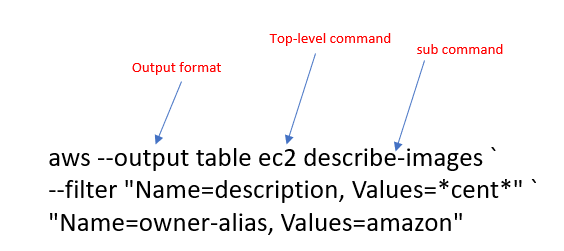
The following picture shows AWS CLI commands Syntax:

Example: LIST EC2 AMI Images
Let’s try the command to “show amazon EC2 images, that run CentOS”
aws --output table ec2 describe-images `
 --filter "Name=description, Values=*cent*" `
          "Name=owner-alias, Values=amazon"
Here is the command syntax break-down:
The execution of the command generates the following output:
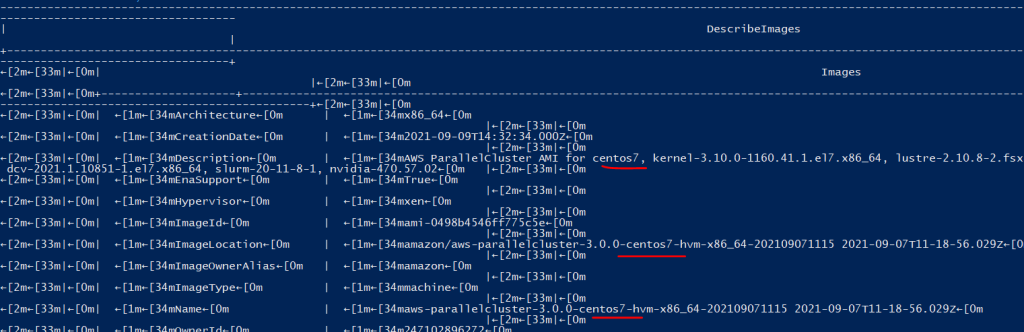
You’ll often run describe-based subcommands to get important resource-IDs, that you can then plug into your actual action commands
Top-level commands normally execute AWS services, Sub-commands execute some actions on service resources, options control the command environment and parameters narrow down the scope of your command.
Besides describe and run, other sub-commands begin with verbs like:
- create
- delete
- disable
- modify
- request
- stop
- terminate
options example:
- — region
- — output
- — profile
- — dry-run
Example: Launch an EC2 Instance
The following command shows, how to launch an ec2 instance. If we use –dry-run flag, it will just execute the command, verify syntax but will not create the instance.
aws ec2 run-instances --dry-run `
--image-id ami-05f7491af5eef733a `
--count 1 `
--key-name euKey `
--security-group-ids sg-0b5ee4097807... `
--subnet-id subnet-0126882843... `
--instance-type t2.micro
Here is the output of executing the command without using –dry-run flag: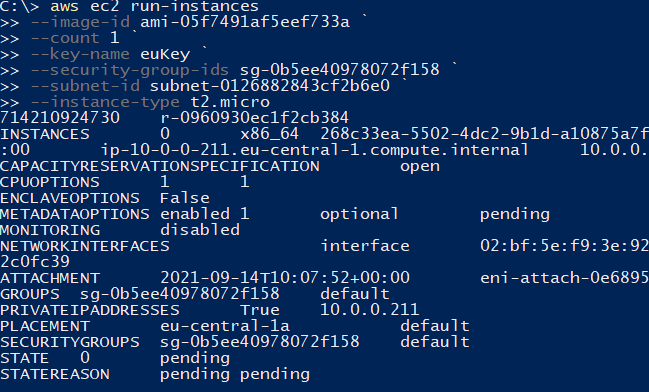
And if we visit the AWS Web console, we can see that EC2 instance is created: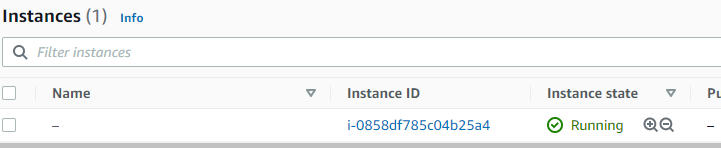
Example: Terminate EC2 Instance
Here is the command to terminate an EC2 instance using CLI:
aws ec2 terminate-instances --instance-ids i-0858df785c04b25a4Here is the output of executing the command:
AWS CLI Help
You can get some helpful information by using AWS help. A few examples are shown below:
aws help
aws s3 help
aws s3 website help
You can press the Q key to exit from the help window.
Demo – S3 Bucket
Let’s try some AWS CLI commands to create and manage S3 Bucket:
Create a Bucket
aws s3 mb s3://maptestdemoThis command will create a new S3 bucket (note that bucket name should be globally unique).
Copy Files to S3 Bucket
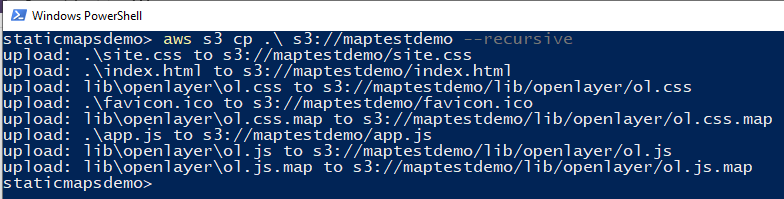
aws s3 cp .\ s3://maptestdemo --recursiveThe above shown command will copy all files from the current directory to the s3 bucket.
Here is the output of the operation:
List Content of S3 Bucket
aws s3 ls maptestdemoThis command will list the content of the S3 bucket as shown below: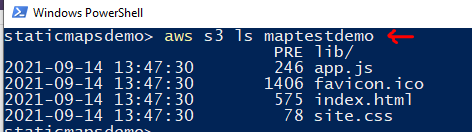
Demo – Setup an S3 bucket as Public Website
I have a simple website folder on my local machine which contains some files as shown below:
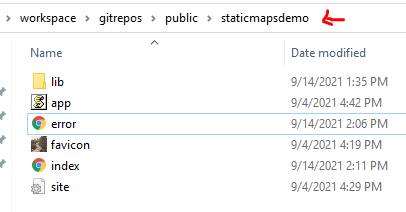
We want to copy these files to an S3 bucket and then configure this bucket to be served as a static website. You can use your own website files if you like and it will work the same way for those as well.
Here are the steps we will perform to set up an S3 bucket as a public website. Some of these steps we’ve already done in the previous exercise.
Create a bucket
aws s3 mb s3://maptestdemo.comSet Public Read Access for Bucket
Next, we will set public read access to the bucket. Notice that we used s3api for this purpose here.
aws s3api put-bucket-acl --bucket maptestdemo.com --acl public-readCopy Files from Local Directory to S3 Bucket
aws s3 sync . s3://maptestdemo.com --acl public-readHere dot (.) used for current local directory. –acl public-read flag gives copied files permission as the bucket.
Setup Index and Error documents
aws s3 website s3://maptestdemo.com/ --index-document index.html --error-document error.htmlHere we are targeting index and error documents.
Verify if Website is Set-up Properly
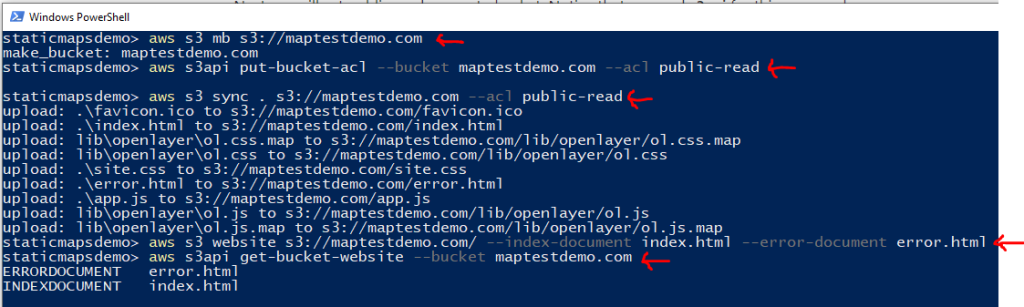
aws s3api get-bucket-website --bucket maptestdemo.comHere is the output of all above shown operations in regard to the static website:
Next, how do we know, what is the website URL? well, one option is that we can look it up into AWS web console or we can also know this by understanding how AWS forms it.
It typically follows the following pattern:
[bucketname].[s3-website]-[defaultregion].[amazonaws.com]
Summary
In this post, we saw few more AWS CLI commands. We use these commands to create EC2 instances and we also learn how can we get some help with AWS commands. We then create an S3 bucket, copy files from the local directory to it and then configure this s3 bucket as a static website, which is publicly accessible.
Let me know if you have any questions or comments. Till next time, happy coding!
Published at DZone with permission of Jawad Hasan Shani. See the original article here.
Opinions expressed by DZone contributors are their own.
Comments