

AWS Transfer Family SFTP Setup (Password + SSH Key Users) Using Lambda Identity Provider + S3
Deploy a managed AWS Transfer Family SFTP server backed by S3, using a Lambda identity provider for password and SSH-key logins.
 ·
·
Join the DZone community and get the full member experience.
Join For FreeIntroduction
Even though modern application integrations often use REST APIs, messaging platforms, and event streams, SFTP remains one of the most widely used file-transfer standards in enterprise environments. Many organizations still rely on secure file exchange workflows for batch processing daily reports, data exports/imports, financial reconciliation files, healthcare data transfers, compliance-driven integrations, or vendor-delivered archives.
The problem is that running your own SFTP server is operationally expensive. A traditional setup usually means deploying an EC2 instance with OpenSSH, attaching storage, setting up users with strict directory isolation (chroot), configuring permissions, rotating keys, patching the OS frequently, and dealing with scalability or high availability. It works, but it introduces long-term maintenance overhead and security risk especially if the SFTP endpoint is exposed publicly.
AWS Transfer Family is a managed service designed to eliminate that burden. It provides a managed SFTP endpoint that can write directly to Amazon S3 (or Amazon EFS). No servers to patch, no disk management, and no manual HA design.
In this tutorial, we’ll build a production-ready AWS Transfer Family SFTP server backed by S3, using a Lambda Identity Provider to support both:
- User 1: Username + Password authentication
- User 2: Username + SSH public key authentication
We’ll also cover how to deploy this server as either:
- an internet-facing (public) endpoint, or
- a private (VPC-hosted/internal) endpoint (recommended for enterprises)
Overview: What You’ll Build
By the end of this tutorial, you’ll have a working system that includes:
✅ An S3 bucket used as the file store
✅ An IAM role granting Transfer Family least-privilege access to S3
✅ A Lambda function that authenticates users and returns session details
✅ A Transfer Family server configured with SFTP + Lambda + S3
✅ Two different user authentication methods in the same server
✅ Working upload/download testing commands (password + key)
This design is ideal for organizations that want a managed SFTP solution that can scale while enforcing clean access boundaries.
Why Use Lambda as the Identity Provider?
AWS Transfer Family supports “service-managed users” created directly in the console. That’s fine for small deployments, but in many real cases you need more flexibility:
- You may want password authentication for app integrations
- You may want SSH key authentication for admins or automated secure transfers
- You may want to control home directories dynamically
-
You may want centralized logic to later integrate with:
- AWS Secrets Manager for credentials
- DynamoDB for user directory tables
- external identity systems (custom API/LDAP-like patterns)
Lambda turns Transfer Family into a programmable authentication gateway instead of a static list of users.
Architecture
At a high level, the workflow looks like this:
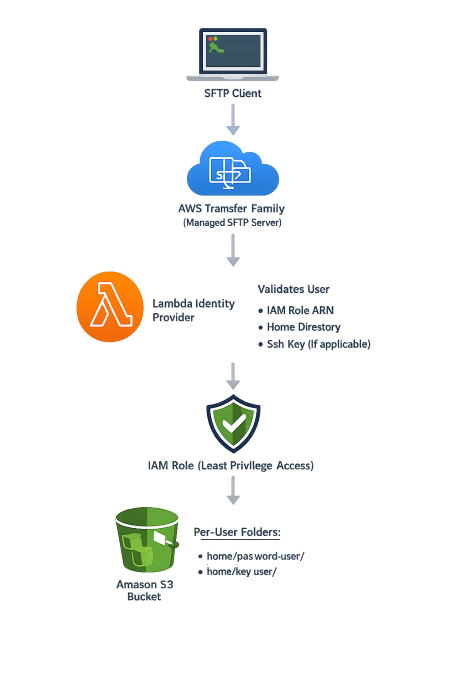
Implementation Ste
Step 1 — Create an S3 Bucket
Create a bucket that will store all SFTP files.
Example:
- Bucket name:
my-sftp-bucket
Optional (recommended) prefixes:
home/password-user/home/key-user/
CLI:
aws s3api put-object --bucket my-sftp-bucket --key home/password-user/ aws s3api put-object --bucket my-sftp-bucket --key home/key-user/Note: S3 doesn’t require folders to exist ahead of time, but pre-creating prefixes helps keep storage organized.
Step 2 — Create IAM Role for Transfer Family
Create an IAM role that Transfer Family will assume in order to access S3.
- Role name:
TransferFamilyS3AccessRole
Trust Policy (Who can assume this role?)
{
  "Version": "2012-10-17",
  "Statement": [
    {
      "Sid": "AllowTransferFamilyAssumeRole",
      "Effect": "Allow",
      "Principal": {
        "Service": "transfer.amazonaws.com"
      },
      "Action": "sts:AssumeRole"
    }
  ]
}
Permissions Policy (Least privilege to S3 per user)
This policy restricts users to only their own home prefix:
{
  "Version": "2012-10-17",
  "Statement": [
    {
      "Sid": "ListUserHome",
      "Effect": "Allow",
      "Action": ["s3:ListBucket"],
      "Resource": "arn:aws:s3:::my-sftp-bucket",
      "Condition": {
        "StringLike": {
          "s3:prefix": [
            "home/${transfer:UserName}",
            "home/${transfer:UserName}/*"
          ]
        }
      }
    },
    {
      "Sid": "UserHomeRW",
      "Effect": "Allow",
      "Action": [
        "s3:GetObject",
        "s3:PutObject",
        "s3:DeleteObject"
      ],
      "Resource": "arn:aws:s3:::my-sftp-bucket/home/${transfer:UserName}/*"
    }
  ]
}
Copy the role ARN (you’ll reference it in Lambda):
arn:aws:iam::<YOUR_ACCOUNT_ID>:role/TransferFamilyS3AccessRoleStep 3 — Generate SSH Key Pair for Key User
On your client host (Linux/WorkSpaces/Bastion):
mkdir -p ~/sftp-keys && cd ~/sftp-keys ssh-keygen -t rsa -b 4096 -f sftp_key_user -N ""
chmod 600 sftp_key_user
Files created:
sftp_key_user(private key)sftp_key_user.pub(public key)
View the public key:
cat sftp_key_user.pubStep 4 — Create Lambda Identity Provider
Create a Lambda function:
- Name:
transfer-family-auth-handler - Runtime: Python 3.x
Paste this code (clean and production-friendly baseline):
import json

S3_BUCKET = "my-sftp-bucket"
ROLE_ARN = "arn:aws:iam::<YOUR_ACCOUNT_ID>:role/TransferFamilyS3AccessRole"

KEY_USER = "key-user"
PASSWORD_USER = "password-user"
PASSWORD_USER_PASSWORD = "ChangeMeStrongPassword@123"

KEY_USER_PUBLIC_KEY = "ssh-rsa AAAAB3NzaC1yc2EAAAADAQABAAABAQD..."

def lambda_handler(event, context):
    username = event.get("username")
    password = event.get("password", "")

    if not username:
        return {}

    # Important: target path should not have a trailing slash
    home_target = f"/{S3_BUCKET}/home/{username}"

    resp = {
        "Role": ROLE_ARN,
        "HomeDirectoryType": "LOGICAL",
        "HomeDirectoryDetails": json.dumps([
            {"Entry": "/", "Target": home_target}
        ])
    }

    if username == KEY_USER:
        resp["PublicKeys"] = [KEY_USER_PUBLIC_KEY]
        return resp

    if username == PASSWORD_USER:
        if password == PASSWORD_USER_PASSWORD:
            return resp
        return {}

    return {}
Step 5 — Create AWS Transfer Family Server
Go to:
AWS Transfer Family → Create server
Select:
- Protocol: ✅ SFTP
- Domain: ✅ Amazon S3
- Identity provider: ✅ AWS Lambda
- Lambda function: ✅
transfer-family-auth-handler
Step 6 — Choose Endpoint Type (Public vs Private)
Option A — Public Endpoint (Internet Facing)
Use this if external vendors/clients need access.
AWS provides hostname:
s-xxxx.server.transfer.<region>.amazonaws.comSecurity recommendation:
- Restrict inbound port 22 to known IPs only.
Option B — Private Endpoint (VPC Hosted)
Use this for internal apps and enterprise workloads.
Benefits:
- No internet exposure
- Controlled access through VPC routing
- Easy integration with private systems (EKS, EC2, WorkSpaces)
Cross-account/VPC access is supported using:
- VPC peering or Transit Gateway
- route table updates
- security group rules
Step 7 — Allow Transfer Family to Invoke Lambda
After the server is created, note server ID:
s-xxxxxxxxxxxxxxxxxGrant invoke permission:
aws lambda add-permission \
  --region <REGION> \
  --function-name transfer-family-auth-handler \
  --statement-id AllowTransferFamilyInvoke \
  --action lambda:InvokeFunction \
  --principal transfer.amazonaws.com \
  --source-arn arn:aws:transfer:<REGION>:<YOUR_ACCOUNT_ID>:server/s-xxxxxxxxxxxxxxxxx
Testing & Validation
Connectivity Test
nc -vz <SFTP_HOST> 22Password User Test
sftp password-user@<SFTP_HOST>Test upload/download:
pwd ls put /etc/hosts test-upload.txt get test-upload.txt /tmp/test-upload.txt exitKey User Test
sftp -i ./sftp_key_user -o IdentitiesOnly=yes key-user@<SFTP_HOST>Upload test:
pwd ls put /etc/hosts key-upload.txt exitWhat does -o IdentitiesOnly=yes do?
It forces the SSH client to use only the key you specify, instead of trying any other local keys first. This prevents confusing authentication failures when multiple SSH keys exist on the system.
Application Remote Path Configuration
When you run:
pwdYou’ll see:
/This is a virtual root, mapped to:
s3://my-sftp-bucket/home/<username>/So your application should use:
/as the base path
or subfolders like:/incoming/outgoing
Common Pitfalls and Fixes
- Lambda not invoked: missing Lambda permission (
add-permission) - Key auth prompts password: missing
IdentitiesOnly=yesor wrong public key - Uploads fail: IAM policy missing PutObject
- Public endpoint too open: SG not restricted to known IPs
- Private endpoint unreachable: missing routes / SG / peering DNS settings
Cost Considerations
AWS Transfer Family is billed based on:
- endpoint uptime (per-hour server cost)
- data transferred (per-GB)
CloudWatch logs also incur small charges depending on verbosity. Lambda cost is generally negligible in this setup because it only runs on authentication events.
Conclusion
AWS Transfer Family provides a clean, scalable way to run SFTP without managing servers. By combining S3 storage with a Lambda identity provider, you can support both password and SSH key authentication and enforce strong per-user directory isolation. This approach works for public vendor access as well as internal enterprise integrations making it a strong fit for real-world cloud modernization initiatives.
Opinions expressed by DZone contributors are their own.
Comments