

Building an AI Nutrition Coach With OpenAI, Gradio, and gTTS
Build a voice-enabled AI nutrition coach using GPT-4, Gradio, and gTTS. This beginner-friendly tutorial walks you through every step, from setup to deployment.
Join the DZone community and get the full member experience.
Join For FreeEver thought about building your own AI-powered app that gives personalized nutrition tips, and even talks back to you? In this hands-on tutorial, you’ll learn how to create Nurture, your very own AI nutrition coach.
We’ll use GPT-4 for natural, intelligent conversations, Gradio to build a simple, interactive web interface, and gTTS (Google Text-to-Speech) so your app can speak its responses aloud. Nurture will be able to chat with users, calculate their BMI, and provide helpful audio feedback, all wrapped in a clean, shareable web app.
Whether you’re just getting started with Python or looking to sharpen your skills, this step-by-step guide will walk you through the entire process: setting up your environment, working with APIs, and deploying a fully functional AI assistant you can show off or expand further.
Prerequisites
Let’s get set up! Here’s what you’ll need to have in place before we dive in:
- Python 3.8+ installed on your system.
- Use your favorite code editor (VS Code or PyCharm if you need a suggestion).
- Basic knowledge of Python and familiarity with installing packages using pip.
- An internet connection to access APIs and deploy the app.
Step 1: Setting Up the Environment
To begin, let's set up a virtual environment and install the required libraries.
1. Set up a virtual environment
Open your terminal and run the following command:
python -m venv nurture_envActivate the virtual environment:
- On Windows: nurture_env\Scripts\activate
- On macOS/Linux: source nurture_env/bin/activate
2. Install required libraries: With the virtual environment activated, install the necessary packages:
pip install openai gradio gTTS- openai: For interacting with OpenAI's GPT-4 model.
- gradio: For creating a web-based user interface.
- gTTS: For converting text responses to speech.
Step 2: Obtaining an OpenAI API Key
The application uses OpenAI's GPT-4 model to power the conversational AI. To use it, you need an API key.
1. Sign up for OpenAI:
- Visit platform.openai.com.
- If you’re new, sign up for an account—otherwise, just log in and you’re good to go.
2. Generate an API key:
- Go to the API Keys section in your OpenAI dashboard.
- Click Create New Secret Key, give it a name (e.g., "Nurture App"), and copy the key.
- Important: Store this key securely and never share it publicly.
3. Set up your API key: In your code, replace "Your_key" with your actual OpenAI API key. For security, you can store it in an environment variable:
export OPENAI_API_KEY="your-api-key-here"Then, in your Python code, access it using:
import os
openai.api_key = os.getenv("OPENAI_API_KEY")
Step 3: Understanding the Code Structure
The application has three main components:
- Conversational AI: Uses OpenAI’s ChatCompletion API to deliver friendly, nutrition-focused guidance tailored to each user.
- Text-to-Speech: Converts AI responses to audio using gTTS.
- BMI Calculator: Computes the user’s Body Mass Index (BMI) from their height and weight inputs.
- Gradio Interface: Brings all the features together in a simple, web-based user interface.
Let's break down each part and explain how to implement it.
Step 4: Writing the Code
Below is the complete code for the application, with detailed explanations for each section. Save this as nurture.py.
import openai
import gradio as gr
from gtts import gTTS
import tempfile
import os
Open AI Setup
openai.api_key = os.getenv("OPENAI_API_KEY") # Securely load API keyPersistent Chat History
Here’s a short explanation of what the code does:
chat_historyinitializes a conversation context with a system prompt that defines the assistant as a friendly nutritionist.ask_openai()sends the user’s question to OpenAI’s GPT-4 model, maintains the ongoing conversation by updatingchat_history, and returns the model's response.speak()uses Google Text-to-Speech (gTTS) to convert the assistant’s response into an audio file (MP3), which can be played back.calculate_bmi()takes a user’s height and weight, calculates their Body Mass Index (BMI), and classifies it into categories like "Normal weight" or "Obese."
This setup enables a conversational, voice-enabled nutrition coach with BMI feedback.
# Initialize chat history with system prompt
chat_history = [
    {
        "role": "system",
        "content": "You are an empathetic, conversational nutritionist who gently guides users to share their name, fitness goals, lifestyle, allergies, dietary preferences, and typical meals. Start with a warm greeting and then ask follow-up questions to eventually create a personalized diet plan."
    }
]

def ask_openai(question):
    """
    Sends user input to OpenAI's GPT-4 model and returns the response.
    Maintains conversation context by appending to chat_history.
    """
    try:
        chat_history.append({"role": "user", "content": question})
        response = openai.ChatCompletion.create(
            model="gpt-4",
            messages=chat_history,
            temperature=0.5,  # Controls randomness (0.5 for balanced responses)
            max_tokens=300    # Limits response length
        )
        reply = response['choices'][0]['message']['content']
        chat_history.append({"role": "assistant", "content": reply})
        return reply
    except Exception as e:
        return f"Error: {str(e)}"

def speak(text):
    """
    Converts text to speech using gTTS and saves it to a temporary MP3 file.
    Returns the file path for playback.
    """
    tts = gTTS(text)
    tmp_file = tempfile.NamedTemporaryFile(delete=False, suffix=".mp3")
    tts.save(tmp_file.name)
    return tmp_file.name

def calculate_bmi(height_cm, weight_kg):
    """
    Calculates BMI based on height (cm) and weight (kg).
    Returns BMI value and weight category.
    """
    try:
        height_m = height_cm / 100
        bmi = weight_kg / (height_m ** 2)
        category = (
            "Underweight" if bmi < 18.5 else
            "Normal weight" if bmi < 25 else
            "Overweight" if bmi < 30 else
            "Obese"
        )
        return f"Your BMI is {bmi:.2f} — {category}"
    except:
        return "Please enter valid height and weight."
Gradio Interface
with gr.Blocks(theme=gr.themes.Soft()) as demo: gr.Markdown("
Nurture : Your AI Nutrition Coach
")
with gr.Row():
    # Chat Section
    with gr.Column(scale=2):
        chatbot = gr.Chatbot(height=350, label="Chat with Nurture⚕️")
        message = gr.Textbox(placeholder="Ask something...", label="Your Message")
        send_btn = gr.Button("Send")
        audio_output = gr.Audio(label="AI Voice", type="filepath", interactive=False)

        def respond(user_message, chat_log):
            """
            Handles user input, gets AI response, updates chat log, and generates audio.
            """
            bot_reply = ask_openai(user_message)
            chat_log.append((user_message, bot_reply))
            audio_path = speak(bot_reply)
            return "", chat_log, audio_path

        send_btn.click(respond, inputs=[message, chatbot], outputs=[message, chatbot, audio_output])

    # BMI + Tools Section
    with gr.Column(scale=1):
        gr.Markdown("### Check Your BMI")
        height = gr.Number(label="Height (in cm)")
        weight = gr.Number(label="Weight (in kg)")
        bmi_output = gr.Textbox(label="Result")
        bmi_btn = gr.Button("Calculate BMI")
        bmi_btn.click(fn=calculate_bmi, inputs=[height, weight], outputs=bmi_output)

demo.launch(share=True)
Let’s review the integrated code. You’re welcome to use a different model instead of GPT and add any additional features as needed.
import gradio as gr
from gtts import gTTS
import tempfile

# OpenAI setup
openai.api_key = "Your_key"

# Persistent chat history
chat_history = [
    {"role": "system", "content":
     "You are an empathetic, conversational nutritionist who gently guides users to share their name, fitness goals, lifestyle, allergies, dietary preferences, and typical meals. Start with a warm greeting and then ask follow-up questions to eventually create a personalized diet plan."}
]

def ask_openai(question):
    try:
        chat_history.append({"role": "user", "content": question})
        response = openai.ChatCompletion.create(
            model="gpt-4",
            messages=chat_history,
            temperature=0.5,
            max_tokens=300
        )
        reply = response['choices'][0]['message']['content']
        chat_history.append({"role": "assistant", "content": reply})
        return reply
    except Exception as e:
        return f"Error: {str(e)}"

def speak(text):
    tts = gTTS(text)
    tmp_file = tempfile.NamedTemporaryFile(delete=False, suffix=".mp3")
    tts.save(tmp_file.name)
    return tmp_file.name

def calculate_bmi(height_cm, weight_kg):
    try:
        height_m = height_cm / 100
        bmi = weight_kg / (height_m ** 2)
        category = (
            "Underweight" if bmi < 18.5 else
            "Normal weight" if bmi < 25 else
            "Overweight" if bmi < 30 else
            "Obese"
        )
        return f"Your BMI is {bmi:.2f} — {category}"
    except:
        return "Please enter valid height and weight."

# Gradio interface
with gr.Blocks(theme=gr.themes.Soft()) as demo:
    gr.Markdown("<h1 style='text-align: center;'> Nurture : Your AI Nutrition Coach</h1>")

    with gr.Row():
        # Chat Section
        with gr.Column(scale=2):
            chatbot = gr.Chatbot(height=350, label="Chat with Nurture⚕️")
            message = gr.Textbox(placeholder="Ask something...", label="Your Message")
            send_btn = gr.Button("Send")
            audio_output = gr.Audio(label="AI Voice", type="filepath", interactive=False)

            def respond(user_message, chat_log):
                bot_reply = ask_openai(user_message)
                chat_log.append((user_message, bot_reply))
                audio_path = speak(bot_reply)
                return "", chat_log, audio_path

            send_btn.click(respond, inputs=[message, chatbot], outputs=[message, chatbot, audio_output])

        # BMI + Tools Section
        with gr.Column(scale=1):
            gr.Markdown("###Check Your BMI")
            height = gr.Number(label="Height (in cm)")
            weight = gr.Number(label="Weight (in kg)")
            bmi_output = gr.Textbox(label="Result")
            bmi_btn = gr.Button("Calculate BMI")
            bmi_btn.click(fn=calculate_bmi, inputs=[height, weight], outputs=bmi_output)

demo.launch(share=True)
Sample UI after running the code:
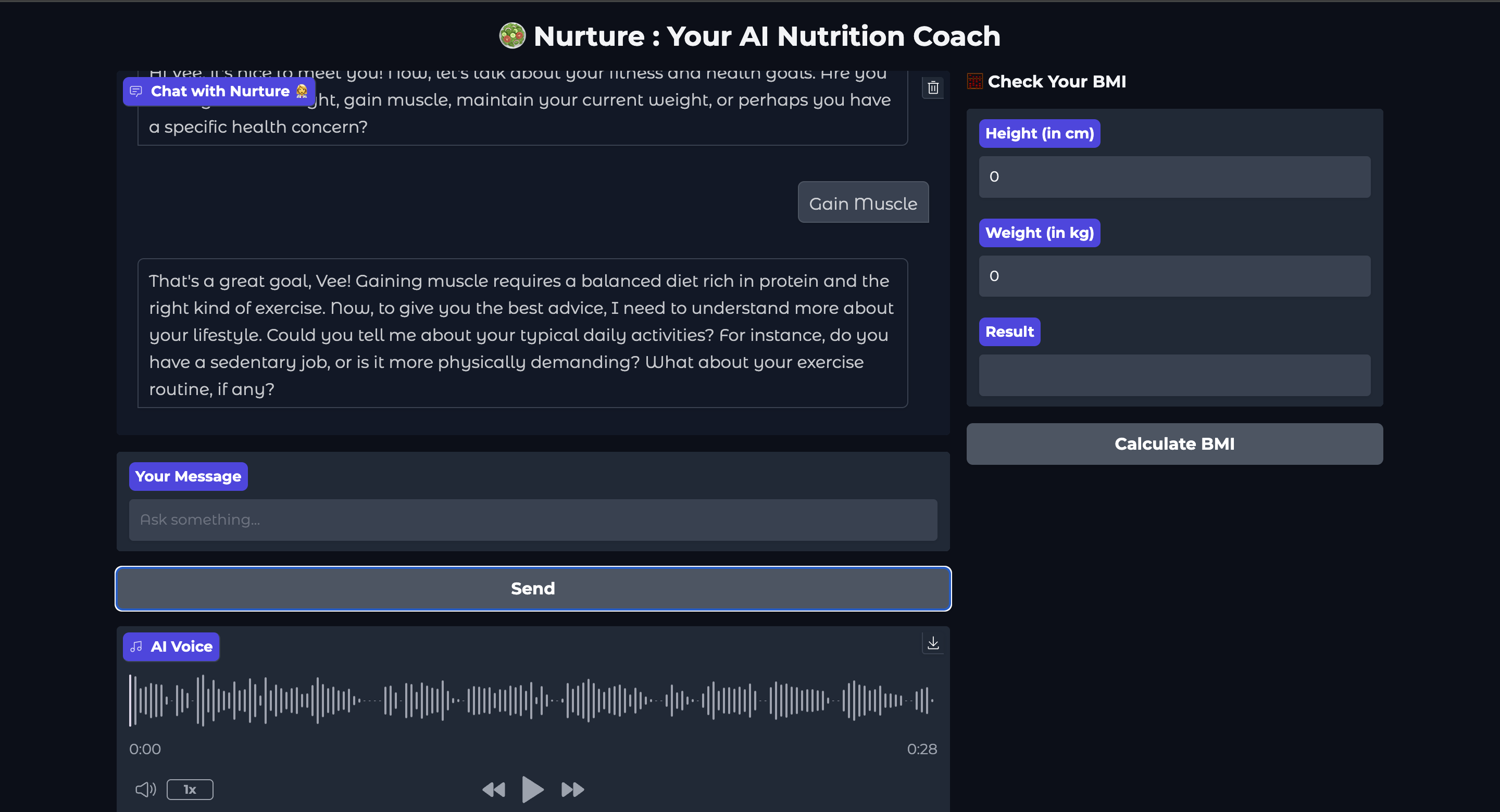
Note: This application also includes text-to-speech functionality to deliver the AI's responses audibly to users.
Happy Coding!
Opinions expressed by DZone contributors are their own.
Comments