

Calling YouTube API via Mule
In this article, we will learn how to configure and call YouTube API in Mule with Google Cloud Platform (GCP) and a Mule flow.
 ·
·
Join the DZone community and get the full member experience.
Join For FreeTo start developing API in Mule for this use case, we need to first create a project in Google Cloud Platform. So let us first complete the setup for it.
Setting Up Google Cloud Platform
- Log in to Google Cloud Platform using your credentials.
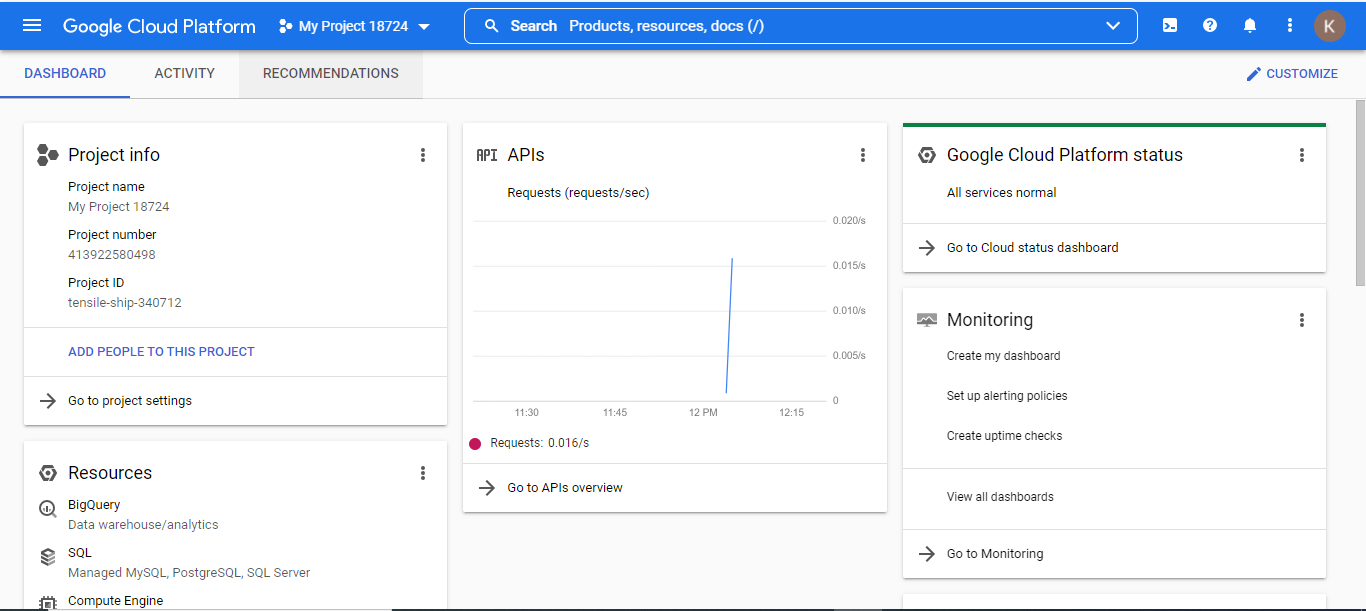
- Now we need to create a project and configure authentication to access it securely via REST API. We can use either OAuth client ID or API Key to secure our project access. For this, navigate to API and Services > Credentials > Create Credentials.
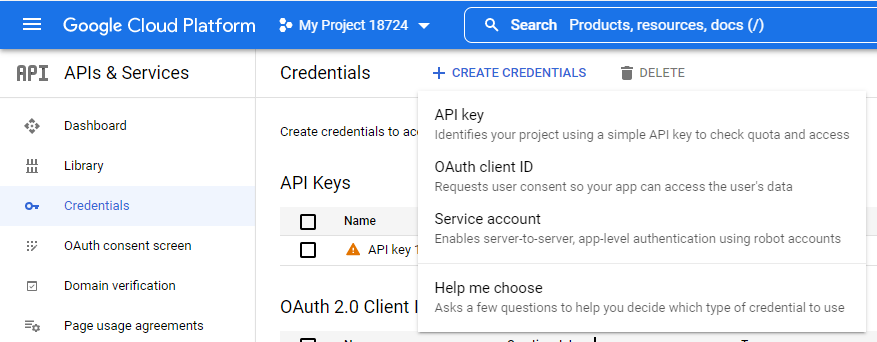
- To make use of the API key, you just need to select the API key and you will be getting a key that you need to use to access your project.
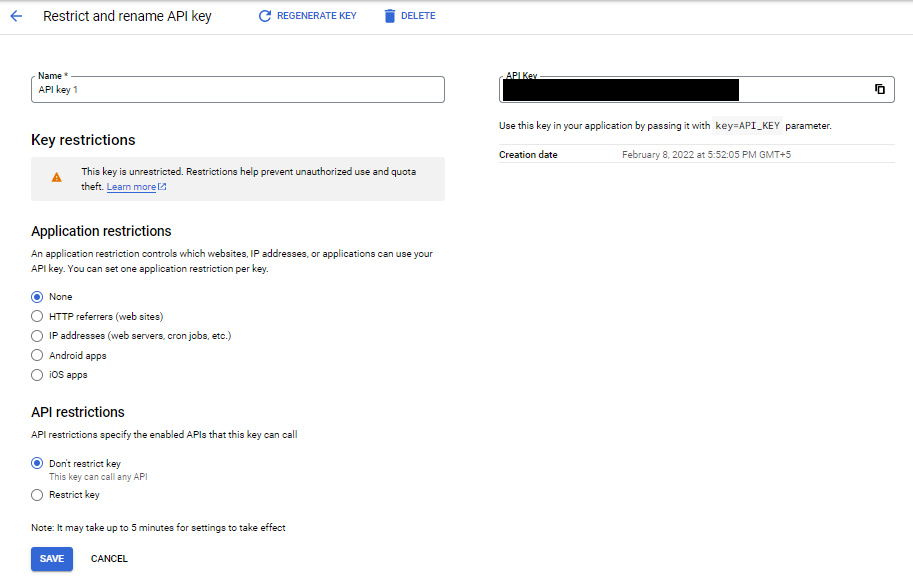
- To make use of OAuth client ID follow the below steps.
- Click on create OAuth Client ID. For the application type, select Web Application and also provide an APP Name. Then add the redirect URL http://localhost:8091/callback as shown below and click on save.
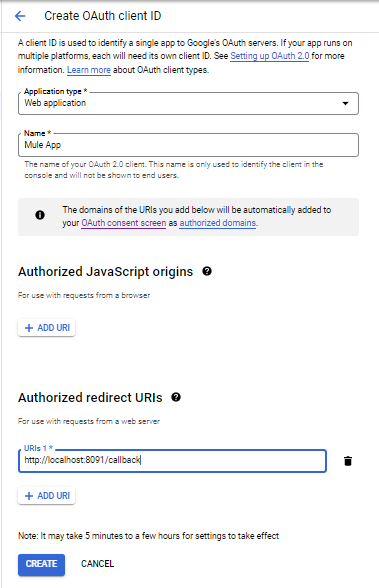
- You will receive the client ID and client secret. Keep these details handy as we will need it to configure in Mule Flow.
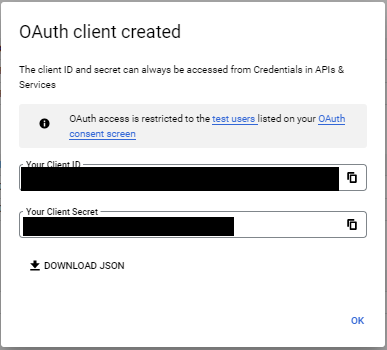
- Now navigate to API and Services > OAuth consent screen and edit the application you have created. Add the user support email and developer support email as those are mandatory fields and then click on save and continue for the rest of the steps.
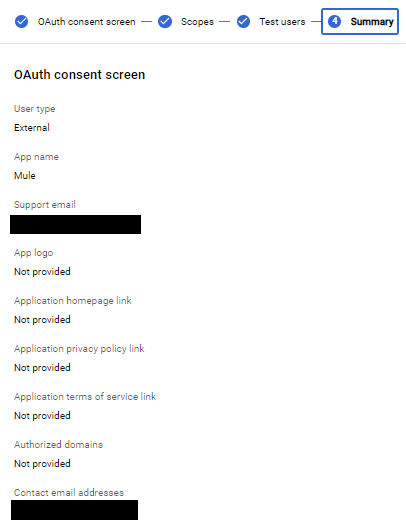
- Once done, publish the app for testing.

- Click on create OAuth Client ID. For the application type, select Web Application and also provide an APP Name. Then add the redirect URL http://localhost:8091/callback as shown below and click on save.
- The last step is to Enable YouTube Data API v3 from the library section for us to access YouTube APIs.

Creating Mule Application
Create a Mule flow and drag and drop an HTTP Listener and an HTTP Request component. Also, add OAuth Module from the exchange because we need to configure OAuth Authentication in HTTP Request.
HTTP Listener Configuration:
Keep the default host(0.0.0.0) and port(8081) configuration and set the path to /getChannelInfo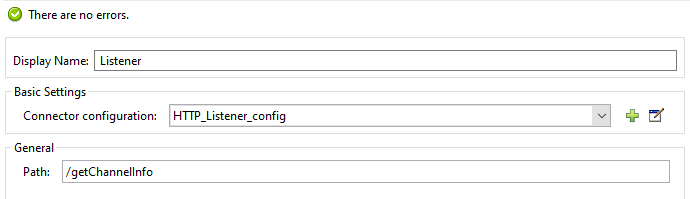
HTTP Request Configuration
In the Request Configuration, set the protocol as HTTPS, the host as www.googleapis.com, and the port as 443.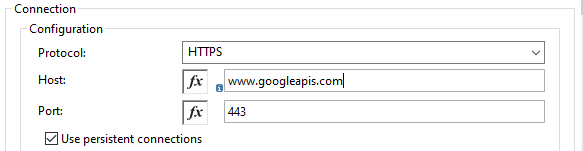
Now scroll down in the configuration section and in the authentication drop-down select authorization code grant type. Set the details as shown below.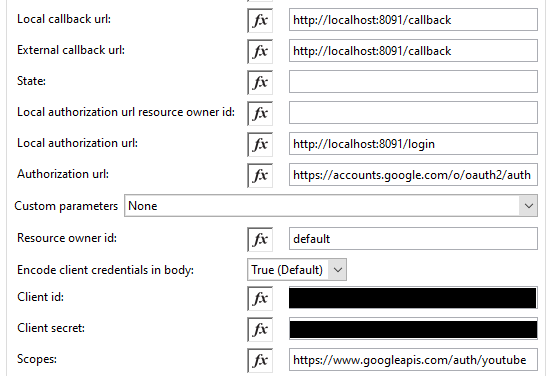
We can now call YouTube Data API. For this use case, we will call the YouTube channel API that will provide your channel information like views count, number of videos, subscriber counts, etc. For this, set the path as /youtube/v3/channels. Also, we need to pass query parameters as seen below.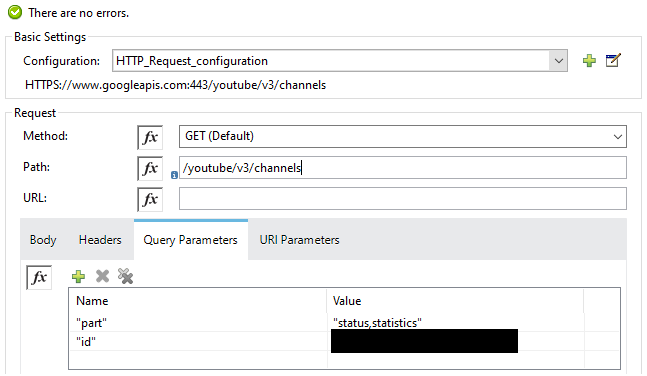
The id in the above configuration is obtained from your YouTube channel link as seen below.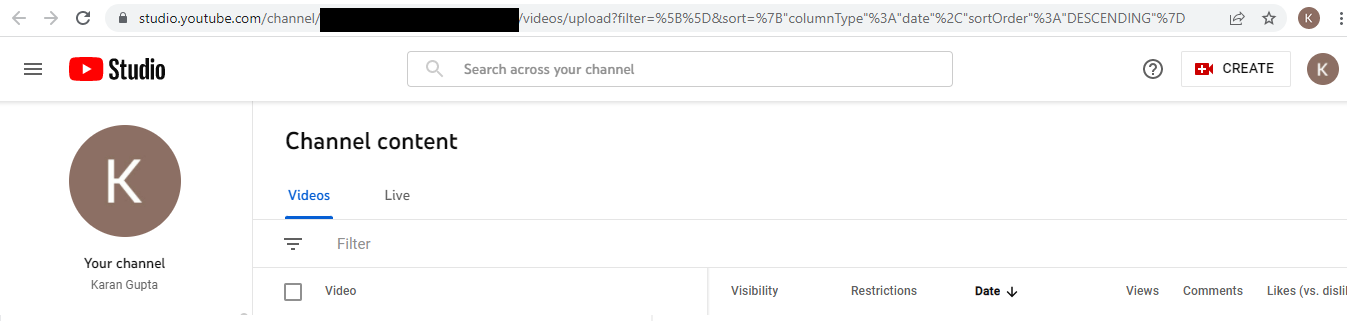
Mule flow: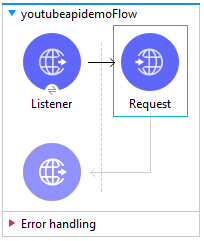
Now run the code and hit the API via postman. Before hitting the actual API, we need to first hit the login API (http://localhost:8091/login) to generate the token as below.
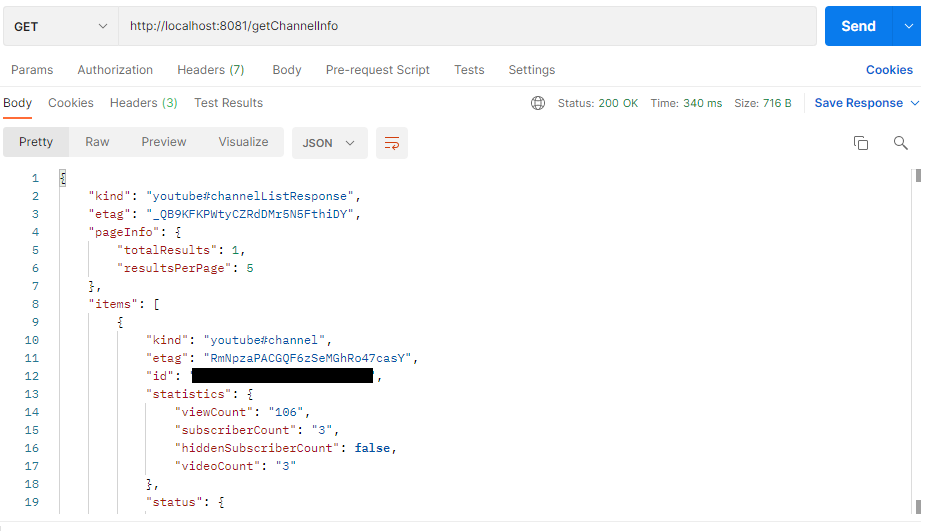
Finally, the API call:
Opinions expressed by DZone contributors are their own.
Comments