

Create a Rich Message Button in Dialogflow
In this tutorial, we will learn how to add a rich message button in chatbots using Dialogflow.
Join the DZone community and get the full member experience.
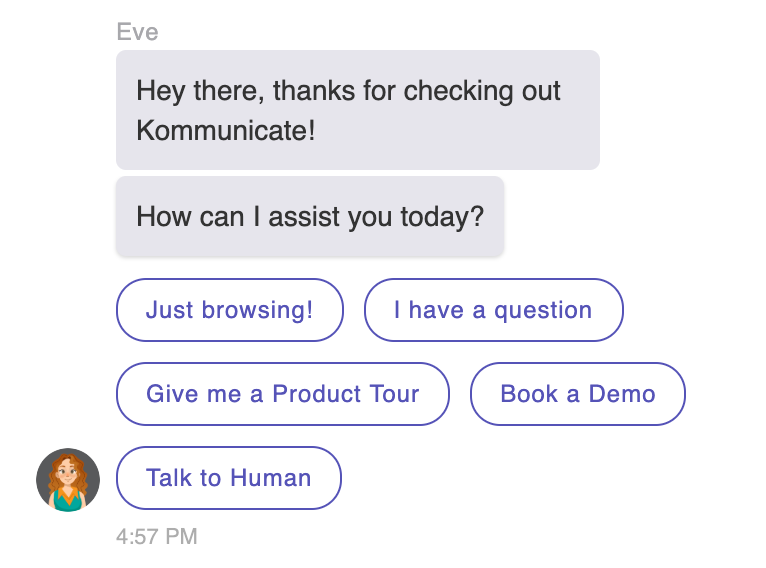
Join For FreeRich messages are widely used in chatbots. It provides the user with a faster way to respond just by clicking on the rich message button. Buttons are the most widely used rich message and are used for providing a set of options, surveys, appointment booking, etc.
In this tutorial, we will learn how to add a rich message button in chatbots using Dialogflow.
We will be using the Google Assistant format for this tutorial.
How to Add Rich Message Buttons
Buttons are the most widely used rich messages and are used for providing a set of options, surveys, appointment bookings, etc.
Dialogflow supports rich messages including buttons, links, images, cards, etc.
It provides 2 ways to set the response:
- Text Response: Used for text-based messages and works on all platforms
- Custom Payload: Custom payload in JSON format for rich messages
Different platforms such as Facebook messenger, Google Actions, Kik, etc. support their own custom payload.
Google Assistant supports the following rich messages:
- Simple Response
- Basic Card
- List
- Suggestion Chips
- Carousel Card
- Browser Carousel Card
- Link Out Suggestion
- Media Content
- Custom Payload
- Table Card
Suggestion Chips and Quick Replies
Button type rich message is referred to as “Suggestion Chips” by Google Assistant and “Quick Replies” by Facebook messenger.
Go to Dialogflow console, select the intent, and scroll down to Responses. Click on “Google Assistant” to see the list of support rich messages.
Select “Suggestion Chips” and click on “Add Item” to list down the buttons.
Create a Rich Message Custom Response Using Dialogflow
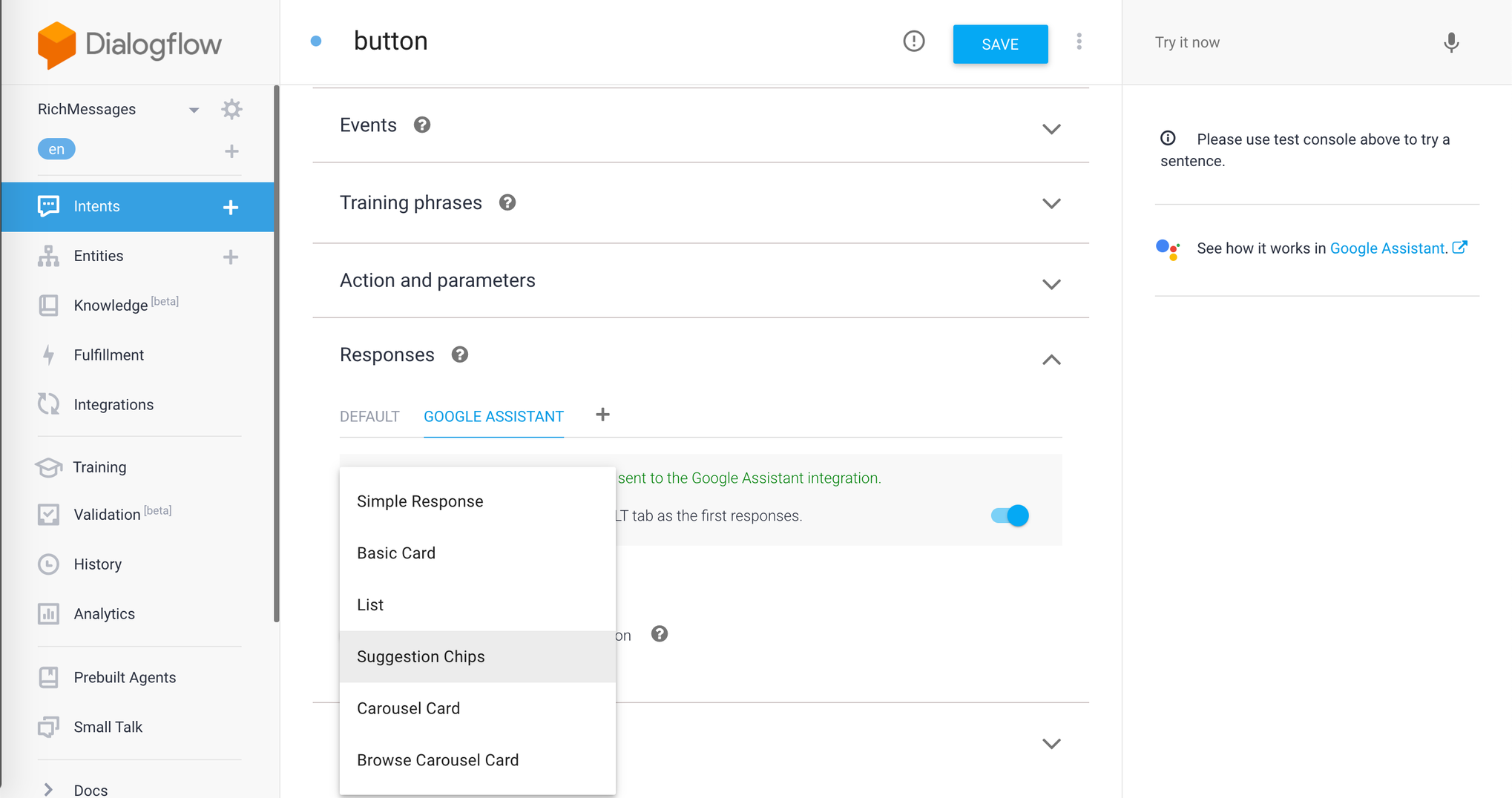
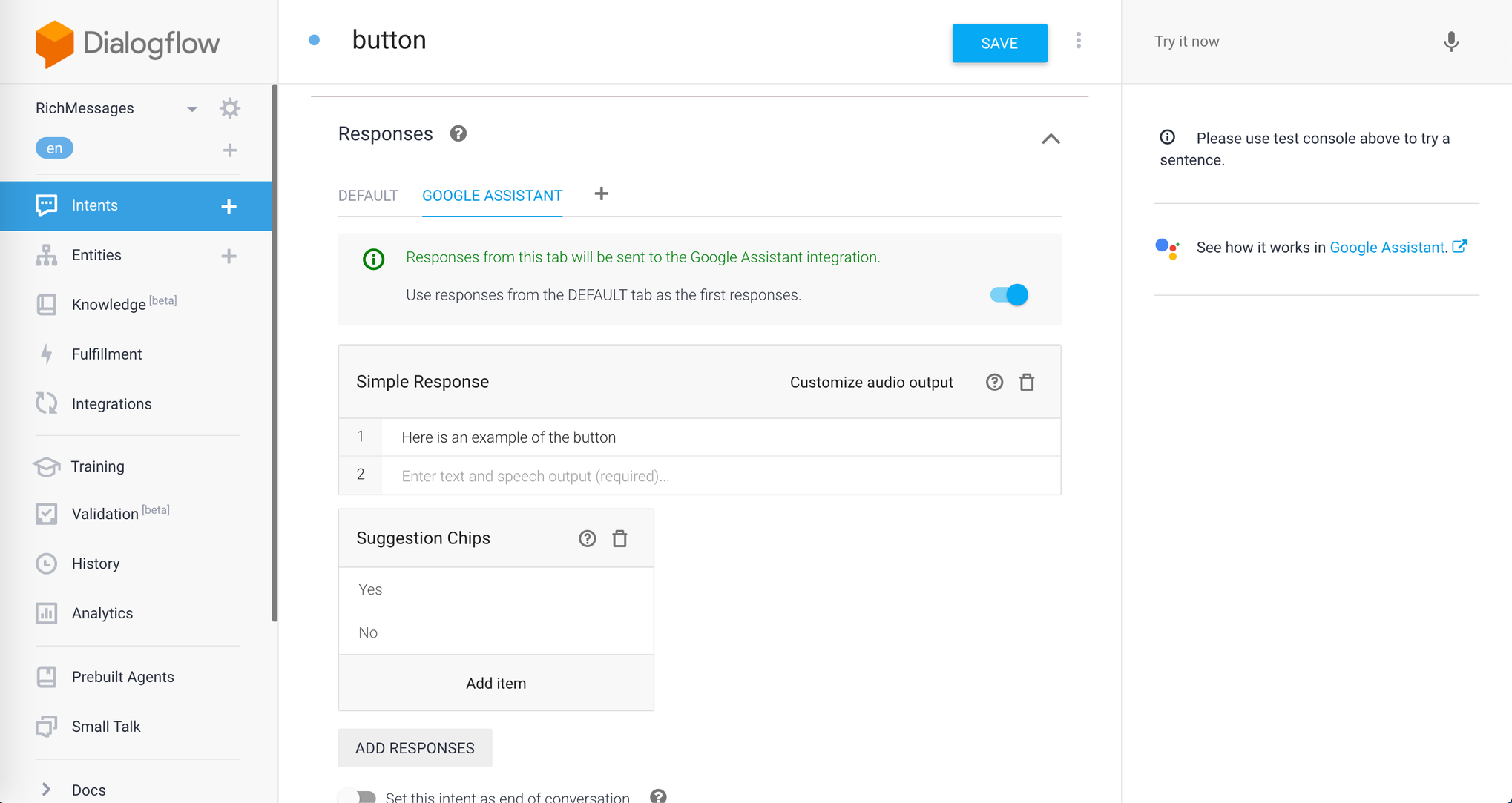
Screenshots from Dialogflow interface
Add Rich Message Buttons to Websites and Mobile Apps
There are many products that provide a plugin to integrate Dialogflow rich messages into your website. Alternatively, create your own custom payload in JSON format, parse the response in your website and mobile apps codebase, and render it on the UI.
Rich message buttons not only make the interface book pretty, but they also drive more actions from your users and provide a better overall conversational experience.
Opinions expressed by DZone contributors are their own.
Comments