

Docker Offload: One of the Best Features for AI Workloads
Docker Offload enables running container builds and workloads in the cloud while maintaining a local development experience using Docker Desktop.
 CORE
·
CORE
·
Join the DZone community and get the full member experience.
Join For FreeAs I mentioned in my previous post about Docker Model Runner and why it's a game-changing feature. I also mentioned that the best is yet to come, and Docker finally announced during the "WeAreDevelopers" event in Berlin, about their new feature, "Docker Offload." In this article, I will explain what exactly Docker Offload is and why we need it as developers, and why I say it's one of the best features released by Docker in recent times.
What Is Docker Offload?
If you are like me, who struggled to try out those cool AI models or data processing pipelines locally but were unable to do so due to the limitations of not having a GPU or a powerful machine to run them on, then continue reading. I always end up utilizing cloud resources, which often come with a hefty price tag.
This is where the Docker team saw an opportunity and came up with yet another cool feature, which is the Docker Offload.
Docker Offload is a fully managed service that enables users to execute Docker builds and run containers on cloud infrastructure, while preserving the local development experience. This drastically reduces the load on your local machine. It seems and feels like magic behind the scenes, as you will still continue to run the same Docker commands that you are familiar with; however, Docker Desktop creates a secure SSH tunnel to a Docker daemon running in the cloud. It provides local experience; however, your containers are created, and all workloads are executed on cloud infrastructure.
Why Use Docker Offload?
- Run containers that are compute-intensive and require more resources than your local machine.
- Leverage cloud infrastructure for offloading heavy builds.
- Docker Offload is ideal for high-velocity development workflows that need the flexibility of the cloud without sacrificing local development experience.
- Instant access to GPU-powered environments.
- Accelerate both development and testing without worrying about cloud infrastructure setup.
- Develop efficiently in restricted environments, such as VDIs.
How to Get Started
Prerequisites
- Docker Desktop 4.43.0 version or above.
- Docker Hub Account with Docker Offload access:
- Docker Offload is currently in beta, so you'll need to sign up for access. Visit https://www.docker.com/products/docker-offload/ to sign up for beta access.
- You will receive an email after which you can enable Docker Offload in your Docker Desktop.
- No restrictive proxy or firewall blocking traffic to Docker Cloud.
How to Start Docker Offload
Once you receive the access, you can enable Docker Offload in two ways: either using Docker Desktop or via Terminal.
Start via Docker Desktop
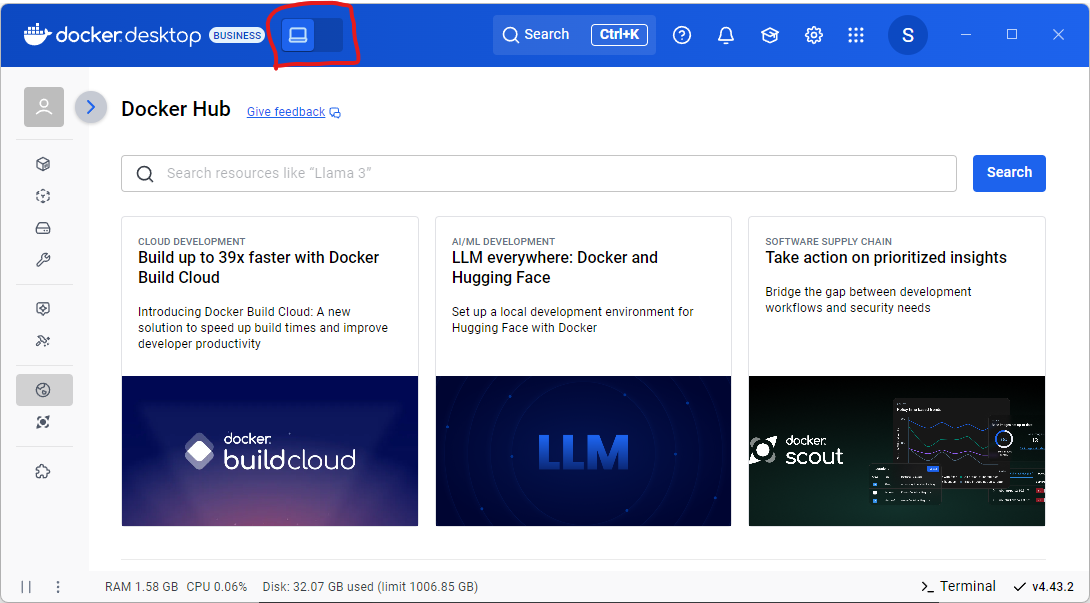
In the screenshot below, you can see a toggle button at the top to enable Docker Offload.
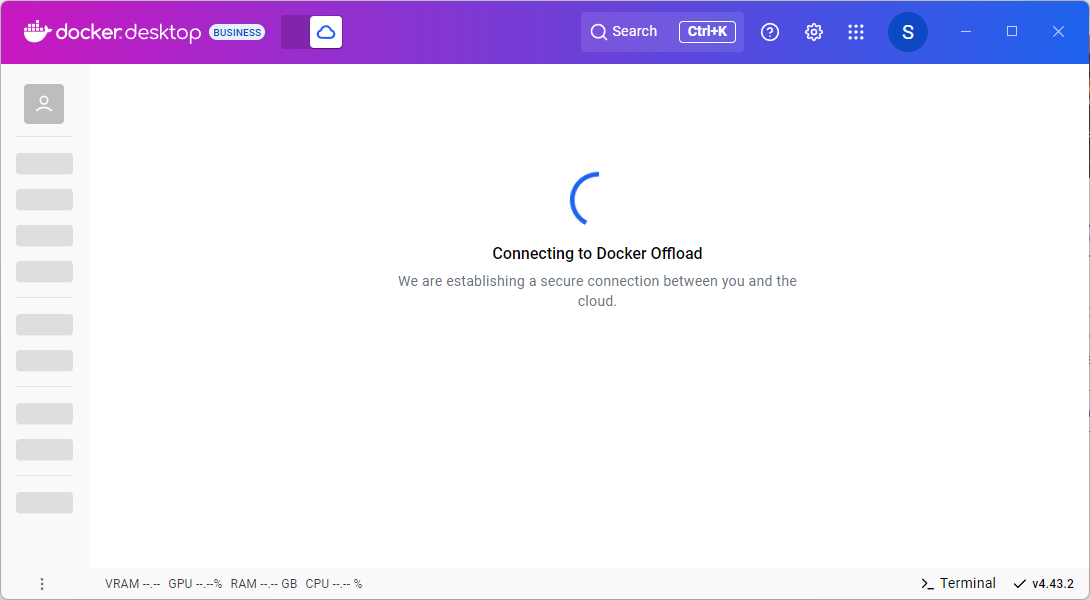
As soon as you do that, Docker Desktop color will be changed to purple, and you'll see a cloud icon in the header, which means Docker Desktop is now securely connected to a cloud environment that mimics your local experience. Now, when you run builds or containers, they execute remotely, but as a user, you will not see any difference.
Start via Terminal
Open a terminal and execute:
docker offload start The command will give you a prompt, as shown in the image below, to choose which account you want to use for Docker Offload.

In the next prompt, it will ask whether you need GPU support or not.
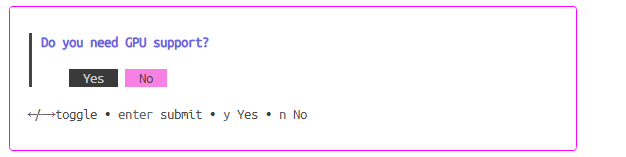
Once you select the options, it will display a "New Docker context created: docker-cloud" message, and the color of the Docker Desktop will change to purple.

Note: Docker is currently giving 300 free GPU minutes to get started! After credits expire, usage is priced at $0.015 per GPU minute. For more details on billing and usage, refer to https://docs.docker.com/offload/usage/.
How to Run a Container With Docker Offload
Before running a container, make sure to verify Docker Offload is running properly. Execute the command below in the terminal to check the status.
docker offload status 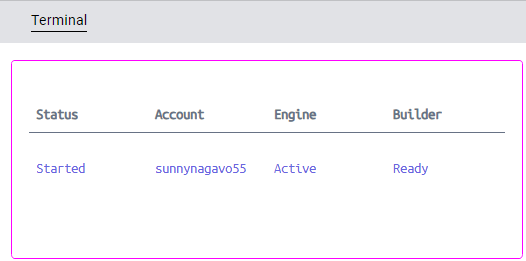
You can also see a cloud icon with Offload + GPU running at the bottom left of your Docker Desktop window.

To get more information about Docker Offload status, run the below command, which gives more details about the daemon and status, and if there were any failed reasons when running Docker Offload, as shown in the screenshot below.
docker offload diagnose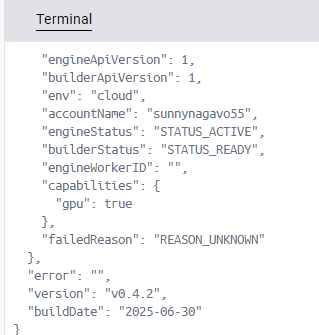
How to Build a Container With Docker Offload
For this article demo, I have forked a Docker Offload demo app created by Ajeet Raina, a developer advocate at Docker. Ajeet created this awesome demo application, which I couldn't resist sharing here.
git clone https://github.com/sunnynagavo/docker-offload-demo.git

cd .\docker-offload-demo\
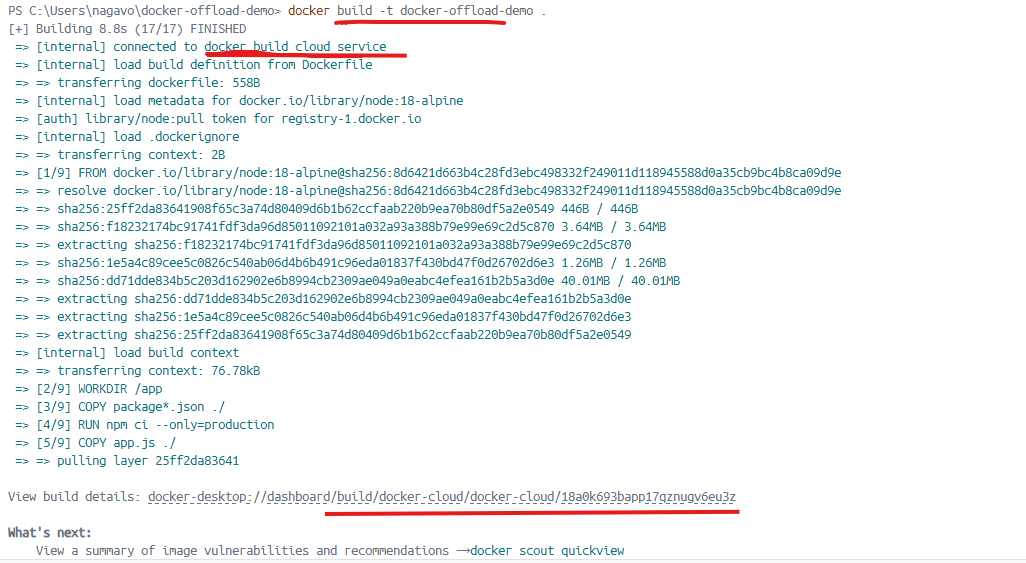
Once you are inside the folder, let's run the Docker build command as shown below and see the magic. The build happens on cloud infrastructure instead of your local machine, which you can also see in the logs as shown in the screenshot below.
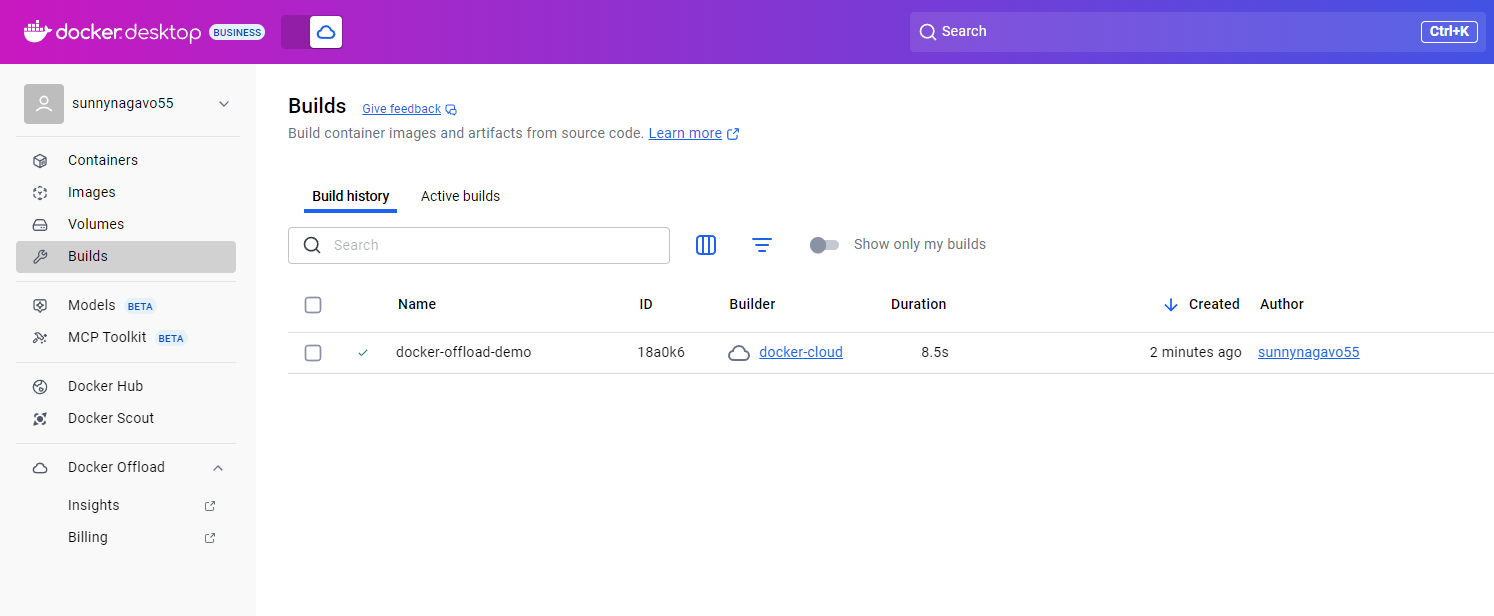
You can also click on the Build tab on Docker Desktop to see the details of the build you just ran.
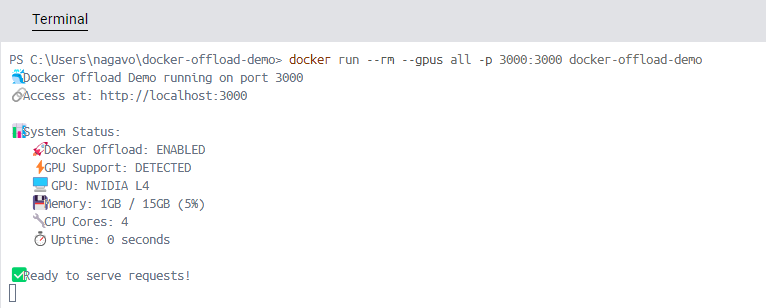
In order to run the application with GPUs, execute the following command in the terminal.
docker run --rm --gpus all -p 3000:3000 docker-offload-demoYou can see the output in the logs where it leveraged GPU (NVIDIA L4 by default) on the Docker cloud.
Navigate to the URL http://localhost:3000 to see the demo application as shown in the screenshot below.
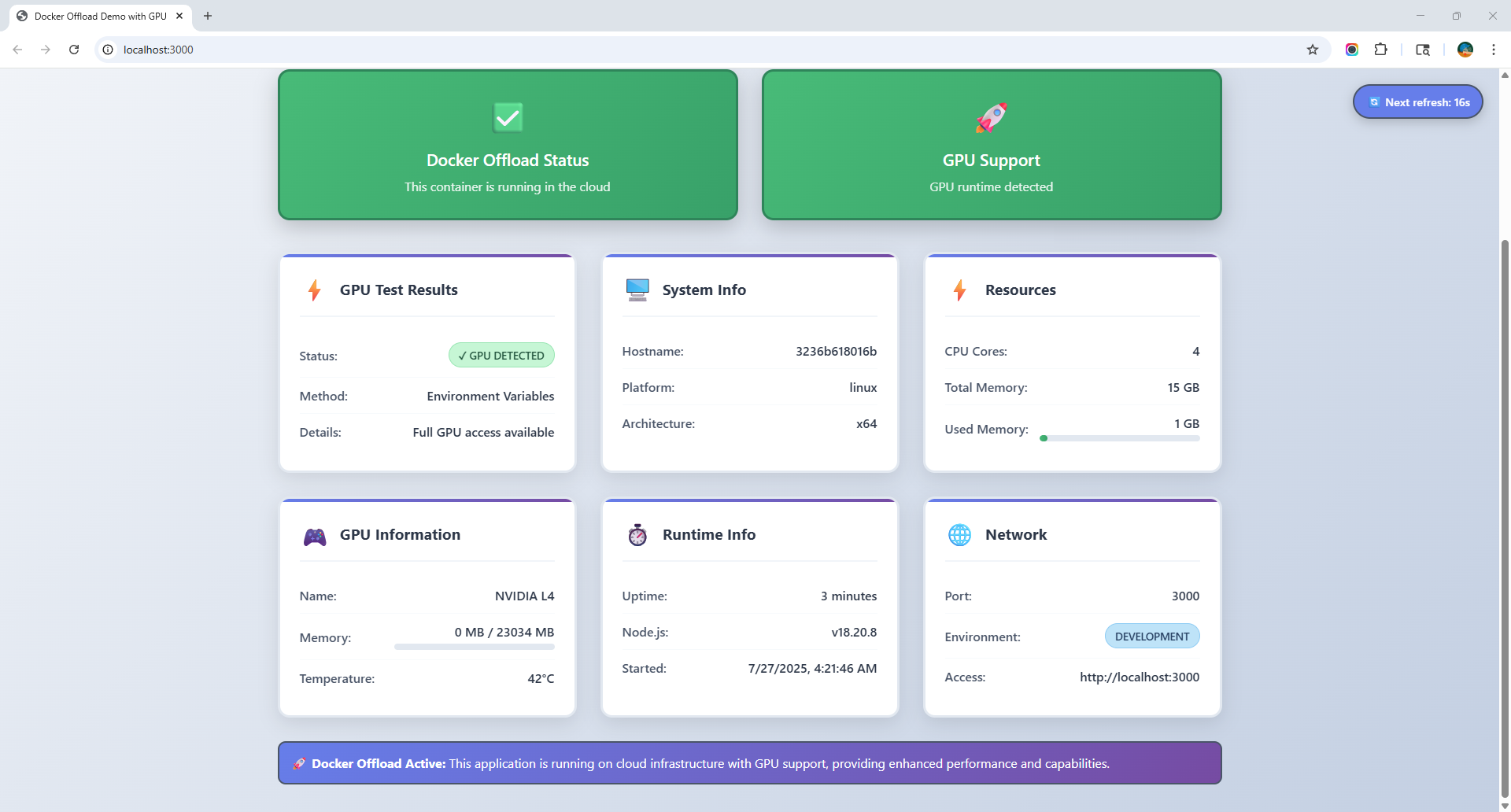
The demo application shows a comprehensive view of your system's performance by providing confirmation that you are utilizing Docker Offload. The app clearly shows the stats about what GPU hardware (NVIDIA L4) is used in running, along with the resources used in running the application.
How to Stop Docker Offload
Just like starting Docker Offload, there are two ways to stop Docker Offload.
Stop via Docker Desktop
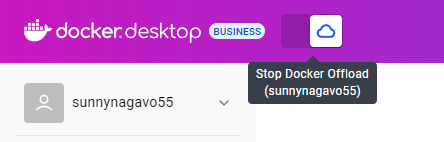
You can use the same toggle button at the top to stop Docker Offload and color changes back to your regular theme.
Stop via Terminal
Open a terminal and execute:
docker offload stopOnce it's stopped, all the previously built images and containers will be cleaned up. When you run the above commands, you will now build images and run containers locally.
Conclusion
Docker Offload closes the gap between ease of local development and the power of cloud scalability. It helps developers to run compute-intensive workloads in the cloud without losing the experience of working locally. Docker Offload is like adding a supercomputer brain to your local machine. I highly encourage developers to give it a try and experience the power of Docker Offload. What are you waiting for? Go ahead and submit the request for getting access to Docker Offload.
For more details, check out Docker's official documentation on Docker Offload at https://docs.docker.com/offload/quickstart/.
Opinions expressed by DZone contributors are their own.
Comments