

Efficient ITSM Incident Resolution: Leveraging Azure AI Services for Quick Solutions
This tutorial explores leveraging Azure AI Search for historical ITSM incident data, facilitating incident resolution in IT Service Management.
ITSM Incident Management Process
Service desks are utilized by customers to report IT issues in enterprise applications. Most service issues are resolved by Level-1 teams (service desk) by providing knowledge base (KB) articles. Level-1 support resources identify important keywords and determine if the incoming request is similar to any historic ticket.
With existing incident resolution notes, Level-1 resources can resolve incidents promptly. Otherwise, they create incidents with all mandatory fields, such as Configuration Item (CI), Short Description, and Description in ticketing tools like ServiceNow. As part of the incident management process, an incident ticket is created and forwarded, along with relevant information, to a Level-2 team, who are subject matter experts (SMEs) for the incident.
The SME attempts to resolve the incident using their expertise. Level-1 personnel use keyword searches along with human intelligence to identify the potentially responsible Configuration Items (CIs) and select one to create a ticket. The incident ticket is then forwarded to Level-2 support to diagnose the problem in the selected CI. If the identified CI is incorrect, the ticket is bounced back and forth between Level-1 and Level-2 support. If any code change is required, external support (Level-3) is contacted. After resolving the problem, the customer is informed, and the incident ticket is closed with proper resolution notes.
Integrating ITSM Ticketing Data With Azure AI Services
The ITSM process serves as an underlying data storage framework for the Configuration Management Database (CMDB). The Level-1 support team searches based on the CI and with a short problem description to retrieve historical ticket resolutions. Keyword searches with human intelligence are limited, and responses are also limited in ticketing tools.
The evolution of Azure AI will address this issue and provide quicker resolution, primarily at Level 1 support. Azure Search service will provide fast search results with simple text queries in the index search explorer. Ticket information can be downloaded with an Incident number, short description, description, and resolution notes as columns in an Excel sheet and filtered based on the CI name. Create an index for each CI name in the ticketing tool.
Azure AI Search service will address this issue with simple scripting. Create an index in Azure AI for each CI and upload the downloaded Excel data into Azure. Map the aforementioned Excel columns with the index fields. All fields are searchable and traceable in the Azure index.
Steps To Create a Cognitive Search Service
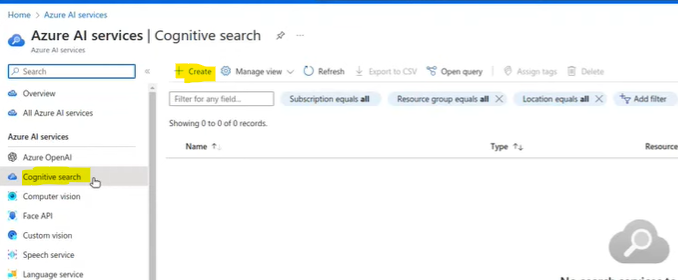
- Goto Azure portal and Search Azure AI Services.
- click AI Search, then click Create.
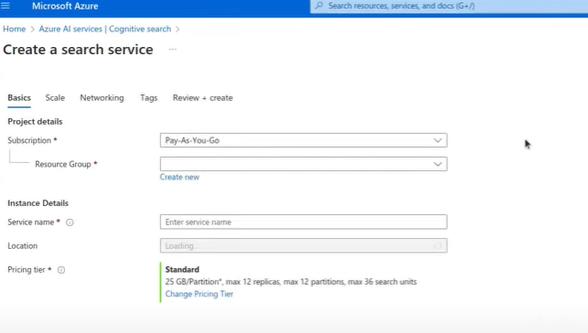
- Provide basic information as per requirement.
- Click review + create.
Please find the screenshots below.
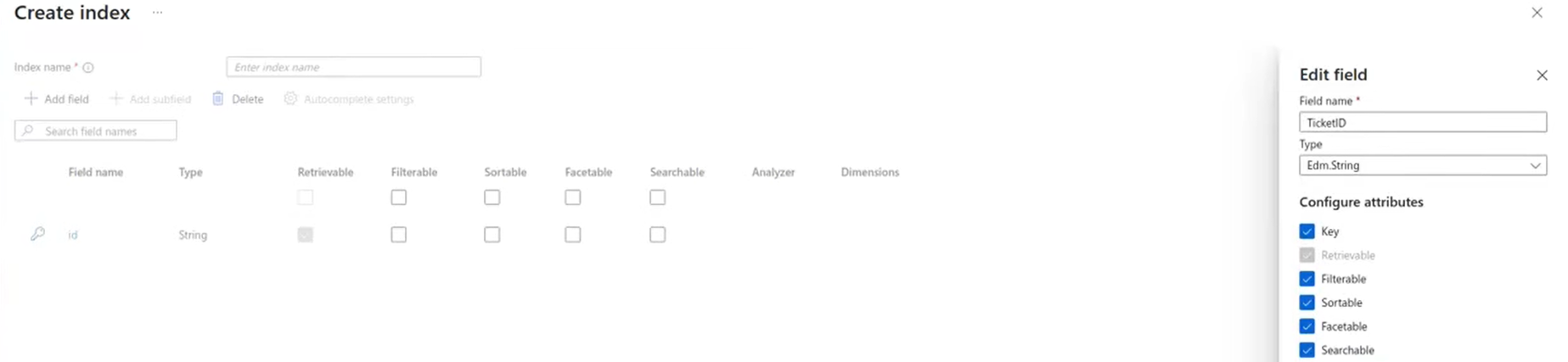
Steps To Create Indexes in AI Search Service
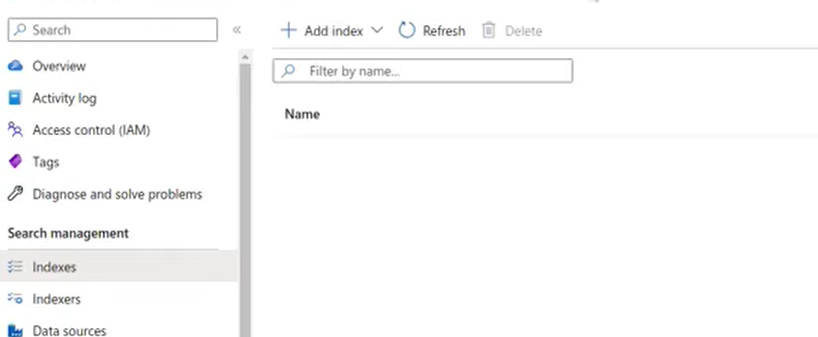
- Click on Add Index.
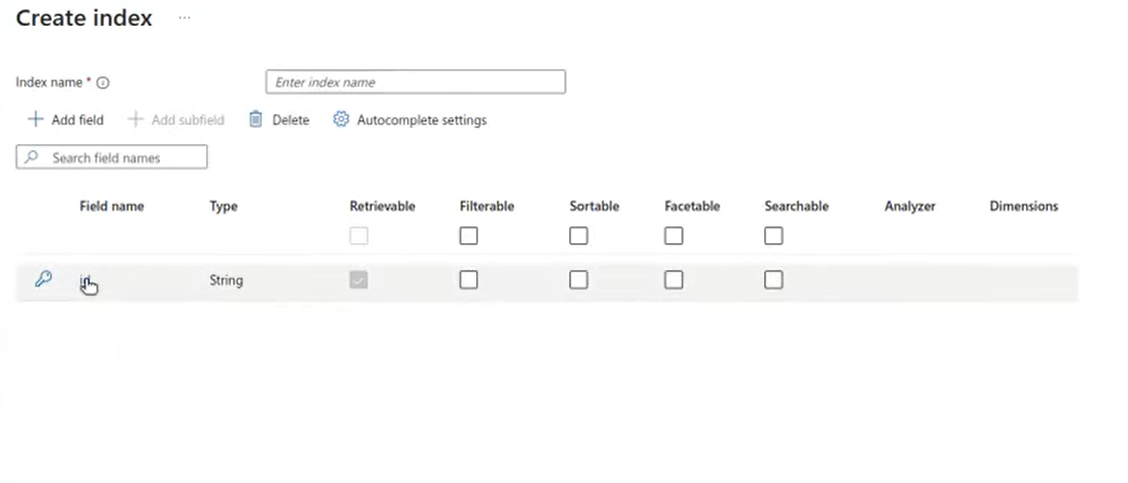
- Click on id and edit name, type, and configure attributes.
- Select Analyzer as English-Microsoft from the drop-down list.
- Select the Add field for all the columns to map.
Please find the screenshots below.
from azure.search.documents import SearchClient
from azure.core.credentials import AzureKeyCredential
import pandas as pd
import re
import json

# Define your Azure Cognitive Search settings
service_name = ''
index_name = ''
admin_key = 'YOUR_ADMIN_KEY'  # Replace with your actual admin key
endpoint = "https://{service_name}.search.windows.net/"

credential = AzureKeyCredential(admin_key)

# Fill the File Path to Load the Excel data into a DataFrame.
file_path = ''
df = pd.read_excel(file_path)

# indexing logic

  #initialize the client
  search_client = SearchClient(endpoint=endpoint, index_name=index_name, credential=credential)

  #upload data to the Azure Cognitive Search
  data = [ ]

for_,row in df.iterrows():
       data.append({
            "@search.action": "upload",
            "TicketNumber": row["TicketNumber"]),
            "ShortDescription": row["ShortDescription"],
            "Description": row["Description"],
            "ResolutionNotes": row["ResolutionNotes"]
})

  response = search_client.upload_documents(data)
Run Instructions
Open a command prompt or terminal, navigate to the directory where you saved the Python file, and run the script using Python.
Conclusions and Future Work
L1 support resources can search index-wise in the search explorer with simple text to retrieve all ticket information in a few seconds. With this knowledge, they can provide quick resolutions within a minimum time. The power of Azure AI can significantly impact customer satisfaction. We can create an application to chat like a human to retrieve cognitive search data using OpenAI within Azure AI Studio.
Opinions expressed by DZone contributors are their own.