

"Fix with AI" Button to Automate Playwright Test Fixes
A guide to using AI tools like ChatGPT and Copilot to automatically fix Playwright test failures, thus streamlining your testing process and improving app reliability.
Join the DZone community and get the full member experience.
Join For FreeEnd-to-end tests are essential for ensuring the reliability of your application, but they can also be a source of frustration. Even small changes to the user interface can cause tests to fail, leading developers and QA teams to spend hours troubleshooting.
In this blog post, I’ll show you how to utilize AI tools like ChatGPT or Copilot to automatically fix Playwright tests. You’ll learn how to create an AI prompt for any test that fails and attach it to your HTML report. This way, you can easily copy and paste the prompt into AI tools for quick suggestions on fixing the test. Join me to streamline your testing process and improve application reliability!
Let’s dive in!
Plan
The solution comes down to three simple steps:
- Identify when a Playwright test fails.
- Create an AI prompt with all the necessary context:
- The error message
- A snippet of the test code
- An ARIA snapshot of the page
- Integrate the prompt into the Playwright HTML report.
By following these steps, you can enhance your end-to-end testing process and make fixing Playwright tests a breeze.
Step-by-Step Guide
Step 1: Detecting a Failed Test
To detect a failed test in Playwright, you can create a custom fixture that checks the test result during the teardown phase, after the test has completed. If there’s an error in testInfo.error and the test won't be retried, the fixture will generate a helpful prompt. Check out the code snippet below:
import { test as base } from '@playwright/test';
import { attachAIFix } from '../../ai/fix-with-ai'

export const test = base.extend({
  fixWithAI: [async ({ page }, use, testInfo) => {
        await use()
        await attachAIFix(page, testInfo)
    }, { scope: 'test', auto: true }]
});
Step 2: Building the Prompt
Prompt Template
I'll start with a simple proof-of-concept prompt (you can refine it later):
You are an expert in Playwright testing.
Your task is to fix the error in the Playwright test titled "{title}".

- First, provide a highlighted diff of the corrected code snippet.
- Base your fix solely on the ARIA snapshot of the page.
- Do not introduce any new code.
- Avoid adding comments within the code.
- Ensure that the test logic remains unchanged.
- Use only role-based locators such as getByRole, getByLabel, etc.
- For any 'heading' roles, try to adjust the heading level first.
- At the end, include concise notes summarizing the changes made.
- If the test appears to be correct and the issue is a bug on the page, please note that as well.

Input:

{error}

Code snippet of the failing test:

{snippet}

ARIA snapshot of the page:

{ariaSnapshot}
Let’s fill the prompt with the necessary data.
Error Message
Playwright stores the error message in testInfo.error.message. However, it includes special ASCII control codes for coloring output in the terminal (such as [2m or [22m):
TimeoutError: locator.click: Timeout 1000ms exceeded.
Call log:
[2m  - waiting for getByRole('button', { name: 'Get started' })[22m
After investigating Playwright’s source code, I found a stripAnsiEscapes function that removes these special symbols:
const clearedErrorMessage = stripAnsiEscapes(testInfo.error.message);Cleared error message:
TimeoutError: locator.click: Timeout 1000ms exceeded.
Call log:
  - waiting for getByRole('button', { name: 'Get started' })
This cleaned-up message can be inserted into the prompt template.
Code Snippet
The test code snippet is crucial for AI to generate the necessary code changes. Playwright often includes these snippets in its reports, for example:
  4 | test('get started link', async ({ page }) => {
  5 |   await page.goto('https://playwright.dev');
> 6 |   await page.getByRole('button', { name: 'Get started' }).click();
    |                                                           ^
  7 |   await expect(page.getByRole('heading', { level: 3, name: 'Installation' })).toBeVisible();
  8 | });
You can see how Playwright internally generates these snippets. I’ve extracted the relevant code into a helper function, getCodeSnippet(), to retrieve the source code lines from the error stack trace:
const snippet = getCodeSnippet(testInfo.error);
ARIA Snapshot
ARIA snapshots, introduced in Playwright 1.49, provide a structured view of the page’s accessibility tree. Here’s an example ARIA snapshot showing the navigation menu on the Playwright homepage:
- document:
  - navigation "Main":
    - link "Playwright logo Playwright":
      - img "Playwright logo"
      - text: Playwright
    - link "Docs"
    - link "API"
    - button "Node.js"
    - link "Community"
  ...
While ARIA snapshots are primarily used for snapshot comparison, they are also a game-changer for AI prompts in web testing. Compared to raw HTML, ARIA snapshots offer:
- Small size → Less risk of hitting prompt limits
- Less noise → Less unnecessary context
- Role-based structure → Encourages AI to generate role-based locators
Playwright provides .ariaSnapshot(), which you can call on any element. For AI to fix a test, it makes sense to include the ARIA snapshot of the entire page retrieved from the root <html> element:
const ariaSnapshot = await page.locator('html').ariaSnapshot();Assembling the Prompt
Finally, combine all the pieces into one prompt:
const errorMessage = stripAnsiEscapes(testInfo.error.message);
const snippet = getCodeSnippet(testInfo.error);
const ariaSnapshot = await page.locator('html').ariaSnapshot();

const prompt = promptTemplate
  .replace('{title}', testInfo.title)
  .replace('{error}', errorMessage)
  .replace('{snippet}', snippet)
  .replace('{ariaSnapshot}', ariaSnapshot);
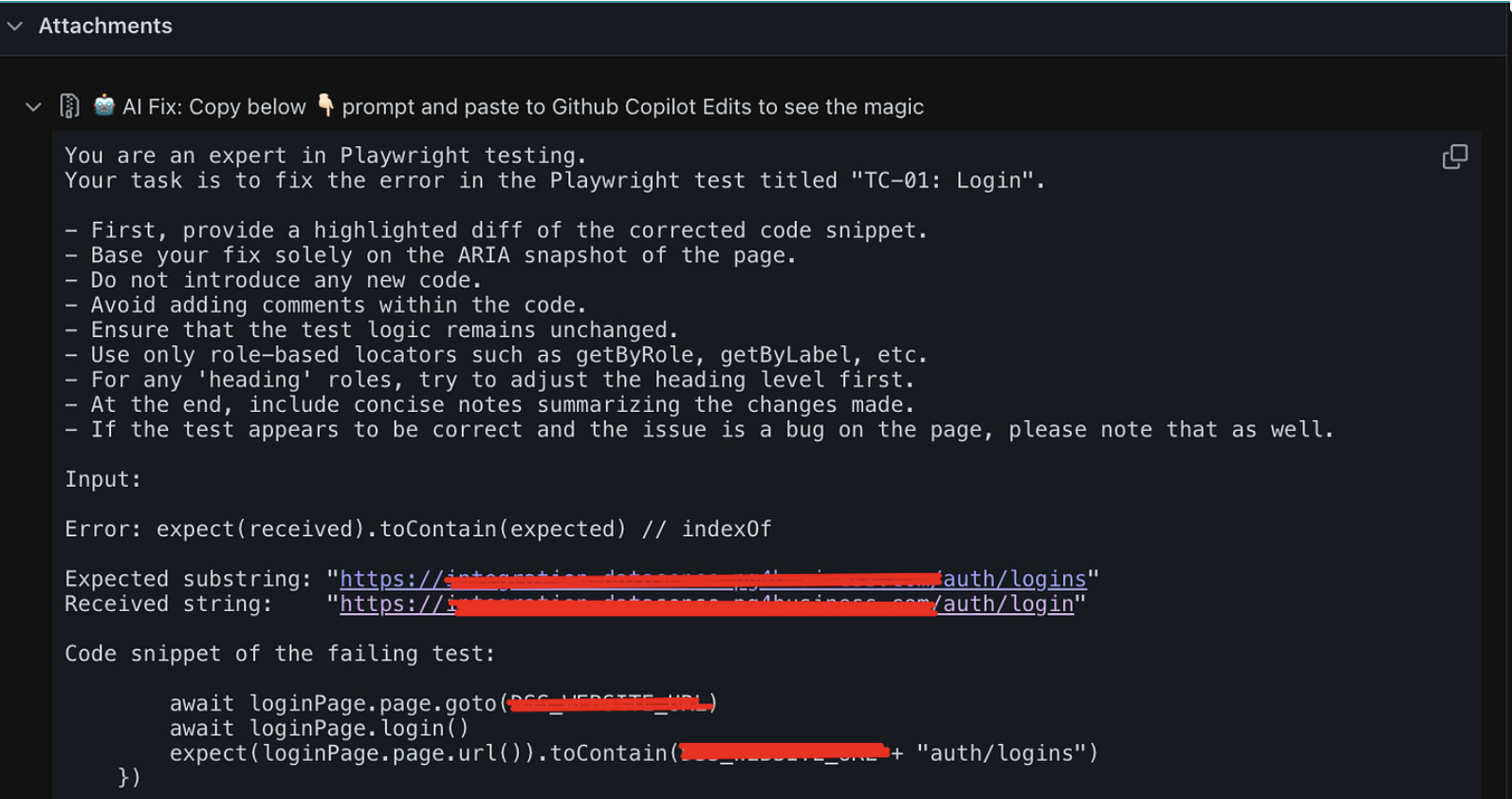
Example of the generated prompt:
Step 3: Attach the Prompt to the Report
When the prompt is built, you can attach it to the test using testInfo.attach:
export async function attachAIFix(page: Page, testInfo: TestInfo) {
    const willRetry = testInfo.retry < testInfo.project.retries
    if (testInfo.error && !willRetry) {
        const prompt = generatePrompt({
            title: testInfo.title,
            error: testInfo.error,
            ariaSnapshot: await page.locator('html').ariaSnapshot(),
        });
        await testInfo.attach('AI Fix: Copy below prompt and paste to Github Copilot Edits to see the magic', { body: prompt })
    }
}
Now, whenever a test fails, the HTML report will include an attachment labeled "Fix with AI."
Fix Using Copilot Edits
When it comes to using ChatGPT for fixing tests, you typically have to manually implement the suggested changes. However, you can make this process much more efficient by using Copilot. Instead of pasting the prompt into ChatGPT, simply open the Copilot edits window in VS Code and paste your prompt there. Copilot will then recommend code changes that you can quickly review and apply — all from within your editor.
Check out this demo video of fixing a test with Copilot in VS Code:
Integrating "Fix with AI" into Your Project
Vitaliy Potapov created a fully working GitHub repository demonstrating the "Fix with AI" workflow. Feel free to explore it, run tests, check out the generated prompts, and fix errors with AI help.
To integrate the "Fix with AI" flow into your own project, follow these steps:
- Ensure you’re on Playwright 1.49 or newer
- Copy the
fix-with-ai.tsfile into your test directory - Register the AI-attachment fixture:
import { test as base } from '@playwright/test';
import { attachAIFix } from '../../ai/fix-with-ai'

export const test = base.extend({
  fixWithAI: [async ({ page }, use, testInfo) => {
        await use()
        await attachAIFix(page, testInfo)
    }, { scope: 'test', auto: true }]
});
Run your tests and open the HTML report to see the “Fix with AI” attachment under any failed test
From there, simply copy and paste the prompt into ChatGPT or GitHub Copilot, or use Copilot’s edits mode to automatically apply the code changes.
Relevant Links
- Fully-working GitHub repository
- Originally written by Vitaliy Potapov: https://dev.to/vitalets/fix-with-ai-button-in-playwright-html-report-2j37
I’d love to hear your thoughts or prompt suggestions for making the “Fix with AI” process even more seamless. Feel free to share your feedback in the comments.
Thanks for reading, and happy testing with AI!
Published at DZone with permission of Shivam Bharadwaj. See the original article here.
Opinions expressed by DZone contributors are their own.
Comments