

How To Insert, Retrieve, and Query Data From Amazon Dynamo DB in Mule 4
In this article, I'm going to share a step-by-step guide to store data in Dynamo DB and retrieve data based on various conditions in mule 4.
Join the DZone community and get the full member experience.
Join For FreeMulesoft - Amazon DynamoDB Connector
Anypoint Connector for Amazon DynamoDB (Amazon DynamoDB Connector), as the name goes, provides connectivity to the Amazon DynamoDB API.
Amazon DynamoDB is a fully managed NoSQL database service. It enables fast performance and seamless scalability. The role of Amazon DynamoDB Connector is to ensure interaction with Amazon DynamoDB in order to store and retrieve data from Dynamo DB.
Prerequisites
To be able to use the Amazon DynamoDB connector, we need to have the following:
- An AWS account with accessibility to the Amazon DynamoDB.
- AWS Identity and Access Management (IAM) credentials including access and secret keys.
Demo Application
We have to follow the following steps:
- Create DynamoDB Table - Employees with partition key as 'EmployeeId' and sort key as 'Email'.
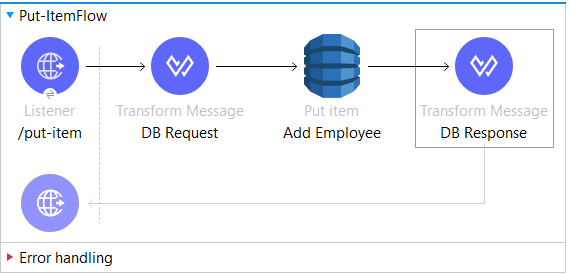
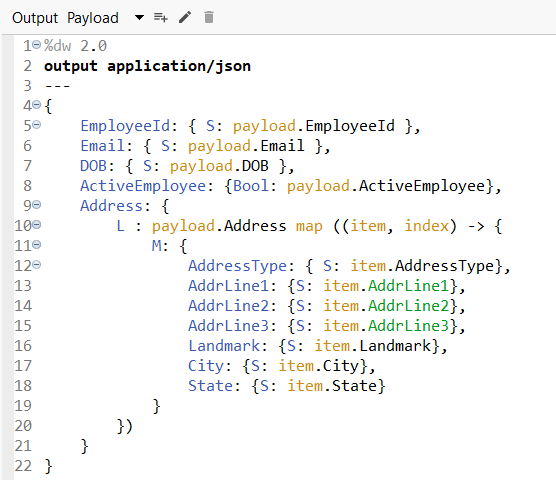
- Convert input data to DynamoDB JSON format and insert data into DB using a put-item connector.
- Retrieve data from DB using a get-item connector.
- Query data from DB based on the partition key.
- Query data from DB based on sort key or any other attribute of the table.
We are using an HTTP listener to invoke functionalities like Inserting and retrieving messages from the DB. We are further using the Put Item, Get-Item, and Query connector. Below are the steps in detail:
Step 1: Create Dynamo DB Table
- Log in to AWS Console and go to the DynamoDB section.
- Click on Tables on the left-hand side.
- Click on create table and create a new table - 'Employees' with partition key as 'EmployeeId' and sort key as 'Email'.
Step 2: Convert Input Data to DynamoDB JSON Format and Insert Data into DB Using Put Item Connector
Input data:
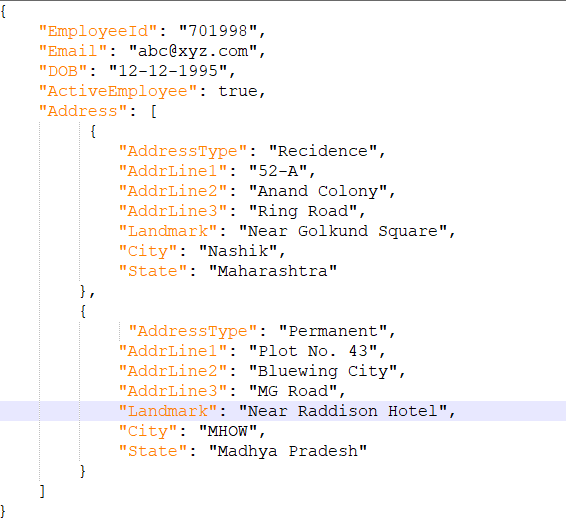
Request JSON payload has attributes with String and Boolean datatype, also it contains an array.
DB Request Transform:
Add Employee Configuration:
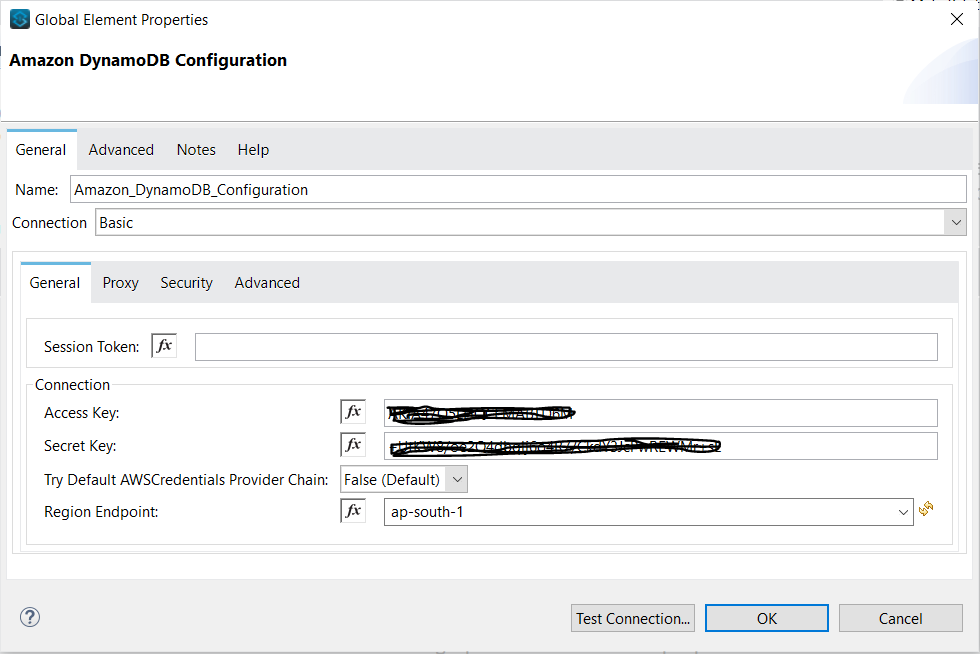
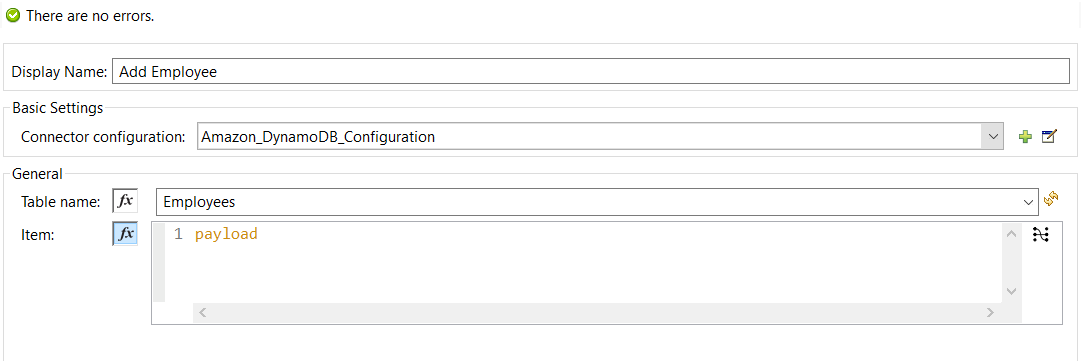
Make sure that the test connection is successful. Once data is inserted, this is how it looks like on the AWS Dynamo DB console:
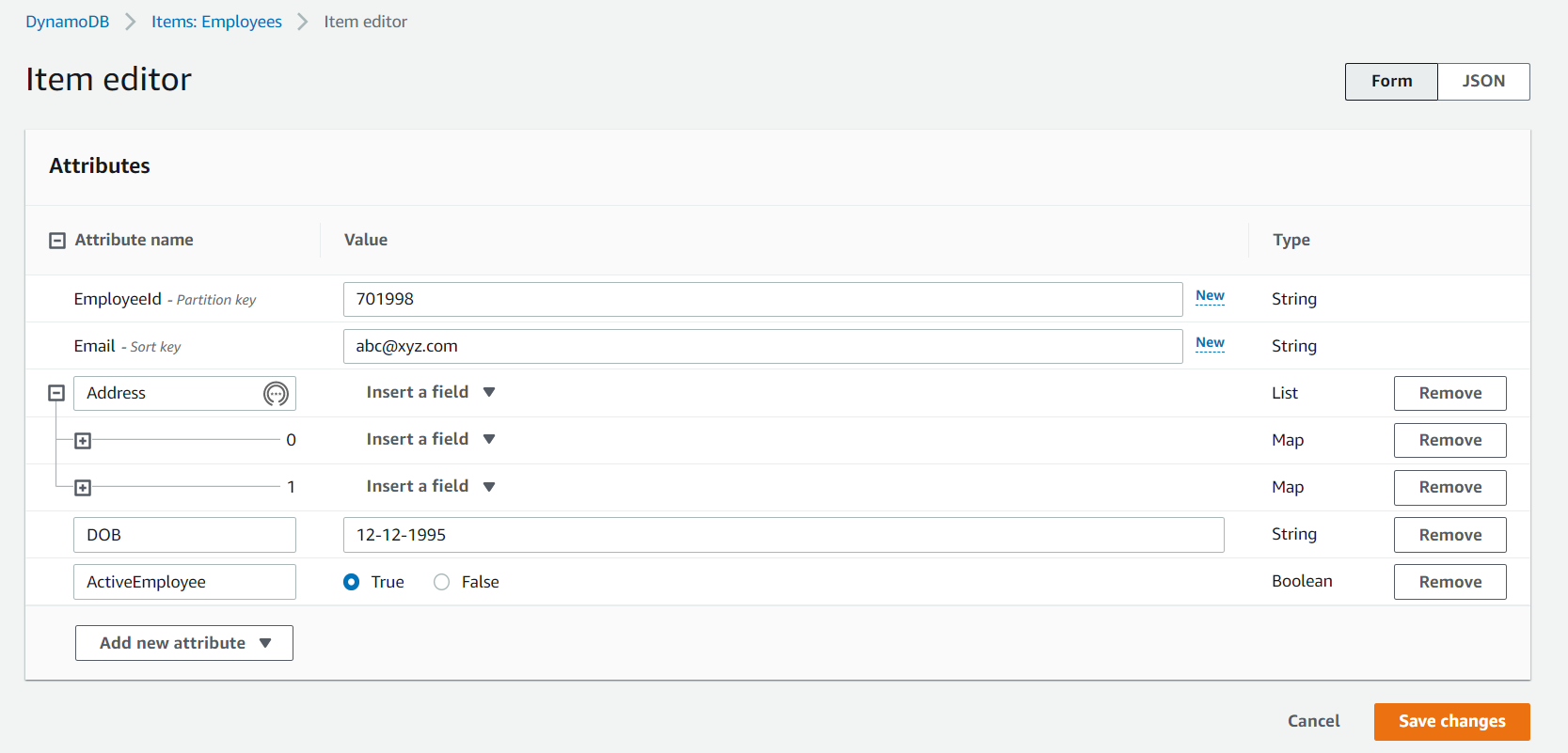
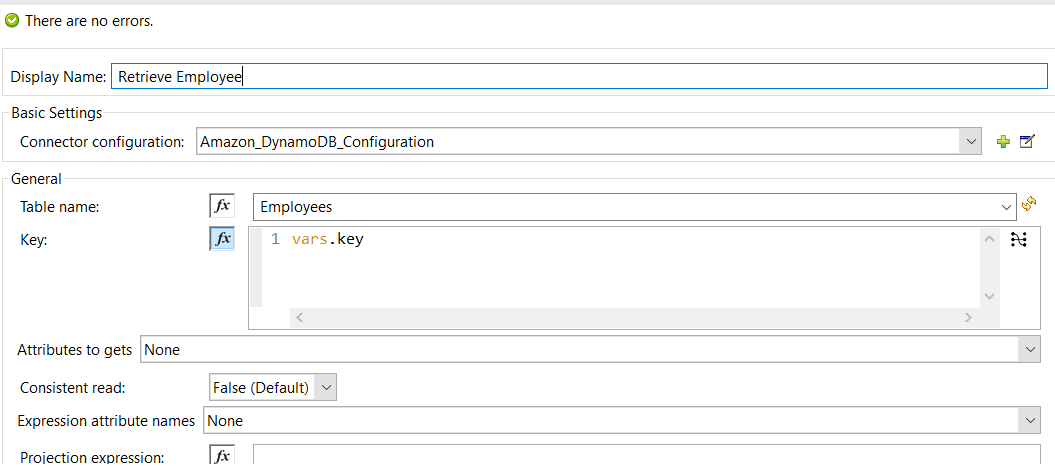
Step 3: Retrieve Data From DB Using the Get-Item Connector.
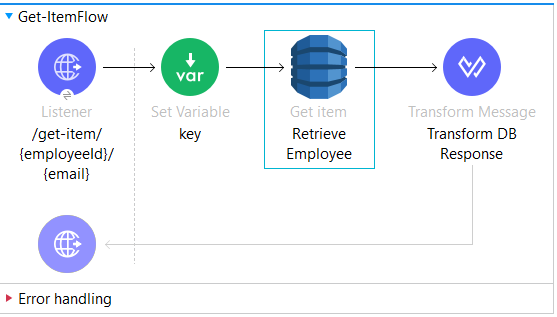
Key variable - set the key to retrieve data from DB:
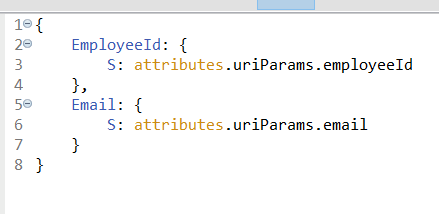
If partition key and sort key exists for a table in Dynamo DB then we have to provide both keys in order to retrieve data from Dynamo DB if we are using the Get-Item connector to retrieve the data.
Retrieve Employee:
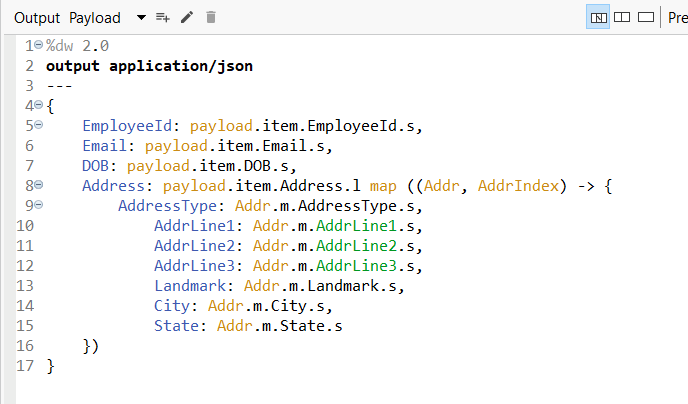
Transform DB Response:
We've to extract the data from the response received from the DB as below:
Step 4: Query Data from DB Based on the Partition Key

Key variable - set the key to retrieve data from DB:
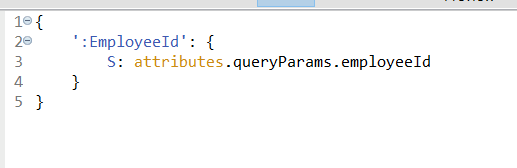
If we have to retrieve data based on partition key or sort key only then we've to query it from DB based on these keys.
Query:
We've to provide key variables in the Query Parameters section and provide filter conditions in key condition expressions.
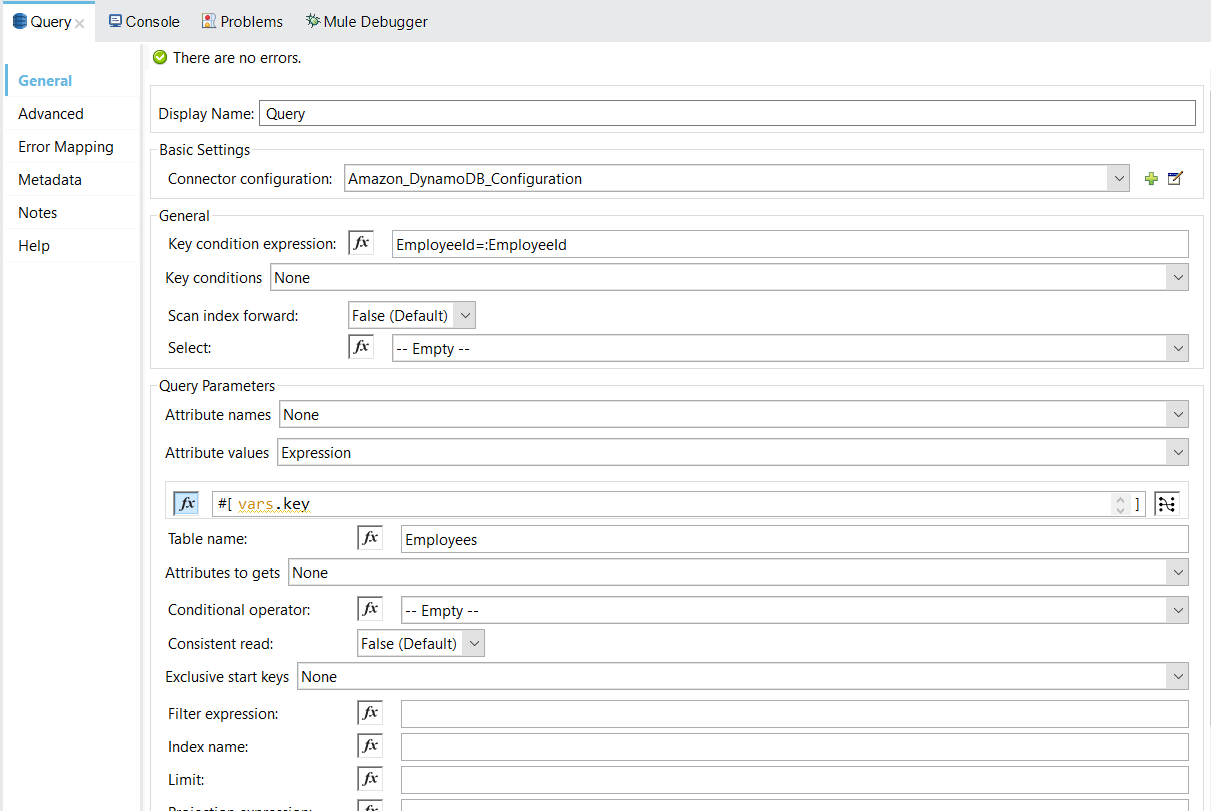
We are retrieving based on 'EmployeeId' which is a partition key.
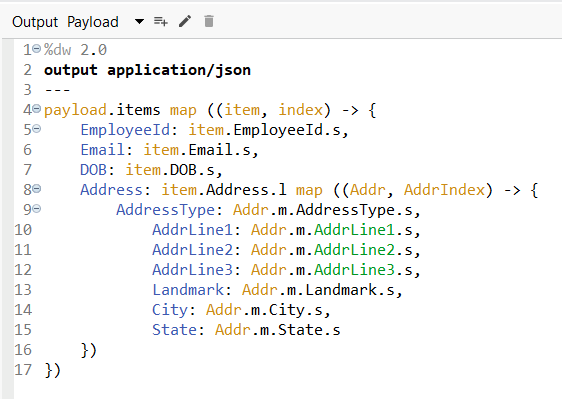
Transform DB Response:
We've to extract the data from the response received from the DB as below:
Step 5: Query Data From Db Based on Sort Key or Any Other Attribute of the Table
Global Secondary Index(GSI)
- In order to query based on a field other than partition key, we've to first create a global secondary index on that table in Dynamo DB.
- Here we've created a GSI 'Email-index' to retrieve data based on sort-key 'Email', keeping 'Email' as partition key for this GSI.
Key variable - Query:
We've to provide key variables in the Query Parameters section and provide filter conditions in key condition expression. Also, we've to provide a global secondary index name in the config as below:
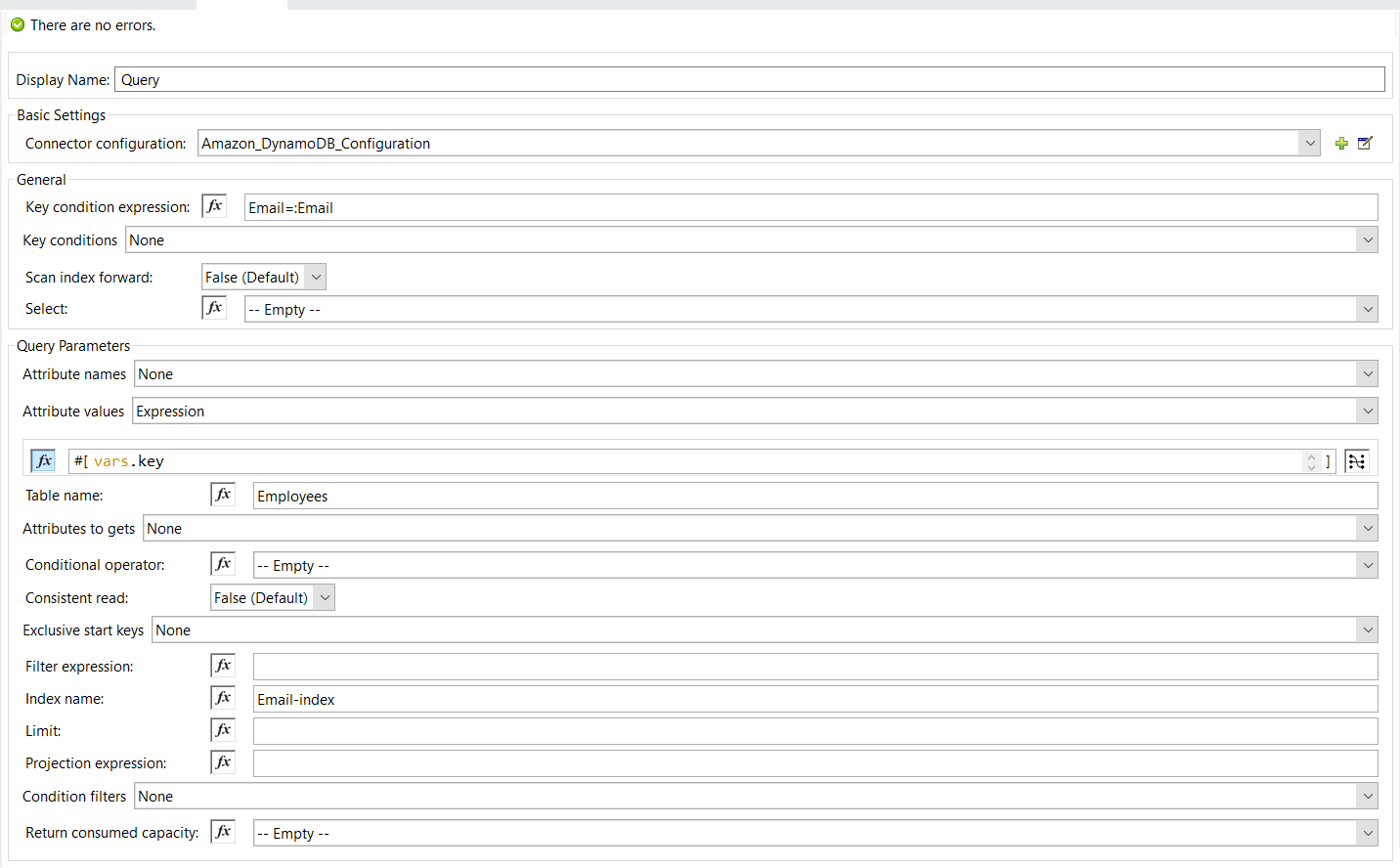
We are retrieving data based on 'Email' which is a sort key. Similarly, we can query based on any other field on the table.
Transform DB Response:
We've to extract the data from the response received from the DB as mentioned in step-4.
And that's all! Now you know how to store data in Dynamo DB and retrieve data based on various conditions in mule 4.
Opinions expressed by DZone contributors are their own.
Comments