

How To Make a REST API Call In React
Follow an introduction to making a REST API call in the React library using code snippets from a blog application use case to demonstrate its implementation.
 ·
·
Join the DZone community and get the full member experience.
Join For FreeIntroduction
This article provides an overview of making a REST API call in the React library using JavaScript Fetch API. The readers of this article must have some prior knowledge of using React library for creating user interfaces. It uses a functional component approach and controlled form for building component-based design. This article demonstrates a use case for posting blog content in the MongoDB database as an example.
Functional Components
Functional components are written using JavaScript function syntax in React. When compared with class-based components, they use much less code and are easier to understand. Class components follow ECMAScript 6 (ES6) class-based syntax for defining components and are relatively complex for the following reasons:
- Each class component extends from the
React.Componentclass. Functional components are simple JavaScript functions and they don't need to be a subclass of theReact.Componentclass. - Class components must define
render()function, and failing to will result in an error. Functional components don't need anyrender()function in their body. - Class component must define a constructor if it has to initialize the state variables. Functional components use
useState()hook for state management.
Controlled Forms
Both class and functional components can use controlled or uncontrolled forms for collecting user information. Controlled forms have an advantage over uncontrolled forms because the component state handles data from HTML form elements. It acts as "the single source of truth" within these components. Whenever data in any of the HTML input elements changes, the state corresponding to that input element gets updated. Uncontrolled forms use the traditional approach of storing the data in HTML DOM elements rather than components. They need ref attribute inside individual input elements to retrieve data from the DOM.
In this tutorial, we are using functional components with controlled forms for implementing the use case of posting the blog content to the MongoDB database using a REST API call.
REST API Call In React
We assume that a REST API having endpoints for inserting, updating, and deleting blog contents is already designed and published. The subsequent code-snippets will implement a React component to access the blog posting endpoint and send data for insertion into the MongoDB database.
The HTML form to collect user data contains sample fields for the title, snippet, and body of the blog.
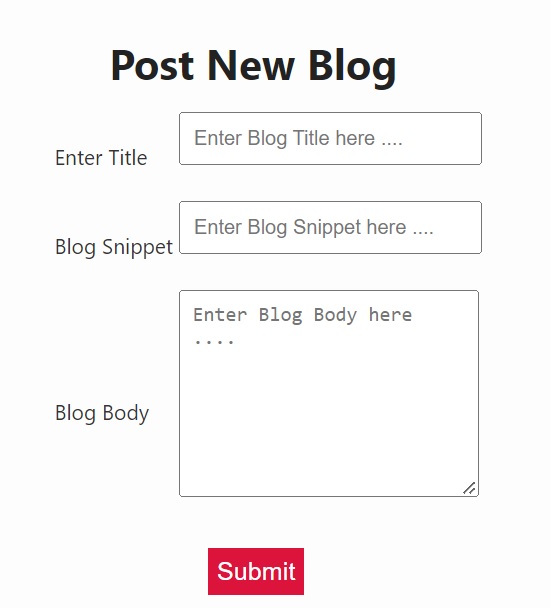
The summary of the JavaScript code written in React component PostBlog() is given below:
- The React component
PostBlog()is a functional component and is defined using a JavaScript function definition syntax. - It uses
useState()hook and JavaScript destructuring assignment approach for creating state variables for storing blog content. The state variables created for this example aretitle,snippetandbody. - The
valueattribute within each HTML input element holds the updated value of the state variable. - The JavaScript
onChange()event inside HTML input elements updates values of state variables whenever the user changes data in any of the input elements.
import { useState } from 'react';
import { useNavigate } from 'react-router-dom';
import './PostBlog.css'

function PostBlog() {

    const [title, setTitle] = useState('')
    const [snippet, setSnippet] = useState('')
    const [body, setBody] = useState('')

    const navigate = useNavigate()

    function addBlog(event) {

        event.preventDefault();

        var blog = { title, snippet, body }
        console.log(blog)

        fetch("http://localhost:3001/blogs", {
            method: "POST",
            body: JSON.stringify(blog),
            headers: {
                "Content-Type": "application/json"
            }
        }).then(function (response) {
            if (response.ok) {
                navigate('/ViewBlogs')
            } else {
                var error = new Error(response.statusText)
                error.response = response
                throw error
            }
        })
    }

    return (
      <div align="center"> <h1>Post New Blog</h1>
       <div class="create-blog content">
        <form>
         <table>
          <tr>
           <td><label>Enter Title</label></td>
           <td><input type="text" value={title} onChange={(e) => { setTitle(e.target.value) }} placeholder="Enter Blog Title here ...." /></td>
          </tr>
          <tr>
           <td><label>Blog Snippet</label></td>
           <td><input type="text" value={snippet} onChange={(e) => { setSnippet(e.target.value) }} placeholder="Enter Blog Snippet here ...." /></td>
          </tr>
          <tr>
           <td><label>Blog Body</label></td>
           <td><textarea value={body} onChange={(e) => { setBody(e.target.value) }} placeholder="Enter Blog Body here ...."></textarea></td>
          </tr>
          <tr>
           <td colspan="2" align="center">
            <button type="submit" value="Submit" onClick={addBlog}>Submit</button>
           </td>
          </tr>
         </table>
       </form>
      </div>
     </div >
    )}

export default PostBlog- When the user clicks on the
submitbutton, the JavaScript functionaddBlog()is invoked. It reads values from the state variables and constructs a JavaScript object'blog'. - The
fetch APImakes an asynchronous HTTP Request at REST API endpoint http://localhost:3001/blogs. It usesPOSTmethod and value ofContent-Typeheader is set toapplication/json. TheblogJavaScript object is converted into a string usingJSON.stringify()method and is sent inside the body of the HTTP Request packet. - The
fetch APIreturnspromiseobject which is handled by defining an anonymous callback function as the first argument of thepromise.then()method. If thepromiseis fulfilled, the system willnavigateto theViewBlogscomponent, which will display the recently added blog in the list of blogs published on the web page.
Conclusion
This article has laid down a roadmap for developers using React for component-based UI design. It takes code snippets from the blog application project to demonstrate the sample implementation which consumes REST APIs for accessing external resources. This article may also help those developers who are building Decentralised Apps (dAPPs) as JavaScript is also used as a front-end development language in the Web3 technology stack.
Published at DZone with permission of Muhammad Imran. See the original article here.
Opinions expressed by DZone contributors are their own.
Comments