

How to Rectify R Package Error in Android Studio
This tutorial demonstrates how to deal with common errors with your R package in the Android Studio, including error messages like R does not exist.
Join the DZone community and get the full member experience.
Join For FreeR.java plays a vital role in Android application advancement. It is utilized to distinguish all assets' information; for example, ID, format, picture, drawable assets, and so forth. R.java is produced by the Android Studio. In any case, it is at some point mistaken for a designer to utilize it. This article will assist you in resolving these issues you may be experiencing in R.java.
Where Is R.java Saved?
R.java is commonly saved in a directory like:
\Example\app\build\generated\source\r\debug\com\dev2qa\example\image.
You can also find it in an Android Studio project view list like below:
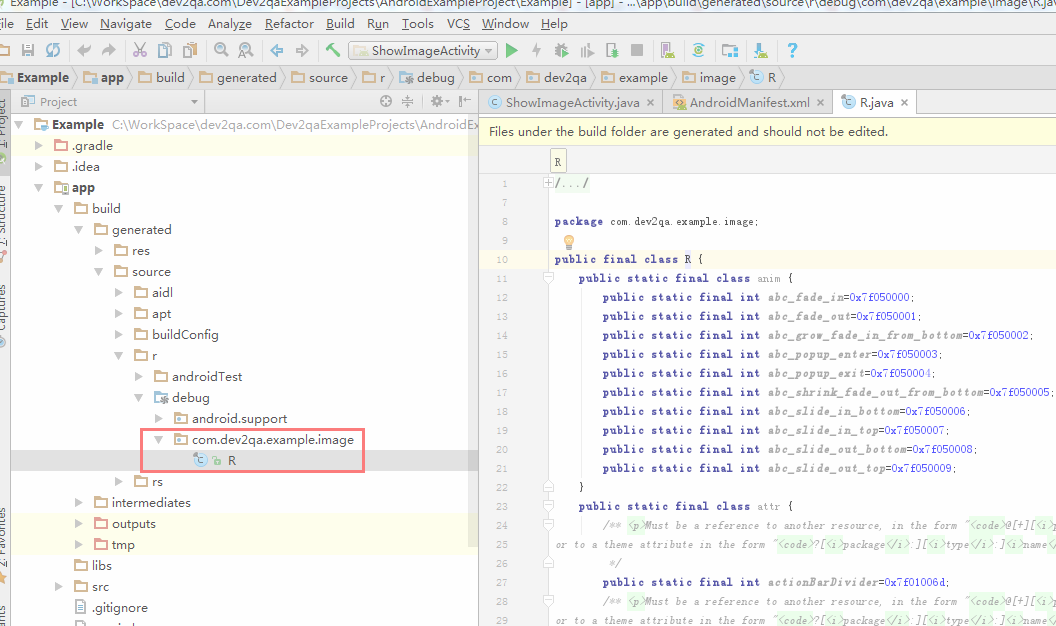
Why Can I Not Find the R Class In the Android Studio?
This is a common dilemma because you select the wrong subview in the project view. You can change the project view’s subview, which is demonstrated below:
Click View —> ToolWindows —> Project in the top menu bar.
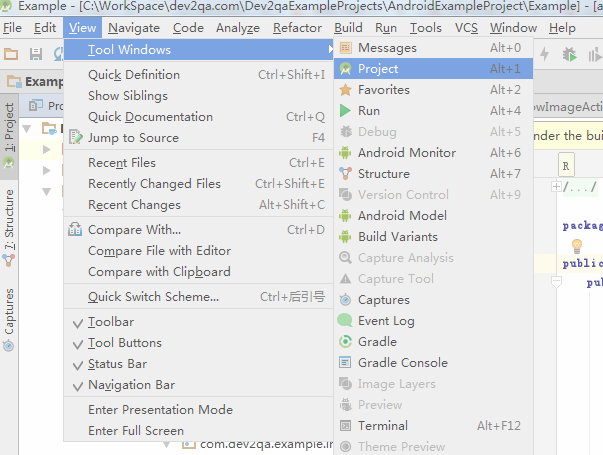
In the above action, it will show the project view in the left panel. At the top left in the project view, there is a drop-down list where you can choose the project view’s subview.
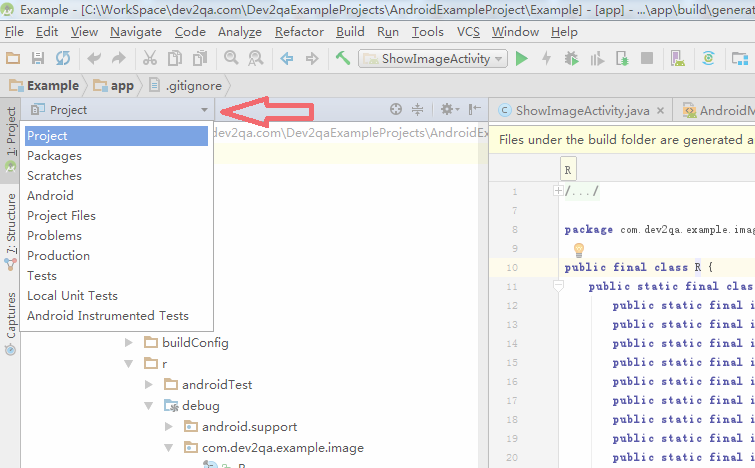
Choose the project on the subview drop-down list, then you can see all the folders for the current project listed in the bottom panel. You can find the R class in the directory tree also. If you choose another subview, it will display different content of that subview.
What Data Is Saved In R.java?
Double click R.java file. It will display its content in the right panel. The source code includes a lot of int-type variables, and each int variable refers to one resource in the current Android application.
You will find that there are some inner public static final classes defined in R.java also. Each inner class represents one kind of resource, such as ID, layout, string, color, drawable, etc.

You do not need to care about those int variables and their values. Also, you do not need to edit them. If you change the value, you may encounter some strange errors when building the Android project.
How To Resolve the Package R Does Not Exist Error?
Sometimes, you may encounter strange errors about the R.class, like package R dost not exist or R cannot be resolved as a type. You can fix these errors by using the following steps:
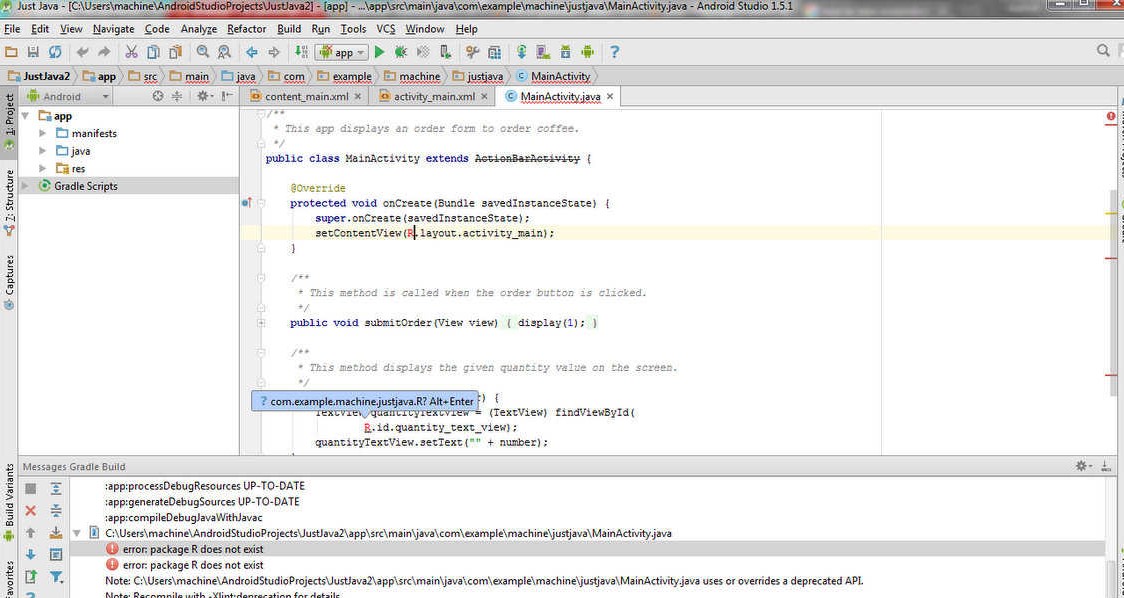
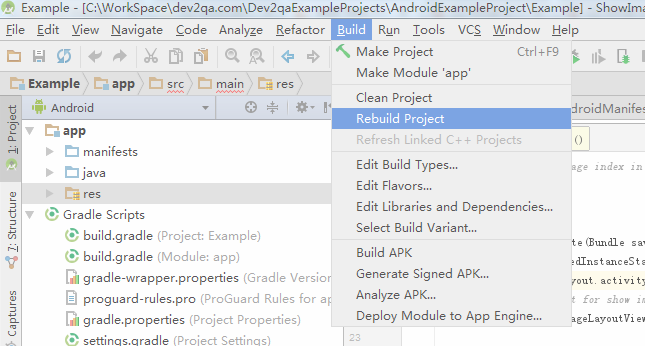
Click Build —> Clean Project or Build —> Rebuild Project in the top menu bar of the Android Studio. This will let the Android Studio regenerate R.java again. It will clean the cache and include all newly added resources.
If the above method still does not take effect, you should check your AndroidManifest.xml file carefully. You need to make sure that the package value in the AndroidManifest.xml root XML element matches your activity package.
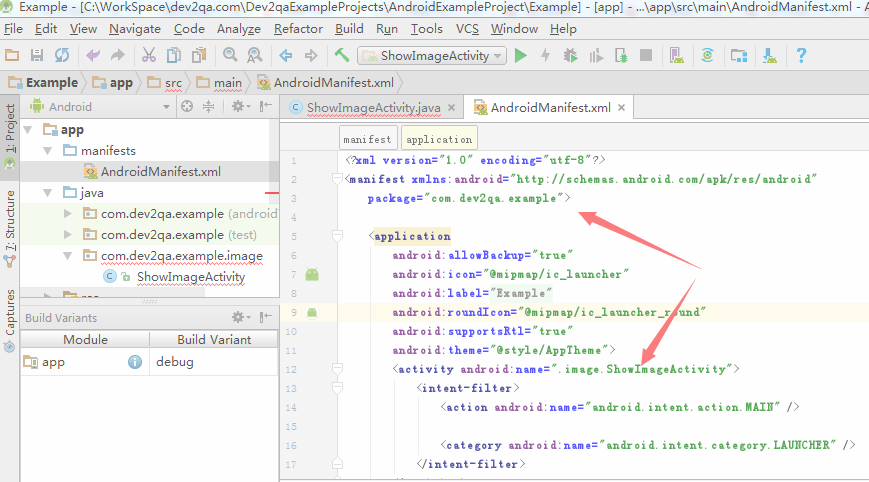
In the above picture, the manifest root XML element’s package value is com.dev2qa.example , and the launcher activity class is in the package com.dev2qa.example.image . So, if you change the package value, the error is resolved.
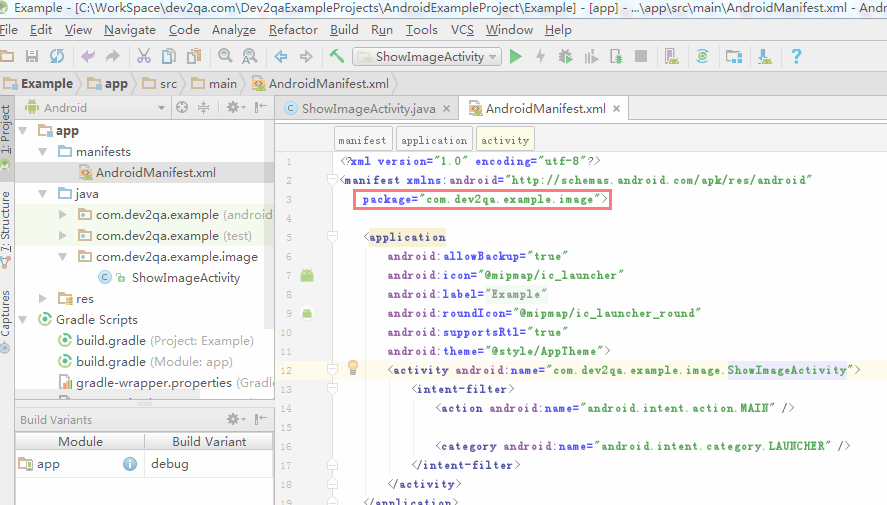
If the error still exists, you should check AndroidManifest.xml carefully to find the potential code that may generate the error. Or, you can restart the Android Studio or even your computer.
Opinions expressed by DZone contributors are their own.
Comments