

How to Use ALB as a Firewall in IBM Cloud
This article documents a simple approach on how you can implement outbound filtering capabilities in your VPC network by simply configuring your DNS and an ALB.
 ·
·
Join the DZone community and get the full member experience.
Join For FreeDo you have a use case where you want to implement a network firewall in IBM Cloud VPC that filters traffic based on hostname? For example, you may want to allow connections only to www.microsoft.com and www.apple.com, while blocking access to all other destinations.
Currently, IBM Cloud does not provide a managed firewall service. However, it does support a bring-your-own-firewall approach with vendors such as Fortinet or Juniper, though customers are responsible for deploying and managing these solutions.
This article explains how you can leverage existing IBM Cloud services to address this requirement. By combining IBM Cloud DNS and the Application Load Balancer (ALB), you can implement a practical solution.
Let’s take a closer look at how this works.
The diagram below illustrates the high-level architecture pattern:
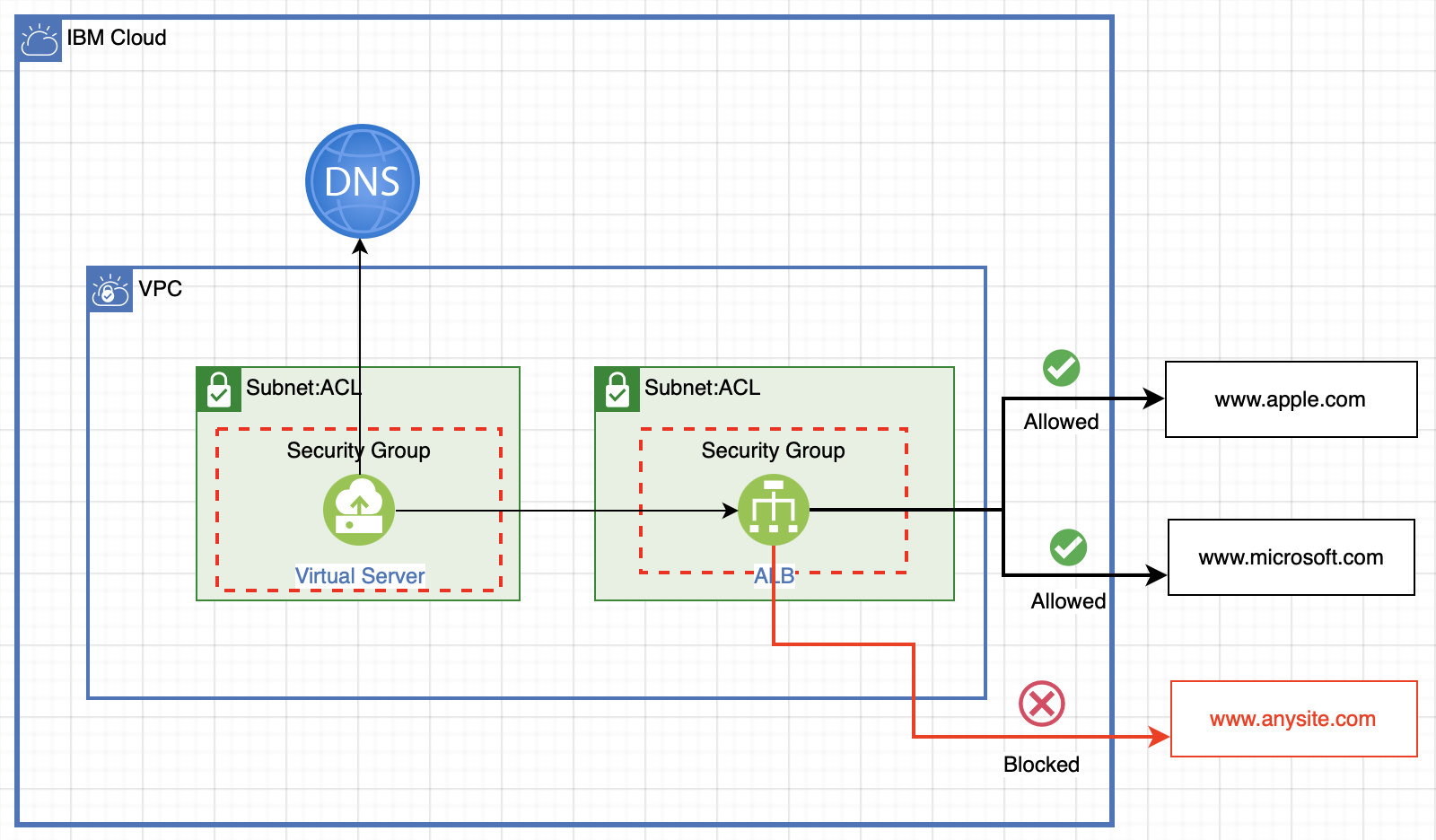
All source hosts reside in subnets that are restricted using Network Access Control Lists (ACLs) and Security Groups. These ACLs and Security Groups are configured so that no resource in the subnet can access the public network directly. Instead, they are allowed to communicate only with the Application Load Balancer (ALB) over the private network (using its private IP).
The ALB is placed in a dedicated subnet, and its Security Group allows outbound connections to the public network.
The final piece of this architecture is the private DNS service. This DNS is configured to resolve only selected hostnames to the ALB. In our example, the allowed hostnames are apple.com and microsoft.com. Any virtual server in the source subnet attempting to reach other hostnames will not be resolved to the ALB, and with the Security Group restrictions in place, it will also be unable to connect to the public internet.
Now, let’s do a step-by-step deep dive into this solution.
First step in the process is to create a private DNS
Add DNS zones for the hostnames you want - example: apple.com and microsoft.com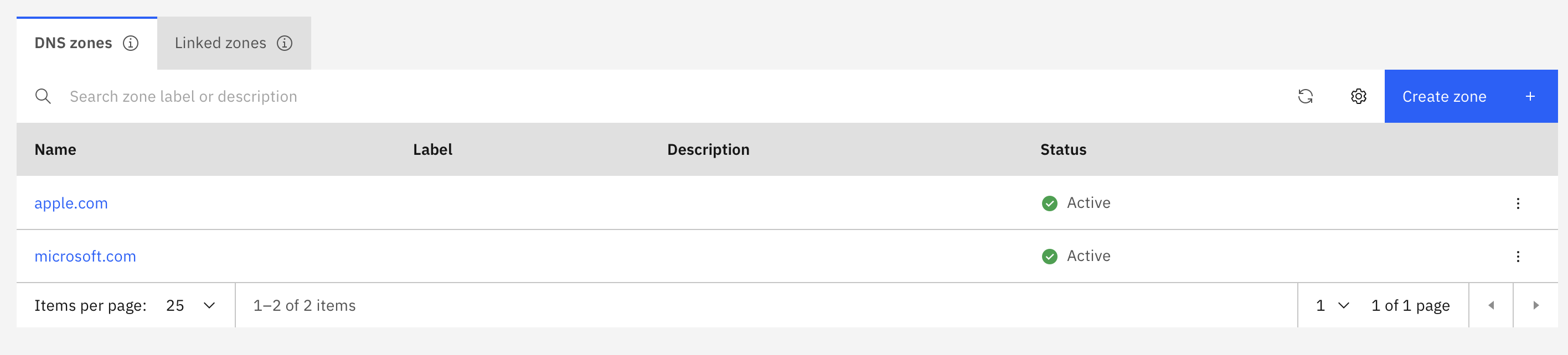
Make sure to set the permitted network for each of these zones as the VPC you are using for this configuration. Once a permitted network is added, the dns zones get active as shown in the picture above.
You will have to create canonical name for the load balancer in these zones to resolve to the load balancer. Hence, you need to create the Application Load Balancer first. Follow the steps outlined here to create a ALB with following configuration:
- The ALB needs to be Private
- Use a dedicated subnet for the ALB. The reason for being it in a dedicated subnet is that this subnet will need to be allowed to connect to public network.
Now that you have the ALB is created, you can add CNAME in each zone as shown in the image below (as an example). This creates an alias for the load balancer.
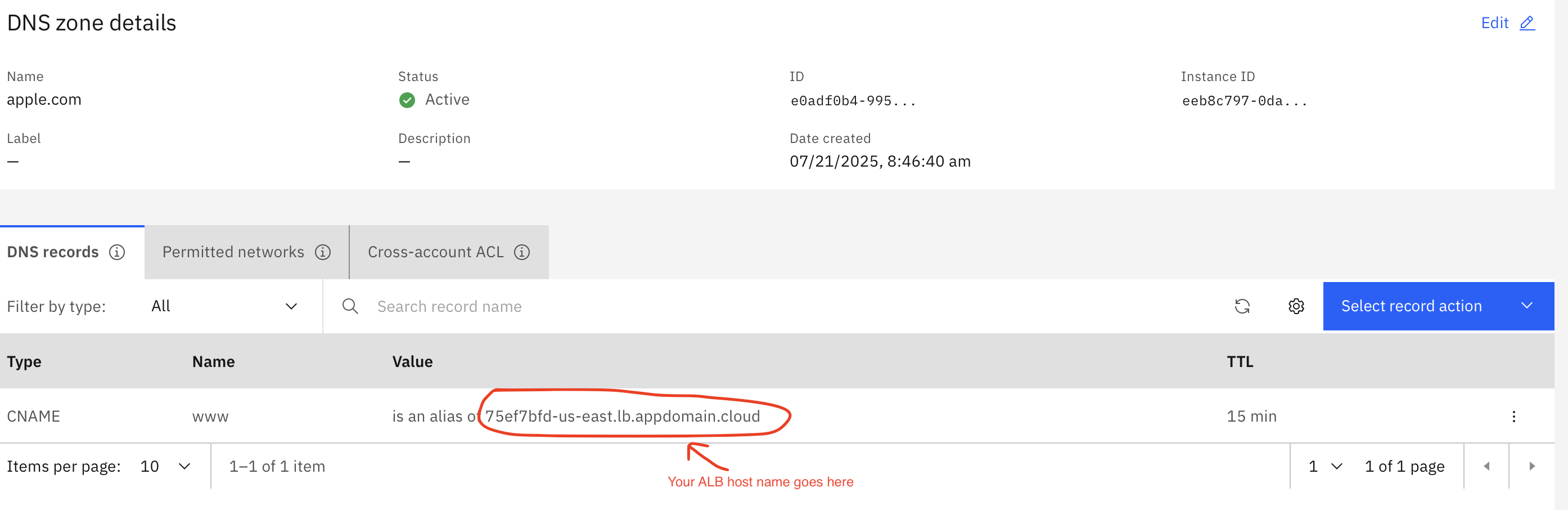
That's all we need from the DNS side. Let's turn our attention to the ALB now.
In the ALB, create a back-end pool for each zone you created in the DNS. In our example, we used one pool each for Microsoft and Apple. The pool details should match to the figure below (use protocol as TCP).
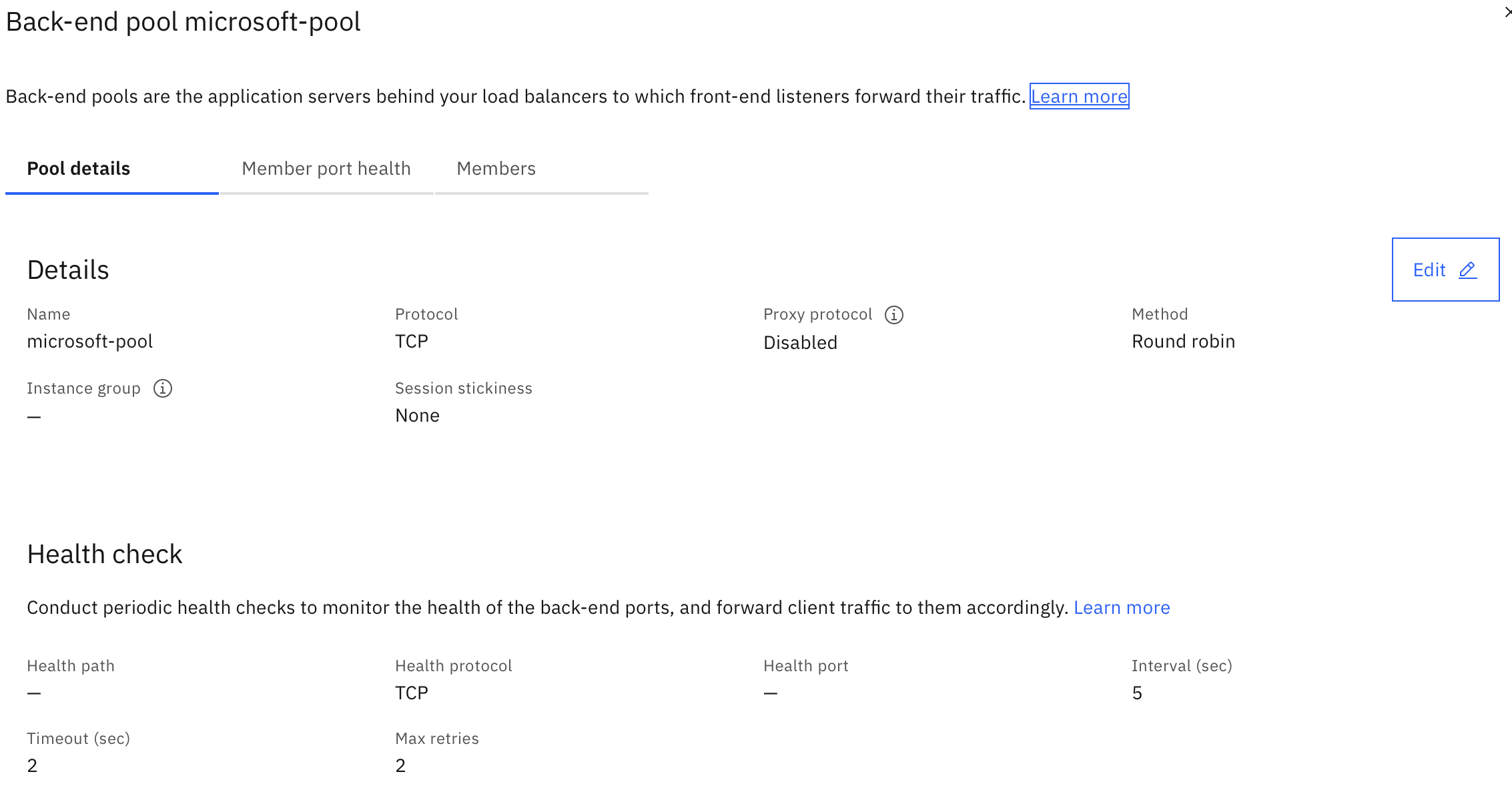
In each of the back-end pool, you will have to add members for your destination. To do that, you first need to get the public IP for your destination. You can use nslookup to get the IPs. Once you get the IPs, add a member to the appropriate back-end pool with each of the IPs.
- Select the pool you want to add member to
- Click on the Members tab
- Click on Attach Member
- Select Other Devices tab
- Add IP of the destination you want it to reach to and appropriate port (443)
Once you add the members, make sure the health statuses are "Passing". If it is not passing, there could be one or both of the two following reasons:
- IP/port you provided is not correct
- Security Group of the ALB and subnet ACL rules do not allow outbound traffic
Next step in the process is to create and configure a front-end listener for the ALB.
- Go to Front-end listeners tab
- Select create listeners
- Provide a name and select TCP as protocol
- Select listener port as 443
The final steps is to configure front-end listener policies. You need to create one policy per back-end pool. A listener policy will have forwarding rules that matches with the host name to send the request to pool you will be specifying here. In our example, we need to specify that when the SNI hostname (Server Name Indication) matches to "www.apple.com", it should forward to the pool we created for "apple.com" and similar process for "Microsoft.com". Here is an example of the listener policy:
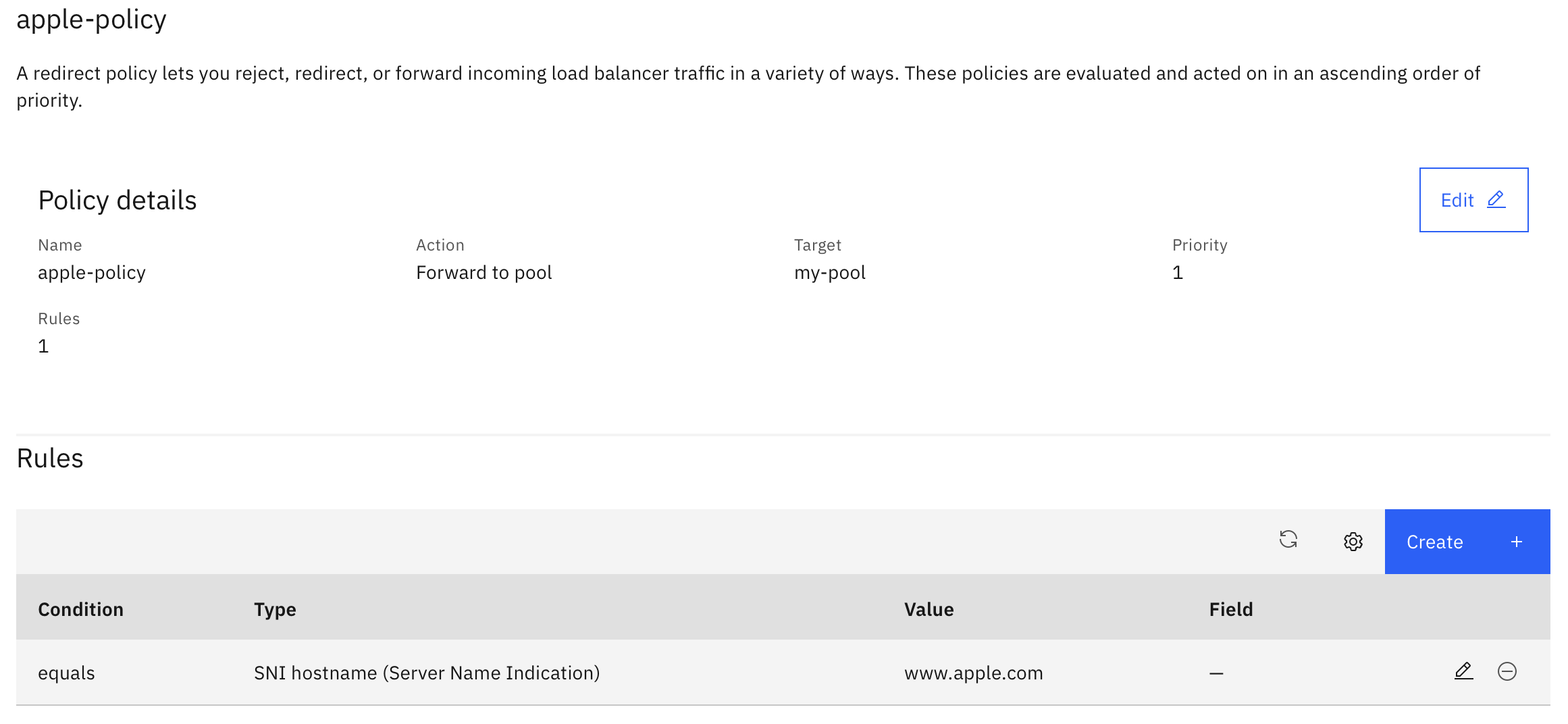
Make sure you add one policy per the hostname you are trying to reach. In our example one policy for "www.apple.com" and one policy for "www.microsoft.com".
The last step you need to make sure that source hosts from where you are trying to connect to external host has the security group setup to reach the load balancer.
The final data flow of the traffic is now setup:
- VSI from you VPC tries to connect to external site ("www.apple.com")
- The Private DNS resolves this hots name to the ALB
- ALB listener forwards the request to the matching ALB pool
- ALB pool forwards the request to one of the member IPs
Tips for testing:
From any virtual server in the source subnet, fire a curl commend - for example "curl https://www.apple.com" . You should get a response back from apple.com. If you try the curl command for any web url other than what you configured in the ALB, you will not get any response.
Known limitation of this architecture pattern:
- The external hosts IPs can change. This configuration cannot detect any IP change event. It needs to be manually updated in the back-end pool.
- This configuration works with DNS CNAME. This inherits a limitation that the name of the hostname has to be prefixed by the CNAME name field. In our example, "www" needs to appear in the hostname. So will work for "www.apple.com", but will not work for "apple.com".
Opinions expressed by DZone contributors are their own.
Comments