

Install and Configure Confluent Platform (Kafka) in AWS EC2 Instance RHEL 8
In this article, I'm gonna show you how to install and configure a self-manage Confluent Platform in the AWS EC2 instance.
Join the DZone community and get the full member experience.
Join For FreeThe Confluent Platform is a stream data platform that enables you to organize and manage massive amounts of data that arrive every second at the doorstep of a wide array of modern organizations in various industries, from retail, logistics, manufacturing, and financial services, to online social networking.
It contains all the components you need to create a scalable data platform built around Apache Kafka and they offer both Managed Cloud and a Self-Managed Confluent Platform.
In this article, I'm gonna show you how to install and configure a self-manage Confluent Platform in the AWS EC2 instance.
Prerequisites
- Redhat 8 Linux - EC2 Instance in AWS
- Open JDK 8 installed
- wget installed
- SSH Client (I'm using Git Bash https://gitforwindows.org/)
Instructions
1. Make sure that the EC2 instance is up and running.
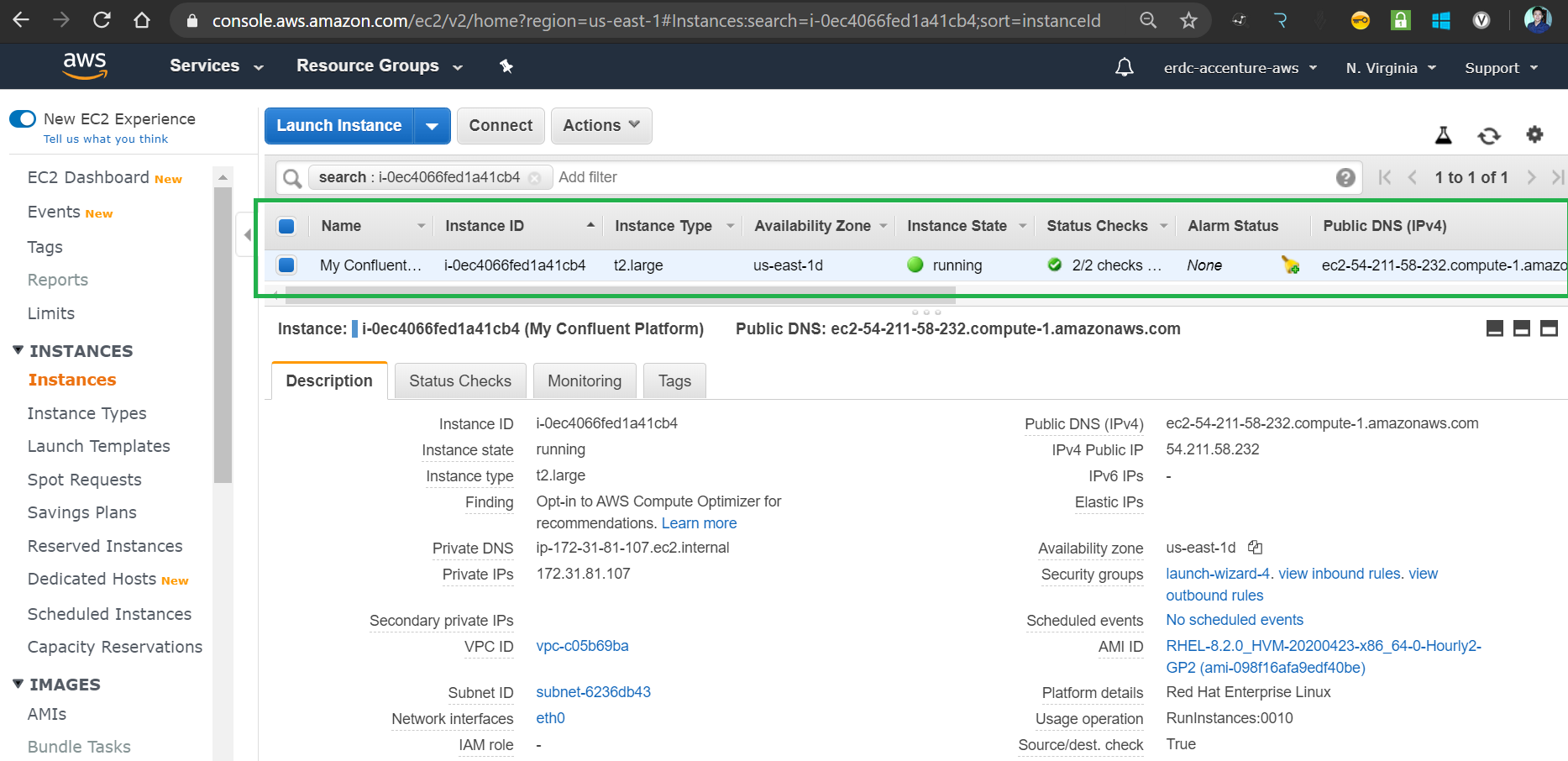
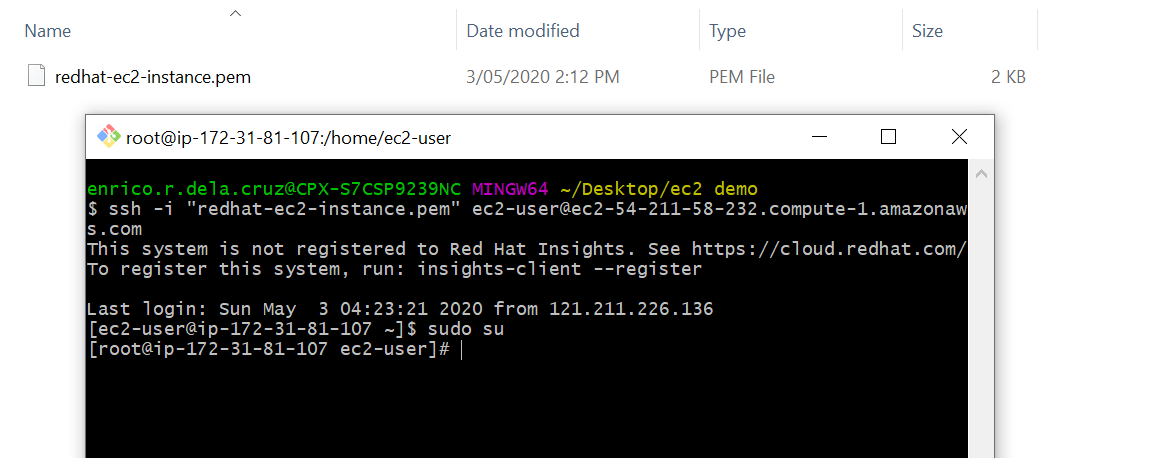
2. To access the EC2 instance using Git bash as the SSH client, Execute the command ssh -i <PEM file> ec2-user@<Public DNS>
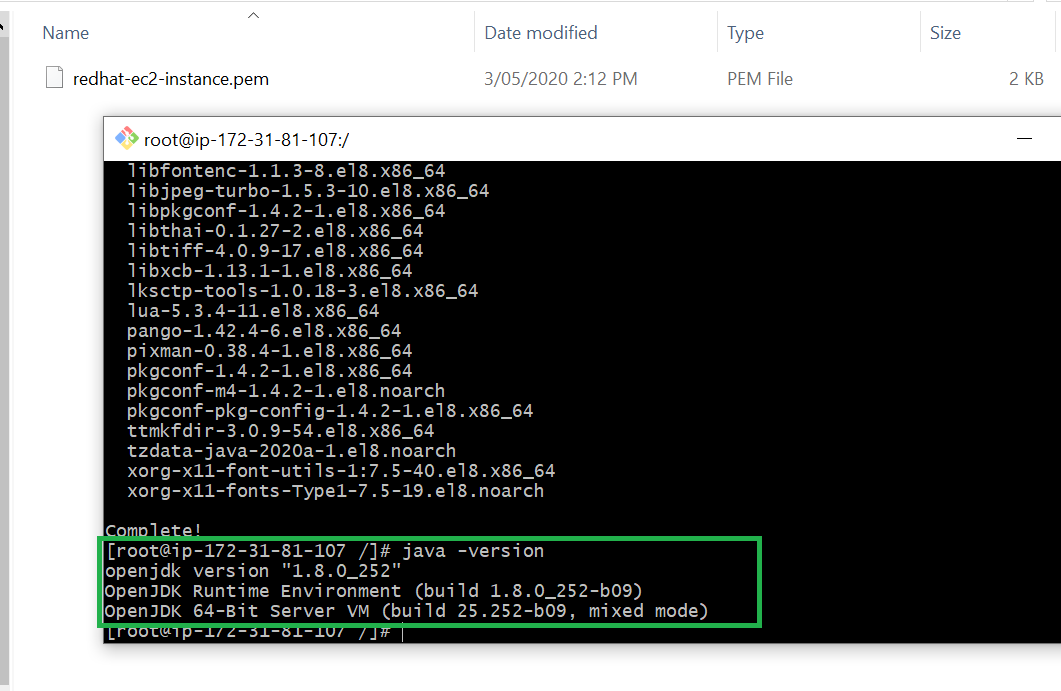
3. Make sure the OpenJDK 8 is installed, you can verify it using the command java -version.
If you don't have it, you can download and install by executing sudo yum install java-1.8.0-OpenJDK-devel
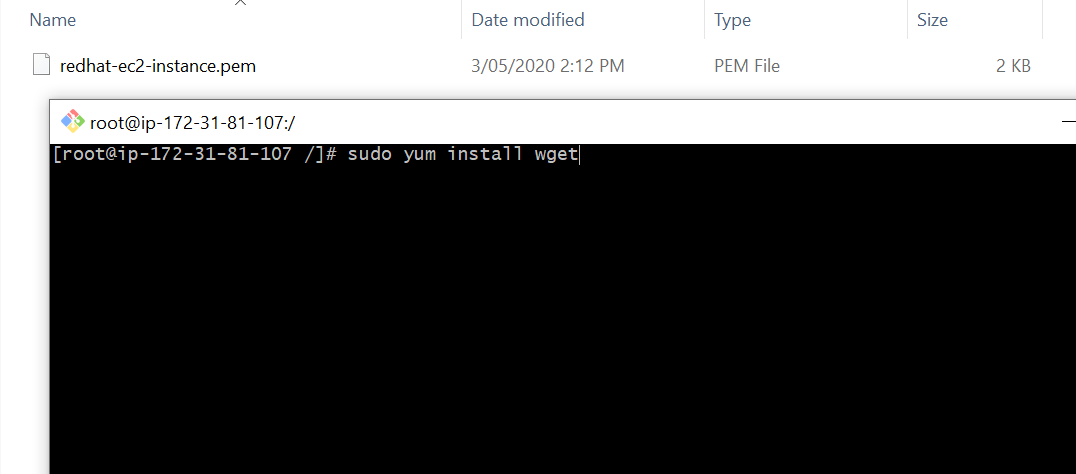
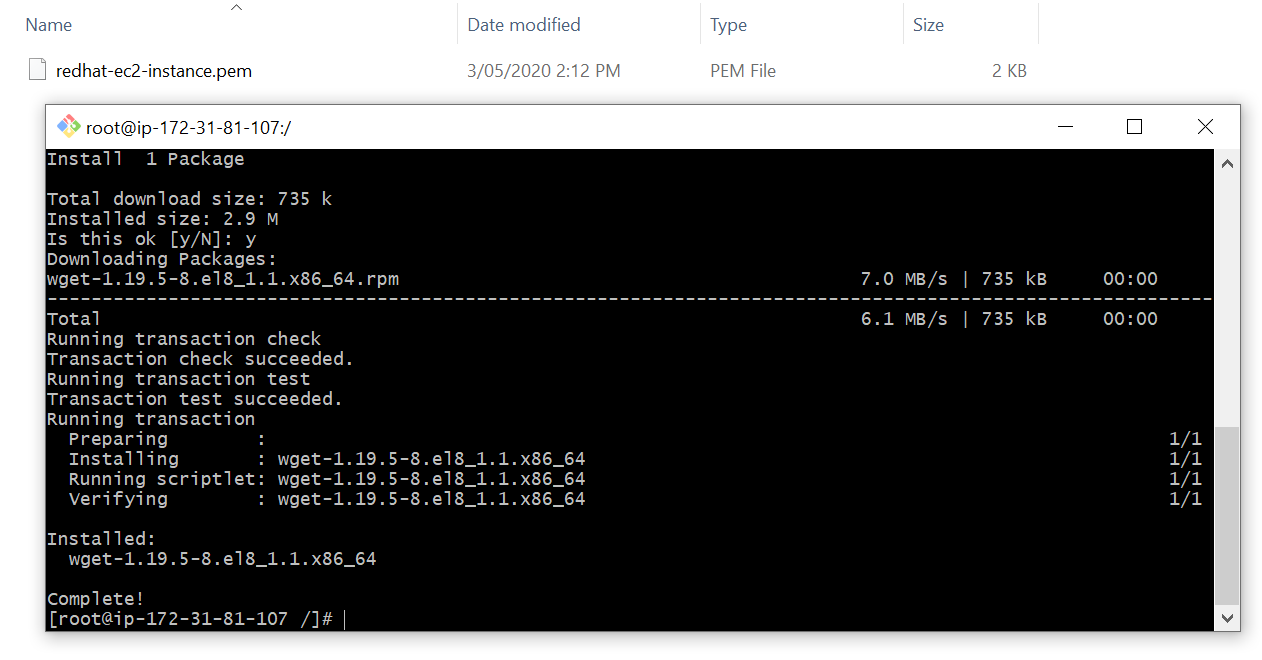
4. Next, download and install the wget library in the RHEL box, we need this command to allow us to download the tar file of the Confluent Platform from the EC2 instance.
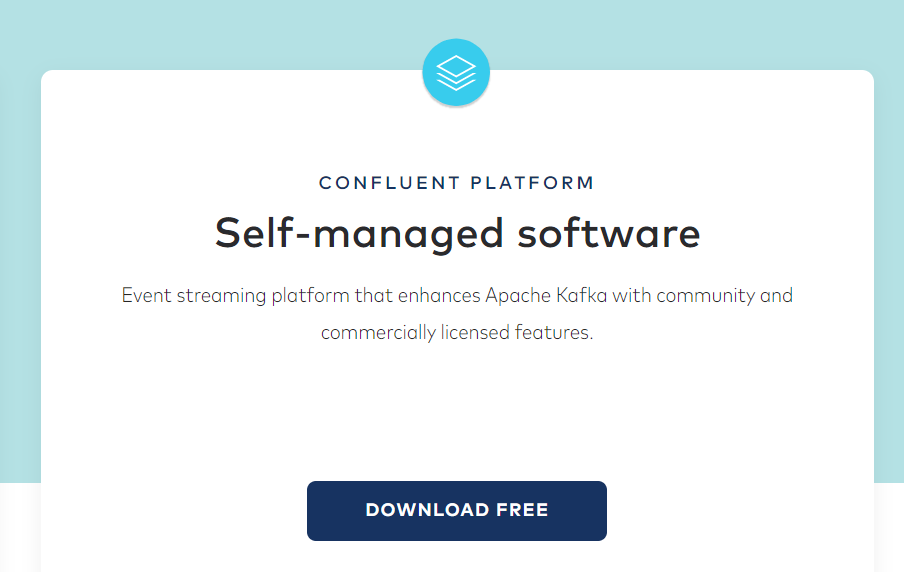
5. Go to https://www.confluent.io/download, download the Self-Managed Software
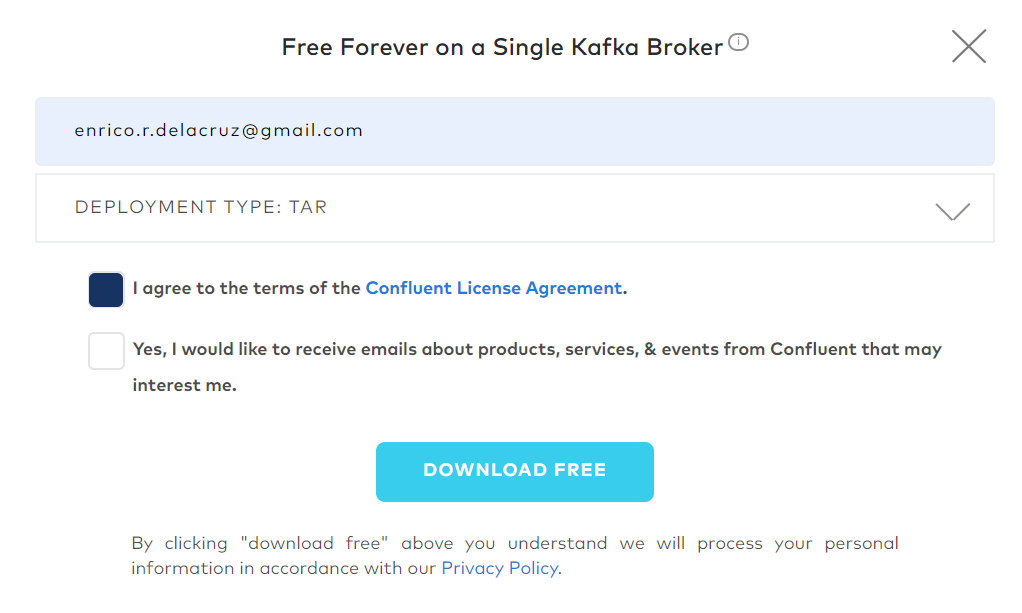
6. Copy the download link from the Browser's Download Manager.
We will download the tar file using wget from the EC2 instance
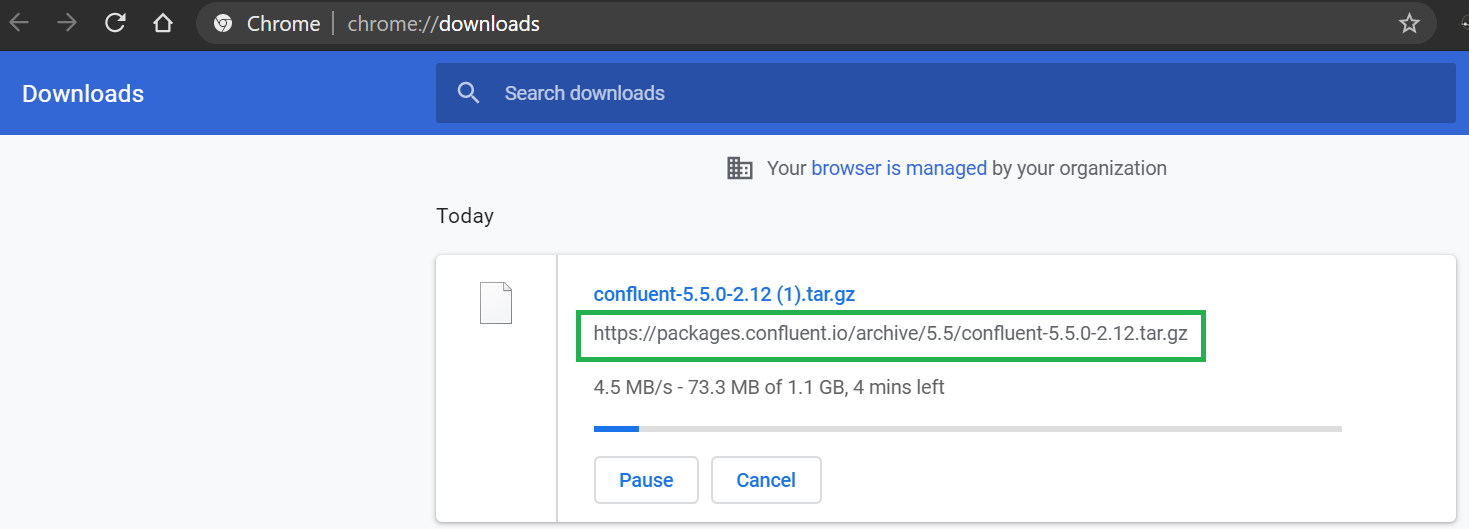
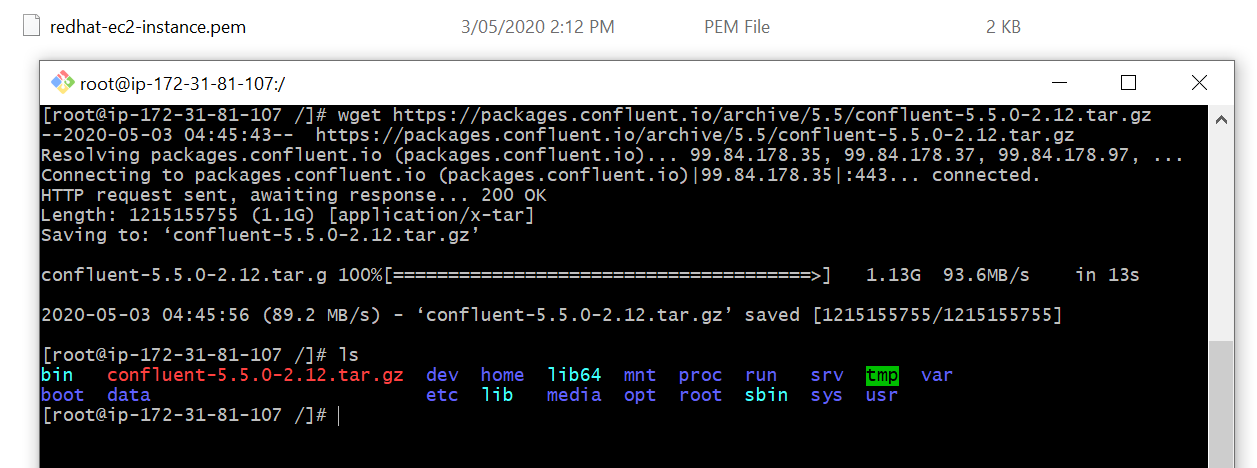
7. Execute the command wget https://packages.confluent.io/archive/5.5/confluent-5.5.0-2.12.tar.gz in the Root directory to download the source.
Run the ls command once the download the completed, you should see the confluent-5.5.0-2.12.tar.gz file
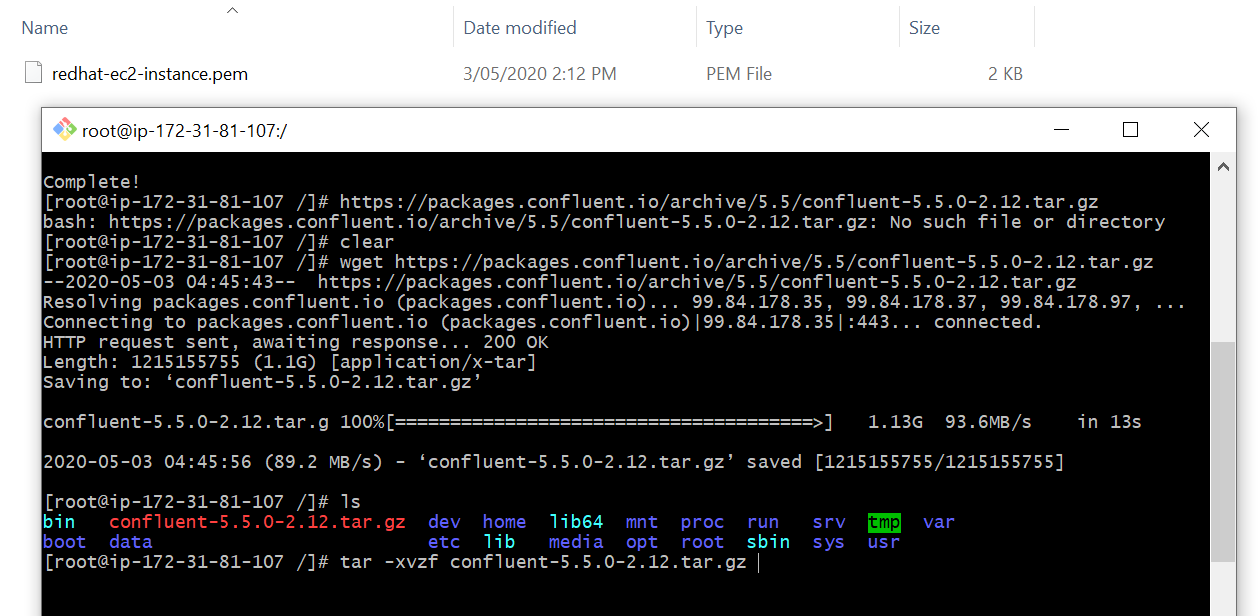
8. Extract the confluent-5.5.0-2.12.tar.gz by executing the command tar-xvzf confluent-5.5.0-2.12.tar.gz
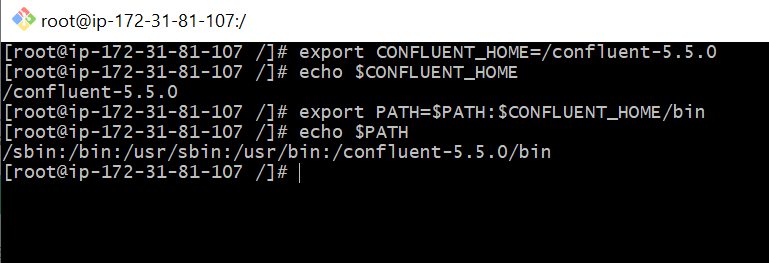
9. Once we have the confluent platform source extracted in the root directory, we need to create a new environment variable CONFLUENT_HOME and add it to the environment PATH variable.
Execute the below command:
export CONFLUENT_HOME=<path-to-confluent>
export PATH=$PATH:$CONFLUENT_HOME/bin
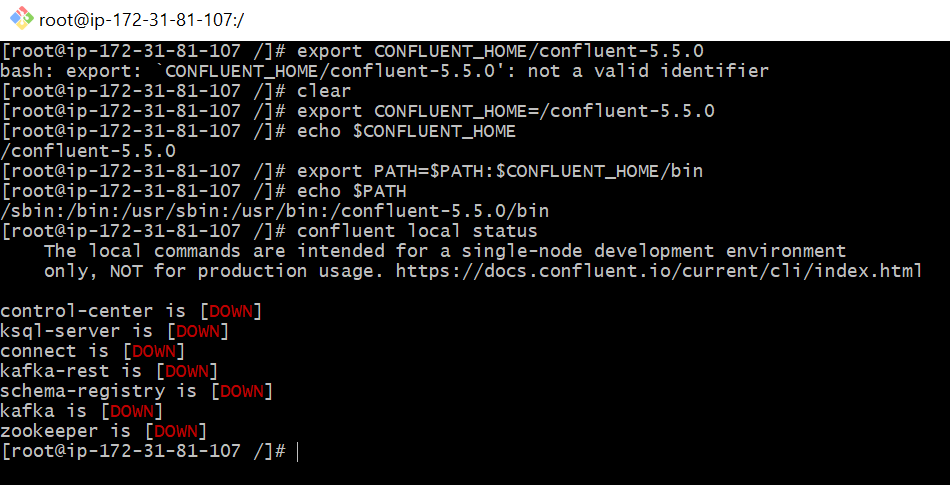
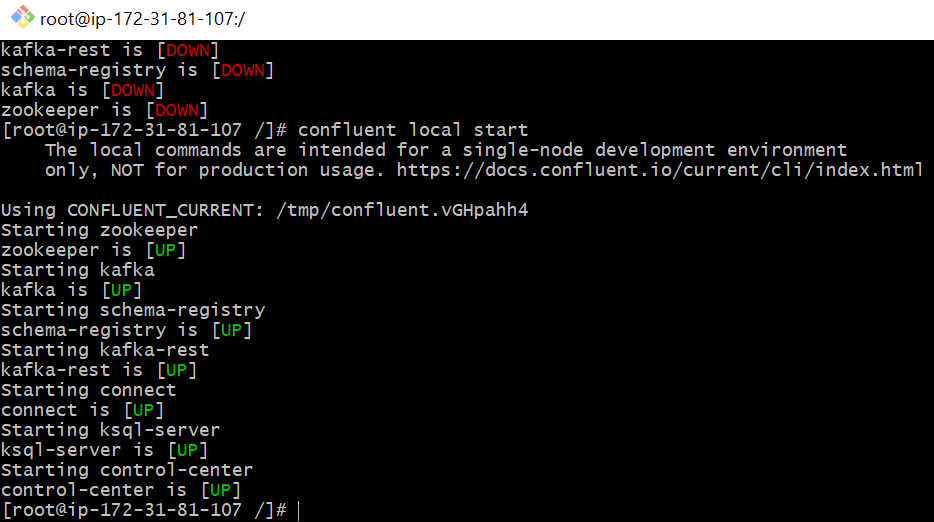
10. Start the services by executing the confluent local start
To check the status, run the confluent local status
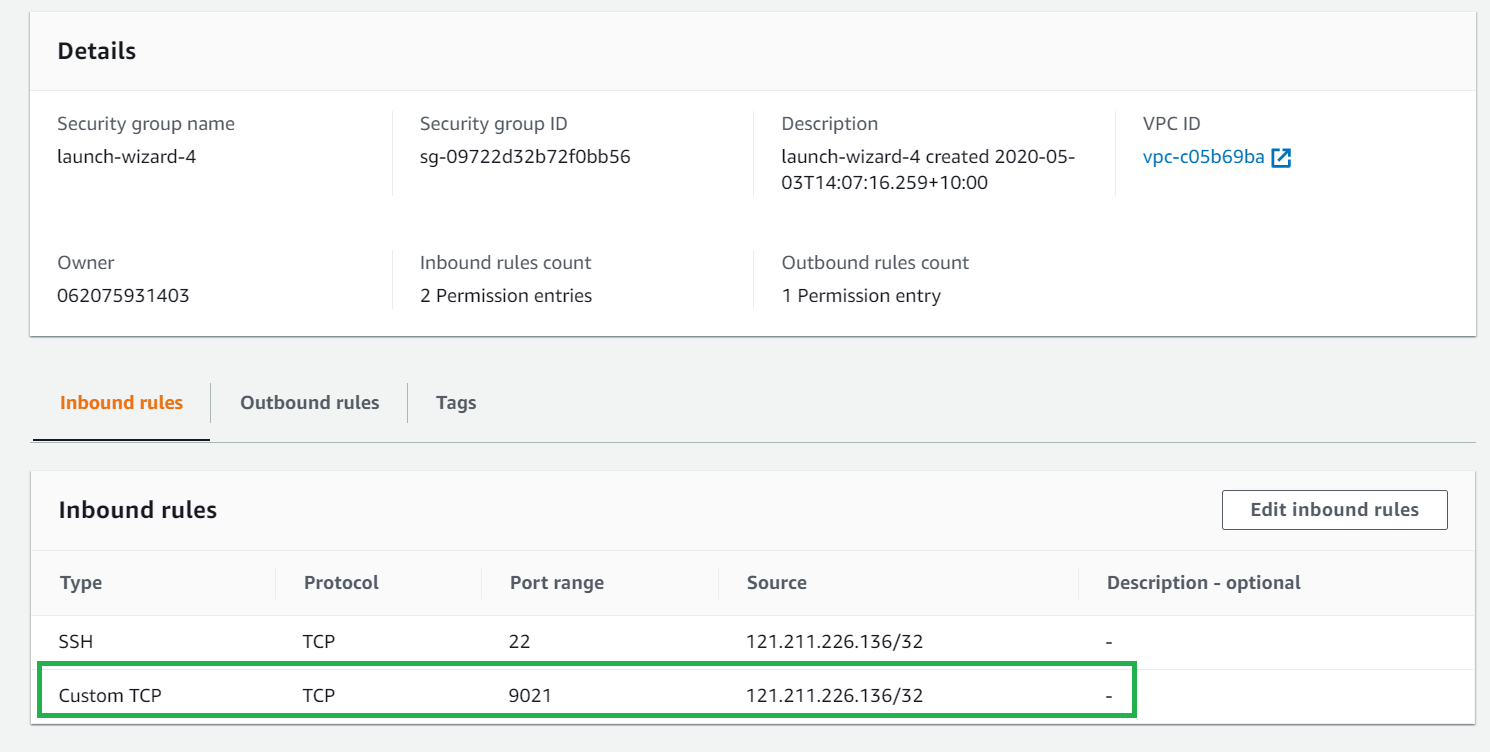
11. Before we can access the Confluent Control Center, we need to make sure that a Custom TCP for port 9021 is added in the Security Group as inbound rules of the AWS EC2 instance.
12. Take note of the Public IP or the Public DNS, this will be the hostname when accessing the Confluent Control Center HTTP://<host name>:9021

12. Open the Browser for HTTP://<Public IP>:9021
You should be able to access and view the Confluent Control Center
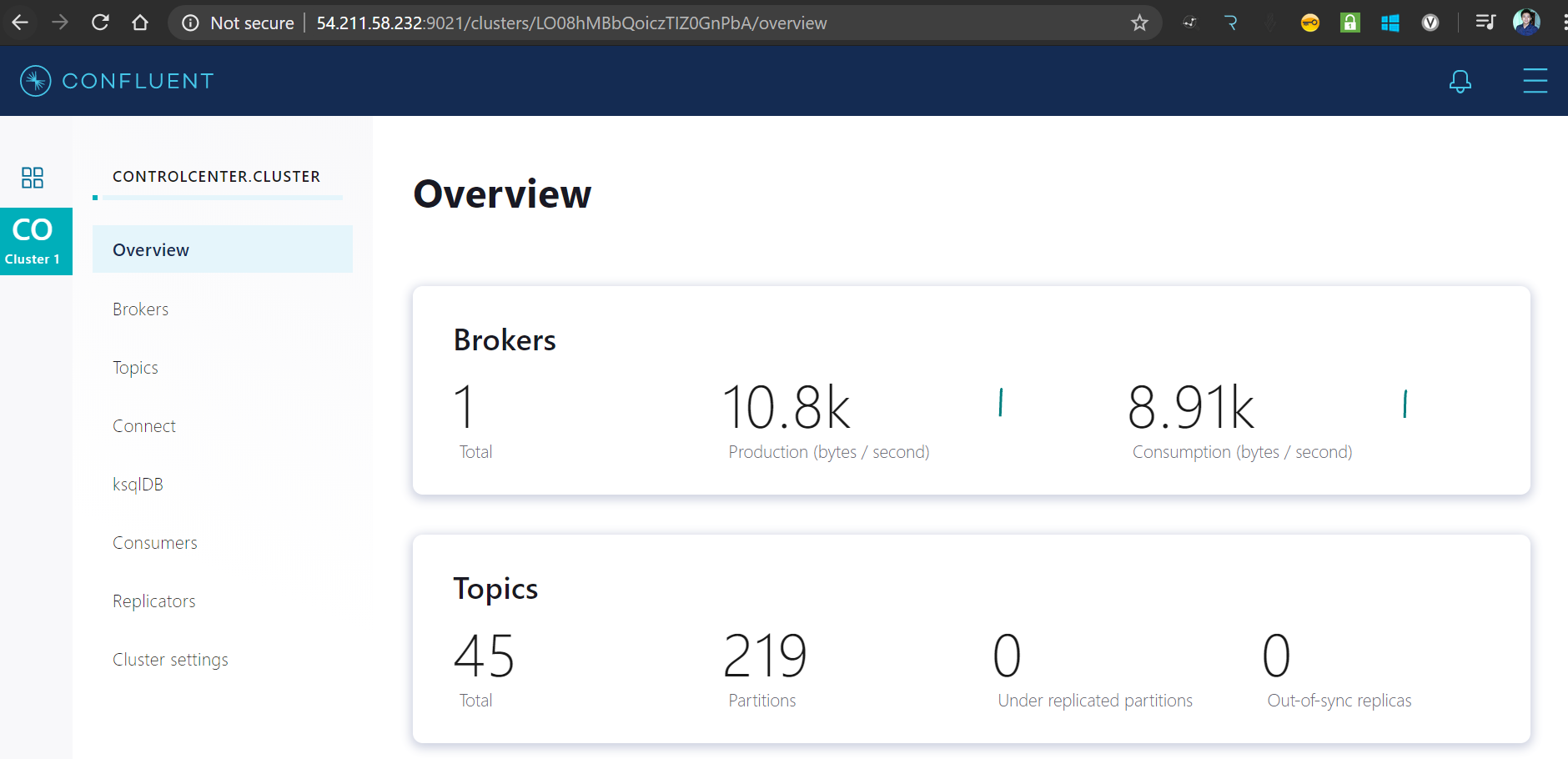
That's it. An easy to follow step if you are planning to install a self-managed Confluent Platform to your RHEL or CentOS box.
I hope this helps!
Opinions expressed by DZone contributors are their own.
Comments