

Seamless Storage: Configuring Kubernetes PVC for Windows Shared Folders With SMB
Step-by-step guide to connect Kubernetes PVCs to Windows shared folders using SMB. Use csi-driver-smb to integrate legacy storage with scalable container apps.
Join the DZone community and get the full member experience.
Join For FreeIntroduction
In the new cloud-native era, it is important to be able to scale and manage applications efficiently. Kubernetes, as a leading container orchestration platform, provides strong features for managing storage through Persistent Volume Claims (PVCs). Mapping Kubernetes to traditional enterprise storage solutions, such as Windows shared folders via the Server Message Block (SMB) protocol, can be especially tricky, however. In this post, you’ll see how to configure Kubernetes PVCs to simply connect to Windows shared folders so that you can leverage your existing infrastructure without losing the scalability and flexibility benefits that Kubernetes has to offer. From app migration of older applications to building new applications, understanding this integration will bring your operational performance to the next level and allow you to achieve seamless workflows. Join us as we walk through the steps of creating this essential connection and getting the most from your Kubernetes configuration.
Scenario
Imagine a bustling enterprise that has relied on a critical application running on a Windows Virtual Machine (VM) for years. This application, developed in .NET, has been seamlessly authenticating to a shared folder on a separate server using a dedicated service account. However, as the organization embraces modern cloud-native practices, the decision is made to migrate the application to a more agile environment — Linux containers running .NET 8.
As the migration process begins, the development team faces a significant challenge: how to connect the newly containerized application to the existing network drive that holds vital data and resources. The shared folder, which was easily accessible from the Windows VM, now poses a hurdle due to the differences in operating systems and authentication mechanisms.
The team recognizes that leveraging Kubernetes for orchestration can provide the scalability and flexibility needed for the application. However, they must find a way to configure Persistent Volume Claims (PVCs) to connect to the Windows shared folder using the SMB protocol while ensuring that the service account authentication remains intact.
Solution
After some research, I found the csi-driver-smb, then let's just follow the steps: (first of course, connect to your kubernetes cluster and make sure that kubectl commands are working and you have helm installed). Make sure also that your cluster/pods have access (network) to the destination before you start.
- Install the Helm Chart
helm repo add csi-driver-smb https://raw.githubusercontent.com/kubernetes-csi/csi-driver-smb/master/charts
helm install csi-driver-smb csi-driver-smb/csi-driver-smb --namespace kube-system
From the Basic Usage instructions here, let's go for the next step: CSI Driver Example
- Create a Secret
kubectl create secret generic smbcreds --from-literal username=USERNAME --from-literal password="PASSWORD" --from-literal domain="DOMAIN"
Note that, in my example, I am specifying the domain, that is optional, if you don't need you can remove it, this is when you have a user/service account that needs to be authenticated with our company domain!
- Create a PV
Now we will create a PV (Persistent Volume), which is necessary for the PVC (Persistent Volume Claim) to be created later, to create the PV, apply this yaml to your cluster:
apiVersion: v1
kind: PersistentVolume
metadata:
  annotations:
    pv.kubernetes.io/provisioned-by: smb.csi.k8s.io
  name: pv-smb
spec:
  capacity:
    storage: 100Gi
  accessModes:
    - ReadWriteMany
  persistentVolumeReclaimPolicy: Retain
  storageClassName: smb
  mountOptions:
    - dir_mode=0777
    - file_mode=0777
  csi:
    driver: smb.csi.k8s.io
    # volumeHandle format: {smb-server-address}#{sub-dir-name}#{share-name}
    # make sure this value is unique for every share in the cluster
    volumeHandle: smb-server.default.svc.cluster.local/share##
    volumeAttributes:
      source: //smb-server-address/sharename
    nodeStageSecretRef:
      name: smbcreds
      namespace: default
Note that on source you have to specify your server address, and on nodeStageSecretRef it's our secret previously created. You also have the options such as mountOptions. Also make sure that you're creating that on the correct namespace.
- Create the PVC
Now, that you have the PV created, you can create the PVC.
kind: PersistentVolumeClaim
apiVersion: v1
metadata:
  name: pvc-smb
  namespace: default
spec:
  accessModes:
    - ReadWriteMany
  resources:
    requests:
      storage: 10Gi
  volumeName: pv-smb
  storageClassName: smb
Note that volumeName is the PV that we just created.
Check your PVC status, you should see that he is bound.

- Create or Attach to your Deployment
Now, it's the part where we will connect our Deployment (pod) to the PVC.
here it is an example how to create and attach:
apiVersion: apps/v1
kind: Deployment
metadata:
  labels:
    app: nginx
  name: deployment-smb
  namespace: default
spec:
  replicas: 1
  selector:
    matchLabels:
      app: nginx
  template:
    metadata:
      labels:
        app: nginx
      name: deployment-smb
    spec:
      nodeSelector:
        "kubernetes.io/os": linux
      containers:
        - name: deployment-smb
          image: mcr.microsoft.com/oss/nginx/nginx:1.19.5
          command:
            - "/bin/bash"
            - "-c"
            - set -euo pipefail; while true; do echo $(date) >> /mnt/smb/outfile; sleep 1; done
          volumeMounts:
            - name: smb
              mountPath: "/mnt/smb"
              readOnly: false
      volumes:
        - name: smb
          persistentVolumeClaim:
            claimName: pvc-smb
  strategy:
    rollingUpdate:
      maxSurge: 0
      maxUnavailable: 1
    type: RollingUpdate
You can notice on volumeMounts and volumes you have your settings for the storage, and you're mounting that PVC on /mnt/smb.
With Rancher, this is how it looks like in my current application:
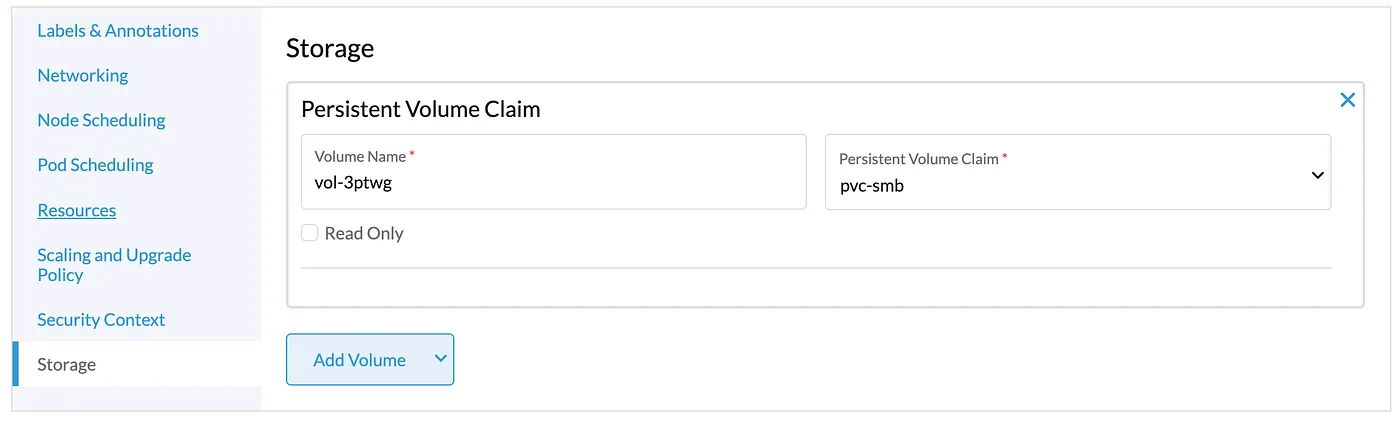
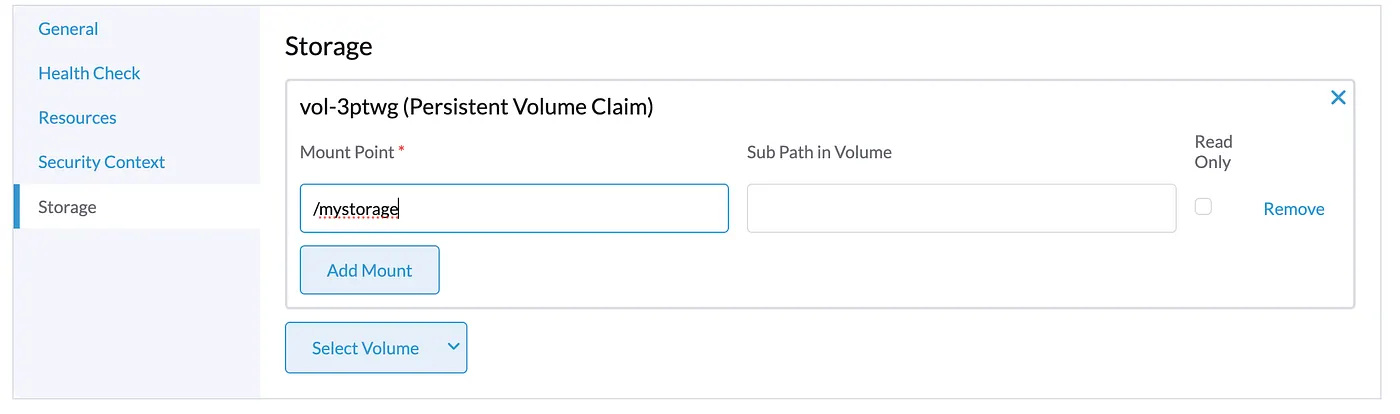
After that, apply your changes and you will see your mounted folder connected to the remote storage!
See you soon!
Also read:
- Code Analysis With SonarQube + Docker + .NET Core
- Real-Time Performance Monitoring in .NET Core With Grafana, InfluxDB, and Docker
- Generate Dapper Queries On-The-Fly With C#
- Creating a Private Repository for Visual Studio Extensions with Docker
- Ocelot: The API Gateway Framework for .NET
- AppVeyor: Continuous Integration in Your GitHub Projects
Published at DZone with permission of Thiago Loureiro. See the original article here.
Opinions expressed by DZone contributors are their own.
Comments