

Set up MuleSoft AnyPoint Platform Identity Using Okta External Identity Provider
In this post, you will learn manual registration in MuleSoft Anypoint Platform Identity Management with OpenID Connect.
Join the DZone community and get the full member experience.
Join For FreeIntroduction
MuleSoft Anypoint Platform supports external identity providers like Open AM, Okta and PingFederate.
MuleSoft supports configure identity management using one of the following single sign-on standards:
- OpenID Connect: End user identity verification by an authorization server including SSO
- SAML 2.0: Web-based authorization including cross-domain SSO
In this post, you will learn manual registration in Anypoint Platform's Identity Management with OpenID Connect.
Prerequisite
Setting Up Application in Okta
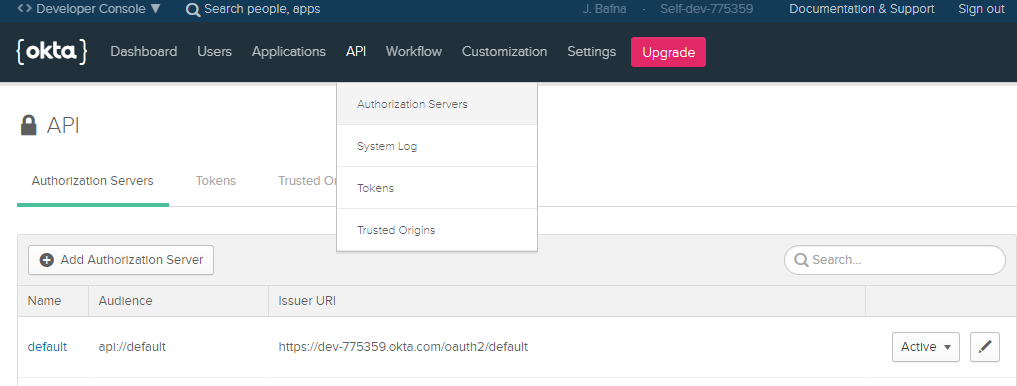
By default, when you login into the Okta developer portal, Go To API ->Authorization Server, and you will find the default Authorization Server.
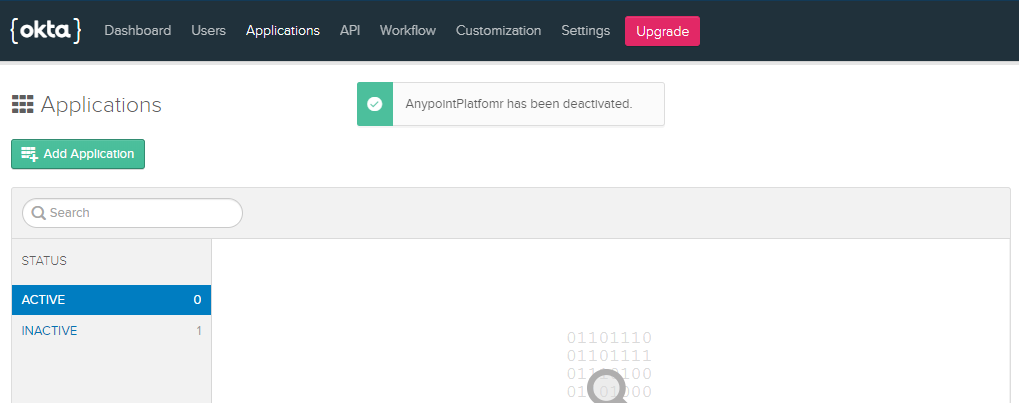
In Okta, add a new application by clicking on the Application menu -> Add Application.
Now you can select Web and click on Next.

Now you need to fill in the details.
Name: Anypoint_Platform_Identity (You can give your own name)
Base URIs: https://anypoint.mulesoft.com/
Login redirect URIs: https://anypoint.mulesoft.com/accounts/login/{{domain}}/redirect (Domain can be found from Anypoint Platform Access Management → Organization)

Grant type allowed: Authorization Code
Finally, click on Done, and it will generate the Client Id and Client Secret.
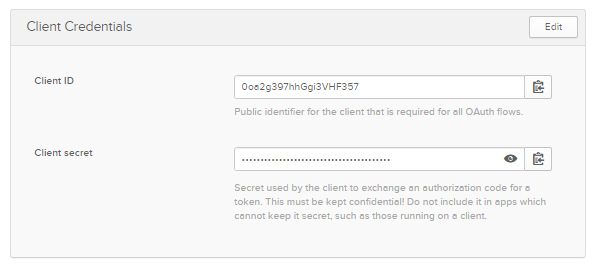
We will require this Client Id and Client Secret when we start doing Manual Registration in Anypoint Platform.
Retrieving Okta Authorization Servers Metadata
In Okta, navigate to API Menu -> Authorization Servers -> default. After clicking on default, it will navigate you to another page. Click on Metadata URI, and it will provide Authorize and Token URL, which we will require during manual registration in Anypoint Platform.

Setting Up Okta as External Identity in Anypoint Platform (Manual Registration)
For setting up Okta as External Identity in Anypoint Platform, Navigate to Access Management → External Identity → Identity Management → OpenID Connect
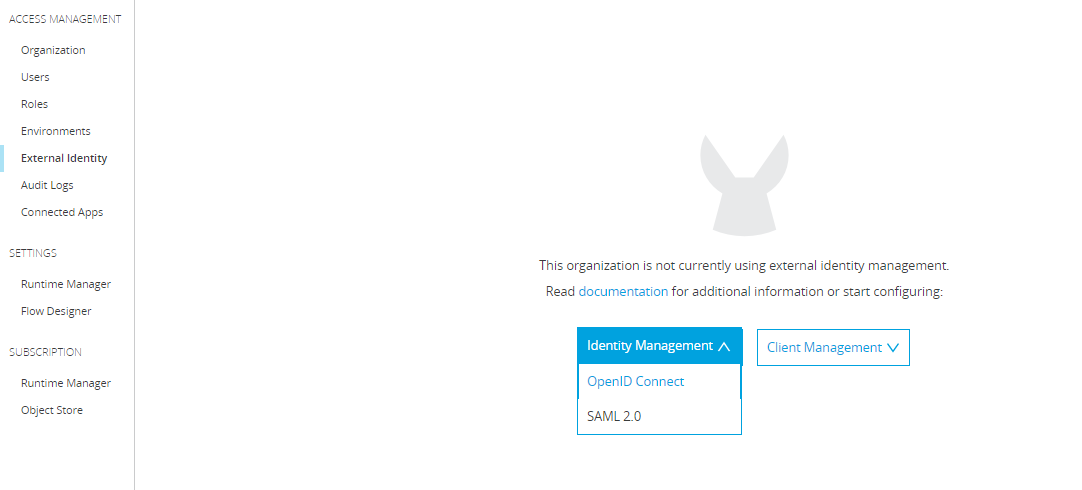
Once you select OpenID Connect from the drop-down menu, it will open a form where we will be doing manual registration.
Click on Manual registration.

Use Client ID and Client Secret, which we have generated during the Okta application creation.
Authorize URL. The token URL can be found in the Okta Authorize Server Metadata.
Authorize URL: https://{{OKTA_Domain}}/oauth2/default/v1/authorize
Token URL: https://{{OKTA_Domain}}/oauth2/default/v1/token
User Info URL: https://{{ OKTA_Domain}}/oauth2/default/v1/userinfo
Finally, click on Save. This has completed the setup of the application in Okta and the External Identity OpenID connect manual Registration in Anypoint Platform.
Testing Sign-On Method on Anypoint Platform
For testing, you can browse the URL, https://anypoint.mulesoft.com/accounts/login/{{domain}}
This will redirect to the Okta login page for authentication instead of the Anypoint Platform login page.

It will redirect back to the Anypoint Platform home page after successful login.

You may need to set up roles in Anypoint Access Management for Okta users.
You can also learn how to perform Dynamic Client Registration in Anypoint Platform Using OKTA.
Further Reading
Opinions expressed by DZone contributors are their own.
Comments