

Streamlining Incident Management with IBM Cloud Logs, Event Notifications, and PagerDuty
Learn faster detection and response: Instead of manually scanning logs, teams get real-time alerts when log patterns indicate a problem.
 ·
·
Join the DZone community and get the full member experience.
Join For FreeIn today’s fast-paced cloud environments, efficient incident management is crucial for reducing downtime and improving the customer experience. In this article, we’ll walk through a practical use case where a fictional company, ABC Ltd., leverages IBM Cloud Logs and Event Notifications to streamline their incident alerts to PagerDuty, ensuring timely responses to critical events. We’ll also cover how to integrate notifications with Slack and Email for different team members.
Use case: Managing application logs in a hybrid cloud environment
ABC Ltd. hosts its web application across multiple cloud regions, ensuring high availability for its global customers. Monitoring logs for errors and performance issues in real time is essential to maintaining uptime. To automate incident responses, they want:
- Error detection: Real-time alerts for critical application errors and performance issues.
- Incident notification: Integration with PagerDuty for urgent incidents, Slack for team discussions, and email for stakeholders.
- Reduced noise: Filtering irrelevant logs to avoid alert fatigue and focus only on high-priority issues.
Architecture overview
- IBM Cloud Logs collects and centralizes logs from ABC’s application, servers, and network devices.
- IBM Event Notifications routes the logs based on defined rules to various channels: PagerDuty, Slack, and Email.
- PagerDuty receives real-time alerts for critical incidents, while less urgent alerts are sent to Slack and Email for further analysis and collaboration.
Step-by-step configuration
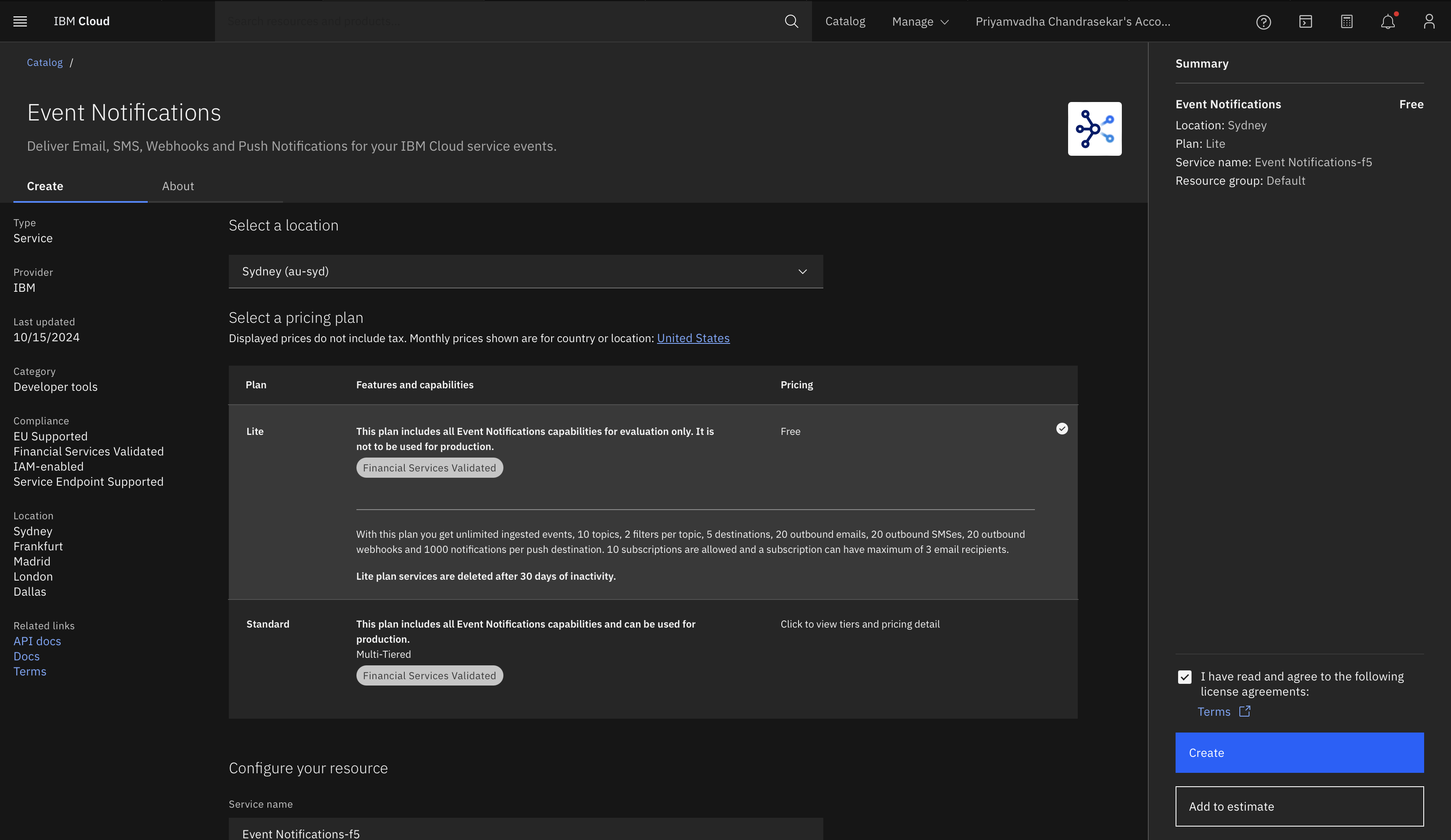
Step 1: Configure Event Notifications
- Provision Event Notifications:
- From the IBM Cloud Catalog, search for Event Notifications, choose a plan best suited to your needs and click Create.
- Navigate to the Event Notifications service from the IBM Cloud dashboard.
- Select a region to host your notifications and click Create. This service acts as the intermediary between your log events and notification channels.
Step 2: Set up IBM Cloud Logs
-
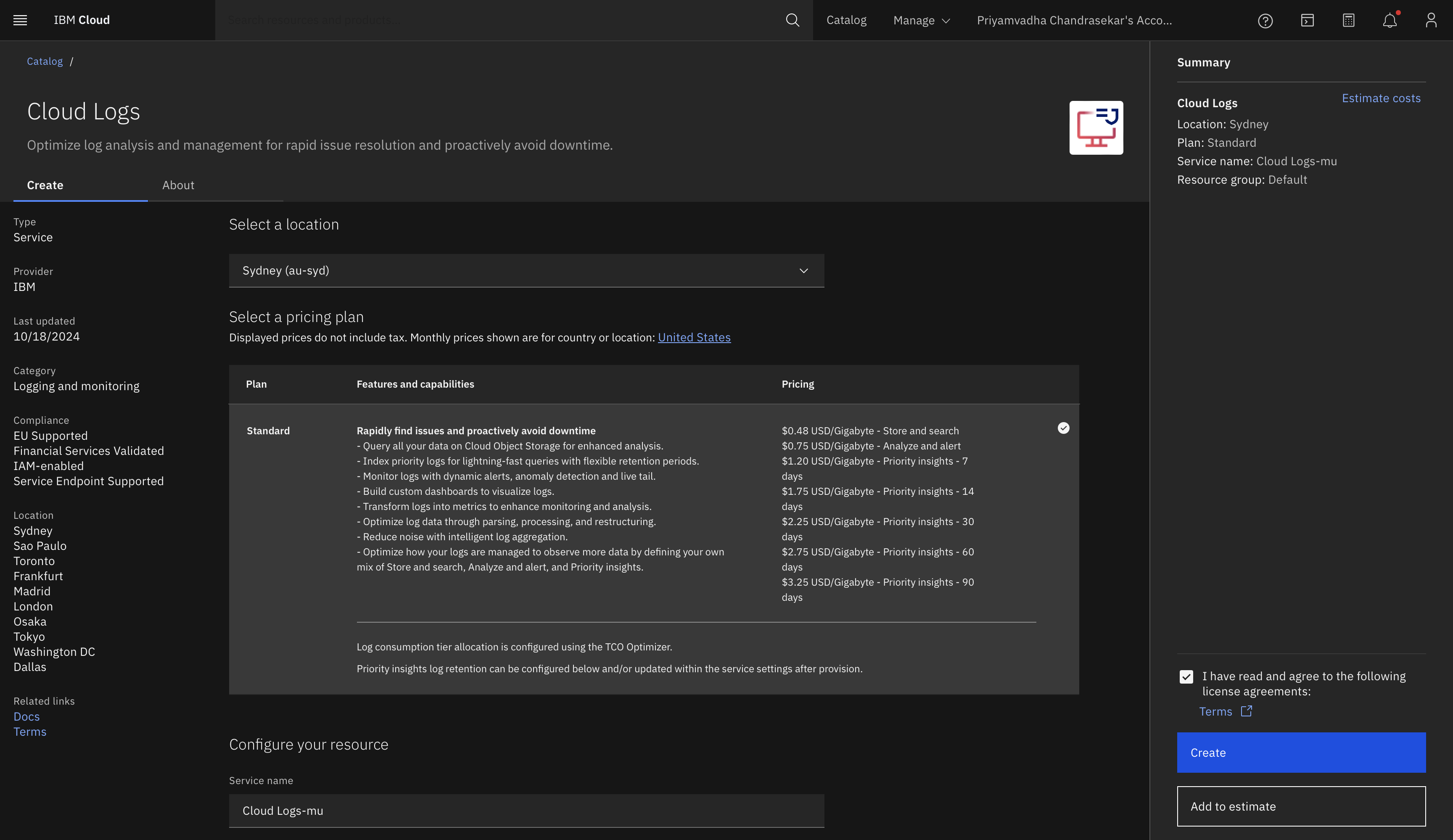
Provision IBM Cloud Logs:
- Log in to your IBM Cloud account.
- From the Catalog, search for IBM Cloud Logs and click Create.
- Configure your log collection to gather logs from your applications, infrastructure, and cloud services.
-
Log Source Setup:
- Use FluentBit agents to forward logs from your environments to IBM Cloud Logs. For example, you can install a FluentBit agent on your virtual machines or Kubernetes clusters.
-
Customize Log Parsing:
- You can use parsing rules to extract key metrics or error patterns that are important to monitor. IBM Cloud Logs supports parsing with regular expressions to capture specific data from log lines.
Step 3: Link IBM Cloud Logs to Event Notifications
-
Authorize Event Notifications:
- Go back to your IBM Cloud Logs instance, Open Dashboard and navigate to Integrations > Outbound Integrations (sidebar).
- Select Event Notifications>Add>Add New from the integration options.
- Follow the prompts to authorize the connection. You will need to assign IAM roles that allow Event Notifications to receive logs from IBM Cloud Logs. (Under the IAM Authorisation, set Source as Cloud Logs and Target as Event Notifications).
- Configure Filters for Logs:
- Use filters to only send critical logs to Event Notifications. For example, you can set a filter to trigger notifications when a log contains the keyword "ERROR" or "CRITICAL".
- This helps reduce noise by sending only high-priority logs to PagerDuty and less urgent ones to Slack or email.
Step 4: Set up alerts
1. Configuring Alerts:
- Navigate to your IBM Cloud Logs Instance and click on the Menu icon>Alerts>Alert Management>New Alert.
- Set the name, description and the severity of the alert you want to see. For example,
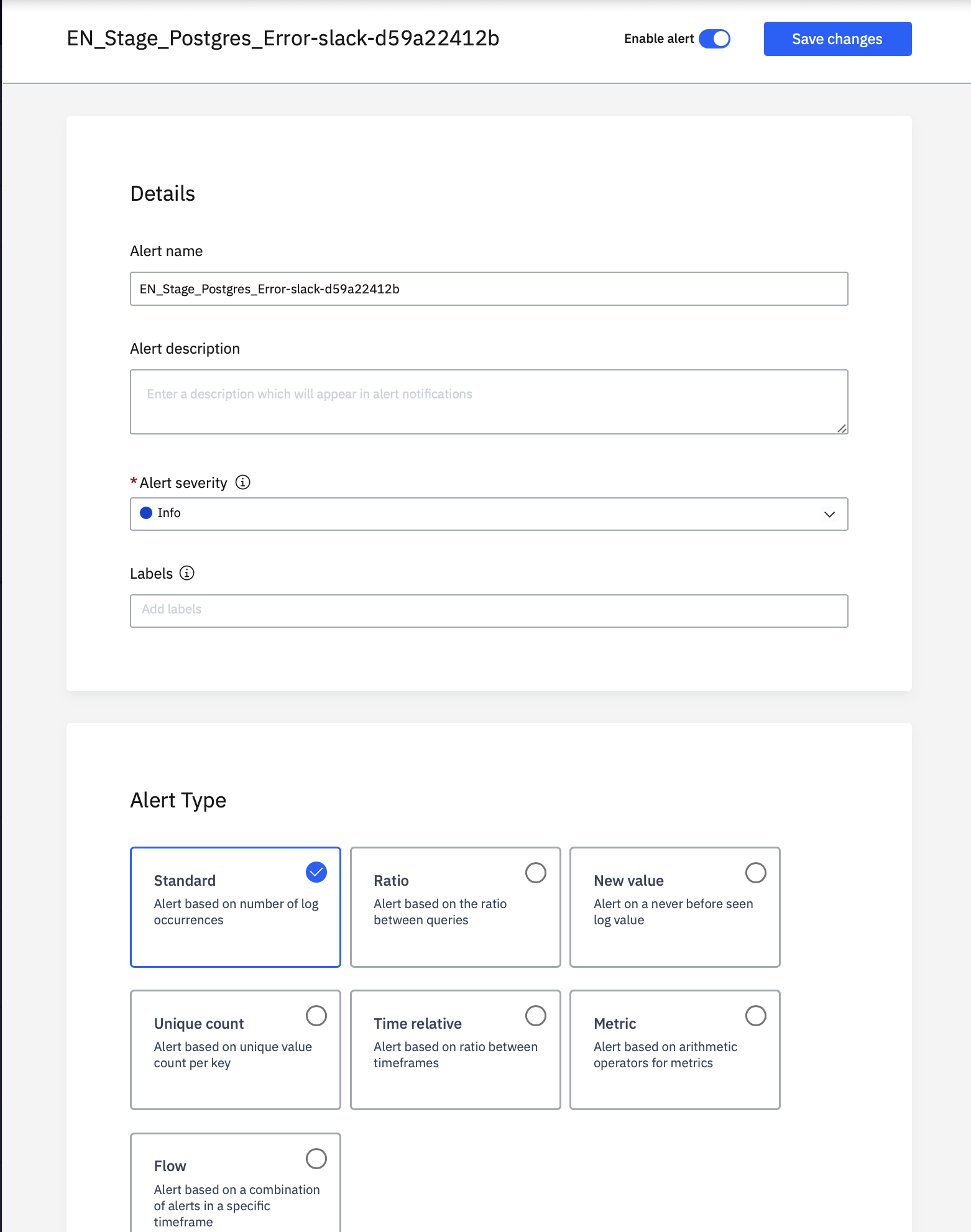
- Next, add the query.
- Set the frequency of the alerts and how you want to be alerted.
- Once you have set all the parameters, click create alert.
Step 5: Setting up destinations, alerts, topics, and subscriptions
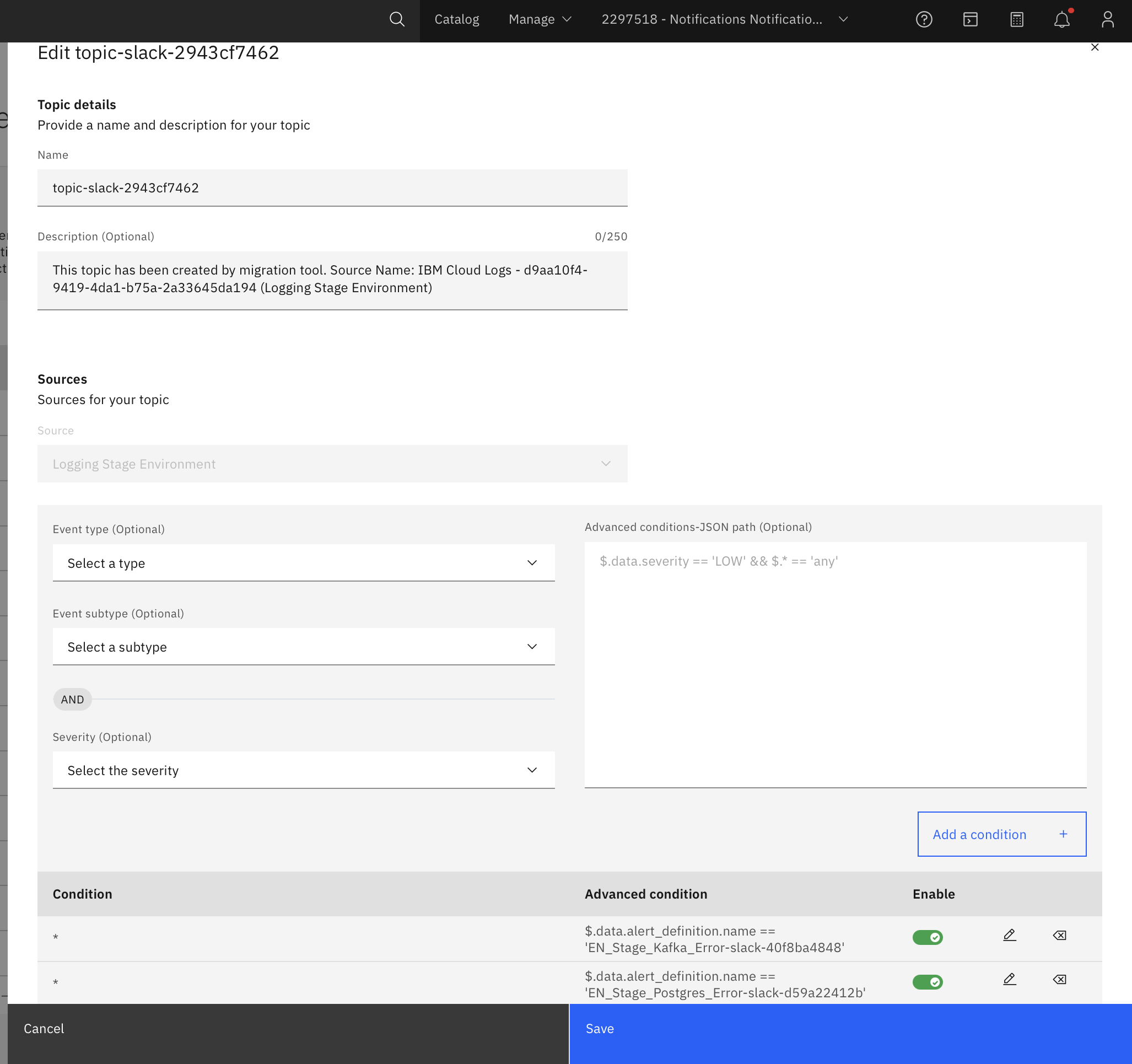
1. Create Notification Topics:
- In Event Notifications, create topics to categorize your alerts. For example, create topics like:
Critical_Alertsfor PagerDuty.Team_Discussionsfor Slack.Status_Updatesfor Email.- Example:
2. Add Subscriptions:
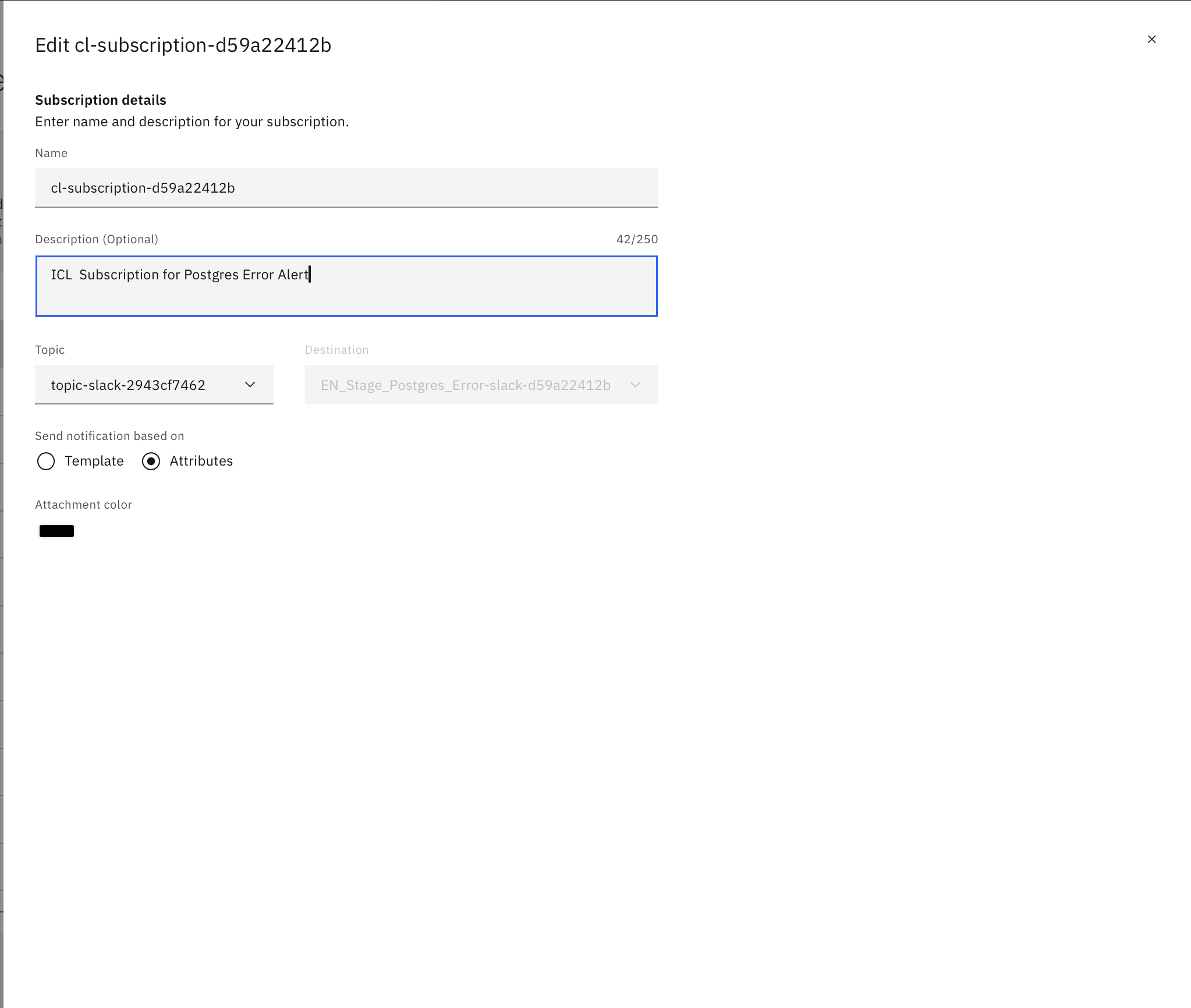
- For each topic, add a subscription to direct the alerts to the appropriate channel:
- PagerDuty: Select Webhook as the destination type. Follow PagerDuty's integration guide to create a webhook URL, and configure this as the destination for critical alerts.
- Slack: Create a Webhook URL in your Slack workspace. In Event Notifications, select Webhook and enter the Slack URL for team notifications.
- Email: Choose Email as the destination, and add the relevant addresses for stakeholders who need regular updates but are not directly responsible for immediate incident response.
- Example:
3. Set Up PagerDuty Alerts
-
Create an Alert Service in PagerDuty:
- Log in to your PagerDuty account and create a new Service that will handle the IBM Cloud Logs notifications.
- In the service, create an Integration for incoming webhooks and copy the URL provided by PagerDuty.
-
Connect Event Notifications to PagerDuty:
- Return to IBM Cloud’s Event Notifications service, select your
Critical_Alertstopic, and add the PagerDuty webhook as a destination. - Now, whenever an alert is triggered by critical logs, PagerDuty will receive the notification and escalate according to your team’s on-call schedule.
- Return to IBM Cloud’s Event Notifications service, select your
4. Set Up Slack Integration
- Create a Slack Webhook:
- In Slack, go to App Directory and search for Incoming Webhooks. Configure a new webhook URL in the Slack channel where you want notifications to appear.
- Add Slack as a Destination in Event Notifications:
- In IBM Cloud’s Event Notifications, add the Slack webhook URL to the
Team_Discussionstopic subscription. - This will send non-critical but relevant logs to Slack for team discussions.
- In IBM Cloud’s Event Notifications, add the Slack webhook URL to the
5. Configure Email Notifications
- Set Up Email Destinations:
- In Event Notifications, create an Email subscription for the
Status_Updatestopic. - Add the email addresses of team leads, product owners, or stakeholders who need periodic status reports on log activity.
- In Event Notifications, create an Email subscription for the
Step 7: Test the Configuration
-
Trigger Test Logs:
- Generate a test error or critical log event in your application.
- Check that PagerDuty, Slack, and Email are receiving notifications as configured.
-
Monitor the Flow:
- Confirm that the right alerts are sent to the right channels without causing unnecessary noise. Adjust your filtering criteria as needed.
Benefits of this setup
- Faster Incident Resolution: By integrating IBM Cloud Logs with PagerDuty, you ensure critical incidents are addressed immediately, reducing downtime.
- Team Collaboration: Slack integration helps your team discuss and resolve less urgent issues in real-time.
- Visibility for Stakeholders: Email notifications provide regular updates for stakeholders without overwhelming them with every minor issue.
- Customizable Filters: IBM Cloud’s event filtering ensures that only the most relevant logs are sent to each destination, reducing alert fatigue and ensuring the team stays focused on important tasks.
By integrating IBM Cloud Logs with Event Notifications and popular tools like PagerDuty, Slack, and Email, ABC Ltd. improves incident management, streamlining the process for both technical and non-technical team members. This setup helps them provide a superior customer experience with faster issue resolution and more efficient collaboration.
Opinions expressed by DZone contributors are their own.
Comments