

Switching Between Light and Dark Themes Automatically
Learn how to detect the OS theme configuration to set a dark or light theme automatically in plain HTML and Vaadin Flow apps
 CORE
·
CORE
·
Join the DZone community and get the full member experience.
Join For FreeIn this quick tutorial, I'll show you how to automatically set a dark or light theme in a web application depending on the configuration that the user has in their operating system:
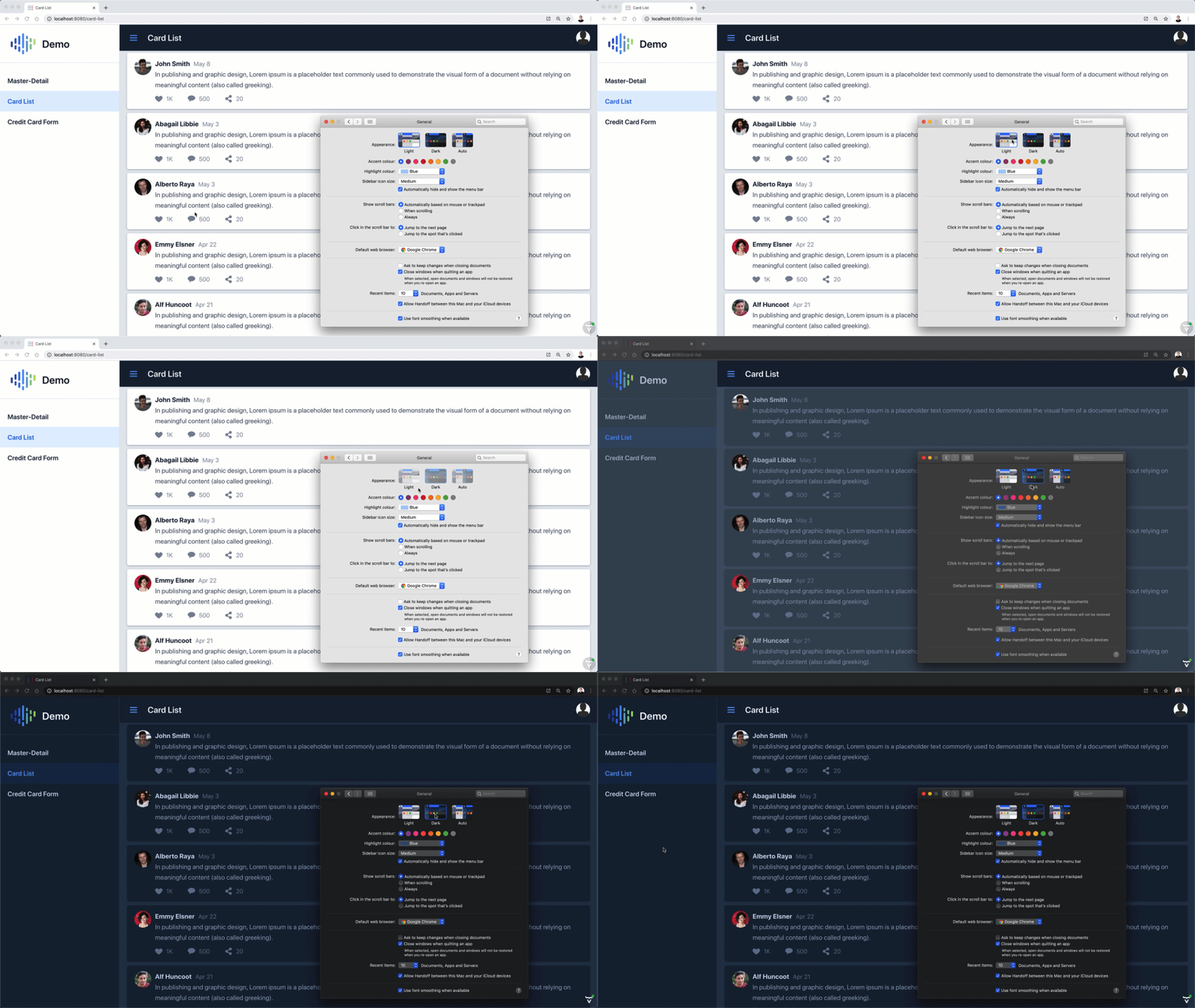
If you prefer, here's a video version of this tutorial:
Automatic Dark and Light Themes in HTML Documents With CSS
The following steps show how to enable automatic dark and light themes in HTML documents using CSS.
Step1: Create an HTML Document
Create a demo.html file with the following content:
xxxxxxxxxx
<html lang="en">
<head>
<meta charset="UTF-8">
<title>Dark and light</title>
</head>
<body>
<h1>Hello!</h1>
<p>This is an example app.</p>
<button>Click me</button>
</body>
</html>
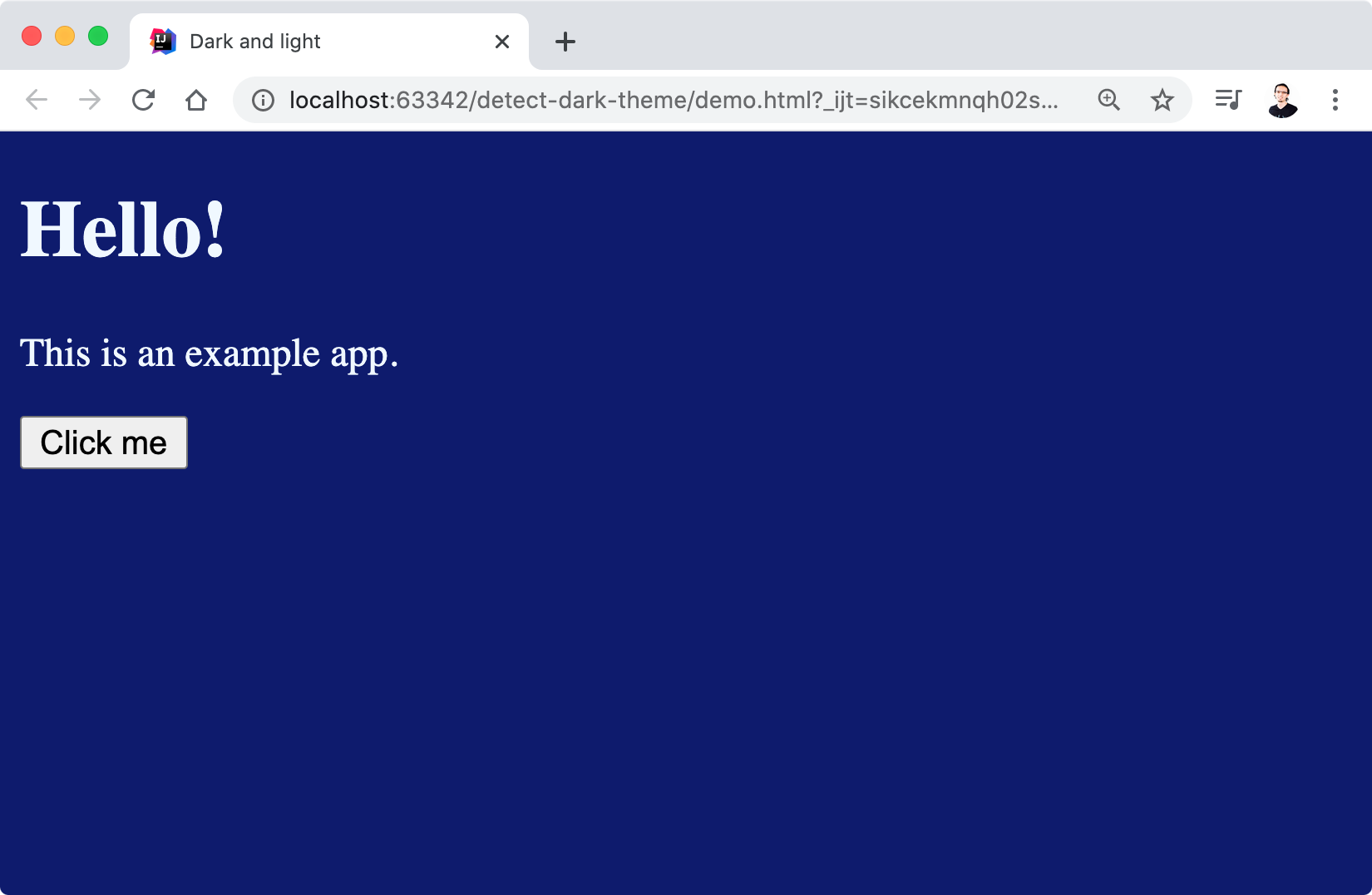
Here's a screenshot:
Step2: Implement a Dark Theme
Add the following to the head section of the demo.html file:
xxxxxxxxxx
<style>
body {
color: aliceblue;
background-color: midnightblue;
}
</style>
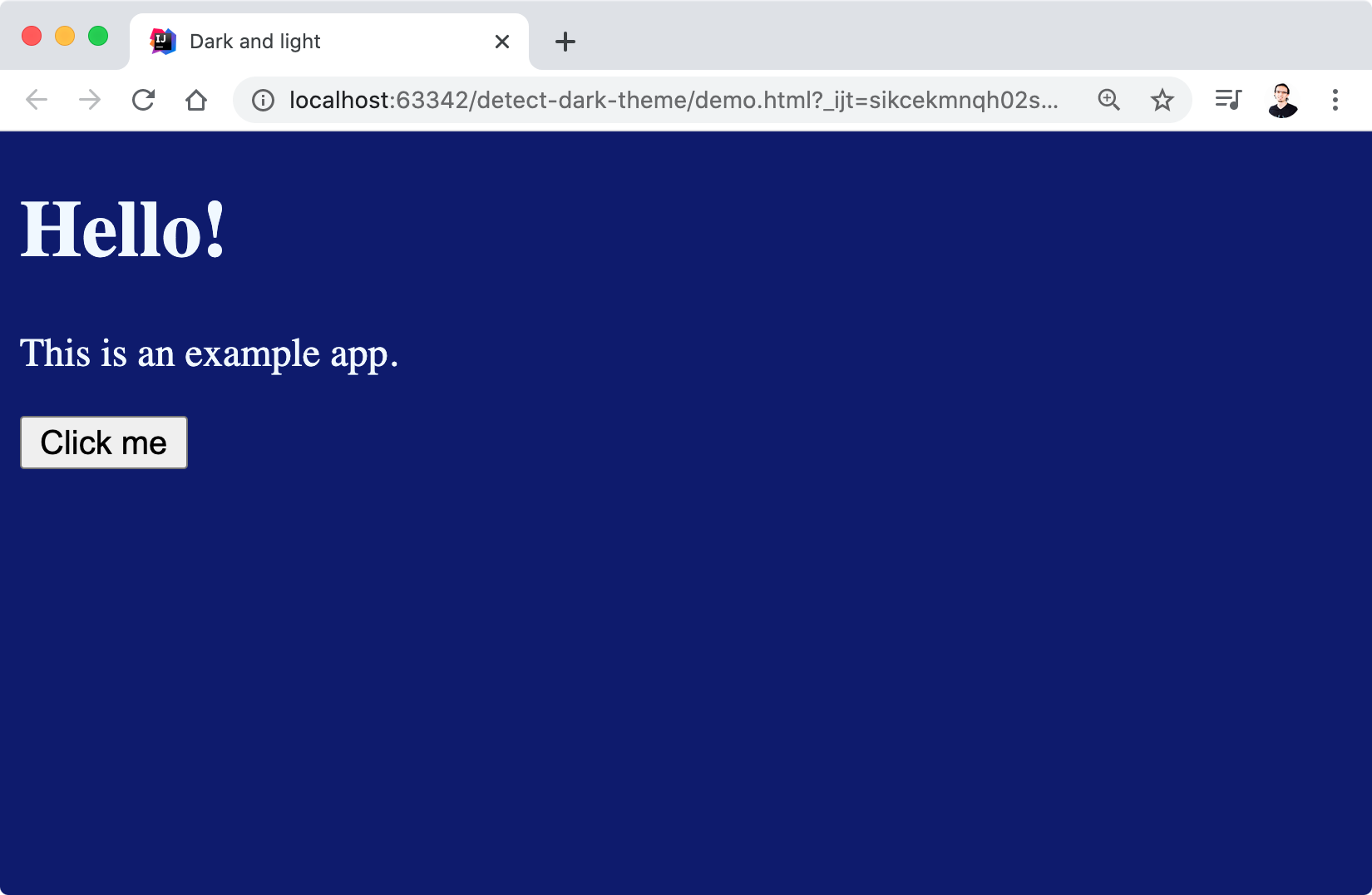
Here's the result:
Step 3: Use a Media Query to Apply the Dark Theme
Edit the code of the previous step to include the dark styles in a media query that uses a media feature:
xxxxxxxxxx
<style>
@media (prefers-color-scheme: dark) {
body {
color: aliceblue;
background-color: midnightblue;
}
}
</style>
Step 4: Test the Spp
Open the HTML document in the browser and use your operating system settings to change the preferred theme. The changes should be automatically reflected in the browser.
Automatic Dark and Light Themes in Web Components and Vaadin Flow Apps
The following steps show how to enable automatic dark and light themes using JavaScript. This is useful if your application uses Web Components that require special configurations or if you are using Vaadin Flow.
Step 1: Create a New Java Web Application With Web Components
Go to https://start.vaadin.com and generate a new application. You can leave all the defaults or tweak it as you wish by adding and removing views or changing the appearance. Follow the instructions and links on the page to import the generated Maven project in your IDE of choice.
Step 2: Implement a Media Query in JavaScript
Create a new os-theme-switcher.js file inside the PROJECT_ROOT/frontend/ directory with the following content:
xxxxxxxxxx
function applyTheme() {
let theme = matchMedia("(prefers-color-scheme: dark)").matches ? "dark" : "light";
document.documentElement.setAttribute("theme", theme);
}
matchMedia("(prefers-color-scheme: dark)").addEventListener("change", applyTheme);
applyTheme();
Step 3: Load the JavaScript File
Add the following annotation to the MainView Java class:
xxxxxxxxxx
...
("./os-theme-switcher.js")
public class MainView extends AppLayout {
...
}
Step 4: Test the App
Run the app with Maven:
mvn spring-boot:run
Go to http://localhost:8080 and use your operating system settings to change the preferred theme. The changes should be automatically reflected in the browser.
Opinions expressed by DZone contributors are their own.
Comments