

Use of Priority and Priority Ranges in Camunda Jobs
Learn how to make use of priority and priority ranges in Camunda jobs.
Join the DZone community and get the full member experience.
Join For FreeIn this topic, will learn how to make use of priority and priority ranges in Camunda jobs and, how it gives us a way to run jobs on different Camunda job executors based on the job’s priority.
Software Requirement
- Spring Boot
- Camunda 7.16 +
- Eclipse or any other IDE
- Maven
Implementation of Job With Setting Priority
If you have not created a project with spring boot with embedded Camunda engine, then go through the link and create one.
Next, modify the process.BPMN is given below.
Create a job by setting its priority as below. In this, the timer is created with a priority set to 10.
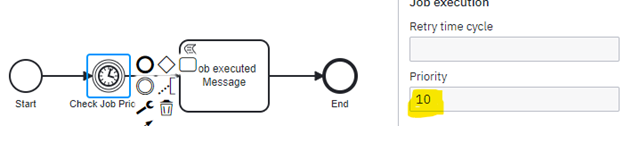
OR copy the below content and save it as “jobs.BPMN” to create this model.
<?xml version="1.0" encoding="UTF-8"?>
<bpmn:definitions xmlns:bpmn="http://www.omg.org/spec/BPMN/20100524/MODEL" xmlns:bpmndi="http://www.omg.org/spec/BPMN/20100524/DI" xmlns:dc="http://www.omg.org/spec/DD/20100524/DC" xmlns:di="http://www.omg.org/spec/DD/20100524/DI" xmlns:camunda="http://camunda.org/schema/1.0/bpmn" xmlns:xsi="http://www.w3.org/2001/XMLSchema-instance" id="Definitions_0fr9mxs" targetNamespace="http://bpmn.io/schema/bpmn" exporter="Camunda Modeler" exporterVersion="5.1.0">
  <bpmn:process id="camunda-new-features-test-process" isExecutable="true">
    <bpmn:startEvent id="StartEvent_1" name="Start">
      <bpmn:outgoing>Flow_1ql0hfr</bpmn:outgoing>
    </bpmn:startEvent>
    <bpmn:sequenceFlow id="Flow_1ql0hfr" sourceRef="StartEvent_1" targetRef="Event_1hgijag" />
    <bpmn:sequenceFlow id="Flow_0nvdacn" sourceRef="Event_1hgijag" targetRef="Activity_0ocues6" />
    <bpmn:endEvent id="Event_0ptn8u4" name="End">
      <bpmn:incoming>Flow_0pjpitl</bpmn:incoming>
    </bpmn:endEvent>
    <bpmn:sequenceFlow id="Flow_0pjpitl" sourceRef="Activity_0ocues6" targetRef="Event_0ptn8u4" />
    <bpmn:scriptTask id="Activity_0ocues6" name="Job executed Message" scriptFormat="Groovy">
      <bpmn:incoming>Flow_0nvdacn</bpmn:incoming>
      <bpmn:outgoing>Flow_0pjpitl</bpmn:outgoing>
      <bpmn:script>println("Job executed");</bpmn:script>
    </bpmn:scriptTask>
    <bpmn:intermediateCatchEvent id="Event_1hgijag" name="Check Job Priority" camunda:jobPriority="10">
      <bpmn:incoming>Flow_1ql0hfr</bpmn:incoming>
      <bpmn:outgoing>Flow_0nvdacn</bpmn:outgoing>
      <bpmn:timerEventDefinition id="TimerEventDefinition_1yg78j8">
        <bpmn:timeDuration xsi:type="bpmn:tFormalExpression">PT5S</bpmn:timeDuration>
      </bpmn:timerEventDefinition>
    </bpmn:intermediateCatchEvent>
  </bpmn:process>
  <bpmndi:BPMNDiagram id="BPMNDiagram_1">
    <bpmndi:BPMNPlane id="BPMNPlane_1" bpmnElement="camunda-new-features-test-process">
      <bpmndi:BPMNEdge id="Flow_1ql0hfr_di" bpmnElement="Flow_1ql0hfr">
        <di:waypoint x="215" y="117" />
        <di:waypoint x="272" y="117" />
      </bpmndi:BPMNEdge>
      <bpmndi:BPMNEdge id="Flow_0nvdacn_di" bpmnElement="Flow_0nvdacn">
        <di:waypoint x="308" y="117" />
        <di:waypoint x="370" y="117" />
      </bpmndi:BPMNEdge>
      <bpmndi:BPMNEdge id="Flow_0pjpitl_di" bpmnElement="Flow_0pjpitl">
        <di:waypoint x="470" y="117" />
        <di:waypoint x="532" y="117" />
      </bpmndi:BPMNEdge>
      <bpmndi:BPMNShape id="_BPMNShape_StartEvent_2" bpmnElement="StartEvent_1">
        <dc:Bounds x="179" y="99" width="36" height="36" />
        <bpmndi:BPMNLabel>
          <dc:Bounds x="185" y="142" width="25" height="14" />
        </bpmndi:BPMNLabel>
      </bpmndi:BPMNShape>
      <bpmndi:BPMNShape id="Event_0ptn8u4_di" bpmnElement="Event_0ptn8u4">
        <dc:Bounds x="532" y="99" width="36" height="36" />
        <bpmndi:BPMNLabel>
          <dc:Bounds x="540" y="142" width="20" height="14" />
        </bpmndi:BPMNLabel>
      </bpmndi:BPMNShape>
      <bpmndi:BPMNShape id="Activity_0o251cr_di" bpmnElement="Activity_0ocues6">
        <dc:Bounds x="370" y="77" width="100" height="80" />
        <bpmndi:BPMNLabel />
      </bpmndi:BPMNShape>
      <bpmndi:BPMNShape id="Event_025t7qu_di" bpmnElement="Event_1hgijag">
        <dc:Bounds x="272" y="99" width="36" height="36" />
        <bpmndi:BPMNLabel>
          <dc:Bounds x="246" y="142" width="90" height="14" />
        </bpmndi:BPMNLabel>
      </bpmndi:BPMNShape>
    </bpmndi:BPMNPlane>
  </bpmndi:BPMNDiagram>
</bpmn:definitions>
Execute Attempt-1: Run the project and open the task list to start the process instance. You can verify that the timer job is executed and the message “Job executed” is prompted on the IDE console which confirms that the job is executed.
Execute Attempt-2: Next, let us modify the properties so that the job executor can pick the jobs based on defined priority, and by doing that we will restrict the job executor to not pick the job.
Add below properties in the application.yaml.
camunda:
  bpm:
    generic-properties:
      properties:
        jobExecutorPriorityRangeMin: 0
        jobExecutorPriorityRangeMax: 9
This will set the job executor to run the jobs whose priority falls between the range 0 to 9 (Both numbers are inclusive) and run the application again.
Points To Note
- This is useful in separating multiple types of jobs across multiple process engines.
- Allows running job executors in multiple process engines to share the load.
- While defining the range, avoid missing and overlapping the range across process engines. For example, if given 2 process engines defined range as 0-9 and 15-20, then jobs with priority 10-14 will never get picked up by job executors.
Opinions expressed by DZone contributors are their own.
Comments