

Using CockroachDB Dedicated With Starburst Galaxy
In this article, we're going to look at connecting Starburst Galaxy, a Trino SaaS service running with CockroachDB Dedicated.
 CORE
·
CORE
·
Join the DZone community and get the full member experience.
Join For FreePrevious Articles
I've written about Presto and CockroachDB in the past, you may find the article below:
Data federation with CockroachDB and Presto
Motivation
I had a customer evaluate CockroachDB Serverless for their workload and one of the requirements was connecting it to Starburst Galaxy. In this article, we're going to discuss the challenges and the workarounds necessary to integrate Galaxy with Cockroach Cloud.
High-level Steps
- Start a 9-node multi-region cluster (CockroachDB Dedicated)
- Create a Galaxy Account
- Spin up a Trino cluster
- Conclusion
Step-by-Step Instructions
Start a 9-Node Multi-region Cluster (CockroachDB Dedicated)
I am using a multi-region CockroachDB Dedicated cluster spanning us-east-1, us-east-2 and us-west-2 regions in AWS. You can get a 30-day trial of CockroachDB Dedicated following this link.
While we're in the Cockroach Cloud console, let's capture the required info for the next step:
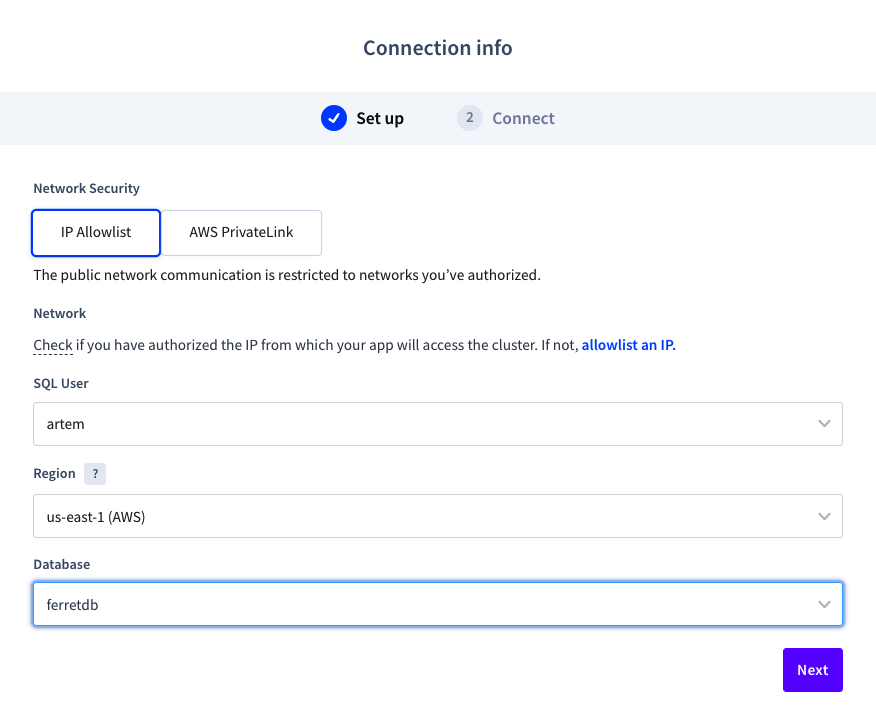
Click "Connect" > select "IP Allowlist" or "AWS PrivateLink" > select user, region and database > click "Next"
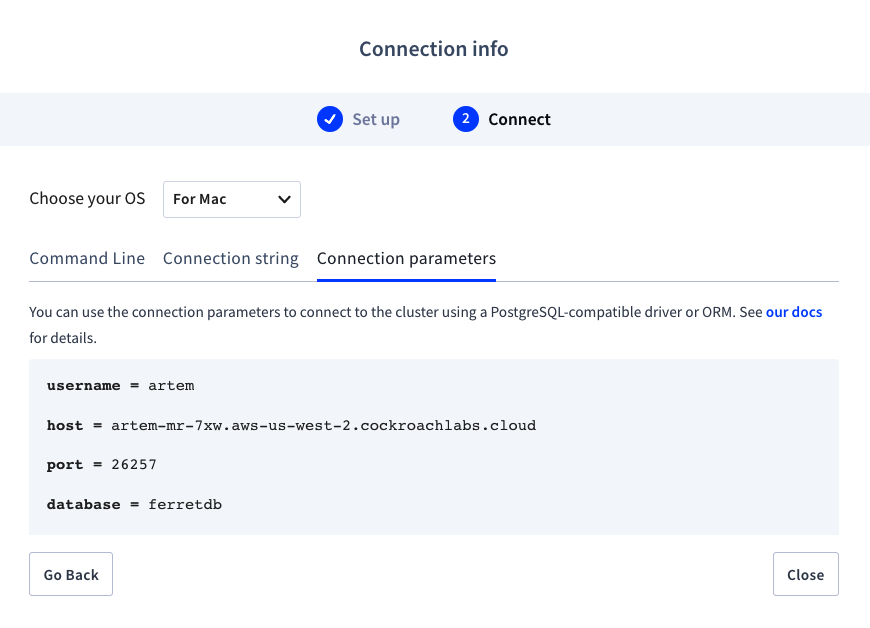
On the next page, select "Connection parameters"
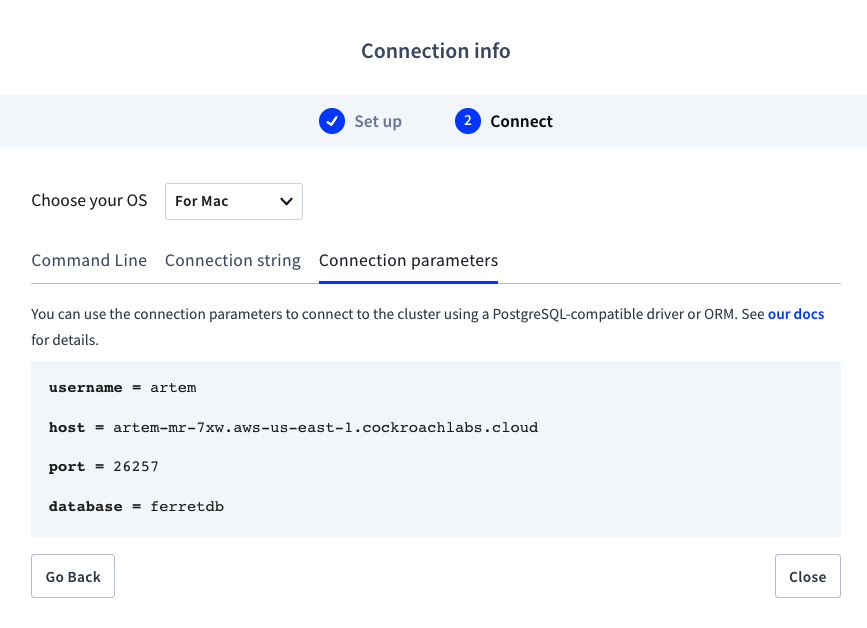
The host displayed is pointing to a regional load-balanced endpoint. If this is a multi-region cluster, you need to repeat the step for each region where you want Galaxy to communicate with the CockroachDB cluster.
You can click "Back" once and from the "Region" drop-down, select the region of interest
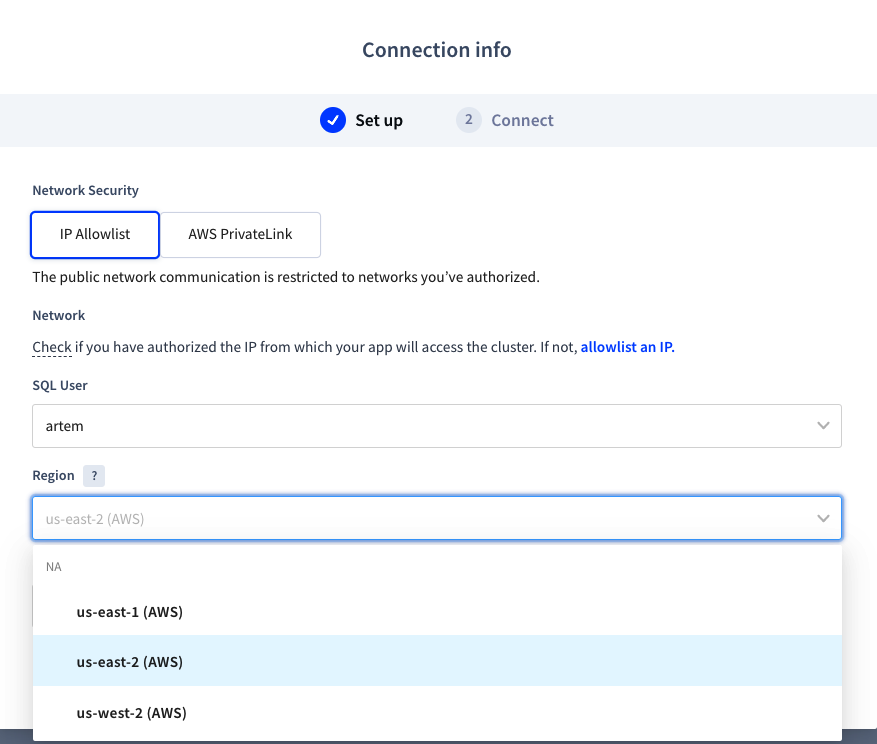
Once you select the region, you can repeat the steps above to capture the connection parameters
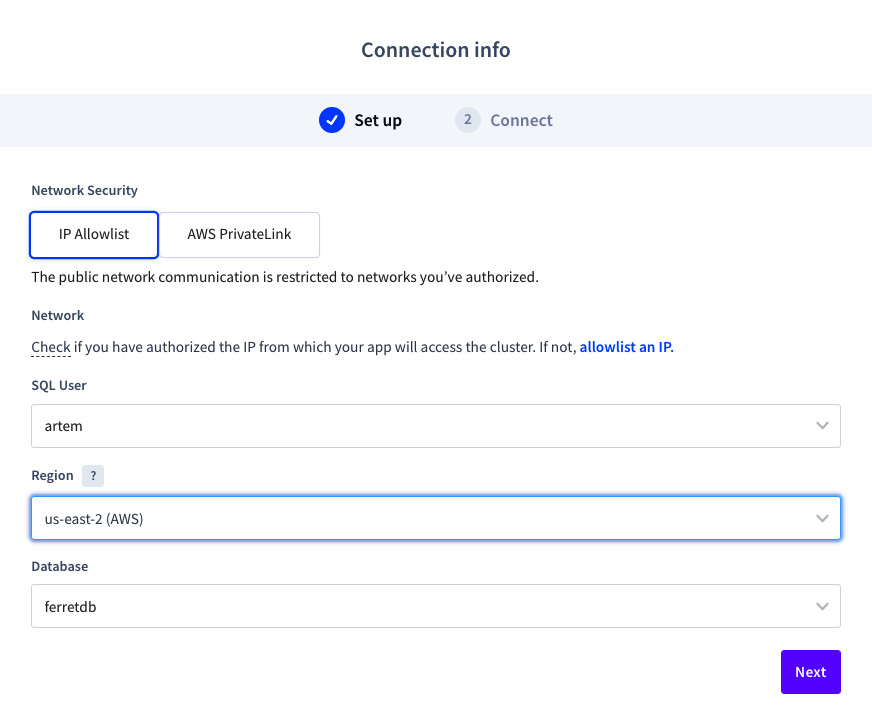
Here's what the West 2 region connection parameters look like
Create a Galaxy Account
You can get a free Galaxy account using the following link. Once you sign up for an account and log in, you will be greeted with an option to create a catalogue.
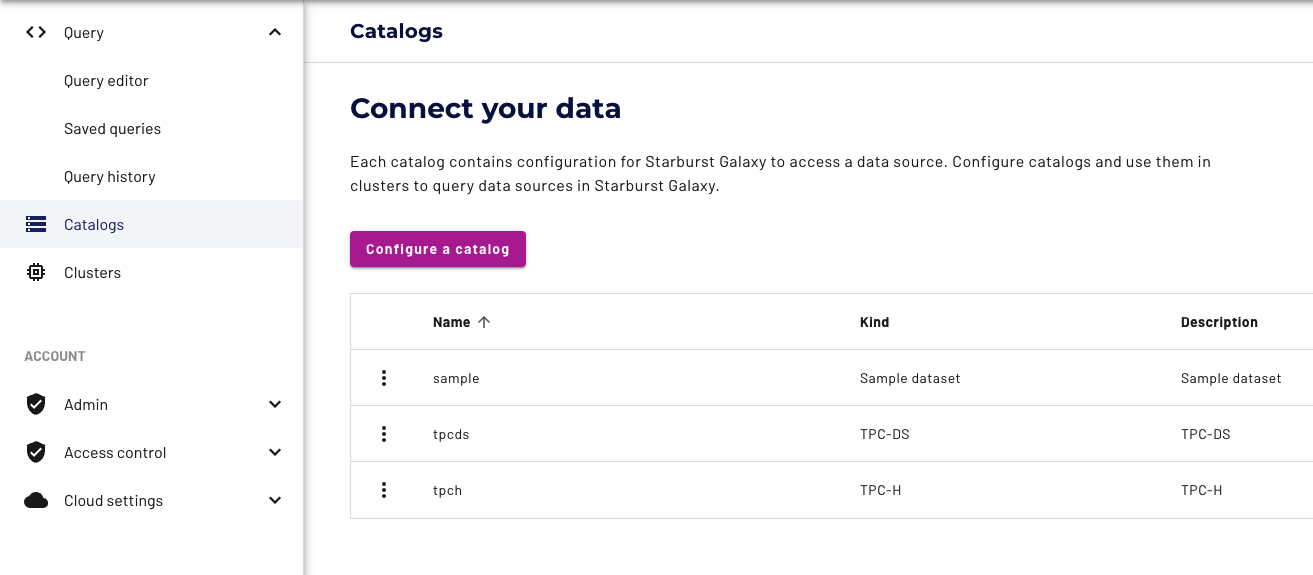
We are going to use CockroachDB Dedicated for catalogue. Click on configure a catalog button.
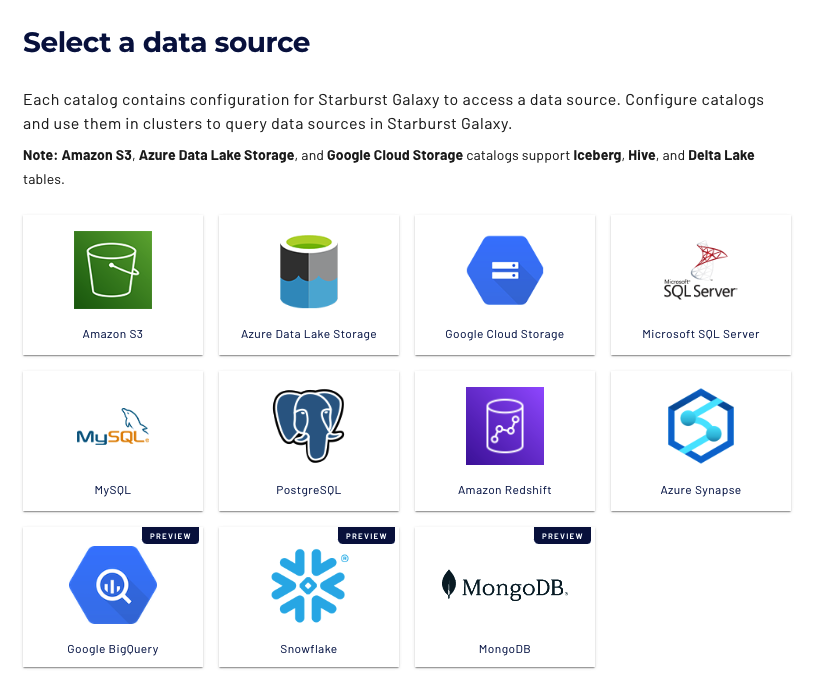
Select PostgreSQL
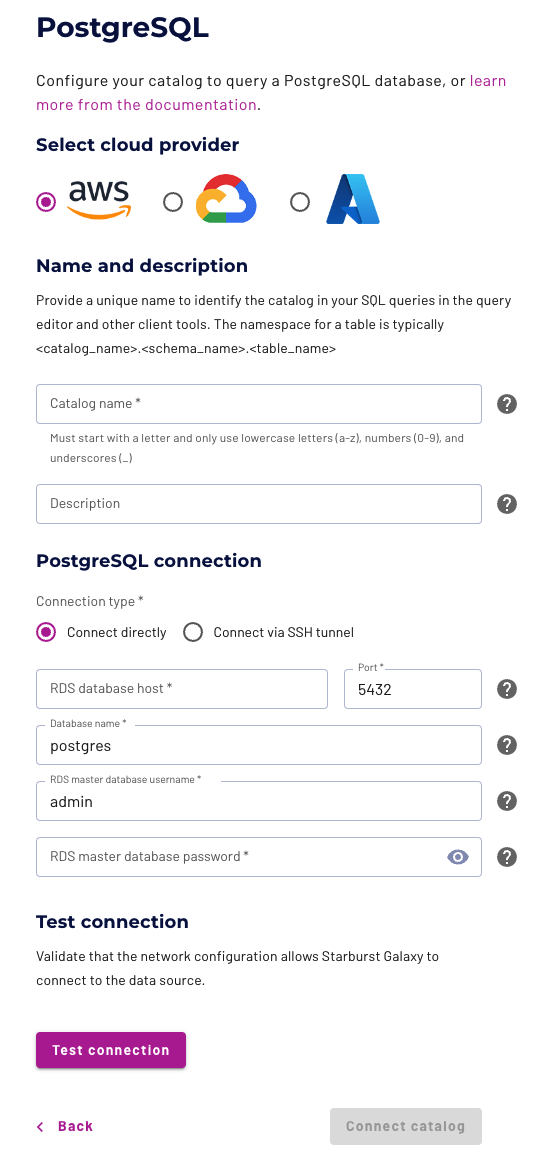
Here you will enter your CockroachDB Dedicated information
Enter your desired catalogue name and description > host, which is the host you captured in the previous step, i.e. artem-mr-7xw.aws-us-east-1.cockroachlabs.cloud > port, i.e. 26257 > database name > user > password

Once complete, click "Test connection"
If the next step fails and you're greeted with an error like below
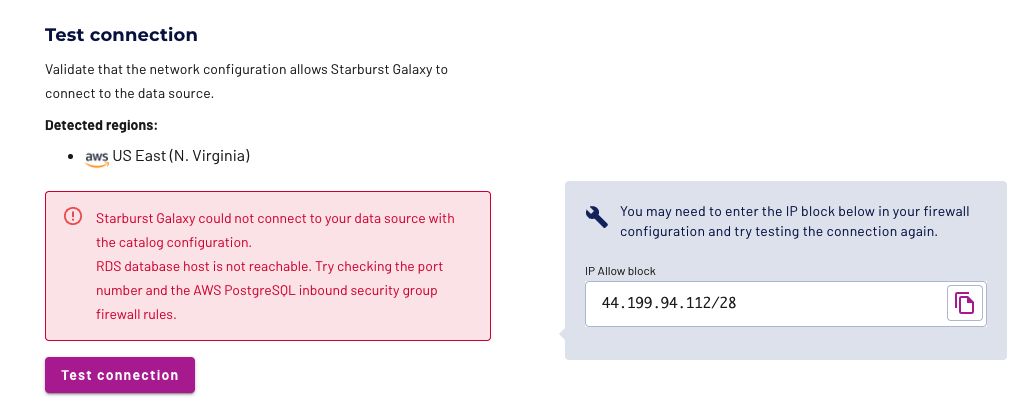
You must add the IP CIDR from Galaxy to the CockroachDB IP Allowlist
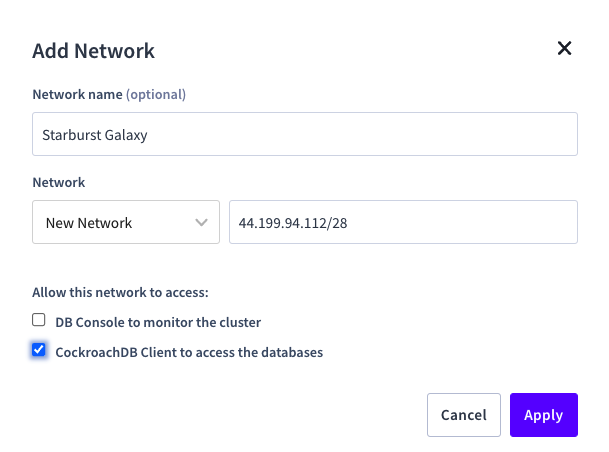
Once that's complete, click "Test connection" again
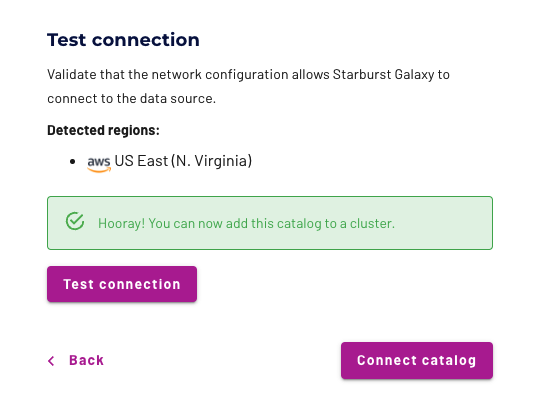
Click "Connect catalog"
On the next page, set access roles
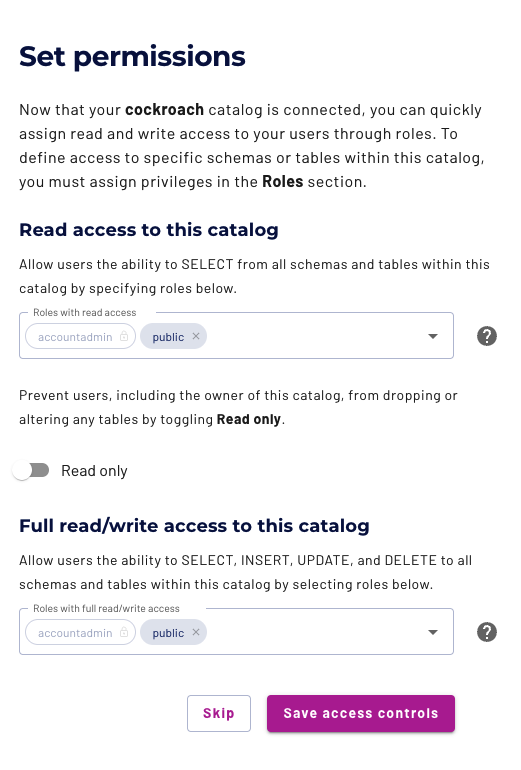
Click "Save access control"
On the next page, you must choose an existing cluster or create a new cluster
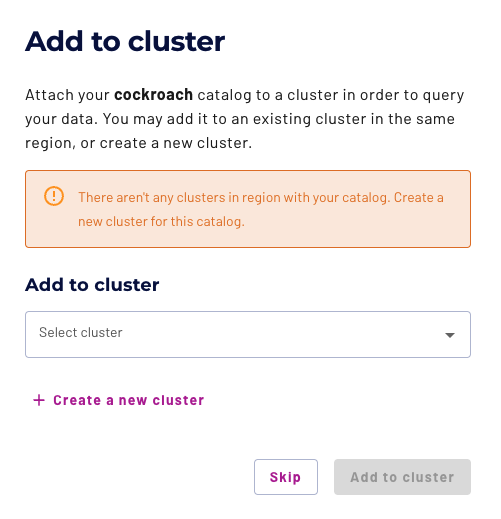
I don't have an existing cluster and will create one
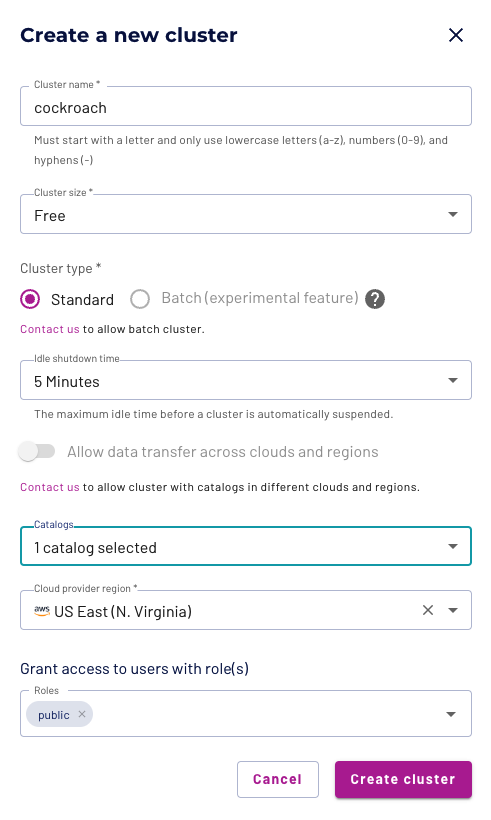
When you click "Add to cluster" you will get a pop up
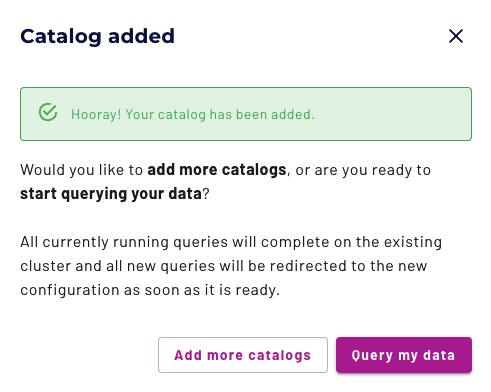
I will click "Query my data" to start browsing my data from within Galaxy
At this point, you may see a spinning wheel. I prefer to filter my criteria and will select a specific schema in the query editor
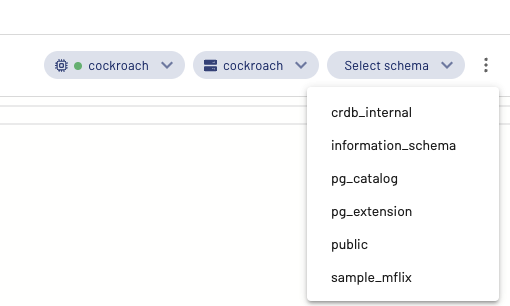
At this point, you can query the data
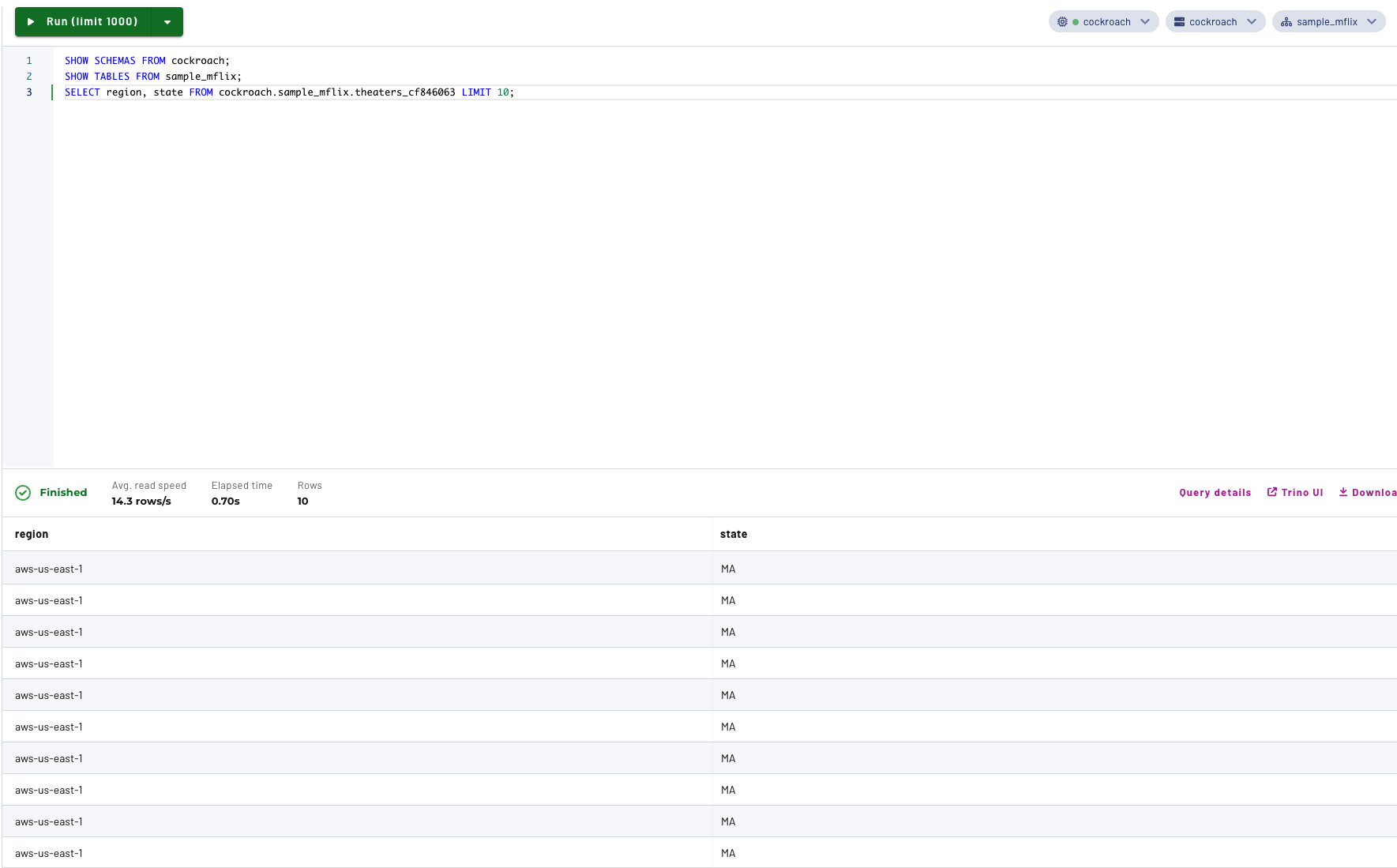
At this point, you can create additional catalogues for each participating region in CockroachDB and have the associated Galaxy endpoint talk with the regional CockroachDB cluster.
Conclusion
In conclusion, I'd like to say this is a fairly straightforward setup except for one hang-up. Galaxy requires CIDR IP Allowlisted database services and it is a hard requirement which disqualifies our CockroachDB Serverless offering as there is currently no IP Allowlisting option available. Hopefully, you will find this tutorial useful.
Published at DZone with permission of Artem Ervits. See the original article here.
Opinions expressed by DZone contributors are their own.
Comments