

Converting Certificate from pfx to cer Format on Windows 10
In this article, we take a look at how to transform a certificate from pfx to cer with Windows 10 with a specific executable.
Join the DZone community and get the full member experience.
Join For FreeProblem to Be Solved and Possible Ways to Solve It
There was a very beautiful and simple-looking problem. And that was to convert a certificate from PFX format to CER format. This is not something I was facing for the first time, many people may already face that challenge to solve it, and I believe they must have already solved it some way. The solution seems that it would be easy and available options to solve it would be like:
- There would be some free tools available online, which can convert these certificates.
- There would be some online utilities that can reduce your burden and convert the certificates for you. (But they may keep your certificate with them, so BE CAREFUL.)
- There may be some open source project containing all the code and you need to set up that and you are ready to rock.
My dear friends, I Googled every possible solution that came into my mind, but nothing worked. Actually, there is an open-source project to do that and you can read about it from https://www.openssl.org/source/. But if you further explore it, you would find that:
- It is mainly designed for UNIX, LINUX, but supports Windows 10 as well.
- You can download the project from the git repo.
- Set up it on your system, with lots of dependencies. (That may consume your full day.)
- Run the utility.
- Convert the certificates.
Easy Solution for Windows 10
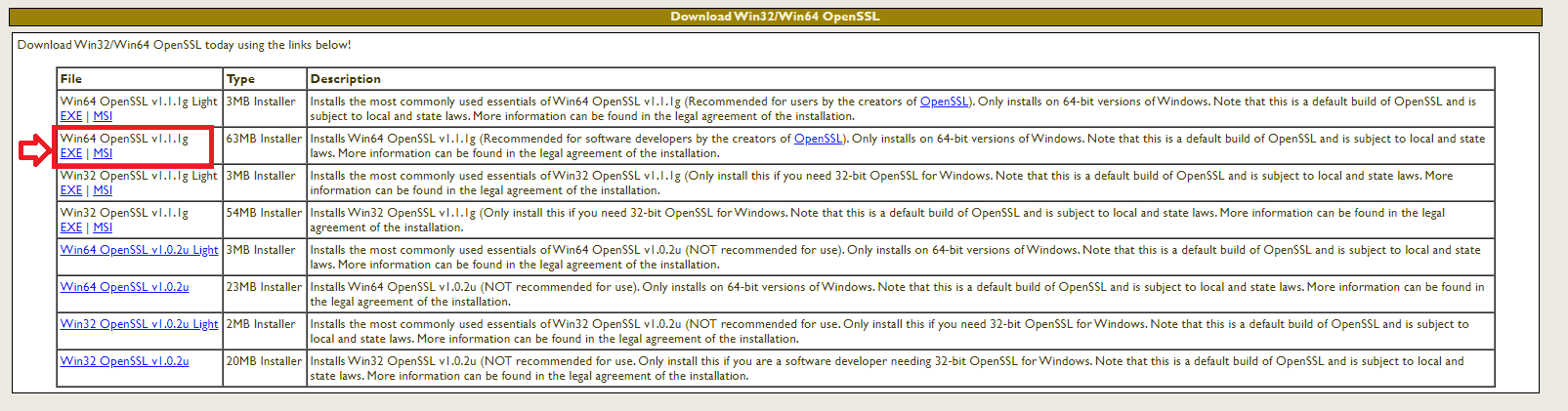
- Download the executable from https://slproweb.com/products/Win32OpenSSL.html
![Windows 10 executable]()
- As I was using 64 bit Windows 10, so I downloaded Win64 OpenSSL v1.1.1g MSI.
- Run the installer.
- When asked, just choose a different location than your system files. I installed it in D drive.
- It will again ask if you want to install the binaries into System folder or in the bin directory, choose bin directory as an option.
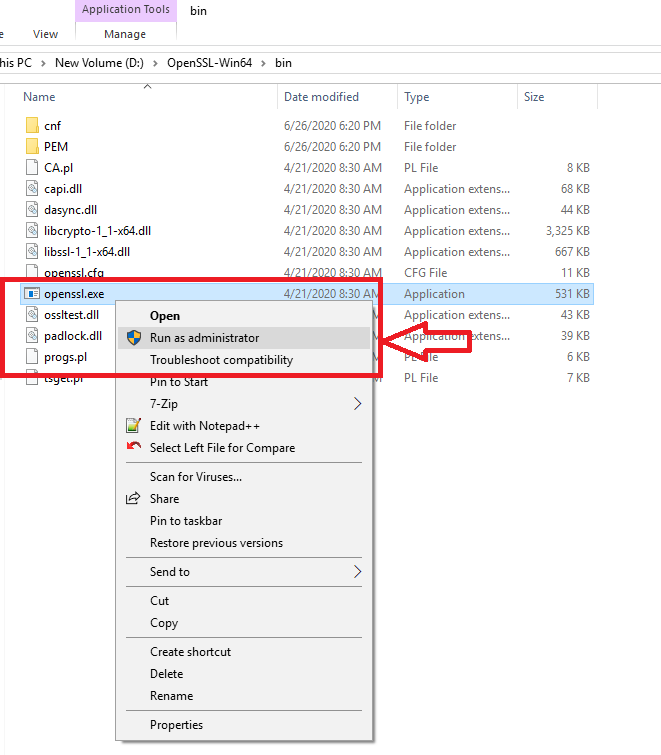
- Once the installation is done, go to the location in your explorer where you have installed the utility and open the bin folder, as shown below.
- There would be a file, named openssl.exe, right-click on it and run it as an Administrator.
![Run as administrator]()
- Now you will see a command prompt kind of window.
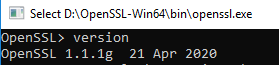
- Run the version command on it to check the version number and to confirm that the utility is working fine
![Run version command]()
- Now run the following command to convert the certificate.
- NOTE: In the below command, the name given in -in parameter ap_keystore_test.pfx is my input certificate name and the name given in -out parameter ap_keystore_test.cer is my desired output certificate name.
-
Shell
xxxxxxxxxx1
1OpenSSL> pkcs12 -in D:\ap_keystore_test.pfx -out D:ap_keystore_test.cer -nodes2Enter Import Password:
- It will ask you to enter the password for your certificate. Enter the password which is set to open your pfx certificate.
- Once done, you will not see any error and you will see the command prompt again.
- This means, your certificate has been successfully converted into cer format.
- You can open the cer file in any of your text editors like Notepad++ and can see the certificates in that.
Congratulations, you did it!
If this article is of some help to you, do like it. If you have any suggestions or comments, do message me, I will try to respond back ASAP.
Opinions expressed by DZone contributors are their own.
Comments